Epson WF 2830 - User Manual

The user manual for the Epson WorkForce WF-2830 or WF-2850 multifunction printer covers essential topics like setup, maintenance, and troubleshooting. Key areas include initial configuration–such as safety procedures, power setup, and basic control-panel adjustments–and practical tasks like ink cartridge installation, paper loading, and wireless/USB connectivity. The guide also addresses common operational challenges, including print quality issues, network errors, and compatibility with mobile devices or voice assistants.


Table of Contents:
- Page 1 – Initial Setup and Safety Precautions
- Page 2 – Ink Cartridge Installation and Quality Adjustment
- Page 3 – Printer Configuration and Connectivity Options
- Page 4 – Troubleshooting and Support Information
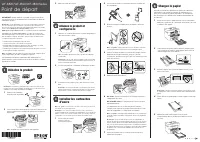
Start Here
6
Lift the scanner unit up slightly and lower it. When
the scanner unit catches, lift it up again and lower it
completely.
7
Follow the on-screen instructions to start charging the ink.
Ink charging takes approximately 6 minutes. When you
see a completion message on the product’s LCD screen,
charging is complete.
Caution:
Don’t turn off the printer or raise the scanner unit while
the printer is charging or you’ll waste ink.
Note:
As part of setup, your product’s serial number will be sent
to a secure Epson server so that you can be eligible to participate
in programs we may offer from time to time, including the Epson
ink replenishment program. You will have a separate opportunity
to consent to participating in such programs.
8
Follow the on-screen instructions to adjust the print
quality of your product.
Note:
• You need to load paper before you can adjust the print quality.
See “Load paper” below for details.
• Select
Adjust Later if you want to adjust the print quality later.
For more information, see the online User’s Guide.
4
Load paper
See the online User’s Guide for information about loading
capacity, available paper types and sizes, and loading
envelopes.
1
Make sure the product is done charging the ink, and then
pull out the rear paper support.
2
Slide the edge guides all the way out.
IMPORTANT: Before using this product, make sure you read
these instructions and the safety instructions in the online User’s
Guide.
Note:
This printer is designed for use with Epson
®
cartridges only, not
third-party cartridges or ink. For important ink information, visit
www.epson.com/epsonink (U.S.) or www.epson.ca/epsonink (Canada)
or see your printer box.
Important Safety Instructions:
When using telephone equipment, you
should always follow basic safety precautions to reduce the risk of fire,
electric shock, and personal injury, including the following:
• Do not use the Epson product near water.
• Always keep this guide handy.
• Avoid using a telephone during an electrical storm. There may be a
remote risk of electric shock from lightning.
• Do not use a telephone to report a gas leak in the vicinity of the leak.
Caution:
To reduce the risk of fire, use only a No. 26 AWG or larger
telecommunication line cord.
1
Unpack
Note:
Do not open the ink cartridge packages until you are ready to
install the ink. Cartridges are vacuum packed to maintain reliability.
1
Remove all protective materials from the product.
2
Lift up the scanner unit until it locks into place and remove
all protective materials from inside the product.
Caution:
Do not touch the flat white cable.
3
Lift the scanner unit up slightly and lower it. When
the scanner unit catches, lift it up again and lower it
completely.
2
Turn on and configure
1
Connect the power cord to the back of the product and to
an electrical outlet.
Caution:
Do not connect to your computer yet.
2
Raise the control panel and turn on the product.
3
Select your language, country, date, and time on the LCD
screen using the buttons on the control panel.
Note:
You can change these settings later using the product’s
control panel. For more information, see the online User’s Guide.
3
Install ink cartridges
Caution:
Keep the ink cartridges out the reach of children and do not
drink the ink.
Note:
The included initial cartridges are designed for reliable printer
setup and cannot be used as replacement cartridges or resold. After
setup, the remaining ink is available for printing.
1
Lift up the scanner unit until it locks into place.
2
Gently shake the Black (BK) ink cartridge.
Note:
Do not shake the other ink cartridges.
3
Unpack the ink cartridges.
4
Remove only the yellow tape from each ink cartridge.
Caution:
Do not touch the circled area on the cartridge. Doing
so may prevent normal operation and printing.
5
Insert the cartridge in the holder for each color. Press each
cartridge down until it clicks. Make sure all cartridges are
pushed down into place.
WF-2830/WF-2850
"Loading the manual" means you need to wait until the file loads and becomes available for online reading. Some manuals are very large, and the time they take to appear depends on your internet speed.
Was this manual helpful?
About this manual
- Brand
- Epson
- Model
- WF 2830
- Document type
- User Manual
- Language(s)
- English
- Pages
- 4
- File size
- 1.6 MB
- Format
Summary
Instructions for initial setup, including unpacking the printer, connecting power, and configuring basic settings like language and date via the control panel.
Step-by-step procedures for installing ink cartridges and loading paper, including handling scanner units, removing protective materials, and safety notes regarding ink charging and print quality adjustments.
Instructions for setting up the printer, connecting fax lines, installing software, and configuring wireless or USB connections, along with mobile and voice-activated printing methods.
Ask a question
Related manuals
Popular Epson Other
 Epson PictureMate Flash - PM 280 - PictureMate Flash Compact Photo Printer User Manual
 Epson TM-T70II Troubleshooting Guide
 Epson U925 - TM B/W Dot-matrix Printer User Manual
 Epson RR 70W User Manual
 Epson 9890 Manual
 Epson 206636 - PocketJet 3 Plus User Manual
 Epson Printer TM-H5000II User Manual
 Epson TM-T88V User Manual