Epson WF-7610 - Quick Guide

Epson WF-7610 – Quick Guide, read for free online in PDF format. We hope this helps you resolve any issues you may have. If you have further questions, please contact us through the contact form.


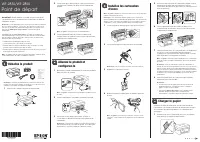
Start Here
Read these instructions before using your product. The illustrations show the WF-7620, but the steps
are the same for the WF-7610.
Note for Spanish speakers/Nota para hispanohablantes:
Para obtener instrucciones de
confi guración en español, consulte la
Guía de instalación
en
epson.com/support/wf7610sp
o
epson.com/support/wf7620sp
(requiere una conexión a Internet).
EPSON and DURABrite are registered trademarks, Epson Connect is a trademark, and EPSON Exceed Your Vision is a registered
logomark of Seiko Epson Corporation. Designed for Excellence is a trademark of Epson America, Inc.
Mac OS is a trademark of Apple Inc., registered in the U.S. and other countries.
General Notice: Other product names used herein are for identifi cation purposes only and may be trademarks of their respective owners.
Epson disclaims any and all rights in those marks.
This information is subject to change without notice.
© 2013 Epson America, Inc., 7/13
Printed in XXXXXX
CPD-39377
1
2
3
Unpack
Turn on and confi gure
4
Load paper
Install ink cartridges
*412520400*
*412520400*
Setup is unable to find my printer after connecting it with a USB cable.
Make sure it is securely connected as shown:
Any questions?
Quick Guide
Basic information and troubleshooting.
User’s Guide
Click the icon on your desktop (or in the
Applications/Epson Software/Guide
folder
in Mac OS X) to access the online
User’s Guide
.
Technical support
epson.com/support
(U.S.) or
epson.ca/support
(Canada)
(562) 276-4382 (US) or (905) 709-3839 (Canada), 6
AM
to 8
PM
, Pacifi c Time, Monday
through Friday, and 7
AM
to 4
PM
, Pacifi c Time, Saturday. Days and hours of support
are subject to change without notice. Toll or long distance charges may apply.
Recycling
Epson offers a recycling program for end of life hardware and ink cartridges. Please
go to
epson.com/recycle
for information on how to return your products for proper
disposal.
Need paper and ink?
Try Epson
®
specialty papers with DURABrite
®
Ultra Ink
for professional results. You can purchase them at
epson.com/ink3
(U.S. sales) or
epson.ca
(Canadian sales).
You can also purchase supplies from an Epson authorized
reseller. Call 800-GO-EPSON (800-463-7766).
WF-7610/WF-7620 ink cartridges
Color
Standard-capacity
High-capacity
Extra High-capacity
Black
252
252XL
254XL
Cyan
252
252XL
–––
Magenta
252
252XL
–––
Yellow
252
252XL
–––
Select your language, country, date, and time.
Note:
You can change these settings later using the product’s
control panel. For more information, see the online
User’s Guide
.
WF-7610/WF-7620
5
Connect the fax line
1
Connect the phone cord to a telephone wall
jack and to the
LINE
port on your product. See
the online
User’s Guide
for more information.
2
Press
Start
if you want to set up the fax, or
press
Close
to set it up later.
6
Install software
Using the CD
1
Make sure the printer is
NOT CONNECTED
to your
computer.
Windows
®
:
If you see a Found New Hardware screen, click
Cancel
and disconnect the USB cable.
2
Insert the product CD and follow the instructions on the
screen to run the setup program.
Mac OS X:
Make sure you install Software Updater; internet connection required.
3
When you see the Select Your Connection screen, select one of the following:
• Wireless
connection
If you’re using Mac OS X 10.6 or later, you will need to use the buttons on the
printer to select wireless settings.
Make sure you know your network name (SSID) and network password.
•
Direct USB connection
Make sure you have a USB cable (not included).
•
Wired network connection
Make sure you have an Ethernet cable (not included).
No CD/DVD drive
Download the software:
WF-7610 WF-7620
Windows: Windows:
epson.com/support/wf7610win epson.com/support/wf7620win
Mac OS X:
Mac OS X:
epson.com/support/wf7610mac epson.com/support/wf7620mac
Mobile printing
Your product must be set up for wireless printing or Wi-Fi Direct. See the online
User’s
Guide
for instructions.
iOS/Android™
epson.com/iPrint
Epson Connect™
Connect wirelessly from your tablet, smartphone, or computer. Print documents and
photos from across the room or around the world.
epson.com/connect
Any problems?
Network setup was unsuccessful.
•
Make sure you select the right network name (SSID).
•
If you see a fi rewall alert message, click
Unblock
or
Allow
to let setup continue.
•
If your network has security enabled, make sure you enter your network password
(WEP key or WPA passphrase) correctly. Password must be entered in the correct
case.
The printer’s screen is dark.
Press any button to wake your product from sleep mode.
Note:
Do not open ink cartridge packages until you are
ready to install the ink. Cartridges are vacuum packed
to maintain reliability.
French control
panel stickers
Note:
The cartridges included with the
printer are designed for printer set up and
not for resale. After some ink is used for
priming, the rest is available for printing.
Caution:
Don’t turn off the printer while it
is priming or you’ll waste ink.
Caution:
Do not connect to your computer yet.
Select the paper settings on the
product’s control panel.
4125204 Rev.0
1-F
C
4125204 Rev.0
1-F
M
4125204 Rev.0
1-F
Y
4125204 Rev.0
1-F
K
"Loading the manual" means you need to wait until the file loads and becomes available for online reading. Some manuals are very large, and the time they take to appear depends on your internet speed.
Was this manual helpful?
Helpful for 3 of 3 readers
About this manual
- Brand
- Epson
- Model
- WF-7610
- Document type
- Quick Guide
- Language(s)
- English, French
- Pages
- 4
- File size
- 5.2 MB
- Format
Other Manuals for Epson WF-7610
Ask a question
Related manuals
Popular Epson Other
 Epson PictureMate Flash - PM 280 - PictureMate Flash Compact Photo Printer User Manual
 Epson TM-T70II Troubleshooting Guide
 Epson U925 - TM B/W Dot-matrix Printer User Manual
 Epson RR 70W User Manual
 Epson 9890 Manual
 Epson 206636 - PocketJet 3 Plus User Manual
 Epson Printer TM-H5000II User Manual
 Epson TM-T88V User Manual