Page 3 - Features; Óñòðàíåíèå íåïîëàäîê
3 Thank you for purchasing our product. Please go through this manual carefully before connection and operation. Please keep thismanual for future reference. DVD player is a new generation home player which can produce high quality video and audio. Its performance is much better thanthat of any prev...
Page 4 - IMPORTANT NOTES; For Your Attention; Âîñïðîèçâåäåíèå
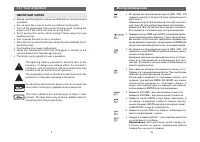
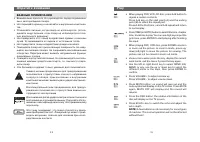
4 IMPORTANT NOTES • Please read through the manual carefully before connection andoperation. • Do not open the cover or touch any internal components. • Turn off the power when the unit is not being used. (Unplug thepower cord if the unit is not used for a long time). • Don’t expose this unit to dir...
Page 5 - A C C E S S O R I E S; Accessories; REMOTE CONTROLLER OPERATION; Disc types
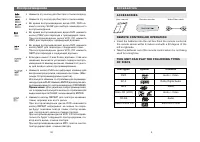
5 A C C E S S O R I E S Accessories REMOTE CONTROLLER OPERATION • Insert the batteries into the cell box.Point the remote control atthe remote sensor within 8 meters and with a 30 degree of theleft or right side. • Take the batteries out of the remote control when it is not beingused for a long time...
Page 6 - COMPOSITE VIDEO; Video Setup; System; Connection
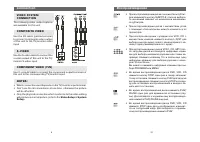
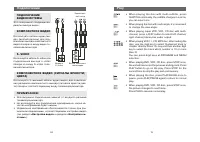
6 VIDEO SYSTEMCONNECTION The following video output optionsare available for this unit. COMPOSITE VIDEO Use the AV cable (yellow terminal)to connect composite video outputof this unit to the TV/monitor videoinput S - V I D E O Use the S-video cable to connect thes-video output of this unit to the TV...
Page 7 - SYSTEM SETUP; TV SYSTEM; System setup; ÎÑÍÎÂÍÛÅ ÎÏÅÐÀÖÈÈ
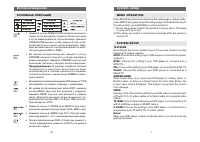
7 MENU OPERATION: Press SETUP key, the screen will show the setup page. In setup mode,press SETUP key again to quit the setup page. Press direction key tothe desired item, press ENTER to confirm selection.(1) Some setup items relate to the present mod you are in. The items in gray can't be set up. (...
Page 8 - ÖÈÔÐÎÂÀß ÍÀÑÒÐÎÉÊÀ; Íàñòðîéêà ñèñòåìû
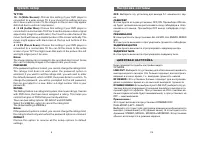
8 TV TYPE16 : 9 (Wide Screen): Choose this setting if your DVD player is connected to a wide screen TV. If you choose this setting and youdon’t have a wide screen TV, the images on the screen may appeardistorted due to vertical compression. 4 : 3 LB (Letter Box): Choose this setting if your DVD play...
Page 9 - ÍÀÑÒÐÎÉÊÀ ÂÈÄÅÎ
9 LANGUAGE SETUP Highlight the OSD LANGUAGE option, and press the Arrow buttons tochoose the OSD language you prefer. Press Enter to confirm.Highlight the AUDIO LANG option, and press the Arrow buttons tochoose the audio language you prefer. Press Enter to confirm.Highlight the SUBTITLE LANG option,...
Page 10 - Í À Ñ Ò Ð Î É Ê À ß Ç Û Ê À
10 MIC SETUP There are two MIC settings in the MIC SETUP option: AUTO and OFF.When selecting AUTO, the player will auto detect and deal with theinput voice. When selecting OFF, the player will do nothing with theMIC input. ECHO Use the Up and Down arrow button to move the scroll and adjust theecho. ...
Page 11 - DIGITAL SETUP
11 VSS: Choose this setting, when a disc recorded with 5.1-channel sound format playing, the fictitious surround soundtracks effect willbe heard from the main soundtrack. OFF: Choose this setting to output the 5.1-channel sound. SUBWOOFER There are two settings in this option: OFF / ON. When ON is c...
Page 12 - BASIC OPERATION; Play; ÍÀÑÒÐÎÉÊÀ ÑÈÑÒÅÌÛ; ÒÅËÅÂÈÇÈÎÍÍÀß ÑÈÑÒÅÌÀ
1 2 BASIC OPERATION Play • Press OPEN/CLOSE button when power on, thedisc tray is pushed out. Put the disc on the tray withthe title faced up. Press OPEN/CLOSE again toc l o s e t h e d i s c t r a y a n d t h e u n i t s t a r t s p l a y i n gautomatically. (Without auto-play function for mp3and J...
Page 13 - ÊÎÌÏÎÇÈÒÍÎÅ ÂÈÄÅÎ; «Íàñòðîéêà âèäåî»; ñòåìû»; Ïîäêëþ÷åíèå
13 • When playing the disc with multi-subtitle, pressSUBTITLE continually, the subtitle changes in a circle,you can select one. • When playing the disc with multi-angle, it’s convenientto change the view angle. • When playing super VCD, VCD, CD disc with multi-channel, press L/R/ST button to select ...
Page 14 - Òèïû äèñêîâ; Àêñåññóàðû; À Ê Ñ Å Ñ Ñ Ó À Ð Û
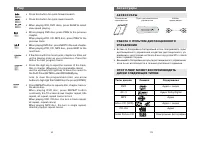
14 • Press this button for quick forward search • Press this button for quick rewind search • When playing VCD, DVD discs, press SLOW to selectslow speed playing. • W hen playing DVD disc, press PREV to the previouschapter.When playing VCD, CD, MP3 disc, press PREV to theprevious track. • When playi...
Page 15 - ÂÀÆÍÛÅ ÏÐÈÌÅ×ÀÍÈß; Îáðàòèòå âíèìàíèå
15 • When playing DVD, VCD, CD disc, press A-B button torepeat a certain contents.Press A-B key on the start point (A) and the endingpoint (B) to select the repeat part.Press A-B the third time, cancel A-B repeat and returnto normal play. • Press TIME (or GOTO) button to select title time, chapterti...
Page 16 - Troubleshooting
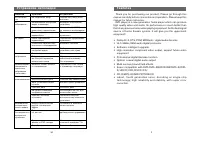
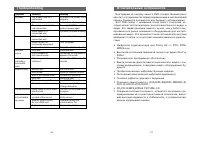
16 Symptom Cause(s) Remedy No power The power cord isn’t Connect the power cord connected properly No picture TV video setup isn’t correct Select the suitable setupThe setup mismatch the Press [V-MODE] until the real connection picture appear again Video cable isn’t Connect the cable properly connec...
Page 18 - MADE IN CHINA; Ðóêîâîäñòâî ïîëüçîâàòåëÿ
GUANGZHOU PANYU JUDA CAR AUDIO EQUIPMENTCO. LTD.Address: 10-12 Building, Licum Industrial IndustrialZone, Dashi Town, Panyu, Guangzhou, China. MADE IN CHINA Ðóêîâîäñòâî ïîëüçîâàòåëÿ DVD-ÏËÅÅÐ Mîäåëü DVDP-2405