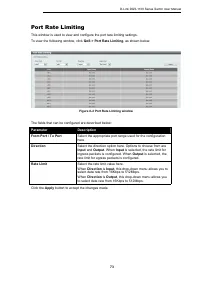
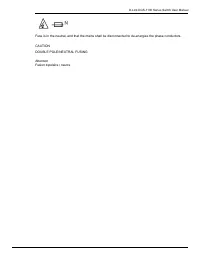
Page 2 - trade names other than its own.; This Class A digital apparatus complies with Canadian ICES-003.; この装置は、クラス; Japan Voluntary Control Council for Interference Statement; 警告使用者; 此為甲
DGS-1100 Series Switch Web UI Reference Guide ii Information in this document is subject to change without notice.© 2020 D-Link Corporation. All rights reserved. Reproduction in any manner whatsoever without the written permission of D-Link Corporation is strictly forbidden. Trademarks used in this ...
Page 14 - Audience; Conventions
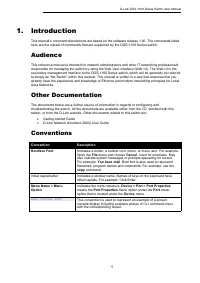
D-Link DGS-1100 Series Switch User Manual 1 1. Introduction This manual’s command descriptions are based on the software release 1.00. The commands listed here are the subset of commands that are supported by the DGS-1100 Series switch. Audience This reference manual is intended for network administ...
Page 16 - Product Introduction; Front Panel
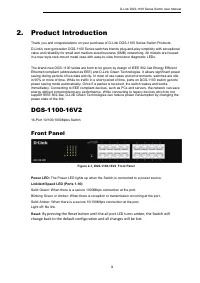
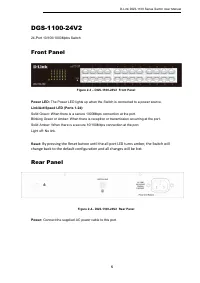
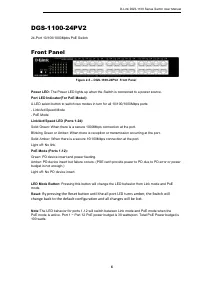
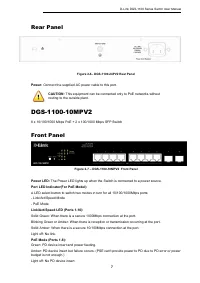
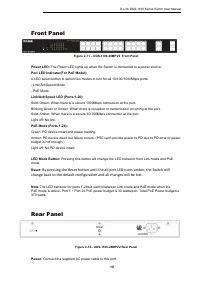
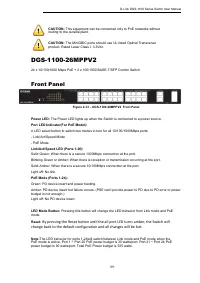
D-Link DGS-1100 Series Switch User Manual 3 2. Product Introduction Thank you and congratulations on your purchase of D-Link DGS-1100 Series Switch Products.D-Link's next generation DGS-1100 Series switches blends plug-and-play simplicity with exceptional value and reliability for small and medium-s...
Page 17 - Rear Panel
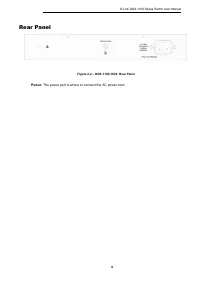
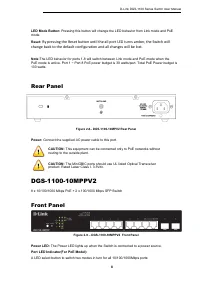
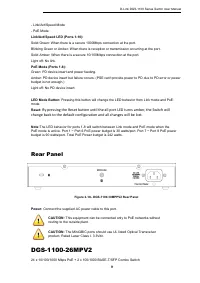
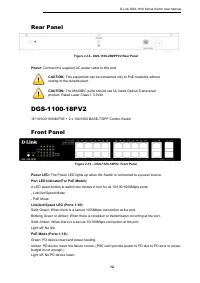
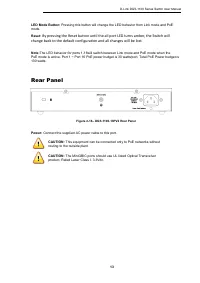
D-Link DGS-1100 Series Switch User Manual 4 Rear Panel Figure 2-2 – DGS-1100-16V2 Rear Panel Power: The power port is where to connect the AC power cord.
Page 27 - Hardware Installation; Step2: Switch Installation; Desktop or Shelf Installation
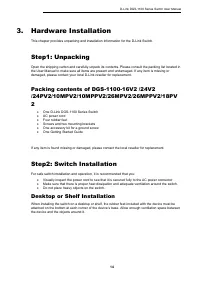
D-Link DGS-1100 Series Switch User Manual 14 3. Hardware Installation This chapter provides unpacking and installation information for the D-Link Switch. Step1: Unpacking Open the shipping carton and carefully unpack its contents. Please consult the packing list located in the User Manual to make su...
Page 28 - Rack Installation
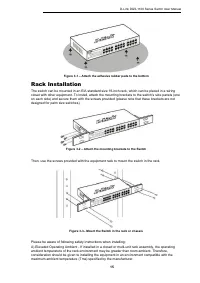
D-Link DGS-1100 Series Switch User Manual 15 Figure 3-1 – Attach the adhesive rubber pads to the bottom Rack Installation The switch can be mounted in an EIA standard size 19-inch rack, which can be placed in a wiring closet with other equipment. To install, attach the mounting brackets to the switc...
Page 29 - Step 3 – Plugging in the AC Power Cord; Power Failure; Grounding the Switch
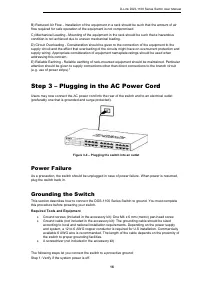
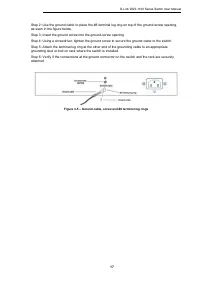
D-Link DGS-1100 Series Switch User Manual 16 B) Reduced Air Flow - Installation of the equipment in a rack should be such that the amount of air flow required for safe operation of the equipment is not compromised.C) Mechanical Loading - Mounting of the equipment in the rack should be such that a ha...
Page 31 - Management Options; Connecting using the Web User Interface
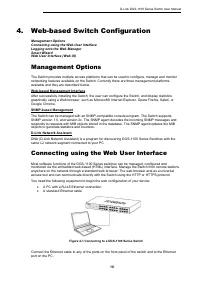
D-Link DGS-1100 Series Switch User Manual 18 4. Web-based Switch Configuration Management Options Connecting using the Web User Interface Logging onto the Web Manager Smart Wizard Web User Interface (Web UI) Management Options The Switch provides multiple access platforms that can be used to configu...
Page 32 - Logging onto the Web Manager
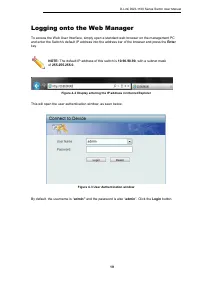
D-Link DGS-1100 Series Switch User Manual 19 Logging onto the Web Manager To access the Web User Interface, simply open a standard web browser on the management PC and enter the Switch’s default IP address into the address bar of the browser and press the Enter key. NOTE: The default IP address of t...
Page 33 - Smart Wizard
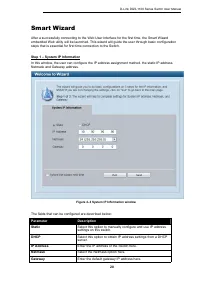
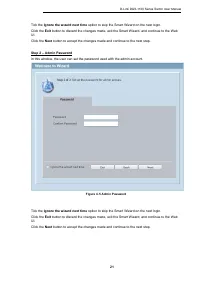
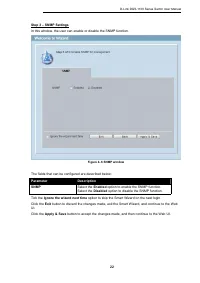
D-Link DGS-1100 Series Switch User Manual 20 Smart Wizard After a successfully connecting to the Web User Interface for the first time, the Smart Wizard embedded Web utility will be launched. This wizard will guide the user through basic configuration steps that is essential for first time connectio...
Page 36 - Areas of the User Interface
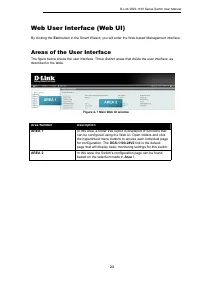
D-Link DGS-1100 Series Switch User Manual 23 Web User Interface (Web UI) By clicking the Exit button in the Smart Wizard, you will enter the Web-based Management interface. Areas of the User Interface The figure below shows the user interface. Three distinct areas that divide the user interface, as ...
Page 37 - Device Information
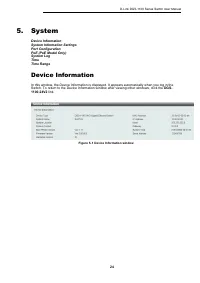
D-Link DGS-1100 Series Switch User Manual 24 5. System Device Information System Information Settings Port Configuration PoE (PoE Model Only) System Log Time Time Range Device Information In this window, the Device Information is displayed. It appears automatically when you log in the Switch. To ret...
Page 38 - System Information Settings; System Information; IPv4 Interface
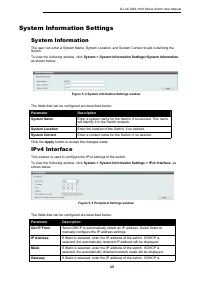
D-Link DGS-1100 Series Switch User Manual 25 System Information Settings System Information The user can enter a System Name, System Location, and System Contact to aid in defining the Switch.To view the following window, click System > System Information Settings>System Information , as shown...
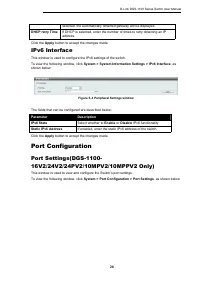
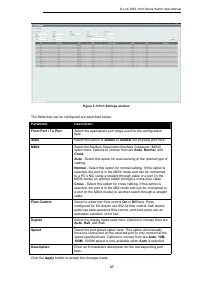
Page 39 - IPv6 Interface; Port Configuration
D-Link DGS-1100 Series Switch User Manual 26 selected, the automatically obtained gateway will be displayed. DHCP retry Time If DHCP is selected, enter the number of times to retry obtaining an IP address. Click the Apply button to accept the changes made. IPv6 Interface This window is used to confi...
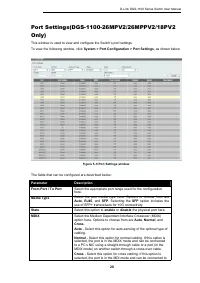
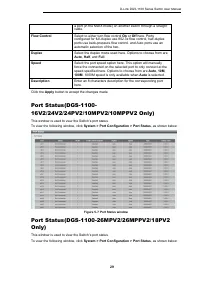
Page 43 - Jumbo Frame
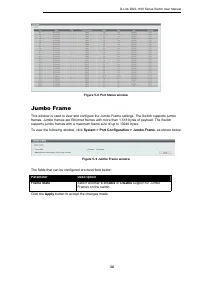
D-Link DGS-1100 Series Switch User Manual 30 Figure 5- 8 Port Status window Jumbo Frame This window is used to view and configure the Jumbo Frame settings. The Switch supports jumbo frames. Jumbo frames are Ethernet frames with more than 1,518 bytes of payload. The Switch supports jumbo frames with ...
Page 44 - PoE System
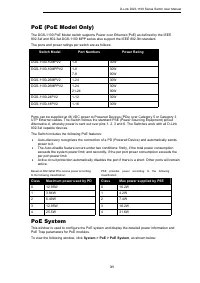
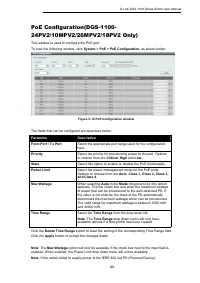
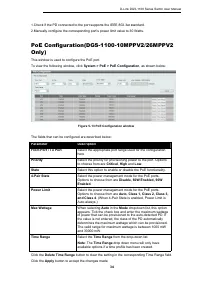
D-Link DGS-1100 Series Switch User Manual 31 PoE (PoE Model Only) The DGS-1100 PoE Model switch supports Power over Ethernet (PoE) as defined by the IEEE 802.3af and 802.3at.DGS-1100 MPP series also support the IEEE 802.3bt standard.The ports and power ratings per switch are as follows: Switch Model...
Page 45 - PoE Status
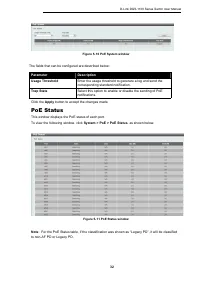
D-Link DGS-1100 Series Switch User Manual 32 Figure 5- 10 PoE System window The fields that can be configured are described below: Parameter Description Usage Threshold Enter the usage threshold to generate a log and send the corresponding standard notification. Trap State Select this option to enab...
Page 49 - PD Alive
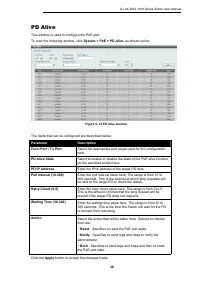
D-Link DGS-1100 Series Switch User Manual 36 PD Alive This window is used to configure the PoE port.To view the following window, click System > PoE > PD Alive , as shown below: Figure 5- 14 PD Alive window The fields that can be configured are described below: Parameter Description From Port ...
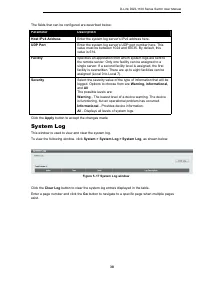
Page 50 - System Log; System Log Settings; System Log Server Settings
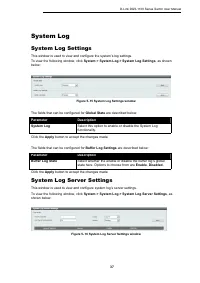
D-Link DGS-1100 Series Switch User Manual 37 System Log System Log Settings This window is used to view and configure the system’s log settings.To view the following window, click System > System Log > System Log Settings , as shown below: Figure 5- 15 System Log Settings window The fields tha...
Page 52 - Time; Clock Settings; Time Zone Settings
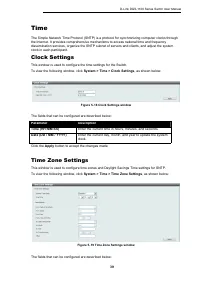
D-Link DGS-1100 Series Switch User Manual 39 Time The Simple Network Time Protocol (SNTP) is a protocol for synchronizing computer clocks through the Internet. It provides comprehensive mechanisms to access national time and frequency dissemination services, organize the SNTP subnet of servers and c...
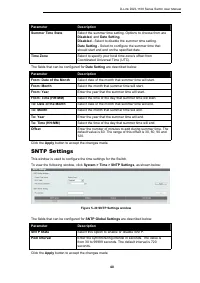
Page 53 - SNTP Settings
D-Link DGS-1100 Series Switch User Manual 40 Parameter Description Summer Time State Select the summer time setting. Options to choose from are Disabled , and Date Setting . Disabled - Select to disable the summer time setting. Date Setting - Select to configure the summer time that should start and...
Page 54 - Time Range
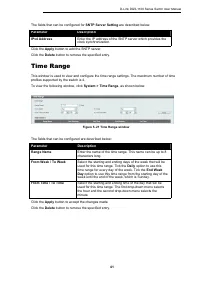
D-Link DGS-1100 Series Switch User Manual 41 The fields that can be configured for SNTP Server Setting are described below: Parameter Description IPv4 Address Enter the IP address of the SNTP server which provides the clock synchronization. Click the Apply button to add the SNTP server. Click the De...
Page 55 - User Account Settings
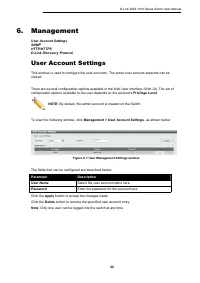
D-Link DGS-1100 Series Switch User Manual 42 6. Management User Account Settings SNMP HTTP/HTTPS D-Link Discovery Protocol User Account Settings This window is used to configure the user accounts. The active user account sessions can be viewed. There are several configuration options available in th...
Page 56 - SNMP
D-Link DGS-1100 Series Switch User Manual 43 SNMP Simple Network Management Protocol (SNMP) is an OSI Layer 7 (Application Layer) designed specifically for managing and monitoring network devices. SNMP enables network management stations to read and modify the settings of gateways, routers, switches...
Page 57 - SNMP Global Settings; SNMP Community Table Settings
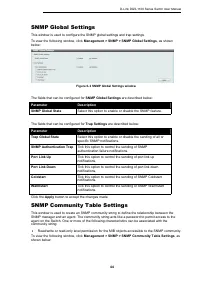
D-Link DGS-1100 Series Switch User Manual 44 SNMP Global Settings This window is used to configure the SNMP global settings and trap settings.To view the following window, click Management > SNMP > SNMP Global Settings , as shown below: Figure 6- 2 SNMP Global Settings window The fields that c...
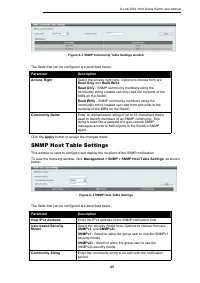
Page 58 - SNMP Host Table Settings
D-Link DGS-1100 Series Switch User Manual 45 Figure 6- 3 SNMP Community Table Settings window The fields that can be configured are described below: Parameter Description Access Right Select the access right here. Options to choose from are Read Only and Read Write . Read Only - SNMP community membe...
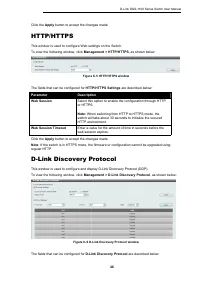
Page 59 - D-Link Discovery Protocol
D-Link DGS-1100 Series Switch User Manual 46 Click the Apply button to accept the changes made. HTTP/HTTPS This window is used to configure Web settings on the Switch.To view the following window, click Management > HTTP/HTTPS , as shown below: Figure 6- 5 HTTP/HTTPS window The fields that can be...
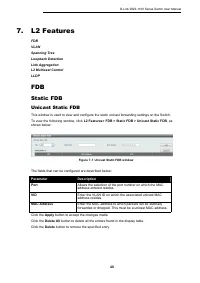
Page 61 - FDB; Static FDB; Unicast Static FDB
D-Link DGS-1100 Series Switch User Manual 48 7. L2 Features FDB VLAN Spanning TreeLoopback DetectionLink AggregationL2 Multicast ControlLLDP FDB Static FDB Unicast Static FDB This window is used to view and configure the static unicast forwarding settings on the Switch.To view the following window, ...
Page 62 - Multicast Static FDB; MAC Address Table Settings
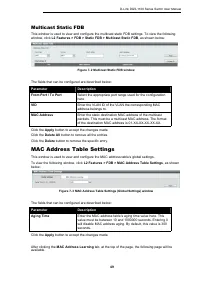
D-Link DGS-1100 Series Switch User Manual 49 Multicast Static FDB This window is used to view and configure the multicast static FDB settings. To view the following window, click L2 Features > FDB > Static FDB > Multicast Static FDB , as shown below: Figure 7- 2 Multicast Static FDB window ...
Page 63 - MAC Address Table
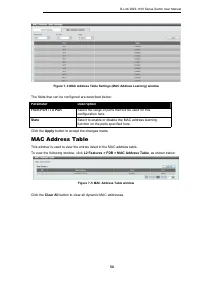
D-Link DGS-1100 Series Switch User Manual 50 Figure 7- 4 MAC Address Table Settings (MAC Address Learning) window The fields that can be configured are described below: Parameter Description From Port / To Port Select the range of ports that will be used for this configuration here. State Select to ...
Page 64 - VLAN; VLAN Configuration Wizard
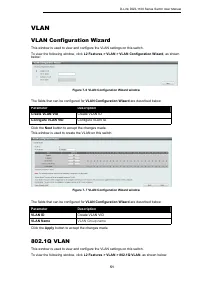
D-Link DGS-1100 Series Switch User Manual 51 VLAN VLAN Configuration Wizard This window is used to view and configure the VLAN settings on this switch.To view the following window, click L2 Features > VLAN > VLAN Configuration Wizard , as shown below: Figure 7- 6 VLAN Configuration Wizard wind...
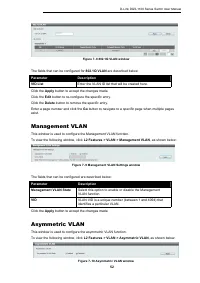
Page 65 - Management VLAN; Asymmetric VLAN
D-Link DGS-1100 Series Switch User Manual 52 Figure 7- 8 802.1Q VLAN window The fields that can be configured for 802.1Q VLAN are described below: Parameter Description VID List Enter the VLAN ID list that will be created here. Click the Apply button to accept the changes made. Click the Edit button...
Page 66 - VLAN Interface
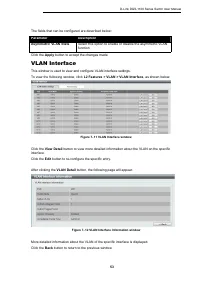
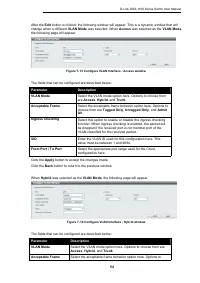
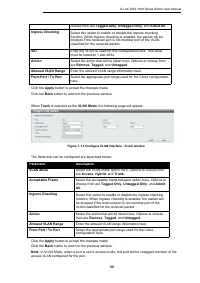
D-Link DGS-1100 Series Switch User Manual 53 The fields that can be configured are described below: Parameter Description Asymmetric VLAN State Select this option to enable or disable the asymmetric VLAN function Click the Apply button to accept the changes made. VLAN Interface This window is used t...
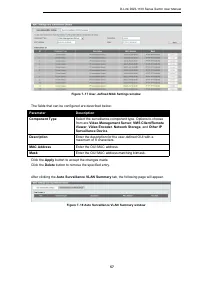
Page 69 - Auto Surveillance VLAN; Auto Surveillance Properties; MAC Settings and Surveillance Device
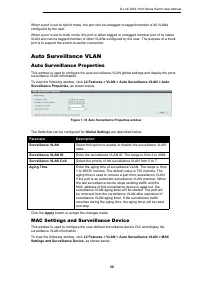
D-Link DGS-1100 Series Switch User Manual 56 When a port is set to hybrid mode, the port can be untagged or tagged member of all VLANs configured by the user.When a port is set to trunk mode, this port is either tagged or untagged member port of its native VLAN and can be tagged member of other VLAN...
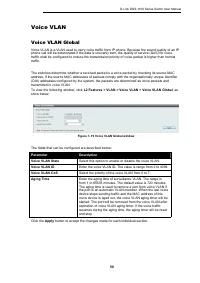
Page 71 - Voice VLAN; Voice VLAN Global
D-Link DGS-1100 Series Switch User Manual 58 Voice VLAN Voice VLAN Global Voice VLAN is a VLAN used to carry voice traffic from IP phone. Because the sound quality of an IP phone call will be deteriorated if the data is unevenly sent, the quality of service (QoS) for voice traffic shall be configure...
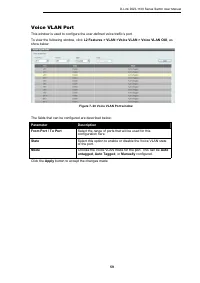
Page 72 - Voice VLAN Port
D-Link DGS-1100 Series Switch User Manual 59 Voice VLAN Port This window is used to configure the user-defined voice traffic’s port.To view the following window, click L2 Features > VLAN >Voice VLAN > Voice VLAN OUI , as show below: Figure 7- 20 Voice VLAN Port window The fields that can be...
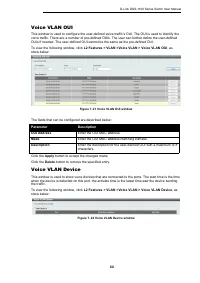
Page 73 - Voice VLAN OUI; Voice VLAN Device
D-Link DGS-1100 Series Switch User Manual 60 Voice VLAN OUI This window is used to configure the user-defined voice traffic’s OUI. The OUI is used to identify the voice traffic. There are a number of pre-defined OUIs. The user can further define the user-defined OUIs if needed. The user-defined OUI ...
Page 74 - Spanning Tree
D-Link DGS-1100 Series Switch User Manual 61 Spanning Tree This Switch supports two versions of the Spanning Tree Protocol: 802.1D-1998 STP, 802.1D-2004 Rapid STP. 802.1D-1998 STP will be familiar to most networking professionals. However, since 802.1D-2004 RSTP has been recently introduced to DGS-1...
Page 75 - STP Global Settings; STP Port Settings
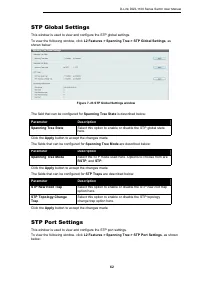
D-Link DGS-1100 Series Switch User Manual 62 STP Global Settings This window is used to view and configure the STP global settings.To view the following window, click L2 Features > Spanning Tree > STP Global Settings , as shown below: Figure 7- 23 STP Global Settings window The field that can ...
Page 76 - Loopback Detection
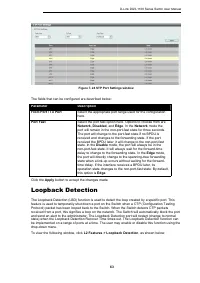
D-Link DGS-1100 Series Switch User Manual 63 Figure 7- 24 STP Port Settings window The fields that can be configured are described below: Parameter Description From Port / To Port Select the appropriate port range used for the configuration here. Port Fast Select the port fast option here. Options t...
Page 78 - Link Aggregation
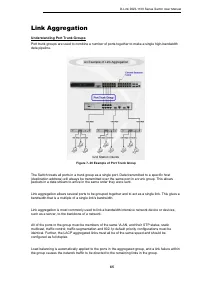
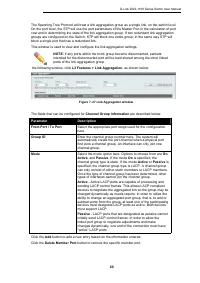
D-Link DGS-1100 Series Switch User Manual 65 Link Aggregation Understanding Port Trunk Groups Port trunk groups are used to combine a number of ports together to make a single high-bandwidth data pipeline. Figure 7- 26 Example of Port Trunk Group The Switch treats all ports in a trunk group as a sin...
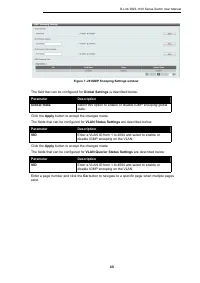
Page 80 - L2 Multicast Control; IGMP Snooping; IGMP Snooping Settings
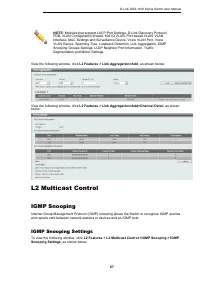
D-Link DGS-1100 Series Switch User Manual 67 View the following window, click L2 Features > Link Aggregation>Add , as shown below: View the following window, click L2 Features > Link Aggregation>Add>Channel Detail , as shown below: L2 Multicast Control IGMP Snooping Internet Group Man...
Page 82 - IGMP Snooping Groups Settings
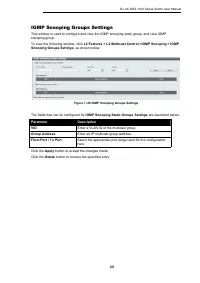
D-Link DGS-1100 Series Switch User Manual 69 IGMP Snooping Groups Settings This window is used to configure and view the IGMP snooping static group, and view IGMP snooping group.To view the following window, click L2 Features > L2 Multicast Control >IGMP Snooping > IGMP Snooping Groups Sett...
Page 83 - Multicast Filtering
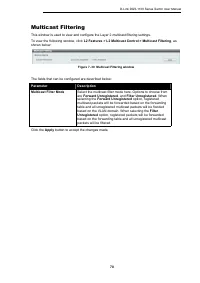
D-Link DGS-1100 Series Switch User Manual 70 Multicast Filtering This window is used to view and configure the Layer 2 multicast filtering settings.To view the following window, click L2 Features > L2 Multicast Control > Multicast Filtering , as shown below: Figure 7- 30 Multicast Filtering wi...
Page 84 - LLDP; LLDP Global Settings; LLDP Neighbor Port Information
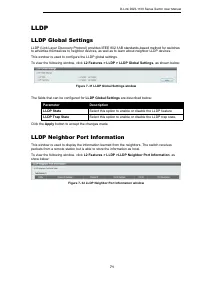
D-Link DGS-1100 Series Switch User Manual 71 LLDP LLDP Global Settings LLDP (Link Layer Discovery Protocol) provides IEEE 802.1AB standards-based method for switches to advertise themselves to neighbor devices, as well as to learn about neighbor LLDP devices.This window is used to configure the LLDP...
Page 87 - Traffic Segmentation
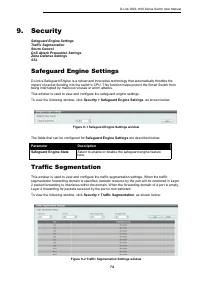
D-Link DGS-1100 Series Switch User Manual 74 9. Security Safeguard Engine Settings Traffic Segmentation Storm Control DoS Attack Prevention Settings Zone Defense Settings SSL Safeguard Engine Settings D-Link’s Safeguard Engine is a robust and innovative technology that automatically throttles the im...
Page 88 - Storm Control
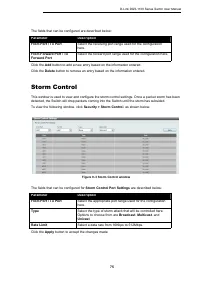
D-Link DGS-1100 Series Switch User Manual 75 The fields that can be configured are described below: Parameter Description From Port / To Port Select the receiving port range used for the configuration here. From Forward Port / To Forward Port Select the forward port range used for the configuration ...
Page 89 - DoS Attack Prevention Settings
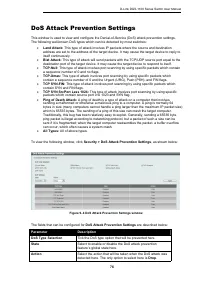
D-Link DGS-1100 Series Switch User Manual 76 DoS Attack Prevention Settings This window is used to view and configure the Denial-of-Service (DoS) attack prevention settings. The following well-known DoS types which can be detected by most switches: Land Attack: This type of attack involves IP pack...
Page 90 - Zone Defense Settings; SSL; SSL Global Settings
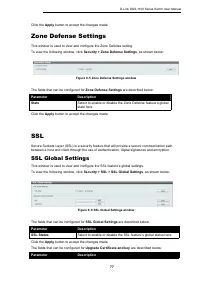
D-Link DGS-1100 Series Switch User Manual 77 Click the Apply button to accept the changes made. Zone Defense Settings This window is used to view and configure the Zone Defense setting.To view the following window, click Security > Zone Defense Settings , as shown below: Figure 9- 5 Zone Defense ...
Page 92 - Cable Diagnostics
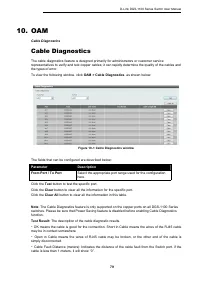
D-Link DGS-1100 Series Switch User Manual 79 10. OAM Cable Diagnostics Cable Diagnostics The cable diagnostics feature is designed primarily for administrators or customer service representatives to verify and test copper cables; it can rapidly determine the quality of the cables and the types of er...
Page 94 - Statistics; Port Counters
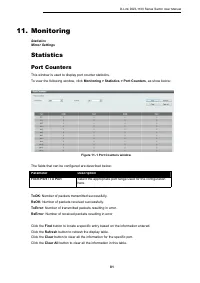
D-Link DGS-1100 Series Switch User Manual 81 11. Monitoring Statistics Mirror Settings Statistics Port Counters This window is used to display port counter statistics.To view the following window, click Monitoring > Statistics > Port Counters , as show below: Figure 11- 1 Port Counters window ...
Page 95 - Mirror Settings
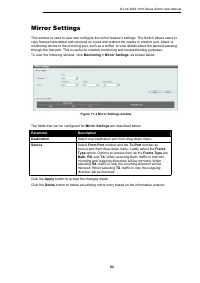
D-Link DGS-1100 Series Switch User Manual 82 Mirror Settings This window is used to view and configure the mirror feature’s settings. The Switch allows users to copy frames transmitted and received on a port and redirect the copies to another port. Attach a monitoring device to the mirroring port, s...
Page 96 - Power Saving
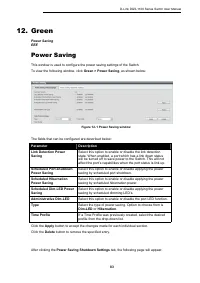
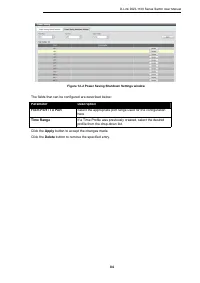
D-Link DGS-1100 Series Switch User Manual 83 12. Green Power Saving EEE Power Saving This window is used to configure the power saving settings of the Switch.To view the following window, click Green > Power Saving , as shown below: Figure 12- 1 Power Saving window The fields that can be configur...
Page 98 - EEE
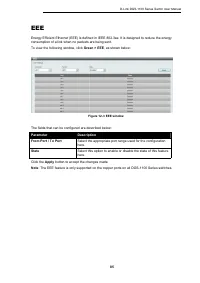
D-Link DGS-1100 Series Switch User Manual 85 EEE Energy Efficient Ethernet (EEE) is defined in IEEE 802.3az. It is designed to reduce the energy consumption of a link when no packets are being sent.To view the following window, click Green > EEE , as shown below: Figure 12- 3 EEE window The field...
Page 99 - Save Configuration; Firmware Information; Firmware Upgrade & Backup
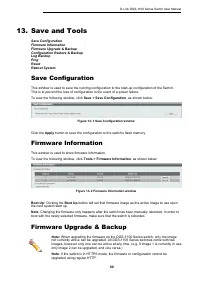
D-Link DGS-1100 Series Switch User Manual 86 13. Save and Tools Save Configuration Firmware Information Firmware Upgrade & Backup Configuration Restore & Backup Log Backup Ping Reset Reboot System Save Configuration This window is used to save the running configuration to the start-up config...
Page 100 - Firmware Upgrade from TFTP; Firmware Upgrade from HTTP; Firmware Backup to HTTP
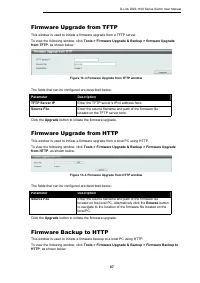
D-Link DGS-1100 Series Switch User Manual 87 Firmware Upgrade from TFTP This window is used to initiate a firmware upgrade from a TFTP server.To view the following window, click Tools > Firmware Upgrade & Backup > firmware Upgrade from TFTP , as shown below: Figure 13- 3 Firmware Upgrade f...
Page 101 - Firmware Backup to TFTP
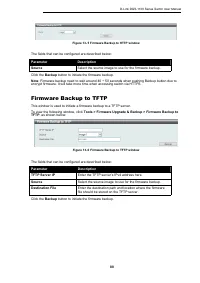
D-Link DGS-1100 Series Switch User Manual 88 Figure 13- 5 Firmware Backup to HTTP window The fields that can be configured are described below: Parameter Description Source Select the source image to use for the firmware backup. Click the Backup button to initiate the firmware backup. Note : Firmwar...
Page 102 - Configuration Restore & Backup; Configuration Restore from HTTP; Configuration Restore from TFTP
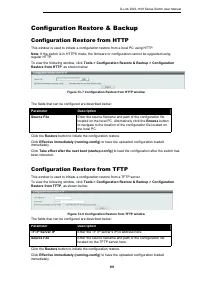
D-Link DGS-1100 Series Switch User Manual 89 Configuration Restore & Backup Configuration Restore from HTTP This window is used to initiate a configuration restore from a local PC using HTTP. Note : If the switch is in HTTPS mode, the firmware or configuration cannot be upgraded using regular HT...
Page 103 - Configuration Backup to HTTP; Configuration Backup to TFTP; Log Backup; Log Backup to HTTP
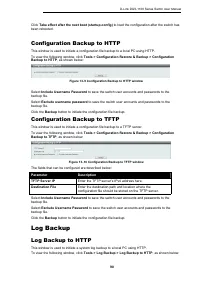
D-Link DGS-1100 Series Switch User Manual 90 Click Take effect after the next boot (startup-config) to load the configuration after the switch has been rebooted. Configuration Backup to HTTP This window is used to initiate a configuration file backup to a local PC using HTTP.To view the following wi...
Page 104 - Log Backup to TFTP
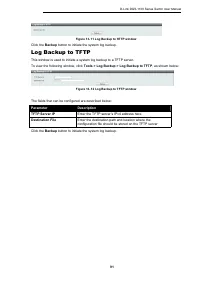
D-Link DGS-1100 Series Switch User Manual 91 Figure 13- 11 Log Backup to HTTP window Click the Backup button to initiate the system log backup. Log Backup to TFTP This window is used to initiate a system log backup to a TFTP server.To view the following window, click Tools > Log Backup > Log B...
Page 105 - Ping; Reset
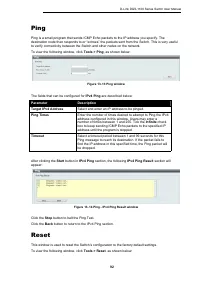
D-Link DGS-1100 Series Switch User Manual 92 Ping Ping is a small program that sends ICMP Echo packets to the IP address you specify. The destination node then responds to or “echoes” the packets sent from the Switch. This is very useful to verify connectivity between the Switch and other nodes on t...
Page 106 - Reboot System
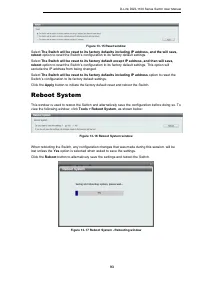
D-Link DGS-1100 Series Switch User Manual 93 Figure 13- 15 Reset window Select The Switch will be reset to its factory defaults including IP address, and the will save, reboot option to reset the Switch’s configuration to its factory default settings. Select The Switch will be reset to its factory d...
Page 107 - Gigabit Ethernet Technology
D-Link DGS-1100 Series Switch User Manual 94 14. Appendix A - Ethernet Technology This chapter will describe the features of the D-Link DGS-1100 Series Switch and provide some background information about Ethernet/Fast Ethernet/Gigabit Ethernet switching technology. Gigabit Ethernet Technology Gigab...
Page 108 - Switching Technology
D-Link DGS-1100 Series Switch User Manual 95 Switching Technology Another approach to push beyond the limits of Ethernet technology is the development of switching technology. A switch bridges Ethernet packets at the MAC address level of the Ethernet protocol transmitting among connected Ethernet or...
Page 109 - Port Functions; Features; L2 Features
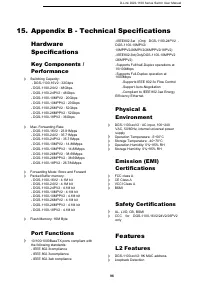
D-Link DGS-1100 Series Switch User Manual 96 15. Appendix B - Technical Specifications HardwareSpecifications Key Components /Performance Switching Capacity: - DGS-1100-16V2 : 32Gbps - DGS-1100-24V2 : 48Gbps- DGS-1100-24PV2 : 48Gbps- DGS-1100-10MPV2 : 20Gbps- DGS-1100-10MPPV2 : 20Gbps- DGS-1100-26MP...
Page 110 - L2 Multicasting
D-Link DGS-1100 Series Switch User Manual 97 Port Mirroring Link Aggregation Cable Diagnostics Spanning Tree L2 Multicasting IGMP Snooping VLAN 802.1Q VLAN standard Port-Based VLAN Surveillance VLAN Voice VLAN: Asymmetric VLAN QoS (Quality ofService) 802.1p priority, 8 queues Bandwidth Control Secur...
Page 111 - Appendix C –Rack mount Instructions
D-Link DGS-1100 Series Switch User Manual 98 16. Appendix C –Rack mount Instructions Safety Instructions - Rack Mount Instructions - The following or similar rack-mount instructions are included with the installation instructions: A) Elevated Operating Ambient - If installed in a closed or multi-uni...
Page 112 - Appendix D–Trap Messages
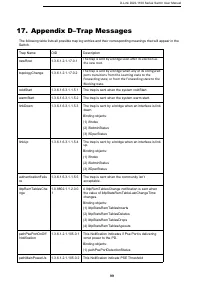
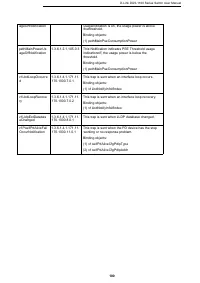
D-Link DGS-1100 Series Switch User Manual 99 17. Appendix D–Trap Messages The following table lists all possible trap log entries and their corresponding meanings that will appear in the Switch. Trap Name OID Description newRoot 1.3.6.1.2.1.17.0.1 The trap is sent by a bridge soon after its election...
Page 114 - Appendix E–Syslog Messages
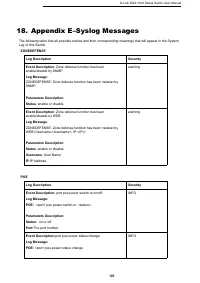
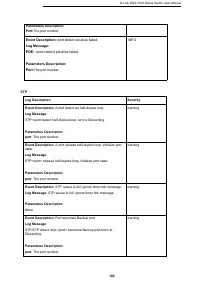
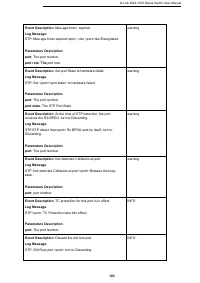
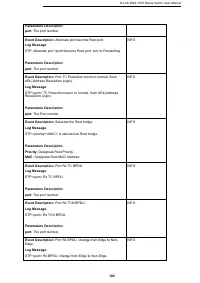
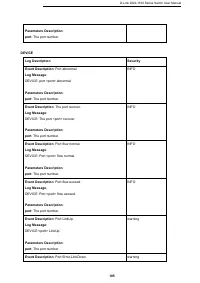
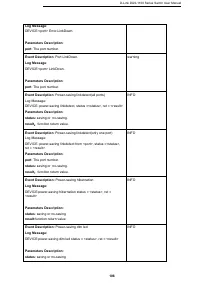
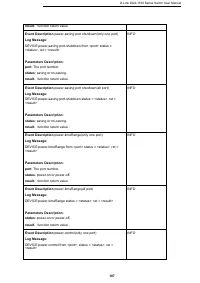
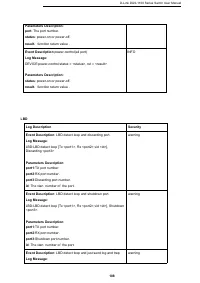
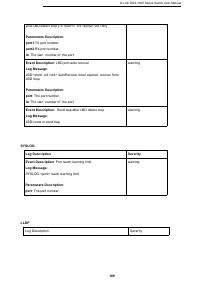
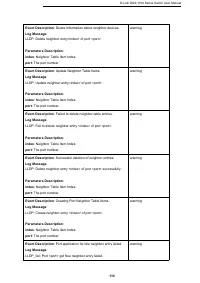
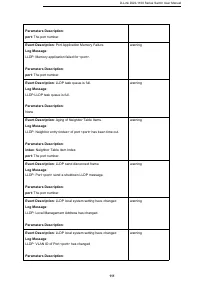
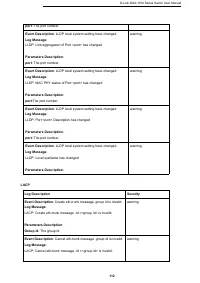
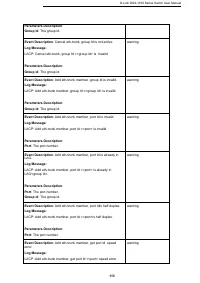
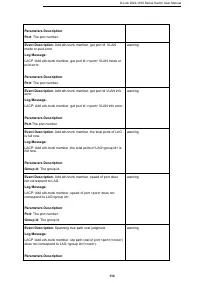
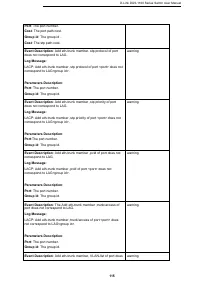
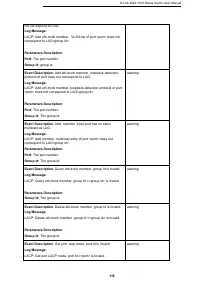
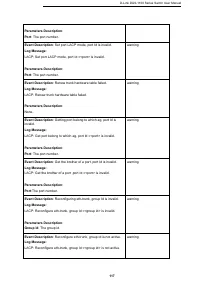
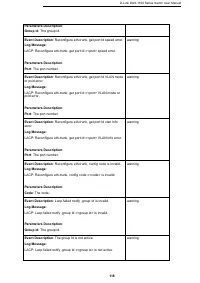
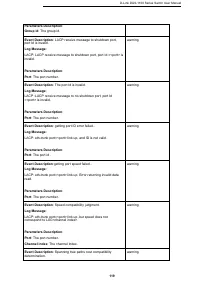
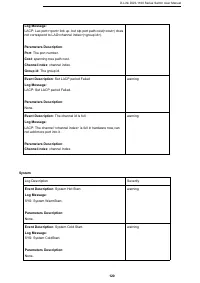
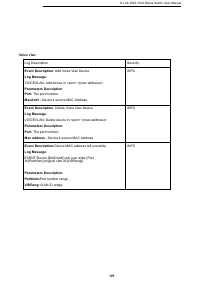
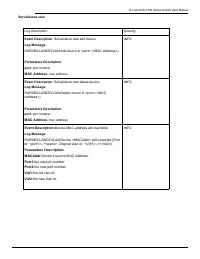
D-Link DGS-1100 Series Switch User Manual 101 18. Appendix E–Syslog Messages The following table lists all possible entries and their corresponding meanings that will appear in the System Log of this Switch. ZONEDEFENSE Log Description Severity Event Description : Zone defense function has been enab...