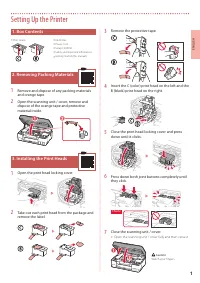
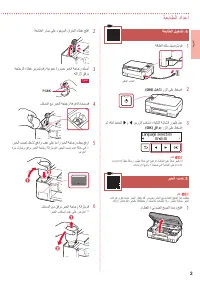
Page 3 - Setting Up the Printer; Removing Packing Materials; Open the print head locking cover.
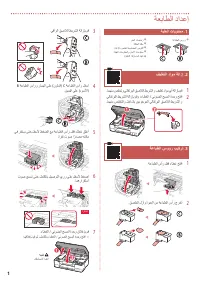
1 ENGLISH Setting Up the Printer 1. Box Contents • Print Heads • Ink Bottles • Power Cord • Setup CD-ROM • Safety and Important Information • Getting Started (this manual) 2. Removing Packing Materials 1 Remove and dispose of any packing materials and orange tape. 2 Open the scanning unit / cover, r...
Page 4 - Turning on the Printer; ON
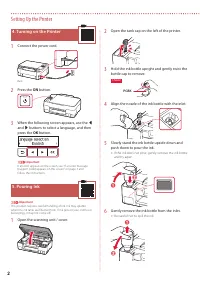
2 Setting Up the Printer 4. Turning on the Printer 1 Connect the power cord. Back 2 Press the ON button. 3 When the following screen appears, use the [ and ] buttons to select a language, and then press the OK button. Important If an error appears on the screen, see "If an error message (support...
Page 5 - Replace the tank cap; securely; When the following screen appears, use the; Yes; , and then press the; If an error message (support code) appears on
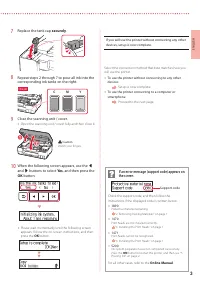
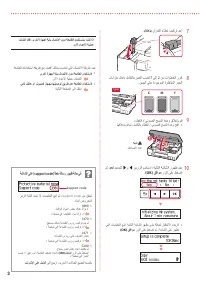
3 ENGLISH 7 Replace the tank cap securely . 8 Repeat steps 2 through 7 to pour all ink into the corresponding ink tanks on the right. C M Y Check! 9 Close the scanning unit / cover. • Open the scanning unit / cover fully and then close it. b a Caution Watch your fingers. 10 When the following screen...
Page 6 - Connecting to a Computer; Set Up; What device are you connecting?
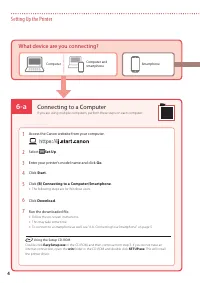
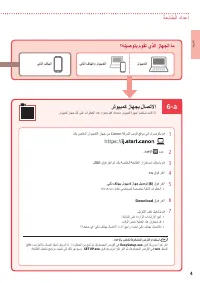
6-a 4 Setting Up the Printer Computer Smartphone Computer and smartphone Connecting to a Computer If you are using multiple computers, perform these steps on each computer. 1 Access the Canon website from your computer. 2 Select Set Up . 3 Enter your printer's model name and click Go . 4 Click Start...
Page 7 - Connecting to a Smartphone
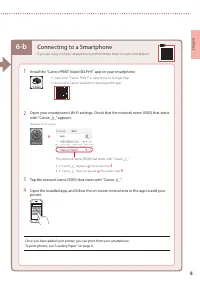
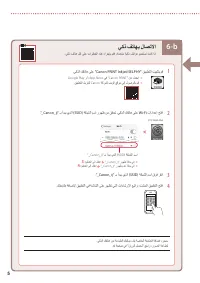
6-b 5 ENGLISH 1 Install the "Canon PRINT Inkjet/SELPHY" app on your smartphone. • Search for "Canon PRINT" in App Store, or Google Play. • Access the Canon website to download the app. 2 Open your smartphone's Wi-Fi settings. Check that the network name )SSID( that starts with "C...
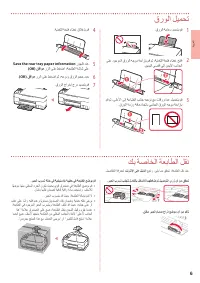
Page 8 - Transporting Your Printer; Loading Paper
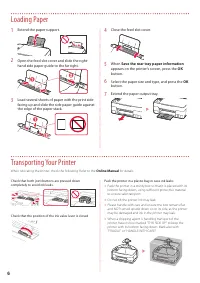
6 1 Extend the paper support. 2 Open the feed slot cover and slide the right-hand side paper guide to the far right. a b 3 Load several sheets of paper with the print side facing up and slide the side paper guide against the edge of the paper stack. a b 4 Close the feed slot cover. 5 When Save the r...
Page 9 - Instalación de la impresora; Contenido de la caja; Retire la cinta protectora.
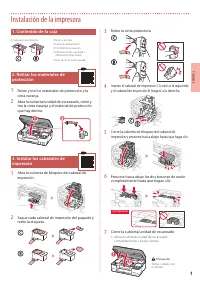
1 ESP AÑOL Instalación de la impresora 1. Contenido de la caja • Cabezales de impresión • Frascos de tinta • Cable de alimentación • CD-ROM de instalación • Información de seguridad e información importante • Guía de inicio (este manual) 2. Retirar los materiales de protección 1 Retire y tire los ma...
Page 10 - Encender la impresora
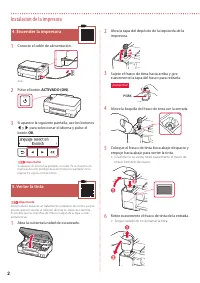
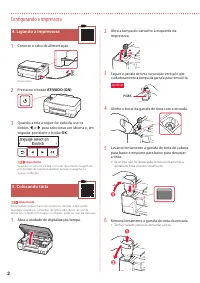
2 Instalación de la impresora 4. Encender la impresora 1 Conecte el cable de alimentación. Atrás 2 Pulse el botón ACTIVADO (ON) . 3 Si aparece la siguiente pantalla, use los botones [ y ] para seleccionar el idioma y pulse el botón OK . Importante Si aparece un error en la pantalla, consulte "Si...
Page 11 - Vuelva a colocar la tapa del depósito; firmemente; para seleccionar; Si se muestra un mensaje de error (código de
3 ESP AÑOL 7 Vuelva a colocar la tapa del depósito firmemente . 8 Repita los pasos del 2 al 7 para verter toda la tinta en los depósitos de tinta correspondientes de la derecha. C M Y ¡Comprobar! 9 Cierre la cubierta/unidad de escaneado. • Abra la cubierta/unidad de escaneado completamente y luego c...
Page 12 - Conectar al ordenador; Configurar; ¿Qué dispositivo va a conectar?
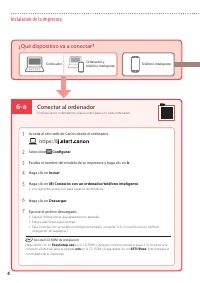
6-a 4 Instalación de la impresora Ordenador Teléfono inteligente Ordenador y teléfono inteligente Conectar al ordenador Si utiliza varios ordenadores, realice estos pasos en cada ordenador. 1 Acceda al sitio web de Canon desde el ordenador. 2 Seleccione Configurar . 3 Escriba el nombre del modelo de...
Page 13 - Conexión con un teléfono inteligente; -b. Conexión con un teléfono inteligente
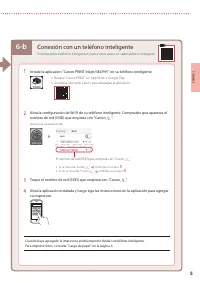
6-b 5 ESP AÑOL 1 Instale la aplicación "Canon PRINT Inkjet/SELPHY" en su teléfono inteligente. • Busque "Canon PRINT" en App Store o Google Play. • Acceda al sitio web Canon para descargar la aplicación. 2 Abra la configuración de Wi-Fi de su teléfono inteligente. Compruebe que apare...
Page 14 - Transporte de la impresora; Carga de papel
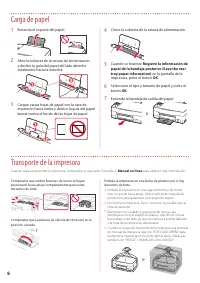
6 1 Extienda el soporte del papel. 2 Abra la cubierta de la ranura de alimentación y deslice la guía del papel del lado derecho totalmente hacia la derecha. a b 3 Cargue varias hojas de papel con la cara de impresión hacia arriba y deslice la guía del papel lateral contra el borde de las hojas de pa...
Page 15 - Configurando a impressora; Remova a fita de proteção.
1 POR TUGUÊS Configurando a impressora 1. Conteúdo da Caixa • Cabeças de impressão • Garrafas de tinta • Cabo de alimentação • CD-ROM de instalação • Informações Importantes e Sobre Segurança • Para Começar (este manual) 2. Removendo os materiais da embalagem 1 Remova e descarte quaisquer materiais ...
Page 16 - Ligando a Impressora
2 Configurando a impressora 4. Ligando a Impressora 1 Conecte o cabo de alimentação. Parte traseira 2 Pressione o botão ATIVADO (ON) . 3 Quando a tela a seguir for exibida, use os botões [ e ] para selecionar um idioma e, em seguida, pressione o botão OK . Importante Se aparecer um erro na tela, con...
Page 17 - Recoloque; a tampa do cartucho.; Quando a tela a seguir for exibida, use os botões; Se uma mensagem de erro (código de
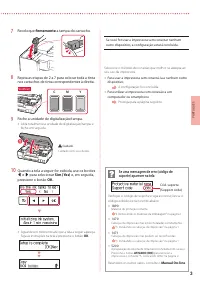
3 POR TUGUÊS 7 Recoloque firmemente a tampa do cartucho. 8 Repita as etapas de 2 a 7 para colocar toda a tinta nos cartuchos de tinta correspondentes à direita. C M Y Verificar! 9 Feche a unidade de digitalização/tampa. • Abra totalmente a unidade de digitalização/tampa e feche em seguida. b a Cuida...
Page 18 - Conectando a um Computador; Qual dispositivo você está conectando?
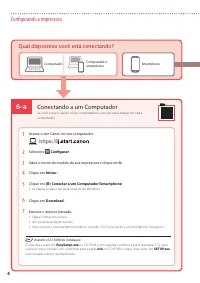
6-a 4 Configurando a impressora Computador Smartphone Computador e smartphone Conectando a um Computador Se você estiver usando vários computadores, execute estas etapas em cada computador. 1 Acesse o site Canon do seu computador. 2 Selecione Configurar . 3 Insira o nome do modelo da sua impressora ...
Page 19 - Conectando a um smartphone
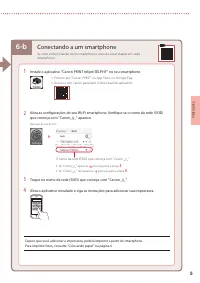
6-b 5 POR TUGUÊS 1 Instale o aplicativo "Canon PRINT Inkjet/SELPHY" no seu smartphone. • Procure por "Canon PRINT" na App Store, ou Google Play. • Acesse o site Canon para fazer o download do aplicativo. 2 Abra as configurações do seu Wi-Fi smartphone. Verifique se o nome da rede )SS...
Page 20 - Transportando a Impressora; Colocando papel
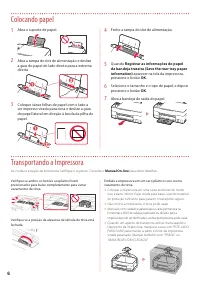
6 1 Abra o suporte de papel. 2 Abra a tampa do slot de alimentação e deslize a guia do papel do lado direito para a extrema direita. a b 3 Coloque várias folhas de papel com o lado a ser impresso virado para cima e deslize a guia do papel lateral em direção à borda da pilha de papel. a b 4 Feche a t...
Page 21 - Configuration de l'imprimante; Contenu de la boîte; Retirez le ruban protecteur.
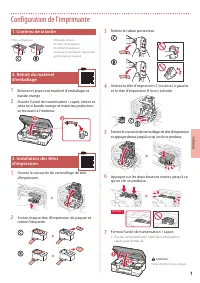
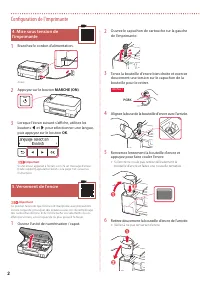
1 FR ANÇ AIS Configuration de l'imprimante 1. Contenu de la boîte • Têtes d'impression • Bouteilles d'encre • Cordon d'alimentation • CD-ROM d'installation • Sécurité et informations importantes • Démarrage (ce manuel) 2. Retrait du matériel d'emballage 1 Enlevez et jetez tout matériel d'emballage e...
Page 22 - Appuyez sur le bouton
2 Configuration de l'imprimante 4. Mise sous tension de l'imprimante 1 Branchez le cordon d'alimentation. Arrière 2 Appuyez sur le bouton MARCHE (ON) . 3 Lorsque l'écran suivant s'affiche, utilisez les boutons [ et ] pour sélectionner une langue, puis appuyez sur le bouton OK . Important Si une erre...
Page 23 - Replacez le capuchon de cartouche; correctement; et; Oui; appuyez sur le bouton
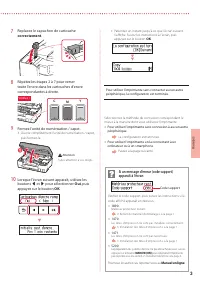
3 FR ANÇ AIS 7 Replacez le capuchon de cartouche correctement . 8 Répétez les étapes 2 à 7 pour verser toute l'encre dans les cartouches d'encre correspondantes à droite. C M Y Vérifiez ! 9 Fermez l'unité de numérisation / capot. • Ouvrez complètement l'unité de numérisation / capot, puis fermez-la....
Page 24 - Connexion à un ordinateur; Configuration
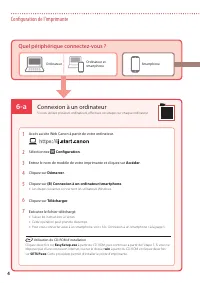
6-a 4 Configuration de l'imprimante Ordinateur Smartphone Ordinateur et smartphone Connexion à un ordinateur Si vous utilisez plusieurs ordinateurs, effectuez ces étapes sur chaque ordinateur. 1 Accès au site Web Canon à partir de votre ordinateur. 2 Sélectionnez Configuration . 3 Entrez le nom de m...
Page 25 - Connexion à un smartphone
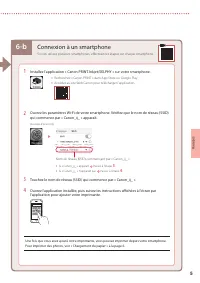
6-b 5 FR ANÇ AIS 1 Installez l'application « Canon PRINT Inkjet/SELPHY » sur votre smartphone. • Recherchez « Canon PRINT » dans App Store ou Google Play. • Accédez au site Web Canon pour télécharger l'application. 2 Ouvrez les paramètres Wi-Fi de votre smartphone. Vérifiez que le nom de réseau )SSI...
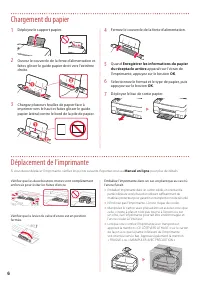
Page 26 - Enregistrer les informations du papier; apparaît sur l'écran de; Déployez le bac de sortie papier.; Déplacement de l'imprimante; Chargement du papier
6 1 Déployez le support papier. 2 Ouvrez le couvercle de la fente d'alimentation et faites glisser le guide papier droit vers l'extrême droite. a b 3 Chargez plusieurs feuilles de papier face à imprimer vers le haut et faites glisser le guide papier latéral contre le bord de la pile de papier. a b 4...
Page 27 - Настройка принтера; Содержимое коробки; Снимите защитную ленту.
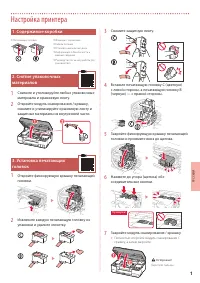
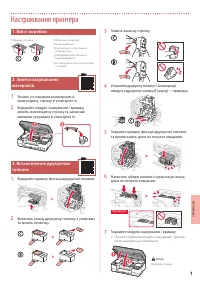
1 РУ ССКИЙ Настройка принтера 1. Содержимое коробки • Печатающие головки • Флаконы с чернилами • Кабель питания • Установочный компакт-диск • Информация о безопасности и важные сведения • Руководство по началу работы (это руководство) 2. Снятие упаковочных материалов 1 Снимите и утилизируйте любые у...
Page 28 - Включение принтера; Подключите кабель питания.; Нажмите кнопку; Откройте колпачок контейнера в левой части принтера.
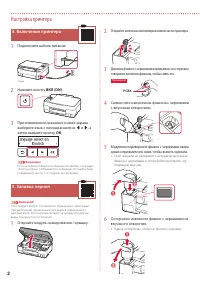
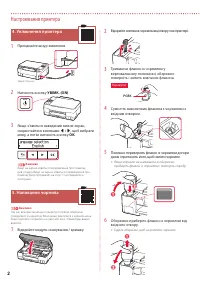
2 Настройка принтера 4. Включение принтера 1 Подключите кабель питания. Сзади 2 Нажмите кнопку ВКЛ (ON) . 3 При появлении показанного ниже экрана выберите язык с помощью кнопок [ и ] , а затем нажмите кнопку OK . Внимание! Если на экране появится сообщение об ошибке, см. раздел «Если на экране отобр...
Page 29 - Осторожно; установите на место колпачок; Если на экране отображается сообщение
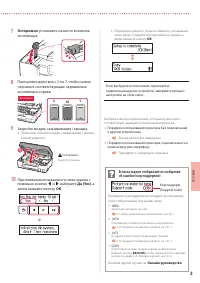
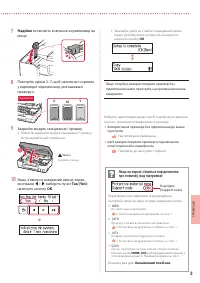
3 РУ ССКИЙ 7 Осторожно установите на место колпачок контейнера. 8 Повторяйте действия с 2 по 7, чтобы налить чернила в соответствующие чернильные контейнеры справа. C M Y Проверка! 9 Закройте модуль сканирования / крышку. • Полностью откройте модуль сканирования / крышку, а затем закройте. b a Остор...
Page 30 - Подключение к компьютеру; Настройка; Какое устройство вы подключаете?
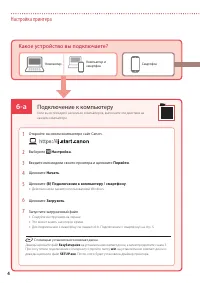
6-a 4 Настройка принтера Компьютер Смартфон Компьютер и смартфон Подключение к компьютеру Если вы используете несколько компьютеров, выполните эти действия на каждом компьютере. 1 Откройте на своем компьютере сайт Canon. 2 Выберите Настройка . 3 Введите имя модели своего принтера и щелкните Перейти ...
Page 31 - Установите на смартфон приложение «Canon PRINT Inkjet/SELPHY».; Подключение к смартфону
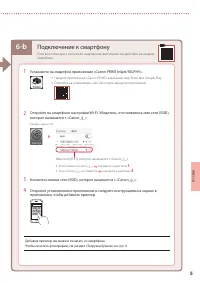
6-b 5 РУ ССКИЙ 1 Установите на смартфон приложение «Canon PRINT Inkjet/SELPHY». • Найдите приложение «Canon PRINT» в магазине App Store или Google Play. • Откройте на компьютере сайт Canon для загрузки приложения. 2 Откройте на смартфоне настройки Wi-Fi. Убедитесь, что появилось имя сети )SSID(, кот...
Page 32 - Регистрация сведений о бумаге; Выдвиньте лоток приема бумаги.; Перемещение принтера; Загрузка бумаги
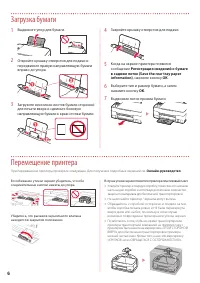
6 1 Выдвиньте упор для бумаги. 2 Откройте крышку отверстия для подачи и передвиньте правую направляющую бумаги вправо до упора. a b 3 Загрузите несколько листов бумаги стороной для печати вверх и сдвиньте боковую направляющую бумаги к краю стопки бумаги. a b 4 Закройте крышку отверстия для подачи. 5...
Page 33 - Настроювання принтера; Відкрийте кришку фіксації друкуючої головки.
1 УКР АЇНСЬК А Настроювання принтера 1. Вміст коробки • Друкуючі головки • Флакони з чорнилом • Шнур живлення • Компакт-диск із програмою встановлення • Інформація щодо безпеки й важливі відомості • Посібник для початку роботи (цей посібник) 2. Зняття пакувальних матеріалів 1 Зніміть усі пакувальні ...
Page 34 - Увімкнення принтера; Приєднайте шнур живлення.; Натисніть кнопку; Відкрийте ковпачок чорнильниці ліворуч на принтері.
2 Настроювання принтера 4. Увімкнення принтера 1 Приєднайте шнур живлення. Задня сторона 2 Натисніть кнопку УВІМК. (ON) . 3 Якщо з’явиться наведений нижче екран, скористайтеся кнопками [ і ] , щоб вибрати мову, а потім натисніть кнопку OK . Важливо Якщо на екрані з’явиться повідомлення про помилку, ...
Page 35 - Надійно; встановіть ковпачок чорнильниці на; Якщо на екрані з’явиться повідомлення
3 УКР АЇНСЬК А 7 Надійно встановіть ковпачок чорнильниці на місце. 8 Повторіть кроки 2–7, щоб налити всі чорнила у відповідні чорнильниці, розташовані праворуч. C M Y Перевірте! 9 Закрийте модуль сканування / кришку. • Повністю відкрийте модуль сканування / кришку, потім закрийте цей компонент. b a ...
Page 36 - Підключення до комп’ютера; Настроювання; До якого пристрою ви під’єднуєтеся?
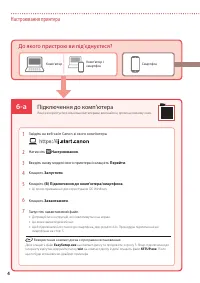
6-a 4 Настроювання принтера Комп’ютер Смартфон Комп’ютер і смартфон Підключення до комп’ютера Якщо ви користуєтеся кількома комп’ютерами, виконайте ці кроки на кожному з них. 1 Зайдіть на веб-сайт Canon зі свого комп’ютера. 2 Натисніть Настроювання . 3 Введіть назву моделі свого принтера й клацніть ...
Page 37 - Процедура підключення до смартфона
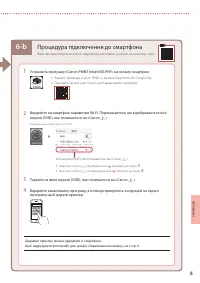
6-b 5 УКР АЇНСЬК А 1 Установіть програму «Canon PRINT Inkjet/SELPHY» на своєму смартфоні. • Знайдіть програму «Canon PRINT» у магазині App Store або Google Play. • Перейдіть на веб-сайт Canon, щоб завантажити програму. 2 Відкрийте на смартфоні параметри Wi-Fi. Переконайтеся, що відображається ім’я м...
Page 38 - Зареєструвати відомості про; Витягніть лоток виведення паперу.; Транспортування принтера; Завантаження паперу
6 1 Витягніть підпору для паперу. 2 Відкрийте кришку отвору подавання й посуньте правий напрямник для паперу праворуч до кінця. a b 3 Завантажте кілька аркушів паперу стороною для друку догори й перемістіть бічний напрямник для паперу до краю стопки паперу. a b 4 Закрийте кришку отвору подавання. 5 ...
Page 39 - Save the rear tray paper information
6 ةيبرعلا 1 . قرولا ةماعد ديدمتب مق 2 ىلع دوجوملا قرولا هجوم ةحازإب مق مث ،ةيذغتلا ةحتف ءاطغ حتفا . نيميلا ىصقأ ىلإ نميلأا بناجلا a b 3 مق مث ،ىلعلأا ىلإ ةعابطلا بناج هيجوت عم تاقرو ةدع ليمحتب مق . قرولا ةمزر ةفاح هاجتاب يبناجلا قرولا هجوم ةحازإب a b 4 . ةيذغتلا ةحتف ءاطغ قلاغإب مق 5 Save the rear t...
Page 40 - يكذ; يكذ فتاهب لاصتلاا
6-b 5 1 . يكذلا كفتاه ىلع "Canon PRINT Inkjet/SELPHY" قيبطتلا تيبثتب مق • .Google Play وأ ، App Store يف "Canon PRINT" نع ثحبا • . قيبطتلا ليزنتل Canon ةكرشل بيولا عقوم ىلإ لوصولاب مق 2 ."_Canon_ij" ـب أدبي يذلا )SSID( ةكبشلا مسا روهظ نم ققحت . يكذلا كفتاه ىلع Wi-Fi تادادعإ ح...
Page 41 - ةعباطلا دادعإ; رتويبمك; Canon; Download; ؟هليصوتب; رتويبمك زاهجب لاصتلاا
6-a 4 ةعباطلا دادعإ ةيبرعلا رتويبمكلا يكذلا فتاهلا يكذلا فتاهلاو رتويبمكلا رتويبمك زاهجب لاصتلاا .رتويبمك زاهج لك ىلع تاوطخلا هذه ءارجإب مقف ،ةددعتم رتويبمك ةزهجأ مدختست تنك اذإ 1 . كب صاخلا رتويبمكلا زاهج نم Canon ةكرشل بيولا عقوم ىلإ لوصولاب مق 2 . دادعلإا ددح 3 . لاقتنا قوف رقنا مث ،كب ةصاخلا ةعب...
Page 42 - ماكحإب; معن
3 7 . ماكحإب نازخلا ءاطغ بيكرت دعأ 8 تانازخ لخاد لماكلاب ربحلا بصل 7 ىلإ 2 نم تاوطخلا ررك . نيميلا ىلع ةدوجوملا ةرظانملا ربحلا ! ققحت C M Y 9 . ءاطغلا / يئوضلا حسملا ةدحو قلاغإب مق • . اهقلاغإب مق مث ،لماكلاب ءاطغلا / يئوضلا حسملا ةدحو حتفا b a هيبنت .كعباصلأ هبتنا 10 مث ، معن ديدحتل ] و [ نيرزلا مد...
Page 43 - ةعباطلا ليغشت; ربحلا بص
2 ةعباطلا دادعإ ةيبرعلا ةعباطلا ليغشت .4 1 . ةقاطلا كلس ليصوتب مق يفلخلا بناجلا 2 . (ON) ليغشت رزلا ىلع طغضا 3 مث ،ةغل ديدحتل ] و [ نيرزلا مدختسا ،ةيلاتلا ةشاشلا روهظ دنع . (OK) قفاوم رزلا ىلع طغضا ماه support) أطخ ةلاسر روهظ ةلاح يف " عجارف ،ةشاشلا ىلع أطخ رهظ اذإ . تاداشرلإا عبتاو 3 ةحفص يف &#...
Page 44 - ةبلعلا تايوتحم; فيلغتلا داوم ةلازإ
ةعباطلا دادعإ ةبلعلا تايوتحم .1 ربحلا تاجاجز ةقاطلا كلس دادعلإاب صاخلا طوغضملا صرقلا ةماهلا تامولعملاو ناملأا تامولعم )ليلدلا اذه( ءدبلا ليلد ةعابطلا سوؤر فيلغتلا داوم ةلازإ .2 1 . امهنم صلختو يلاقتربلا قصلالا طيرشلا و فيلغت داوم يأ ةلازإب مق 2 يلاقتربلا طيرشلا ةلازإب مقو ،ءاطغلا / يئوضلا حسملا ةدحو...
Page 46 - تنرتنلإا ىلع ليلدلا ىلإ لوصولا
تنرتنلإا ىلع ليلدلا ىلإ لوصولا كب صاخلا حفصتملا نم З вашого браузера Доступ до документа Онлайновий посібник Из вашего браузера Доступ к документу Онлайн-руководство À partir de votre navigateur Accès au Manuel en ligne Do seu navegador Acesse o Manual On-line Desde su navegador Acceso al Manual en ...



 Canon CanonG3411 User Manual
 Canon FAX-L380s, FAX-L390 Manual
 Canon G640 User Manual
 Canon G2411 User Manual
 Canon G2415 User Manual
 Canon G2420 User Manual
 Canon i-SENSYS FAX-L150, FAX-L170 Manual
 Canon i-SENSYS MF211, MF212w Manual
 Canon i-SENSYS MF216n, MF217w, MF226dn, MF229dw Manual
 Canon i-SENSYS MF832Cdw Manual
 Canon MF3010 User Manual
 Canon PC-D320, PC-D340, FAX-L400 Manual
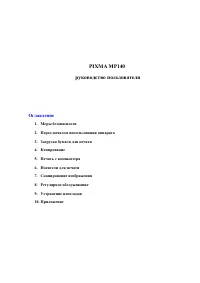 Canon PIXMA MP140 User Manual
 Canon TS3340 User Manual


