Page 2 - CAUTION: READ THIS BEFORE OPERATING YOUR UNIT.; WARNING; Note; IMPORTANT
1 To assure the finest performance, please read this manual carefully. Keep it in a safe place for future reference. 2 Install this sound system in a well ventilated, cool, dry, clean place — away from direct sunlight, heat sources, vibration, dust, moisture, and/or cold. Allow ventilation space of ...
Page 3 - CONTENTS
1 English PRE P ARA T ION IN TRODUC TI ON BA S IC OPERA T ION SOUND FIELD PROGRAM S A D V ANCED OPERA T ION ADDITIONAL INFO RMA T ION FEATURES ............................................................. 2GETTING STARTED............................................ 3 Supplied accessories ..............
Page 4 - Sound field features; FEATURES
FEATURES 2 Built-in 6-channel power amplifier ◆ Minimum RMS output power (0.06% THD, 20 Hz – 20 kHz, 8 Ω ) Front: 85 W + 85 WCenter: 85 WSurround: 85 W + 85 WSurround back: 85 W Sound field features ◆ Proprietary YAMAHA technology for the creation of sound fields ◆ Dolby Digital/Dolby Digital EX dec...
Page 5 - English; Please check that you received all of the following parts.; Press the; Notes on batteries; GETTING STARTED; Supplied accessories
GETTING STARTED 3 English IN TRODUC TI ON Please check that you received all of the following parts. 1 Press the part and slide the battery compartment cover off. 2 Insert two supplied batteries (AA, R06, UM-3) according to the polarity markings (+ and –) on the inside of the battery compartment. 3 ...
Page 6 - Remote control sensor; Receives signals from the remote control.; Front panel display; Switches the reception band between FM and AM.; VIDEO AUX jacks; CONTROLS AND FUNCTIONS; Front panel; C D
CONTROLS AND FUNCTIONS 4 1 STANDBY/ON Turns on this unit or sets it to the standby mode. When you turn on this unit, you will hear a click and there will be a 4 to 5-second delay before this unit can reproduce sound. In standby mode, this unit consumes a small amount of power in order to receive inf...
Page 7 - Switches the function of PRESET/TUNING
CONTROLS AND FUNCTIONS 5 English IN TRODUC TI ON A PHONES (SILENT CINEMA) jack Outputs audio signals for private listening with headphones. When you connect headphones, no signals are output to the OUTPUT jacks or to the speakers.All Dolby Digital and DTS audio signals are mixed down to the left and...
Page 9 - Press this button to set the unit to the PTY SEEK mode.; PTY SEEK START; Handling the remote control; Do not drop the remote control.; Using the remote control
CONTROLS AND FUNCTIONS 7 English IN TRODUC TI ON ■ U.K. and Europe models only I RDS tuning buttons FREQ/RDS Press this button when the unit is receiving an RDS station to cycle the display between the PS mode, PTY mode, RT mode, CT mode (if the station offers those RDS data service) and/or the freq...
Page 10 - Lights up when the input signal contains the LFE signal.; F G
CONTROLS AND FUNCTIONS 8 1 Decoder indicators When any of this unit’s decoders function, the respective indicator lights up. 2 SILENT CINEMA indicator Lights up when headphones are connected and a sound field program is selected (see page 27). 3 NIGHT indicator Lights up when you select night listen...
Page 12 - See page 16 for connection information.; Rear panel
CONTROLS AND FUNCTIONS 10 1 DIGITAL INPUT jacks See pages 15, 17 and 18 for details. 2 MULTI CH INPUT jacks See page 16 for connection information. 3 Video component jacks See pages 15 and 17 for connection information. 4 AC OUTLET(S) Use to supply power to your other A/V components (see page 20). 5...
Page 13 - Subwoofer; SPEAKER SETUP; Speaker placement
SPEAKER SETUP 11 English PRE P ARA T ION The speaker layout below shows the standard ITU-R speaker setting. You can use it to enjoy CINEMA DSP and multi-channel audio sources. Front speakers (FR and FL) The front speakers are used for the main source sound plus effect sounds. Place these speakers an...
Page 14 - • If you will use 6 ohm speakers, be sure to set; Banana plug connections; Speaker connections; CAUTION
12 SPEAKER SETUP Be sure to connect the left channel (L), right channel (R), “+” (red) and “–” (black) properly. If the connections are faulty, no sound will be heard from the speakers, and if the polarity of the speaker connections is incorrect, the sound will be unnatural and lack bass. • If you w...
Page 15 - PRE; FRONT terminals; Connect a center speaker to these terminals.; SURROUND terminals; Connect surround speakers to these terminals.; SUB WOOFER jack; Connect a surround back speaker to these terminals.
13 English SPEAKER SETUP PRE P ARA T ION ■ FRONT terminals Connect one or two speaker systems to these terminals. If you use only one speaker system, connect it to either the FRONT A or B terminals. ■ CENTER terminals Connect a center speaker to these terminals. ■ SURROUND terminals Connect surround...
Page 16 - Cable indications; Dust protection cap; Video jacks; VIDEO jack; For conventional composite video signals.; COMPONENT VIDEO jacks; ) to provide the best quality in; CONNECTIONS; Before connecting components
CONNECTIONS 14 Do not connect this unit or other components to the mains power until all connections between components are complete. ■ Cable indications ■ Analog jacks You can input analog signals from audio components by connecting audio pin cable to the analog jacks on this unit. Connect red plug...
Page 17 - Connections for DVD playback; Connecting video components
15 English CONNECTIONS PRE P ARA T ION ■ Connections for DVD playback Connecting video components MONITOR OUT AUDIO VIDEO DVD VIDEO R L VIDEO COMPONENT VIDEO P R DVD MONITOR OUT P B Y DVD L R O DVD player Video monitor Optical out Video out Audio out Video in 01EN_00_RXV450_EB.book Page 15 Thursday,...
Page 18 - Connecting to the MULTI CH INPUT jacks; Notes
16 CONNECTIONS ■ Connecting to the MULTI CH INPUT jacks This unit is equipped with 6 additional input jacks (left and right FRONT, CENTER, left and right SURROUND and SUB WOOFER) for discrete multi-channel input from a multi-format player, external decoder, sound processor or pre-amplifier.Connect t...
Page 19 - Connections for other video components
17 English CONNECTIONS PRE P ARA T ION ■ Connections for other video components ■ VIDEO AUX jacks (on the front panel) Use these jacks to connect any video source, such as a game console or video camera, to this unit. AUDIO VIDEO DTV /CBL VIDEO R L OUT VCR IN COMPONENT VIDEO P R DTV /CBL P B Y DIGIT...
Page 20 - Connections for audio components; Connecting audio components
18 CONNECTIONS ■ Connections for audio components Connecting audio components AUDIO R L IN (PLAY) (REC) MD /CD-R CD DIGITAL INPUT CD COAXIAL OPTICAL L R L R L R C CD player MD recorder or tape deck Coaxial out Audio out Audio in Audio out 01EN_00_RXV450_EB.book Page 18 Thursday, February 5, 2004 6:1...
Page 21 - Connecting the AM loop antenna; Connecting the antennas
19 English CONNECTIONS PRE P ARA T ION Both AM and FM indoor antennas are included with this unit. In general, these antennas should provide sufficient signal strength. Connect each antenna correctly to the designated terminals. ■ Connecting the AM loop antenna 1 Set up the AM loop antenna, then con...
Page 22 - Connecting the AC power cord; Plug the power cord into an AC wall outlet.; Connecting the power supply cord
20 CONNECTIONS ■ Connecting the AC power cord Plug the power cord into an AC wall outlet. ■ AC OUTLET(S) (SWITCHED) U.K. and Australia models .............................. 1 OUTLETKorea model ...............................................................NoneOther models ..............................
Page 24 - Turning on the power
22 CONNECTIONS When all connections are complete, turn on the power of this unit. 1 Press STANDBY/ON (SYSTEM POWER on the remote control) to turn on the power of this unit. 2 Turn on the video monitor connected to this unit. Turning on the power VOLUME AUTO/MAN'L MONO VIDEO L AUDIO R MAN'L/AUTO FM L...
Page 25 - “BASIC SETUP” appears in the front panel display.; NONE; BASIC SETUP; Using the BASIC SETUP menu; BASIC SETUP; SUBWOOFER YES
BASIC SETUP 23 English PRE P ARA T ION The basic setup feature is a useful way to set up your system quickly and with minimal effort. y • If you wish to configure the unit manually using more precise adjustments, use the detailed parameters in SOUND MENU (page 50) instead of using BASIC SETUP. • Alt...
Page 26 - SPEAKERS 6spk; SET
24 BASIC SETUP 7 Press d to display the SPEAKERS parameter. 8 Press j / i to select the number of speakers you connected. SPEAKERS 6spk 9 Press d to display SET/CANCEL. 10 Press j / i to select the desired setting. >SET CANCEL SET To apply the settings you chose in steps 4 through 8. CANCEL To ca...
Page 27 - To balance the speaker levels; Press
25 English BASIC SETUP PRE P ARA T ION ■ To balance the speaker levels Perform the following steps after step 13 (see page 24). The unit outputs the test tone from the selected speaker and the left front (or left surround) speaker in turn. The indicator of the speaker currently outputting the test t...
Page 28 - Press SPEAKERS A or B on the front panel.; Each press turns the respective speakers on or off.; Select the input source.; Refer to the operating instructions for the component.; Adjust the volume to the desired output level.; PLAYBACK; Basic operations; D V D
PLAYBACK 26 1 Press STANDBY/ON (SYSTEM POWER on the remote control) to turn on the power. 2 Turn on the video monitor connected to this unit. 3 Press SPEAKERS A or B on the front panel. Each press turns the respective speakers on or off. 4 Select the input source. Use INPUT (or press one of the inpu...
Page 29 - BA; Press PROGRAM; To listen with headphones (SILENT CINEMA); Select BASS to adjust the low frequency response.; To mute the sound
27 English PLAYBACK BA S IC OPERA T ION 7 Select a sound field program if desired. Press PROGRAM l / h repeatedly (or press AMP on the remote control to select the AMP mode, then press one of the sound field program buttons repeatedly) to select a sound field program. (See page 43 for details about ...
Page 30 - Selecting MULTI CH INPUT; Front panel operation; Selecting sound field programs; J A Z Z
28 PLAYBACK ■ Selecting MULTI CH INPUT Press MULTI CH INPUT so that “MULTI CH INPUT” appears in the front panel display. MULTI CH INPUT When “MULTI CH INPUT” is shown in the front panel display, no other source can be played. To select another input source with INPUT (or one of the input selector bu...
Page 31 - Remote control operation; Enjoying multi-channel software; To select a decoder, press; AUTO; Decoders (select with; PLIIxMusic
29 English PLAYBACK BA S IC OPERA T ION ■ Remote control operation Press AMP to select the AMP mode, then press one of the sound field program buttons repeatedly to select the desired program. The name of the selected program appears in the front panel display. y Feel free to choose a sound field pr...
Page 32 - Enjoying 2-channel software; PRO LOGIC SUR. STANDARD
30 PLAYBACK • Some 6.1-channel compatible discs do not have a signal (flag) which this unit can automatically detect. When playing these kinds of discs with 6.1-channel, select a decoder manually (PLIIx Music, EX/ES or EX). • 6.1-channel playback is not possible even if EX/ES is pressed in the follo...
Page 33 - Direct Stereo; Night listening modes; Select OFF if you do not want to use this function.; This adjusts the level of compression.
31 English PLAYBACK BA S IC OPERA T ION ■ Listening to high fidelity stereo sound (Direct Stereo) Direct Stereo allows you to bypass this unit’s decoders and DSP processors to enjoy pure high fidelity sound from 2-channel PCM and analog sources. Press PROGRAM l / h repeatedly (or press AMP to select...
Page 34 - Downmixing to 2 channels; ch Stereo; Listening to unprocessed input signals; Press STRAIGHT to select STRAIGHT.; STRAIGHT; Virtual CINEMA DSP; Rotate INPUT to select the input source.; Selecting input modes
32 PLAYBACK ■ Downmixing to 2 channels You can enjoy 2-channel stereo playback even from multi-channel sources. Press PROGRAM l / h repeatedly (or press STEREO on the remote control) to select 2ch Stereo. 2ch Stereo y You can use a subwoofer with this program when SWFR or BOTH is selected in “BASS O...
Page 35 - in
33 English PLAYBACK BA S IC OPERA T ION • When you play DTS-encoded CD/LDs with the input mode set to AUTO:– This unit automatically switches to the DTS decoding mode. The unit remains in DTS mode (and the t indicator may flash) for up to 30 seconds after playback of the DTS source is complete. To m...
Page 36 - Automatic tuning; Press FM/AM to select the reception band.; “FM” or “AM” appears in the front panel display.; once to begin; TUNING; Automatic and manual tuning; AM; A M
TUNING 34 There are 2 tuning methods; automatic and manual.Automatic tuning is effective when station signals are strong and there is no interference. ■ Automatic tuning 1 Rotate INPUT to select TUNER as the input source. 2 Press FM/AM to select the reception band. “FM” or “AM” appears in the front ...
Page 37 - Manual tuning; to tune into; Automatically presetting FM stations; Presetting stations
35 English TUNING BA S IC OPERA T ION ■ Manual tuning If the signal from the station you want to select is weak, tune into it manually. Manually tuning into an FM station will automatically switch the tuner to monaural reception to increase the signal quality. 1 Select TUNER and the reception band f...
Page 38 - Automatic preset tuning options; See page 34 for tuning instructions.; M H z; k H z; k H z
36 TUNING 3 Press and hold MEMORY (MAN’L/AUTO FM) for more than 3 seconds. The preset number, the MEMORY and AUTO indicators flash. After about 5 seconds, automatic presetting starts from the frequency currently displayed and proceeds toward the higher frequencies. When automatic preset tuning is co...
Page 39 - Repeat steps 1 to 5 to store other stations.; on the remote control) to select a; Shows the displayed station has been stored as C3.; Selecting preset stations
37 English TUNING BA S IC OPERA T ION 4 Press PRESET/TUNING l / h to select a preset station number (1 through 8) while the MEMORY indicator is flashing. Press h to select a higher preset station number. Press l to select a lower preset station number. 5 Press MEMORY (MAN’L/AUTO FM) on the front pan...
Page 40 - See “Selecting preset stations”.; Exchanging preset stations; E D I T
38 TUNING You can exchange the assignment of two preset stations with each other. The example below describes the procedure for exchanging preset station “E1” with “A5”. 1 Select preset station “E1” using A/B/C/D/E and PRESET/TUNING l / h . See “Selecting preset stations”. 2 Press and hold PRESET/TU...
Page 41 - The name of the RDS station being received is displayed.; Receiving RDS stations
39 English TUNING BA S IC OPERA T ION RDS (Radio Data System) is a data transmission system used by FM stations in many countries. The RDS function is carried out among the network stations.This unit can receive various RDS data such as PS (Program Service name), PTY (Program Type), RT (Radio Text),...
Page 42 - CH; • The unit stops searching when it finds a station; To cancel this function; Press PTY SEEK MODE twice.; PTY SEEK function; POP M
40 TUNING If you select the desired program type, this unit automatically searches all preset RDS stations that are broadcasting a program of the required type. y When performing this operation with the remote control, first press TUNER to set the remote to tuner mode. 1 Press PTY SEEK MODE to set t...
Page 43 - • If a preset RDS station type starts broadcasting the; EON function
41 English TUNING BA S IC OPERA T ION This function uses the EON data service on the RDS station network. If you select the desired program type (NEWS, INFO, AFFAIRS or SPORT), this unit automatically searches for all preset RDS stations that are scheduled to broadcast the selected type of program a...
Page 44 - Start recording on the recording component.; RECORDING
RECORDING 42 Recording adjustments and other operations are performed from the recording components. Refer to the operating instructions for those components. 1 Turn on the power of this unit and all connected components. 2 Select the source component you want to record from. 3 Start playback (or se...
Page 45 - SOUND FIELD PROGRAM DESCRIPTIONS; For movie/video sources
SOUND FIELD PROGRAM DESCRIPTIONS 43 English SOUND FIELD PROGRAM S This unit is equipped with a variety of precise digital decoders that allow you to enjoy multichannel playback from almost any sound source (stereo or multichannel). This unit is also equipped with a YAMAHA digital sound field process...
Page 47 - SOUND FIELD; For music sources
45 English SOUND FIELD PROGRAM DESCRIPTIONS SOUND FIELD PROGRAM S You can select from the following sound fields when playing music sources, like CD, FM/AM broadcasting, tapes, etc. * You can select either Pro Logic IIx or Pro Logic II processing using the PLII/PLIIx parameter on page 60. For music ...
Page 48 - Setting the sleep timer; ADVANCED OPERATIONS; Using the sleep timer; S L E E P; SLEEP OFF
ADVANCED OPERATIONS 46 Use this feature to automatically set this unit in the standby mode after a certain amount of time. The sleep timer is useful when you are going to sleep while this unit is playing or recording a source. The sleep timer also automatically turns off any external components conn...
Page 49 - ANCED; Manually adjusting speaker levels; Using the test tone
47 English ADVANCED OPERATIONS A D V ANCED OPERA T ION You can adjust the output level of each speaker while listening to a music source. This is also possible when playing sources through the MULTI CH INPUT jacks.Please note that this operation will override the level adjustments made in “BASIC SET...
Page 50 - Use to adjust speaker and system settings.; SOUND MENU; Use to reassign digital input/outputs and select the input mode.; OPTION MENU; Use to adjust the optional system parameters.
SET MENU 48 You can use the following parameters in SET MENU to adjust a variety of system settings and customize the way this unit operates. Change the initial settings (indicated in bold under each parameter) to reflect the needs of your listening environment. ■ BASIC SETUP Use to quickly setup ba...
Page 51 - MANUAL SETUP; SOUND MENU appears in the front panel display.; Using SET MENU
49 English SET MENU A D V ANCED OPERA T ION Use the remote control to access and adjust each parameter. y You can change SET MENU parameters while the unit is reproducing sound. You cannot change some SET MENU parameters while the unit is in either cinema or music night listening mode. 1 Press AMP. ...
Page 52 - Speaker set; Use to manually adjust any speaker setting.; Select LRG if you have a large surround back speaker.
50 SET MENU Use to manually adjust any speaker setting or compensate for video signal processing delays when using LCD monitors or projectors. Most of the SOUND MENU parameters are set automatically when you perform “BASIC SETUP” (see page 23). ■ Speaker set A)SPEAKER SET Use to manually adjust any ...
Page 53 - Speaker level; UNIT; Center graphic equalizer; SP LFE; Dynamic range
51 English SET MENU A D V ANCED OPERA T ION ■ Speaker level B)SP LEVEL Use these settings to manually balance the speaker levels between the front left or surround left speakers and each speaker selected in SPEAKER SET (page 50).Choices: –10.0 dB to +10.0 dB• FR adjusts the balance of the front left...
Page 54 - Audio set; Use to customize this units overall audio settings.; Input/output assignment; Input mode; INPUT MENU
52 SET MENU ■ Audio set G)AUDIO SET Use to customize this units overall audio settings. Audio mute A.MUTE Use to adjust how much the mute function reduces the output volume.Choices: MUTE , –20 dB • Select MUTE to completely halt all output of sound. • Select –20 dB to reduce the current volume by 20...
Page 55 - Display set; Dimmer; DIMMER; Memory guard; OFF; Parameter initialization; SP B
53 English SET MENU A D V ANCED OPERA T ION Use to adjust the optional system parameters. ■ Display set A)DISPLAY SET Dimmer DIMMER Use to adjust the brightness of the front panel display.Choices: –4 to 0 ■ Memory guard B)MEMORY GUARD Use this feature to prevent accidental changes to DSP program par...
Page 56 - Controlling this unit; REMOTE CONTROL FEATURES; Control area
REMOTE CONTROL FEATURES 54 In addition to controlling this unit, the remote control can also operate other A/V components made by YAMAHA and other manufacturers. To control other components, you must set up remote control with the appropriate manufacturer codes. ■ Controlling this unit The shaded ar...
Page 57 - Setting manufacturer codes
55 English REMOTE CONTROL FEATURES A D V ANCED OPERA T ION You can control other components by setting the appropriate manufacturer codes. Codes can be set up for each input area. For a complete list of available manufacturer codes, refer to “LIST OF MANUFACTURER CODES” at the end of this manual. Th...
Page 58 - Controlling other components
56 REMOTE CONTROL FEATURES Once you set the appropriate manufacturer codes, you can use this remote to control your other components. Note that some buttons may not correctly operate the selected component. Use the input selector buttons to select the component you want to operate. The remote contro...
Page 59 - Elements of a sound field; EDITING SOUND FIELD PARAMETERS; What is a sound field
EDITING SOUND FIELD PARAMETERS 57 English ADDITIONAL INFO RMA T ION What really creates the rich, full tones of a live instrument are the multiple reflections from the walls of the room. In addition to making the sound “live”, these reflections enable us to tell where the player is situated, and the...
Page 60 - To reset a certain parameter; Select the parameter you want to reset, then press; To reset all parameters
58 EDITING SOUND FIELD PARAMETERS 5 Repeat steps 2 through 4 as necessary to change other program parameters. You cannot change parameter values when “MEMORY GUARD” is set to ON. If you want to change the parameter values, set “MEMORY GUARD” to OFF (see page 53). ■ Resetting parameters to the factor...
Page 61 - DSP LEVEL; SOUND FIELD PARAMETER DESCRIPTIONS
SOUND FIELD PARAMETER DESCRIPTIONS 59 English ADDITIONAL INFO RMA T ION You can adjust the values of certain digital sound field parameters so the sound fields are recreated accurately in your listening room. Not all of the following parameters are found in every program. ■ DSP LEVEL Function: This ...
Page 62 - For PRO LOGIC IIx Music and PRO LOGIC II Music
60 SOUND FIELD PARAMETER DESCRIPTIONS For PRO LOGIC IIx Music and PRO LOGIC II Music ■ PANORAMA Function: Extends the front stereo image to include the surround speakers for wraparound effect. Choices: OFF/ON, initial setting is OFF. ■ DIMENSION Function: Gradually adjusts the sound field either tow...
Page 63 - General; TROUBLESHOOTING
TROUBLESHOOTING 61 English ADDITIONAL INFO RMA T ION Refer to the chart below when this unit does not function properly. If the problem you are experiencing is not listed below or if the instruction below does not help, set this unit to the standby mode, disconnect the power cord, and contact the ne...
Page 65 - ADDITIONAL
63 English TROUBLESHOOTING ADDITIONAL INFO RMA T ION Problem Cause Remedy Refer to page Dolby Digital or DTS sources cannot be played. (Dolby Digital or DTS indicator in the front panel display does not light up.) The connected component is not set to output Dolby Digital or DTS digital signals. Mak...
Page 66 - Tuner
64 TROUBLESHOOTING ■ Tuner ■ Remote control Problem Cause Remedy Refer to page FM FM stereo reception is noisy. The characteristics of FM stereo broadcasts may cause this problem when the transmitter is too far away or the antenna input is poor. Check the antenna connections.Try using a high-quality...
Page 67 - Reset; RESETTING THE FACTORY PRESETS
RESETTING THE FACTORY PRESETS 65 English ADDITIONAL INFO RMA T ION If you want to reset all of your unit’s parameters for any reason, do the following. This procedure completely resets ALL parameters, including the SET MENU, level, assign and tuner presets. Be sure this unit is in standby mode. 1 Ho...
Page 68 - Dolby Digital; GLOSSARY; Audio formats
GLOSSARY 66 ■ Dolby Digital Dolby Digital is a digital surround sound system that gives you completely independent multi-channel audio. With 3 front channels (left, center, and right), and 2 surround stereo channels, Dolby Digital provides 5 full-range audio channels. With an additional channel espe...
Page 69 - CINEMA DSP; Sound field programs
67 English GLOSSARY ADDITIONAL INFO RMA T ION ■ CINEMA DSP Since the Dolby Surround and DTS systems were originally designed for use in movie theaters, their effect is best felt in a theater having many speakers and designed for acoustic effects. Since home conditions, such as room size, wall materi...
Page 70 - Component video signal; and P; Composite video signal; Video signal information
68 GLOSSARY ■ Component video signal With the component video signal system, the video signal is separated into the Y signal for the luminance and the P B and P R signals for the chrominance. Color can be reproduced more faithfully with this system because each of these signals is independent. The c...
Page 71 - SPECIFICATIONS
SPECIFICATIONS 69 English ADDITIONAL INFO RMA T ION AUDIO SECTION • Minimum RMS Output Power for Front, Center, Surround, Surround back 20 Hz to 20 kHz, 0.06% THD, 8 Ω ....................................... 85 W • Maximum Power (EIAJ) [China, Korea and General models] 1 kHz, 10% THD, 8 Ω .............
Page 72 - СПИСОК КОДОВ ПРОИЗВОДИТЕЛЕЙ
LIST OF MANUFACTURER CODESLISTE DES CODES DE FABRICANTLISTE DER HERSTELLERCODESLISTA ÖVER TILLVERKARKODERLISTA DEI CODICI DEI FABBRICANTILISTA DE CÓDIGOS DE FABRICANTESLIJST MET FABRIKANTENCODES СПИСОК КОДОВ ПРОИЗВОДИТЕЛЕЙ TV Yamaha 299, 292 Admiral 292, 293 Aiwa 294, 276, 283, 284 Akai 295, 296 Alb...
Page 73 - AV Receiver; OWNER’S MANUAL
YAMAHA ELECTRONICS CORPORATION, USA 6660 ORANGETHORPE AVE., BUENA PARK, CALIF. 90620, U.S.A.YAMAHA CANADA MUSIC LTD. 135 MILNER AVE., SCARBOROUGH, ONTARIO M1S 3R1, CANADAYAMAHA ELECTRONIK EUROPA G.m.b.H. SIEMENSSTR. 22-34, 25462 RELLINGEN BEI HAMBURG, F.R. OF GERMANYYAMAHA ELECTRONIQUE FRANCE S.A. R...


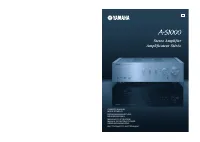 Yamaha A-S1000
User Manual
Yamaha A-S1000
User Manual
 Yamaha A-S1200BL
User Manual
Yamaha A-S1200BL
User Manual
 Yamaha A-S2200BL
User Manual
Yamaha A-S2200BL
User Manual
 Yamaha AS-301BL
User Manual
Yamaha AS-301BL
User Manual
 Yamaha A-S3200BL
User Manual
Yamaha A-S3200BL
User Manual
 Yamaha AS-501BL
User Manual
Yamaha AS-501BL
User Manual
 Yamaha A-S700
User Manual
Yamaha A-S700
User Manual
 Yamaha AS-801BL
User Manual
Yamaha AS-801BL
User Manual
 Yamaha AX-397
User Manual
Yamaha AX-397
User Manual