Page 2 - CAUTION: READ THIS BEFORE OPERATING YOUR UNIT.; WARNING; IMPORTANT; CAUTION; Nederlands; Bemonsteringsfrequentie en aantal
1 To assure the finest performance, please read thismanual carefully. Keep it in a safe place for futurereference. 2 Install this sound system in a well ventilated, cool,dry, clean place — away from direct sunlight, heatsources, vibration, dust, moisture, and/or cold.Allow ventilation space of at le...
Page 3 - CONTENTS; INTRODUCTION; ADDITIONAL INFORMATION; SOUND FIELD PROGRAM PARAMETER
1 English INTR ODUCTION PREP ARA TION B ASIC OPERA TION AD V ANCED OPERA TION ADDITIONAL INFORMA TION CONTENTS INTRODUCTION CONTENTS ............................................................ 1FEATURES ............................................................. 2GETTING STARTED ....................
Page 4 - FEATURES; Multi-mode digital sound field processing; About this manual
2 Manufactured under license from Dolby Laboratories. “Dolby”, “Pro Logic”, and the double-D symbol aretrademarks of Dolby Laboratories. FEATURES Multi-mode digital sound field processing ◆ Dolby Pro Logic/Dolby Pro Logic II decoder ◆ Dolby Digital/Dolby Digital + Matrix 6.1 Decoder ◆ DTS/DTS + Matr...
Page 5 - Notes on batteries; • Change all of the batteries if you notice a decrease in; GETTING STARTED; Supplied accessories; After unpacking, check that the following parts are contained.
3 English INTR ODUCTION Installing batteries in the remotecontrol Insert the batteries in the correct direction by aligning the+ and – marks on the batteries with the polarity markings(+ and –) inside the battery compartment. 1 Press the tab of the battery compartmentcover and pull it in the directi...
Page 6 - CONTROLS AND FUNCTIONS; Front panel; Standby mode; Receives signals from the remote control.; Front panel display; Switches the tuning mode between automatic and manual.; VOLUME; a s
4 CONTROLS AND FUNCTIONS Front panel 1 STANDBY/ON Turns the unit on, or sets it in standby mode. When youturn the unit on, you will hear a click and there will be a 4to 5-second delay before it can reproduce sound. Standby mode In this mode, the unit uses a small amount of power inorder to receive i...
Page 7 - Select the DSP program.
5 English INTR ODUCTION w STEREO (EFFECT) Switches between normal stereo and DSP effectreproduction. When you select STEREO, the unit mixesdown all Dolby Digital and DTS signals (except the LFEchannel) as well as those 2-channel signals withouteffects, to the main left and right speakers. e PROGRAM ...
Page 8 - Remote control
6 TEST PROG PROG STEREO LEVEL SET MENU TUNER CD M D / C D - R V - A U X 6 C H I N /DTS 6.1/5.1 NIGHT SLEEP DVD D - T V / C B L V C R P O W E R PRESET A / B / C / D / E MUTE VOLUME VOLUME 2 8 1 0 3 5 9 7 4 6 r y e q w t u i Remote control 1 Infrared emitter Outputs infrared control signals. Aim this ...
Page 9 - Using the remote control; • Do not spill water or other liquids on the remote; NIGHT; Sets the unit in night listening mode.; STEREO; Increases or decreases the volume level.; SET MENU; Selects the set menu mode.
7 English INTR ODUCTION Approximately 6 m (20 feet) ■ Using the remote control The remote control transmits a directional infrared beam.Be sure to aim the remote control directly at the remotecontrol sensor on the main unit during operation. ■ Handling the remote control • Do not spill water or othe...
Page 10 - u i
8 V-AUX VCR D-TV/CBL DVD MD/CD-R TUNER CD MATRIX DIGITAL PL PL PCM SILENT DSP HiFi NIGHT VIRTUAL AUTO STEREO SLEEP VOLUME MUTE MEMORY TUNED L C R RL LFE RC RR ~~~~~~~~~~~~~~ dB f t CT RT PTY PS HOLD PTY EON 1 3 4 5 8 7 6 2 9 0q w y e r u i o p a t 1 Processor indicators The indicators for the variou...
Page 11 - CONNECTIONS; Before connecting components; • Be sure all connections are made correctly, that is to; Connecting to digital jacks; Note
9 English PREP ARA TION CONNECTIONS Before connecting components CAUTION Do not connect this unit or other components to themains power until all connections between thecomponents have been completed. • Be sure all connections are made correctly, that is to say L (left) to L, R (right) to R, “+” to ...
Page 12 - Connecting video components; Connecting a video monitor; Connecting a digital TV/cable TV
10 AUDIO L R 2 1 AUDIO VIDEO TUNER L R CD DVD AM ANT GND FM ANT IN (PLAY) MAIN DVD CD DIGITAL INPUT SUB WOOFER CENTER SUB WOOFER MONITOR OUT SURROUND OPTICAL COAXIAL OUT (REC) MD /CD-R D-TV /CBL V-AUX IN VCR OUT 6CH INPUT OUTPUT 75 Ω UNBAL. VIDEOINPUT AUDIO OUTPUT L R AUDIO INPUT L R O OPTICALOUTPUT...
Page 13 - Connecting audio components; Connecting a CD player
11 English PREP ARA TION Connecting audio components ■ Connecting a CD player Connect the coaxial digital output jack on your CD playerto the DIGITAL INPUT CD jack on this unit. y • Use the AUDIO jacks on this unit to connect to a CD player that does not have a COAXIAL DIGITAL OUTPUT jack, orto reco...
Page 14 - Connecting the AM loop antenna; Notes; Connecting the antennas
12 ■ Connecting the AM loop antenna 1 Set up the AM loop antenna, then connect itto the terminals on this unit. 2 Press and hold the tab to insert the AM loopantenna lead wires into the AM ANT andGND terminals. 3 Orient the AM loop antenna for the bestreception. Notes • The AM loop antenna should be...
Page 15 - Connecting an external decoder
13 English PREP ARA TION Connecting an external decoder This unit is equipped with 6 additional input jacks (MAINleft and right, CENTER, SURROUND left and right andSUBWOOFER) for discrete multi-channel input from acomponent equipped with a multi-channel decoder and 6channel output jacks such as a DV...
Page 16 - Connecting the speakers; Speakers; Speaker placement
14 Connecting the speakers ■ Speakers This unit has been designed to provide the best sound-field quality with a 5-speaker system, using main left andright speakers, rear left and right speakers and a centerspeaker. If you use different brands of speakers (withdifferent tonal qualities) in your syst...
Page 17 - Connections; Connecting to the MAIN A SPEAKERS terminals
15 English PREP ARA TION 10 mm (3/8”) Red: positive (+)Black: negative (–) Banana plug CONNECTIONS 1 2 ■ Connections Be sure to connect the left channel (L), right channel (R), “+” (red) and “–” (black) in accordance with the markers onthis unit, the speakers, and the speaker cables. If the connecti...
Page 18 - MAIN SPEAKERS terminals; A center speaker can be connected to these terminals.
16 Subwoofer system Main B speaker Center speaker Right Rear speaker SUBWOOFER jack When using a subwoofer with built-in amplifier, including the YAMAHA Active Servo Processing Subwoofer System,connect the input jack of the subwoofer system to this jack. This unit will direct low bass signals distri...
Page 19 - Connecting the AC power cord; Plug in this unit to a wall outlet.; Turning on the power
17 English PREP ARA TION Connecting the power supplycords ■ Connecting the AC power cord Plug in this unit to a wall outlet. ■ VOLTAGE SELECTOR(General model only) The VOLTAGE SELECTOR on the rear panel of this unitmust be set for your local main voltage BEFOREplugging into the AC main supply. Volta...
Page 20 - Using the basic menu; • Make sure you disconnect headphones from this unit.; BASIC SYSTEM SETTINGS; B A S I C M E N U; S E T U P; Exit
18 Using the basic menu Use the remote control to make adjustments.• Press SPEAKERS A/B on the front panel to select the main speakers you want to use, and set SPEAKERSON/OFF to the ON position. • Make sure you disconnect headphones from this unit. 1 Press SET MENU. “BASIC MENU” appears on the front...
Page 21 - to move to the next; SP LEVEL; to move to the next setting.; SET; YES
English 19 PREP ARA TION SET MENU BASIC SOUND INPUT OPTION 1 SETUP Press –/+ to alter the settings for eachparameter. Use d to move to the next setting. 2 SP LEVEL Press –/+ to adjust the balance betweeneach speaker and the left main speaker.Use d to move to the next setting. 1 ROOM Choose from S/M/...
Page 23 - PLAYBACK; Press INPUT; • Select the input to which the video source component is; DVD
English 21 B ASIC OPERA TION PLAYBACK 1 Press STANDBY/ON (POWER on the remotecontrol) to turn on the power. 2 Turn on the video monitor connected to thisunit. 3 Press and set SPEAKERSON/OFF inward (ON). 4 Press and set SPEAKERSA/B inward (A) or outward(B) to select the mainspeakers you want to use. ...
Page 24 - When you have finished using this unit; Adjust the volume to the desired level.; Use PROGRAM
22 ■ BGV (background video) function The BGV function allows you to view images from avideo source together with sounds from an audio source.For example, you can enjoy listening to classical musicwhile watching beautiful scenery from a video source onthe video monitor. Select a source from the video...
Page 25 - Input modes and indications; Notes on digital signals
English 23 B ASIC OPERA TION Input modes and indications This unit is equipped with 2 types of input jacks for theCD and DVD sources only. You can select the type ofinput signals you wish to use. Each time you turn on the unit power, the input mode isset to the “INPUT 2 INPUT MODE” setting defined i...
Page 26 - Selecting a sound field program; Press PROGRAM; Adventure
24 Selecting a sound field program You can enhance your listening experience by selecting aDSP program. For details about each program, see pages27 – 30. Press PROGRAM l / h (PROG –/+ on the remote control) repeatedly to select thedesired program (including sub-programs ifavailable). The name of the...
Page 27 - Selecting PRO LOGIC or PRO LOGIC II; Press; PRO LOGIC
English 25 B ASIC OPERA TION ■ Playing Dolby Digital EX or DTS ESmaterial Press 6.1/5.1 to turn on the Dolby Digital + Matrix 6.1 orDTS + Matrix 6.1 decoder. The display changes AUTO → Matrix6.1 → OFF each time 6.1/5.1 is pressed.AUTO: This mode automatically switches DolbyDigital + Matrix 6.1 and D...
Page 28 - in: The display shows the number of input signal; Virtual CINEMA DSP; SILENT CINEMA DSP; Normal stereo reproduction
26 Notes • If you turn off the sound effects, no sound is output from the center speaker or rear speakers. • If you turn off the sound effects while the unit is reproducing sound from a Dolby Digital or DTS signal, the dynamic rangeof the signal is automatically compressed and the unit will mixthe s...
Page 29 - Understanding sound fields; Recreating a sound field; Program
English B ASIC OPERA TION 27 DIGITAL SOUND FIELD PROCESSING (DSP) Understanding sound fields A sound field is defined as the “characteristic sound reflections of aparticular space.” In concert halls and other music venues, we hearearly reflections and reverberations as well as the direct soundproduc...
Page 30 - Sound design of CINEMA-DSP
28 CINEMA-DSP Sound design of CINEMA-DSP Filmmakers intend for the dialog to be located right on the screen, the effect sound a little farther back, the music spreadeven farther back, and the surround sound around the listener. Of course, all of these sounds must be synchronized withthe images on th...
Page 31 - For movie programs; Straight Decode
English B ASIC OPERA TION 29 ■ For movie programs No. 7 8 9 Features This program creates the extremely wide sound field of a 70-mm movie theater. Itprecisely reproduces the source sound in detail, making both the video and the sound fieldincredibly real. This is ideal for any kind of video source e...
Page 32 - Sound field effects; Dolby Digital/DTS + DSP sound field effect
30 Sound field effects The 6-channel soundtracks found on 70-mm film produce precise sound field localization and rich, deep sound withoutusing matrix processing. This unit’s MOVIE THEATER programs provide the same quality of sound and soundlocalization that 6-channel soundtracks do. The built-in Do...
Page 33 - TUNING; Manual tuning; Automatic tuning; “FM” or “AM” appears on the front panel display.
English B ASIC OPERA TION 31 TUNING 4 Press PRESET/TUNING l / h once to begin automatic tuning. Press h to tune in to a higher frequency, or press l to tune in to a lower frequency. When the unit is tuned in to a station, the “TUNED”indicator lights up and the frequency of the stationreceived is sho...
Page 34 - Presetting stations; Automatic preset tuning options; to
32 Presetting stations ■ Automatically presetting stations (for FMstations) You can use the automatic preset tuning feature to storeFM stations. This function enables the unit toautomatically tune in to FM stations with strong signals,and to store up to 40 (8 stations x 5 groups) of thosestations in...
Page 35 - Manually presetting stations; Tune in to a station.
English B ASIC OPERA TION 33 4 Press PRESET/TUNING l / h to select a preset station number (1 to 8) while the“MEMORY” indicator is flashing. Press h to select a higher preset station number. Press l to select a lower preset station number. 5 Press MEMORY (MAN’L/AUTO FM) on thefront panel while the “...
Page 36 - Exchanging preset stations; See “Selecting a preset station” at left.; Selecting a preset station; EDIT
34 ■ Exchanging preset stations You can exchange the assignment of two preset stations.The example below describes the procedure forexchanging preset station “E1” with “A5”. 1 Select preset station “E1” by using theA/B/C/D/E and PRESET/TUNING l / h . See “Selecting a preset station” at left. 2 Press...
Page 37 - Description of RDS data; The name of the RDS station being received is displayed.; Changing the RDS mode; RECEIVING RDS STATIONS
English B ASIC OPERA TION 35 Description of RDS data This unit can receive, PS, PTY, RT, CT, and EON datawhen tuned to stations broadcasting RDS. ■ PS (Program Service name) mode: The name of the RDS station being received is displayed. ■ PTY (Program Type) mode: There are 15 program types used to c...
Page 38 - PTY SEEK function; to select the; • The unit will stop searching if a station that is; Press PTY SEEK MODE twice.; EON function; • If a preset RDS station of the selected program; To cancel this function
36 RECEIVING RDS STATIONS PTY SEEK function If you select the desired program type, the unitautomatically searches all preset RDS stations that arebroadcasting a program of the required type. 1 Press PTY SEEK MODE to set the unit inPTY SEEK mode. The program type of the station the unit is currently...
Page 39 - The sleep timer can only be set with the remote control.; Setting the sleep timer; The display then returns to the previous indication.; SLEEP TIMER; Canceling the sleep timer; ROCK CONCERT
English B ASIC OPERA TION 37 Use this feature to automatically set this unit in standbymode after the amount of time you have set. The sleeptimer is useful when you are going to sleep while this unitis playing or recording a source. The sleep timer can only be set with the remote control. y • By con...
Page 40 - Start recording on the recording component.; RECORDING
38 Recording adjustments and other operations areperformed on other recording components. Refer to theoperation instructions for these components for details ontheir operation . 1 Turn on the power of this unit and allconnected components. 2 Select the source component you want torecord from. 3 Star...
Page 41 - Use the remote control to make adjustments.; Set menu list; BASIC
39 English AD V ANCED OPERA TION Adjusting the items on the setmenu Use the remote control to make adjustments. y • You can change set menu parameters while the unit is reproducing sound. • You can use NEXT and SET MENU +/– on the front panel to change these settings, if the unit is not set to TUNER...
Page 42 - to select a sub; SOUND 1 SPEAKER SET
40 5 Press –/+ once to enterthe setup mode of theselected item. The last setting you adjustedappears on the front paneldisplay. Depending on the menu item,press u / d to select a sub item. 6 Press –/+ repeatedly tochange the menu itemsetting. 7 Press u / d repeatedly until the menudisappears. Memory...
Page 43 - Select this if you do not have rear speakers.
41 English AD V ANCED OPERA TION ■ 1B MAIN (main speaker mode) Choices: LARGE , SMALL LARGE Select this if you have large main speakers. The unitdirects the entire range of the main left and right channelsignals to the main left and right speakers. SMALL Select this if you have small main speakers. ...
Page 44 - SOUND 2 SP DISTANCE; Press + for higher values and – for lower values.; Setting by “meters”; SOUND 3; Initial setting: 0 dB; Select MAX for feature films.
42 SOUND 2 SP DISTANCE (speaker distance) Use this feature to adjust the delay applied to centerchannel sounds. This feature works when there is soundoutput from the center speakers with a source such asDolby Digital or DTS. Ideally, the center speaker shouldbe the same distance from the main listen...
Page 45 - SOUND 5 CENTER GEQ (center; A for OPTICAL INPUT jack; INPUT 2
43 English AD V ANCED OPERA TION SOUND 5 CENTER GEQ (center graphic equalizer) Use this feature to adjust the built-in 5-band graphicequalizer so that the center speaker tonal quality matchesthat of the left and right main speakers. You can select the100 Hz, 300 Hz, 1 kHz, 3 kHz, or 10 kHz frequenci...
Page 46 - OPTION 1 DISPLAY SET; DIMMER; Use this to adjust the brightness of the front panel display.; OFF; OPTION 3 AUDIO MUTE; Completely halts all output of sound.
44 OPTION 1 DISPLAY SET ■ DIMMER Use this to adjust the brightness of the front panel display. Control range: –4 to 0 OPTION 2 MEM. GUARD (memory guard) Use this feature to prevent accidental changes to settingson the unit. Choices: ON, OFF Select ON to protect the following features:• All set menu ...
Page 47 - Using the test tone; SETTING THE SPEAKER LEVELS
45 English AD V ANCED OPERA TION Using the test tone Use the test tone to set speaker levels so that the volumefrom each speaker is identical when heard from yourlistening position. 1 Press TEST. The unit will output a test tone. 2 Press u / d repeatedly to select a speaker to adjust. Each time you ...
Page 48 - SOUND FIELD PROGRAM PARAMETER EDITING; Changing parameter settings; Select a sound field program.
46 SOUND FIELD PROGRAM PARAMETER EDITING Changing parameter settings The initial sound field program settings will provide youwith an excellent listening experience as they are. It is notnecessary to alter these settings, but you can create anoriginal listening environment by doing so. Note • The ed...
Page 49 - Digital sound field parameter descriptions
47 English ADDITIONAL INFORMA TION Digital sound field parameter descriptions You can adjust the values of certain digital sound field parameters so the sound fields are recreated accurately in yourlistening room. Not all of the following parameters are found in every program. ■ DSP LEVEL Function: ...
Page 50 - TROUBLESHOOTING; General; Problem
48 TROUBLESHOOTING Refer to the chart below when this unit does not function properly. If the problem you are experiencing is not listedbelow or if the instruction below does not help, set this unit to standby mode, disconnect the power cord, and contact thenearest authorized YAMAHA dealer or servic...
Page 52 - Remedy; Refer to
50 Problem A “humming” sound canbe heard. The volume level cannotbe increased, or thesound is distorted. The sound effect cannotbe recorded. The sound fieldparameters and someother settings on theunit cannot be changed. The unit does notoperate properly. “CHECK SP WIRES”appears on the frontpanel dis...
Page 53 - Tuner
51 English ADDITIONAL INFORMA TION ■ Tuner FM stereo reception isnoisy. There is distortion, andclear reception cannotbe obtained even with agood FM antenna. The desired stationcannot be tuned in withthe automatic tuningmethod. Previously presetstations can no longerbe tuned in. The desired stationc...
Page 54 - GLOSSARY
52 GLOSSARY ■ Dolby Surround Dolby Surround uses a 4 channel analog recording systemto reproduce realistic and dynamic sound effects: 2 mainleft and right channels (stereo), a center channel fordialog (monaural), and a rear channel for special soundeffects (monaural). The rear channel reproduces sou...
Page 56 - SPECIFICATIONS; FM SECTION
54 SPECIFICATIONS FM SECTION • Tuning Range [U.S.A. and Canada models] ............................ 87.5 to 107.9 MHz[Other models] .............................................. 87.50 to 108.00 MHz • 50 dB Quieting Sensitivity (IHF, 100% mod.) Mono/Stereo ........................ 2.0 µ V (17.3 dBf)...
Page 57 - AV Receiver; OWNER’S MANUAL
RX-V340 YAMAHA ELECTRONICS CORPORATION, USA 6660 ORANGETHORPE AVE., BUENA PARK, CALIF. 90620, U.S.A. YAMAHA CANADA MUSIC LTD. 135 MILNER AVE., SCARBOROUGH, ONTARIO M1S 3R1, CANADA YAMAHA ELECTRONIK EUROPA G.m.b.H. SIEMENSSTR. 22-34, 25462 RELLINGEN BEI HAMBURG, F.R. OF GERMANY YAMAHA ELECTRONIQUE FR...
Page 58 - HOME CINEMA 6.1CH SPEAKER PACKAGE
I NS-P100/ NS-P106 (NS-P100/NS-P106: NX-E130 + NX-C130 + SW-P130) HOME CINEMA 5.1CH SPEAKER PACKAGE/ HOME CINEMA 6.1CH SPEAKER PACKAGE OWNER’S MANUAL U B NS-P100-106 PRE(UB)a 03.2.21, 9:07 AM 1
Page 59 - II; IMPORTANT SAFETY INSTRUCTIONS
II • Explanation of Graphical Symbols The lightning flash with arrowheadsymbol, within an equilateral triangle,is intended to alert you to thepresence of uninsulated “dangerousvoltage” within the product’senclosure that may be of sufficientmagnitude to constitute a risk ofelectric shock to persons. ...
Page 60 - III; We Want You Listening For A Lifetime
III We Want You Listening For A Lifetime YAMAHA and the Electronic Industries Association’sConsumer Electronics Group want you to get the most outof your equipment by playing it at a safe level. One that letsthe sound come through loud and clear without annoyingblaring or distortion – and, most impo...
Page 61 - IV; UNPACKING
IV ● Speaker cables ● Subwoofer cable ● Fasteners (for NX-C130) ● Nonskid pads (for NX-E130) ● Nonskid pads (for SW-P130) ● Main and rear speakers(and rear center speaker for NS-P106) ● Center speaker ● Subwoofer UNPACKING Please check to make sure all listed items are included. [4m] [10m] X 2 X 3 N...
Page 62 - English; CAUTION: Read this before operating your unit.
English E- 1 ● To assure the finest performance, please read this manualcarefully. Keep it in a safe place for future reference. ● Install the speakers in a cool, dry, clean place – away fromwindows, heat sources, sources of excessive vibration, dust,moisture and cold. Avoid sources of humming (tran...
Page 63 - COMPONENTS OF THE PACKAGE; For Canadian Customers
E- 2 CONTENTS IMPORTANT SAFETY INSTRUCTIONS ........ II UNPACKING .................................................. IV CAUTION ......................................................... 1 COMPONENTS OF THE PACKAGE .............. 2 SETTING UP THE SPEAKERS ...................... 3 Placing the subwoofe...
Page 64 - Speaker configuration; SETTING UP THE SPEAKERS
English E- 3 Before making connections, place all speakers in their respective positions. The positioning of the speakers is importantbecause it controls the whole sound quality of this system.Place the speakers depending on your listening position by following the instructions below. Speaker config...
Page 65 - Placing the subwoofer; Placing the center speaker
E- 4 䡵 Placing the subwoofer It is recommended to place the subwoofer on the outside ofeither the right or the left main speaker. (See fig. Å .) The placement shown in fig. ı is also possible, however, if the subwoofer system is placed directly facing the wall, thebass effect may die because the sou...
Page 68 - An example of basic connections
English E- 7 B A MAIN CENTER R L SUB WOOFER OUTPUT SPEAKERS REAR (SURROUND) REAR CENTER CENTER R L INPUT2 /MONO AUTO STANDBY OFF LOW HIGH OFF POWER ON VOLUME 0 10 INPUT /MONO FRONT R FRONT R FRONT L FRONT L REAR L REAR L REAR R REAR R REAR C REAR C CENTER CENTER CONNECTIONS Caution: Plug in the subw...
Page 69 - Before connecting; How to connect speaker cables
E- 8 For connections, keep the speaker cables as short aspossible. Do not bundle or roll up the excess part of thecables. If the connections are faulty, no sound will be heardfrom the speakers. Before connecting Remove the insulation coating at the extremity of eachspeaker cable by twisting the coat...
Page 70 - Controls and their functions; Rear panel
English E- 9 SUBWOOFER SYSTEM YST SW005 INPUT /MONO AUTO STANDBY OFF LOW HIGH OFF POWER ON VOLUME 0 10 220V-240V 110V-120V VOLTAGE SELECTOR 5 4 6 INPUT /MONO AUTO STANDBY OFF LOW HIGH VOLUME 0 10 OFF POWER ON 2 110V-120V VOLTAGE SELECTOR 220V-240V 3 1 USING THE SUBWOOFER (SW-P130) 䡵 Controls and the...
Page 71 - Adjusting the subwoofer before use; Automatic power-switching function
E- 10 䡵 Adjusting the subwoofer before use Before using the subwoofer, adjust the subwoofer to obtain the optimum volume balance between the subwoofer and the mainspeakers by following the procedures described below. Rear panel INPUT /MONO AUTO STANDBY OFF LOW HIGH OFF POWER ON VOLUME 0 10 INPUT /MO...
Page 72 - Set the; Press the; POWER; switch to the ON position.; * The power indicator on the front panel lights; Frequency characteristics
English E- 11 1 Set the VOLUME control to minimum (0). 2 Turn on the power of all the othercomponents. 3 Press the POWER switch to the ON position. * The power indicator on the front panel lights up in green. 4 Play a source containing low-frequencycomponents and adjust the amplifier’svolume control...
Page 81 - Contents
1 Introduction Environmental Information ......................................2Supplied accessories ..................................................2Notes about discs ......................................................2 Cleaning discs...............................................................
Page 82 - Cleaning discs; Symbols Used in this Manual; Introduction
2 Thank you for purchasing this unit. This Owner’s Manual explains the basic operation of this unit. The region code is 1 for U.S.A and Canada models. Since it is usual for DVD movies to be released at different times in different regions of the world, all players have region codes and discs can hav...
Page 83 - Front and Rear Panels; Functional Overview
3 Front and Rear Panels * Press button for about two seconds. Caution: Do not touch the inner pins of the jacks on the rear panel.Electrostatic discharge may cause permanent damage to the unit. STANDBY /ON STANDBY/ON – to tur n this unit to standby mode or ON Disc Tray / OPEN/CLOSE – to open/close t...
Page 84 - Remote Control
4 Remote Control * Press and hold button for about two seconds. MENU SETUP ENTER OK S T O P A N G L E A B PAUSE P L AY 2 3 5 4 6 8 0 7 9 1 TOP MENU RETURN ON SCREEN DVD Z O O M A U D I O M U T E S C A N SUBTITLE REPEAT B / | – turn this unit ON or go to standby-on mode 0-9 numeric buttons – select n...
Page 85 - Preparation
5 General Notes on connections Never make or change connections with the power switched on. ● Depending on the equipment you wish to connect, there are various ways you could connect this unit. Possible connections are shown in the following drawings. ● Please refer to the manuals of other equipment...
Page 86 - Video Connections
6 Video Connections If your AV receiver has video output jacks, connect your receiver (and then to your TV) so that you can use one TV for several different video sources (LD, VCR etc.) by simply switching the input source selector of your receiver.The player has three types of video output jacks. U...
Page 87 - Using the Remote Control
7 Inserting batteries into the Remote Control 1 Open the battery cover by pressing in the tab, then lift off the cover. 2 Insert batteries with the correct polarity as indicated by the + and - symbols inside the battery compartment. 3 Close the cover. CAUTION!– Remove batteries if they are exhausted...
Page 88 - Video control during playback; Audio control during playback; Operation
8 Basic Playback 1 Press STANDBY/ON on the front panel to turn on the DVD player. 2 Press / (OPEN/CLOSE) on the front panel to open disc loading tray. 3 Place the chosen disc in the tray, with the label facing up. 4 Press / (OPEN/CLOSE) again to close the tray. ➜ After recognizing this disc, the pla...
Page 89 - Time Search; Time display
9 ➜ Mono Right: Output the right audio channels of the disc through the left and right audio jacks. ➜ MIX-Mono: each of the audio jacks can output the same audio effect as stereo. Repeat and Shuffle ● Each time you press REPEAT, the Repeat/Shuffle mode changes as follows; * This feature may not be a...
Page 90 - Zoom; Special DVD Features; Playing a Title; Special VCD & SVCD Features
10 Zoom The Zoom function allows you to change the image size. 1 Press ZOOM to activate the function. ➜ Use 341 2 to view other parts of the zoomed picture. ➜ Playback will continue. 2 Press ZOOM repeatedly to return to the original size. Special DVD Features Playing a Title A DVD disc may have one ...
Page 91 - Preview Function; Track Digest
11 Preview Function ● Press SCAN to enter previewing menu. ● Press 34 to highlight Track Digest, Disc Interval or Track Interval. ● Press ENTER/OK to open one option. ● After you enter the menu of any digest type, ➜ To quit preview function: Press 341 2 to highlight EXIT and press ENTER/OK. ➜ To ret...
Page 92 - General Operation; Play Mode; Auto Playback; Picture CD & MP3 Playback
12 This player can playback JPEG format pictures and MP3 files on a personally recorded CD-R/RW disc or commercial CD, and is compatible with Kodak Picture CD. ● Playback pictures or songs one by one automatically. ● Album and track selection. ● Repeat (disc / album / track / picture). ● Select any ...
Page 94 - Disc Lock; Input your favorite track; Setup Menu
14 Basic Operation 1 Press SETUP in the STOP mode to enter the Setup Menu. 2 Press ENTER/OK to go to the next level submenu or confirm your selection. 3 Press 1 2 to enter the submenu or return to the previous menu. 4 Press 34 to highlight the desired menu. 5 Press SETUP to quit the setup menu. ➜ Wh...
Page 95 - Repeat the program playback; OSD language; Audio Setup menu; Speaker Setup; Downmix
15 Repeat the program playback ● During playback of the programmed tracks, press REPEAT. The programed tracks can be played again. Note: If you select Shuffle mode by pressing REPEAT several times, the DVD player cancels program playback. OSD language This option is to select a language for informat...
Page 96 - Digital Audio Setup; Digital Output
16 Digital Audio Setup In this menu, you can set up the digital audio output signal from the digital jacks, such as coaxial etc. Digital Output 1 Press 34 to highlight Digital Output. 2 Enter its submenu by pressing 2 . 3 Press 34 to highlight the selected item. ➜ All: Original digital signals outpu...
Page 97 - Video Setup menu; TV Type; Setup the item as follows,
17 Video Setup menu There are items included in Video Setup menu such as “TV Type”, “TV Display”, “Closed Caption”, “Progressive” and “Picture Setting”. 1 Press SETUP to enter the setup menu. 2 Press 1 2 to choose the VIDEO SETUP icon . TV Type Before viewing the DVD or VCD, ensure that the PAL or N...
Page 98 - Notes on activating Progressive:; Picture Setting; Brightness
18 Closed Caption Closed captions are data that are hidden in the video signal on specific discs, invisible without a special decoder. The difference between subtitles and captions is that subtitles are intended for hearing persons and captions are for the hearing impaired. Subtitles rarely show all...
Page 99 - Password Setup
19 Color (saturation) 1 Press 34 to highlight “Color”. 2 Press 2 to open the level bar. 3 Press 1 2 to increase and decrease the color level. 4 Press ENTER/OK to return to the Picture Setting menu. Password Setup This item is used for the parental control and disc lock. Enter your six digit password...
Page 100 - Preference Setup menu; Audio language
20 Preference Setup menu There are options included in this menu such as “Audio”, “Subtitle”, “Disc Menu”, “Parental”, “Default” and “MP3/JPEG NAV”. 1 Press STOP twice. 2 Press SETUP to enter the setup menu. 3 Press 1 2 to choose the PREFERENCE icon . Audio language DVD discs are available with mult...
Page 101 - Parental Control; Default Setup
21 Parental Control Movies on DVDs may contain scenes which are not suitable for children. Therefore, discs may contain ‘Parental Control’ information which applies to the complete disc or to certain scenes on the disc. These scenes are rated from 1 to 8, and alternative, more suitable scenes are av...
Page 102 - Troubleshooting
22 Refer to the chart below when this unit does not function properly. If the problem you are experiencing is not listed below or if the instruction below does not help, set this unit to the standby mode, disconnect the power cord, and contact the nearest authorized YAMAHA dealer or service center. ...
Page 103 - Maintenance
23 PLAYBACK SYSTEM DVD VideoVideo CD & SVCDCDPICTURE CDCD-R, CD-RWDVD+R, DVD+RWDVD-R, DVD-RW VIDEO PERFORMANCE Video (CVBS) Output 1 Vpp into 75 ohm S-Video output Y: 1 Vpp into 75 ohmC: 0.3 Vpp into 75 ohm Component video output Y: 1 Vpp into 75 ohmPb/Cb Pr/Cr: 0.7 Vpp into 75 ohm Black Level S...
Page 104 - Language Code
24 These pages can be used to select other languages.This does not affect the options in “Audio”, “Subtitle” or “Disc Menu”. Abkhazian 6566 German 6869 Afar 6565 Gikuyu; Kikuyu 7573 Afrikaans 6570 Greek, 6976 Albanian 8381 Guarani 7178 Amharic 6577 Gujarati 7185 Arabic 6582 Hausa 7265 Armenian 7289 ...
Page 106 - YAMAHA CORPORATION
YAMAHA CORPORATION IP Printed in China YAMAHA ELECTRONICS CORPORATION, USA 6660 ORANGETHORPE AVE., BUENA PARK, CALIF. 90620, U.S.A.YAMAHA CANADA MUSIC LTD. 135 MILNER AVE., SCARBOROUGH, ONTARIO M1S 3R1, CANADAYAMAHA ELECTRONIK EUROPA G.m.b.H. SIEMENSSTR. 22-34, 25462 RELLINGEN BEI HAMBURG, F.R. OF G...


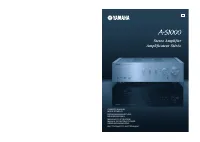 Yamaha A-S1000
User Manual
Yamaha A-S1000
User Manual
 Yamaha A-S1200BL
User Manual
Yamaha A-S1200BL
User Manual
 Yamaha A-S2200BL
User Manual
Yamaha A-S2200BL
User Manual
 Yamaha AS-301BL
User Manual
Yamaha AS-301BL
User Manual
 Yamaha A-S3200BL
User Manual
Yamaha A-S3200BL
User Manual
 Yamaha AS-501BL
User Manual
Yamaha AS-501BL
User Manual
 Yamaha A-S700
User Manual
Yamaha A-S700
User Manual
 Yamaha AS-801BL
User Manual
Yamaha AS-801BL
User Manual
 Yamaha AX-397
User Manual
Yamaha AX-397
User Manual