Page 2 - Table of Contents; Chapter 1: Safety Information; HbbTV; Chapter 5: Other Information
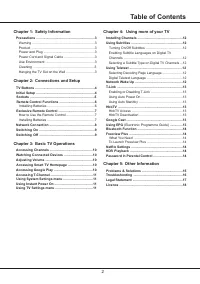
2 Table of Contents Chapter 1: Safety Information Precautions ...............................................................3 Warning ...................................................................3Product ....................................................................3Power and Plug ........
Page 3 - Precautions; Warning
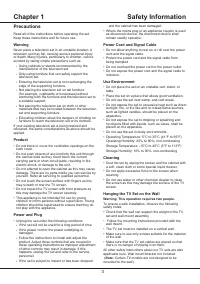
3 Chapter 1 Safety Information Precautions Read all of the instructions before operating the set. Keep these instructions well for future use. Warning Never place a television set in an unstable location. A television set may fall, causing serious personal injury or death. Many injuries, particularl...
Page 4 - TV Buttons; Initial Setup
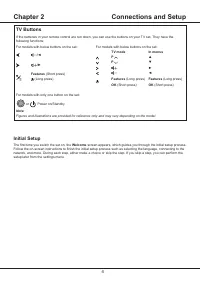
4 Chapter 2 Connections and Setup TV Buttons If the batteries in your remote control are run down, you can use the buttons on your TV set. They have the following functions: For models with below buttons on the set: For models with below buttons on the set: /◄ TV mode In menus P ▲ /► P ▼ ► Features ...
Page 5 - Connections and Setup; Sockets; AV IN adapter socket
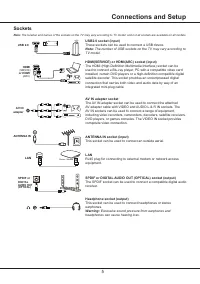
5 Connections and Setup Sockets Note: The location and names of the sockets on the TV may vary according to TV model, and not all sockets are available on all models. USB2.0 socket (input) These sockets can be used to connect a USB device. Note: The number of USB sockets on the TV may vary according...
Page 6 - Remote Control Functions; To access T recommended apps.
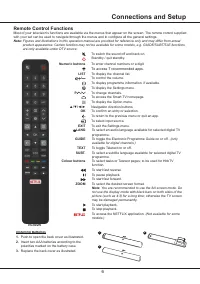
6 Remote Control Functions Most of your television's functions are available via the menus that appear on the screen. The remote control supplied with your set can be used to navigate through the menus and to configure all the general settings. Note: Figures and illustrations in this operation manua...
Page 7 - OK; Exclusive Remote Control; How to Use the Remote Control
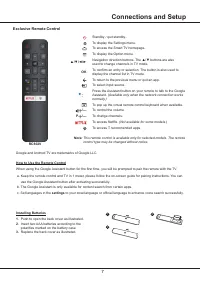
7 Connections and Setup Standby / quit standby.. To display the Settings menu. To access the Smart TV homepage. To display the Option menu. ▲/▼/◄/► Navigation direction buttons. The ▲/▼ buttons are also .. used to change channels in TV mode. OK To confirm an entry or selection. The button is also us...
Page 8 - Connecting to a Wireless Network; Network Connection; Connecting to a wired Network; Ethernet port
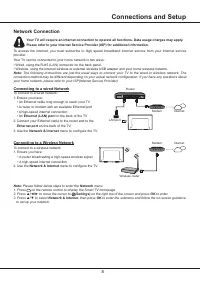
8 Connecting to a Wireless Network To connect to a wireless network 1. Ensure you have: • A router broadcasting a high-speed wireless signal • A high-speed internet connection 2. Use the Network & Internet menu to configure the TV. Network Connection Your TV will require an internet connection t...
Page 9 - Switching On; Switching Off
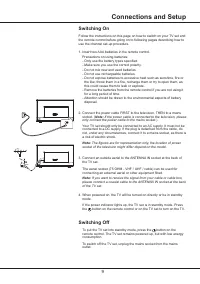
9 Connections and Setup Switching On Follow the instructions on this page on how to switch on your TV set and the remote control before going on to following pages describing how to use the channel set-up procedure. 1. Insert two AAA batteries in the remote control. Precautions on using batteries: -...
Page 11 - Basic TV Operations; Using Instant Power On; Using System Settings menu
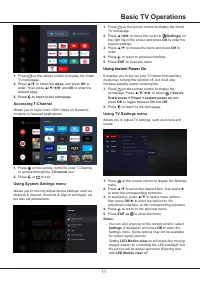
11 Basic TV Operations 1. Press on the remote control to display the Smart TV homepage. 2. Press ▲/◄/► to move the cursor to (Settings) on the right top of the screen and press OK to enter the system settings. 3. Press ▲/▼ to choose the items and press OK to enter. 4. Press to return to previous int...
Page 12 - Using Teletext; General Settings; Installing Channels; Channel type; Digital; Using Subtitles
12 Chapter 4 Using more of your TV 3. Press ▲/▼ to select Digital subtitle language 2nd and press OK/► to enter. 4. Press ▲/▼ to select a secondary subtitle language and press OK to confirm. 5. Press EXIT or to close the menu. Shortcut operation: Press SUBT. on the remote control to directly select ...
Page 13 - Using more of your TV; Google Cast
13 Using more of your TV When the TV is in networked standby mode, you can use the app to wake up the TV remotely. T-Link Use this function to search for CEC devices connected to the HDMI sockets in your TV and enable auto power on and auto standby between the TV and CEC devices. Enabling or Disabli...
Page 16 - Other Information; Troubleshooting
16 Other Information Troubleshooting Most problems you encounter with your TV can be corrected by consulting the following troubleshooting list. No picture, no sound 1. Check if the fuse or circuit breaker is working. 2. Plug another electrical device into the outlet to make sure it is working or tu...
Page 17 - Legal Statement
17 Other Information Legal Statement [Legal Statement] of TCL - manufacturer of this TV setDue to the various capabilities of products featuring the SmartTV - Services, as well as limitations in the available content, certain features, applications, and services may not be available on all devices o...
Page 18 - Licence
18 Other Information Licence The terms HDMI, HDMI High-Definition Multimedia Interface, and the HDMI Logo are trademarks or registered trademarks of HDMI Licensing Administrator, Inc. HEVC, or H.265 is the successor to H.264 and strives to deliver video with equivalent quality with bitrate savings o...
Page 19 - TCL Electronics Australia Pty Ltd.; Like us on Facebook
TCL Electronics Australia Pty Ltd. ABN 83 111 032 896 Telephone: 1300 738 149 [email protected] www.tcl.com/au Like us on Facebook 72-RT41KT-EAU1C