Page 2 - Important information
EN 2 English This symbol indicates that high voltage is present inside. It is dangerous to make any kind of contact with any internal part of this product. N This symbol indicates that the fuse may be in the neutral, and that the mains shall be disconnected to de-energize the phase conductors. To pr...
Page 3 - Information for Users on Disposal of; prevent potential negative effects on; [Other Countries outside the European; Declaration of Conformity
EN 3 English Figures and illustrations in this User Manual are provided for reference only and may differ from actual product appearance. Product design and specifications may be changed without notice. Important information Information for Users on Disposal of Old Equipment and Batteries[European U...
Page 4 - Chapter 1 - Connections; Switch the TV on and off; Chapter 3 - Basic TV operations; Turning on/off subtitles; Chapter 5 - Other information; Password in Parental Control; Contents
EN 4 English Important information ………………………………… 1 Chapter 1 - Connections Connect the power and antenna …………………… 5Connect Blu-ray Disc player, HD game console, HD camcorder, headphones, CI module ………………… 5Connect to the Internet ……………………………… 6 Chapter 2 - Getting started Remote control functions ……...
Page 5 - Connect the power and antenna; To switch on TV after connecting power cord, press or; CI module
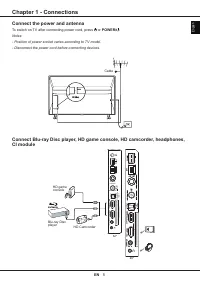
EN 5 English Connect the power and antenna To switch on TV after connecting power cord, press or POWER/ . Notes: - Position of power socket varies according to TV model. - Disconnect the power cord before connecting devices. Cable Chapter 1 - Connections 40 ” USB 2.0 5V 0.5A LAN ANTENNA /CABLE IN SA...
Page 6 - Connections; according to TV model.; Connect to the Internet; Wired connection; Press; OK; to enter the; Settings; to enter the submenu and follow the on-screen
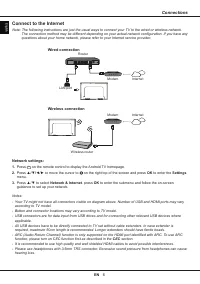
EN 6 English Connections Notes: - Your TV might not have all connectors visible on diagram above. Number of USB and HDMI ports may vary according to TV model. - Button and connector locations may vary according to TV model. - USB connectors are for data input from USB drives and for connecting other...
Page 7 - Remote control functions; Chapter 2 - Getting started; Note: You are recommended to use the full screen mode.; Installing batteries
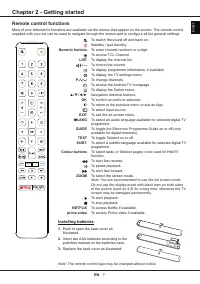
EN 7 English Remote control functions Most of your television's functions are available via the menus that appear on the screen. The remote control supplied with your set can be used to navigate through the menus and to configure all the general settings. Chapter 2 - Getting started To switch the so...
Page 8 - Getting started; Important; Press the; To switch the TV off, unplug the mains plug from the mains outlet.; Initial setup; The first time you switch the set on, the; Welcome; or poor broadcasting in some areas.
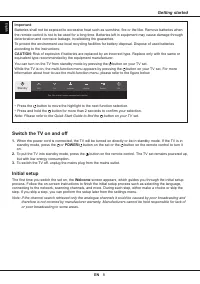
EN 8 English Getting started Important : Batteries shall not be exposed to excessive heat such as sunshine, fire or the like. Remove batteries when the remote control is not to be used for a long time. Batteries left in equipment may cause damage through deterioration and corrosive leakage, invalida...
Page 9 - Accessing channels; Note: Since the connection with Internet takes; Using TV settings menu
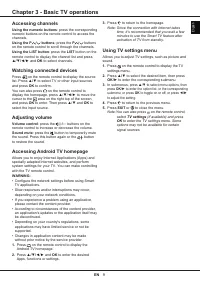
EN 9 English Chapter 3 - Basic TV operations Accessing channels Using the numeric buttons : press the corresponding numeric buttons on the remote control to access the channels. Using the P / buttons : press the P / buttons on the remote control to scroll through the channels. Using the LIST button ...
Page 10 - Chapter 4 - Using more of your TV; Installing channels; Satellite; Common interface; Using the common interface module; WARNING: Switch off your TV before inserting a; Note: Do not remove the common interface; Accessing common interface services; Using subtitles; Select the; Subtitle; to toggle; Enabling subtitle languages on digital TV
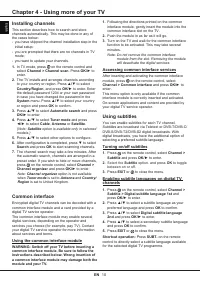
EN 10 English Chapter 4 - Using more of your TV Installing channels This section describes how to search and store channels automatically. This may be done in any of the cases below: - you have skipped the channel installation step in the initial setup; - you are prompted that there are no channels ...
Page 11 - Using more of your TV; Using Teletext; toggle between on or off; EXIT; Using Auto power on; Using Auto standby; standby mode when you turn off the TV with the TV; HbbTV
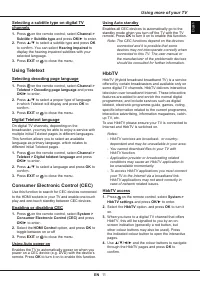
EN 11 English Using more of your TV Selecting a subtitle type on digital TV channels 1. Press on the remote control, select Channel > Subtitle > Subtitle type and press OK/ ► to enter. 2. Press ▲ / ▼ to select a subtitle type and press OK to confirm. You can select Hearing impaired to display ...
Page 12 - Using EPG (Electronic Programme; Programme filter; Bluetooth function; audio reception, you should restart your; Quick start function; Quick start; Software update
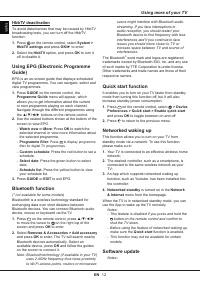
EN 12 English Using more of your TV HbbTV deactivation To avoid disturbances that may be caused by HbbTV broadcasting tests, you can turn off the HbbTV function: 1. Press on the remote control, select System > HbbTV settings and press OK/ ► to enter. 2. Select the HbbTV option, and press OK to tu...
Page 13 - upgrade is completed.; Reset to factory default settings; Viewing pictures, playing music and; Your TV is fitted with USB connectors that enable
EN 13 English - Do not switch off or unplug the TV until the upgrade is completed. - Keep successful network connection during upgrade. Press on the remote control,select > Device Preferences > About > Software update and press OK to enter. You have three options to update the software: Net...
Page 15 - Other information
EN 15 English Other information require additional peripheral devices or membership fees that are sold separately. Please visit our website for more information on specific device information and content availability. The services and availability of content through SmartTV are subject to change fro...