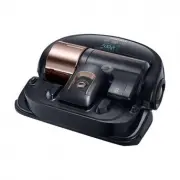
Page 2 - Contents
ENGLISH- 02 Contents 03 Safety information 08 Installation Accessories / Installation note 10 Charging Automatic charging / Recharging / Low battery (Lo) 12 Installing the Virtual guard Part name of the Virtual guard / Inserting batteries 14 Using POWERbot Selecting cleaning mode 16 Using the remote...
Page 3 - Safety information
ENGLISH- 03 Safety information Safety information WARNING • Before operating the appliance, please read this manual thoroughly and retain it for your reference. WARNING • Because these following operating instructions cover various models, the characteristics of your vacuum cleaner may differ slight...
Page 6 - power related; Before use; in use
ENGLISH- 06 WarninG power related f Please prevent any risk of electric shock or fire. – Do not damage the power cord. – Do not pull the power cord too hard or touch the power plug with wet hands. – Do not use a power source other than 100 - 240 V~ and also do not use a multi outlet to supply power ...
Page 8 - installation; power of the docking station must be on at all times.
ENGLISH- 08 1 Connect the adapter jack to the docking station 2 Connect the power cord to the adapter When using the adapter, the side with the sticker attached must face down. 3 Connect the power plug to the outlet Power lamp (Red) will turn on. installation power of the docking station must be on ...
Page 9 - accessories; installation note
ENGLISH- 09 accessories remote control Batteries (aaa type) User manual Spare filter Cleaning brush Docking station Power cord adapter Virtual guard installation note Note f Install the docking station in a place where the floor and wall are level. f It is best to install the docking station along t...
Page 10 - Charging
ENGLISH- 10 Charging lamp during charging (green) It takes approximately 240 minutes to completely charge when charging for the first time after purchase and can be used for approximately 30 minutes in Max mode. Charging 1 turn on the emergency switch on the bottom You must turn on the emergency swi...
Page 11 - Steps to take if recharging is not being executed
ENGLISH- 11 When the battery indicator blinks during cleaning, poWerbot will return to the docking station to charge itself automatically. automatic charging you may command poWerbot to recharge at the docking station while it is in cleaning process. recharging manually charge poWerbot by placing it...
Page 12 - installing the Virtual guard; press the power
ENGLISH- 12 installing the Virtual guard infrared ray from the Virtual guard will restrict poWerbot from approaching certain area. Virtual guard 1 press the power button to turn it on Power lamp (Red) will blink. 2 install the Virtual guard where you want to restrict poWerbot's entrance Make sure th...
Page 13 - part name of the Virtual guard; inserting batteries
ENGLISH- 13 part name of the Virtual guard power button Distance detection sensor (infrared ray sensor) power lamp Power on: Red lamp blinks Power off: Lamp is off poWerbot detection sensor Battery cover inserting batteries Batteries for Virtual guard must be purchased separately. 1 Open the battery...
Page 14 - Using poWerbot; turning the power on/off; Using auto clean mode; recharging
ENGLISH- 14 Using poWerbot you must turn on the emergency switch before using poWerbot. turning the power on/off press the button for more than 3 second Using auto clean mode The POWERbot moves and cleans automatically until it cleans entire space once. ✻ ✻ Stop cleaning: Press the button recharging...
Page 15 - Cleaning method for each modes; Selecting cleaning mode
ENGLISH- 15 cleaning mode How to select Displayed icon Auto clean Spot clean ✻ ✻ Spot clean mode can be selected only by pressing this button on the main body of the POWERbot. Manual clean ✻ ✻ Manual clean mode can be selected by the direction control buttons of the remote control. ✻ ✻ When cleaning...
Page 16 - Using the remote control; Suction power
ENGLISH- 16 Using the remote control 1 power / recharging / Start/Stop Power Turn POWERbot's power on/off Recharging Select to recharge POWERbot at the docking station automatically Start/Stop Select to start or stop cleaning process 2 Suction power Max mode Select to clean with the strongest suctio...
Page 17 - point cleaning
ENGLISH- 17 you can use the remote control to point and clean the desired spot while the poWerbot is in cleaning process. point the red light on the floor within 1 m around poWerbot's location. Press and hold the Point cleaning button to move the red light to the desired spot. The POWERbot will foll...
Page 18 - name of each part; top
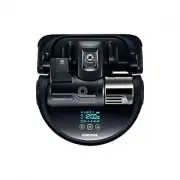
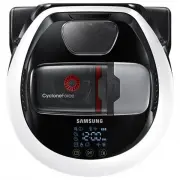
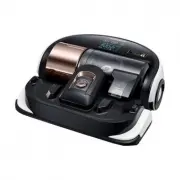
ENGLISH- 18 name of each part 1 5 2 3 4 6 3 3 4 7 8 9 top 1. Display panel2. Dustbin holder3. Remote control signal receiver4. Virtual guard sensor5. Obstacle sensor6. Dustbin7. Camera8. Dustbin handle9. Bumper sensor 1 4 2 6 5 5 4 7 4 8 9 3 Bottom 1. Charge pins2. Pet brush3. Pet brush cover4. Clif...
Page 19 - Setting time/schedule; Setting the time; Setting the schedule; Cancelling during setup
ENGLISH- 19 Setting time/schedule only auto clean mode can be scheduled. Setting the time You must set the current time before using the One-time/daily schedule. Start setting Select "Hour" Select "Minute" Select "AM/PM" Setting complete Skip to previous, next setting Setting...
Page 20 - Cleaning and maintaining; Cleaning the dustbin; Cleaning the sensors and the camera
ENGLISH- 20 Cleaning and maintaining you must turn off the emergency switch before cleaning poWerbot. Cleaning the dustbin Clean the dustbin when filter inspection indicator ( ) turns on or if there's too much dust in the dustbin. 1 Remove the dustbin 2 Remove the dustbin cover 3 Remove dust in the ...
Page 21 - Cleaning the pet brush; Cleaning the Driving wheel
ENGLISH- 21 Cleaning the pet brush 1 Remove the Pet brush cover 2 Remove the Pet brush 3 Clean the Pet brush ON OFF ON OFF 4 Reassemble the Pet brush 5 Reassemble the Pet brush cover Cleaning the Driving wheel 1 Put a soft cloth on the floor and place POWERbot upside-down. 2 Use a blunt rod or tweez...
Page 22 - Samsung Smart Home app; preparing the network; Setting up the wireless router
ENGLISH- 22 Samsung Smart Home app preparing the network Setting up the wireless router f This product supports only DHCP(Dynamic Host Configuration Protocol). Please check if the DHCP server option function of a wireless router is activated. f The supported types of authorization/encryption of the ...
Page 23 - Using the Samsung Smart Home app; Creating your Samsung account; Downloading Samsung Smart Home app
ENGLISH- 23 Using the Samsung Smart Home app Creating your Samsung account If you want to use the Samsung Smart Home app, please register your Samsung account in Samsung account app. Note f If you do not set auto-login to the Samsung Smart Home app and run the app, the screen of Samsung account appe...
Page 27 - chat control
ENGLISH- 27 main screen f Select the Robot vacuum icon on the main screen, and you can move to the POWERbot control screen. f You can control your smart home appliances made by Samsung Electronics by Going out, Coming home, Good night, and Good morning icons. f Home view function is not supported fo...
Page 28 - Controlling poWerbot
ENGLISH- 28 Samsung Smart Home app Controlling poWerbot When accessing the Samsung Smart Robot vacuum app, the control screen will appear. 1. Power on/off2. Manual clean mode and Direction control (forward movement, left turn, right turn) 3. Auto clean mode start/stop4. Spot clean mode5. Current sta...
Page 30 - notes and cautions; Cleaning and maintenance; caution
ENGLISH- 30 notes and cautions Charging Note f If the battery overheats during charging, it may take longer to charge. f When automatic charging is not working, please check the followings. – Turn the emergency switch (on the bottom of POWERbot) off and on again. – Unplug the docking station's power...
Page 31 - about battery; about the irDa sensor
ENGLISH- 31 f Since the Pet brush removes dirt from the floor during cleaning, foreign matters such as thread, long hair, etc. may get caught in it. Therefore check and clean it regularly. about battery Note f Purchase batteries at authorized Samsung centers and check for the symbol ( ) which is stu...
Page 32 - information codes; Information codes
ENGLISH- 32 information codes 1 Below information codes appear on the display panel 2 Turn off the emergency switch and check the below instructions and take appropriate action 3 Information code will disappear when you turn on the emergency switch Information codes checklist the poWerbot is caught,...
Page 33 - troubleshooting; Symptom
ENGLISH- 33 troubleshooting Symptom checklist the PoWeRbot is not working at all. f Check if the emergency switch is on. f Check if all the icons are displayed on display panel. f Check if the battery of POWERbot is depleted. – When "Lo" is displayed, carry POWERbot to the docking station to...
Page 35 - Warnings about battery; How to remove the battery
ENGLISH- 35 Warnings about battery WARNING You must not remove (or attempt to remove) the battery incorporated in this product on your own. To replace the battery, you must contact your service provider or an independent qualified professional. these instructions have been prepared for the exclusive...
Page 36 - open Source announcement
ENGLISH- 36 open Source announcement The software included in this product contains open source software. You may obtain the complete corresponding source code for a period of three years after the last shipment of this product by sending an email to mailto:[email protected]. It is also possible to ...
Page 37 - Specifications; classification
ENGLISH- 37 Specifications classification Item Detail information Mechanical specifications (PoWeRbot) Size (Depth x Height x Length) 378 mm x 135 mm x 362 mm Weight 4.9 kg Sensor Ceiling shape recognition (Visionary mapping plus TM) Button type of POWERbot Touch type Power specifications Power volt...