Page 2 - safety information; Safety information; CaUtion/WarninG SymBoLS USeD; otHer SymBoLS USeD
02_ safety information safety information Safety information • Before operating the appliance, please read this manual thoroughly and retain it for your reference. • Because these following operating instructions cover various models, the characteristics of your vacuum cleaner may differ slightly fr...
Page 3 - important Safety inStrUCtionS
safety information _03 important Safety inStrUCtionS When using an electrical appliance, basic precautions should be observed, including the following: reaD aLL inStrUCtionS Before USinG yoUr VaCUUm CLeaninG roBot. Unplug from outlet when not in use and before conducting maintenance. WarninG: to red...
Page 4 - VaCUUm CLeaninG roBot
04_ safety information • Do not use extension cords or outlets with inadequate current carrying capacity. • Do not unplug by pulling on the cord. To unplug, grasp the plug, not the cord. • Do not mutilate or incinerate batteries as they will explode at high temperatures. • Do not attempt to open the...
Page 5 - contents
contents _05 contents sAfety INfoRmAtIoN 02 06 Power Related 07 Before Use 10 In Use 11 Cleaning and Maintenance pRoduct feAtuRes 13 AssemblING the cleANeR 15 15 Components 16 Name of each part opeRAtING the cleANeR 20 20 Installing the vacuum cleaning robot 20 Installation order 20 Turning the Powe...
Page 6 - poWer reLateD; do not bend the power cord forcefully or place a heavy object; make sure to remove any dust or water from the power plug.; do not pull the power plug by the cord or touch the plug with; do not use a damaged power cord, plug, or a loose power
06_ safety information poWer reLateD WARNING do not bend the power cord forcefully or place a heavy object on it that could break it. - This may result in fire or electric shock. WARNING make sure to remove any dust or water from the power plug. - Failing to do so may result in a malfunction or elec...
Page 7 - Before USe
safety information _07 01 S afet y informa tion Before USe cAutIoN before activating the vacuum cleaning robot, make sure that the dust bin is assembled. - If the dust bin is not inserted, vacuum cleaning robot will not operate. cAutIoN Never use vacuum cleaning robot in locations with combustible m...
Page 10 - in USe
10_ safety information in USe cAutIoN you cannot use the vacuum cleaning robot on thick carpets. - This may result in problems with the vacuum cleaning robot. - This may result in damage to carpets. cAutIoN do not use the vacuum cleaning robot on a table or other high locations. - This may result in...
Page 11 - CLeaninG anD maintenanCe
safety information _11 01 S afet y informa tion Note Vacuum cleaning Robot may not be able to continue its operation if it is stuck at the entrance or veranda doorsill. - Vacuum cleaning Robot stops operating for safety reasons if it cannot move for more than 5 minutes. - To resume operating, turn t...
Page 13 - ConVenient VirtUaL GUarD fUnCtion; What is ceiling shape recognition; DeLiCate CLeaninG of eVery Corner; product features
product features _13 ConVenient VirtUaL GUarD fUnCtion You can confine the robotic vacuum cleaner to a particular section by using Fence (virtual wall) mode. • What is ceiling shape recognition (Visionary mapping plus™)? This function recognizes the shape of the ceiling using the camera on top to id...
Page 14 - aUto CHarGinG; Safety DeViCe
14_ product features aUto CHarGinG When the battery is low, the robotic vacuum cleaner is automatically guided to the charger to enable it to perform a quick auto charge. eDGe-CLeaninG SiDe rotatinG BrUSH The edge-cleaning side rotating brush cleans dust from the edges. DoorSiLL CroSSinG about 1.5 c...
Page 15 - ComponentS; main Body; assembling the cleaner
assembling the cleaner _15 02 a SSemBLin G t H e CLeaner ComponentS ■ main Body ■ remote Control ■ Charger ■ others Components ❈ option user manual (cd- Rom) / 2 battery VIRtuAlGuARd cleaning brush Air freshener ❈ option spare filter assembling the cleaner
Page 16 - name of eaCH part; front
16_ assembling the cleaner name of eaCH part front Bottom operating Button air freshener compartment cover VirtUaL GUarD Sensor obstacle Sensor Display panel Camera obstacle Sensor Bumper Sensor VirtUaL GUarD Sensor remote Control Sensor remote Control Sensor Dust bin Dust bin eject Button air fresh...
Page 17 - Charger; Installing the batteries
assembling the cleaner _17 02 a SSemBLin G t H e CLeaner ■ Charger ■ VirtUaL GUarD : option Distance Detection Sensor Lamp power Button main Body Detection Sensor ■ Installing the batteries Batteries are not supplied with the product. You have to purchase the batteries additionally.Install the batte...
Page 18 - remote Control
18_ assembling the cleaner ■ remote Control ■ Installing the batteries Batteries are not installed in the remote control when purchasing the product.Install the batteries (type AAA) before use. 1 2 3 Lift the battery compartment cover at the back of the remote control, while pressing the locking tab...
Page 19 - DiSpLay part; battery level Indicator; BUtton part; Status Display Window
assembling the cleaner _19 02 a SSemBLin G t H e CLeaner DiSpLay part 1. Number display - Shows the timer display, progress status, and error codes using numbers, letters and graphics. 2. battery level Indicator - Charging : Shows the charging progress in 3 steps. - In Use : Shows the battery charge...
Page 20 - inStaLLinG tHe VaCUUm CLeaninG roBot; installation order; turning the power switch on or off; turning the power Switch on or off; operating the cleaner
20_ operating the cleaner inStaLLinG tHe VaCUUm CLeaninG roBot installation order 1. turning the power switch on or off To use the robotic vacuum cleaner, you must turn on the Power Switch at the bottom of the main unit. 2. Installing the charger To charge the robotic vacuum cleaner, you must first ...
Page 21 - installing the charger; Always keep the power cord of the charger plugged
operating the cleaner _21 03 opera tinG t H e CLeaner installing the charger power Lamp Charging Lamp 1. Install the charger on a flat surface. 2. There should be no obstacles 0.5m to the left and right and within 1 m of the front. about 1m about 0.5m about 0.5m 3. Install the charger in a location ...
Page 22 - Charging
22_ operating the cleaner Charging When the product is initially purchased, the battery is fully discharged, and you must charge the robotic vacuum cleaner manually. Turn on the Power Switch at the bottom of the product. 1. After aligning the charge pins of the main unit with the charge pin of the c...
Page 23 - about the Battery; the battery warranty period is 6 months from the
operating the cleaner _23 03 opera tinG t H e CLeaner Note • When the product is initially purchased, it will take about 120 minutes to fully charge the battery and will run for about 90 minutes. • When charging the battery while the battery is over-heated, the charging time can increase.• Measures ...
Page 24 - Setting the time; Remote control
24_ operating the cleaner inStaLLinG tHe VaCUUm CLeaninG roBot Setting the time To use the Scheduled Cleaning and Daily Cleaning functions properly, setting the time is necessary. You can only set the time using the remote control. ■ You can only set the time using the remote control. Suppose curren...
Page 25 - button operations
operating the cleaner _25 03 opera tinG t H e CLeaner installing the VirtUaL GUarD (option) You can confine the robotic vacuum cleaner to a particular section by using Fence (virtual wall) mode. button operations 1. lamp operations - Fence (virtual wall) Mode: The red lamp flashes. - Off :The lamp i...
Page 26 - About the IrdA sensor; installing the air freshener
26_ operating the cleaner About the IrdA sensor • The infrared signal transmission may not be smooth in locations exposed to halogen lamps or in outdoor locations. • Robotic vacuum cleaner uses 3 types of infrared devices and a device may not work in front of another device with a higher priority. •...
Page 27 - USinG tHe roBotiC VaCUUm CLeaner; Starting/Stopping Cleaning; you can run or stop all vacuum cleaning robot functions.; Using the main unit
operating the cleaner _27 03 opera tinG t H e CLeaner USinG tHe roBotiC VaCUUm CLeaner Starting/Stopping Cleaning you can run or stop all vacuum cleaning robot functions. ■ Each robotic vacuum function only runs when the Power Switch is turned on. ■ When the robotic vacuum is operating, press the ( ...
Page 28 - recharging; you can have the robotic vacuum cleaner return to the; Using the remote
28_ operating the cleaner recharging you can have the robotic vacuum cleaner return to the charger to charge the battery by using the Recharging button. ■ When the robotic vacuum cleaner is operating, press the ( ) button to cancel the operation and press the Recharging button. 1. Press the Rechargi...
Page 29 - auto Cleaning; the robotic vacuum cleaner will move by itself and automatically; While cleaning; About the Resume cleaning function
operating the cleaner _29 03 opera tinG t H e CLeaner auto Cleaning the robotic vacuum cleaner will move by itself and automatically clean the house until cleaning is completed once. ■ If cleaning begins when the robotic vacuum cleaner is docked with the charger station, the time to return to the ch...
Page 30 - Spot Cleaning; you can conveniently clean a specific area that has a lot of; main unit button
30_ operating the cleaner Spot Cleaning you can conveniently clean a specific area that has a lot of cookie crumbs, dust, and etc. ■ Move the robotic vacuum cleaner to the location where you want to perform a spot clean. about 1.5m a bout 1.5m main unit button Remote control button configuration seq...
Page 31 - max Cleaning; the robotic vacuum cleaner automatically moves and cleans
operating the cleaner _31 03 opera tinG t H e CLeaner max Cleaning the robotic vacuum cleaner automatically moves and cleans until the battery runs out and the battery level flashes only one level. ■ If cleaning begins when the robotic vacuum cleaner is docked with the charger station, the time to r...
Page 32 - manual Cleaning; location directly by using the remote control.
32_ operating the cleaner manual Cleaning location directly by using the remote control. ■ Move the robotic vacuum cleaner to the location where you want to perform manual cleaning. ■ You can manually clean using the remote control only. main unit button Remote control button configuration sequence ...
Page 33 - edge Cleaning
operating the cleaner _33 03 opera tinG t H e CLeaner edge Cleaning When the obstacle sensor detects an obstacle during the cleaning, the Robot cleaner reduces its speed to minimize the bumping impact and the bumper sensor also helps it lower the bumping impact. And, it cleans the corners by reachin...
Page 34 - Scheduled Cleaning; you can schedule robotic vacuum cleaner to start cleaning
34_ operating the cleaner Scheduled Cleaning you can schedule robotic vacuum cleaner to start cleaning from a particular time. ■ Scheduled cleaning is only performed when robotic vacuum cleaner is docked with the charger station. main unit button Remote control button configuration sequence Example)...
Page 35 - Setting Daily Cleaning; you can schedule the cleaning robot to start cleaning; main unit button Remote control
operating the cleaner _35 03 opera tinG t H e CLeaner Setting Daily Cleaning you can schedule the cleaning robot to start cleaning everyday from a particular time. ■ Daily cleaning is only performed when the cleaning robot is docked with the charger station. Mon Tue Wed Thu Fri Sat Sun ~ main unit b...
Page 36 - CLeaninG tHe roBotiC VaCUUm CLeaner; please keep the cleaning and maintenance methods in mind; you must turn off the power switch at the bottom of the main; front sensor Window and; maintain tools and filters
36_ maintain tools and filters CLeaninG tHe roBotiC VaCUUm CLeaner please keep the cleaning and maintenance methods in mind ■ When the Power Switch is damaged, please contact the service agent so that it does not cause any accidents. ■ Do not use any means or mechanical devices not installed by the ...
Page 37 - Cleaning the Dust bin and the filter; first, empty the dust bin before cleaning it.
maintain tools and filters _37 04 maint ain t ooLS anD fi LterS Cleaning the Dust bin and the filter first, empty the dust bin before cleaning it. ■ When separating the dust bin, take care not to spill the dust out of the dust bin. ■ Empty the dust bin in the following cases. 1. When dust has accumu...
Page 38 - Cleaning the power Brush; you must turn off the power switch at the bottom of the
38_ maintain tools and filters CLeaninG tHe roBotiC VaCUUm CLeaner Cleaning the power Brush you must turn off the power switch at the bottom of the main unit before cleaning the robotic vacuum. Because the dust in the Dust bin may come out, separate the Dust bin first before cleaning the power brush...
Page 40 - Cleaning the edge-Cleaning Side rotating Brush
40_ maintain tools and filters Cleaning the edge-Cleaning Side rotating Brush you must turn off the power switch at the bottom of the main unit before cleaning the robotic vacuum. 1. Check whether the side rotating brush is bent or whether there are any foreign substances stuck on the brush. 2. Wear...
Page 41 - Cleaning the Driving Wheel
maintain tools and filters _41 04 maint ain t ooLS anD fi LterS Cleaning the Driving Wheel you must turn off the power switch at the bottom of the main unit before cleaning the robotic. ■ If the robotic vacuum cleaner suddenly starts to zigzag, there may be foreign substances stuck on the driving wh...
Page 42 - CHeCkLiSt Before SVC CaLLS; symptom; troubleshooting
42_ troubleshooting CHeCkLiSt Before SVC CaLLS symptom checklist measure to take Robotic vacuum cleaner does not operate at all before cleaning. • Is the Power Switch turned on? • Turn on the Power Switch. • Is cleaning mode ( ) in the display panel turned on? • Press the ( ) button. (To turn it off...
Page 44 - troUBLeSHootinG for error CoDeS; eRRoR code
44_ troubleshooting troUBLeSHootinG for error CoDeS eRRoR code cAuse solutIoN • Vacuum cleaning Robot is caught, stuck or trapped while navigating. • Turn off the Power Switch at the bottom and move the Vacuum cleaning Robot to a different location. • A foreign substance (string, paper, toy etc.) is...
Page 45 - WarninGS aBoUt Battery; How to remove the battery
troubleshooting _45 05 tro UBL e SHootinG WarninGS aBoUt Battery WARNING You must not remove (or attempt to remove) the battery incorporated in this product on your own. To replace the battery, you must contact your service provider or an independent qualified professional. These instructions have b...
Page 47 - Correct disposal of batteries in this product
troubleshooting _47 05 tro UBL e SHootinG Correct disposal of batteries in this product (Applicable in countries with separate battery return systems.) The marking on the battery, manual or packaging indicates that the battery in this product should not be disposed of with other household waste. Whe...
Page 48 - product specification; charger
48_ product specification product specification charger main body 93 mm (Height) 355 mm (Length) 355 mm (Width) 275 mm (Width) 161 mm (Length) 122 mm (Height)
Page 50 - Open Source Announcement
Open Source Announcement The software included in this product contains copyrighted software that is licensed under the GPL/LGPL. You may obtain the complete Corresponding Source code from us for a period of three years after our last shipment of this product by sending email to: oss.request@samsung...


 Samsung SR10M7030WW
User Manual
Samsung SR10M7030WW
User Manual
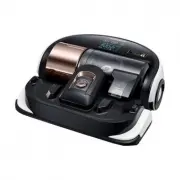 Samsung VR2AJ9250WW
User Manual
Samsung VR2AJ9250WW
User Manual
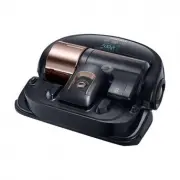 Samsung VR2AK9350WK
User Manual
Samsung VR2AK9350WK
User Manual
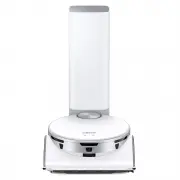 Samsung VR50T95735WSA
User Manual
Samsung VR50T95735WSA
User Manual
 Samsung SR10F71UB
User Manual
Samsung SR10F71UB
User Manual
 Samsung SR10J5010U
User Manual
Samsung SR10J5010U
User Manual
 Samsung SR10J502FU
User Manual
Samsung SR10J502FU
User Manual
 Samsung SR10J503AU
User Manual
Samsung SR10J503AU
User Manual
 Samsung SR10M7019UW
User Manual
Samsung SR10M7019UW
User Manual
 Samsung SR10M701BUW
User Manual
Samsung SR10M701BUW
User Manual
 Samsung SR10M703UWW
User Manual
Samsung SR10M703UWW
User Manual
 Samsung SR20H9050U
User Manual
Samsung SR20H9050U
User Manual
 Samsung SR20J9020U
User Manual
Samsung SR20J9020U
User Manual
 Samsung SR20K9350WK
User Manual
Samsung SR20K9350WK
User Manual