Page 2 - Safety precautions; Disposal of Old Equipment and Batteries; WARNING; CAUTION
2 TQBM0483 Safety precautions Unit ≥ To reduce the risk of fire, electric shock or product damage,– Do not expose this unit to rain, moisture, dripping or splashing. – Do not place objects filled with liquids, such as vases, on this unit. – Use the recommended accessories.– Do not remove covers.– Do...
Page 3 - Precautions; About Bluetooth; Caution for AC Mains Lead; Figure A
Precautions 3 TQBM0483 (For the AC mains plug of three pins) For your safety, please read the following text carefully.This appliance is supplied with a moulded three pin mains plug for your safety and convenience.A 5-ampere fuse is fitted in this plug.Should the fuse need to be replaced please ensu...
Page 4 - Table of contents; TM; Reference; Supplied items; Accessories; Wall mount brackets (; For the United Kingdom and Ireland; About descriptions in these operating instructions
4 TQBM0483 Table of contents Safety precautions .......................... 2About Bluetooth ® ............................ 3 Supplied items ................................. 4 Before use Control reference guide .................. 5 Getting started Step 1 Connections ........................ 8Step 2 ...
Page 5 - Control reference guide; Active subwoofer
Getting started Operations Reference Before use Precautions 5 TQBM0483 Control reference guide 1 [ Í /I ] Standby/on switch ( Í /I )* Touch to switch the unit from on to standby mode or vice versa. In standby mode, the unit is still consuming a small amount of power. 2 [VOL j ] [VOL i ] Adjust the v...
Page 7 - Before using for the first time; Remote control
Before use 7 TQBM0483 1 [ Í ] Switch the main unit from on to standby or vice versa ( > 17) 2 [INPUT] Select the input source ( > 17) 3 [SETUP] Select the setup menu ( > 20) 4 [SOUND] Select the sound menu ( > 19) 5 [ -PAIRING] ≥ Select the Bluetooth ® device as the source ( > 17) ≥ B...
Page 8 - Step 1 Connections; HDMI cable; Connection with the TV; TV
8 TQBM0483 Step 1 Connections Turn off all equipment before connection and read the appropriate operating instructions. Do not connect the AC mains lead until all other connections are completed. A HDMI cable A HDMI cable B Optical digital audio cable ≥ When you use the optical digital audio cable, ...
Page 9 - Getting started; Vision; This system does not support HDR10+ and Dolby Vision; supports HDR10+ or Dolby Vision; VIERA Link does not work when you use this connection. (
Getting started 9 TQBM0483 Connection with players, etc., supporting HDR10+ and Dolby Vision TM This system does not support HDR10+ and Dolby Vision TM . When connecting to a player, TV, etc., that supports HDR10+ or Dolby Vision TM , use the following connection. ≥ The name of the terminal may be d...
Page 10 - Preparation; Connect the jack plug to the main; Placement example; On the rear of the main unit:; Connection from an HDMI; Using the IR Blaster
10 TQBM0483 You can direct the audio signal from the connected Blu-ray Disc player, DVD player, Set Top Box, etc. to this system. Preparation ≥ Connect the main unit to the TV. ( > 8) A HDMI cable Depending on how the main unit is setup, it may block the TV’s remote control signal sensor, stoppin...
Page 11 - Aim the TV’s remote control at this; * Insert the AC mains lead fully into the main unit.; AC mains lead connection; Saving energy
Getting started 11 TQBM0483 3 Aim the TV’s remote control at this system’s remote control sensor and operate the TV. ≥ Connect only after all other connections are completed. A AC mains lead (supplied) * Insert the AC mains lead fully into the main unit. ≥ This system consumes a small amount of AC p...
Page 12 - Step 2 Placement; When carrying the active subwoofer; Take care not to damage the inside speaker unit.; Safety Precautions; Caution; The parts inside may get damaged.; Wireless interference; Main unit/active subwoofer
12 TQBM0483 Step 2 Placement When carrying the active subwoofer Take care not to damage the inside speaker unit. Interference may occur if you are using other devices (wireless LAN/microwave ovens/cordless phones, etc.) that use the 2.4 GHz frequency band, causing some communication problems (sound ...
Page 13 - Additionally required accessories (commercially available); Attach the cord to the main unit.; When placing the main unit in a rack or on a table; apart from the tip, at an angle of 45; When placing the main unit in front of the TV
Getting started Precautions 13 TQBM0483 Additionally required accessories (commercially available) ≥ Fall prevention cord (diameter: 1.5 mm to 2.0 mm)...................................................................... k 2 ≥ Screw eyes (to attach the fall prevention cord) ............................
Page 14 - Refer to step 3 for details about the required screws.; Supplied accessories; Attach the wall mount brackets to the main unit.; When attaching the main unit to a wall; Screws
14 TQBM0483 The main unit can be wall mounted using the supplied wall mount brackets, etc. Make sure that the screw used and the wall are strong enough to support the weight of at least 45 k g . The screws and other items are not supplied as the type and size will vary with each installation. ≥ Refe...
Page 15 - Drive a screw into the wall.; At least 30 mm; DO; Screw eye
Getting started Precautions 15 TQBM0483 3 Drive a screw into the wall. ≥ Use the measurements indicated below to identify the screwing positions on the wall. ≥ Leave at least 200 mm of space above of the main unit to allow enough space for fitting the main unit. ≥ Be sure to use a level to ensure th...
Page 16 - Turn on the main unit.; BÍ; Check that the wireless link is; The wireless link is activated.
16 TQBM0483 Step 3 Active subwoofer wireless connection Preparation ≥ Turn on the main unit. 1 Press [ BÍ C I]. Active subwoofer on/off button [ BÍ C I] Use this button to turn the active subwoofer on and off. The active subwoofer will still consume a small amount of power even when it is turned off...
Page 17 - Using this system; Press; Remote control code
Getting started Operations 17 TQBM0483 Operations Using this system Preparation ≥ Turn on the active subwoofer. ≥ Turn on the TV and/or connected device. 1 Press [ Í ] to turn on the main unit. 2 Select the source. ≥ This remote control cannot be used to control the operations of the connected devic...
Page 18 - Bluetooth
18 TQBM0483 Bluetooth ® operations By using the Bluetooth ® connection, you can listen to the sound of the Bluetooth ® audio device from this system wirelessly. ≥ Refer to the operating instructions of the Bluetooth ® device for further instruction on how to connect a Bluetooth ® device. Preparation...
Page 19 - Sound menu; ] repeatedly to select the; SOUND MODE; SUBWOOFER; AGC
Operations 19 TQBM0483 Sound menu 1 Press [SOUND] repeatedly to select the sound effect and then press [OK]. ≥ You can also press [ 4 ] or [ 3 ] repeatedly to select the setup item. 2 Press [ 4 ] [ 3 ] repeatedly to select the desired setting and then press [OK]. ∫ SOUND MODE Select the sound mode t...
Page 20 - Setup menu; Audio format
20 TQBM0483 ∫ WALL MOUNT Select the appropriate speaker placement mode to suit your placement method. This system will adjust the sound effect according to the placement mode setting. ON : For wall mounting layout OFF : For table top layout ≥ The default setting is “OFF”. ≥ Changed settings will be ...
Page 21 - This restores the settings to the factory presets.; Turn off the main unit, then connect the; Firmware update; “CHECK
Operations 21 TQBM0483 ∫ VIERA LINK Turn on the VIERA Link function.Select “OFF” when your HDAVI Control device does not work correctly with this system. ≥ ARC will be disabled. Connect an optical digital audio cable. ≥ Turn off all connected devices and then turn them on again after changing the se...
Page 22 - Speaker control; Home cinema; This system is active.; TV speakers are active.; What you can do with
22 TQBM0483 Linked operations with the TV (VIERA Link “HDAVI Control TM ”) Preparation 1 Confirm that the HDMI connection has been made. ( > 8, 10) 2 Set the “HDAVI Control” operations on the connected equipment (e.g., TV). 3 For the optimal “HDAVI Control” operations change the following setting...
Page 23 - Automatic input switching
Operations 23 TQBM0483 ∫ Automatic input switching When the following operations are performed, the main unit will automatically change the input to the corresponding source. j When play starts on an HDMI connected device.* 3 j When the TV input or the TV channel is changed. *3 If the speaker output...
Page 24 - Troubleshooting; Consult your dealer if the problem persists.; The remote control does not work properly.; General operation
24 TQBM0483 Referenc e Troubleshooting Before requesting service, make the following checks. If you are in doubt about some of the check points, or if the solutions indicated in the following guide do not solve the problem, consult your dealer for instructions. The unit does not work.Operations are ...
Page 25 - Check the Bluetooth; The device cannot be connected.; For some Bluetooth; HDMI
Reference 25 TQBM0483 This system does not operate correctly. If the HDMI cable is connected to the wrong terminal (HDMI AV IN or HDMI AV OUT), this system will not operate correctly. Turn the main unit off, disconnect the AC mains lead and reconnect the HDMI cable(s). ( > 8, 10) VIERA Link relat...
Page 26 - Turn this system off and then on again.; The sound lags behind the image.; , the sound output from this unit; Sound
26 TQBM0483 No sound (or image). ≥ Turn muting off. ( > 17) ≥ Check the connections to the other devices. ( > 8 - 10) ≥ Make sure that the received audio signal is compatible with this system. ( > 30) ≥ Turn this system off and then on again. ≥ If the main unit is connected to the TV with o...
Page 27 - Active Subwoofer
Reference 27 TQBM0483 No power. Ensure the AC mains lead of the active subwoofer is connected properly. After turning the subwoofer on, it immediately turns off. Unplug the AC mains lead and consult your dealer. No sound from the subwoofer. ≥ Check that the active subwoofer is turned on. ≥ Check tha...
Page 28 - “USB OVER CURRENT ERROR”; The USB device is drawing too much power.; “LOAD FAIL”; device when; “REMOTE
28 TQBM0483 “USB OVER CURRENT ERROR” The USB device is drawing too much power. ≥ Disconnect the USB device. After that, turn off the main unit and then switch it on again. ≥ Turn the main unit off and then on again. “LOAD FAIL” The firmware loading has failed. Check to see if the correct firmware is...
Page 29 - Unit care; When cleaning the top surface (; To dispose or transfer this system; Licenses
Reference 29 TQBM0483 Unit care ∫ Clean this system with a soft, dry cloth (Pull out the AC mains lead from the socket before maintenance.) ≥ When dirt is heavy, wring a cloth moistened in water tightly to wipe the dirt, and then wipe it with a dry cloth. ≥ When cleaning the speakers, use a fine clo...
Page 30 - Specifications; AMPLIFIER SECTION
30 TQBM0483 Specifications AMPLIFIER SECTION RMS OUTPUT POWER (non-simultaneous drive) FRONT SPEAKER (L/R) 42 W i 42 W (1 kHz, T.H.D. 10.0 %, 8 Ω, 20 kHz LPF) FRONT SPEAKER (Centre) 42 W (1 kHz, T.H.D. 10.0 %, 8 Ω, 20 kHz LPF) SUBWOOFER 250 W (100 Hz, T.H.D. 10.0 %, 8 Ω, 20 kHz LPF) Total RMS OUTPUT...
Page 31 - FORMAT SECTION
Reference 31 TQBM0483 ≥ Specifications are subject to change without notice. ≥ Mass and dimensions are approximate. ≥ Total harmonic distortion is measured by a digital spectrum analyzer. ≥ Uncompressed FLAC files may not operate correctly. ≥ Audio in formats with high-sampling rates is down-sampled...
Page 32 - Safety information for customers in the EU
32 TQBM0483 EnglishDeclaration of Conformity (DoC) Hereby, “ Panasonic Corporation ” declares that this product is in compliance with the essential requirements and other relevant provisions of Directive 2014/53/EU. Customers can download a copy of the original DoC to our RE products from our DoC se...
Page 34 - NORSK; Safety information for customers in India
34 TQBM0483 HrvatskiDeklaracija o podobnosti (DoC) Ovime „ Panasonic Corporation ” izjavljuje da ovaj proizvod udovoljava osnovnim zahtjevima i ostalim relevantnim odredbama Direktive 2014/53/EU. Kupci mogu preuzeti kopiju originalne DoC za naše RE proizvode s našeg DoC poslužitelja: http://www.ptc....
Page 35 - Panasonic Warranty; Australia website; SHOULD BE RETAINED BY THE CUSTOMER AT ALL TIMES; Panasonic Australia Pty. Limited
Reference 35 TQBM0483 [For_Australia] Panasonic Warranty If you require assistance regarding warranty condions or any other enquiries, please visit the Panasonic Australia website www.panasonic.com.au or contact by phone on 132 600 If phoning in, please ensure you have your operang instrucons availa...
Page 36 - EU; Panasonic Testing Centre; © Panasonic Corporation 2019; For the United Kingdom and Ireland customers; Sales and Support Information; Customer Communications Centre
EU Web Site: http://www.panasonic.com Panasonic Corporation Panasonic Testing Centre Winsbergring 15, 22525 Hamburg, Germany Panasonic Marketing Europe GmbH Manufactured by: Importer for Europe: Panasonic Corporation Kadoma, Osaka, Japan TQBM0483 F0619HA0 © Panasonic Corporation 2019 For the United ...
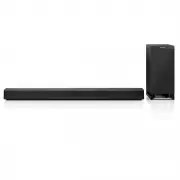


 Panasonic SC-BFT800
User Manual
Panasonic SC-BFT800
User Manual
 Panasonic SC-BT230
User Manual
Panasonic SC-BT230
User Manual
 Panasonic SC-BT735
User Manual
Panasonic SC-BT735
User Manual
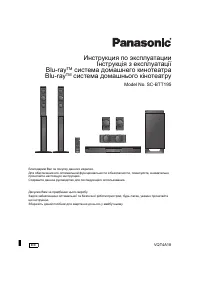 Panasonic SC-BTT195
User Manual
Panasonic SC-BTT195
User Manual
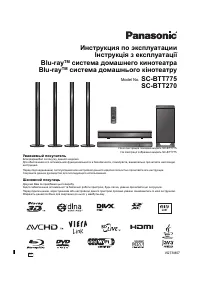 Panasonic SC-BTT270
User Manual
Panasonic SC-BTT270
User Manual
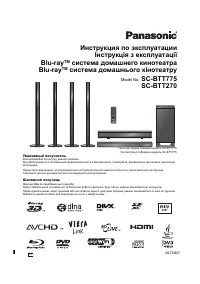 Panasonic SC-BTT775
User Manual
Panasonic SC-BTT775
User Manual
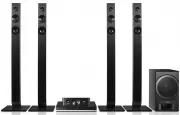 Panasonic SC-BTT785GNK
User Manual
Panasonic SC-BTT785GNK
User Manual
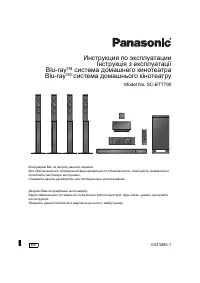 Panasonic SC-BTT790
User Manual
Panasonic SC-BTT790
User Manual
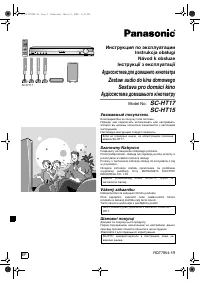 Panasonic SC-HT15
User Manual
Panasonic SC-HT15
User Manual
 Panasonic SC-HT335
User Manual
Panasonic SC-HT335
User Manual
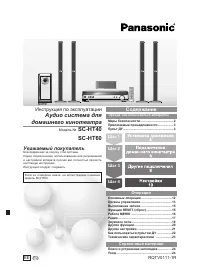 Panasonic SC-HT40
Manual
Panasonic SC-HT40
Manual
 Panasonic SC-HT60
Manual
Panasonic SC-HT60
Manual
 Panasonic SC-HT840
User Manual
Panasonic SC-HT840
User Manual
 Panasonic SC-HT880
User Manual
Panasonic SC-HT880
User Manual