Page 2 - Precautions; WARNING
2 VQT5F61 Precautions Unit To reduce the risk of fire, electric shock or product damage, ≥ Do not expose this unit to rain, moisture, dripping or splashing. ≥ Do not place objects filled with liquids, such as vases, on this unit. ≥ Use only the recommended accessories. ≥ Do not remove covers. ≥ Do n...
Page 3 - To dispose or transfer this unit; Figure A
3 VQT5F61 The unit may keep the user settings information in the unit. If you discard this unit either by disposal or transfer, then follow the procedure to return all the settings to the factory presets to delete the user settings. ( > 34, "To return all settings to the factory preset.")...
Page 4 - Table of contents; Getting started
4 VQT5F61 Table of contents Precautions . . . . . . . . . . . . . . . . . . . . . . . . . . . 2 Getting started Package contents and accessories . . . . . . . . 5Unit and media care . . . . . . . . . . . . . . . . . . . . 6Playable media . . . . . . . . . . . . . . . . . . . . . . . . 7Control refer...
Page 5 - Package contents and accessories; Package contents
5 G e tti n g started P layb ack T V & Rad io Ad va n ced o p erati o n s Referen ce VQT5F61 Getting started Package contents and accessories Check the package contents and supplied accessories before using this unit. Package contents (SA-BTT465) (SA-BTT433) FRONT (SB-HFS4810) SURROUND (SB-HFS40...
Page 6 - Unit and media care; Clean this unit with a soft, dry; Do not attach labels or stickers to discs.; Accessories; DO
6 VQT5F61 ∏ 1 Remote control (N2QAYB000970) ∏ 2 Batteries for remote control ∏ AC mains lead See page 11 for more information. ∏ 1 HDMI cable ∏ 1 FM indoor antenna ∏ 1 Sheet of speaker cable sticker ≥ Product numbers provided in these operating instructions are correct as of February 2014. These may...
Page 7 - Playable media; Device; Video; BD
7 G e tti n g started VQT5F61 Playable media ≥ See pages 8 and 40 for more information on the types of content that can be played. Device Media markings Device types Contents format BD-Video Video BD-RE Video, JPEG, MPO BD-R Video, MKV, Xvid DVD-Video Video DVD-R Video, AVCHD, MKV, Xvid, JPEG, MPO, ...
Page 8 - ALL
8 VQT5F61 ∫ Types of discs that cannot be played by this unit Any other disc that is not specifically supported or previously described. ≥ DVD-RAM ≥ Super Audio CD ≥ Photo CD ≥ DVD-Audio ≥ Video CD and Super Video CD ≥ HD DVD ∫ Region management information The unit can playback BD-Video/DVD-Video d...
Page 9 - Control reference guide; Using the remote control; i j; Remote control
9 G e tti n g started VQT5F61 Control reference guide ∫ Using the remote control Insert the batteries to the terminal so that it ( i and j ) matches those in the remote control. Point it at the remote control signal sensor on this unit. ( > 10) 1 Turn the unit on and off 2 Select title numbers, e...
Page 10 - Wireless system; Top
10 VQT5F61 1 Disc tray 2 DisplayUnit’s display list ( > 38) 3 Remote control signal sensorDistance: Within approx. 7 m.Angle: Approx. 20 e up and down, 30 e left and right 4 Open or close the disc tray ( > 14) 5 Adjust the volume of the main unit 6 Stop ( > 17) 7 Start play ( > 17) 8 USB...
Page 11 - Setting up the system; Speakers; For optional wall mount, refer to page 32.; Centre speaker; HDMI; DIGITAL AUDIO IN; The wireless system (; Optical digital audio cable
11 G e tti n g started VQT5F61 Setting up the system Follow the “Owner’s Manual <Setup>” to set up the system first. ∫ Speakers ≥ Keep your speakers at least 10 mm away from the system to avoid noise generated by resonance. ≥ For optional wall mount, refer to page 32. Centre speaker ≥ Put it o...
Page 12 - Connecting to the network; Wireless LAN connection; LAN cable connection; Internet
12 VQT5F61 The following services can be used when this unit is connected to broadband. ≥ Firmware can be updated ( > 14) ≥ You can enjoy BD-Live ( > 18) ≥ You can enjoy Network Service ( > 23) For details about connection method, refer to the instructions supplied with the connected equipm...
Page 13 - Settings; Setup screen appears.; About the wireless connection; Before beginning wireless connection setup; If your SSID is not displayed; select “Network Settings” and press [OK]; If your wireless network is encrypted; Easy Settings
13 G e tti n g started VQT5F61 Settings The following settings can be performed anytime in the Setup menu. ( > 28, 29) After connecting your new home theatre for the first time and pressing [ Í ], the basic settings screen will appear. PreparationTurn on the TV and select the appropriate video in...
Page 14 - Inserting or removing; Firmware updates
14 VQT5F61 Occasionally, Panasonic may release updated firmware for this unit that may add or improve the way a feature operates. These updates are available free of charge. This unit is capable of checking the firmware automatically when connected to the Internet via a broadband connection.When a n...
Page 15 - HOME menu; banner content may be changed.; Input selection; AUX terminal
15 G e tti n g started VQT5F61 HOME menu Major functions of this unit can be operated from the HOME menu. Preparation Turn on the TV and select the appropriate video input. 1 Press [ Í ] to turn on the unit. ≥ After network service introduction banner is shown, the HOME menu is displayed.–When conne...
Page 16 - Multi User Mode; To change the personalized user information; Personalizing a new user; Select Icon; Switching the user
16 VQT5F61 Multi User Mode Multi User Mode allows individuals to customize settings and switch to their saved settings easily.Up to four people can use the unit with their own settings. The following settings can be personalized: ≥ The user icon ≥ The wallpaper of HOME menu ≥ The specific settings (...
Page 17 - Playback; Resume play function; Operations during playback; Stop
17 G e tti n g started P layb ack VQT5F61 Pla ybac k Playback 1 Insert the media. Playback starts depending on the media. 2 Select the item to play and press [OK]. Repeat this step if necessary. ≥ DISCS CONTINUE TO ROTATE WHILE MENUS ARE DISPLAYED. Press [ ∫ STOP] when you have finished playback to ...
Page 18 - Preparation; Deleting data on the USB device; Enjoying 3D video and photos
18 VQT5F61 Press [POP-UP MENU/TOP MENU]. Select the item and press [OK]. While playing, press [STATUS]. The status messages give you information about what is currently being played. Each time you press [STATUS], the display information may change or disappear from the screen. ≥ Depending on media a...
Page 19 - Select an item and press the green button.; Enjoying Bluetooth; Restrictions of use; Slideshow; Interval
19 P layb ack VQT5F61 Play a slideshow of photos and adjust various settings during the playback. 1 Insert the media. 2 Select “Photos”. 3 Select an item and press the green button. The following items can be set. ≥ Still pictures displayed as “ ” cannot be played back with this unit. Enjoying Bluet...
Page 20 - Bluetooth; One-Touch Connection
20 VQT5F61 By using the Bluetooth ® connection, you can listen to the sound from the Bluetooth ® device wirelessly.Refer to the operating instructions of the Bluetooth ® device for details. ≥ If you intend to use an NFC (Near Field Communication)-compatible Bluetooth ® device, proceed to “One-Touch ...
Page 21 - “HDMI CEC”; Set “HDMI CEC” to “On” (; ] to select “Sound” and press; Power on link; Select the TV audio
21 P layb ack T V & Rad io VQT5F61 TV & Ra dio “HDMI CEC” This unit supports “HDMI CEC” (Consumer Electronics Control) function. See the operating instructions for connected equipment for operational details. Preparation Set “HDMI CEC” to “On” ( > 30). (The default setting is “On”.) When ...
Page 22 - Listening to the Radio; Manual tuning and presetting; Presetting stations
22 VQT5F61 Listening to the Radio You can preset up to 30 channels. PreparationPress [SELECTOR] several times to select “rAdIO”. 1 Press and hold [STATUS] to select “LOWESt” or “CUrrEnt”. To begin auto preset with the lowest frequency (FM87.50). To begin auto preset with the current frequency.** To ...
Page 23 - Enjoying Network; Online movie rental service
23 T V & Rad io Ad va n ced o p erati o n s VQT5F61 Advan ced ope rations Enjoying Network Service Network Service allows you to access some specific websites supported by Panasonic. This unit has no full browser function and all features of websites may not be available. * Images are for illust...
Page 24 - Option menu
24 VQT5F61 Option menu A variety of playback operations and settings can be performed through this menu.Available options differ depending on the playing contents and the condition of the unit. About Multi User Mode : Settings of the items with this indication are saved by the respective users regis...
Page 25 - Picture Settings
25 Ad va n ced o p erati o n s VQT5F61 ∫ Picture Mode Select the picture quality mode during play. ≥ If you select “User”, you can change settings in “Picture Adjustment”. ∫ Picture Adjustment Specific picture quality settings can be changed. ∫ Progressive Select the method of conversion for progres...
Page 26 - Setup menu; : Settings of the items with this indication are; Picture
26 VQT5F61 Setup menu Change the unit’s settings if necessary. The settings remain intact even if you switch the unit to standby.Some items are common to the Option menu. You can get the same effect with both menus. About Multi User Mode : Settings of the items with this indication are saved by the ...
Page 27 - Sound
27 Ad va n ced o p erati o n s VQT5F61 ∫ Surround Effects ( > 25) ∫ Sound Effects ( > 25) ∫ Dynamic Range Compression You can listen at low volumes but still hear dialogue clearly.(Dolby Digital, Dolby Digital Plus and Dolby TrueHD only) ≥ “Automatic” is effective only when playing Dolby TrueH...
Page 29 - You can restrict the usage of Network Service.; Ratings
29 Ad va n ced o p erati o n s VQT5F61 ¾ Network Service Settings ( > 23) Press [OK] to show the following settings: Time Zone Set the unit’s time to match your location. ≥ Some Network Service contents require the time zone to be set. Set time zone if necessary. Summer Time Select “On” when usin...
Page 30 - Changes the brightness of the unit’s display.
30 VQT5F61 ¾ Screen Saver Function This is to prevent image retention on the screen. ≥ When this is set to “On”:If a list of playback content is displayed and there is no operation for 10 minutes or more, the screen switches to HOME menu automatically. ≥ While playing and pausing, etc., this functio...
Page 32 - At least 30 mm; CENTER; Attach to a wall without the base and the stand.; Attaching to a wall; DO NOT; Screwing positions on the
32 VQT5F61 Speaker installation option Consult a qualified building contractor when attaching the speakers to a wall. Improper attachment may result in damage to the wall and speakers and personal injury. You can attach all of the speakers (except subwoofer) to a wall. ≥ The wall or pillar on which ...
Page 33 - SURROUND; To prevent tipping/falling of
33 Ad va n ced o p erati o n s VQT5F61 [BTT433] FRONT, SURROUND Attach to a wall without the base stand. J 45 mm K 92 mm L 156 mm [BTT465] SURROUND [BTT405] FRONT, SURROUND M 42 mm N 45 mm Secure the speaker. Using the tie down area on the rear of the speaker and a cord (not supplied), secure the sp...
Page 34 - Troubleshooting guide; Unit does not respond to remote; To return to the factory defaults.; Reset the unit as follows:; The remote control does not work properly.; “00rEt” is displayed on the unit’s display.; Do you have the latest firmware installed?; General operation
34 VQT5F61 Refe ren ce Troubleshooting guide Before requesting service, please perform the following checks.If the problem remains unresolved, consult your dealer for instructions. ∫ Unit does not respond to remote control or unit’s buttons. Disconnect the AC mains lead, wait 1 minute, then reconnec...
Page 35 - The TV screen turns black.
35 Referen ce VQT5F61 The TV screen turns black. ¾ When “24p Output” is set to “On”, HDMI authentication takes place and a black screen is displayed. This unit does not recognize the USB connection correctly. ¾ Disconnect and re-connect the USB cable. If it still does not recognize the connection, t...
Page 36 - No sound from the TV.
36 VQT5F61 No sound.Low volume.Distorted sound.Cannot hear the desired audio type. ¾ Check connections to speakers and other equipment. ¾ Ensure the speaker settings for your speakers are correct. ( > 27) ¾ To output audio from a device connected with an HDMI cable, set “HDMI Audio Output” to “On...
Page 37 - The sound is interrupted.; Radio; Network
37 Referen ce VQT5F61 The sound is interrupted. ¾ The communication range is 10 m. Bring the Bluetooth ® device closer to the main unit. ¾ Other devices that use the 2.4 GHz frequency band (wireless router, microwaves, cordless phones, etc.) are interfering. Bring the Bluetooth ® device closer to th...
Page 38 - Display
38 VQT5F61 The wireless link indicator does not light. ¾ Ensure the AC mains lead is connected properly. Pairing cannot be done. ¾ Disconnect and reconnect the AC mains lead of the main unit and the wireless system, and do pairing again.( > 27, “Wireless System Pairing”) Cannot play. ¾ You insert...
Page 39 - Specifications
39 Referen ce VQT5F61 Specifications * This unit supports “HDMI CEC” function. ≥ The impedance of all the speakers is 4 ≠ . GENERAL Power consumption [BTT785] Approx. 76 W [BTT465] [BTT433] Approx. 89 W [BTT405] Approx. 64 W Power consumption in standby mode Approx. 0.5 W Power supply [For\Australia...
Page 41 - Display languages list
41 Referen ce VQT5F61 “AVCHD” is a trademark of Panasonic Corporation and Sony Corporation. Java is a registered trademark of Oracle and/or its affiliates. Manufactured under license from Dolby Laboratories. Dolby, Pro Logic, and the double-D symbol are trademarks of Dolby Laboratories. For DTS pate...
Page 43 - Panasonic Warranty; SHOULD BE RETAINED BY THE CUSTOMER AT ALL TIMES; Panasonic Australia Pty. Limited
43 Referen ce VQT5F61 Limited Warranty (ONLY FOR AUSTRALIA) Panasonic Warranty 1. The product is warranted for 12 months from the date of purchase. Subject to the conditions of this warranty Panasonic or its Authorised Service Centre will perform necessary service on the product without charge for p...


 Panasonic SC-BFT800
User Manual
Panasonic SC-BFT800
User Manual
 Panasonic SC-BT230
User Manual
Panasonic SC-BT230
User Manual
 Panasonic SC-BT735
User Manual
Panasonic SC-BT735
User Manual
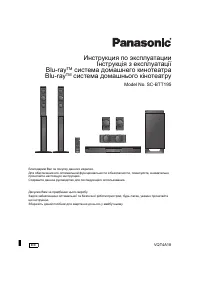 Panasonic SC-BTT195
User Manual
Panasonic SC-BTT195
User Manual
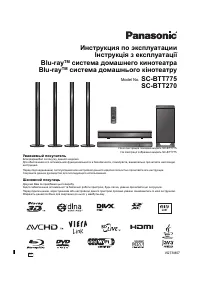 Panasonic SC-BTT270
User Manual
Panasonic SC-BTT270
User Manual
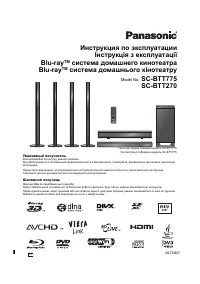 Panasonic SC-BTT775
User Manual
Panasonic SC-BTT775
User Manual
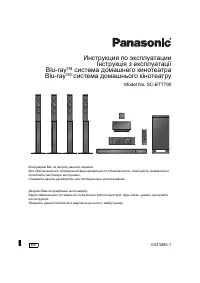 Panasonic SC-BTT790
User Manual
Panasonic SC-BTT790
User Manual
 Panasonic SC-HT15
User Manual
Panasonic SC-HT15
User Manual
 Panasonic SC-HT335
User Manual
Panasonic SC-HT335
User Manual
 Panasonic SC-HT40
Manual
Panasonic SC-HT40
Manual
 Panasonic SC-HT60
Manual
Panasonic SC-HT60
Manual
 Panasonic SC-HT840
User Manual
Panasonic SC-HT840
User Manual
 Panasonic SC-HT880
User Manual
Panasonic SC-HT880
User Manual