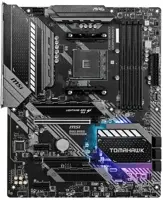
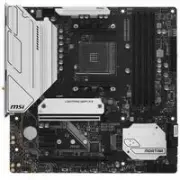
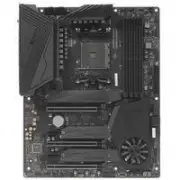
MSI B550-A PRO - Manuals
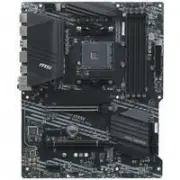
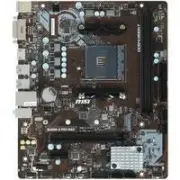
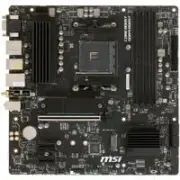
User Manual MSI B550-A PRO
Summary
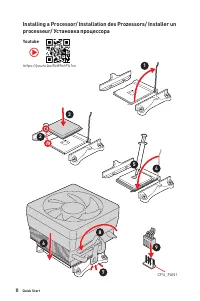
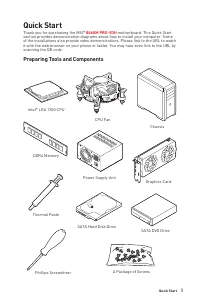
II Quick Start 1 2 3 6 4 5 7 8 9 Youtube https://youtu.be/Xv89nhFk1vc CPU_FAN1 ⚽ Installing a Processor/ Installation des Prozessors/ Installer un processeur/ Установка процессора
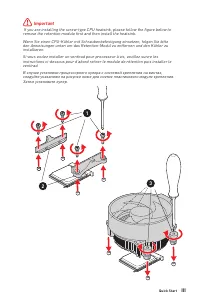
III Quick Start 1 2 3 ⚠ Important If you are installing the screw-type CPU heatsink, please follow the figure below to remove the retention module first and then install the heatsink.Wenn Sie einen CPU-Kühler mit Schraubenbefestigung einsetzen, folgen Sie bitte den Anweisungen unten um das Retention...
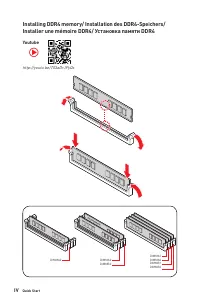
IV Quick Start http://youtu.be/T03aDrJPyQs Youtube DIMMA2 DIMMA2 DIMMB2 DIMMA1 DIMMA2 DIMMB1 DIMMB2 ⚽ Installing DDR4 memory/ Installation des DDR4-Speichers/ Installer une mémoire DDR4/ Установка памяти DDR4
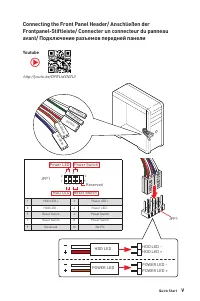
V Quick Start http://youtu.be/DPELIdVNZUI Youtube HDD LED RESET SW JFP1 HDD LED HDD LED - HDD LED + POWER LED -POWER LED + POWER LED 1 2 10 9 + + + - - - - + Power LED HDD LED Reset Switch Reserved Power Switch JFP1 1 HDD LED + 2 Power LED + 3 HDD LED - 4 Power LED - 5 Reset Switch 6 Power Switch 7 ...
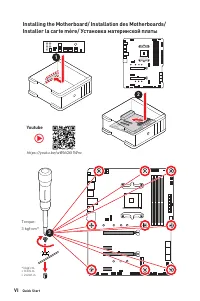
VI Quick Start Installing the Motherboard/ Installation des Motherboards/ Installer la carte mère/ Установка материнской платы 3 Torque:3 kgf·cm* *3 kgf·cm = 0.3 N·m = 2.6 lbf·in 2 1 https://youtu.be/wWI6Qt51Wnc ⚽ Youtube
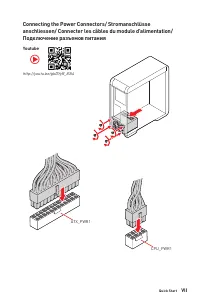
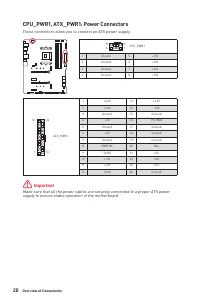
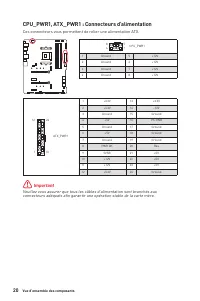
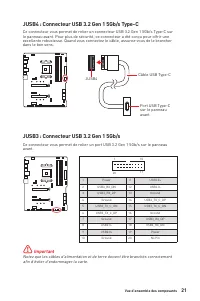
VII Quick Start http://youtu.be/gkDYyR_83I4 Youtube ATX_PWR1 CPU_PWR1 ⚽ Connecting the Power Connectors/ Stromanschlüsse anschliessen/ Connecter les câbles du module d’alimentation/ Подключение разъемов питания
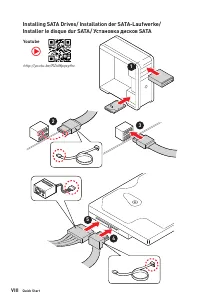
VIII Quick Start http://youtu.be/RZsMpqxythc Youtube 1 2 3 4 5 ⚽ Installing SATA Drives/ Installation der SATA-Laufwerke/ Installer le disque dur SATA/ Установка дисков SATA
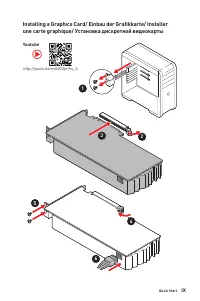
IX Quick Start http://youtu.be/mG0GZpr9w_A Youtube 1 2 3 4 5 6 ⚽ Installing a Graphics Card/ Einbau der Grafikkarte/ Installer une carte graphique/ Установка дискретной видеокарты
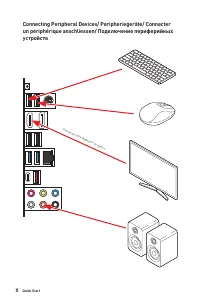
X Quick Start Connecting Peripheral Devices/ Peripheriegeräte/ Connecter un périphérique anschliessen/ Подключение периферийных устройств Processor with Radeon™ Graphics
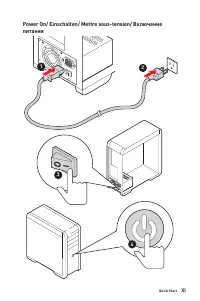
XI Quick Start 4 3 1 2 Power On/ Einschalten/ Mettre sous-tension/ Включение питания
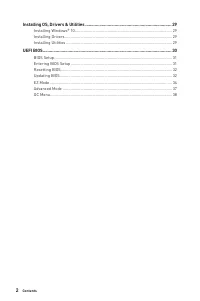
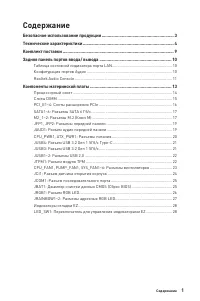
1 Contents Contents Safety Information ................................................................................................. 3Specifications ......................................................................................................... 4Package contents ..........................
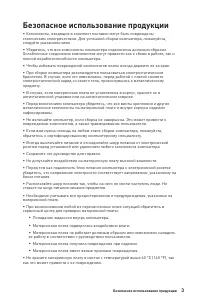
3 Safety Information Safety Information ∙ The components included in this package are prone to damage from electrostatic discharge (ESD). Please adhere to the following instructions to ensure successful computer assembly. ∙ Ensure that all components are securely connected. Loose connections may cau...
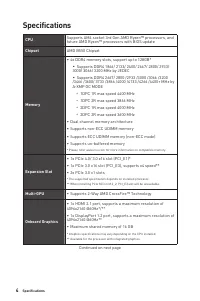
4 Specifications Specifications CPU Supports AM4 socket 3rd Gen AMD Ryzen™ processors, and future AMD Ryzen™ processors with BIOS update Chipset AMD B550 Chipset Memory ∙ 4x DDR4 memory slots, support up to 128GB* ▪ Supports DDR4 1866/ 2133/ 2400/ 2667/ 2800/ 2933/ 3000/ 3066/ 3200 MHz by JEDEC ▪ Su...
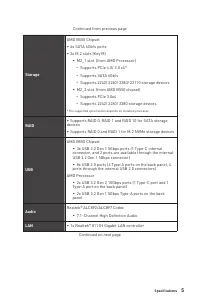
5 Specifications Continued from previous page Storage AMD B550 Chipset ∙ 6x SATA 6Gb/s ports ∙ 2x M.2 slots (Key M) ▪ M2_1 slot (from AMD Processor) ▫ Supports PCIe 4.0/ 3.0 x4* ▫ Supports SATA 6Gb/s ▫ Supports 2242/ 2260/ 2280/ 22110 storage devices ▪ M2_2 slot (from AMD B550 chipset) ▫ Supports PC...
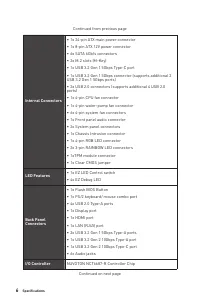
6 Specifications Continued from previous page Internal Connectors ∙ 1x 24-pin ATX main power connector ∙ 1x 8-pin ATX 12V power connector ∙ 6x SATA 6Gb/s connectors ∙ 2x M.2 slots (M-Key) ∙ 1x USB 3.2 Gen 1 5Gbps Type-C port ∙ 1x USB 3.2 Gen 1 5Gbps connector (supports additional 2 USB 3.2 Gen 1 5Gb...
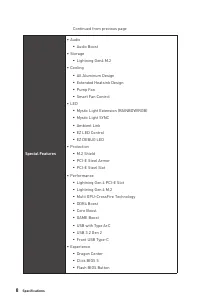
8 Specifications Continued from previous page Special Features ∙ Audio ▪ Audio Boost ∙ Storage ▪ Lightning Gen4 M.2 ∙ Cooling ▪ All Aluminum Design ▪ Extended Heatsink Design ▪ Pump Fan ▪ Smart Fan Control ∙ LED ▪ Mystic Light Extension (RAINBOW/RGB) ▪ Mystic Light SYNC ▪ Ambient Link ▪ EZ LED Contr...
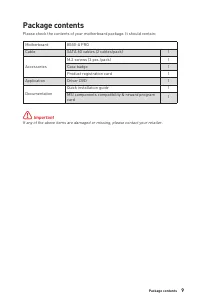
9 Package contents Package contents Please check the contents of your motherboard package. It should contain: Motherboard B550-A PRO Cable SATA 6G cables (2 cables/pack) 1 Accessories M.2 screws (3 pcs./pack) 1 Case badge 1 Product registration card 1 Application Driver DVD 1 Documentation Quick ins...
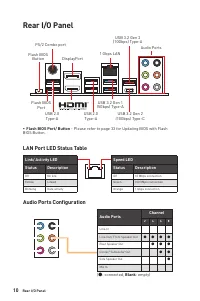
10 Rear I/O Panel USB 3.2 Gen 1 (5Gbps) Type-A Flash BIOS Port Rear I/O Panel PS/2 Combo port 1 Gbps LAN DisplayPort USB 2.0 Type-A USB 2.0 Type-A Audio Ports USB 3.2 Gen 2 (10Gbps) Type-C USB 3.2 Gen 2 (10Gbps) Type-A ∙ Flash BIOS Port/ Button - Please refer to page 33 for Updating BIOS with Flash ...
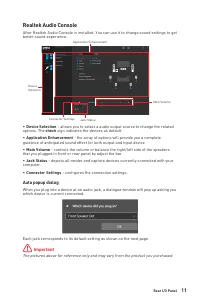
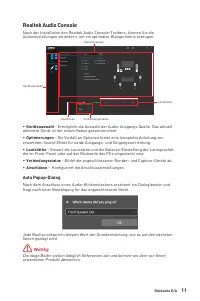
11 Rear I/O Panel ∙ Device Selection - allows you to select a audio output source to change the related options. The check sign indicates the devices as default. ∙ Application Enhancement - the array of options will provide you a complete guidance of anticipated sound effect for both output and inpu...
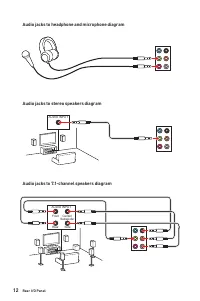
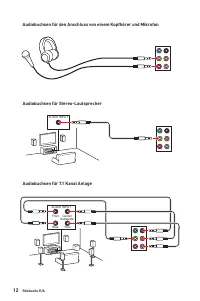
12 Rear I/O Panel AUDIO INPUT Rear Front Side Center/ Subwoofer AUDIO INPUT Audio jacks to headphone and microphone diagram Audio jacks to stereo speakers diagram Audio jacks to 7.1-channel speakers diagram
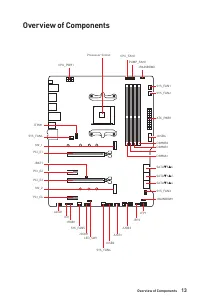
13 Overview of Components Overview of Components JUSB3 SYS_FAN3 JRGB1 JCOM1 SATA▼5▲6 SATA▼1▲2 SATA▼3▲4 M2_2 M2_1 SYS_FAN6 JTPM1 JUSB4 JUSB2 JUSB1 SYS_FAN4 SYS_FAN5 CPU_FAN1 SYS_FAN2 SYS_FAN1 PCI_E1 PCI_E2 PCI_E3 JBAT1 PCI_E4 Processor Socket CPU_PWR1 PUMP_FAN1 JRAINBOW2 JAUD1 JCI1 JFP1 JRAINBOW1 LED...
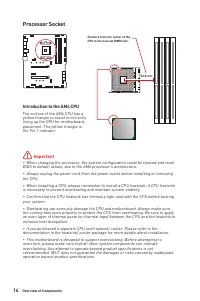
14 Overview of Components Processor Socket Introduction to the AM4 CPU The surface of the AM4 CPU has a yellow triangle to assist in correctly lining up the CPU for motherboard placement. The yellow triangle is the Pin 1 indicator. 53.8 mm Distance from the center of the CPU to the nearest DIMM slot...
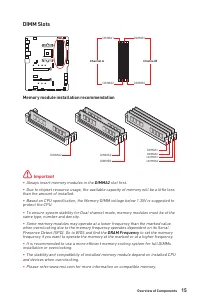
15 Overview of Components DIMM Slots DIMMA1 DIMMB1 Channel A Channel B DIMMA2 DIMMB2 Memory module installation recommendation ⚠ Important ∙ Always insert memory modules in the DIMMA2 slot first. ∙ Due to chipset resource usage, the available capacity of memory will be a little less than the amount ...
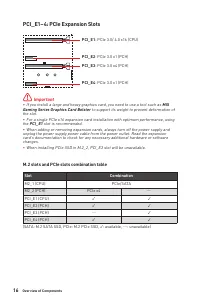
16 Overview of Components PCI_E1~4: PCIe Expansion Slots ⚠ Important ∙ If you install a large and heavy graphics card, you need to use a tool such as MSI Gaming Series Graphics Card Bolster to support its weight to prevent deformation of the slot. ∙ For a single PCIe x16 expansion card installation ...
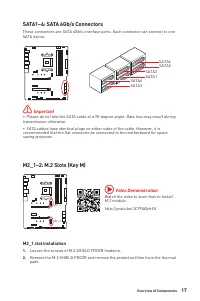
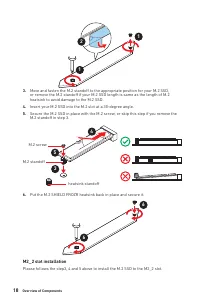
17 Overview of Components M2_1~2: M.2 Slots (Key M) M2_1 M2_2 SATA1~6: SATA 6Gb/s Connectors These connectors are SATA 6Gb/s interface ports. Each connector can connect to one SATA device. ⚠ Important ∙ Please do not fold the SATA cable at a 90-degree angle. Data loss may result during transmission ...
18 Overview of Components 1 1 2 30º 30º M.2 standoff heatsink standoff 3 5 4 M.2 screw 6 6 M2_2 slot installation Please follows the step3, 4 and 5 above to install the M.2 SSD to the M2_2 slot. 3. Move and fasten the M.2 standoff to the appropriate position for your M.2 SSD, or remove the M.2 stand...
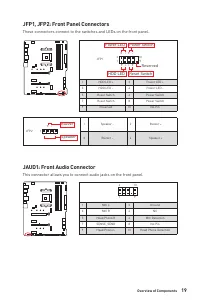
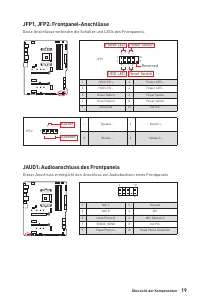
19 Overview of Components JAUD1: Front Audio Connector This connector allows you to connect audio jacks on the front panel. 1 2 10 9 1 MIC L 2 Ground 3 MIC R 4 NC 5 Head Phone R 6 MIC Detection 7 SENSE_SEND 8 No Pin 9 Head Phone L 10 Head Phone Detection JFP1, JFP2: Front Panel Connectors These conn...
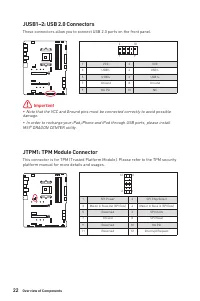
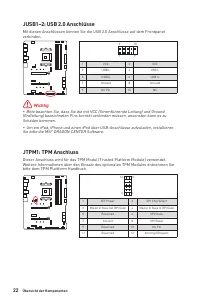
22 Overview of Components JUSB1~2: USB 2.0 Connectors These connectors allow you to connect USB 2.0 ports on the front panel. 1 2 10 9 1 VCC 2 VCC 3 USB0- 4 USB1- 5 USB0+ 6 USB1+ 7 Ground 8 Ground 9 No Pin 10 NC ⚠ Important ∙ Note that the VCC and Ground pins must be connected correctly to avoid pos...
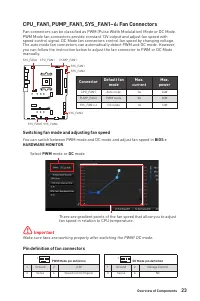
23 Overview of Components CPU_FAN1, PUMP_FAN1, SYS_FAN1~6: Fan Connectors Fan connectors can be classified as PWM (Pulse Width Modulation) Mode or DC Mode. PWM Mode fan connectors provide constant 12V output and adjust fan speed with speed control signal. DC Mode fan connectors control fan speed by ...
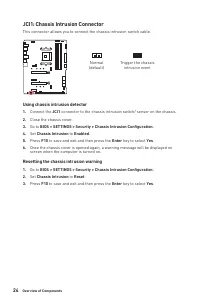
24 Overview of Components JCI1: Chassis Intrusion Connector This connector allows you to connect the chassis intrusion switch cable. Normal (default) Trigger the chassis intrusion event Using chassis intrusion detector 1. Connect the JCI1 connector to the chassis intrusion switch/ sensor on the chas...
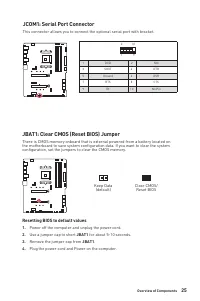
25 Overview of Components JBAT1: Clear CMOS (Reset BIOS) Jumper There is CMOS memory onboard that is external powered from a battery located on the motherboard to save system configuration data. If you want to clear the system configuration, set the jumpers to clear the CMOS memory. Keep Data (defau...
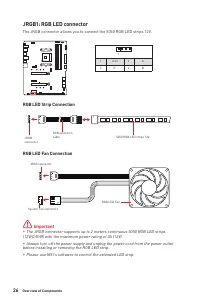
26 Overview of Components ⚠ Important ∙ The JRGB connector supports up to 2 meters continuous 5050 RGB LED strips (12V/G/R/B) with the maximum power rating of 3A (12V). ∙ Always turn off the power supply and unplug the power cord from the power outlet before installing or removing the RGB LED strip....
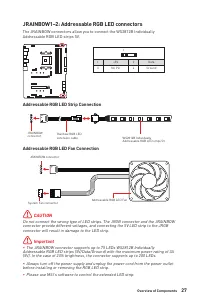
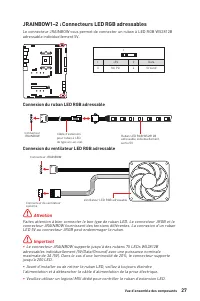
27 Overview of Components 1 1 1 D +5V ⚠ CAUTION Do not connect the wrong type of LED strips. The JRGB connector and the JRAINBOW connector provide different voltages, and connecting the 5V LED strip to the JRGB connector will result in damage to the LED strip. ⚠ Important ∙ The JRAINBOW connector su...
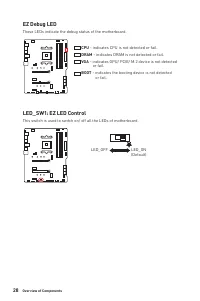
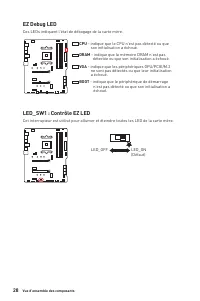
28 Overview of Components EZ Debug LED These LEDs indicate the debug status of the motherboard. CPU - indicates CPU is not detected or fail. DRAM - indicates DRAM is not detected or fail. VGA - indicates GPU/ PCIE/ M.2 device is not detected or fail. BOOT - indicates the booting device is not detect...
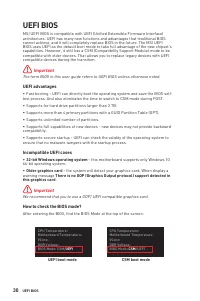
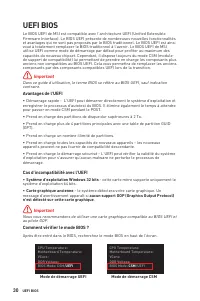
30 UEFI BIOS UEFI BIOS MSI UEFI BIOS is compatible with UEFI (Unified Extensible Firmware Interface) architecture. UEFI has many new functions and advantages that traditional BIOS cannot achieve, and it will completely replace BIOS in the future. The MSI UEFI BIOS uses UEFI as the default boot mode ...
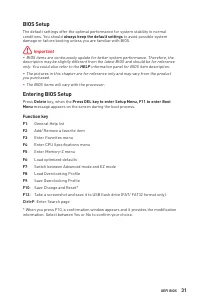
31 UEFI BIOS BIOS Setup The default settings offer the optimal performance for system stability in normal conditions. You should always keep the default settings to avoid possible system damage or failure booting unless you are familiar with BIOS. ⚠ Important ∙ BIOS items are continuously update for...
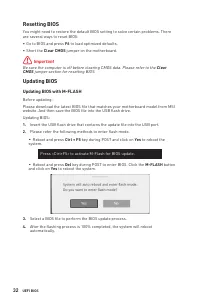
32 UEFI BIOS Resetting BIOS You might need to restore the default BIOS setting to solve certain problems. There are several ways to reset BIOS: ∙ Go to BIOS and press F6 to load optimized defaults. ∙ Short the Clear CMOS jumper on the motherboard. ⚠ Important Be sure the computer is off before clear...
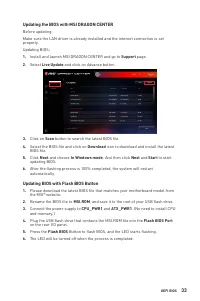
33 UEFI BIOS Updating the BIOS with MSI DRAGON CENTER Before updating:Make sure the LAN driver is already installed and the internet connection is set properly. Updating BIOS: 1. Install and launch MSI DRAGON CENTER and go to Support page. 2. Select Live Update and click on Advance button. 3. Click ...
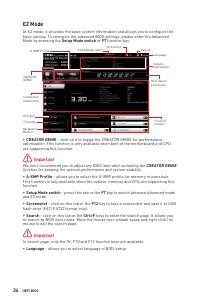
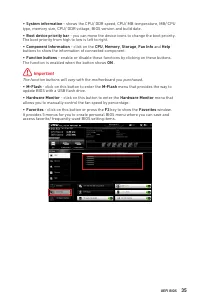
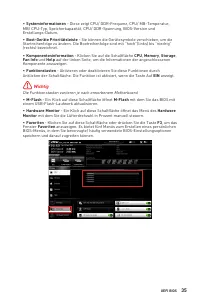
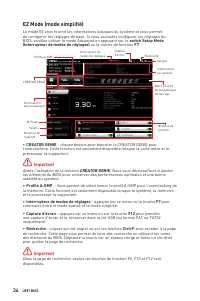
34 UEFI BIOS EZ Mode At EZ mode, it provides the basic system information and allows you to configure the basic setting. To configure the advanced BIOS settings, please enter the Advanced Mode by pressing the Setup Mode switch or F7 function key. A-XMP Profile Component Information System informatio...
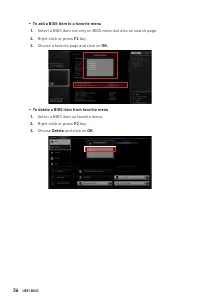
36 UEFI BIOS ▪ To add a BIOS item to a favorite menu 1. Select a BIOS item not only on BIOS menu but also on search page. 2. Right-click or press F2 key. 3. Choose a favorite page and click on OK. ▪ To delete a BIOS item from favorite menu 1. Select a BIOS item on favorite menu. 2. Right-click or pr...
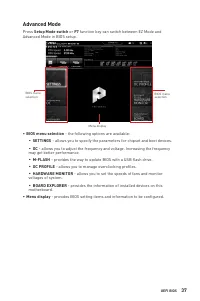
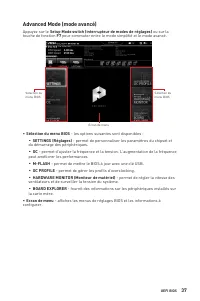
37 UEFI BIOS Advanced Mode Press Setup Mode switch or F7 function key can switch between EZ Mode and Advanced Mode in BIOS setup. BIOS menu selection Menu display BIOS menu selection ∙ BIOS menu selection - the following options are available: ▪ SETTINGS - allows you to specify the parameters for ch...
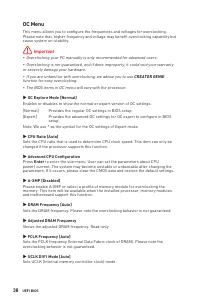
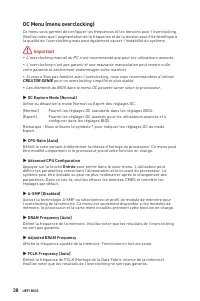
38 UEFI BIOS OC Menu This menu allows you to configure the frequencies and voltages for overclocking. Please note that, higher frequency and voltage may benefit overclocking capability but cause system un-stability. ⚠ Important ∙ Overclocking your PC manually is only recommended for advanced users. ...
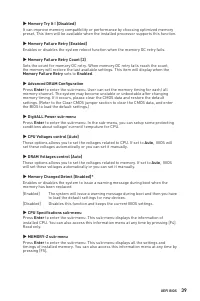
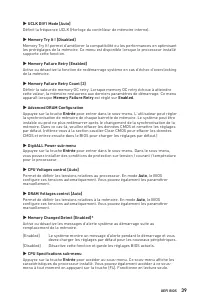
39 UEFI BIOS ▶ Memory Try It ! [Disabled] It can improve memory compatibility or performance by choosing optimized memory preset. This item will be available when the installed processor supports this function. ▶ Memory Failure Retry [Enabled] Enables or disables the system reboot function when the ...
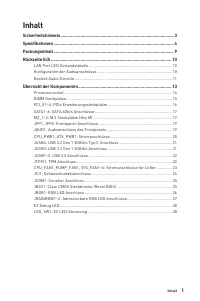
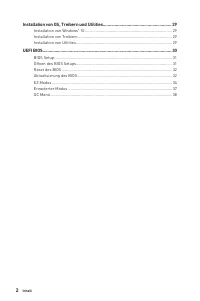
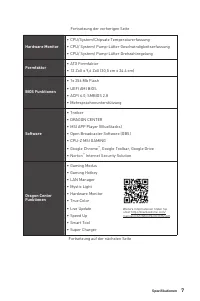
1 Inhalt Inhalt Sicherheitshinweis ................................................................................................ 3Spezifikationen ...................................................................................................... 4Packungsinhalt ...................................
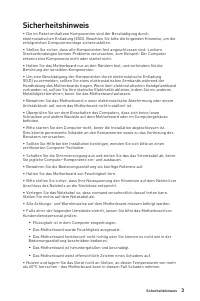
3 Sicherheitshinweis Sicherheitshinweis ∙ Die im Paket enthaltene Komponenten sind der Beschädigung durch elektrostatischen Entladung (ESD). Beachten Sie bitte die folgenden Hinweise, um die erfolgreichen Computermontage sicherzustellen. ∙ Stellen Sie sicher, dass alle Komponenten fest angeschlossen...
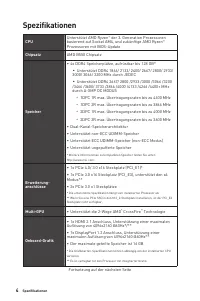
4 Spezifikationen Spezifikationen CPU Unterstützt AMD Ryzen ™ der 3. Generation Prozessoren basierend auf Sockel AM4, und zukünftige AMD Ryzen ™ Prozessoren mit BIOS-Update Chipsatz AMD B550 Chipsatz Speicher ∙ 4x DDR4 Speicherplätze, aufrüstbar bis 128 GB* ▪ Unterstützt DDR4 1866/ 2133/ 2400/ 2667/...
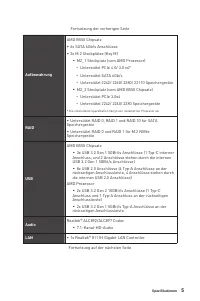
5 Spezifikationen Fortsetzung der vorherigen Seite Aufbewahrung AMD B550 Chipsatz ∙ 6x SATA 6Gb/s Anschlüsse ∙ 2x M.2 Steckplätze (Key M) ▪ M2_1 Steckplatz (vom AMD Prozessor) ▫ Unterstützt PCIe 4.0/ 3.0 x4* ▫ Unterstützt SATA 6Gb/s ▫ Unterstützt 2242/ 2260/ 2280/ 22110 Speichergeräte ▪ M2_2 Steckpl...
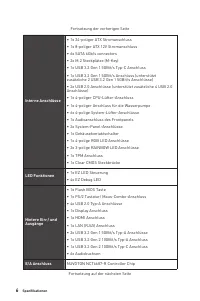
6 Spezifikationen Fortsetzung der vorherigen Seite Interne Anschlüsse ∙ 1x 24-poliger ATX Stromanschluss ∙ 1x 8-poliger ATX 12V Stromanschluss ∙ 6x SATA 6Gb/s connectors ∙ 2x M.2 Steckplätze (M-Key) ∙ 1x USB 3.2 Gen 1 5GBit/s Typ-C Anschluss ∙ 1x USB 3.2 Gen 1 5GBit/s Anschluss (unterstützt zusätzli...
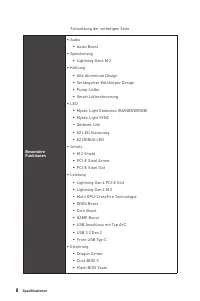
8 Spezifikationen Fortsetzung der vorherigen Seite Besondere Funktionen ∙ Audio ▪ Audio Boost ∙ Speicherung ▪ Lightning Gen4 M.2 ∙ Kühlung ▪ Alle Aluminium Design ▪ Verlängerter Kühlkörper Design ▪ Pump-Lüfter ▪ Smart Lüftersteuerung ∙ LED ▪ Mystic Light Extension (RAINBOW/RGB) ▪ Mystic Light SYNC ▪...
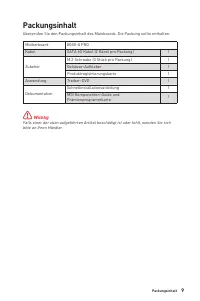
9 Packungsinhalt Packungsinhalt Überprüfen Sie den Packungsinhalt des Mainboards. Die Packung sollte enthalten: Motherboard B550-A PRO Kabel SATA 6G Kabel (2 Kabel pro Packung) 1 Zubehör M.2 Schraube (3 Stück pro Packung) 1 Gehäuse-Aufkleber 1 Produktregistrierungskarte 1 Anwendung Treiber-DVD 1 Dok...
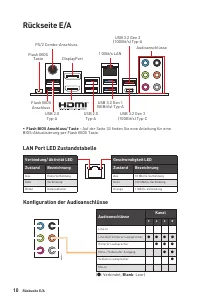
10 Rückseite E/A USB 3.2 Gen 1 (5GBit/s) Typ-A Flash BIOS Anschluss Rückseite E/A PS/2 Combo-Anschluss 1 GBit/s LAN DisplayPort USB 2.0 Typ-A USB 2.0 Typ-A Audioanschlüsse USB 3.2 Gen 2 (10GBit/s) Typ-C USB 3.2 Gen 2 (10GBit/s) Typ-A ∙ Flash BIOS Anschluss/ Taste - Auf der Seite 33 finden Sie eine A...
12 Rückseite E/A AUDIO INPUT Rear Front Side Center/ Subwoofer AUDIO INPUT Audiobuchsen für den Anschluss von einem Kopfhörer und Mikrofon Audiobuchsen für Stereo-Lautsprecher Audiobuchsen für 7.1 Kanal Anlage
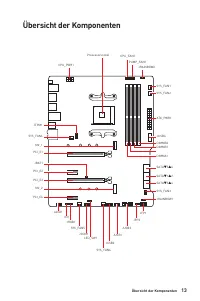
13 Übersicht der Komponenten Übersicht der Komponenten JUSB3 SYS_FAN3 JRGB1 JCOM1 SATA▼5▲6 SATA▼1▲2 SATA▼3▲4 M2_2 M2_1 SYS_FAN6 JTPM1 JUSB4 JUSB2 JUSB1 SYS_FAN4 SYS_FAN5 CPU_FAN1 SYS_FAN2 SYS_FAN1 PCI_E1 PCI_E2 PCI_E3 JBAT1 PCI_E4 Prozessorsockel CPU_PWR1 PUMP_FAN1 JRAINBOW2 JAUD1 JCI1 JFP1 JRAINBOW...
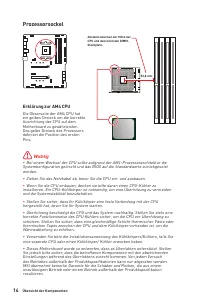
14 Übersicht der Komponenten Prozessorsockel Erklärung zur AM4 CPU Die Obserseite der AM4 CPU hat ein gelbes Dreieck um die korrekte Ausrichtung der CPU auf dem Motherboard zu gewährleisten. Das gelbe Dreieck des Prozessors definiert die Position des ersten Pins. 53,8 mm Abstand zwischen der Mitte d...
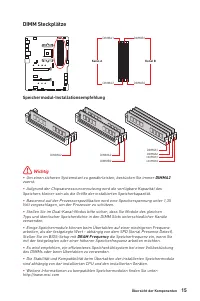
15 Übersicht der Komponenten DIMM Steckplätze DIMMA1 DIMMB1 Kanal A Kanal B DIMMA2 DIMMB2 Speichermodul-Installationsempfehlung ⚠ Wichtig ∙ Um einen sicheren Systemstart zu gewährleisten, bestücken Sie immer DIMMA2 zuerst. ∙ Aufgrund der Chipsatzressourcennutzung wird die verfügbare Kapazität des Sp...
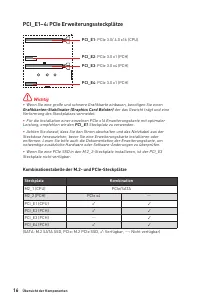
16 Übersicht der Komponenten PCI_E1~4: PCIe Erweiterungssteckplätze ⚠ Wichtig ∙ Wenn Sie eine große und schwere Grafikkarte einbauen, benötigen Sie einen Grafikkarten-Stabilisator (Graphics Card Bolster) der das Gewicht trägt und eine Verformung des Steckplatzes vermeidet. ∙ Für die Installation ein...
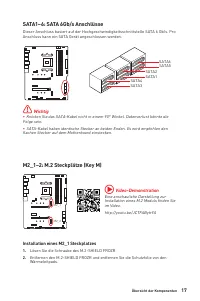
17 Übersicht der Komponenten M2_1~2: M.2 Steckplätze (Key M) M2_1 M2_2 SATA1~6: SATA 6Gb/s Anschlüsse Dieser Anschluss basiert auf der Hochgeschwindigkeitsschnittstelle SATA 6 Gb/s. Pro Anschluss kann ein SATA Gerät angeschlossen werden. ⚠ Wichtig ∙ Knicken Sie das SATA-Kabel nicht in einem 90° Wink...
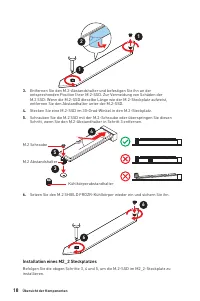
18 Übersicht der Komponenten 1 1 2 30º 30º M.2 Abstandshalter Kühlkörperabstandhalter 3 5 4 M.2 Schraube 6 6 Installation eines M2_2 Steckplatzes Befolgen Sie die obigen Schritte 3, 4 und 5, um die M.2-SSD im M2_2-Steckplatz zu installieren. 3. Entfernen Sie den M.2-Abstandshalter und befestigen Sie...
19 Übersicht der Komponenten JAUD1: Audioanschluss des Frontpanels Dieser Anschluss ermöglicht den Anschluss von Audiobuchsen eines Frontpanels. 1 2 10 9 1 MIC L 2 Ground 3 MIC R 4 NC 5 Head Phone R 6 MIC Detection 7 SENSE_SEND 8 No Pin 9 Head Phone L 10 Head Phone Detection JFP1, JFP2: Frontpanel-A...
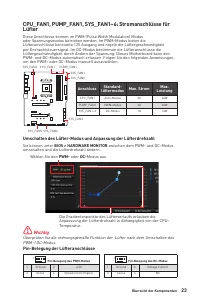
23 Übersicht der Komponenten CPU_FAN1, PUMP_FAN1, SYS_FAN1~6: Stromanschlüsse für Lüfter Diese Anschlüsse können im PWM (Pulse Width Modulation) Modus oder Spannungsmodus betrieben werden. Im PWM-Modus bieten die Lüfteranschlüsse konstante 12V Ausgang und regeln die Lüftergeschwindigkeit per Drehzah...
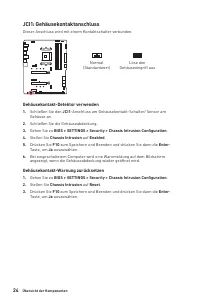
24 Übersicht der Komponenten JCI1: Gehäusekontaktanschluss Dieser Anschluss wird mit einem Kontaktschalter verbunden. Normal (Standardwert) Löse den Gehäuseeingriff aus Gehäusekontakt-Detektor verwenden 1. Schließen Sie den JCI1 -Anschluss am Gehäusekontakt-Schalter/ Sensor am Gehäuse an. 2. Schließ...
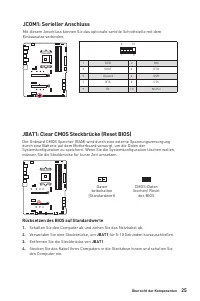
25 Übersicht der Komponenten JBAT1: Clear CMOS Steckbrücke (Reset BIOS) Der Onboard CMOS Speicher (RAM) wird durch eine externe Spannungsversorgung durch eine Batterie auf dem Motherboard versorgt, um die Daten der Systemkonfiguration zu speichern. Wenn Sie die Systemkonfiguration löschen wollen, mü...
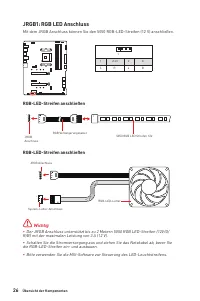
26 Übersicht der Komponenten JRGB1: RGB LED Anschluss Mit dem JRGB Anschluss können Sie den 5050 RGB-LED-Streifen (12 V) anschließen. 1 1 +12V 2 G 3 R 4 B ⚠ Wichtig ∙ Der JRGB Anschluss unterstützt bis zu 2 Metern 5050 RGB LED-Streifen (12V/G/ R/B) mit der maximalen Leistung von 3 A (12 V). ∙ Schalt...
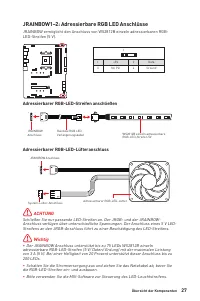
27 Übersicht der Komponenten JRAINBOW1~2: Adressierbare RGB LED Anschlüsse JRAINBOW ermöglicht den Anschluss von WS2812B einzeln adressierbaren RGB- LED-Streifen (5 V). 1 1 +5V 2 Data 3 No Pin 4 Ground ⚠ ACHTUNG Schließen Sie nur passende LED-Streifen an. Der JRGB- und der JRAINBOW- Anschluss verfüg...
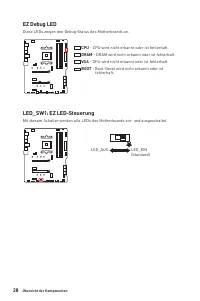
28 Übersicht der Komponenten EZ Debug LED Diese LEDs zeigen den Debug-Status des Motherboards an. CPU - CPU wird nicht erkannt oder ist fehlerhaft. DRAM - DRAM wird nicht erkannt oder ist fehlerhaft. VGA - GPU wird nicht erkannt oder ist fehlerhaft. BOOT - Boot-Gerät wird nicht erkannt oder ist fehl...
29 Installation von OS, Treibern und Utilities Installation von OS, Treibern und Utilities Laden Sie die neuesten Treiber und Dienstprogramme von www.msi.com herunter und aktualisieren Sie sie. Installation von Windows ® 10 1. Schalten Sie den Computer ein. 2. Legen Sie die Windows ® 10 Disk oder da...
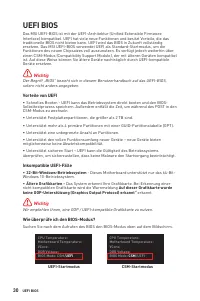
30 UEFI BIOS UEFI BIOS Das MSI UEFI-BIOS ist mit der UEFI-Architektur (Unified Extensible Firmware Interface) kompatibel. UEFI hat viele neue Funktionen und besitzt Vorteile, die das traditionelle BIOS nicht bieten kann. UEFI wird das BIOS in Zukunft vollständig ersetzen. Das MSI UEFI-BIOS verwendet...
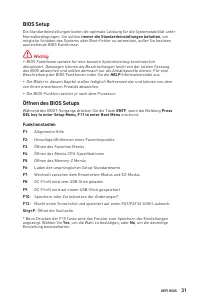
31 UEFI BIOS BIOS Setup Die Standardeinstellungen bieten die optimale Leistung für die Systemstabilität unter Normalbedingungen. Sie sollten immer die Standardeinstellungen behalten , um mögliche Schäden des Systems oder Boot-Fehler zu vermeiden, außer Sie besitzen ausreichende BIOS Kenntnisse. ⚠ Wi...
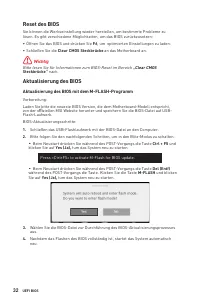
32 UEFI BIOS Reset des BIOS Sie können die Werkseinstellung wieder herstellen, um bestimmte Probleme zu lösen. Es gibt verschiedene Möglichkeiten, um das BIOS zurückzusetzen: ∙ Öffnen Sie das BIOS und drücken Sie F6 , um optimierten Einstellungen zu laden. ∙ Schließen Sie die Clear CMOS Steckbrücke ...
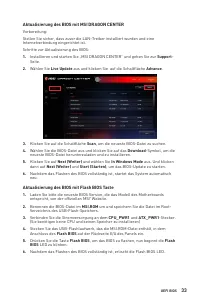
33 UEFI BIOS Aktualisierung des BIOS mit MSI DRAGON CENTER Vorbereitung:Stellen Sie sicher, dass zuvor die LAN-Treiber installiert wurden und eine Internetverbindung eingerichtet ist. Schritte zur Aktualisierung des BIOS: 1. Installieren und starten Sie „MSI DRAGON CENTER“ und gehen Sie zur Support ...
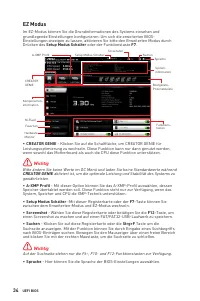
34 UEFI BIOS EZ Modus Im EZ-Modus können Sie die Grundinformationen des Systems einsehen und grundlegende Einstellungen konfigurieren. Um sich die erweiterten BIOS- Einstellungen anzeigen zu lassen, aktivieren Sie bitte den Erweiterten Modus durch Drücken des Setup Modus Schalter oder der Funktionst...
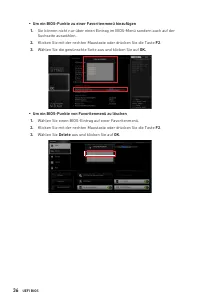
36 UEFI BIOS ▪ Um ein BIOS-Punkte zu einer Favoritenmenü hinzufügen 1. Sie können nicht nur über einen Eintrag im BIOS-Menü sondern auch auf der Suchseite auswählen. 2. Klicken Sie mit der rechten Maustaste oder drücken Sie die Taste F2 . 3. Wählen Sie die gewünschte Seite aus und klicken Sie auf OK...
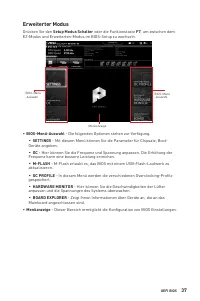
37 UEFI BIOS Erweiterter Modus Drücken Sie den Setup Modus Schalter oder die Funkionstaste F7 , um zwischen dem EZ-Modus und Erweiterten-Modus im BIOS-Setup zu wechseln. BIOS-Menü -Auswahl Menüanzeige BIOS-Menü -Auswahl ∙ BIOS-Menü-Auswahl - Die folgenden Optionen stehen zur Verfügung. ▪ SETTINGS - ...
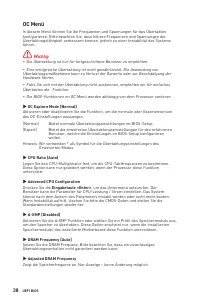
38 UEFI BIOS OC Menü In diesem Menü können Sie die Frequenzen und Spannungen für das Übertakten konfigurieren. Bitte beachten Sie, dass höhere Frequenzen und Spannungen die Übertaktungsfähigkeit verbessern können, jedoch zu einer Instabilität des Systems führen. ⚠ Wichtig ∙ Die Übertaktung ist nur f...
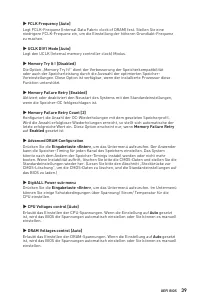
39 UEFI BIOS ▶ FCLK Frequency [Auto] Legt FCLK-Frequenz (Internal Data Fabric clock of DRAM) fest. Stellen Sie eine niedrigere FCLK-Frequenz ein, um die Einstellung der höheren Grundtakt-Frequenz zu machen. ▶ UCLK DIV1 Mode [Auto] Legt den UCLK (Internal memory controller clock) Modus. ▶ Memory Try ...
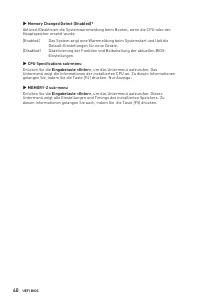
40 UEFI BIOS ▶ Memory Changed Detect [Enabled]* Aktiviert/Deaktiviert die Systemwarnmeldung beim Booten, wenn die CPU oder der Hauptspeicher ersetzt wurde.[Enabled] Das System zeigt eine Warnmeldung beim Systemstart und lädt die Default-Einstellungen für neue Geräte. [Disabled] Deaktivierung der Fun...
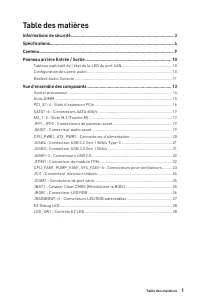
1 Table des matières Table des matières Informations de sécurité ....................................................................................... 3Spécifications ......................................................................................................... 4Contenu ...................
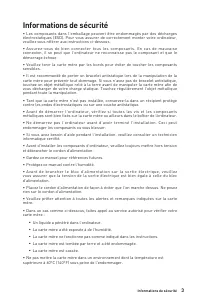
3 Informations de sécurité Informations de sécurité ∙ Les composants dans l’emballage peuvent être endommagés par des décharges électrostatiques (ESD). Pour vous assurer de correctement monter votre ordinateur, veuillez vous référer aux instructions ci-dessous. ∙ Assurez-vous de bien connecter tous ...
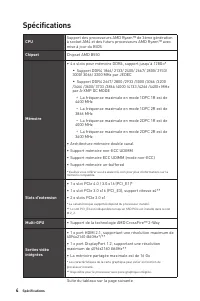
4 Spécifications Spécifications CPU Support des processeurs AMD Ryzen™ de 3ème génération à socket AM4 et des futurs processeurs AMD Ryzen™ avec mise à jour du BIOS Chipset Chipset AMD B550 Mémoire ∙ 4 x slots pour mémoire DDR4, support jusqu’à 128Go* ▪ Support DDR4 1866/ 2133/ 2400/ 2667/ 2800/ 293...
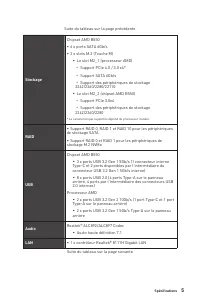
5 Spécifications Suite du tableau sur la page précédente Stockage Chipset AMD B550 ∙ 6 x ports SATA 6Gb/s ∙ 2 x slots M.2 (Touche M) ▪ Le slot M2_1 (processeur AMD) ▫ Support PCIe 4.0 / 3.0 x4* ▫ Support SATA 6Gb/s ▫ Support des périphériques de stockage 2242/2260/2280/22110 ▪ Le slot M2_2 (chipset ...
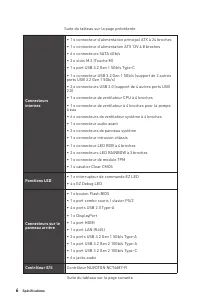
6 Spécifications Suite du tableau sur la page précédente Connecteurs internes ∙ 1 x connecteur d’alimentation principal ATX à 24 broches ∙ 1 x connecteur d’alimentation ATX 12V à 8 broches ∙ 6 x connecteurs SATA 6Gb/s ∙ 2 x slots M.2 (Touche M) ∙ 1 x port USB 3.2 Gen 1 5Gb/s Type-C ∙ 1 x connecteur ...
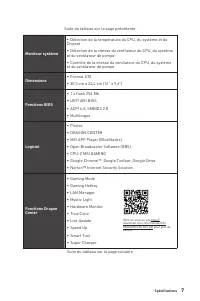
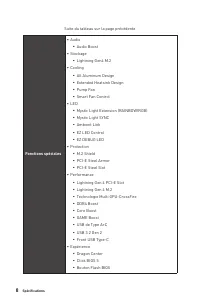
8 Spécifications Suite du tableau sur la page précédente Fonctions spéciales ∙ Audio ▪ Audio Boost ∙ Stockage ▪ Lightning Gen4 M.2 ∙ Cooling ▪ All Aluminum Design ▪ Extended Heatsink Design ▪ Pump Fan ▪ Smart Fan Control ∙ LED ▪ Mystic Light Extension (RAINBOW/RGB) ▪ Mystic Light SYNC ▪ Ambient Link...
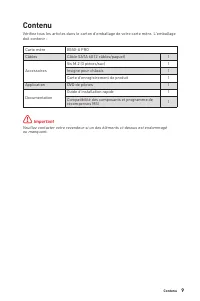
9 Contenu Contenu Vérifiez tous les articles dans le carton d'emballage de votre carte mère. L'emballage doit contenir : Carte mère B550-A PRO Câbles Câble SATA 6G (2 câbles/paquet) 1 Accessoires Vis M.2 (3 pièces/sac) 1 Insigne pour châssis 1 Carte d’enregistrement de produit 1 Application DVD de p...
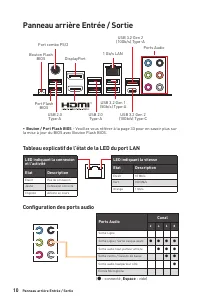
10 Panneau arrière Entrée / Sortie Panneau arrière Entrée / Sortie ∙ Bouton / Port Flash BIOS - Veuillez vous référer à la page 33 pour en savoir plus sur la mise à jour du BIOS avec Bouton Flash BIOS. LED indiquant la connexion et l’activitéEtat Description Eteint Pas de connexion Jaune Connexion c...
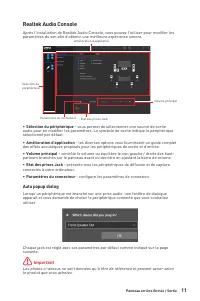
11 Panneau arrière Entrée / Sortie Realtek Audio Console Après l’installation de Realtek Audio Console, vous pouvez l’utiliser pour modifier les paramètres du son afin d’obtenir une meilleure expérience sonore. ∙ Sélection du périphérique - vous permet de sélectionner une source de sortie audio pour...
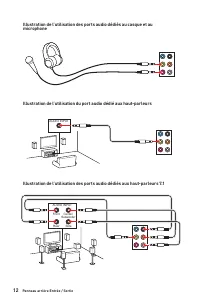
12 Panneau arrière Entrée / Sortie Illustration de l’utilisation des ports audio dédiés au casque et au microphone Illustration de l’utilisation du port audio dédié aux haut-parleurs Illustration de l’utilisation des ports audio dédiés aux haut-parleurs 7.1 AUDIO INPUT AUDIO INPUT Rear Front Side Ce...
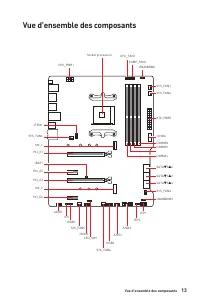
13 Vue d’ensemble des composants Vue d’ensemble des composants JUSB3 SYS_FAN3 JRGB1 JCOM1 SATA▼5▲6 SATA▼1▲2 SATA▼3▲4 M2_2 M2_1 SYS_FAN6 JTPM1 JUSB4 JUSB2 JUSB1 SYS_FAN4 SYS_FAN5 CPU_FAN1 SYS_FAN2 SYS_FAN1 PCI_E1 PCI_E2 PCI_E3 JBAT1 PCI_E4 Socket processeur CPU_PWR1 PUMP_FAN1 JRAINBOW2 JAUD1 JCI1 JFP...
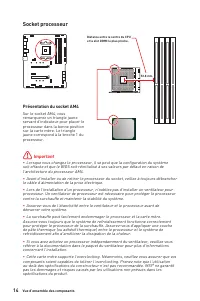
14 Vue d’ensemble des composants Socket processeur Présentation du socket AM4 Sur le socket AM4, vous remarquerez un triangle jaune servant d’indicateur pour placer le processeur dans la bonne position sur la carte mère. Le triangle jaune correspond à la broche 1 du processeur. 53.8 mm Distance entr...
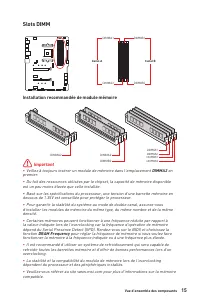
15 Vue d’ensemble des composants Slots DIMM DIMMA1 DIMMB1 Canal A Canal B DIMMA2 DIMMB2 Installation recommandée de module mémoire ⚠ Important ∙ Veillez à toujours insérer un module de mémoire dans l’emplacement DIMMA2 en premier. ∙ Du fait des ressources utilisées par le chipset, la capacité de mém...
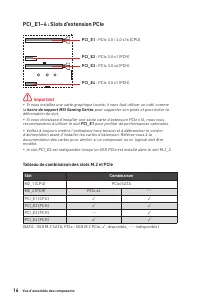
16 Vue d’ensemble des composants PCI_E1~4 : Slots d’extension PCIe ⚠ Important ∙ Si vous installez une carte graphique lourde, il vous faut utiliser un outil comme la barre de support MSI Gaming Series pour supporter son poids et pour éviter la déformation du slot. ∙ Si vous choisissez d’installer u...
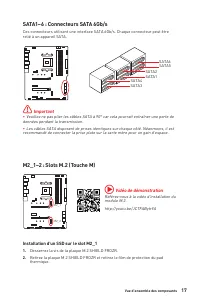
17 Vue d’ensemble des composants M2_1~2 : Slots M.2 (Touche M) M2_1 M2_2 SATA1~6 : Connecteurs SATA 6Gb/s Ces connecteurs utilisent une interface SATA 6Gb/s. Chaque connecteur peut être relié à un appareil SATA. ⚠ Important ∙ Veuillez ne pas plier les câbles SATA à 90° car cela pourrait entraîner un...
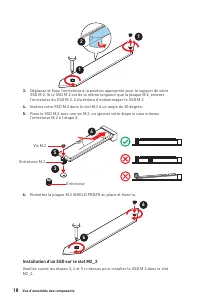
18 Vue d’ensemble des composants 1 1 2 30º 30º Entretoise M.2 Entretoise 3 5 4 Vis M.2 6 6 Installation d’un SSD sur le slot M2_2 Veuillez suivre les étapes 3, 4 et 5 ci-dessus pour installer le SSD M.2 dans le slot M2_2. 3. Déplacez et fixez l’entretoise à la position appropriée pour le support de ...
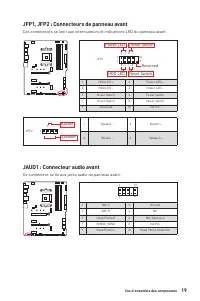
19 Vue d’ensemble des composants JAUD1 : Connecteur audio avant Ce connecteur se lie aux jacks audio du panneau avant. 1 2 10 9 1 MIC L 2 Ground 3 MIC R 4 NC 5 Head Phone R 6 MIC Detection 7 SENSE_SEND 8 No Pin 9 Head Phone L 10 Head Phone Detection JFP1, JFP2 : Connecteurs de panneau avant Ces conn...
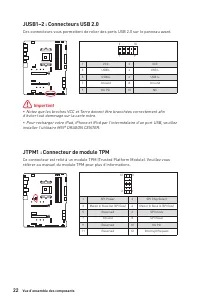
22 Vue d’ensemble des composants JUSB1~2 : Connecteurs USB 2.0 Ces connecteurs vous permettent de relier des ports USB 2.0 sur le panneau avant. 1 2 10 9 1 VCC 2 VCC 3 USB0- 4 USB1- 5 USB0+ 6 USB1+ 7 Ground 8 Ground 9 No Pin 10 NC ⚠ Important ∙ Notez que les broches VCC et Terre doivent être branché...
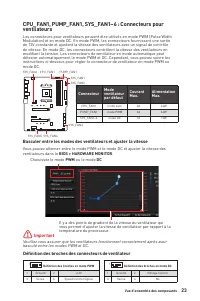
23 Vue d’ensemble des composants CPU_FAN1, PUMP_FAN1, SYS_FAN1~6 : Connecteurs pour ventilateurs Les connecteurs pour ventilateurs peuvent être utilisés en mode PWM (Pulse Width Modulation) et en mode DC. En mode PWM, les connecteurs fournissent une sortie de 12V constante et ajustent la vitesse des...
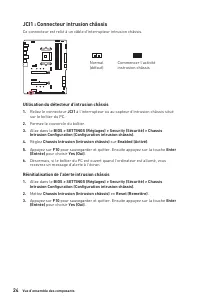
24 Vue d’ensemble des composants JCI1 : Connecteur intrusion châssis Ce connecteur est relié à un câble d’interrupteur intrusion châssis. Normal (défaut) Commencer l’activité instrusion châssis Utilisation du détecteur d’intrusion châssis 1. Reliez le connecteur JCI1 à l’interrupteur ou au capteur d...
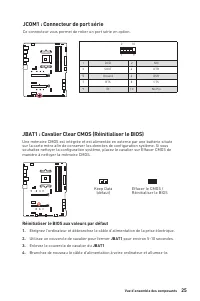
25 Vue d’ensemble des composants JBAT1 : Cavalier Clear CMOS (Réinitialiser le BIOS) Une mémoire CMOS est intégrée et est alimentée en externe par une batterie située sur la carte mère afin de conserver les données de configuration système. Si vous souhaitez nettoyer la configuration système, placez...
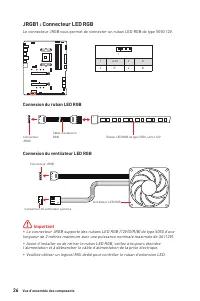
26 Vue d’ensemble des composants ⚠ Important ∙ Le connecteur JRGB supporte des rubans LED RGB (12V/G/R/B) de type 5050 d’une longueur de 2 mètres maximum avec une puissance nominale maximale de 3A (12V). ∙ Avant d’installer ou de retirer le ruban LED RGB, veillez à toujours éteindre l’alimentation e...
27 Vue d’ensemble des composants 1 1 1 D +5V ⚠ Attention Faites attention à bien connecter le bon type de ruban LED. Le connecteur JRGB et le connecteur JRAINBOW fournissent des tensions différentes. La connexion d’un ruban LED 5V au connecteur JRGB peut endommager le ruban. ⚠ Important ∙ Le connect...
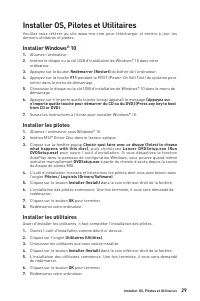
29 Installer OS, Pilotes et Utilitaires Installer OS, Pilotes et Utilitaires Veuillez vous référer au site www.msi.com pour télécharger et mettre à jour les derniers utilitaires et pilotes. Installer Windows® 10 1. Allumez l’ordinateur. 2. Insérez le disque ou la clé USB d’installation de Windows® 1...
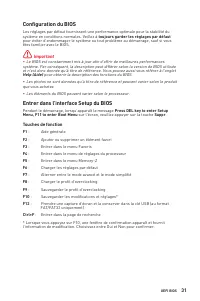
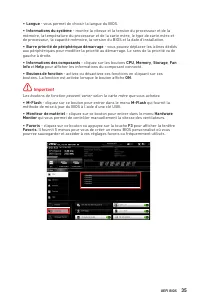
31 UEFI BIOS Configuration du BIOS Les réglages par défaut fournissent une performance optimale pour la stabilité du système en conditions normales. Veillez à toujours garder les réglages par défaut pour éviter d’endommager le système ou tout problème au démarrage, sauf si vous êtes familier avec le...
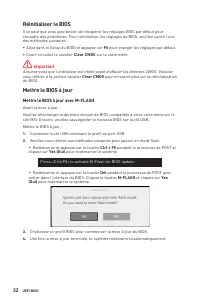
32 UEFI BIOS Réinitialiser le BIOS Il se peut que vous ayez besoin de récupérer les réglages BIOS par défaut pour résoudre des problèmes. Pour réinitialiser les réglages du BIOS, veuillez suivre l’une des méthodes suivantes : ∙ Allez dans le Setup du BIOS et appuyez sur F6 pour charger les réglages ...
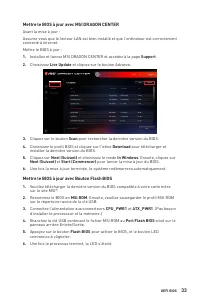
33 UEFI BIOS Mettre le BIOS à jour avec MSI DRAGON CENTER Avant la mise à jour :Assurez-vous que le lecteur LAN est bien installé et que l’ordinateur est correctement connecté à internet. Mettre le BIOS à jour : 1. Installez et lancez MSI DRAGON CENTER et accédez à la page Support . 2. Choisissez Li...
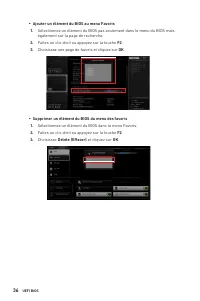
36 UEFI BIOS ▪ Ajouter un élément du BIOS au menu Favoris 1. Sélectionnez un élément du BIOS pas seulement dans le menu du BIOS mais également sur la page de recherche. 2. Faites un clic droit ou appuyez sur la touche F2 . 3. Choisissez une page de favoris et cliquez sur OK . ▪ Supprimer un élément ...
40 UEFI BIOS ▶ MEMORY-Z sub-menu Appuyez sur la touche Entrée pour accéder au sous-menu. Ce sous-menu affiche tous les réglages et timings de la mémoire installée. Vous pouvez également accéder à ce sous-menu à tout moment en appuyant sur la touche [F5].
1 Содержание Содержание Безопасное использование продукции ............................................................. 3 Технические характеристики ............................................................................. 4 Комплект поставки .......................................................
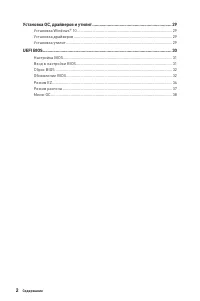
2 Содержание Установка ОС, драйверов и утилит ................................................................... 29 Установка Windows® 10 ....................................................................................... 29 Установка драйверов .....................................................
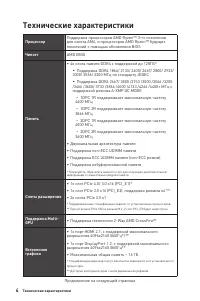
4 Технические характеристики Технические характеристики Процессор Поддержка процессоров AMD Ryzen™ 3-го поколения для сокета AM4, и процессоров AMD Ryzen™ будущих поколений с помощью обновления BIOS Чипсет AMD B550 Память ∙ 4x слота памяти DDR4 с поддержкой до 128ГБ* ▪ Поддержка DDR4 1866/ 2133/ 240...
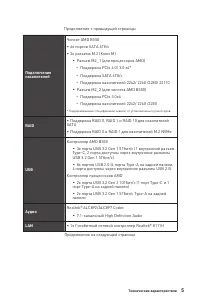
5 Технические характеристики Продолжение с предыдущей страницы Подключение накопителей Чипсет AMD B550 ∙ 6x портов SATA 6Гб/с ∙ 2x разъема M.2 (Ключ M) ▪ Разъем M2_1 (для процессоров AMD) ▫ Поддержка PCIe 4.0/ 3.0 x4* ▫ Поддержка SATA 6Гб/с ▫ Поддержка накопителей 2242/ 2260 /2280/ 22110 ▪ Разъем M2...
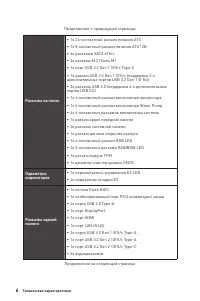
6 Технические характеристики Продолжение с предыдущей страницы Разъемы на плате ∙ 1x 24-контактный разъем питания ATX ∙ 1x 8-контактный разъем питания ATX 12В ∙ 6x разъемов SATA 6Гб/с ∙ 2x разъема M.2 (Ключ M) ∙ 1x порт USB 3.2 Gen 1 5Гб/с Type-C ∙ 1x разъем USB 3.2 Gen 1 5Гб/с (поддержка 2-х дополн...
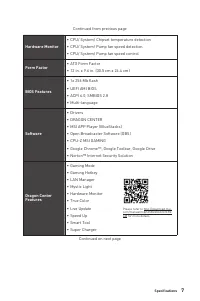
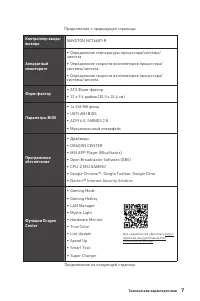
7 Технические характеристики Продолжение с предыдущей страницы Контроллер ввода- вывода NUVOTON NCT6687-R Аппаратный мониторинг ∙ Определение температуры процессора/системы/ чипсета ∙ Определение скорости вентиляторов процессора/ системы/чипсета ∙ Определение скорости вентиляторов процессора/ систем...
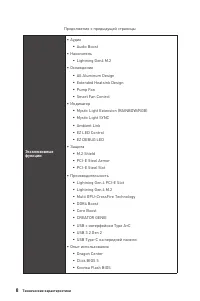
8 Технические характеристики Продолжение с предыдущей страницы Эксклюзивные функции ∙ Аудио ▪ Audio Boost ∙ Накопитель ▪ Lightning Gen4 M.2 ∙ Охлаждение ▪ All Aluminum Design ▪ Extended Heatsink Design ▪ Pump Fan ▪ Smart Fan Control ∙ Индикатор ▪ Mystic Light Extension (RAINBOW/RGB) ▪ Mystic Light S...
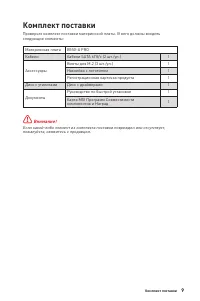
9 Комплект поставки Комплект поставки Проверьте комплект поставки материнской платы. В него должны входить следующие элементы: Материнская плата B550-A PRO Кабели Кабели SATA 6Гб/с (2 шт./уп.) 1 Аксессуары Винты для М.2 (3 шт./уп.) 1 Наклейка с логотипом 1 Регистрационная карточка продукта 1 Диск с ...
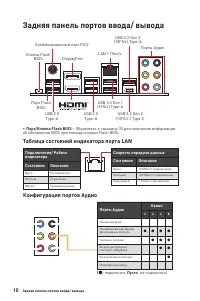
10 Задняя панель портов ввода/ вывода USB 3.2 Gen 1 (5Гб/с) Type-A Порт Flash BIOS Задняя панель портов ввода/ вывода Комбинированный порт PS/2 LAN 1 Гбит/с DisplayPort USB 2.0 Type-A USB 2.0 Type-A Порты Аудио USB 3.2 Gen 2 (10Гб/с ) Type-C USB 3.2 Gen 2 (10Гб/с) Type-A ∙ Порт/Кнопка Flash BIOS – О...
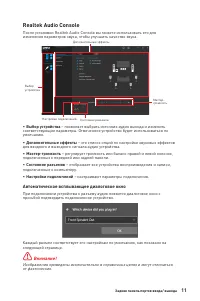
11 Задняя панель портов ввода/ вывода ∙ Выбор устройства – позволяет выбрать источник аудио выхода и изменить соответствующие параметры. Отмеченное устройство будет использоваться по умолчанию. ∙ Дополнительные эффекты – это список опций по настройке звуковых эффектов для входного и выходного сигнал...
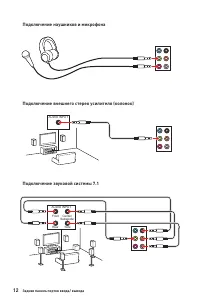
12 Задняя панель портов ввода/ вывода AUDIO INPUT Rear Front Side Center/ Subwoofer AUDIO INPUT Подключение наушников и микрофона Подключение внешнего стерео усилителя (колонок) Подключение звуковой системы 7.1
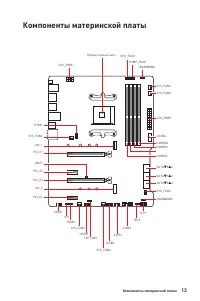
13 Компоненты материнской платы Компоненты материнской платы JUSB3 SYS_FAN3 JRGB1 JCOM1 SATA▼5▲6 SATA▼1▲2 SATA▼3▲4 M2_2 M2_1 SYS_FAN6 JTPM1 JUSB4 JUSB2 JUSB1 SYS_FAN4 SYS_FAN5 CPU_FAN1 SYS_FAN2 SYS_FAN1 PCI_E1 PCI_E2 PCI_E3 JBAT1 PCI_E4 Процессорный сокет CPU_PWR1 PUMP_FAN1 JRAINBOW2 JAUD1 JCI1 JFP1...
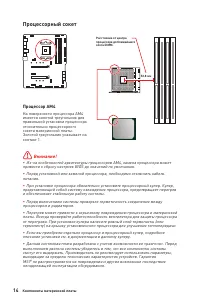
14 Компоненты материнской платы Процессорный сокет Процессор AM4 На поверхности процессора AM4 имеется золотой треугольник для правильной установки процессора относительно процессорного сокета материнской платы. Золотой треугольник указывает на контакт 1. 53.8 мм Расстояние от центра процессора до б...
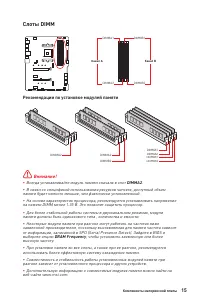
15 Компоненты материнской платы Слоты DIMM DIMMA1 DIMMB1 Канал A Канал B DIMMA2 DIMMB2 Рекомендации по установке модулей памяти ⚠ Внимание! ∙ Всегда устанавливайте модуль памяти сначала в слот DIMMA2 . ∙ В связи со спецификой использования ресурсов чипсета, доступный объем памяти будет немного меньш...
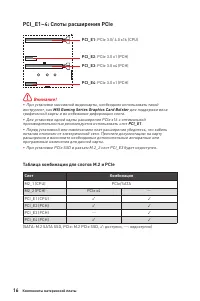
16 Компоненты материнской платы PCI_E1~4: Слоты расширения PCIe ⚠ Внимание! ∙ При установке массивной видеокарты, необходимо использовать такой инструмент, как MSI Gaming Series Graphics Card Bolster для поддержки веса графической карты и во избежание деформации слота. ∙ Для установки одной карты ра...
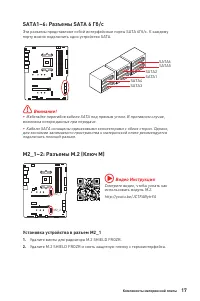
17 Компоненты материнской платы M2_1~2: Разъемы M.2 (Ключ M) M2_1 M2_2 SATA1~6: Разъемы SATA 6 Гб/с Эти разъемы представляют собой интерфейсные порты SATA 6Гб/с. К каждому порту можно подключить одно устройство SATA. ⚠ Внимание! ∙ Избегайте перегибов кабеля SATA под прямым углом. В противном случае,...
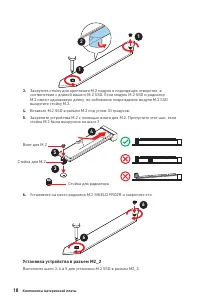
18 Компоненты материнской платы 1 1 2 30º 30º Стойка для M.2 Стойка для радиатора 3 5 4 Винт для M.2 6 6 Установка устройства в разъем M2_2 Выполните шаги 3, 4 и 5 для установки M.2 SSD в разъем M2_2. 3. Закрутите стойку для крепления M.2 модуля в подходящее отверстие, в соответствии с длиной вашего...
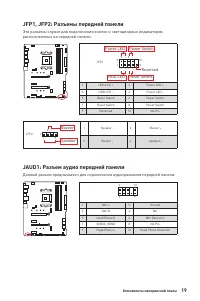
19 Компоненты материнской платы JAUD1: Разъем аудио передней панели Данный разъем предназначен для подключения аудиоразъемов передней панели. 1 2 10 9 1 MIC L 2 Ground 3 MIC R 4 NC 5 Head Phone R 6 MIC Detection 7 SENSE_SEND 8 No Pin 9 Head Phone L 10 Head Phone Detection JFP1, JFP2: Разъемы передне...
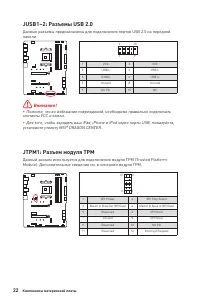
22 Компоненты материнской платы JUSB1~2: Разъемы USB 2.0 Данные разъемы предназначены для подключения портов USB 2.0 на передней панели. 1 2 10 9 1 VCC 2 VCC 3 USB0- 4 USB1- 5 USB0+ 6 USB1+ 7 Ground 8 Ground 9 No Pin 10 NC ⚠ Внимание! ∙ Помните, что во избежание повреждений, необходимо правильно под...
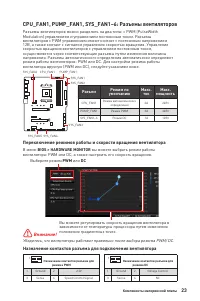
23 Компоненты материнской платы CPU_FAN1, PUMP_FAN1, SYS_FAN1~6: Разъемы вентиляторов Разъемы вентиляторов можно разделить на два типа: с PWM (PulseWidth Modulation) управлением и управлением постоянным током. Разъемы вентиляторов с PWM управлением имеют контакт с постоянным напряжением 12В, а также...
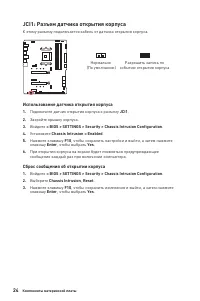
24 Компоненты материнской платы JCI1: Разъем датчика открытия корпуса К этому разъему подключается кабель от датчика открытия корпуса. Нормально (По умолчанию) Разрешить запись по событию открытия корпуса Использование датчика открытия корпуса 1. Подключите датчик открытия корпуса к разъему JCI1 . 2...
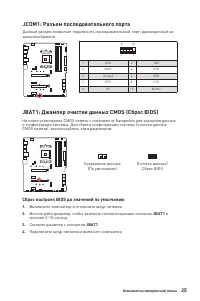
25 Компоненты материнской платы JBAT1: Джампер очистки данных CMOS (Сброс BIOS) На плате установлена CMOS память с питанием от батарейки для хранения данных о конфигурации системы. Для сброса конфигурации системы (очистки данных CMOS памяти), воспользуйтесь этим джампером. Сохранение данных (По умол...
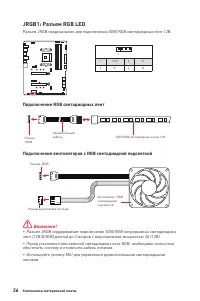
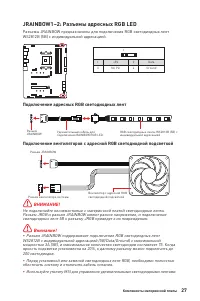
26 Компоненты материнской платы ⚠ Внимание! ∙ Разъем JRGB поддерживает подключение 5050 RGB непрерывных светодиодных лент (12В/G/R/B) длиной до 2 метров с максимальной мощностью 3А (12В). ∙ Перед установкой или заменой светодиодных лент RGB, необходимо полностью обесточить систему и отключить кабель...
27 Компоненты материнской платы 1 1 1 D +5V ⚠ ВНИМАНИЕ! Не подключайте несовместимые с материнской платой светодиодные ленты. Разъем JRGB и разъем JRAINBOW имеют разное напряжение, и подключение светодиодных лент 5В к разъему JRGB приведет к их повреждению. ⚠ Внимание! ∙ Разъем JRAINBOW поддерживает...
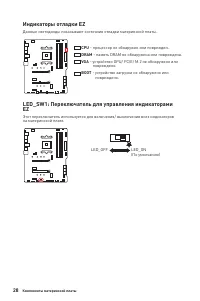
28 Компоненты материнской платы Индикаторы отладки EZ Данные светодиоды показывают состояния отладки материнской платы. CPU - процессор не обнаружен или поврежден. DRAM - память DRAM не обнаружена или повреждена. VGA - устройство GPU/ PCIE/ M.2 не обнаружено или повреждено. BOOT - устройство загрузк...
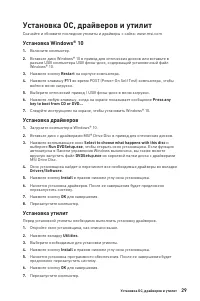
29 Установка ОС, драйверов и утилит Установка ОС, драйверов и утилит Скачайте и обновите последние утилиты и драйверы с сайта: www.msi.com Установка Windows® 10 1. Включите компьютер. 2. Вставьте диск Windows® 10 в привод для оптических дисков или вставьте в разъем USB компьютера USB флэш-диск, соде...
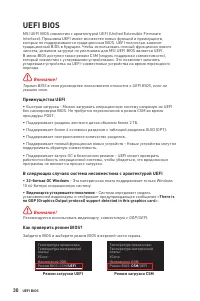
30 UEFI BIOS UEFI BIOS MSI UEFI BIOS совместим с архитектурой UEFI (Unified Extensible Firmware Interface). Прошивка UEFI имеет множество новых функций и преимуществ, которые не поддерживаются традиционным BIOS. UEFI полностью заменит традиционный BIOS в будущем. Чтобы использовать полный функционал...
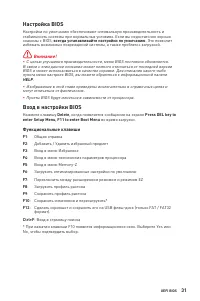
31 UEFI BIOS Настройка BIOS Настройки по умолчанию обеспечивают оптимальную производительность и стабильность системы при нормальных условиях. Если вы недостаточно хорошо знакомы с BIOS, всегда устанавливайте настройки по умолчанию . Это позволит избежать возможных повреждений системы, а также пробл...
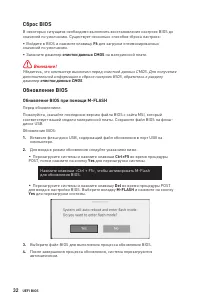
32 UEFI BIOS Сброс BIOS В некоторых ситуациях необходимо выполнить восстановление настроек BIOS до значений по умолчанию. Существует несколько способов сброса настроек: ∙ Войдите в BIOS и нажмите клавишу F6 для загрузки оптимизированных значений по умолчанию. ∙ Замкните джампер очистки данных CMOS н...
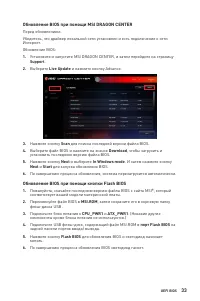
33 UEFI BIOS Обновление BIOS при помощи MSI DRAGON CENTER Перед обновлением:Убедитесь, что драйвер локальной сети установлен и есть подключение к сети Интернет. Обновление BIOS: 1. Установите и запустите MSI DRAGON CENTER, и затем перейдите на страницу Support . 2. Выберите Live Update и нажмите кно...
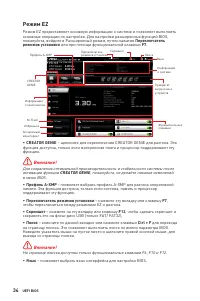
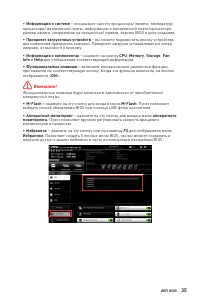
34 UEFI BIOS Режим EZ Режим EZ предоставляет основную информацию о системе и позволяет выполнить основные операции по настройке. Для настройки расширенных функций BIOS, пожалуйста, войдите в Расширенный режим, путем нажатия Переключатель режимов установки или при помощи функциональной клавиши F7 . П...
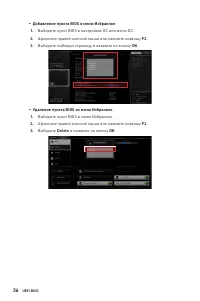
36 UEFI BIOS ▪ Добавление пункта BIOS в меню Избранное 1. Выберите пункт BIOS в настройках OC или меню OC. 2. Щелкните правой кнопкой мыши или нажмите клавишу F2 . 3. Выберите любимую страницу и нажмите на кнопку OK . ▪ Удаление пункта BIOS из меню Избранное 1. Выберите пункт BIOS в меню Избранное. ...
37 UEFI BIOS Режим разгона Нажмите переключатель режимов установки или функциональную клавишу F7 для переключения между режимами EZ и разгона в настройках BIOS. Выбор меню BIOS Экран меню Выбор меню BIOS ∙ Выбор меню BIOS – доступны следующие опции: ▪ SETTINGS – в данном меню представлены настройки ...
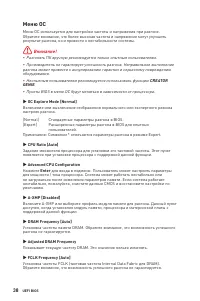
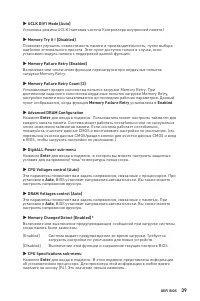
38 UEFI BIOS Меню OC Меню OC используется для настройки частоты и напряжения при разгоне. Обратите внимание, что более высокая частота и напряжение могут улучшить результат разгона, но и привести к нестабильности системы. ⚠ Внимание! ∙ Разгонять ПК вручную рекомендуется только опытным пользователям....
40 UEFI BIOS ▶ MEMORY-Z sub-menu Нажмите Enter для входа в подменю. В подменю выделены все параметры и тайминги установленной памяти. Для просмотра этой информации в любое время нажмите на кнопку [F5].
i Regulatory Notices Regulatory Notices FCC Compliance Statement Note: This equipment has been tested and found to comply with the limits for a Class B digital device, pursuant to part 15 of the FCC Rules. These limits are designed to provide reasonable protection against harmful interference in a r...
ii Regulatory Notices you that...Under the European Union (“EU”) Directive on Waste Electrical and Electronic Equipment, Directive 2002/96/ EC, which takes effect on August 13, 2005, products of “electrical and electronic equipment” cannot be discarded as municipal wastes anymore, and manufacturers ...
iii Regulatory Notices ürünleri geri toplamakla yükümlü olacaktır. Avrupa Birliği’ne satılan MSI markalı ürünlerin kullanım süreleri bittiğinde MSI ürünlerin geri alınması isteği ile işbirliği içerisinde olacaktır. Ürünlerinizi yerel toplama noktalarına bırakabilirsiniz. ČESKY Záleží nám na ochraně ...
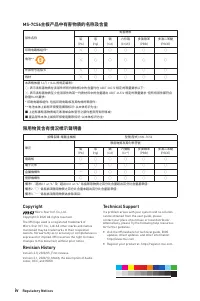
iv Regulatory Notices MS-7C56主板产品中有害物质的名称及含量 部件名称 有害物质 铅 (Pb) 汞 (Hg) 镉 (Cd) 六价铬 (Cr(VI)) 多溴联苯 (PBB) 多溴二苯醚 (PBDE) 印刷电路板组件* ╳ ○ ○ ○ ○ ○ 电池** ╳ ○ ○ ○ ○ ○ 外部信号连接头 ╳ ○ ○ ○ ○ ○ 线材 ╳ ○ ○ ○ ○ ○ 本表格依据 SJ/T 11364 的规定编制。○: 表示该有害物质在该部件所有均质材料中的含量均在 GB/T 26572 规定的限量要求以下。╳: 表示该有害物质至少在该部件的某一均质材料中的含量超出 GB/T 26572 规定...
MSI Motherboards Manuals
-
MSI A320M-A PRO
User Manual
-
MSI A520
User Manual
-
MSI A520M-A PRO
User Manual
-
MSI B450M-A PRO
User Manual
-
MSI B460
User Manual
-
MSI B550M PRO-VDH
User Manual
-
MSI B560
User Manual
-
MSI B560-A PRO
User Manual
-
MSI B560M BOMBER
User Manual
-
MSI B560M PRO-E
User Manual
-
MSI B660
User Manual
-
MSI B660M
User Manual
-
MSI H510
User Manual
-
MSI H510M-A PRO
User Manual
-
MSI H610
User Manual
-
MSI MAG B550
User Manual
-
MSI MAG B550M
User Manual
-
MSI MAG B650M
User Manual
-
MSI MAG Z59
User Manual
-
MSI MAG Z690
User Manual