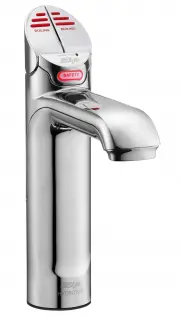
Page 2 - Tap safety - Boiling Ambient; HydroTap Classic; To deactivate the safety; Elite Tap; The Factory setting is set at YES; Ambient lever
Page 2 of 24 801621 - B, BA, BHA, BAHA, - HydroTap User Guide - July 2015 - V2.00 Tap safety - Boiling Ambient The safety lock feature is provided to prevent boiling water flowing if the hot lever is inadvertently operated. This function can be activated and deactivated from either the Tap top lever...
Page 3 - Turn the power OFF
801621 - B, BA, BHA, BAHA, - HydroTap User Guide - July 2015- V2.00 Page 3 of 24 Tap Safety - Boiling Models B Boiling Models (Classic, Elite & AIO) To set the safety using the touch screen: 1. Press the [MENU] button for main menu. 2. Press the [Setting] button. 3. Press the [Safety] button. 4....
Page 4 - Tap functions
Page 4 of 24 801621 - B, BA, BHA, BAHA, - HydroTap User Guide - July 2015 - V2.00 Elite Tap: The Elite tap uses touch sensitive controls, to dispense Boiling, and Ambient water. When operating the tap, ensure the touch surface is dry as moisture may interfere with the sensor touch control. The safet...
Page 5 - Rotary control; Select Button
801621 - B, BA, BHA, BAHA, - HydroTap User Guide - July 2015- V2.00 Page 5 of 24 3. Tap functions MixerTap: Lifting the handle up will decrease the flow rate and lowering the handle will increase the flow rate. Raise the handle all the way up to turn the tap off. When the handle is moved towards the...
Page 6 - Press or pull lever; Safety Lock; Classic Tap
Page 6 of 24 801621 - B, BA, BHA, BAHA, - HydroTap User Guide - July 2015 - V2.00 3. Tap operation To dispense boiling water: (With the safety OFF) HydroTap Classic: Depressing the Red lever allows the dispensing of boiling water. Pulling forward the Red lever allows the tap to operate in a “no-touc...
Page 7 - Ambient button; Tap operation
801621 - B, BA, BHA, BAHA, - HydroTap User Guide - July 2015- V2.00 Page 7 of 24 HydroTap Classic: Depressing the Blue lever allows the dispensing of Ambient water. Pulling forward the Blue lever allows the tap to operate in a “no-touch” mode. Water will flow from between 5 and 15 seconds (This is u...
Page 8 - Filter lights; Filter Change Light Off:
Page 8 of 24 801621 - B, BA, BHA, BAHA, - HydroTap User Guide - July 2015 - V2.00 Filter lights Filter Light Red Light Filter light Filter light: Classic & Elite Filter Change Light Off: This indicates the filter is operating within its normal specified lifespan. Filter Change light flashing slo...
Page 9 - Tap Lights; Blue Lights; Red Boiling Water Light; Filter Light; Flashing warning light:
801621 - B, BA, BHA, BAHA, - HydroTap User Guide - July 2015- V2.00 Page 9 of 24 3. Tap Lights Blue Lights Blue Ambient water Lights: (Not available on Elite) On all the time: This indicates that the Ambient water is ready. Red Lights Red Boiling Water Light (All) On all the time: This indicates tha...
Page 10 - LCD Screen
Page 10 of 24 801621 - B, BA, BHA, BAHA, - HydroTap User Guide - July 2015 - V2.00 Note: When selecting Menu options, the screen will revert to the main menu, if the screen remains inactive for a period, in excess of 10 seconds. Zip HydroTap introduces a ‘TOUCH’ screen for easy setup and operation a...
Page 11 - LCD Screen Menu; Main Menu
801621 - B, BA, BHA, BAHA, - HydroTap User Guide - July 2015- V2.00 Page 11 of 24 3 LCD Screen Menu Main Menu Sub Menu Sub Menu Options Section Language • English • Deutsch A • Product Info • System Faults • Event Log • Product serial No. • Lists B Information Installation • Filter Flush • Filter Re...
Page 13 - Run at least 10 Litres
801621 - B, BA, BHA, BAHA, - HydroTap User Guide - July 2015- V2.00 Page 13 of 24 LCD Screen operation - Section C C Install Have a 10L bucket or similar container (not supplied) at the ready to hold a quantity of water that will be ejected while the Filter Flush Mode is in operation. Open the filte...
Page 14 - LCD Screen operation - Section C
Page 14 of 24 801621 - B, BA, BHA, BAHA, - HydroTap User Guide - July 2015 - V2.00 After replacing the filter, the counters should be reset 1. Press the [MENU] button for main menu.2. Press the [Install] button. 3. Press the [Hot Calibration] button. 4. In the next screen, press [Calibrate] if you w...
Page 15 - To set a password; Enter a 4 digit password; To change a password; Enter your old 4 digit password; This section is reserved for service technicians only; In Australia call a licensed electrician, plumber,or Zip office on; D Service; Conduct calibration under normal light conditions
801621 - B, BA, BHA, BAHA, - HydroTap User Guide - July 2015- V2.00 Page 15 of 24 LCD Screen operation - Section D E Security The Zip HydroTap G4 allows the appliance coordinator to set up a password to protect against users changing the preferred system settings. To set a password 1. Press the [MEN...
Page 16 - F Communication; Not yet available; Settings; g I; nstructions; LCD Screen operation - Section F
Page 16 of 24 801621 - B, BA, BHA, BAHA, - HydroTap User Guide - July 2015 - V2.00 F Communication (when available) The Zip HydroTap G4 allows the user to use wifi or Bluetooth to operate the product remotely. Not yet available G Settings 3. LCD Screen operation - Section G g I nstructions LCD Scree...
Page 17 - LCD Screen operation - Section G; ions; Set Temperature; To edit the filter life:; Internal or External filter.
801621 - B, BA, BHA, BAHA, - HydroTap User Guide - July 2015- V2.00 Page 17 of 24 3. LCD Screen operation - Section G t ions 1. Press the [MENU] button for main menu.2. Press the [Temperature] button. 3. To adjust the temperature, press the relevant temperature button and then use the up and down ar...
Page 19 - Press Group 1 or Group 2 option; Individual days set screen; Any attempt, during OFF mode, to dispense water, will bring the unit
801621 - B, BA, BHA, BAHA, - HydroTap User Guide - July 2015- V2.00 Page 19 of 24 LCD Screen operation - Section G Lux (Light) Sensor Calibration: (Not for Elite tap) It is recommended to recalibrate the Lux (Light) Sensor after selecting any of the 4 Lux sensor options from the sleep mode menu. Bef...
Page 20 - Boiling Ambient Models
Page 20 of 24 801621 - B, BA, BHA, BAHA, - HydroTap User Guide - July 2015 - V2.00 Hot Isolation: (Not available for HydroTap Arc/Cube) * The HydroTap is equipped with a safety mode that allows for additional safety protection, if needed. When activated, the HOT Isolation mode will override the sett...
Page 21 - Dispense Times; • The filter percentage will change to 0% on the screen.; Water Filter; To Activate Hot Isolation:; • Press button - to Enable / Disable Hot isolation.
801621 - B, BA, BHA, BAHA, - HydroTap User Guide - July 2015- V2.00 Page 21 of 24 Dispense Times The ability to change the maximum dispensing time for both the Hot and Ambient water has been introduced. The default settings for the maximum dispensing times is 15 seconds. Here, the operator may chang...
Page 22 - Filter Maintenance; If the Zip HydroTap is switched off for a long period of time; To change the Filter:; Open the door of the under sink unit.; Cleaning
Page 22 of 24 801621 - B, BA, BHA, BAHA, - HydroTap User Guide - July 2015 - V2.00 Filter Maintenance Warning: If the Zip HydroTap is switched off for a long period of time (e.g. More than a weekend), run water through the chilled water outlet for at least 5 minutes before consumption. To change the...
Page 23 - Home Menu Icons; Safety switch is LOCKED.; °C but may be; BOILING
801621 - B, BA, BHA, BAHA, - HydroTap User Guide - July 2015- V2.00 Page 23 of 24 Home Menu Icons Safety switch is LOCKED. The HydroTap will not dispense any Boiling water.See page 2 and 3 for safety switch operation Safety switch is UNLOCKED. Boiling water may be dispensed. See pages 6 & 7 for ...
Page 24 - Head Office; Contact Details
Page 24 of 24 801621 - B, BA, BHA, BAHA, - HydroTap User Guide - July 2015 - V2.00 The terms “Zip” and “HydroTap” are registered trade marks of Zip Heaters (Aust) Pty Ltd. Zip products described in this publication are manufactured under one or more of the following patents: AU675601, AU637412, AU63...