TCL U75H9510FDS - User Manual
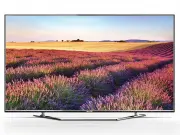
TCL U75H9510FDS TV – User Manual, read for free online in PDF format. We hope this helps you resolve any issues you may have. If you have further questions, please contact us through the contact form.


Table of Contents:
- Page 2 – Table of Contents; Chapter 1: Safety Information
- Page 3 – Precautions; Warning: This operation requires two people.; Important Information; Note: Graphics contained within this publication
- Page 4 – Buttons on the TV; Displays or exits the Homepage.; Chapter 2; TV Controller; The product colour and shape may vary depending on the model.; OK; button on the remote to confirm your selection.
- Page 5 – Connections and Setup; Sockets; These sockets can be used to connect a USB device.; AV IN adapter socket; This socket can be used to connect headphones or stereo earphones.
- Page 6 – Remote Control Functions; MIC; Press and hold; To select a sound type available for selected analogue
- Page 7 – TEXT; Quick access to the picture format selection menu.; SLEEP; Quick access to the sleep timer setting menu.; To pause playback
- Page 8 – Connecting to a wireless network; A router broadcasting a high-speed wireless signal; to configure the TV.; Network Connection; Connecting to a wired network; on the back of the TV; Ethernet port; on the back of the TV.; Network Settings; to configure the TV.
- Page 9 – Connect the outside aerial or cable network to the; socket at the; Switching off; but with low energy consumption.; Switching on; - Only use the battery types specified.
- Page 11 – appearance. And for some models, certain options are not available.; Using Home page- APPS; The pre-installed apps or items can not be deleted. And
- Page 12 – Recommendation; Source; Guide; TV window; The available source might differ depending on the model.; Settings; Home Page
- Page 13 – Shortcut operation; on the remote control to directly enter channel list.; On; icon on Home page-TV interface, and press; on the remote control; Using Home page- GOLIVE
- Page 14 – Time Shift; PVR; Using Quick Access Menu; Picture Preset; Chapter 4
- Page 15 – and, due to specific TV network limitations and country; Schedule List; Menu Operation
- Page 16 – Sound; Using System Settings; The Settings menu allows you to configure the TV with; Picture
- Page 17 – Channel
- Page 18 – which is sold separately); to enter, you will find the information; System; Off
- Page 19 – Lock; Applications
- Page 20 – Using the 3D Function; • These functions may not be available depending on; Connecting MHL-compatible Device; • Do not connect the MHL-compatible device to any; When using MHL
- Page 21 – are recognised. The encoding formats of your files will; All; Chapter 5
- Page 22 – Problems & Solutions; - Consult your internet service provider, to confirm
- Page 23 – Other Information; Troubleshooting; marred by dots. When the signal is extremely weak, it
- Page 24 – Legal Statement
Figures and illustrations in this User’s Guide are
provided for reference only and may differ from
actual product appearance. Product design and
specifications may be changed without notice.
OPERATION MANUAL
For use with models: H9510FDS series/H9600CDS series
"Loading the manual" means you need to wait until the file loads and becomes available for online reading. Some manuals are very large, and the time they take to appear depends on your internet speed.
Summary
2 Table of Contents Chapter 1: Safety Information Precautions ....................................................................................................................................... 3 Product ...............................................................................................
3 Chapter 1 Safety Information Precautions Read all of the instructions before operating the set. Keep these instructions well for future use. Product • Do not block or cover the ventilation openings on the back cover. • Do not push objects of any kind into this unit through the cabinet slots as the...
4 Buttons on the TV 1. PR-/+ (PROGRAMME DOWN/UP) buttons Scans down/up through the channel list. In the menu system, PROGRAMME DOWN acts like the down direction button on the remote and adjusts menu; PROGRAMME UP acts like the up direction buttons on the remote and adjust menu controls. 2. VOL-/+ (V...