TCL 306 - User Manual

TCL 306 Smartphone – User Manual, read for free online in PDF format. We hope this helps you resolve any issues you may have. If you have further questions, please contact us through the contact form.
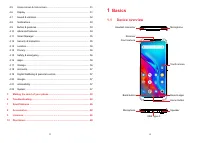
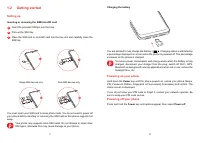
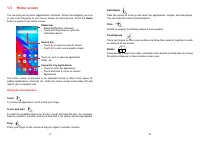
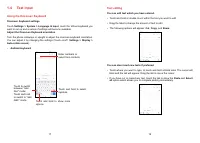
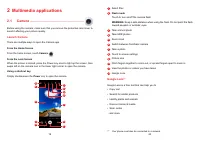
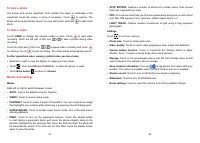
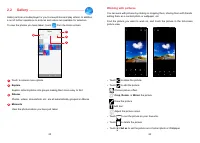
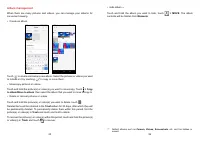
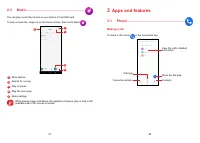
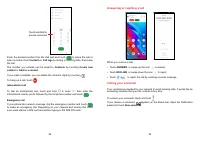
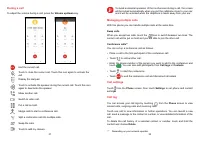
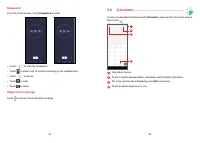
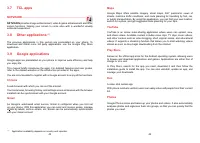
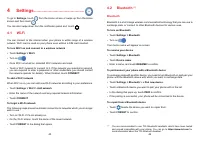
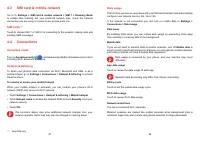
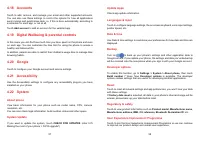
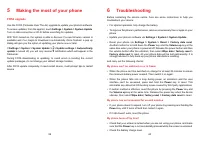
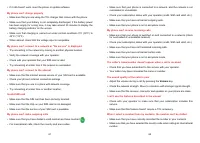
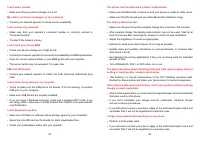
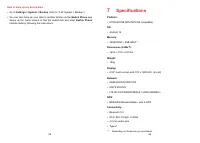
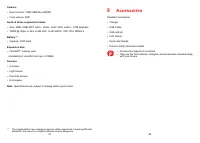
Table of Contents:
- Page 2 – Obtaining warranty service; Table of Contents
- Page 3 – Basics
- Page 5 – Setting up; Inserting or removing the SIM/microSD card; Charging the battery; Powering on your phone; Powering off your phone; Power
- Page 6 – Using the touchscreen
- Page 8 – Personalising your Home screen
- Page 11 – Multimedia applications; Launch Camera
- Page 13 – Working with pictures
- Page 14 – Album management; to album/Move to album
- Page 15 – Apps and features; Making a call
- Page 19 – Sign in; Writing a new message
- Page 22 – Stopwatch; Adjust Clock settings; Calculator
- Page 23 – NXTVISION; Other applications
- Page 24 – Bluetooth
- Page 28 – Advanced features
- Page 30 – Add account; Digital Wellbeing & parental controls; CHECK FOR UPDATES
- Page 31 – Making the most of your phone; FOTA upgrade; Troubleshooting; My phone can't be switched on or is frozen
- Page 32 – Volume
- Page 34 – How to back up my device data; Switch Phone; Specifications
- Page 35 – Battery; Accessories
- Page 36 – Licences; Disclaimer
For more information on how to use the phone, please go to tcl.com and download the complete user
manual. The website will also provide you with answers to frequently asked questions.
"Loading the manual" means you need to wait until the file loads and becomes available for online reading. Some manuals are very large, and the time they take to appear depends on your internet speed.
Was this manual helpful?
About this manual
- Brand
- TCL
- Model
- 306
- Document type
- User Manual
- Category
- Smartphone
- Language(s)
- English
- Pages
- 36
- File size
- 9.2 MB
- Format
Summary
1 2 Note: This is a user manual for 6102H/6102K.There may be certain differences between the user manual description and the phone’s operation, depending on the software release of your phone or specific operator services. Help Refer to the following resources to get more FAQ, software, and service ...
3 4 4.5 Home screen & lock screen ................................................................. 51 4.6 Display ................................................................................................. 514.7 Sound & vibration ..........................................................
7 8 1.2 Getting started Setting up Inserting or removing the SIM/microSD card 1 Insert the provided SIM pin into the hole. 2 Pull out the SIM tray. 3 Place the SIM card or microSD card into the tray slot and carefully close the SIM tray. Single-SIM devices only Dual-SIM devices only You must...
Ask a question
Related manuals
More TCL Smartphones models

Other TCL appliances
 TCL 32D2900 User Manual
 TCL 32S525 User Manual
 TCL 32S615 User Manual
 TCL 32S615-AU User Manual
 TCL 32S5400A User Manual
 TCL 32S6000S User Manual
- TCL 40S615 User Manual
 TCL 40S615-AU User Manual
- TCL 40S5400A User Manual
 TCL 40S6000FS User Manual
 TCL 43P1FS User Manual
 TCL 43P617 User Manual
 TCL 43P725 User Manual
 TCL 43P728 User Manual
 TCL 43S6000FS User Manual
 TCL 43S6500FS User Manual
 TCL 49C6US User Manual
 TCL 49S6000FS User Manual
 TCL 50E5900US User Manual