Page 2 - Table of contents
2 Dear customer!Thank you for purchasing our product. For safety, it is strongly recommended to read this manual carefullybefore connecting, operating and/or adjusting the product and keep the manual for reference in the future. Table of contents Table of contents ......................................
Page 3 - Important safeguards; qualified technician check the system.
3 Important safeguards - Read carefully through this manual to familiarize yourself with this high-quality sound system. - Disconnect the vehicle's negative battery terminal while mounting and connecting the unit. - When replacing the fuse, be sure to use one with an identical amperage rating. Using...
Page 4 - Installation/Connections; Installation way
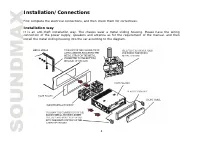
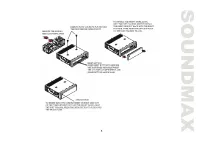
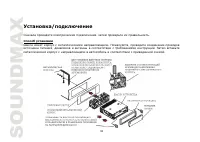
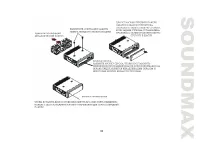
4 Installation/Connections First complete the electrical connections, and then check them for correctness. Installation way It is an anti-theft installation way. The chassis wear a metal sliding housing. Please have the wiringconnection of the power supply, speakers and antenna as for the requiremen...
Page 6 - Attaching the control panel; Push the panel to the right and insert the left side of it; Detaching the front panel; Press the REL button on the front panel. The panel will go
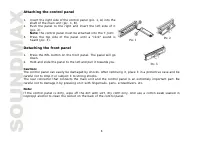
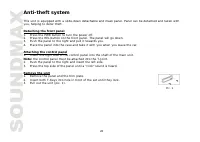
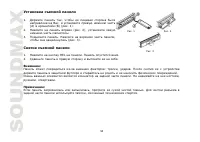
6 Attaching the control panel 1. Insert the right side of the control panel (pic. 1, A) into the shaft of the main unit (pic. 1, B). 2. Push the panel to the right and insert the left side of it (pic. 2).Note: the control panel must be attached into the T-Joint. 3. Press the top side of the panel un...
Page 7 - Connection scheme
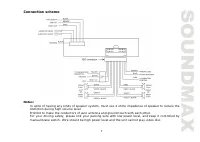
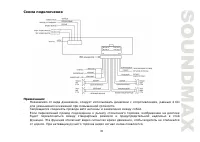
7 Connection scheme Notes: - In spite of having any kinds of speaker system, must use 4 ohms impedance of speaker to reduce thedistortion during high volume level. - Prohibit to make the conductors of auto antenna and ground touch with each other. - For your driving safety, please link your parking ...
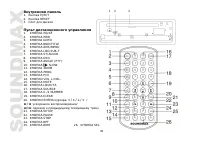
Page 8 - Panel controls; Press it to turn the power on. Press again to turn the power off.
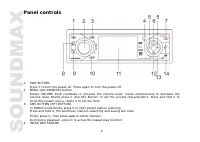
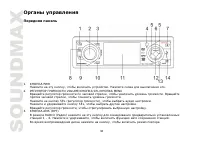
8 Panel controls 1. PWR BUTTON Press it to turn the power on. Press again to turn the power off. 2. MENU-VOL KNOB/SEL button Rotate VOLUME knob clockwise to increase the volume level; rotate anticlockwise to decrease thevolume level. Briefly press it (the SEL button) to set the volume characteristic...
Page 9 - Inner panel
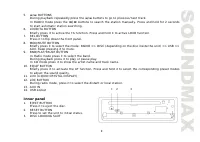
9 5. / BUTTONS During playback repeatedly press the / buttons to go to previous/next track. In RADIO mode press the / buttons to search the station manually. Press and hold for 2 seconds to start automatic station searching. 6. LOUD/TA BUTTON Briefly press it to active the TA function. Press and hol...
Page 10 - Remote control; SLOW BUTTON
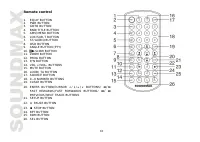
10 Remote control 1. EQ/AF BUTTON2. PWR BUTTON3. GOTO BUTTON 4. BND/TITLE BUTTON5. AMS/MENU BUTTON6. LOC/SUB-T BUTTON7. ST/AUDIO BUTTON 8. OSD BUTTON9. ANGLE BUTTON (PTY)10. SLOW BUTTON 11. ZOOM BUTTON12. PROG BUTTON13. P/N BUTTON 14. VOL +/VOL- BUTTONS15. MUTE BUTTON16. LOUD/ TA BUTTON17. SOURCE BU...
Page 11 - General operations; Power button; setting adjustment window.
11 General operations Reset the unitOperating the unit for the first time or after replacing the car battery, you must reset the unit.Press REL button, then press the RESET button to restore the unit to the original factory settings. Power button Press the PWR button to switch the unit on. Press and...
Page 12 - Press CLEAR to clear the mistake input.
12 5. Press SEL or ENTER to confirm.6. Select BACK to return to settings list.7. Select EXIT to exit settings list window. Mode selectionPress the SOURCE button on the RC or briefly press MOD/MUT button on the panel to select the mode:RADIO => DISC (depending on the disc inside the unit) (if it i...
Page 13 - Radio operations; BAND selection
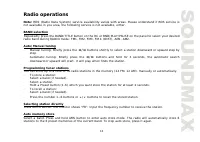
13 Radio operations Note: RDS (Radio Data System) service availability varies with areas. Please understand if RDS service isnot available in you area, the following service is not available, either. BAND selection Repeatedly press the BAND/TITLE button on the RC or BND/PLAY/PAUSE on the panel to se...
Page 14 - Radio setup menu; Press ENTER to open the mode settings list.
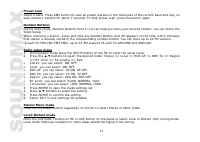
14 Preset scanSelect a band. Press AMS button to scan all preset stations in the memories of the current band and stay oneach memory stations for about 7 seconds. To stop preset scan, press the button again. Number ButtonsDuring radio mode, Number Buttons from 1 to 6 can help you store your favorite...
Page 17 - Playing/pausing playback
17 Inserting the USB deviceInsert the USB device into USB jack. Then the playing mode will be changed into USB mode.The first USB device track playback will start.Note: USB functions (flash memory type) MP3 music play FAT 12/ FAT 16/FAT 32 is possible - FAT 12/16 (dir: 200 support, file:500 support)...
Page 18 - Slow playback
18 Playing the previous/next trackDuring DVD playback, press to replay the current track, press and hold within 3 seconds to play the previous track, press to play the next track. During MP3/USB playback, press the / buttons to play the previous/next track. During VCD/CD/MPEG-4 playback, press the b...
Page 21 - MP3 overview; Notes on MP3; The unit may not play tracks in the order of Track numbers.
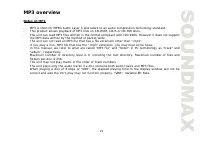
21 MP3 overview Notes on MP3 - MP3 is short for MPEG Audio Layer 3 and refers to an audio compression technology standard. - This product allows playback of MP3 files on CD-ROM, CD-R or CD-RW discs. - The unit can read MP3 files written in the format compliant with ISO 9660. However it does not supp...
Page 22 - Notes on creating your own CD-Rs or CD-RWs containing MP3 files; DO NOT store more than 256 MP3 files per disc.
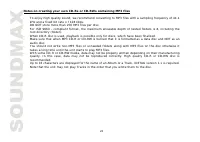
22 Notes on creating your own CD-Rs or CD-RWs containing MP3 files - To enjoy high quality sound, we recommend converting to MP3 files with a sampling frequency of 44.1kHz and a fixed bit rate o f 128 kbps. - DO NOT store more than 256 MP3 files per disc. - For ISO 9660 - compliant format, the maxim...
Page 23 - System setup; Note: The setup is memorized and kept after power off.; General setup page; TV DISPLAY
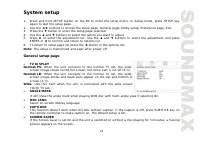
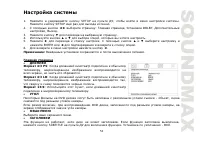
23 System setup 1. Press and hold SETUP button on the RC to enter the setup menu. In Setup mode, press SETUP key again to quit the setup page. 2. Use the buttons to choose the setup page: General page, Dolby setup, Preference page, Exit. 3. Press the button to enter the setup page selected. 4. Use t...
Page 24 - Dolby digital setup; Use the; Preference setup; TV TYPE
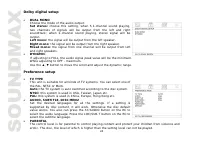
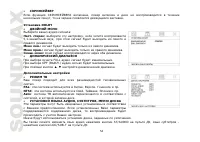
24 Dolby digital setup DUAL MONOChoose the mode of the audio output:Set stereo: choose this setting, when 5.1-channel sound playing, two channels of signals will be output from the left and rightsoundtrack; when 2-channel sound playing, stereo signal will beoutput.Left mono: the signal will be outpu...
Page 25 - Exit; Select the Exit page to exit the Setup menu.
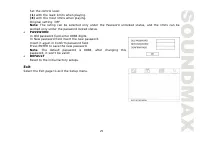
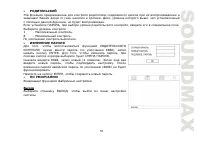
25 Set the control level:(1) with the least limits when playing.(8) with the most limits when playing.Original setting: OFF. Note: The rating can be selected only under the Password unlocked status, and the limits can beworked only under the password locked status.PASSWORDIn Old password field enter...
Page 26 - Press the top side of the panel until a “click” sound is heard.
26 Anti-theft system This unit is equipped with a slide-down detachable and mask panel. Panel can be detached and taken withyou, helping to deter theft. Detaching the front panel 1. Press the PWR button to turn the power off.2. Press the REL button on the front panel. The panel will go down.3. Push ...
Page 27 - Handling compact discs; Cleaning
27 Handling compact discs Dirty, scratched or warped discs may cause skip ping or noise.Handle the disc only by the edges. To keep clean do not touch its surface.Discs should be stored in their cases after use to avoid scratches.Do not expose discs to direct sunlight, high humidity, high temperature...
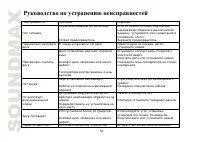
Page 28 - Troubleshooting guide
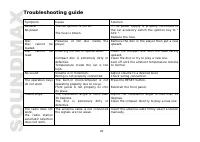
28 Troubleshooting guide Symptom Cause Solution GeneralNo power The car ignition is not on. The fuse is blown. If the power supply is properly connected tothe car accessory switch the ignition key to "ACC ". Replace the fuse. DiscDisc cannot beloaded. Presence of CD disc inside theplayer. Re...
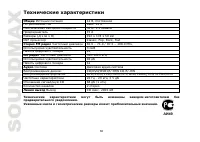
Page 29 - Specification
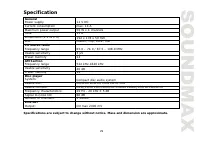
29 Specification Specifications are subject to change without notice. Mass and dimension are approximate. GeneralPower supply 12 V DC Current consumption max. 14 A Maximum power output 50 W x 4 channels Fuse 15 A Dimensions (L x W x H) 192 x 178 x 50 mm DSP: Classic, Pop, Rock, Flat FM stereo radioF...
Page 34 - REL
34 1. , , ) ( ) ( . 1). 2. ( . 2), . 3. . , ( . 3). 1. REL . . 2. . : : , . . . , , . : , . , . . 1 . 2 . 3
Page 41 - EJECT
41 2 ZOOM, : 4:3 16:9. P/N , : PAL, NTSC, AUTO ). , MOD/MUT , 3 EJECT .
Page 46 - USB; USB
46 MP3 : 8 48 ( 44,1 ). P3 : 32 - 320 ( 128 ). : *.ACC, *.DLF, *.M3U, *.PLS, MP3 PRO, DRM. . USB USB USB. USB. . USB : FAT 12/FAT 16/FAT 32 - FAT 12/16 ( 200 , 500 ), - FAT 32 ( 200 , 500 ). : 32 : 32 . (id3tag ver 2.0) - : 32 . USB 2.0. : 8 M ~ 1 . - REL, . . - EJECT , . - PLAY/PAUSE, . , , , . - P...
Page 48 - RDM; ANGLE; DVD; ZOOM; DVD
48 RDM , . , . ( DVD ) DVD- , ANGLE . , . ( DVD ) DVD- , ST/AUDIO , . ( CD/VCD ) ST/AUDIO , : Left channel ( ) => Right channel ( ) => Stereo ( ). ( DVD ) DVD- , LOC/SUB-T , . ( DVD/VCD ) ZOOM . : 2 => 3 => 4 => . , . OSD , : – – – – . OSD . DVD - BAND/TITLE , .
Page 49 - VCD
49 - / / / . , , . . - ENTER PLAY/PAUSE, . PBC ( ) ( VCD ) VCD PBC, 1- . 1. PBC , . 2. , . 3. , PLAY/PAUSE, . 4. PBC, . 1. DVD/VCD GOTO , . 2. / / / , : Title ( ) => Chapter ) => Audio ( ) => Subtitle ( ). 3. ENTER, . 4. , . ( / ). 5. . 6. GOTO, . PROG , . . START ENTER, .
Page 54 - DOLBY; FULL
54 , , . DOLBY : . c : , 5,1- , . .: . .: . . : . FULL . OFF ( .) . , . . PAL: , , . NTSC: , , . : , . , , . , . , . ST/AUDIO , – LOC/SUB-T .
Page 58 - CD
58 . . , « ». . CD . , . . . . . . . . . . . . . RESET. . 30 . . , 30 . . . . .
Page 60 - DSP; FM
60 . . 12 , . 14 50 4 15 ( ) 192 178 50 DSP Classic, Pop, Rock, Flat FM 65.0 – 74.0 / 87.5 – 108.0 3 24 AM 522-1620 40 12 : CD/DVD/DVD±R/±RW CD-R/-RW : DVD/SVCD/VCD/HDCD/MP3/WMA/CDDA/JPEG/MPEG4/DivX20 - 20 ± 5 CD 68 (1 ) 2 CD . 2000