Page 2 - Contents
1. Get started 1-1. Introduction - Remote Control Unit 1-2. Introduction - HOME screen 1-3. Initial setup 1-4. Software Updates 2. TV and Channel settings (TV tuner models only) 2-1. How to tune the Analog Broadcast channels 2-1. How to tune the Digital Broadcast channels 2-1. Channel Management 2-1...
Page 3 - Remote Control Unit; Introduction
Remote Control Unit 1 (POWER): Switch the TV power on or enter standby. 2 0-9: Set the channel. 3 (AD/MPX): Select the sound multiplex mode and audio description. 4 / / / / / / : Operate media contents on TV and VOD x (Video On Demand) service playback. 5 INPUT: Select an input source. 6 (YouTube): ...
Page 4 - HOME screen; Connect to; Example; The contents of the programs that user is watching or
HOME screen Connect to (HOME) for apps, games, movies and more. Example NOTE The on-screen displays in this manual are for explanation purposes andmay vary slightly from the actual display. Google TV™ selections (For you / Movies / Shows / Apps / Library / Search). The contents of the programs that ...
Page 5 - Auto installation; xx; Initial setup
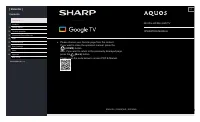
Auto installation When the TV is powered on for the first time after purchase, the initial autoinstallation wizard appears. Follow the menus and make the necessarysettings one after another. Confirm the following before turning on the power Is the antenna cable connected?Is the AC cord plugged in? 1...
Page 6 - To search for new software updates via Over-The-Air; NOTE; Software License; You can read the software licenses in the on-screen display menu.; Software composition; Software Version; You can check the current version of the software on the screen.; Software Updates
To search for new software updates via Over-The-Air Press " (Dashboard) ". Select "Settings" > "System" > "About" > "System update". NOTE Make sure your TV is connected to the internet when performing softwareupdates via OTA.After finished downloading...
Page 7 - TV and Channel settings
How to tune the Analog Broadcast channels Press " (TOOLS) ". Select "TV options" > "Settings" > "Channels & Inputs" > "Channels" > "Analog". You can tune Analog broadcast channels manually.Select from the following available settings. C...
Page 8 - Set the Audio Language (Antenna input only); Set the Sound Tracks (Antenna input only); Set the Visually Impaired (Antenna input only); How to change Audio output; When watching Digital broadcasting
Set the Audio Language (Antenna input only) Press " (TOOLS) ". Select "TV options" > "Advanced Options" > "Audio" > "Audio Language". You can set primary language. Press " (TOOLS) ". Select "TV options" > "Advanced Options" ...
Page 9 - How to enable EPG; EPG; on the; Basic Operation; Close the EPG screen; Press
How to enable EPG EPG What is an EPG? An "EPG (Electronic program Guide)" is a program schedule, which isdisplayed on the TV screen. The EPG is broadcasted together with DTV. TheTV screen shows the EPG when the viewer presses (Live Guide) on the remote control, provided that the TV is receiv...
Page 10 - How to operate Parental Controls
How to operate Parental Controls Press " (TOOLS) ". Select "TV options" > "Parental Controls". This function allows TV channels to be restricted. It prevents children fromwatching violent or sexual scenes that may be considered inappropriate.If you have already set the pas...
Page 11 - For Standard-Definition signals
How to set your device name Press " (TOOLS) ". Select "TV options" > "Settings" > "System" > "About" > "Device name". Set the name of the TV displayed.Use the software keyboard when you need to input text at device namesetting. System Infor...
Page 12 - Network and Internet setup; Connecting to the Internet; Refer to the router's operation manual for switching on.; Connection/External Devices
Network and Internet setup Connecting to the Internet To configure the network settings in order to enjoy streaming content andinternet applications. NOTE When an Internet connection is made, LAN and wireless connectioncannot be used at the same time. Use only one of the connection types. Using Wi-F...
Page 13 - to exit
Network and Internet setup (Continue) NOTE This TV has a built-in wireless LAN function. Using a separate wirelessUSB LAN adapter may result in radio communications that do not complywith regulations on radio communications. Therefore, do not use aseparate wireless LAN adapter.A wireless LAN connect...
Page 14 - ALL THIRD PARTY CONTENT OR SERVICES ACCESSIBLE VIA THIS
Network and Internet setup (Continue) NOTE DISCLAIMERS This SHARP device facilitates the access to content and services provided by third parties. The content and services accessible via this device belongto and may be proprietary to third parties. Therefore, any use of such thirdparty content and s...
Page 15 - Audio Devices; HDMI Input; For later delay
Chromecast built-in Easily cast movies, shows, photos, and more from your phone, tablet, orlaptop, right to your TV with Chromecast built-in. NOTE When the TV is turned off or the connection is ended on the device, youmust connect the device again.For details about the operation of Chromecast built-...
Page 16 - Bluetooth setup; You can add, delete or select Bluetooth devices.; Connection/Selection Procedure; Turn the Bluetooth device on and put it in pairing mode.; To pair the remote control unit with the TV, please hold
Bluetooth setup This feature enable a TV to connect with other Bluetooth devices viaBluetooth connection. NOTE When you use the Bluetooth device with your TV for the first time, youmust make pairing between the device and the TV. Once the pairing iscorrectly carried out, the Bluetooth device will be...
Page 17 - USB setup; Connecting a USB Memory Device; press
USB setup You can connect the TV to a USB memory device to enjoy viewing pictures,listening to music, and watching videos. NOTE Depending on the USB memory device, the TV may not be able torecognize the recorded data.It may take time to read the recorded data if the USB memory devicecontains many fi...
Page 18 - Progressive jpeg format files are not supported.
USB setup (Continue) USB Device Compatibility USB device USB Memory, USB card reader (Mass Storage class) File system FAT/FAT32 Photo file format Format JPEG, PNG, BMP NOTE Progressive jpeg format files are not supported. Music file format Format Sampling rate[KHz] Bitrate[Kbps] MP3 8/11.025/12/16/ ...
Page 19 - Playing Back Files on a USB Memory Device; Press / to select an item and make settings to your preferences.
USB setup (Continue) Playing Back Files on a USB Memory Device Photo Mode/Music Mode/Video Mode Buttons for thumbnail/list operations Buttons Description / / / Select a desired item. ENTER/OK When selecting a folder icon: Enter this directory. When selecting a photo file: Enlarge the photo. When sel...
Page 20 - Playing Back Files on a USB Memory Device (Continue)
USB setup (Continue) Playing Back Files on a USB Memory Device (Continue) Photo Mode Slide Show The photos displayed on the thumbnail selection screen are displayed as aslide show. Buttons for slide show operation Buttons Description Play the Slide Show. Pause the Slide Show. / / / , ENTER/OK Select...
Page 21 - Start or pause music.
USB setup (Continue) Playing Back Files on a USB Memory Device (Continue) Music Mode Playing Mode Buttons for playing mode Buttons Description The fast reverse speed changes every time you press . The fast forward speed changes every time you press . Pause the music. Go to the previous file. Go to t...
Page 23 - Talk to Google to control your TV using your voice.; button on your remote to do more on your; Google Account settings; Location; Configure the location settings.; Security & Restrictions; Apps
Google Assistant Talk to Google to control your TV using your voice. Press the Google Assistant button on your remote to do more on your TV with your voice. NOTE Google Assistant is not available in certain languages and countries.Availability of services varies by country and language.Find out more...
Page 24 - Unique feature from SHARP; SHARP SELECT; This app shows recommended apps that can be enjoyed with AQUOS.
Unique feature from SHARP SHARP SELECT Press " (Apps) ". Select "Your apps" > "SHARP SELECT" app. This app shows recommended apps that can be enjoyed with AQUOS. Apps EN 4-2 >> <<
Page 25 - Tools screen setting; Tools menu screen
Tools screen setting Tools menu screen 1 Press (TOOLS) to display the TOOLS screen. 2 Press / to select the desired menu. Channels - Program Guide, Channel, Channel ManagementTV options - Inputs, Picture, Screen, Sound, Power, Parental Controls, Manual OAD Download, Advanced Options, Settings 3 Pres...
Page 26 - Configuring Picture settings; Picture settings
Picture Mode (Changing Pic. Quality) Press " (TOOLS) ". Select "TV options" > "Picture" > "Picture Mode". Picture Mode gives you several viewing option to choose from to best matchthe surrounding environment of the TV, which can vary due to factors likeroom brig...
Page 27 - Configure advanced Picture settings; HDR related settings
Configure advanced Picture settings Press " (TOOLS) ". Select "TV options" > "Picture" > "Advanced Settings". Gamma Adjusts the differences of picture tones between bright parts and dark parts. Dark / Middle / Bright Color Temperature For a better white balance,...
Page 28 - PC Mode
Unique Picture setting from SHARP (Continue) Press " (TOOLS) ". Select "TV options" > "Picture" > "Advanced Settings". Local Dimming This feature can balances the backlight on the TV to make scene look darker orlighter. Off / Low / Middle / High 10-bit color Rep...
Page 29 - Sound settings
Sound Style Press " (TOOLS) ". Select "TV options" > "Sound" > "Sound Style". This function allows you to convert the audio quality. Select from the followingavailable settings. User: customize the sound setting. Standard: Optimize sound quality for general cont...
Page 30 - Unique Sound setting from SHARP; Auto Volume Control
Unique Sound setting from SHARP Press " (TOOLS) ". Select "TV options" > "Sound". Auto Volume Control Different sound sources sometimes do not have the same loudness level,such as a program and its commercial breaks. The Auto Volume reduces thisproblem by equalizing it. Of...
Page 31 - Other
Sleep Timer Press " (TOOLS) ". Select "TV options" > "Power" > "Sleep Timer".Allows you to set a time when the TV automatically switches to standby. Picture Off Press " (TOOLS) ". Select "TV options" > "Power" > "Picture Off"...
Page 33 - Troubleshooting; Appendix
Troubleshooting Problem Possible Solution No power. Check if you pressed (POWER) on the remote control unit. Is the AC cord disconnected?Has the power been turned on? Unit cannot be operated. External influences such as lightning, static electricity, may cause improper operation. In this case, opera...
Page 34 - Troubleshooting - Error Message
Troubleshooting (Continue) Problem Possible Solution No sound. Is the connection to the device correct?Is the volume too low?Have you pressed (Mute) on the remote control unit? Check the audio output of the connected external equipment. Is the volume too low or muted? When external equipment is conn...
Page 35 - Trademarks; Connecting RCA jack; Side terminal
Trademarks Google TV is the name of this device's software experience and a trademark of Google LLC. Google, YouTube, Google Photos, Chromecast built-in and other marks are trademarks of Google LLC. Google Assistant is not available in certain languages and countries. Availability of services varies...
Page 36 - Dimensional Drawing 4T-C65FV1; VESA SPEC
Dimensional Drawing 4T-C65FV1 Unit:mm/inch VESA SPEC 400 x 400 UPPER/LOWER VESA SCREW DEPTH 30 UPPER/LOWER VESA SCREW TYPE M6 Appendix EN 8-4 >> <<
Page 37 - Dimensional Drawing 4T-C75FV1
Dimensional Drawing 4T-C75FV1 Unit:mm/inch VESA SPEC 400 x 400 UPPER/LOWER VESA SCREW DEPTH 30 UPPER/LOWER VESA SCREW TYPE M6 Appendix EN 8-5 >> <<
Page 39 - Contenu; K Ultra HD Mini LED TV
[ FRANÇAIS ] Contenu Page de couverture Contenu 1. Démarrer 2. Opération de configuration du téléviseur 3. Branchement/Périphériques externes 4. Applis 5. Réglages image 6. Réglages du son 7. Autre 8. Annexes 4e de couverture FV1U OM Fr Version 1,0 4K Ultra HD Mini LED TV MODE D'EMPLOI Veuillez choi...
Page 41 - Télécommande
Télécommande 1 (POWER): Pour allumer le téléviseur ou le mettre en veille. 2 0-9: Réglage de la chaîne. 3 (AD/MPX): Pour sélectionner le mode de son multiplex et Description audio. 4 / / / / / / : Exploitez les contenus multimédias sur la x lecture du service TV et VOD (Video On Demand). 5 INPUT: Sé...
Page 42 - Écran HOME; pour des applications, des jeux, des films; Exemple; Les contenus des programmes que l'utilisateur regarde ou a
Écran HOME Connectez-vous à (DOMICILE) pour des applications, des jeux, des films et plus encore. Exemple REMARQUE Les affichages à l'écran dans ce manuel sont à des fins d'explication etpeuvent différer légèrement de l'affichage réel. Sélections Google TV™ (Rechercher / Pour vous / Films / Séries /...
Page 43 - Autoinstallation; L'écran de description de Netflix apparaîtra.; Configuration initiale
Autoinstallation La première fois que le téléviseur est allumé, l'assistant d'installation automatiqueinitiale apparaît. Suivez les menus et faîtes les réglages nécessaires les uns aprèsles autres. Confirmez les éléments suivants avec d'allumer l'alimentation Le câble de l'antenne est-il connecté ?L...
Page 44 - REMARQUE; OAD (TV modèles de syntoniseur uniquement); ATTENTION; Licence du logiciel; Composition du logiciel; Version logicielle; Vous pouvez vérifier sur l’écran la version actuelle du logiciel.; Mises à jour du logiciel
Pour rechercher de nouvelles mises à jour pour le logicielvia Over-The-Air Appuyez sur " (Tableau de bord) ". Sélectionnez "Paramètres" > "Système" > "À propos" > "Mise à jour du système". REMARQUE Vérifiez que votre télévision est connectée à Interne...
Page 45 - TV et réglages des chaînes
Comment syntoniser les canaux de diffusion analogique Appuyez sur " (TOOLS) ". Sélectionnez "Options TV" > "Paramètres" > "Chaînes et entrées" > "Chaînes" > "Analogique". Vous pouvez régler manuellement les chaînes de diffusion analogiques....
Page 46 - Définir la langue audio (Entrée antenne uniquement); Définir le Type audio (Entrée antenne uniquement); Comment changer la sortie audio; Lorsque vous regardez une diffusion numérique
Définir la langue audio (Entrée antenne uniquement) Appuyez sur " (TOOLS) ". Sélectionnez "Options TV" > "Options avancées" > "Audio" > "Langue de l'audio". Vous pouvez définir la langue principale. Appuyez sur " (TOOLS) ". Sélectionnez "O...
Page 47 - Comment activer l'EPG; de la télécommande, à condition que le téléviseur; Opérations de base; Fermer l’écran EPG; Appuyez sur
Comment activer l'EPG EPG Qu’est-ce qu’un EPG ? Un "EPG (Electronic Programme Guide)" est une grille de programme, quiest affichée sur l’écran du téléviseur. L’EPG est diffusé en meme temps quela DTV. L’écran du téléviseur affiche l’EPG lorsque le spectateur appuie surl’ (Guide en direct) de...
Page 48 - Mode de fonctionnement de Contrôle parental
Mode de fonctionnement de Contrôle parental Appuyez sur " (TOOLS) ". Sélectionnez "Options TV" > "Contrôle parental". Cette fonction permet aux chaînes de télévision d’être limitées. Elle empêcheles enfants de regarder les scènes violentes ou sexuelles pouvant êtreconsidér...
Page 49 - Pour les signaux de définition standard; distorsion est minimale.
Comment définir le nom de votre appareil Appuyez sur " (TOOLS) ". Sélectionnez "Options TV" > "Paramètres" > "Système" > "À propos" > "Nom de l'appareil". Définir le nom du téléviseur affiché.Utilisez le clavier logiciel lorsque vous devez ...
Page 50 - Configuration Réseau et Internet; Se connecter à l'Internet; Branchement/Périphériques externes
Configuration Réseau et Internet Se connecter à l'Internet Pour configurer les paramètres réseau afin de profiter du contenu enstreaming et des applications Internet. REMARQUE Quand une connexion Internet est réalisée, une connexion LAN ne peutêtre utilisée en même temps qu'une sans fil. Utilisez un...
Page 51 - pour sortir des fonctionnalités connectées du
Configuration Réseau et Internet (suite) REMARQUE Ce téléviseur possède une fonction LAN sans-fil intégrée. Utiliser unadaptateur LAN sans-fil séparé peut conduire à des communicationsradios qui ne sont pas conforme aux règlements sur les communicationsradio. En conséquence, ne pas utiliser un adapt...
Page 52 - SHARP n'est pas responsable, ni assujetti à des questions liées au
Configuration Réseau et Internet (suite) REMARQUE EXCLUSIONS DE RESPONSABILITÉ Cet appareil SHARP facilite l'accès à du contenu et des services offerts par des tiers. Le contenu et les services accessibles par cet appareilappartiennent et peuvent être exclusifs à des tiers. En conséquence, toututili...
Page 53 - Entrée HDMI
Appareils compatibles Chromecast Avec Chromecast built-in, votre téléphone devient votre télécommande.Appuyez simplement sur le bouton Diffuser des applications que vousconnaissez et aimez déjà pour diffuser des divertissements depuis votretéléphone, tablette ou ordinateur portable vers le téléviseu...
Page 54 - Configuration Bluetooth; Pour apparier la télécommande avec La TV, appuyez sur
Configuration Bluetooth Cette fonctionnalité permet à une TV d'être connectée à d'autres appareilsBluetooth via une connexion Bluetooth. REMARQUE Lorsque vous utilisez un dispositif Bluetooth avec votre téléviseur pour lapremière fois, vous devez apparier l’appareil avec le téléviseur. Une foisl’app...
Page 55 - Configuration USB; pour ouvrir l’écran de lecture.
Configuration USB Vous pouvez connecter le téléviseur à une clé USB pour regarder desphotos, écouter de la musique et regarder des vidéos. REMARQUE Selon le périphérique mémoire USB, le téléviseur peut ne pas être enmesure de reconnaître les données enregistrées.La lecture des données enregistrées p...
Page 56 - Les fichiers au format jpeg progressif ne sont pas pris en charge.
Configuration USB (suite) Compatibilité des périphériques USB Périphérique USB Clé USB, lecteur de carte USB (Classe de stockage de masse), disque dur avec USB Système de fichiers FAT/FAT32 Format de fichier photo Format JPEG, PNG, BMP REMARQUE Les fichiers au format jpeg progressif ne sont pas pris...
Page 57 - Lire des fichiers à partir d'une clé USB; sur
Configuration USB (suite) Lire des fichiers à partir d'une clé USB Mode Photo/Mode Musique/Mode Vidéo Touches pour les opérations avec des vignettes/liste Touches Description / / / Sélectionnez l'élément désiré. ENTER/OK Lorsque vous choisissez une icône de dossier : Entrez dans ce répertoire. Lorsq...
Page 61 - Appuyez sur le bouton; Réglage Compte Google; Configurer les réglages de localisation.; Applis
Assistant Google Parlez à Google pour contrôler votre téléviseur à l'aide de votre voix. Appuyez sur le bouton Assistant Google de votre télécommande pour en faire plus sur votre téléviseur avec votre voix. REMARQUE Assistant Google n'est pas disponible dans certaines langues et danscertains pays. L...
Page 62 - Caractéristique unique SHARP
Caractéristique unique SHARP SHARP SELECT Appuyez sur " (Applications) ". Sélectionnez "Vos applications" > Appli "SHARP SELECT". Cette application affiche les applications recommandées qui peuvent êtreappréciées avec AQUOS. Applis FR 4-2 >> <<
Page 63 - Réglage de l'écran Outils; Ecran du menu Outils
Réglage de l'écran Outils Ecran du menu Outils 1 Appuyez sur (TOOLS) pour afficher l'écran TOOLS. 2 Appuyez sur / pour sélectionner le menu désiré. Chaînes - Guide des programmes, Chaîne, Gestion de la chaîneOptions TV - Sources d'entrée, Image, Écran, Audio, Marche/Arrêt, Contrôle parental, Télécha...
Page 64 - Configuration des paramètres de l'image; Réglages image
Mode Image (Changeant la qualité de l'image) Appuyez sur " (TOOLS) ". Sélectionnez "Options TV" > "Image" > "Mode Image".Le Mode d'image offre plusieurs options de visionnement à choisir pour obtenir lacorrespondance la meilleure avec l'environnement environnant...
Page 65 - Configurer les paramètres d'image avancés; Paramètres liés au HDR
Configurer les paramètres d'image avancés Appuyez sur " (TOOLS) ". Sélectionnez "Options TV" > "Image" > "Paramètres avancés". Gamma Ajuste les différences de tonalité d'images entre les parties claires et sombres. Sombre / Intermédiaire / Lumineux Température d...
Page 66 - *Sensibilité à la lumière; Réglages d’entrée; Mode PC
Réglage d'image unique de SHARP (suite) Appuyez sur " (TOOLS) ". Sélectionnez "Options TV" > "Image" > "Paramètres avancés". Gradation locale Cette fonction peut équilibrer le rétroéclairage du téléviseur pour rendre la scèneplus sombre ou plus claire. Désactivé...
Page 67 - Paramétrer les réglages avancés de son; touche; Réglages du son
Style de son Appuyez sur " (TOOLS) ". Sélectionnez "Options TV" > "Audio" > "Style de son". Cette fonction vous permet d’améliorer la qualité audio. Sélectionnez parmi cesréglages disponibles. Utilisateur: Personnaliser les réglages du son. Standard: Optimiser l...
Page 68 - Réglage unique d'image SHARP; Contrôle du volume automatique
Réglage unique d'image SHARP Appuyez sur " (TOOLS) ". Sélectionnez "Options TV" > "Audio". Contrôle du volume automatique Les différentes sources sonores, comme un programme et ses pausespublicitaires, n'ayant parfois pas le même niveau de volume. Le Volumeautomatique rédu...
Page 69 - Autre
Dèlai de mise en veille Appuyez sur " (TOOLS) ". Sélectionnez "Options TV" > "Marche/Arrêt" > "Dèlai de mise en veille".Vous permet de choisir le moment où le téléviseur passe automatiquement en veille. Désactiver I'mage Appuyez sur " (TOOLS) ". Sélectio...
Page 71 - Dépannage; Annexes
Dépannage Problème Solution possible Pas d'alimentation. Vérifiez si vous avez appuyé sur (POWER) sur la télécommande. Le fil d'alimentation est-il déconnecté ?L'alimentation est-elle allumée ? L'unité ne fonctionne pas. Des influences extérieures telles que la foudre, l'électricité statique, peuven...
Page 73 - Terminal bas
Marques déposées Google TV est le nom de la solution logicielle de cet appareil. Il s'agitd'une marque de Google LLC. Google, YouTube, Google Photos,Chromecast built-in et les autres marques sont des marques de GoogleLLC. Assistant Google n'est pas disponible dans certaines langues et danscertains p...
Page 74 - Dessin dimensionnel 4T-C65FV1; VESA SPÉCIFICATIONS
Dessin dimensionnel 4T-C65FV1 Unit:mm/inch VESA SPÉCIFICATIONS 400 x 400 PROFONDEUR DES VIS VESA HAUT/BAS 30 TYPE DE VIS VESA HAUT/BAS M6 Appendix FR 8-4 >> <<
Page 75 - Dessin dimensionnel 4T-C75FV1
Dessin dimensionnel 4T-C75FV1 Unit:mm/inch VESA SPÉCIFICATIONS 400 x 400 PROFONDEUR DES VIS VESA HAUT/BAS 30 TYPE DE VIS VESA HAUT/BAS M6 Appendix FR 8-5 >> <<
Page 77 - Contenido; K Ultra HD Mini TV LED
[ ESPAÑOL ] Contenido Portada Contenido 1. Empezar 2. Operación de configuración del televisor 3. Conexión/Dispositivos externos 4. Aplicaciones 5. Configuración de imagen 6. Configuración de sonido 7. Otro 8. Apéndice Contraportada FV1U OM Es Ver. 1.0 4K Ultra HD Mini TV LED MANUAL DE OPERACIÓN Por...
Page 79 - Unidad de control remoto; Introducción
Unidad de control remoto 1 (ALIMENTACIÓN): Encienda el televisor o entre en modo de espera. 2 0-9: Ajuste el canal. 3 (AD/MPX): Seleccione el modo multiplexor de sonido y la descripción de audio. 4 / / / / / / / : Operar contenidos multimedia en TV y reproducción de servicios VOD x (Video On Demand)...
Page 80 - Pantalla HOME; Ejemplo
Pantalla HOME Conéctate a (HOME) para ver aplicaciones, juegos, películas y mucho más. Ejemplo NOTA Las pantallas en este manual son para fines explicativos y pueden variarligeramente de la pantalla real. Selecciones de Google TV™ (Buscar / Para ti / Películas / Programas / Aplicaciones / Biblioteca...
Page 81 - Instalación automática; Confirme lo siguiente antes de encender la alimentación; Configuración inicial
Instalación automática Cuando el televisor se enciende por primera vez después de la compra,aparece el asistente de instalación automática inicial. Siga los menús yrealice los ajustes necesarios uno tras otro. Confirme lo siguiente antes de encender la alimentación ¿Está conectado el cable de la ant...
Page 82 - Licencia de software; Composición del software; Versión del software; Puede verificar la versión actual del software en la pantalla.; Actualizaciones de software
Para buscar nuevas actualizaciones de software a travésde Over-The-Air Pulse " (Dashboard) ". Seleccione "Configuración" > "Sistema" > "Acerca de" > "Actualización delsistema". NOTA Asegúrese de que su televisor esté conectado a Internet cuando realic...
Page 83 - Configuración de TV y canal
Cómo sintonizar los canales de transmisión analógica Pulse " (HERRAMIENTAS) ". Seleccione "Opciones de TV" > "Configuración" > "Canales y entradas" >"Canales" >"Analógico". Puede sintonizar canales de transmisión analógicos manualmente.Sele...
Page 84 - Establecer el idioma de audio (solo entrada de antena); Establecer las pistas de sonido (solo entrada de antena); NOTA; Establecer el tipo de audio (solo entrada de antena); NOTA; Cómo cambiar la salida de audio; Al ver la transmisión digital
Establecer el idioma de audio (solo entrada de antena) Pulse " (HERRAMIENTAS) ". Seleccione "Opciones de TV" > "Opciones avanzadas" > "Audio" > "Idiomade audio". Puede establecer el idioma principal. Pulse " (HERRAMIENTAS) ". Seleccione "O...
Page 85 - Cómo habilitar EPG; el; Funcionamiento básico; Cierre la pantalla EPG; Pulse; Live Guide
Cómo habilitar EPG EPG ¿Qué es una EPG? Una "EPG (Electronic Programme Guide)" es un programa que se muestraen la pantalla del televisor. La EPG se transmite junto con DTV. La pantalladel televisor muestra la EPG cuando el espectador pulsa (Live Guide) el mando a distancia, siempre que el te...
Page 86 - Cómo operar el Control parental
Cómo operar el Control parental Pulse " (HERRAMIENTAS) ". Seleccione "Opciones de TV" > "Control parental". Esta función permite restringir los canales de TV. Evita que los niños veanescenas violentas o sexuales que puedan considerarse inapropiadas.Si ya ha establecido la ...
Page 87 - Para señales de definición estándar; Automático: mantiene la relación de aspecto original basada en la
Cómo configurar el nombre del dispositivo Pulse " (HERRAMIENTAS) ". Seleccione "Opciones de TV" > "Configuración" > "Sistema" > "Acerca de" >"Nombre del dispositivo". Establezca el nombre del televisor mostrado.Utilice el teclado del softwa...
Page 88 - Configuración de red e Internet; Conexión a Internet; Consulte el manual de operación del router para encenderlo.; Conexión/Dispositivos externos
Configuración de red e Internet Conexión a Internet Configurar los ajustes de red para disfrutar de contenido en streaming yaplicaciones de Internet. NOTA Cuando se establece una conexión a Internet, la conexión LAN einalámbrica no se pueden utilizar al mismo tiempo. Utilice sólo uno de lostipos de ...
Page 89 - Configuración de red e Internet (Continuar); para salir de
Configuración de red e Internet (Continuar) NOTA Este televisor tiene una función LAN inalámbrica incorporada. El uso deun adaptador LAN USB inalámbrico separado puede dar lugar acomunicaciones de radio que no cumplen con las regulaciones sobrecomunicaciones de radio. Por lo tanto, no utilice un ada...
Page 90 - TODO EL CONTENIDO O LOS SERVICIOS DE TERCEROS
Configuración de red e Internet (Continuar) NOTA RENUNCIAS Este dispositivo SHARP facilita el acceso a contenidos y servicios prestados por terceros. Los contenidos y servicios accesibles a través deeste dispositivo pertenecen y pueden ser propiedad de terceros. Por lotanto, cualquier uso de dicho c...
Page 91 - Entrada HDMI; Para retrasos posteriores
Dispositivos compatibles con Chromecast Con Chromecast integrado, tu teléfono se convierte en tu control remoto.Simplemente toque el botón Transmitir desde aplicaciones que ya conoce yle encanta transmitir entretenimiento desde su teléfono, tableta ocomputadora portátil al televisor. NOTA Cuando el ...
Page 92 - Configuración de Bluetooth; Puede agregar, eliminar o seleccionar dispositivos Bluetooth.; Procedimiento de conexión/selección; y el botón durante 10 segundos. Espere
Configuración de Bluetooth Esta función permite que un televisor se conecte con otros dispositivosBluetooth a través de una conexión Bluetooth. NOTA Cuando utilice el dispositivo Bluetooth con el televisor por primera vez,debe realizar el emparejamiento entre el dispositivo y el televisor. Una vezqu...
Page 93 - Configuración USB
Configuración USB Puede conectar el televisor a un dispositivo de memoria USB para disfrutarviendo imágenes, escuchando música y viendo videos. NOTA Dependiendo del dispositivo de memoria USB, es posible que el televisorno pueda reconocer los datos grabados.Puede llevar tiempo leer los datos grabado...
Page 94 - Los archivos de formato jpeg progresivo no son compatibles.
Configuración USB (Continuar) Compatibilidad con dispositivos USB Dispositivo USB Memoria USB, lector de tarjetas USB (clase de almacenamiento masivo) Sistema de archivos FAT/FAT32 Formato de archivo de foto Formato JPEG, PNG, BMP NOTA Los archivos de formato jpeg progresivo no son compatibles. Form...
Page 95 - Reproducción de archivos en un dispositivo de memoria USB
Configuración USB (Continuar) Reproducción de archivos en un dispositivo de memoria USB Modo Foto / Modo Música / Modo Video Botones para operaciones de miniatura/lista Botones Descripción / / / Seleccione el elemento deseado. ENTRAR/Aceptar Al seleccionar un icono de carpeta: Introduzca este direct...
Page 96 - Iniciar o pausar la presentación de diapositivas.
Configuración USB (Continuar) Reproducción de archivos en un dispositivo de memoria USB(continuar) Modo Foto Presentación Las fotos que se muestran en la pantalla de selección de miniaturas semuestran como una presentación de diapositivas. Botones para la operación de presentación de diapositivas Bo...
Page 97 - Iniciar o pausar música.
Configuración USB (Continuar) Reproducción de archivos en un dispositivo de memoria USB(continuar) Modo Música Modo de juego Botones para el modo de juego Botones Descripción La velocidad de marcha atrás cambia cada vez que pulsa . La velocidad de avance rápido cambia cada vez que pulsa . Pausa la m...
Page 98 - Inicia o pausa el vídeo.
Configuración USB (Continuar) Reproducción de archivos en un dispositivo de memoria USB(continuar) Modo de vídeo Modo de juego Botones para el modo de juego Botones Descripción La velocidad de marcha atrás cambia cada vez que pulsa . Reproduce el vídeo. La velocidad de avance rápido cambia cada vez ...
Page 99 - Habla con Google para controlar tu televisor usando tu voz.; Configuración de la cuenta de Google; Configure los ajustes de ubicación.; Aplicaciones
Asistente de Google Habla con Google para controlar tu televisor usando tu voz. Presiona el botón del Asistente de Google en tu control remoto para hacer más en tu televisor con tu voz. NOTA El Asistente de Google no está disponible en determinados idiomas ypaíses. La disponibilidad de los servicios...
Page 100 - Característica única de SHARP; SELECCIÓN NÍTIDA
Característica única de SHARP SELECCIÓN NÍTIDA Pulse " (Apps) ". Seleccione "Sus aplicaciones" > aplicación "SHARP SELECT". Esta aplicación muestra aplicaciones recomendadas que se pueden disfrutarcon AQUOS. Aplicaciones ES 4-2 >> <<
Page 101 - Configuración de la pantalla Herramientas; Pantalla del menú Herramientas
Configuración de la pantalla Herramientas Pantalla del menú Herramientas 1 Pulse (HERRAMIENTAS) para mostrar la pantalla HERRAMIENTAS. 2 Pulse / para seleccionar el menú deseado. Canales - Guía de programas, Canal, Gestión de canalesOpciones de TV: entradas, imagen, pantalla, sonido, encendido, cont...
Page 102 - Configuración de los ajustes de imagen; Configuración de imagen
Modo de imagen (Changing Pic. Calidad) Pulse " (HERRAMIENTAS) ". Seleccione "Opciones de TV" > "Imagen" > "Modo de imagen". El modo de imagen le ofrece varias opciones de visualización para elegirpara adaptarse mejor al entorno circundante del televisor, que pue...
Page 103 - Configurar ajustes avanzados de imagen; Configuración relacionada con HDR
Configurar ajustes avanzados de imagen Pulse " (HERRAMIENTAS) ". Seleccione "Opciones de TV" > "Imagen" > "Configuración avanzada". Gamma Ajusta las diferencias de tonos de imagen entre las partes brillantes y las partesoscuras.Oscuro / Medio / Brillante Tempera...
Page 104 - Modo PC
Configuración de imagen única de SHARP (Continuar) Pulse " (HERRAMIENTAS) ". Seleccione "Opciones de TV" > "Imagen" > "Configuración avanzada". Atenuación local Esta función puede equilibrar la luz de fondo del televisor para que la escena sevea más oscura o más...
Page 105 - Configuración de sonido
Estilo de sonido Pulse " (HERRAMIENTAS) ". Seleccione "Opciones de TV" > "Sonido" > "Estilo de sonido". Esta función le permite convertir la calidad de audio. Seleccione una de lassiguientes configuraciones disponibles.Usuario: Personaliza la configuración de so...
Page 106 - Ajuste de sonido único de SHARP; Control automático de volumen
Ajuste de sonido único de SHARP Pulse " (HERRAMIENTAS) ". Seleccione "Opciones de TV" > "Sonido". Control automático de volumen Diferentes fuentes de sonido a veces no tienen el mismo nivel de volumen,como un programa y sus cortes comerciales. El volumen automático reducee...
Page 107 - Otro
Temporizador Pulse " (HERRAMIENTAS) ". Seleccione "Opciones de TV" > "Encendido" > "Temporizador de apagado".Le permite establecer una hora en la que el televisor cambia automáticamente almodo de espera. Imagen desactivada Pulse " (HERRAMIENTAS) ". Selec...
Page 109 - Solución de problemas; Apéndice
Solución de problemas Problema Posible solución Sin energía. Compruebe si ha pulsado (POWER) en la unidad de control remoto. ¿Está desconectado el cable de CA?¿Se ha encendido la electricidad? La unidad no puede ser operada. Las influencias externas, como los rayos, la electricidad estática, pueden ...
Page 110 - Solución de problemas: mensaje de error
Solución de problemas (Continuar) Problema Posible solución Sin sonido. ¿Es correcta la conexión con el dispositivo?¿El volumen es demasiado bajo?¿Ha pulsado (Silenciar) la unidad de control remoto? Compruebe la salida de audio del equipo externo conectado. ¿El volumen es demasiado bajo o está silen...
Page 111 - Marcas; Conexión del conector RCA
Marcas Google TV es el nombre de la experiencia de software de este dispositivo y una marca comercial de Google LLC. Google, YouTube, Google Fotos, Chromecast integrado y otras marcas son marcas comerciales de Google LLC. El Asistente de Google no está disponible en determinados idiomas y países. La...
Page 112 - Dibujo dimensional 4T-C65FV1; ESPECIFICACIONES VESA
Dibujo dimensional 4T-C65FV1 Unit:mm/inch ESPECIFICACIONES VESA 400 x400 PROFUNDIDAD DEL TORNILLO VESASUPERIOR/INFERIOR 30 TIPO DE TORNILLO VESASUPERIOR/INFERIOR M6 Apéndice ES 8-4 >> <<
Page 113 - Dibujo dimensional 4T-C75FV1
Dibujo dimensional 4T-C75FV1 Unit:mm/inch ESPECIFICACIONES VESA 400 x400 PROFUNDIDAD DEL TORNILLO VESASUPERIOR/INFERIOR 30 TIPO DE TORNILLO VESASUPERIOR/INFERIOR M6 Apéndice ES 8-5 >> <<