Page 2 - TV and Channel settings; Contents; EN Contents
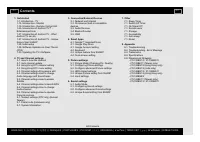
1. Get started 1-1. Introduction - TV1-15. Introduction - Monitor1-19. Introduction - Remote Control Unit1-25. Introduction of Android TV™ -Entertainment Hub1-27. Introduction of Android TV - WhatAndroid TV can do1-27. Introduction of Android TV - Uniquefeature from SHARP1-28. Initial setup1-29. Sof...
Page 3 - Dear Sharp customer; IMPORTANT INFORMATION; EN Important1
Dear Sharp customer Thank you for your purchase of the SHARP LCD colour TV product. To ensure safety and many years of trouble-free operation of your product, please readthe Important Safety Precautions carefully before using this product. IMPORTANT INFORMATION EN Important1 ENGLISH | 中文 ( 台灣 ) | 中文...
Page 4 - EN Important2
IMPORTANT INFORMATION EN Important2 ENGLISH | 中文 ( 台灣 ) | 中文 ( 香港 ) | FRANÇAIS | PORTUGUÊS | РУССКИЙ | 中文 | INDONESIA | ภาษาไทย | TIẾNG VIỆT | ﻲﺑرﻋ | АҒЫЛШЫН | O'ZBEK TILIDA >> <<
Page 5 - EN Important3
IMPORTANT INFORMATION EN Important3 ENGLISH | 中文 ( 台灣 ) | 中文 ( 香港 ) | FRANÇAIS | PORTUGUÊS | РУССКИЙ | 中文 | INDONESIA | ภาษาไทย | TIẾNG VIỆT | ﻲﺑرﻋ | АҒЫЛШЫН | O'ZBEK TILIDA >> <<
Page 6 - TV; Introduction; 中文
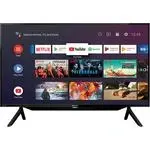
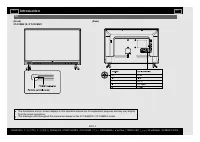
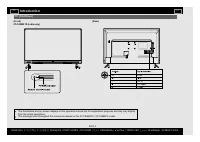
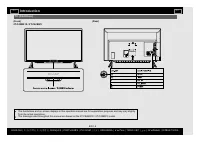
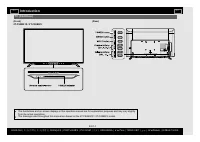
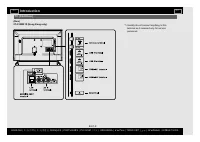
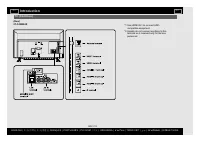
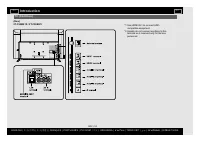
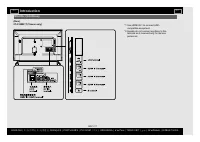
TV (Front)2T-C32BG1X / 2T-C32BG1I (Rear) The illustrations and on-screen displays in this operation manual are for explanation purposes and may vary slightlyfrom the actual operations.The drawings used throughout this manual are based on the 2T-C42BG1X / 2T-C42BG1I model. Introduction EN 1-1 ENGLISH...
Page 20 - Monitor
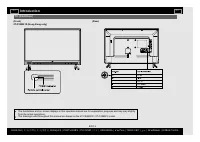
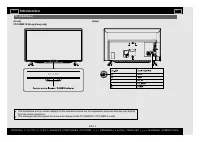
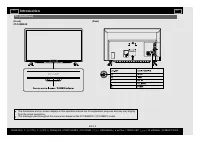
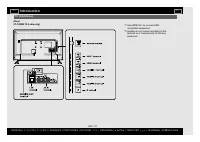
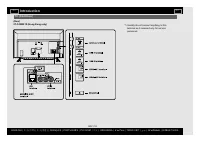
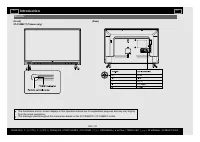
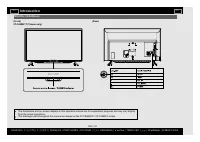
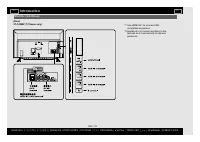
Monitor (Front)2T-C32BE1T (Taiwan only) (Rear) The illustrations and on-screen displays in this operation manual are for explanation purposes and may vary slightlyfrom the actual operations.The drawings used throughout this manual are based on the 2T-C42BG1X / 2T-C42BG1I model. Introduction EN 1-15 ...
Page 24 - Remote Control Unit; External equipment operational buttons:
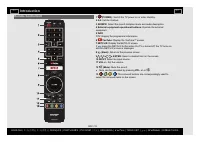
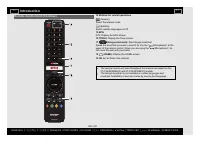
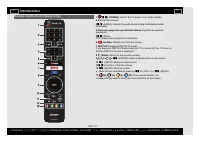
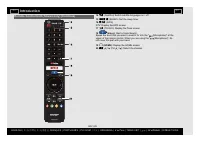
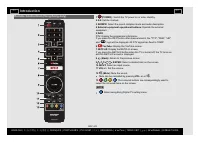
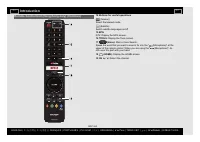
Remote Control Unit 1 (POWER): Switch the TV power on or enter standby. 2 0-9: Set the channel. 3 AD/MPX: Select the sound multiplex mode and audio description. 4 External equipment operational buttons: Operate the external equipment. 5 INFO DTV: Display the programme information. 6 YouTube: Display...
Page 30 - Entertainment Hub; Connect to; Example; Display the notifications.; Introduction of Android TV
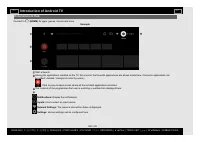
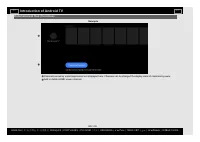
Entertainment Hub Connect to (HOME) for apps, games, movies and more. Example Start a Search. Among the applications installed on the TV, the icons for the favourite applications are shown inside here. (Favourite applications can be added / deleted / changes its order by users.) : Click to jump to A...
Page 32 - What Android TV can do; Google Play Store; Unique feature from SHARP; Azan
What Android TV can do Google Play Store Google Play Store is Google's official store and portal forAndroid™ apps, games and other content for your Android-powered phone, tablet or Android TV device. (See page 4-1.) Netflix You can video streaming services to watch internet content.The available ser...
Page 33 - Auto installation; xx; Initial setup
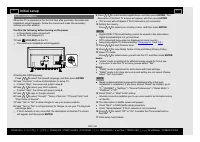
Auto installation When the TV is powered on for the first time after purchase, the initial autoinstallation wizard appears. Follow the menus and make the necessarysettings one after another. Confirm the following before turning on the power Is the antenna cable connected?Is the AC cord plugged in? 1...
Page 34 - To search for new software updates; NOTE
To search for new software updates Refer to " (HOME)" > "Settings" > "Device Preferences" > "About" > "System update". NOTE Make sure your TV is connected to the internet when performing software updates via OTA.After finished downloading, please a...
Page 35 - OAD; CAUTION; Software License; You can read the software licenses in the on-screen display menu.; Software composition; Software Version; You can check the current version of the software on the screen.; Updating the TV's Software
OAD Refer to "TOOLS" > "TV options" > "Advanced options" > "OAD". This function is for automatically download the data for the version updatesoftware over digital broadcasts when the "Auto download" is set to "Yes".To download, follow the inst...
Page 36 - How to tune the channel; For Hong Kong only; Auto channel update; Select from the following available settings.; TV and Channel settings
How to tune the channel Refer to "TOOLS" > "TV options" > "Settings" > "Channel" > "Channels". You can tune channels manually. Select from the following available settings. Channel scanUpdate scanSingle RF scanLCNChannel scan typeChannel store type...
Page 37 - Hong Kong DTV channel setting; INPUT; Hong Kong DTV menu setting; Channel
Hong Kong DTV channel setting 1 Press INPUT to select "DTV-HK" input. 2 Press "Yes" or "No" to start auto search. You do not need to do anything during the auto search. Press (Back) to exit. 3 Wait until the Initial setup finishes. Selected channel will be automatically refle...
Page 38 - Channel settings-Programme edit; Channel skip; Audio language/Audio language 2nd; Channel settings-How to enable Subtitle; Subtitle
Channel settings-Programme edit Refer to "TOOLS" > "TV options" > "Settings" > "Channel" > "Channels". Use this menu to set up a channel individually. Channel skip You can select the channels to skip. Channel sort Channel position can be sorted fre...
Page 39 - Channel settings-How to launch EPG; EPG
Channel settings-How to launch EPG EPG What is an EPG? An "EPG (Electronic Programme Guide)" is a programme schedule, which isdisplayed on the TV screen. The EPG is broadcasted together with DTV. TheTV screen shows the EPG when the viewer presses EPG on the remote control, provided that the ...
Page 40 - Channel settings-How to change Audio channel; If multi sound modes are received, each time you press; Switching the digital audio format (DTV only)
Channel settings-How to change Audio channel If multi sound modes are received, each time you press AD/MPX the mode switches. Switching the digital audio format (DTV only) The sound mode screen disappears in six seconds.Selectable items vary depending on the received broadcasts.The audio description...
Page 41 - Channel settings-How to operate Parental controls; Channels blocked; You can block the viewing of any selected channel.; Inputs blocked; You can block the viewing of any selected input.; Change PIN; You can set and change the Password by using; This is used in countries other than Singapore and Thailand.
Channel settings-How to operate Parental controls Refer to " (HOME)" > "Settings" > "Channel" > "Parental controls". This function allows TV channels to be restricted. It prevents children fromwatching violent or sexual scenes that may be considered inappropr...
Page 42 - ) for teletext in DTV mode, it will start from the selected; This function enable you to select your local postal code.; System information; Check for system updates and view various information of signal.
Teletext settings (DTV only) (Except Taiwan) Refer to "TOOLS" > "TV options" > "Advanced options" > "Teletext". If you set the language of the initial page (this page is displayed for the firsttime after pressing ) for teletext in DTV mode, it will start from...
Page 43 - Network and Internet; Connecting to the Internet; Enable the TV to be started by a signal over a Wi-Fi.; Standby power consumption will be increase when Wow is turned ON.; Using LAN; Enable the TV to be started by a signal over a LAN.; Standby power consumption will be increase when Wol is turned ON.; Connection/External Devices
Network and Internet Connecting to the Internet To configure the network settings in order to enjoy streaming content andinternet applications. These settings can be configured from " (HOME)" > "Settings" > "Network & internet". NOTE When an Internet connection is m...
Page 44 - to exit from the
Network and Internet (Continue) NOTE This TV has a built-in wireless LAN function. Using a separate wireless USB LAN adapter may result in radio communications that do not comply withregulations on radio communications. Therefore, do not use a separate wireless LAN adapter.A wireless LAN connection ...
Page 45 - Chromecast built-in compatible devices; Audio Devices; Speaker select ARC; This function allows you to select the digital audio signal type.
Chromecast built-in compatible devices When you connect a device such as a Chromecast built-in compatiblesmartphone or tablet to this TV, you can enjoy video and audio from thedevice on the TV's large screen and speakers. NOTE When the TV is turned off or the connection is ended on the device, youmu...
Page 46 - Bluetooth setup; You can add, delete or select Bluetooth devices.; Connection/Selection Procedure; Turn the Bluetooth device on and put it in pairing mode.; To pair the remote control unit with the TV, please hold; CH; and for
Bluetooth setup This feature enable a TV to connect with other Bluetooth devices viaBluetooth connection. NOTE When you use the Bluetooth device with your TV for the first time, youmust make pairing between the device and the TV. Once the pairing iscorrectly carried out, the Bluetooth device will be...
Page 47 - USB; Preparation
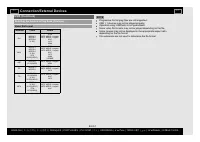
USB Preparation You can connect the TV to a USB memory device and USB hard drive to enjoy viewing pictures, listening to music, and watching videos. NOTE Depending on the USB memory device/USB hard drive, the TV may not be able to recognise the recorded data.It may take time to read the recorded dat...
Page 48 - Selecting the Folders to Play Back; your file, and then press
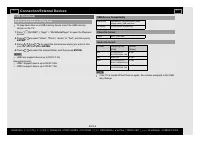
USB (Continue) Selecting the Folders to Play Back To play back data on a USB memory device insert the USB memorydevice on the TV. 1 Press " (HOME)" > "Apps" > "MultiMediaPlayer" to open the Playback screen. 2 Press / to select "Video", "Photo", "Audi...
Page 50 - Playing Back Files on a USB Memory Device; Press / to select an item and make settings to your preferences.
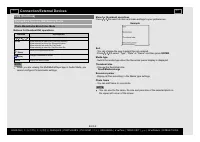
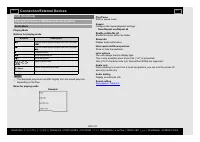
USB (Continue) Playing Back Files on a USB Memory Device Photo Mode/Audio Mode/Video Mode Buttons for thumbnail/list operations Buttons Description / / / Select a desired item. ENTER When selecting a folder icon: Enter this directory. When selecting a photo file: Enlarge the photo. When selecting an...
Page 51 - Playing Back Files on a USB Memory Device (Continue)
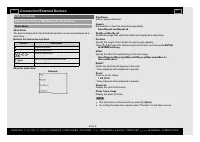
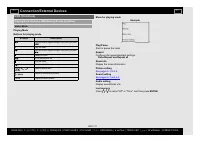
USB (Continue) Playing Back Files on a USB Memory Device (Continue) Photo Mode Slide Show The photos displayed on the thumbnail selection screen are displayed as aslide show. Buttons for slide show operation Buttons Description Play the Slide Show. Pause the Slide Show. / / / , ENTER Select the desi...
Page 53 - Start or pause the video.
USB (Continue) Playing Back Files on a USB Memory Device (Continue) Video Mode Playing Mode Buttons for playing mode Buttons Description The fast reverse speed changes every time you press . Play the video. The fast forward speed changes every time you press . Pause the video. Go to the previous fil...
Page 54 - Google Assistant/Voice; To install app; Google Account setting; Location; Smart Apps
Google Assistant/Voice You may ask questions and complete tasks on your TV. Press (Google Assistant) / (Voice) button on the remote control.Give a command or ask a question. NOTE The Google Assistant is not available in certain languages and countries.Availability of services varies by country and l...
Page 55 - Erases text one character at a time.; Keyboard; The text you enter is displayed as you type it in.
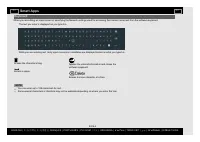
Erases the character string. Enters a space. Applies the entered information and closes thesoftware keyboard. Erases text one character at a time. NOTE You can enter up to 128 characters for text.Some special characters or diacritics may not be available depending on where you enter the text. Keyboa...
Page 56 - You can insert manually all informations in the screen.; to off the notification screen immediately.
Unique feature from SHARP Azan - Prayer time Refer to " (HOME)" > "Azan" app. This feature could help a Muslim user to stay on top of Prayers with Azan bygetting the accurate prayer times via notification. By configuring location andtime zone, all five times prayer will be calcula...
Page 57 - Tools screen setting; Tools menu screen; to display the TOOLS screen.; Press
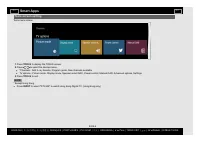
Tools screen setting Tools menu screen 1 Press TOOLS to display the TOOLS screen. 2 Press / to select the desired menu. *Channels - Add to my favorite, Program guide, New channels availableTV options - Picture mode, Display mode, Speaker select ARC, Power control, Manual OAD, Advanced options, Setti...
Page 58 - Configuring Picture settings; Picture settings
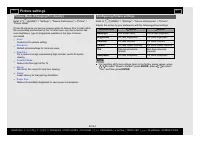
Picture Mode (Changing Pic. Quality) Refer to " (HOME)" > "Settings" > "Device Preferences" > "Picture" > "Picture Mode". Picture Mode gives you several viewing option to choose from to best matchthe surrounding environment of the TV, which can var...
Page 59 - Configure advanced Picture settings; Gamma; HDR related settings
Configure advanced Picture settings Refer to " (HOME)" > "Settings" > "Device Preferences" > "Picture". Gamma Adjusts the differences of picture tones between bright parts and dark parts. DarkMiddleBright Color Temp For a better white balance, use colour temp...
Page 60 - Unique Picture setting from SHARP; Digital Noise Reduction; Reduces noise on screen and produces a clearer video image.; MPEG NR; Automatically adjusts the image contrast according to the scene.; DI Film Mode
Unique Picture setting from SHARP Refer to " (HOME)" > "Settings" > "Device Preferences" > "Picture" > "Advanced Video". Digital Noise Reduction Reduces noise on screen and produces a clearer video image. OffLowMediumHighAuto MPEG NR This feature i...
Page 61 - Input settings; Display mode
Input settings Display mode Refer to "TOOLS" > "TV options" > "Display mode". This function changes the screen size. The Display mode menu varies depending on the input source. For 4:3 programmes Automatic: Keeps the original aspect ratio based on source information and...
Page 62 - Sound settings
Audio Mode Refer to " (HOME)" > "Settings" > "Device Preferences" > "Sound" > "Audio Mode". This function allows you to convert the audio quality. Select from the followingavailable settings. User: Customise the sound setting. Standard: Optimise so...
Page 63 - Configure advanced Sound settings; Sound Surround; This function allows you to change the sound quality.; Unique Sound setting from SHARP; Auto Volume
Configure advanced Sound settings Refer to " (HOME)" > "Settings" > "Device Preferences" > "Sound". Sound Surround The surround function produces Surround effect from the speakers. OnOff NOTE For some discs, setup may be required on your BD/DVD player. In thi...
Page 64 - Your purchased apps will remain.; Other
Sleep Timer Refer to " (HOME)" > "Settings" > "Device Preferences" > "Power Control" > "Sleep Timer". Allows you to set a time when the TV automatically switches to standby. Set the Sleep Timer. Switch Off Timer Refer to " (HOME)" > "...
Page 65 - Troubleshooting; Appendix
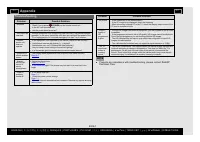
Troubleshooting Problem Possible Solution No power. Check if you pressed (POWER) on the remote control unit. Is the AC cord disconnected?Has the power been turned on? Unit cannot be operated. External influences such as lightning, static electricity, may cause improper operation. In this case, opera...
Page 66 - Troubleshooting - Error Message
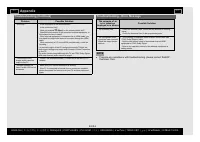
Troubleshooting (Continue) Problem Possible Solution No sound. Is the connection to the device correct?Is the volume too low? Have you pressed (Mute) on the remote control unit? Check the audio output of the connected external equipment. Is the volume too low or muted? When external equipment is con...
Page 67 - Trademarks
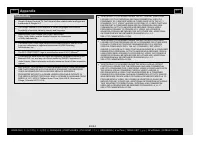
Trademarks Google, Android, Android TV, YouTube and other related marks and logos are trademarks of Google LLC. The Google Assistant is not available in certain languages and countries. Availability of services varies by country and language. Manufactured under license from Dolby Laboratories. Dolby...
Page 68 - Specifications
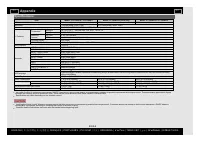
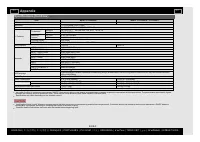
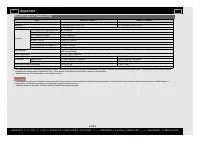
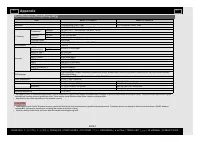
Specifications Item Model: 2T-C32BG1X / 2T-C32BG1I Model: 2T-C40BG1X (India only) Model: 2T-C42BG1X / 2T-C42BG1I LCD panel 80 cm 100 cm 105 cm Resolution 1,049,088 pixels (1366 x 768) 2,073,600 pixels (1920 x 1080) Video colour system PAL/SECAM/NTSC 3.58/NTSC 4.43/PAL 60 TV Function TV-standard Anal...
Page 72 - Dimensional Drawings
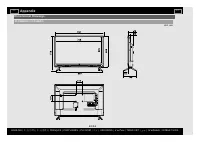
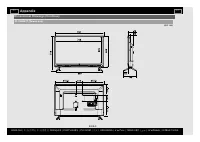
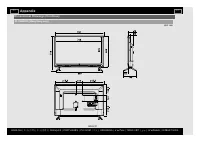
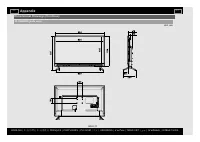
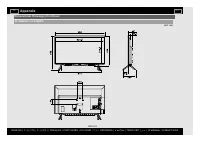
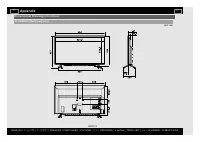
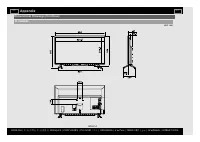
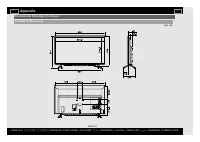
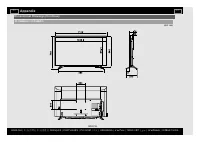
Dimensional Drawings 2T-C32BG1X / 2T-C32BG1I Unit: mm Appendix EN 8-8 ENGLISH | 中文 ( 台灣 ) | 中文 ( 香港 ) | FRANÇAIS | PORTUGUÊS | РУССКИЙ | 中文 | INDONESIA | ภาษาไทย | TIẾNG VIỆT | ﻲﺑرﻋ | АҒЫЛШЫН | O'ZBEK TILIDA >> <<