Sharp 4T-C65DL6 - User Manual
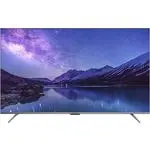
Sharp 4T-C65DL6 TV – User Manual, read for free online in PDF format. We hope this helps you resolve any issues you may have. If you have further questions, please contact us through the contact form.

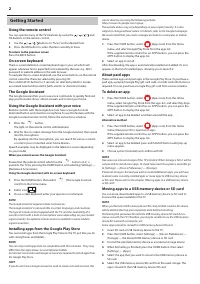
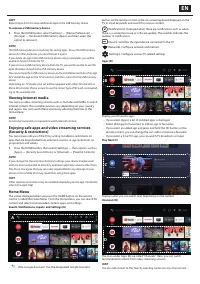
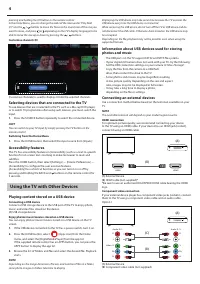
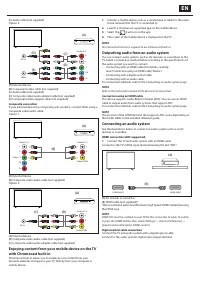
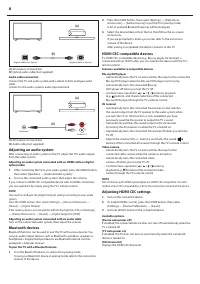
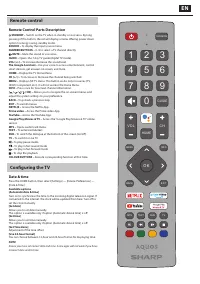


Table of Contents:
- Page 3 – Trademarks
- Page 4 – Getting Started
- Page 5 – Viewing Internet media; Home Menu
- Page 6 – Selecting devices that are connected to the TV; Accessibility features; Using the TV with Other Devices; Playing content stored on a USB device; Connecting an external devices
- Page 7 – Outputting audio from an audio system; Connecting an audio system
- Page 8 – Adjusting an audio system; Bluetooth devices; Adjusting HDMI CEC settings
- Page 9 – Watching TV programmes; Connecting to a network
- Page 10 – Live TV menu
- Page 11 – Settings menu; Channel
- Page 12 – Apps; Device Preferences; Remotes & Accessories
- Page 13 – Remote control; Remote Control Parts Description; Confi guring the TV; VOL; OK
Instruction manual
Sharp Android TV
EN
"Loading the manual" means you need to wait until the file loads and becomes available for online reading. Some manuals are very large, and the time they take to appear depends on your internet speed.
Summary
Trademarks The terms HDMI, HDMI High-Definition Multimedia Interface, and the HDMI Logo are trademarks or registered trademarks of HDMI Licensing Administrator, Inc. The DVB logo is the registered trademark of the Digital Video Broadcasting - DVB - project. Manufactured under license from Dolby Labo...
2 Getting Started Using the remote control You can operate many of the TV’s features by using the / / / and OK buttons on the remote control. 1. Use the / / / buttons to “focus” on the desired item. 2. Press the OK button to select the item currently in focus. To return to the previous screen Press ...
EN HINT Repeat steps 4 to 6 to move additional apps to the USB memory device. To remove a USB memory device1. Press the HOME button, select [Settings] — [Device Preferences] — [Storage] — the desired USB memory device, and then select the option to remove it. NOTE The USB memory device is used only ...


