Page 3 - Trademarks
Trademarks The terms HDMI, HDMI High-Definition Multimedia Interface, and the HDMI Logo are trademarks or registered trademarks of HDMI Licensing Administrator, Inc. The DVB logo is the registered trademark of the Digital Video Broadcasting - DVB - project. Manufactured under license from Dolby Labo...
Page 4 - Getting Started
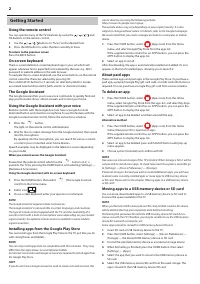
2 Getting Started Using the remote control You can operate many of the TV’s features by using the / / / and OK buttons on the remote control. 1. Use the / / / buttons to “focus” on the desired item. 2. Press the OK button to select the item currently in focus. To return to the previous screen Press ...
Page 5 - Viewing Internet media; Home Menu
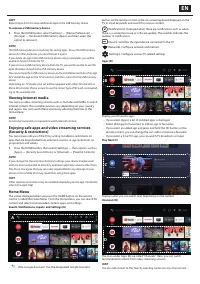
EN HINT Repeat steps 4 to 6 to move additional apps to the USB memory device. To remove a USB memory device1. Press the HOME button, select [Settings] — [Device Preferences] — [Storage] — the desired USB memory device, and then select the option to remove it. NOTE The USB memory device is used only ...
Page 6 - Selecting devices that are connected to the TV; Accessibility features; Using the TV with Other Devices; Playing content stored on a USB device; Connecting an external devices
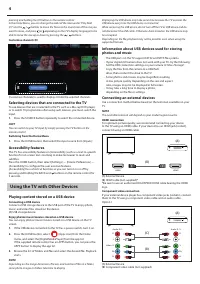
4 pressing and holding the OK button on the remote control.In the Home Menu, you can change the order of the rows under “Play Next (C)”. Use the / buttons to move the focus to the round icon of the row you want to move, and press (or depending on the TV’s display language) to be able to move the row...
Page 7 - Outputting audio from an audio system; Connecting an audio system
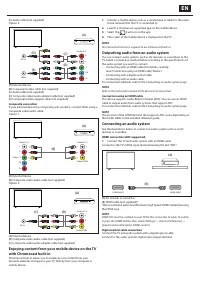
EN (C) Audio cable (not supplied) Option 2: R G R G B R B G B R R W W Y R W (B) (C) (D) (E) (A) Audio R / L R L Y Pb Pr YPbPr AV In (A) External Device (B) Component video cable (not supplied) (C) Audio cable (not supplied) (D) Composite video/audio adapter cable (not supplied) (E) Component video a...
Page 8 - Adjusting an audio system; Bluetooth devices; Adjusting HDMI CEC settings
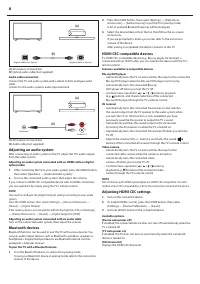
6 Digital Audio In Optical Digital Audio Out Optical (A) (B) (A) AV receiver or Sound bar (B) Optical audio cable (not supplied) Audio cable connection Connect the TV and audio system with a stereo to RCA analogue audio cable. Connect to the audio system’s audio input terminal. R W (A) (B) Audio R /...
Page 9 - Watching TV programmes; Connecting to a network
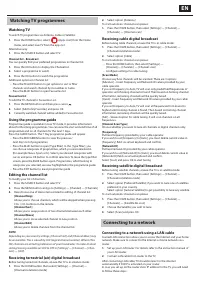
EN Watching TV programmes Watching TV To watch TV programmes via Antenna, Cable or Satellite: 1. Press the HOME button, select (Apps icon) from the Home menu, and select Live TV from the apps list. Alternative way: 1. Press the SOURCE button and select TV. Channel list - Broadcast You can quickly fi...
Page 10 - Live TV menu
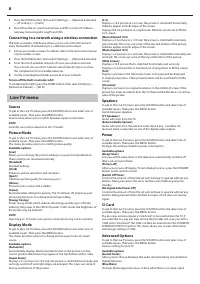
8 1. Press the HOME button, then select [Settings] — [Network & Internet] — [IP settings] — [Static] 2. Now follow the on-screen instructions and fi ll in correct IP Address, Gateway, Network prefi x length and DNS. Connecting to a network using a wireless connection The built-in wireless LAN de...
Page 11 - Settings menu; Channel
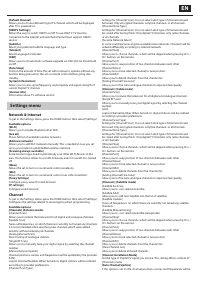
EN [Default Channel] Allows you to choose default Digital TV channel, which will be displayed after TV is powered on. [HBBTV Settings] Allows the user to switch HbbTV on/off . To use HbbTV, TV must be connected to the internet and watched channel must support HbbTV service. [Subtitle] Select your pre...
Page 12 - Apps; Device Preferences; Remotes & Accessories
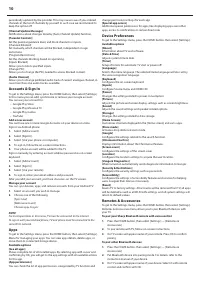
10 periodically updated by the provider. This may cause issues if you ordered channels in the list of channels by yourself. In such case we recommend to keep this option off . [Channel Update Message] Notifi cations about changes done by [Auto Channel Update] function. [Parental Controls] Set the par...
Page 13 - Remote control; Remote Control Parts Description; Confi guring the TV; VOL; OK
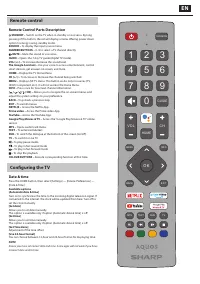
EN Remote control Remote Control Parts Description STANDBY – Switch on the TV when in standby or vice versa. By long pressing of this button, the set will display a menu off ering power down option to energy saving standby mode. SOURCE – To display the input/source menu. NUMBER BUTTONS – 0–9 to selec...