Samsung MU-PC1T0K - User Manual
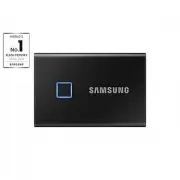
Samsung MU-PC1T0K RAM & Storage – User Manual, read for free online in PDF format. We hope this helps you resolve any issues you may have. If you have further questions, please contact us through the contact form.


Table of Contents:
- Page 2 – DISCLAIMER
- Page 3 – Samsung Portable SSD T7 Touch; User Manual
- Page 4 – Introduction; SSD stands for Solid State Drive, which means it
- Page 5 – Getting Started; What’s In the Box
- Page 6 – System Requirements; ’s data transfer speed is optimal with USB 3.; Operating System Requirements; Windows OS: Windows 7 or higher; File Formats; Capacity of T7 Touch Displayed on the System
- Page 7 – Using T7 Touch; Connecting T7 Touch; Motion LED behavior by product status; For PCs and Macs
- Page 8 – Running Samsung Portable SSD Software 1.0; Select “Samsung Portable SSD; Security mode off; You may use T7 Touch without security mode.; Security with Password; If
- Page 9 – Security with Password and Fingerprint
- Page 10 – Unlock; If you’ve enabled
- Page 11 – Change in Settings; the T7 Touch by clicking “SETTINGS” button on the main page. When u; Security Mode; Status
- Page 12 – “CHANGE”
- Page 13 – Fingerprint security settings; If you
- Page 14 – Place your finger on the sensor.
- Page 16 – Update Software and Product firmware; By clicking “UPDATE” button (
- Page 17 – Delete “Samsung Portable SSD Software”; Deleting software on each OS; Computer OS; Select SW Default Language; Default language may be selected under Regional Setting.
- Page 18 – You may download “; Running the Application; Please run the Application installed.; Setting Security Mode
- Page 19 – Unlock T7 Touch
- Page 21 – Update SW and FW; To enter the update screen, click the Update page button (; Deleting “Samsung Portable SSD”; Open your android device; Select Default Language
- Page 22 – Caution; Back Up Important Data; user’s; Connect to Certified Devices Compliance with Safety Standards
- Page 23 – product’s exterior, and may also cause fire or electric s
- Page 24 – FAQ
- Page 25 – Product Specifications and Certifications; Product Specifications
1
Samsung Portable SSD T7 Touch
User Manual
MU-PC500
MU-PC1T0
MU-PC2T0
"Loading the manual" means you need to wait until the file loads and becomes available for online reading. Some manuals are very large, and the time they take to appear depends on your internet speed.
Summary
2 DISCLAIMER SAMSUNG ELECTRONICS RESERVES THE RIGHT TO CHANGE PRODUCTS, INFORMATION AND SPECIFICATIONS AT ANY TIME WITHOUT NOTICE. Information in this document is provided in connection with products of Samsung Electronics Co. Ltd. (“Samsung”). Product descriptions and specifications contained in th...
3 Samsung Portable SSD T7 Touch User Manual Table of Contents Introduction ..................................................................................................................... 4 Getting Started ............................................................................................
4 Introduction Samsung T7 Touch is a superfast external storage device that has convenient data protection with fingerprint recognition and a refined design with motion LED. Transfer in a flash Transfer massive files within seconds with the incredible speed of USB 3.2 Gen2 on the T7 Touch. The embed...