Page 2 - DISCLAIMER; SAMSUNG ELECTRONICS RESERVES THE RIGHT TO CHANGE PRODUCTS,
DISCLAIMER SAMSUNG ELECTRONICS RESERVES THE RIGHT TO CHANGE PRODUCTS, INFORMATION AND SPECIFICATIONS AT ANY TIME WITHOUT NOTICE. Information in this document is provided in connection with products of Samsung Electronics Co. Ltd. (“Samsung”). Product descriptions and specifications contained in this...
Page 3 - Samsung Portable SSD X5
Samsung Portable SSD X5 User Manual Table of Contents Introduction ................................................................................................................................... 1 Getting Started ......................................................................................
Page 4 - Introduction; and ThunderboltTM 3 technologies. The X5 is designed for; Unrivaled Speed; twenty-five times faster than an external HDD; Revolutionary Design and Well-Engineered Reliability; solution - minimizes the overall heat generation internally.; Strong Data Protection
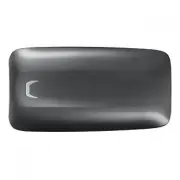
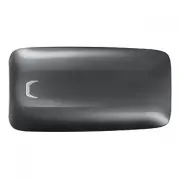
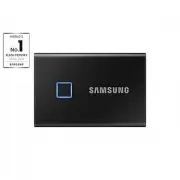
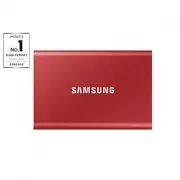
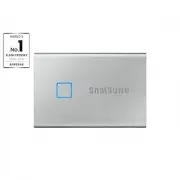
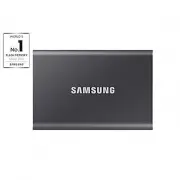
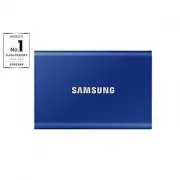
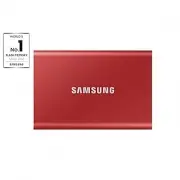
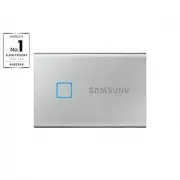
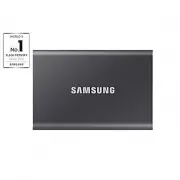
1 Introduction Samsung Portable SSD X5 is a revolutionary external storage with integrated cutting-edge NVMe ™ and Thunderbolt™ 3 technologies. The X5 is designed for content creators and high-tech professionals who need fast and secure access to data in a lightweight and compact storage solution. T...
Page 5 - Getting Started; What’s In the Box; How to Connect / Disconnect; the X5 to protect your data.
2 Getting Started Before using the Samsung Portable SSD X5 (referred to as “X5”), please read this User Manual thoroughly so that you may know how to use the product in a safe and appropriate manner. What’s In the Box • Samsung Portable SSD X5 • Thunderbolt™ 3 (40 Gbps) USB-C cable • Quick Start Gui...
Page 6 - System Requirements; Operating System Requirements
3 System Requirements Mac and Windows PCs with Thunderbolt™ 3 ports 3) 4) ※ Thunderbolt™ 3 Interface Support Thunderbolt™ 3 is a hardware interface that enables high-speed data transfer of up to 40Gbps bandwidth which is two times faster than the previous Thunderbolt™ 2 and eight times faster than U...
Page 7 - operating system; without performing Check Disk, you may do it; Capacity of X5 Displayed on the System
4 File Formats X5 is pre-formatted in using exFAT file system which is supported by Windows OS and Mac OS. Whether data formatted to a certain format may be read or written to your computer vary depending on the OS, as specified in the table below. If you use X5 on a single OS, it is recommended tha...
Page 8 - Using X5; Connecting X5; may cause data losses or damages to the X5.; How to Safely Removing Hardware under each OS
5 Using X5 Connecting X5 Select the cable compatible with your device. Connect one end of the cable to the device and the other end to the X5. When using the Thunderbolt 3 storages (X5) for the first time in the Windows OS, you need to “Approve” Thunderbolt 3 devices. Select “Always Connect” then “O...
Page 9 - LED behavior by product status; The following table describes LED behavior by X5 Status.; Installing Samsumg Portable SSD Software; (For Password protection and Firmware update); and install the appropriate one.
6 LED behavior by product status The following table describes LED behavior by X5 Status. Product status LED Behavior Plugged in / Idle Solid White Read / Write Blinking White Installing Samsumg Portable SSD Software (For Password protection and Firmware update) Connect the X5 to a PC/Laptop, find t...
Page 10 - Running Samsung Portable SSD Software; Select “Samsung Portable SSD” application icon on Desktop.
7 1. Running Samsung Portable SSD Software Select “Samsung Portable SSD” application icon on Desktop. * Samsung Portable SSD Software may not operate without device (driver) enabled. Samsung Portable SSD Software Icon 2. Setting Password (Optional) Please follow the instructions that appear on each ...
Page 11 - Unlock; Unlock screen
8 * When both Samsung Portable SSD Driver and SATSMARTDriver are installed and conflict is detected, the instructions like the following will be available: How to remove Samsung Portable SSD Driver and install SATSMARTDriver #sudo kextunload /System/Library/Extensions/SamsungPortableSSDDriver.kext #...
Page 12 - Home screen
9 Home screen * Depending on the user environment, the “SamsungPortableSSD Software” may not be executed automatically. In such case, please double-click the “SamsungPortableSSD Software” icon in Explorer on Windows or the Desktop on Mac. * Password protection may be supported by certain version of ...
Page 13 - Change in Settings; software, you can download installation file; Security Mode
10 4. Change in Settings You can change your security mode/user name/password of the X5 by clicking “SETTINGS” button on the main page. When using a computer without the security software, you can download installation file (“SamsungPortableSSD_Setup_Win.exe” for Windows OS, “SamsungPortableSSD_Setu...
Page 15 - Update Software and Product firmware; updates available will show on the bottom of left panel.
12 5. Update Software and Product firmware If your computer is connected to the internet, the number of Software/Firmware updates available will show on the bottom of left panel. By clicking “UPDATE” button ( ), you may go to update page. Update screen
Page 16 - By clicking “UPDATE” button (
13 By clicking “UPDATE” button ( ), you can download the latest software (“SW”) or firmware (“FW”) and update it. By clicking “Check for Update Automatically” toggle button ( ), you can choose whether to have SW and FW automatically updated whenever Samsung Portable SSD is connected. By clicking ref...
Page 17 - Delete “Samsung Portable SSD Software”; Deleting software on each OS; Select SW Default Language; Default language may be selected under Regional Setting.; Open Source License Announcement
14 In case of X5, Samsung Portable SSD Software update is available for both macOS and Windows OS versions. But X5 FW update is available for Windows OS version only. 6. Delete “Samsung Portable SSD Software” Deleting software on each OS Computer OS Description Windows OS If user installed SW using ...
Page 18 - Caution; data stored on the X5. Be sure to back up important data at all times.
15 Caution Failure to follow the instructions and cautions in each section of this manual may result in injury, damage to the product or data loss. Please read thoroughly before using the product. Back Up Important Data No computer system can be absolutely secure. Samsung does not provide any kind o...
Page 20 - Product Specifications and Certifications; Product Specifications
17 Product Specifications and Certifications Product Specifications Samsung Portable SSD X5 Interface Thunderbolt™ 3 (40Gbps) Compatibility H/W) Macs and Windows PCs with Thunderbolt 3 ports (Not backward compatible/ does not work on PCs only support USB) OS) macOS Sierra (10.12) or higher / Windows...
Page 21 - Certifications; Waste Electrical and Electronic Equipment
18 Certifications Waste Electrical and Electronic Equipment This symbol on the product or on its packaging indicates that this product must not be disposed of with your other household waste. Instead, it is your responsibility to dispose of your waste equipment by handing it over to a designated col...
Page 22 - MANUFACTURER’S DECLARATION (T) FOR CE CERTIFICATION
19 The device complies with Part 15 of the FCC Rules. Operation is subject to the following two conditions: 1) this device may not cause harmful interference, and 2) this device must accept any interference received, including interference that may cause undesired operation of the device Indoor use ...