Samsung MU-PA2T0B - Manuals
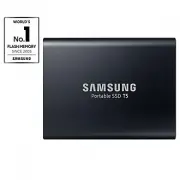
User Manual Samsung MU-PA2T0B


Summary
LEGALITIES LEGAL DISCLAIMER SAMSUNG ELECTRONICS RESERVES THE RIGHT TO CHANGE PRODUCTS, INFORMATION AND SPECIFICATIONS WITHOUT NOTICE. Products and specifications discussed herein are for reference purposes only. All information discussed herein may change without notice and is provided on an “AS IS”...
Samsung Portable SSD T5 User Manual Table of Contents Introduction ................................................................................................................................... 1 Getting Started ......................................................................................
1 Introduction Samsung Portable SSD T5 is the latest innovation in external storage enabling you to enjoy extraordinary speeds, and a sleek and solid form factor, secure data protection and multi-device flexibility. It is a whole new experience for your data storage needs, professional or personal. ...
Samsung RAM & Storage Manuals
-
 Samsung 1000
User Manual
Samsung 1000
User Manual
-
Samsung 2000
User Manual
-
 Samsung MU-PA1T0B
User Manual
Samsung MU-PA1T0B
User Manual
-
 Samsung MU-PA250B
User Manual
Samsung MU-PA250B
User Manual
-
 Samsung MU-PA500B
User Manual
Samsung MU-PA500B
User Manual
-
 Samsung MU-PB1T0B
User Manual
Samsung MU-PB1T0B
User Manual
-
 Samsung MU-PB500B
User Manual
Samsung MU-PB500B
User Manual
-
 Samsung MU-PC1T0H
User Manual
Samsung MU-PC1T0H
User Manual
-
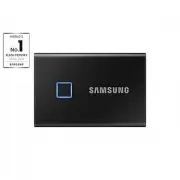 Samsung MU-PC1T0K
User Manual
Samsung MU-PC1T0K
User Manual
-
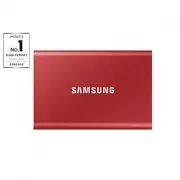 Samsung MU-PC1T0R
User Manual
Samsung MU-PC1T0R
User Manual
-
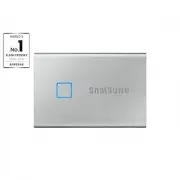 Samsung MU-PC1T0S
User Manual
Samsung MU-PC1T0S
User Manual
-
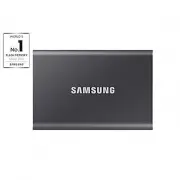 Samsung MU-PC1T0T
User Manual
Samsung MU-PC1T0T
User Manual
-
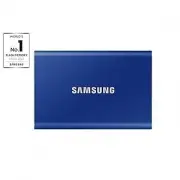 Samsung MU-PC2T0H
User Manual
Samsung MU-PC2T0H
User Manual
-
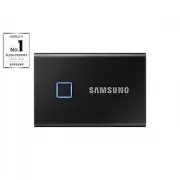 Samsung MU-PC2T0K
User Manual
Samsung MU-PC2T0K
User Manual
-
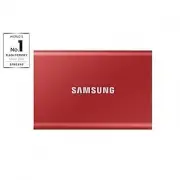 Samsung MU-PC2T0R
User Manual
Samsung MU-PC2T0R
User Manual
-
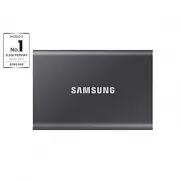 Samsung MU-PC2T0T
User Manual
Samsung MU-PC2T0T
User Manual
-
 Samsung MU-PC500H
User Manual
Samsung MU-PC500H
User Manual
-
 Samsung MU-PC500R
User Manual
Samsung MU-PC500R
User Manual
-
 Samsung MU-PC500S
User Manual
Samsung MU-PC500S
User Manual
-
 Samsung MU-PC500T
User Manual
Samsung MU-PC500T
User Manual