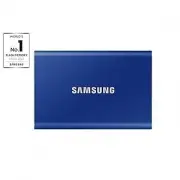
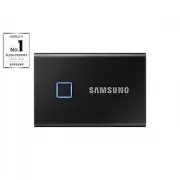
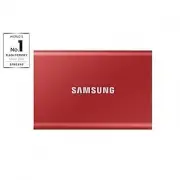
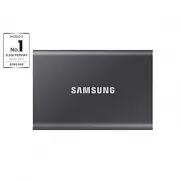
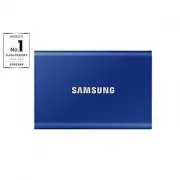
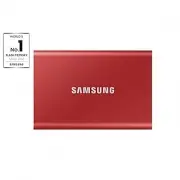
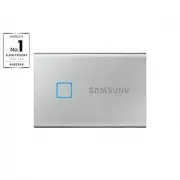
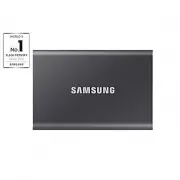
Page 2 - DISCLAIMER
2 DISCLAIMER SAMSUNG ELECTRONICS RESERVES THE RIGHT TO CHANGE PRODUCTS, INFORMATION AND SPECIFICATIONS AT ANY TIME WITHOUT NOTICE. Information in this document is provided in connection with products of Samsung Electronics Co. Ltd. (“Samsung”). Product descriptions and specifications contained in th...
Page 3 - Samsung Portable SSD T7 Touch; User Manual
3 Samsung Portable SSD T7 Touch User Manual Table of Contents Introduction ..................................................................................................................... 4 Getting Started ............................................................................................
Page 4 - Introduction; SSD stands for Solid State Drive, which means it
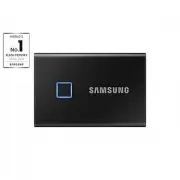
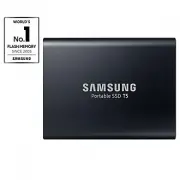
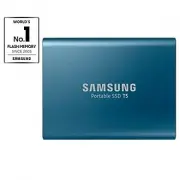
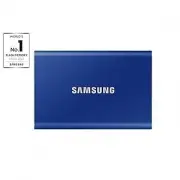
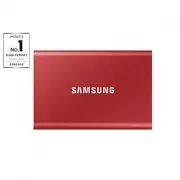
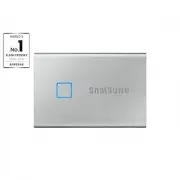
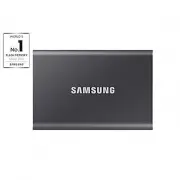
4 Introduction Samsung T7 Touch is a superfast external storage device that has convenient data protection with fingerprint recognition and a refined design with motion LED. Transfer in a flash Transfer massive files within seconds with the incredible speed of USB 3.2 Gen2 on the T7 Touch. The embed...
Page 5 - Getting Started; What’s In the Box
5 Getting Started Before using the Samsung Portable SSD T7 Touch (referred to as “T7 Touch”), please read this User Manual thoroughly so that you may know how to use the product in a safe and appropriate manner. What’s In the Box • Samsung Portable SSD T7 Touch • USB 3.2 Gen 2 USB C to A cable • USB...
Page 6 - System Requirements; ’s data transfer speed is optimal with USB 3.; Operating System Requirements; Windows OS: Windows 7 or higher; File Formats; Capacity of T7 Touch Displayed on the System
6 System Requirements 1. USB 3.2 Gen 2 (10 Gbps) Interface Support USB (Universal Serial Bus) is a serial input/output interface standard for connecting various devices. T7 Touch ’s data transfer speed is optimal with USB 3. 2 Gen 2 (10 Gbps) and using lower versions such as USB 3.2 Gen 1 (5Gbps), U...
Page 7 - Using T7 Touch; Connecting T7 Touch; Motion LED behavior by product status; For PCs and Macs
7 Using T7 Touch Connecting T7 Touch Select the cable compatible with your device. Connect one end of the cable to the device and the other end to the T7 Touch. Disconnecting T7 Touch Be sure to use Safely Remove Hardware feature for every disconnection of T7 Touch. Unplugging from computer without ...
Page 8 - Running Samsung Portable SSD Software 1.0; Select “Samsung Portable SSD; Security mode off; You may use T7 Touch without security mode.; Security with Password; If
8 1. Running Samsung Portable SSD Software 1.0 Select “Samsung Portable SSD Software 1.0 ” application icon on Desktop. * In case of Mac OS, Samsung Portable SSD Software 1.0 may not operate without device (driver) enabled. 2. Setting Security Mode (Optional) Security mode is optional. You may use T...
Page 9 - Security with Password and Fingerprint
9 • Security with Password and Fingerprint You may enable security mode with password and fingerprint. After you set up password, you can use fingerprint security. If the password is forgotten, you need to unlock T7 Touch with fingerprint, move all the stored data to safe place and need to have T7 T...
Page 10 - Unlock; If you’ve enabled
10 3. Unlock If you’ve enabled security mode, every time you connect T7 Touch to your computer you need to tap your fingerprint or enter your password and click the “UNLOCK” button before getting access to the data in T7 Touch. If you fail to unlock, your access will be confined to capacity of about...
Page 11 - Change in Settings; the T7 Touch by clicking “SETTINGS” button on the main page. When u; Security Mode; Status
11 4. Change in Settings You can change your security mode/user name/password/fingerprint security settings of the T7 Touch by clicking “SETTINGS” button on the main page. When u sing a computer without the security software, you can download installation file ( “SamsungPortableSSD_Setup_Win_1.0.exe...
Page 12 - “CHANGE”
12 • Name/Password You can change Name and Password. For changing password, please click “CHANGE” button.
Page 13 - Fingerprint security settings; If you
13 • Fingerprint security settings If you ’ ve enabled fingerprint security mode, you can manage fingerprint settings by clicking “EDIT” button ( ). Enter the current password and click “ CONFIRM ” button ( ) to move to the fingerprint management step. By clicking “ADD FINGERPRINT” button ( ), you c...
Page 14 - Place your finger on the sensor.
Page 16 - Update Software and Product firmware; By clicking “UPDATE” button (
16 5. Update Software and Product firmware If your computer is connected to the internet, the number of Software/Firmware updates available will show on the bottom of left panel. By clicking “UPDATE” button ( ), you may go to update page. By clicking “UPDATE” button ( ), you can download the latest ...
Page 17 - Delete “Samsung Portable SSD Software”; Deleting software on each OS; Computer OS; Select SW Default Language; Default language may be selected under Regional Setting.
17 * When user changes “Check for Update Automatically” from OFF to ON, SW does not refresh update information immediately. Update information is refreshed when either user clicks refresh button or SamsungPortable SSD is connected to the computer. * For FW updates, security mode needs to be OFF. Any...
Page 18 - You may download “; Running the Application; Please run the Application installed.; Setting Security Mode
18 For Android devices 1. Download Application from Google Play Store You may download “ Samsung Portable SSD 1.0 ” application from App store. 2. Running the Application Please run the Application installed. 3. Setting Security Mode Password and fingerprint stored in T7 Touch after connection on th...
Page 19 - Unlock T7 Touch
19 4. Unlock T7 Touch If you ’ ve enabled security mode, every time you connect T7 Touch to your device, you need to tap your fingerprint or enter your password and press the “UNLOCK” button before getting access to the data in T7 Touch.
Page 21 - Update SW and FW; To enter the update screen, click the Update page button (; Deleting “Samsung Portable SSD”; Open your android device; Select Default Language
21 7. Update SW and FW To enter the update screen, click the Update page button ( ) on Home screen. If any update is available, the “UPDATE” button ( ) will be highlighted. If there is an application to be updated, your clicking UPDATE button will show the link to ‘App store’. * Firmware update requ...
Page 22 - Caution; Back Up Important Data; user’s; Connect to Certified Devices Compliance with Safety Standards
22 Caution Failure to follow the instructions and cautions in each section of this manual may result in injury, damage to the product or data loss. Please read thoroughly before using the product. Back Up Important Data No computer system can be absolutely secure. Samsung does not provide any kind o...
Page 23 - product’s exterior, and may also cause fire or electric s
23 Use Genuine Accessories Always use genuine parts and accessories certified by Samsung. Samsung shall not be liable for damages to the product or loss of user data caused by use of non-genuine parts or accessories. Use in Appropriate Temperature and Humidity Use the product in appropriate environm...
Page 24 - FAQ
24 FAQ I cannot run the Samsung Portable SSD Software 1.0. The Samsung Portable SSD Software 1.0 can only run on certain OS versions (or newer). Please see below for supported OS versions: Windows OS: Windows 7 or higher Mac OS: Mac OS X 10.10 or higher The “USB storage unexpectedly removed” mes...
Page 25 - Product Specifications and Certifications; Product Specifications
25 Product Specifications and Certifications Product Specifications Model MU-PC500 MU-PC1T0 MU-PC2T0 Capacity 500GB 1TB 2TB Interface USB 3.2 Gen 2 (10Gbps), backwards compatible Data Transfer Speed* 1,050 MB/s Dimensions 85 x 57 x 8 mm (3.3 x 2.2 x 0.3 inch) (L x W x H) Weight 58 g (2.04 oz.) (2TB)...