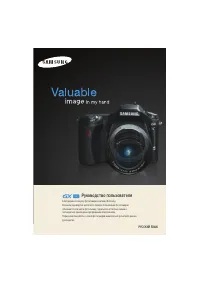
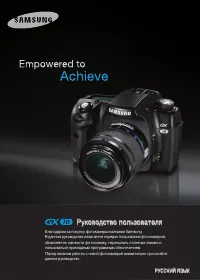
Page 2 - Thank you for buying a Samsung Digital Camera.; Set up the camera driver
ŝ 1 Ş Instructions Getting to know your camera Thank you for buying a Samsung Digital Camera. ƃ Prior to using this camera, please read the user manual thoroughly. ƃ When you require After Sales service, please bring the camera and the cause ofthe camera malfunction (such as battery, Memory card etc...
Page 3 - There is the possibility of injury from the camera’s moving parts.
ŝ 2 Ş Danger Warning WARNING indicates a potentially hazardous situation which, if not avoided, couldresult in death or serious injury. ƈ Do not use the flash in close proximity to people or animals. Positioning the flashtoo close to your subject’s eyes may cause eyesight damage. ƈ For safety reason...
Page 4 - READY; When Using the Camera for the First Time; RECORDING
Caution Contents ŝ 3 Ş CAUTION indicates a potentially hazardous situation which, if not avoided, mayresult in a minor or moderate injury. ƈ Leaking, overheating, or damaged battery could result in fire or injury. Ү Use battery with the correct specification for the camera. Ү Do not short circuit, h...
Page 5 - Contents; Download the tour guide information; SOFTWARE
ŝ 4 Ş Contents ƈ Effect ōōōōōōōōōōōō 39 ƈ Effect : Colour Effect ōōōōō 40 ƈ Effect : Image editing ōōōōō 42 ƈ Effect : FUN ōōōōōōōōō 43 ƃ Starting play mode ōōōōōō 49 ƈ Playing back a still image ōōō 49 ƈ Playing back a movie clip ōōō 49 ƈ Movie clip capture function ōōō 50 ƈ On camera movie trimmin...
Page 6 - System chart
ŝ 5 Ş System chart Please check that you have the correct contents before using this product. The contents can vary depending on the sales region. To buy the optional equipment, contact your nearest Samsung dealer or Samsung service centre. SD memory card / MMC (see p.10) DPOF compatible printer (se...
Page 7 - Identification of features
ŝ 6 Ş Identification of features Front & Top Face Recognition (FR) / Lock button Shutter button Power button Self-timer / AF lamp Lens Flash Speaker Microphone ƈ Self-timer lamp For the 2 seconds, the lamp blinks quickly at0.25-second intervals before taking a picture. A picture will be taken af...
Page 9 - Multimedia
ŝ 8 Ş Connecting to a Power Source Bottom Battery lock lever Memory card slot Battery chamber cover USB / AV port Identification of features Battery chamber Tripod socket ƈ You should use the rechargeable battery (SLB-1137C) supplied with thecamera. Be sure to charge the battery before using the cam...
Page 10 - Connecting to a Power Source; INFORMATION
ŝ 9 Ş Connecting to a Power Source Important information about battery usage. ƃ When the camera is not used, turn off the camera power. ƃ Please remove the battery if the camera will not be used for long periods.Batteries can lose power over time and are prone to leaking if kept insidethe camera. ƃ ...
Page 11 - CAUTION; Battery indicator
ŝ 10 Ş Inserting the memory card ƈ Insert the memory card as shown. - Turn off the camera’s power before inserting the memory card. - Have the front of the memory card facing toward the back of the camera (LCD monitor)and the card pins toward the front of the camera(Lens). - Do not insert the memory...
Page 12 - Instructions on how to use the memory card; Samsung cannot be held responsible for lost data.
ŝ 11 Ş Instructions on how to use the memory card ƃ Samsung cannot be held responsible for lost data. ƃ It is advisable to copy important data onto other media as back-up e.g. floppydisks, hard disks, CD etc. ƃ If there is insufficient memory available : A [Memory Full!] message will appear and the ...
Page 13 - Super Fine
ŝ 12 Ş ƈ When using a 256MB MMC (Multi Media Card), the specified shooting capacitywill be as follows. These figures are approximate as image capacities can beaffected by variables such as subject matter and memory card type. ſ The recording times can be changed by the zoom operation. The zoom butto...
Page 14 - Setting up the Date & Time; You can select one of the following 22 languages. :
ŝ 13 Ş When Using the Camera for the First Time ƃ Setting up the Date & Time 1. Select the [DATE&TIME] menu 2. Select the desired sub menu by pressing the Ɗƌ icon Date 12 : 00 Time yy / mm / dd Type OK SETUP / DATE&TIME 07 / 02 / 01 ƃ Setting up the language 1. Select the [LANGUAGE] menu...
Page 15 - When Using the Camera for the First Time: Touch Screen
ŝ 14 Ş ƈ Touch Screen can be used for selecting the menu or confirming the selected menu. See the following instructions for using the Touch Screen.To select or set the menu exactly, using the supplied Touch Pen is recommended. ƃ Ex : Changing the Image Size ƃ Ex : Changing the AF type [Pressing the...
Page 16 - Starting the recording mode; : Card inserted indicator
ŝ 15 Ş Starting the recording mode ؇ ؊ ؉ : Voice memo (p.36) : Auto Focus Frame (p.35) : Camera shake warning (p.21) : Date/ Time (p.83) : Exposure compensation (p.34) : White Balance (p.33) : Camera Shake Reduction (p.34) : ISO(p.32) : Metering (p.31) : Continuous shot (p.32) : Image quality / Fram...
Page 17 - Mode icons; PORTRAIT CHILDREN LANDSCAPE CLOSE-UP
ŝ 16 Ş Starting the recording mode ƃ Recording mode Press the M (Mode) button or Press theRecording mode icon and the menu will displayas shown. ƈ Mode icons M (Mode) button Selecting modes ƈ MP3, PMP, Text Viewer, Tour Guide mode Select a multi-media mode by rotating the LCD monitor. (p.91) Resume ...
Page 18 - How to use the PROGRAM mode ( )
ŝ 17 Ş Starting the recording mode ƈ How to use the PROGRAM mode ( ) Selecting the program mode will configure thecamera with optimal settings. You can still manually configure all functionsexcept the aperture value and shutter speed. 1. Select the Program mode.2. Configure advanced functions such a...
Page 23 - Using the Focus Lock
ŝ 22 Ş Things to watch out for when taking pictures Focus lock ƈ To focus on a subject not positioned in the centre of the picture, use the focuslock function. ƃ Using the Focus Lock 1. Ensure the subject is in the centre of the autofocus frame.2. Press the SHUTTER button halfway. When the green aut...
Page 24 - Using the camera buttons to set the camera
ŝ 23 Ş ƈ The recording mode function can be set up by using the camera buttons. POWER button SHUTTER button ƃ Used for turning the camera’s power on / off. ƃ If there is no operation during the specified time,the camera's power will be turned off automaticallyto save battery life. Refer to page 86 f...
Page 26 - Mode button
ŝ 25 Ş ZOOM W / T button ƃ Images taken using the digital zoom may take a little longer for the camerato process. Allow time for this to take place. ƃ You may notice a decrease in image quality when using the digital zoom. ƃ To view a clearer digital zoom image, press the shutter button halfway at t...
Page 27 - Setting up the camera mode; Exposure Compensation
ŝ 26 Ş Setting up the camera mode Self-timer ( ) ƈ You can set up the camera mode by pressing the mode icon. In Night scenemode, you can select the shutter speed and aperture value. Main menu Macro Flash LT Drive mode ISO White Balance Metering ſ In ASR mode, ISO is fixed to AUTO and EV is fixed to ...
Page 31 - Available flash mode, by recording mode; Image Size
ŝ 30 Ş Flash ( ) Image Size ƃ Available flash mode, by recording mode ( ƃ : Selectable) ƈ You can select the image size appropriate for your application. ƃ The higher the resolution, the lower the number of shots available becausehigh resolution images require more memory. INFORMATION Image Size 307...
Page 32 - Quality / Frame rate
ƃ This file format complies with the DCF (Design rule for Camera Filesystem). ƃ When the 800x592 image size is selected, you can select 20 fps, and whenthe 640x480, 320x240 image sizes are selected, you can select 30 fps and15 fps. INFORMATION ƈ You can select the compression ratio appropriate for y...
Page 33 - : Take one picture only
ŝ 32 Ş Continuous shot ISO - Single : Take one picture only - Continuous : Images will be taken continuously until the shutterbutton is released. Theshooting capacity depends onthe memory. - Motion Capture : This takes 6 shots per second, when the shutter is pressedand held down. After completing th...
Page 34 - White balance
ŝ 33 Ş ƃ Using the Custom White Balance White balance settings may vary slightly depending on the shootingenvironment. You can select the most appropriate white balance setting for agiven shooting environment by setting up the custom white balance. 1. Select the CUSTOM ( ) menu of the White Balance....
Page 35 - ȜȞ
ŝ 34 Ş Movie Clip frame stabiliser Exposure compensation ƈ This camera automatically adjusts the exposureaccording to the ambient lighting conditions. Youcan change the exposure value by using the ȜȞ icon. A negative exposure compensation valuereduces the exposure.Note that a positive exposure compe...
Page 36 - Using the LCD monitor to adjust the camera settings
ƈ You can use the menu on the LCD monitor to set up recording functions. ƈ The items indicated by are default settings. ſ Menus are subject to change without prior notice. Contrast Voice Mute Sharpness Available mode Sub menu Menu Page Voice Record Off On - - Voice Memo Auto Focus Center AF Multi AF...
Page 38 - Sharpness
ƈ You can adjust the sharpness of the picture you are about to take. You cannotcheck the sharpness effect on the LCD monitor before you take a picture,because this function is applied only when the captured image is stored on thememory. Soft+ Soft Vivid Vivid+ Normal Icon Menu Description The edges ...
Page 39 - You can record the movie without voice.
ŝ 38 Ş Contrast Recording the movie clip without voice ƈ You can record the movie without voice. Select [Voice Mute] menu in the Movie clip mode. ( ) icon will display on the LCD monitor.Press the Shutter button and a movie will record foras long as the memory capacity allows withoutvoice. Recording...
Page 40 - Effect; Still image mode : You can select the colour,
ŝ 39 Ş Effect ƃ This button will not operate in ASR, Voice recording mode and some scenemodes (Night, Text, Sunset, Dawn, Backligh, Fireworks, Beach&Snow). ƃ To cancel the special effect, select sub menu in the Colour menu andselect the sub menu in the rest effect menus. ƃ The voice memo can't b...
Page 41 - Effect : Colour Effect; Colour
ŝ 40 Ş Effect : Colour Effect Colour Select a desired sub menu by pressing the ȜȞ icon and press the OK icon. : No effect is added to the image.: Captured images will be stored in black and white.: Captured images will be stored in a sepia tone (a gradient of yellowish brown colours). : Captured ima...
Page 42 - Colour mask
ŝ 41 Ş Effect : Colour Effect Colour mask ƈ With this menu, you can select a part you want to highlight. The rest of the image will be black & white. ƃ Press the Effect menu in an available recording mode. (p.39) Press the OK icon and the Mask mark will display on the LCD monitor Press the Shutt...
Page 43 - Effect : Image editing; Saturation
ŝ 42 Ş Effect : Image editing Saturation ƈ You can change the saturation of the image. ƃ Press the Effect menu in an available recording mode (p.39). + direction : High saturation (The colour will be deep) - direction : Low saturation (The colur will be subtle) Select Saturation menu ( ) and a bar f...
Page 44 - Cartoon
ŝ 43 Ş Effect : FUN Select ( ) Select a desired frame by pressing the ȜȞ icon Pressing the OK icon Press the LCD monitor Pressing the Shutter button ſ You can change the frame by pressing the icon. ſ Before saving the image, you can changethe position of the text box. Press the SAVE icon and the ima...
Page 50 - Starting play mode
ŝ 49 Ş Starting play mode ƈ Turn the camera on and select Play mode by pressing the play mode button ( ). The camera can now play back the images stored in the memory. ƈ If the memory card is inserted in the camera, all the camera functions apply onlyto the memory card. ƈ If the memory card is not i...
Page 52 - ȜȜ
ŝ 51 Ş Starting play mode ƃ When a voice is playing back, you can use the earphones. ƃ If you want to extract the movie clip at the beginning of the frame, press theZoom T button before starting the movie clip. ƃ If the time line bar passes by the start point by pressing the REW ( ȜȜ ) icon, the fir...
Page 53 - LCD monitor Indicator
ŝ 52 Ş LCD monitor Indicator ƈ The LCD monitor displays shooting information about the displayed image. No. Description Icon Page 1 2 3 4 5 6 7 8 9 10 11 12 13 14 15 16 17 p.10 p.82 p.10 p.49 p.73 p.49, 51 p.49 p.74 p.56, 69 p.32 p.34 p.34 p.28 p.30 p.83 p.56 p.49~51 Battery Folder name & File n...
Page 54 - Play mode button; Using the camera buttons to adjust the camera; Thumbnail display
ŝ 53 Ş ƈ In Play mode, you can use the buttons on the camera to conveniently set up thePlay mode functions. Play mode button ƈ If you have turned on the camera by pressingthe POWER button, you can press the PLAYMODE button once to switch to Play mode andpress it again to switch to Recording mode. Us...
Page 55 - ƊƌȜȞ
ŝ 54 Ş ƃ Image enlargement 1. Select an image that you want to enlarge and press the enlargement button. 2. Different parts of the image can be viewed by pressing the ƊƌȜȞ icon. 3. Pressing the thumbnail button will zoom back to the original full sized image. - You can tell whether the image display...
Page 57 - Effect: Image Editing
ŝ 56 Ş Delete ( ) icon ƈ This deletes images stored on the memory card. 1. Select an image that you want to delete by pressing the ȜȞ icon and press the DELETE ( ) icon. 2. Select the submenu values by pressing the Ɗƌ icon and then press the OK icon. - If [No] is selected : cancels "Delete Image...
Page 58 - Rotating an image
ŝ 57 Ş Effect: Image Editing ƃ A large sized image can be resized to a smaller sized image, but not vice versa. ƃ Only JPEG images can be resized. Movie clip (AVI), Voice recording (WAV) filescan’t be resized. ƃ You can change the resolution of only those files compressed in the JPEG 4:2:2format. ƃ ...
Page 61 - Effect: Image adjustment
ŝ 60 Ş Effect: Image adjustment ƈ You can change the brightness of image. 1. Select ( ) and a bar for selecting the brightness will display. 2. Change the brightness by pressing the ȜȞ icon. 3. Press the SAVE icon and the image will be saved as a new file name. Effect: Colour ƃ With this menu, you c...
Page 63 - You can add a text box on the image to make the image cartoon like.
ŝ 62 Ş Effect: Fun Select the cartoon menu ( ) Select a desired frame bypressing the ȜȞ icon Pressing the OK icon A cartoon frame will display ƈ You can add a text box on the image to make the image cartoon like. ƈ You can add fun effects to the saved image. ƃ Pressing the Shutter button or the Play...
Page 67 - Selecting 2 composite shots.; You can combine 2 - 4 different shots in a still image.; Composite image
ŝ 66 Ş Effect: Fun ſ Selecting 2 composite shots. Pressing the OK icon Pressing the NewImage icon Pressing the Set icon ƈ You can combine 2 - 4 different shots in a still image. ƃ If you press the Shutter and Play mode button, a capture mode is executed. INFORMATION Composite image OK FUN / Composit...
Page 70 - Setting up the play back function using the LCD monitor; One Play / Repeat Play
ŝ 69 Ş Setting up the play back function using the LCD monitor ƈ PLAY mode functions can be changed by using the LCD monitor. In the PLAYmode, pressing the MENU icon displays the menu on the LCD monitor. The menus you can set up in Play mode are as follows. To capture an imageafter setting up the pl...
Page 72 - The loading time depends on the image size and quality.; Setting play interval : Set the slide show play interval.
ŝ 71 Ş ƃ The loading time depends on the image size and quality. ƃ While the slide show is playing, only the first frame of a MOVIE file isdisplayed. ƃ While the slide show is playing, the voice recording file will not be displayed. INFORMATION ƃ Setting play interval : Set the slide show play inter...
Page 74 - Protecting images; Protecting Images
ŝ 73 Ş Protecting images Voice Memo Delete DPOF Playback Select All Protect ƈ This is used to protect specific shots from being accidentally erased (Lock).It also unprotects images that have been previously protected (Unlock). 1. Select a desired sub menu. [Select] : Selection window for an image to...
Page 75 - - Select a deleted image on the LCD monitor.
ŝ 74 Ş DPOF ƈ DPOF (Digital Print Order Format) allows you to embed printing information onyour memory card’s MISC folder. Select the pictures to be printed and howmany prints to make. ƈ The DPOF indicator will display on the LCD monitor when an image that hasDPOF information plays back. Images can ...
Page 77 - Copy To Card; Ɗƌ
ŝ 76 Ş ƈ This enables you to copy image files, movie clips and voice recording files on thecamera's built-in internal memory to the camera's removable SD memory card. ƃ Copying to the Memory Card 1. Select a desired sub menu. - [No] : Cancels "Copy to Card". - [Yes] : All images, movie clips...
Page 78 - PictBridge; Easy printing
ŝ 77 Ş ƈ You can use the USB cable to connect this camera to a printer that supportsPictBridge (sold separately) and print the stored images directly. Movie clips andvoice files cannot be printed. ƈ Connecting the Camera to a Printer ƃ Setting up the camera for connection to the printer 1. Connect t...
Page 79 - PictBridge : Print Setting; PictBridge : Picture Selection
ŝ 78 Ş ƈ You can select the Paper Size, Print Format, Paper Type, Print Quality, DatePrint, and File Name Print menus for printed pictures. Function Menu Sub menu ſ Some menu options are not supported on all printers. If not supported, the menus are still displayed in the LCD, but are not selectable...
Page 80 - Sound menu
ƈ Initialises user-changed configurations. 1. Select the [Reset] menu by pressing the Ɗƌ icon. 2. Select a desired sub menu. - If [No] is selected : Settings will not be reset. - If [Yes] is selected : All print and image settings will be reset. ſ Default print setting varies depending on theprinter...
Page 82 - Setup menu; Menu tab
ŝ 81 Ş Setup menu Sound ( ) yy/mm/dd mm/dd/yy dd/mm/yy Off Off Date Date&Time - Dark Normal Bright Auto Off On Off Logo User Image - LANGUAGE Imprint LCD Start Image AF Lamp File Date&Time Sub menu Menu tab Main menu Page Reset Series p.82 p.83 p.84 p.84 p.85 p.84 p.83 ENGLISH FRANÇAIS DEUTS...
Page 83 - Setup menu 1
ŝ 82 Ş Setup menu [ File name ] ƈ This function allows the user to select the file naming format. [Reset] : After using the reset function, the next file name will be set from 0001 even after formatting, deleting all or inserting a new memory card. [Series] : New files are named using numbers that f...
Page 86 - Setup menu 2; Sub menus
ŝ 85 Ş Setup menu 2 [ Quick view ] ƈ If you enable Quick View before capturing an image, you can view the imageyou just captured on the LCD monitor for the duration set in the [Quick View]setup. Quick view is possible only with still images. ƃ Sub menus [Off] : The quick view function can’t be activ...
Page 88 - Connecting to an external monitor
ŝ 87 Ş Setup menu 2 [ Selecting Video out type ] ƈ The Movie output signal from the camera can be NTSC or PAL. Your choice of output will be governed by the type of device (monitor or TV, etc.)to which the camera is connected. PAL mode can support only BDGHI. [ Calibration] ƈ This menu will increase...
Page 91 - Up to 254 files can be saved in a folder.; Downloading files
ŝ 90 Ş MP3 / PMP / TEXT VIEWER Mode ƃ Take care of the illegal duplication of MP3 & multimedia files. It violatesvarious copyright laws. ƃ This camera can only play back MP3 files in the MP3 mode and SDC files(modified XviD MPEG4 video / MPEG Layer2 audio type) in the PMP mode. ƃ If a file canno...
Page 92 - Starting the MP3 / PMP / TEXT VIEWER mode
ŝ 91 Ş [MP3 mode] [PMP mode] [TEXT VIEWER mode] Starting the MP3 / PMP / TEXT VIEWER mode MUSIC LIST PMP LIST TEXT LIST 1. 01-Audio Track 01.mp3 192K 00:02 / 04:55 A 0:00:00 / 0:04:55 CJ-movie sample.sdc 1/2 ANSI Thank you for buying a Samsung Camera. This manual will guide you through using the cam...
Page 94 - LCD monitor indicator for MP3 / PMP / TEXT VIEWER mode; - When the ANSI encoding type is displayed
ŝ 93 Ş 1/2 ANSI Thank you for buying a SamsungCamera.This manual will guide you through usingthe camera, includin capturing images,downloading images and using theapplication software.Please read this manual carefully beforeusing your new camera. 1.Samsungcamera.txt LCD monitor indicator for MP3 / P...
Page 95 - ȜȜ ȞȞ
ŝ 94 Ş ƃ If you press the Hold button for over 1 second, thecamera buttons are locked. - If the camera buttons are locked, the buttons can't be operated while playing back. But Power off,Video out, USB connection and LCD on functionscan be operated. - If you press the Lock button again or turn off t...
Page 96 - Setting up the playback function using the LCD monitor
ŝ 95 Ş Equalizer icon Playlist icon ƃ While a multimedia file is playing back, you can select a desired file by using thebrowsing menu. 1. While a multimedia file is playing back, press the Playlist icon ( ). 2. A playlist that is currently playing will be highlighted. 3. Select a desired file and t...
Page 97 - P”CCK»...
ŝ 96 Ş ƈ You can set various repeat and shuffle options. This function is adopted only in the selected folder. Play mode ƈ You can set the skin of MP3 player. [Default 1, 2] : Default skin will be set. [User Skin 1, 2] : An image created by the [MP3 Skin] menu (p.56) will be set. [Play All] : plays ...
Page 99 - Frame search
ŝ 98 Ş Setting up the playback function using the LCD monitor Frame search [Normal] : This will skip frame by frame whenever you press the icon. (2-32X)[30 sec., 1, 3, 5, 10 min.] : This will skip a set frame whenever you press the Left / Right icon. ƈ You can set the time of skip range when you sea...
Page 100 - Press the
ŝ 99 Ş Setting up the playback function using the LCD monitor ƈ The playing text is scrolled automatically and displays on the LCD monitor. [Off] : The text will not be scrolled automatically. ſ Press the Ɗƌ icon and you can use the Auto Scroll function. [0.8, 1.1, 1.4, 1.7, 2.0 , 2.3 sec] : The tex...
Page 101 - MP3 BGM Setting
ŝ 100 Ş Setting up the playback function using the LCD monitor MP3 BGM Setting Language setting ƈ You can play MP3 files when you are playing the text. [Off] : You cannot play the MP3 files.[On] : When you are playing the text, you can play the MP3 files. ſ The last played MP3 files will be executed...
Page 102 - World Tour Guide; Select a file you want and copy it to the removeable disk.; Starting the world tour guide
ŝ 101 Ş World Tour Guide ƈ You can get the useful travel information for destinations around the world. ƈ Korean, English and Chinese information is available and the language can bevaried in accordance with the sales region. ƈ You can download the tour guide information from the Samsung Camerawebsi...
Page 103 - Tour Guide Mode icon
ŝ 102 Ş World Tour Guide You can find the detail information and pictures by pressing each icons. ſ Tour Guide Mode icon ƃ Saving the information of some sites may take long time. Save informationof each site in order. ƃ If the downloaded files are changed by any non-official methods, the filesdon't...
Page 104 - Important notes
ŝ 103 Ş ƈ Extremes in temperature may cause problems. - If the camera is transferred from a cold to a warm and humid environment, condensation can form on the delicate electronic circuitry. If this occurs, turnthe camera off and wait for at least 1 hour until all moisture is dispersed.Moisture build...
Page 107 - Before contacting a service centre
ŝ 106 Ş Before contacting a service centre The flash does not fire ϛ Flash off mode has been selected ƍ Dis-engage flash off mode ϛ The camera mode can't use the flash ƍ Refer to the FLASH instruction (p.28) Incorrect date and time is displayed ϛ The date and time have been set incorrectly or the ca...
Page 108 - Specification
ŝ 107 Ş Special Effect icon Effect - Colour : Normal, B & W, Sepia, Red, Green, Blue, Negative, Custom colour, Colour Mask Image Adjustment : SaturationFUN : Cartoon, Photo Frame, Preset focus frame, Composite Image Editing - Resize, Rotate, Trimming Colour : B&W, Sepia, Red, Green, Blue, Ne...
Page 111 - Copyrights for software are licensed only for use with a camera.; System Requirements; Digimax Converter : Multimedia converting program; For Windows; Digimax Converter; MPlayer
ŝ 110 Ş Software Notes About the software Please ensure that you read the software instructions carefully before use. ŋ The attached software is a camera driver and image editing software tool for Windows. ŋ Under no circumstances should all or part of either the software or the usermanual be reprod...
Page 112 - You can visit the Samsung web-site through the internet.
ŝ 111 Ş About the software Setting up the application software 1. The auto run frame will display. Click the [Install] menu in the Auto run frame. ƈ Digimax Master : This is the all-in-one multi media software solution. You can download, view, edit and save your digital images and movie clips withth...
Page 113 - Setting up the application software; Install the software following instructions on the monitor.
ŝ 112 Ş Setting up the application software 3. To play back the movie clip recorded with this camera on the computer, install the XviD codec. 4. Install the software following instructions on the monitor. ſ The XviD codec is distributed according to and under the terms and conditions ofthe GNU Gener...
Page 114 - Starting PC mode; The LCD monitor is always turned off in PC mode.; After restarting the computer, connect the PC
ŝ 113 Ş Starting PC mode ƃ In this mode, you can download stored images to your PC through the USBcable. ƃ The LCD monitor is always turned off in PC mode. 1. Connect the PC to the camera with the USB cable. 2. Select the [Computer] menu. ƈ Connecting the camera to a PC ƃ If you have installed the c...
Page 115 - Removable Disk
ŝ 114 Ş Starting PC mode ƈ Disconnecting the camera and PC : Refer to "Removing the Removable Disk" (p.115) ƃ Before inserting any cables or AC adapter, check the directions and do notinsert by force. It may cause breakage of cable or camera. INFORMATION Removable Disk ƈ Downloading stored i...
Page 116 - Removing the removable disk; Check whether the camera and PC are transferring a file.
ŝ 115 Ş Removing the removable disk ƈ Windows 98SE 1. Check whether the camera and PC are transferring a file. If the camera status lamp blinks, please wait until the lamp has finished blinking and is constantly on. 2. Unplug the USB cable. ƈ Windows 2000 / ME / XP / Vista(The illustrations may diff...
Page 117 - Setting up the USB Driver for MAC; To uninstall the USB driver, refer to the process shown below.; Removing the USB Driver for Windows 98SE
ŝ 116 Ş 1. A USB Driver for MAC is not included with the software CD as MAC OS supports the camera driver. 2. Check the MAC OS version during start-up. This camera is compatible with MAC OS 10.1 ~ 10.4. 3. Connect the camera to the Macintosh and turn the camera power on.4. A new icon will be display...
Page 120 - Digimax Master
ŝ 119 Ş ƃ Image viewer : You can view the stored images. - Image viewer functions are listed below. ڹ Menu bar : You can select menus. File, Edit, View, Tools, Change functions, Auto download, help, etc. ں Image selection window : You can select the desired images in this window. ڻ Media type select...
Page 122 - FAQ
ŝ 121 Ş FAQ ƈ Please check the following if the USB connection malfunctions. Case 1 The USB cable is not connected or you are using a cable with anincorrect specification. ƍ Use a USB cable with the correct specification. Case 2 The camera is not recognized by your PC. Sometimes, the cameramay appea...
Page 124 - the receiver is connected.; Declaration of Conformity; Trade Name
ŝ 123 Ş Correct Disposal of This Product Correct Disposal of This Product (Waste Electrical & ElectronicEquipment) (Applicable in the European Union and other European countries withseparate collection systems) This marking shown on the product or itsliterature, indicates that it should not be d...