Page 2 - Table of Contents; Basics; Apps and features
2 Table of Contents Basics 5 Read me first 8 Device overheating situations and solutions 11 Device layout and functions16 Using the S Pen18 Charging the battery22 SIM or USIM card (nano-SIM card)24 Memory card (microSD card) (Galaxy Note10+ 5G, Note10+) 26 Turning the device on and off28 Initial set...
Page 3 - Appendix
Table of Contents 3 159 Privacy160 Location160 Accounts and backup 161 Samsung Cloud 161 Google162 Advanced features 163 Motions and gestures164 Dual Messenger 165 Digital Wellbeing and parental controls 165 Battery and device care 165 Optimising your device166 Battery166 Storage167 Memory167 Device...
Page 7 - Maintaining water and dust resistance; Instructional icons
Basics 7 Maintaining water and dust resistance Your device supports water- and dust-resistance (IP68). Follow these tips carefully to maintain the water- and dust-resistance of your device. Failure to do so may result in damage to your device. • Do not immerse the device in fresh water deeper than 1...
Page 8 - Device overheating situations and solutions; When the device heats up while charging the battery; Do the following when the device heats up:; When the device heats up during use
Basics 8 Device overheating situations and solutions When the device heats up while charging the battery While charging, the device and the charger may become hot. During wireless charging or fast charging, the device may feel hotter to the touch. This does not affect the device’s lifespan or perfor...
Page 10 - Precautions for device overheating
Basics 10 Precautions for device overheating If you begin to feel uncomfortable due to the device overheating, stop using the device.When the device heats up, the features and performance may be limited or the device may turn off to cool down. The feature is only available on supported models. • If ...
Page 11 - Device layout and functions; Package contents
Basics 11 Device layout and functions Package contents Refer to the quick start guide for package contents. • The items supplied with the device and any available accessories may vary depending on the region or service provider. • The supplied items are designed only for this device and may not be c...
Page 12 - Device layout
Basics 12 Device layout ► Galaxy Note10+ 5G , Note10+ : Front camera Speaker Edge screen Fingerprint recognition sensor Touchscreen Edge screen Volume key Side key Proximity/Light sensor Earphone jack / Multipurpose jack (USB Type-C) SIM card / Memory card tray S Pen NFC antenna / MST antenna / Wire...
Page 15 - Hard keys; Setting the Side key
Basics 15 Hard keys Key Function Side key • When the device is off, press and hold to turn it on. • Press to turn on or lock the screen. • Press and hold to start a conversation with Bixby. Refer to Using Bixby for more information. • Press twice or press and hold to launch the app or feature you se...
Page 16 - Using the S Pen; Detaching the S Pen
Basics 16 Using the S Pen S Pen button • Do not bend or apply excessive pressure with the S Pen while using it. The S Pen may be damaged or the nib may be deformed. • Do not hard press on the screen with the S Pen. The pen nib may be deformed. • If there is a magnet near the device, some S Pen actio...
Page 17 - Charging the S Pen
Basics 17 Charging the S Pen The S Pen must be charged before you can control apps remotely by using the S Pen button.When you insert the S Pen into the slot, charging will start.If the Air action feature is deactivated, the S Pen will be charged only when the device is charging. Replacing the S Pen...
Page 18 - Charging the battery; Wired charging
Basics 18 Charging the battery Charge the battery before using it for the first time or when it has been unused for extended periods. Use only Samsung-approved battery, charger, and cable specifically designed for your device. Incompatible battery, charger, and cable can cause serious injuries or da...
Page 19 - Wireless charging; Quick charging
Basics 19 Wireless charging The device has a built-in wireless charging coil. You can charge the battery using a wireless charger (sold separately).Place the centre of the device’s back on the centre of the wireless charger to charge the battery. After fully charging, disconnect the device from the ...
Page 21 - Setting the limit for power sharing; Reducing the battery consumption
Basics 21 Setting the limit for power sharing You can set the device to stop power sharing when the remaining battery power drops below a certain level.Launch the Settings app, tap Battery and device care → Battery → Wireless power sharing → Battery limit , and then set the limit. Reducing the batte...
Page 22 - SIM or USIM card; Installing the SIM or USIM card
Basics 22 • While charging, the device and the charger may heat up. This is normal and should not affect the device’s lifespan or performance. If the battery gets hotter than usual, the charger may stop charging. If this occurs during wireless charging, disconnect the device from the charger to let ...
Page 24 - Memory card; Installing a memory card
Basics 24 Correct card installation (dual SIM card tray) (Galaxy Note10+ 5G, Note10+) Nano-SIM card 1 Nano-SIM card Nano-SIM card 2 microSD card SIM card manager (dual SIM models) Launch the Settings app and tap Connections → SIM card manager . • SIM cards : Activate the SIM card to use and customis...
Page 26 - Removing the memory card; Turning the device on and off
Basics 26 Removing the memory card Before removing the memory card, first unmount it for safe removal. 1 Launch the Settings app and tap Battery and device care → Storage . 2 Swipe to the left to view the SD card page. 3 Tap → Unmount . Do not remove external storage, such as a memory card or USB st...
Page 27 - Turning the device on
Basics 27 Turning the device on Press and hold the Side key for a few seconds to turn on the device. Turning the device off 1 To turn off the device, press and hold the Side key and the Volume Down key simultaneously. Alternatively, open the notification panel, swipe downwards, and then tap . 2 Tap ...
Page 28 - Initial setup
Basics 28 Initial setup When you turn on your device for the first time or after performing a data reset, follow the on-screen instructions to set up your device. If you do not connect to a Wi-Fi network, you may not be able to set up some device features during the initial setup. Fingerprint recogn...
Page 29 - For better fingerprint recognition
Basics 29 For better fingerprint recognition When you scan your fingerprints on the device, be aware of the following conditions that may affect the feature’s performance: • The device may not recognise fingerprints that are affected by wrinkles or scars. • The device may not recognise fingerprints ...
Page 30 - Unlocking the screen with your fingerprints
Basics 30 5 When you are finished registering your fingerprints, tap Done . You can check whether your fingerprint is registered by tapping Check added fingerprints . Unlocking the screen with your fingerprints You can unlock the screen with your fingerprint instead of using a pattern, PIN, or passw...
Page 31 - Face recognition; Precautions for using face recognition
Basics 31 Face recognition You can set the device to unlock the screen by recognising your face. • If you use your face as a screen lock method, your face cannot be used to unlock the screen for the first time after turning on the device. To use the device, you must unlock the screen using the patte...
Page 32 - Unlocking the screen with your face; Camera; Introduction
Basics 32 • If unlocking the screen with your face is not working properly, tap Remove face data to remove your registered face and register your face again. • To enhance the face recognition, tap Add alternative appearance to enhance recognition and add an alternate appearance. Unlocking the screen...
Page 33 - Taking photos
Basics 33 Taking photos 1 Launch the Camera app. You can also launch the app by pressing the Side key twice quickly or dragging to the left on the locked screen. • Some camera features are not available when you launch the Camera app from the locked screen or when the screen is turned off while the ...
Page 34 - Using zoom features
Basics 34 • The preview screen may vary depending on the shooting mode and which camera is being used. • When you take photos or videos with a high resolution or a high zoom ratio, the focus may not be clear if the subject is close. Take photos or videos from a good distance. • If photos you take ap...
Page 35 - Using the camera button
Basics 35 Using the camera button • Tap and hold the camera button to record a video. • To take burst shots, swipe the camera button to the edge of the screen and hold it. • If you add another camera button, you can move it anywhere on the screen and take photos more conveniently. On the preview scr...
Page 36 - Photo mode; Shot suggestions
Basics 36 Photo mode The camera adjusts the shooting options automatically depending on the surroundings to capture photos easily.On the shooting modes list, tap PHOTO and tap to take a photo. Shot suggestions The camera suggests the ideal composition for the photo by recognising the position and an...
Page 37 - Taking selfies; Applying filter and beauty effects
Basics 37 Taking selfies You can take self-portraits with the front camera. 1 On the preview screen, swipe upwards or downwards, or tap to switch to the front camera for self-portraits. 2 Face the front camera lens.To take self-portraits with a wide-angle shot of the landscape or people, tap . 3 Tap...
Page 38 - Video mode; Portrait mode / Portrait video mode
Basics 38 Video mode The camera adjusts the shooting options automatically depending on the surroundings to record videos easily. 1 On the shooting modes list, tap VIDEO and tap to record a video. • To switch between the front and rear cameras while recording, swipe upwards or downwards on the previ...
Page 39 - Single take mode
Basics 39 3 When Ready appears on the preview screen, tap to take a photo or tap to record a video. Background effect intensity adjustment bar Background effects • The available options may vary depending on the shooting mode. • Use this feature in a place that has sufficient light. • The background...
Page 40 - AR Doodle mode; Pro mode / Pro video mode; Available options
Basics 40 3 When you are finished, tap the preview thumbnail.To view other results, drag the icon upwards. To save the results individually, tap Select , tick the items you want, and then tap . Customise the shooting options. AR Doodle mode Record fun videos with virtual handwriting or drawings on f...
Page 41 - Separating the focus area and the exposure area
Basics 41 • SPEED : Adjust the shutter speed. A slow shutter speed allows more light in, so the photo or video becomes brighter. This is ideal for photos or videos of scenery or photos or videos taken at night. A fast shutter speed allows less light in. This is ideal for capturing photos or videos o...
Page 42 - Panorama mode
Basics 42 Panorama mode Using panorama mode, take a series of photos and then stitch them together to create a wide scene. 1 On the shooting modes list, tap MORE → PANORAMA . 2 Tap and move the device slowly in one direction.Keep the image within the frame on the camera’s viewfinder. If the preview ...
Page 43 - Recording super slow motion videos automatically
Basics 43 Super Slow-mo mode Super slow motion is a feature that records a quickly passing moment slowly so that you can appreciate it later. 1 On the shooting modes list, tap MORE → SUPER SLOW-MO and tap to record a video. The device will capture the moment in super slow motion and save it as a vid...
Page 44 - Slow motion mode; Hyperlapse mode
Basics 44 Slow motion mode Record a video for viewing it in slow motion. You can specify sections of your videos to be played in slow motion. 1 On the shooting modes list, tap MORE → SLOW MOTION and tap to record a video. 2 When you are finished recording, tap to stop. 3 On the preview screen, tap t...
Page 45 - Customising camera settings
Basics 45 Customising camera settings On the preview screen, tap . Some options may not be available depending on the shooting mode. Intelligent features • Scene optimiser : Set the device to adjust the colour settings and apply the optimised effect automatically depending on the subject or scene. •...
Page 49 - Samsung account; Finding your ID and resetting your password
Apps and features 49 Samsung account Your Samsung account is an integrated account service that allows you to use a variety of Samsung services provided by mobile devices, TVs, and the Samsung website.To check the list of services that can be used with your Samsung account, visit account.samsung.com...
Page 50 - Understanding the screen; Controlling the touchscreen
Apps and features 50 Understanding the screen Controlling the touchscreen Tapping Tap the screen. Tapping and holding Tap and hold the screen for approximately 2 seconds. Dragging Tap and hold an item and drag it to the target position. Double-tapping Double-tap the screen. Swiping Swipe upwards, do...
Page 51 - Hiding the navigation bar
Apps and features 51 Navigation bar (soft buttons) When you turn on the screen, the soft buttons will appear on the navigation bar at the bottom of the screen. The soft buttons are set to the Recents button, Home button, and Back button by default. The functions of the buttons can change according t...
Page 52 - Home screen and Apps screen; Switching between Home and Apps screens
Apps and features 52 Home screen and Apps screen The Home screen is the starting point for accessing all of the device’s features. It displays widgets, shortcuts to apps, and more.The Apps screen displays icons for all apps, including newly installed apps. Switching between Home and Apps screens On ...
Page 53 - Editing the Home screen; Displaying all apps on the Home screen
Apps and features 53 Editing the Home screen On the Home screen, tap and hold an empty area, or pinch your fingers together to access the editing options. You can set the wallpaper, add widgets, and more. You can also add, delete, or rearrange Home screen panels. • Adding panels: Swipe to the left, ...
Page 54 - Launching Finder; Moving items; Creating folders
Apps and features 54 Launching Finder Search for content on the device quickly. 1 On the Apps screen, tap Search . Alternatively, open the notification panel, swipe downwards, and then tap . 2 Enter a keyword.Apps and content on your device will be searched.If you tap on the keyboard, you can search...
Page 55 - Edge panel
Apps and features 55 • Moving apps from a folder Tap and hold an app to drag it to a new location. • Deleting a folder Tap and hold a folder, and then tap Delete folder . Only the folder will be deleted. The folder’s apps will be relocated to the Apps screen. Edge panel You can quickly access your f...
Page 56 - Lock screen; Changing the screen lock method; Indicator icons
Apps and features 56 Lock screen Pressing the Side key turns off the screen and locks it. Also, the screen turns off and automatically locks if the device is not used for a specified period.To unlock the screen, swipe in any direction when the screen turns on.If the screen is off, press the Side key...
Page 58 - Notification panel; Using quick setting buttons
Apps and features 58 Notification panel When you receive new notifications, indicator icons appear on the status bar. To see more information about the icons, open the notification panel and view the details.To open the notification panel, drag the status bar downwards. To close the notification pan...
Page 59 - Controlling media playback; Controlling nearby devices
Apps and features 59 To change feature settings, tap the text under each button. To view more detailed settings, tap and hold a button.To rearrange buttons, tap → Edit buttons , tap and hold a button, and then drag it to another location. Controlling media playback Take control of music or video pla...
Page 60 - Entering text; Keyboard layout; Changing the input language
Apps and features 60 Entering text Keyboard layout A keyboard appears automatically when you enter text. Break to the next line. Delete a preceding character. Enter symbols. Enter uppercase. For all caps, tap it twice. Additional keyboard functions Enter a space. View more keyboard functions. Text e...
Page 61 - Copying and pasting
Apps and features 61 Copying and pasting 1 Tap and hold over text. 2 Drag or to select the desired text, or tap Select all to select all text. 3 Tap Copy or Cut . The selected text is copied to the clipboard. 4 Tap and hold where the text is to be inserted and tap Paste . To paste text that you have...
Page 62 - Installing or uninstalling apps; Galaxy Store; Uninstalling or disabling apps
Apps and features 62 Installing or uninstalling apps Galaxy Store Purchase and download apps. You can download apps that are specialised for Samsung Galaxy devices.Launch the Galaxy Store app. Browse apps by category or tap to search for a keyword. • This app may not be available depending on the se...
Page 63 - Setting app permissions
Apps and features 63 Setting app permissions For some apps to operate properly, they may need permission to access or use information on your device.To view your app permission settings, launch the Settings app and tap Apps . Select an app and tap Permissions . You can view the app’s permissions lis...
Page 64 - Phone; Making calls from call logs or contacts list
Apps and features 64 Phone Introduction Make or answer voice and video calls. If the area around the upper microphone is covered, unwanted noises may incur during a call. Remove accessories, such as a screen protector or stickers, around the upper microphone area. Making calls 1 Launch the Phone app...
Page 65 - Using speed dial; Receiving calls; Answering a call
Apps and features 65 Using speed dial To set a number to speed dial, launch the Phone app, tap Keypad or Contacts → → Speed dial numbers , select a speed dial number, and then add a phone number. To make a call, tap and hold a speed dial number on the keypad. For speed dial numbers 10 and up, tap th...
Page 66 - Blocking phone numbers
Apps and features 66 Blocking phone numbers Block calls from specific numbers added to your block list. 1 Launch the Phone app and tap → Settings → Block numbers . 2 Tap Recents or Contacts , select contacts or phone numbers, and then tap Done . To manually enter a number, tap Add phone number , ent...
Page 67 - Contacts; Creating a new contact
Apps and features 67 Contacts Introduction Create new contacts or manage contacts on the device. Adding contacts Creating a new contact 1 Launch the Contacts app and tap . 2 Select a storage location. 3 Enter contact information and tap Save . Importing contacts Add contacts by importing them from o...
Page 68 - Searching for contacts
Apps and features 68 Searching for contacts Launch the Contacts app. Tap at the top of the contacts list and enter search criteria. Tap the contact. Then take one of the following actions: • : Make a voice call. • / : Make a video call. • : Compose a message. • : Compose an email. Deleting contacts ...
Page 70 - Viewing messages; Sorting messages; Changing message settings
Apps and features 70 Viewing messages 1 Launch the Messages app and tap Conversations . 2 On the messages list, select a contact or a phone number. • To reply to the message, tap the message input field, enter a message, and then tap . • To adjust the font size, spread two fingers apart or pinch on ...
Page 71 - Internet; Using secret mode
Apps and features 71 Internet Browse the Internet to search for information and bookmark your favourite webpages to access them conveniently. 1 Launch the Internet app. 2 Enter the web address or a keyword, and then tap Go . To view the toolbars, drag your finger downwards slightly on the screen.To ...
Page 72 - Multi window; Split screen view
Apps and features 72 Multi window Introduction Multi window lets you run two apps at the same time in the split screen view. You can also run multiple apps at the same time in the pop-up view. Split screen view Pop-up view Some apps may not support this feature. Split screen view 1 Tap the Recents b...
Page 73 - Launching apps from the Edge panel; Adding app pairs; Adjusting the window size
Apps and features 73 Launching apps from the Edge panel 1 While using an app, drag the Edge panel handle towards the centre of the screen. 2 Tap and hold an app, drag it to the left, and then drop it where Drop here to open appears.The selected app will launch in the split screen view. You can set t...
Page 74 - Moving pop-up windows
Apps and features 74 Pop-up view 1 Tap the Recents button to open the list of recently used apps. 2 Swipe to the left or right, tap an app’s icon, and then tap Open in pop-up view . The app screen will appear in the pop-up view.If you tap the Home button while using a pop-up window, the window will ...
Page 75 - Starting Bixby
Apps and features 75 Bixby Introduction Bixby is a user interface that helps you use your device more conveniently.You can talk to Bixby or type text. Bixby will launch a function you request or show the information you want. Visit www.samsung.com/bixby for more information. Bixby is only available ...
Page 76 - Waking up Bixby using your voice; Communicating by typing text
Apps and features 76 Waking up Bixby using your voice You can start a conversation with Bixby by saying “Hi, Bixby”. Register your voice so that Bixby will respond to your voice when you say “Hi, Bixby”. 1 Launch the Bixby app and tap → → Voice wake-up . 2 Tap the Wake with “Hi, Bixby” switch to act...
Page 77 - Bixby Vision
Apps and features 77 Bixby Vision Introduction Bixby Vision is a service that provides various features based on image recognition. You can use Bixby Vision to quickly search for information by recognising objects. Use a variety of useful Bixby Vision features. • This feature may not be available or...
Page 78 - Bixby Routines
Apps and features 78 Bixby Routines Introduction Add your repeated usage patterns as routines and use your device more conveniently.For example, a ‘before bed’ routine will perform actions, such as turning on silent mode and dark mode, to not be jarring on your eyes and ears when you use the device ...
Page 79 - Adding recommended routines; Using routines; Running auto routines
Apps and features 79 Adding recommended routines When your device learns your usage patterns, it will recommend adding useful or frequently used features as routines.When the recommendation notification appears, tap the notification and save it as your own routine. Using routines Running auto routin...
Page 80 - Registering cards
Apps and features 80 Samsung Pay Introduction Register cards to Samsung Pay to make both online and offline payments quickly and securely.You can view more information, such as cards that support this feature at www.samsung.com/samsung-pay . • To make payments with Samsung Pay, the device may be req...
Page 81 - Making payments; Cancelling payments
Apps and features 81 Making payments 1 Tap and hold a card image at the bottom of the screen and drag it upwards. Alternatively, launch the Samsung Pay app. Then, on the cards list, swipe to the left or right and select a card to use. 2 Scan your fingerprint or enter the payment PIN you set. 3 Touch...
Page 82 - Samsung Kids; Using parental control features; Closing Samsung Kids
Apps and features 82 Samsung Kids You can restrict children’s access to certain apps, set their usage times, and configure settings to provide a fun and safe environment for children when they use the device.Open the notification panel, swipe downwards, and then tap ( Kids ) to activate it. If you c...
Page 83 - Using Samsung Health
Apps and features 83 Samsung Health Introduction Samsung Health helps you manage your wellness and fitness. Set fitness goals, check your progress, and keep track of your overall wellness and fitness. You can also compare your step count records with other Samsung Health users and view health tips.V...
Page 84 - Samsung Global Goals; Galaxy Wearable
Apps and features 84 Samsung Members Samsung Members offers support services to customers, such as device problem diagnosis, and lets users submit questions and error reports. You can also share information with others in the Galaxy users’ community or view the latest news and tips. Samsung Members ...
Page 85 - Calendar; Creating events
Apps and features 85 Calendar Manage your schedule by entering upcoming events in your planner. Creating events 1 Launch the Calendar app and tap or double-tap a date. If the date already has saved events or tasks in it, tap the date and tap . 2 Enter event details and tap Save . Syncing events with...
Page 86 - Reminder; Starting Reminder; Restoring reminders; Deleting reminders
Apps and features 86 Reminder Register to-do items as reminders and receive notifications according to the condition you set. • To receive more accurate notifications, connect to a Wi-Fi or mobile network. • To use location reminders, the GPS feature must be activated. Location reminders may not be ...
Page 87 - Calculator
Apps and features 87 My Files Access and manage various files stored in the device.Launch the My Files app. To check for unnecessary data and free up the device’s storage, tap Analyse storage . To search for files or folders, tap . Clock Set alarms, check the current time in many cities around the w...
Page 88 - SmartThings; Smart View
Apps and features 88 SmartThings Control and manage smart appliances and Internet of Things (IoT) products with your smartphone.To view more information, launch the SmartThings app and tap Menu → How to use . 1 Launch the SmartThings app. 2 Tap Devices → Add device or . 3 Select a device and connect...
Page 89 - Music Share
Apps and features 89 Music Share Introduction The Music Share feature allows you to share your Bluetooth speaker that is already connected to your device with another person. You can also listen to the same music on your Galaxy Buds and another person’s Galaxy Buds.This feature is available only on ...
Page 90 - Listening to music together with Galaxy Buds
Apps and features 90 Listening to music together with Galaxy Buds You can listen to music on your smartphone together through your Buds and your friend’s Buds.This feature is supported only on the Galaxy Buds series. 1 Make sure that each smartphone and pair of Buds are connected.Refer to Pairing wi...
Page 91 - Link to Windows; Connecting to a computer; Viewing data and notifications from your device on the computer
Apps and features 91 Link to Windows You can connect your device to a Windows PC to instantly access your device’s data, such as pictures or messages, on the computer.When calls or messages come in, you can receive them on the computer. • It is recommended to use the latest version of Windows and th...
Page 92 - Google apps
Apps and features 92 Google apps Google provides entertainment, social network, and business apps. You may require a Google account to access some apps.To view more app information, access each app’s help menu. • Chrome : Search for information and browse webpages. • Gmail : Send or receive emails v...
Page 93 - S Pen; Air actions; Taking photos with the S Pen
Apps and features 93 S Pen Air actions Control apps remotely by using the S Pen connected to your device via Bluetooth Low Energy (BLE).For example, you can quickly launch apps, such as the camera app, by pressing and holding the S Pen button. Also, while using the camera app, you can take a photo b...
Page 94 - Resetting your S Pen; Air command
Apps and features 94 Resetting your S Pen If the S Pen has connection problems or the S Pen disconnects often, reset the S Pen and connect it again.Insert the S Pen into the slot. Then, open the Air actions setting screen and tap → Reset S Pen . • You can only connect Samsung-approved S Pens that su...
Page 96 - Air command icon; Smart select
Apps and features 96 Air command icon When the Air command panel is closed, the Air command icon will remain on the screen. You can open the Air command panel by tapping the icon with the S Pen.To move the icon, drag to a new location.To remove the icon, drag to Remove at the top of the screen. If t...
Page 97 - Capturing an area from a video
Apps and features 97 Capturing an area from a video While playing a video, select an area and capture it as a GIF animation. 1 When there is content you want to capture during video playback, open the Air command panel and tap Smart select . 2 On the toolbar, tap . 3 Adjust the position and size of ...
Page 98 - Screen write
Apps and features 98 Screen write Capture screenshots to write or draw on them or crop an area from the captured image. 1 When there is content you want to capture, open the Air command panel and tap Screen write . The current screen is automatically captured and the editing toolbar appears. 2 Write...
Page 99 - Live messages
Apps and features 99 Live messages Instead of a text message, create and send a unique message by recording your actions while handwriting or drawing a live message and saving it as an animated file. 1 When you want to send an animated message, open the Air command panel and tap Live messages . 2 Cu...
Page 102 - Write on calendar; Air view
Apps and features 102 Write on calendar Fill in your plans easily and quickly by writing or drawing on the calendar screen.Open the Air command panel, tap Write on calendar , and then fill in your plans on the calendar. When you are finished, tap Save . To edit it, tap . Undo Select and edit. Redo E...
Page 103 - Pen Select
Apps and features 103 Pen Select While pressing and holding the S Pen button, drag the S Pen over text or item lists to select multiple items or text. You can also copy and paste the selected items or text into another app or share them with others. Screen off memo You can quickly create memos by wr...
Page 104 - Pinning a memo on the Always On Display; Unlocking the screen using the S Pen
Apps and features 104 Pinning a memo on the Always On Display To pin a screen off memo on the Always On Display, tap → Pin to Always On Display . The pinned memo will not be saved yet.To edit the pinned memo, double-tap the memo. If you pin the edited memo on the Always On Display again, the origina...
Page 105 - Deleting notes; Composing notes with handwriting
Apps and features 105 Samsung Notes Introduction Create notes by entering text from the keyboard or by handwriting or drawing on the screen. You can also insert images or voice recordings into your notes. Creating notes 1 Launch the Samsung Notes app, tap , and then create a note. You can change the...
Page 106 - Using the eraser; Editing handwritten notes; Straightening content horizontally
Apps and features 106 Using the eraser When you want to erase handwriting from a note, tap and select an area to erase. Alternatively, select an area while pressing and holding the S Pen button.To change the eraser type, tap once more. • Stroke eraser : Erase the line you select. • Area eraser : Era...
Page 107 - Changing styles; Using the easy writing pad
Apps and features 107 Changing styles You can change the style of your handwriting and drawings.After writing or drawing on the screen, tap twice and select a colour or line thickness you want. Then, tap where you want to change the style with the S Pen. Converting handwriting to text After writing ...
Page 108 - Automatically fixing shapes; Recording voice to notes; PENUP
Apps and features 108 Automatically fixing shapes Tap and draw a shape. The shape will be fixed. Recording voice to notes Make a recording of your voice while creating a note, and then the content will be synchronised with the recording.On the note composer screen, tap → Voice recording and create a...
Page 109 - Grouping similar images
Apps and features 109 Gallery Introduction View images and videos stored in your device. You can also manage images and videos by album or create stories. Using Gallery Launch the Gallery app. Search for images. Group similar images. More options Grouping similar images Launch the Gallery app and ta...
Page 110 - Viewing images; Cropping enlarged images
Apps and features 110 Viewing images Launch the Gallery app and select an image. To view other files, swipe to the left or right on the screen. More options Delete the image. Share the image with others. Image and video thumbnail Modify the image. View the content on a large screen using the Smart V...
Page 111 - Viewing videos; Viewing brighter and clearer videos
Apps and features 111 Viewing videos Launch the Gallery app and select a video to play. To view other files, swipe to the left or right on the screen.To use more options during playback, tap → Open in Video player . Lock the playback screen. Skip to the previous video. Tap and hold to rewind. Captur...
Page 112 - Albums; Using the recycle bin feature
Apps and features 112 Albums Create albums and sort your images and videos. 1 Launch the Gallery app and tap Albums → → Create album to create an album. 2 Select the album, tap Add items , and then copy or move the images or videos you want. Stories When you capture or save images and videos, the de...
Page 113 - AR Zone; Creating an AR Emoji
Apps and features 113 AR Zone Introduction AR Zone provides you AR related features. Choose a feature and capture fun pictures or videos. Launching AR Zone Use the following methods to launch AR Zone: • Launch the AR Zone app. • Launch the Camera app and tap MORE → AR ZONE . Some features may not be...
Page 114 - Selecting an AR emoji to use
Apps and features 114 3 Follow the on-screen instructions to create an emoji. Edit the emoji. My emojis list More options Selecting an AR emoji to use Launch the AR Zone app, tap AR Emoji Studio → , and then select an emoji you want. Deleting AR emojis Launch the AR Zone app, tap AR Emoji Studio → →...
Page 115 - Creating your contact profile with an AR emoji
Apps and features 115 Creating your contact profile with an AR emoji Use an emoji as your profile picture for your Samsung account and in the Contacts app. You can choose from various poses or create your own expressions. 1 Launch the AR Zone app and tap AR Emoji Studio . 2 Tap Profile and select an...
Page 116 - AR Emoji Camera; Creating your own stickers
Apps and features 116 AR Emoji Camera Create fun pictures or videos with emojis using various shooting modes. 1 Launch the AR Zone app and tap AR Emoji Camera . 2 Select the emoji and the mode you want to use. The available modes may vary depending on the emoji you select. • SCENE : The emoji mimics...
Page 117 - Deleting AR emoji stickers
Apps and features 117 Deleting AR emoji stickers Launch the AR Zone app and tap AR Emoji Stickers → → Delete stickers . Select the emoji stickers to delete and tap Delete . Using your AR emoji stickers in chats You can use your emoji stickers during a conversation via messages or on a social network...
Page 119 - Changing the recording mode
Apps and features 119 Voice Recorder Record or play voice recordings. 1 Launch the Voice Recorder app. 2 Tap to start recording. Speak into the microphone. • Tap to pause recording. • While making a voice recording, tap BOOKMARK to insert a bookmark. 3 Tap to finish recording. 4 Enter a file name an...
Page 120 - Playing selected voice recordings
Apps and features 120 Playing selected voice recordings When you review interview recordings, you can mute or unmute certain sound sources in the recording. 1 Tap List and select a voice recording made in interview mode. 2 To mute certain sound sources, tap for the corresponding direction that sound...
Page 121 - Game Launcher; Removing a game from Game Launcher
Apps and features 121 Game Launcher Game Launcher gathers your games downloaded from Play Store and Galaxy Store into one place for easy access. You can set the device to game mode to play games more easily.Launch the Game Launcher app and select the game you want. • If Game Launcher does not appear...
Page 122 - Game Booster; Launching apps in pop-up windows while playing games
Apps and features 122 Game Booster Game Booster lets you play games in a better environment. You can use Game Booster while playing games.To open the Game Booster panel while playing games, tap on the navigation bar. If the navigation bar is hidden, drag upwards from the bottom of the screen to show...
Page 123 - Sharing content; Quick Share; Sharing content with nearby devices
Apps and features 123 Sharing content Share content by using various sharing options. The following actions are an example of sharing images. 1 Launch the Gallery app and select an image. 2 Tap and select a sharing method you want. You may incur additional charges when sharing files via the mobile n...
Page 124 - Setting who can find your device
Apps and features 124 4 Tap → Quick Share and point the back of your device at the other device. 5 Tap the other device when it appears at the top of the screen. 6 Accept the file transfer request on the other device. The Ultra-Wideband (UWB) feature may not be available depending on the region. Set...
Page 125 - Samsung DeX; Wired connections to external displays
Apps and features 125 Samsung DeX Introduction Samsung DeX is a service that allows you to use your smartphone like a computer by connecting the smartphone to an external display, such as a TV or monitor, or to a computer. Accomplish tasks you want done on your smartphone quickly and easily on a lar...
Page 126 - Wired connections to computers
Apps and features 126 3 On your smartphone’s screen, tap Start . Without changing your smartphone’s screen, the Samsung DeX screen will appear on the connected TV or monitor. HDMI cable HDMI adaptor (USB Type-C to HDMI) Wired connections to computers You can use Samsung DeX by connecting your smartp...
Page 127 - Wireless connections
Apps and features 127 3 On your smartphone’s screen, tap Start now . When they are connected, the Samsung DeX screen will appear on the computer. Wireless connections You can use Samsung DeX by connecting your smartphone to a TV or a computer wirelessly. 1 On your smartphone, open the notification p...
Page 128 - Controlling the Samsung DeX screen; Controlling on an external display; Controlling with an external keyboard and mouse; Using your smartphone as a touchpad
Apps and features 128 Controlling the Samsung DeX screen Controlling on an external display Controlling with an external keyboard and mouse You can use a wireless keyboard/mouse. Refer to the respective device’s manual for more information. • You can set the mouse pointer to flow from the external d...
Page 129 - Using the screen keyboard; Controlling on a computer; Using Samsung DeX
Apps and features 129 Using the screen keyboard When you enter text to send messages, create notes, or perform other tasks, a screen keyboard will appear automatically on your smartphone’s screen without connecting an external keyboard. Controlling on a computer Control the Samsung DeX screen using ...
Page 130 - Using Samsung DeX and smartphone simultaneously; Transferring data with a computer; Copying files; Copying and pasting text
Apps and features 130 Using Samsung DeX and smartphone simultaneously While using Samsung DeX, you can use separate apps on the external display or the computer and your smartphone simultaneously.For example, while watching a video on the connected TV or monitor, you can chat with your friend on a m...
Page 131 - Screen capture and screen record; Screen capture; How to capture a screenshot
Apps and features 131 Screen capture and screen record Screen capture Capture a screenshot while using the device and write on, draw on, crop, or share the captured screen. You can capture the current screen and scrollable area. How to capture a screenshot Use the following methods to capture a scre...
Page 132 - Screen record
Apps and features 132 Screen record Record the screen while using your device. 1 Open the notification panel, swipe downwards, and then tap ( Screen recorder ) to activate it. 2 Select a sound setting and tap Start recording . After a countdown, recording will start. • To write or draw on the screen...
Page 133 - Transferring data from your previous device; Transferring data using a USB cable
Apps and features 133 Transferring data from your previous device (Smart Switch) You can use Smart Switch to transfer data from your previous device to your new device.Launch the Settings app and tap Accounts and backup → Bring data from old device . • This feature may not be supported on some devic...
Page 134 - Transferring data wirelessly
Apps and features 134 Transferring data wirelessly Transfer data from your previous device to your device wirelessly via Wi-Fi Direct. 1 On the previous device, launch Smart Switch . If you do not have the app, download it from Galaxy Store or Play Store . 2 On your device, launch the Settings app a...
Page 135 - Transferring backup data from a computer
Apps and features 135 Transferring backup data from a computer Transfer data between your device and a computer. You must download the Smart Switch computer version app from www.samsung.com/smartswitch . Back up data from your previous device to a computer and import the data to your device. 1 On th...
Page 137 - Options
Settings 137 Samsung account Sign in to your Samsung account and manage it.On the Settings screen, tap Samsung account . Connections Options Change settings for various connections, such as the Wi-Fi feature and Bluetooth.On the Settings screen, tap Connections . • Wi-Fi : Activate the Wi-Fi feature...
Page 138 - Connecting to a Wi-Fi network
Settings 138 • SIM card manager (dual SIM models): Activate your SIM or USIM cards and customise the SIM card settings. Refer to SIM card manager (dual SIM models) for more information. • Mobile Hotspot and Tethering : Use the device as a mobile hotspot to share the device’s mobile data connection w...
Page 139 - Sharing Wi-Fi network passwords
Settings 139 Sharing Wi-Fi network passwords If you make a request to a person who is connected to a secured Wi-Fi network to share its password, you can connect to the network without entering the password. This feature is available between the devices which have contacts each other and the screen ...
Page 140 - Sending and receiving data
Settings 140 Bluetooth Use Bluetooth to exchange data or media files with other Bluetooth-enabled devices. • Samsung is not responsible for the loss, interception, or misuse of data sent or received via Bluetooth. • Always ensure that you share and receive data with devices that are trusted and prop...
Page 141 - Reading information from NFC tags; Making payments with the NFC feature
Settings 141 NFC and contactless payments (NFC-enabled models) Your device allows you to read near field communication (NFC) tags that contain information about products. You can also use this feature to make payments and buy tickets for transportation or events after downloading the required apps. ...
Page 142 - Data saver; Mobile data only apps
Settings 142 To set the default payment app, open the Settings screen and tap Connections → NFC and contactless payments → Contactless payments → Payment , and then select an app. The payment services list may not include all available payment apps. Data saver Reduce your data usage by preventing so...
Page 143 - Mobile Hotspot
Settings 143 Mobile Hotspot Use your device as a mobile hotspot to share your device’s mobile data connection with other devices. 1 On the Settings screen, tap Connections → Mobile Hotspot and Tethering → Mobile Hotspot . 2 Tap the switch to activate it.The icon appears on the status bar.You can cha...
Page 144 - Adding printer plug-ins
Settings 144 Printing Configure settings for printer plug-ins installed on the device. You can connect the device to a printer via Wi-Fi or Wi-Fi Direct, and print images or documents. Some printers may not be compatible with the device. Adding printer plug-ins Add printer plug-ins for printers you ...
Page 145 - Sounds and vibration; Sound quality and effects
Settings 145 Sounds and vibration Options Change settings for various sounds on the device.On the Settings screen, tap Sounds and vibration . • Sound mode : Set the device to use sound mode, vibration mode, or silent mode. • Vibrate while ringing : Set the device to vibrate and play a ringtone for i...
Page 146 - Separate app sound; Notifications
Settings 146 • Dolby Atmos for gaming : Experience the Dolby Atmos sound optimised for games while playing games. • Equaliser : Select an option for a specific music genre and enjoy optimised sound. • UHQ upscaler : Enhance the sound resolution of music and videos when using wired earphones. • Adapt...
Page 147 - Display
Settings 147 Display Options Change the display and the Home screen settings.On the Settings screen, tap Display . • Light / Dark : Activate or deactivate dark mode. • Dark mode settings : Reduce eye strain by applying the dark theme when using the device at night or in a dark place. You can set a s...
Page 148 - Changing the screen mode or adjusting the display colour; Changing the screen mode
Settings 148 • Navigation bar : Change the navigation bar settings. Refer to Navigation bar (soft buttons) for more information. • Accidental touch protection : Set the device to prevent the screen from detecting touch input when it is in a dark place, such as a pocket or bag. • Touch sensitivity : ...
Page 149 - Adjusting the screen tone by colour value; Wallpaper and style
Settings 149 Adjusting the screen tone by colour value Increase or lower certain colour tones by adjusting the Red, Green, or Blue value individually. 1 On the Settings screen, tap Display → Screen mode → Vivid . 2 Tap Advanced settings . 3 Adjust the R (Red), G (Green), or B (Blue) colour bar to yo...
Page 151 - Always On Display; Opening notifications on the Always On Display; Deactivating the Always On Display feature
Settings 151 Smart Lock You can set the device to unlock itself and remain unlocked when trusted locations or devices are detected.For example, if you have set your home as a trusted location, when you get home your device will detect the location and automatically unlock itself.On the Settings scre...
Page 153 - Samsung Pass; Registering Samsung Pass
Settings 153 Samsung Pass Register your biometric data to Samsung Pass and easily verify your identity when using services which require your login or personal information. • The website sign-in feature is only available for websites that you access via the Internet app. Some websites may not suppor...
Page 154 - Managing sign-in information
Settings 154 Managing sign-in information View the list of websites and apps you have set to use Samsung Pass and manage your sign-in information. 1 On the Samsung Pass main screen, tap Apps or Websites and select a website or app from the list. 2 Tap Edit and modify your ID, password, and the websi...
Page 155 - Registering your digital key to Samsung Pass; Deleting your Samsung Pass data; Secure Folder
Settings 155 Registering your digital key to Samsung Pass You can register your vehicle’s digital key to Samsung Pass and control your vehicle with your smartphone.Start registering a digital key by installing your vehicle’s digital key app or using the email sent by your vehicle’s manufacturer. The...
Page 156 - Setting up Secure Folder
Settings 156 Setting up Secure Folder 1 Launch the Settings app and tap Biometrics and security → Secure Folder . 2 Follow the on-screen instructions to complete the setup.The Secure Folder screen will appear and the Secure Folder app icon ( ) will be added to the Apps screen.To change the name or i...
Page 157 - Moving content from Secure Folder; Removing apps from Secure Folder; Adding accounts
Settings 157 Moving content from Secure Folder Move content from Secure Folder to the corresponding app in the default storage. The following actions are an example of moving an image from Secure Folder to the default storage. 1 Launch the Secure Folder app and tap Gallery . 2 Select an image and ta...
Page 158 - Hiding Secure Folder
Settings 158 Hiding Secure Folder You can hide the Secure Folder shortcut from the Apps screen.Launch the Secure Folder app, tap → Settings , and then tap the Add Secure Folder to Apps screen switch to deactivate it. Alternatively, open the notification panel, swipe downwards, and then tap ( Secure ...
Page 159 - Selecting apps to protect using Secure Wi-Fi; Privacy
Settings 159 Selecting apps to protect using Secure Wi-Fi Select apps to protect using Secure Wi-Fi so that you can safely protect data, such as your password or your activity in apps, from being accessed by others.On the Settings screen, tap Biometrics and security → Secure Wi-Fi → Protected apps a...
Page 160 - Location
Settings 160 Location Change settings for location information permissions.On the Settings screen, tap Location . • App permissions : View the list of apps that have permission to access the device’s location and edit the permission settings. • Location services : View the location services your dev...
Page 161 - Backing up data; Google
Settings 161 Samsung Cloud Back up your device’s data to Samsung Cloud and restore it later. Backing up data You can back up your device’s data to Samsung Cloud. 1 On the Settings screen, tap Accounts and backup and tap Back up data under Samsung Cloud . 2 Tap the switches next to the items you want...
Page 162 - Advanced features
Settings 162 Advanced features Options Activate advanced features and change the settings that control them.On the Settings screen, tap Advanced features . • Link to Windows : Instantly access data saved in your device on your computer. Refer to Link to Windows for more information. • Call & tex...
Page 163 - Motions and gestures
Settings 163 • Video call effects : Set to use the feature that changes the background or block background noise during video calls. • This feature is only available in some apps. • Some features may not be available depending on the model. • Game Launcher : Activate the Game Launcher. Refer to Game...
Page 164 - Dual Messenger; Uninstalling a second app
Settings 164 Dual Messenger Install the second app and use two separate accounts for the same messenger app. 1 On the Settings screen, tap Advanced features → Dual Messenger . Supported apps will appear. 2 Tap the switch of an app to install the second app.The second app will be installed. The secon...
Page 165 - Digital Wellbeing and parental controls
Settings 165 Digital Wellbeing and parental controls View the history of your device usage and use features to prevent your device from interfering with your life. You can also set up parental controls for your children and manage their digital use.On the Settings screen, tap Digital Wellbeing and p...
Page 166 - Using the auto optimisation feature; Battery; Storage
Settings 166 Using the auto optimisation feature You can set the device to perform auto optimisation when your device is not in use. Tap → Automation → Auto optimise daily and tap the switch to activate it. If you want to set the time to perform auto optimisation, tap Time . Battery Check the remain...
Page 167 - Memory; Apps
Settings 167 Memory On the Settings screen, tap Battery and device care → Memory . To speed up your device by stopping apps running in the background, tick apps from the apps list, and tap Clean now . Device protection Check the device’s security status. This feature scans your device for malware.On...
Page 169 - Software update; Security updates information; About phone
Settings 169 Software update Update your device’s software via the firmware over-the-air (FOTA) service. You can also schedule software updates.On the Settings screen, tap Software update . • Download and install : Check for and install updates manually. • Auto download over Wi-Fi : Set the device t...
Page 171 - About Accessibility; Activating or deactivating TalkBack
Appendix 171 Accessibility About Accessibility Improve accessibility with features that make the device easier to use for users who have impaired vision, hearing, and reduced dexterity.Launch the Settings app and tap Accessibility . To check recommended features and the accessibility features you ar...
Page 172 - Adding and managing image labels
Appendix 172 Adding and managing image labels You can assign labels to images on the screen. The device reads aloud the labels when the images are selected. Add labels to unlabelled images by swiping upwards or downwards, then to the right. Then, tap Add label when the TalkBack menus appear. To mana...
Page 173 - Entering text using the keyboard; Entering additional characters; Visibility enhancements; Display mode; Using the high contrast theme
Appendix 173 Entering text using the keyboard To display the keyboard, tap the text input field, and then tap anywhere on the screen twice quickly.To activate the rapid key input feature, launch the Settings app and tap Accessibility → TalkBack → Settings → Advanced settings → Typing preference → Ho...
Page 174 - Using the high contrast keyboard
Appendix 174 Using the high contrast keyboard Change the colours of the Samsung keyboard to increase the contrast between the text and the background.Launch the Settings app, tap Accessibility → Visibility enhancements , and then tap the High contrast keyboard switch to activate it. Displaying butto...
Page 175 - Reducing screen motion effects
Appendix 175 Reducing screen motion effects Reduce animation effects if you are sensitive to animations or screen movement.Launch the Settings app, tap Accessibility → Visibility enhancements , and then tap the Remove animations switch to activate it. Reducing transparency and blur effects Reduce th...
Page 176 - Hearing enhancements
Appendix 176 Enlarging mouse or touchpad pointers Enlarge the pointer when using an external mouse or touchpad.Launch the Settings app, tap Accessibility → Visibility enhancements , and then tap the Large mouse/touchpad pointer switch to activate it. Changing font Change the font size and style.Laun...
Page 177 - Sound detectors; Baby crying; Hearing aid support
Appendix 177 Sound detectors Set the device to detect a baby crying or your doorbell. The device will vibrate when it detects sound and the alert will be saved as a log. While this feature is enabled, the voice recognition will not operate. Baby crying Launch the Settings app and tap Accessibility →...
Page 178 - Adapt sound
Appendix 178 Adapt sound Optimise the sound setting to find the best sound quality and use it for calls or media playback.Launch the Settings app, tap Accessibility → Hearing enhancements → Adapt sound , and then optimise the sound setting. Turning off all sounds Set the device to mute all device so...
Page 179 - Interaction and dexterity; Universal switch; Displaying the assistive shortcut icon
Appendix 179 Interaction and dexterity Universal switch You can control the touchscreen by connecting an external switch, by tapping the screen, or by using head movements and face gestures. 1 Launch the Settings app and tap Accessibility → Interaction and dexterity → Universal switch . 2 Read the o...
Page 180 - Accessing assistive menus; Voice Access
Appendix 180 Accessing assistive menus The assistive shortcut icon appears as a floating icon for easy access to the assistive menus from any screen.When you tap the assistive shortcut icon, the icon expands slightly and the assistive menus appear on the icon. Tap the left or right arrow to move to ...
Page 181 - Answering or ending calls
Appendix 181 Answering or ending calls Change the method for answering or ending calls.Launch the Settings app, tap Accessibility → Interaction and dexterity → Answering and ending calls , and then tap the switch of the method you want. Interaction control Activate interaction control mode to restri...
Page 183 - Advanced settings; Launching accessibility features quickly
Appendix 183 Advanced settings Launching accessibility features quickly Set to open the accessibility features quickly.Launch the Settings app and tap Accessibility → Advanced settings . Tap Accessibility button → Select actions , or select Side and Volume up keys or Volume up and down keys , and th...
Page 184 - Adding voice recordings to voice labels; Installed apps
Appendix 184 3 Select a feature you want to use. • : Analyse the scene you captured and describe it by voice. • : Recognise objects and describe them by voice. • : Recognise text and read them aloud. • : Detect the colour of the object and say it aloud. Some features may not be available depending o...
Page 185 - Troubleshooting; When you turn on your device or while you are using the device, it
Appendix 185 Troubleshooting Before contacting a Samsung Service Centre, please attempt the following solutions. Some situations may not apply to your device.You can also use Samsung Members to solve any problems you might encounter while using your device. When you turn on your device or while you ...
Page 186 - The touchscreen responds slowly or improperly; Restarting the device; Calls are not connected
Appendix 186 The touchscreen responds slowly or improperly • If you attach a screen protector or optional accessories to the touchscreen, the touchscreen may not function properly. • If you are wearing gloves, if your hands are not clean while touching the touchscreen, or if you tap the screen with ...
Page 188 - Error messages appear when launching the camera
Appendix 188 Error messages appear when launching the camera Your device must have sufficient available memory and battery power to operate the camera app. If you receive error messages when launching the camera, try the following: • Charge the battery. • Free some memory by transferring files to a ...
Page 190 - Data stored in the device has been lost; Removing the battery
Appendix 190 Data stored in the device has been lost Always make backup copies of all important data stored in the device. Otherwise, you cannot restore data if it is corrupted or lost. Samsung is not responsible for the loss of data stored in the device. A small gap appears around the outside of th...
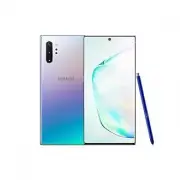


 Samsung Galaxy Note 4 User Manual
 Samsung Galaxy Note7 User Manual
 Samsung Galaxy Note8 User Manual
 Samsung Galaxy Note9 User Manual
 Samsung Galaxy Note10 User Manual
 Samsung Galaxy Note10 Lite User Manual
 Samsung Galaxy Note20 User Manual
 Samsung Galaxy Note20 Ultra 5G User Manual
 Samsung Galaxy Note Edge User Manual
 Samsung Galaxy S5 User Manual
 Samsung Galaxy S5 mini User Manual
 Samsung Galaxy S5 Neo User Manual