Page 2 - Contents
Contents Welcome to Prestigo and Configo ................................................................. 1 Configo ......................................................................................................... 2 Start Up Configo .............................................................
Page 5 - Welcome to Prestigo and Configo; activities to start enjoying the Prestigo.
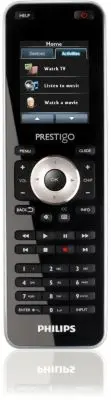
1 Welcome to Prestigo and Configo Welcome to the growing family of owners of Philips products. The Philips Prestigo universal remote control has been designed to control your equipment. Configo is your tool to configure your Prestigo. Simply add your devices and your activities to start enjoying the...
Page 6 - Configo; Start Up Configo; You already configured your Prestigo?
2 Configo Start Up Configo When you connect the Prestigo to your computer, Configo launches automatically. You didn't configure your Prestigo yet? Click Get Started to start configuring your Prestigo and adding devices . You already configured your Prestigo? When you have used your Prestigo before, ...
Page 7 - Update the Configo Software and Firmware; Note; Uninstall Configo; Uninstall for Windows users; Open the; Windows control panel; Select; The; application is uninstalled.; Windows
3 Update the Configo Software and Firmware When you launch Configo, the application automatically checks for updates of the software and firmware. If your Configo does not automatically check for updates, change it in the Preferences . In the list of available updates for your Prestigo, select which...
Page 8 - Uninstall for Mac users
4 4 In the Start menu, go to All Programs . First select Philips and then Uninstall Configo . The Configo application is uninstalled. Uninstall for Mac users 1 In the Finder , browse to the Applications folder. 2 Locate Configo . 3 Drag the Configo bundle to the trash. The Configor application is un...
Page 9 - Devices; Add and Delete Devices; Add a Device
5 Devices Devices Devices are audio or video equipment that you plan to use with your Prestigo. Please read more info about your Prestigo in Take a Closer Look at Your Prestigo . As soon as you have installed your devices, you can control them with the buttons on your Prestigo. Devices can also have...
Page 10 - Search for the Settings of Your Device
6 1 Go to the Devices tab. 2 Click Add a Device . The Add a Device -Wizard opens. 3 Click Continue . Step 1 of 2 of the Add a Device - Wizard opens. 4 In the Device type dropdown list, choose your device type. An image for your device is added. 5 In the B rand field, fill in the brand of the device....
Page 11 - When in step 2 of the; -wizard you do not have a remote control for; Yes; Done; Help button; Copy the Buttons of Your Remote Control
7 the selected brand. And when your device reacts, you know that is the correct setting. When in step 2 of the Add a Device -wizard you do not have a remote control for your device ... Click the hyperlink "I do not have a remote control for my [brand name][device type]". or When in step 2 of...
Page 12 - When in step 1 of the; -wizard you fill in your brand and select the; -wizard you press the button on your remote; Delete a Device
8 When in step 1 of the Add a Device -wizard you fill in your brand and select the device type, but the brand is not recognized ... or When in step 2 of the Add a Device -wizard you press the button on your remote control you normally use to switch off (standby) your device, but the signals were not...
Page 13 - Tip; Edit Devices; Edit a Device; Rename your device; Rename a Device; Go to the; field is now editable.
9 Tip You can also delete a device with the Delete option in the context-menu. For Windows users: right-click the device. For Mac users: control-click the device. Edit Devices Edit a Device After adding a device you might want to edit it, for example, change the name of your device or the volume con...
Page 14 - Continue editing your device; Favorites; Prestigo Touch
10 5 Click outside of the name field. The name of your device is changed. 6 Continue editing your device . -or- Click Done . The name change is saved to your Prestigo. You return to the Devices tab. Favorites If you have a Prestigo Touch (SRT8215), you can add favorites when you are editing your dev...
Page 15 - In the; Click; You return to the
11 7 In the Favorites screen, click Save . The favorites are set. You return to the Edit the Device page. 8 Click Done . You return to the Devices tab. Tip You can click the Expert settings button in the Favorites screen to fine tune the channel switching.
Page 17 - Favorites - Expert Settings; Changing the channel switching speed:; Defining how to switch to the channel:; Customize Softbuttons
13 Favorites - Expert Settings When you use favorites and you want to fine tune the way Prestigo switches channels, you can change the channel switching speed or change the switch channel options in the Expert Settings. To change the expert settings: 1 In the Favorites screen, select the favorite of...
Page 19 - Renaming a softbutton:; Change Volume Controls
15 Renaming a softbutton: 1 Double-click the softbutton you want to rename. The name field is now editable. 2 Change the name of the softbutton. 3 Click outside of the name field. The softbutton is renamed. 4 Click Save . The softbuttons are customized. You return to the Edit the Device page. 5 Clic...
Page 20 - Repair a Button
16 Repair a Button When you encounter a non-working button on your Prestigo, you can repair this button using the device's remote control. 1 Go to the Devices tab. 2 Click the device for which you want to repair a button. The Edit the Device page opens. 3 Click Repair a button . 4 Click the button o...
Page 21 - one touch
17 Activities Activities Activities enable you to switch a number of devices on and off with one touch of a button while all buttons needed for operating the devices immediately become available. For example, to watch DVD you normally would have to: Switch on the TV; Switch on the DVD; Switch ...
Page 22 - Add and Delete Activities; Add an Activity; devices you added; Delete an Activity
18 Add and Delete Activities Add an Activity You can add up to 6 activities for the Prestigo SRU6006 remote control, up to 8 activities for the Prestigo SRU6008 remote control, up to 15 activities for the Prestigo Touch SRT8215 remote control. To add an activity, follow these steps: 1 Go to the Acti...
Page 23 - Edit Activities; Edit an Activity; Rename
19 4 Click Yes . The activity is deleted. -or- Click No . You return to the Activities tab without deleting the activity. Tip You can also delete an activity with the Delete option in the context-menu. For Windows users: right-click the activity. For Mac users: control-click the activity. Edit Activ...
Page 24 - Rename an Activity; Continue editing your activity; Favorites for Activities
20 Rename an Activity To rename an activity: 1 Go to the Activities tab. 2 Click the activity of which you want to change the name. The Edit an Activity page opens. 3 Click the activity name next to the activity image. The name field is now editable. 4 Change the name of the activity. 5 Click outsid...
Page 25 - The favorite is added to the screen.
21 4 Add a channel icon: 1. Enter the name of the channel and click Search . 2. Select the icon you want to add to the selected channel. -or- 1. Click Import. The Open window opens. 2. Browse on your computer, select the image you want to use for this favorite and click OK . 5 In the pop-up, click D...
Page 26 - Modify icon; button and edit the; Deleting a favorite:
22 Editing a favorite: 1 Click on a favorite. 2 Edit the favorite: Edit the channel number. Click on the Modify icon button and edit the channel icon. 3 In the Favorites screen, click Save . The favorites are set. You return to the Edit an activity page. 4 Click Done . You return to the Activities t...
Page 27 - Favorites - Expert Settings for Activities; Customize Softbuttons for Activities
23 Favorites - Expert Settings for Activities When you use favorites and you want to fine tune the way Prestigo switches channels, you can change the channel switching speed or change the switch channel options in the Expert Settings. To change the expert settings: 1 In the Favorites screen, select ...
Page 28 - Adding a softbutton:
24 1 Go to the Activities tab. 2 Click the activity you want to edit. The Edit an activity tab opens. 3 Click Customize softbuttons . The Customize softbuttons screen opens. 4 Continue with... Adding a softbutton: 1 Hover over an empty space on one of the screens. A green border and a green plus ico...
Page 30 - Input Selection
26 1 Go to the Activities tab. 2 Click the activity of which you want to edit the settings. The Edit an Activity page opens. 3 Click Settings . The Settings page opens for the selected activity. 4 Select the device of which you wish to change the settings. 5 Change the settings of the device. 6 Clic...
Page 32 - Troubleshoot an Activity
28 Adding a delay: A delay is the time in between two actions of an activity. A delay can be handy when, for example, your TV takes a while to switch on completely, or when your DVD-player needs to load a DVD before playing it. 1 Click Insert a Delay . A delay is added to the Actions list. 2 Change ...
Page 33 - Advanced Editing
29 Advanced Editing In the Advanced Editing section, you can program an activity yourself. Change the macro to finetune it to your wishes. For example, you want your TV to always start up on a specific channel. Or, when you want to watch a DVD, you program the activity so, that the tray of your DVD ...
Page 34 - Changing the details of the action:
30 Deleting an action: 1 In the Actions list select the action you want to delete. 2 Click on the Delete button. The action is deleted. 3 Click Save . Your changes to the actions list have been saved. You return to the Edit an Activity page. 4 Click Done . You return to the Activities tab. Tip You c...
Page 36 - Preferences; Automatic software updates:
32 Preferences Preferences To change your preferences: 1 In the menu bar, select Preferences . The Preferences window opens. 2 Continue with... Automatic software updates: 1 Check the checkbox to enable automatic software updates. -or- Uncheck the checkbox to disable automatic software updates. 2 Cl...
Page 38 - Use your Prestigo; Take a Closer Look at Your Prestigo; devices
34 Use your Prestigo Take a Closer Look at Your Prestigo Learn what you can do with your Prestigo (SRU6006 - SRU6008) remote control! Learn what you can do with your Prestigo Touch (SRT8215) remote control! Watch the tutorial for your SRU6006 or SRU6008 on your PC: 1. In the Configo menu bar, select...
Page 39 - Use of the Help Button on your Prestigo; The Power button; Prestigo
35 To learn more about the Help button, go to Use of the Help Button on your Prestigo . The Power button Depending on the mode you are in, your Power button can perform different actions. For the Prestigo (SRU6006 and SRU6008) In the Home screen, in Devices list and the Activities list: For the Pr...
Page 40 - The Input Button; The Help Button on your Prestigo; repairing a button; Insert Batteries
36 Press the Back button. -or- Press a second time. On the Device page, will represent the function of this device. On the Activity page, will power off all the devices that are used in this activity. The Input Button Depending on the mode you are in, your Input button can perform different acti...
Page 41 - Select a Device; Start or End an Activity
37 2 Put in the enclosed AA-batteries (3 pcs) Take into account the right direction +/- for the batteries. 3 Close the battery compartment again. You can now start using your Prestigo. For disposal of your batteries, read Disposal of your old product in the Legal Information. Select a Device On the ...
Page 42 - Select a Favorite on Your Prestigo Touch
38 6 Go to the Home screen. 7 Select the Activities tab on the touch screen. 8 Select an [Activity] on the touch screen. The actions list of your [Activity] is executed. Tip If one of the devices for your activity did not work properly, use the Help button on your Prestigo to solve your problem. End...
Page 43 - Legal information; WEEE regulation; Disposal of your old product; FCC Compliancy; USA; Reorient or relocate the receiving antenna
39 Legal information WEEE regulation Disposal of your old product Your product is covered by the European Directive 2002/96/EC. Also, your product operates on batteries covered by the European Directive 2006/66/EC. This means your product or batteries should not be disposed of with normal household ...
Page 44 - Notice for Canada / Remarque pour le Canada
40 Notice for Canada / Remarque pour le Canada This class B digital apparatus complies with Canadian ICES-003. Cet appareil numérique de la Classe B est conforme à la norme Canadienne NMB- 003.
Page 45 - Frequently Asked Questions; Prestigo Remote Control; How do I exit the on-board Help wizard on the Prestigo?; Prestigo Remote Control - Using Devices
41 Frequently Asked Questions Frequently Asked Questions Prestigo Remote Control How do I exit the on-board Help wizard on the Prestigo? Press the Help button again. What can I do when my Prestigo reboots when pressing a button? Replace the batteries by a new set of preferably alkaline batteries. Wh...
Page 46 - Prestigo Remote Control - Using Activities
42 Can I modify the input hard button functionality? Yes, you can change/repair the IR code that is sent on button press via the Prestigo „ Help ‟ functionality. In case you want to copy this specific IR code from your original remote, connect the Prestigo to the computer, select the device and choo...
Page 47 - Can I change the volume controls for my activity?; How can I tell which devices are participating in an activity?; Configo Application
43 Some devices require that a command is sent for some time (long button press). To simulate this in an activity action list, select the activity in Configo and click the „ Advanced ‟ button. Right-click the input command and select „Details‟. Increase the duration of the signal as needed. Can I ch...
Page 48 - Can I add a PS3, WII to my devices list?; How can I add an ‘Input' function to the soft button list on the LCD?
44 What can I do when my original remote is not recognized (Add device process - Step 2)? Make sure the distance between your original remote and your Prestigo is between 10 and 30 cm. Point the original remote at the IR receiver on the front of your Prestigo (point at the glossy IR window). -or- So...
Page 49 - Can I copy a button from my original remote control to a soft button?; What are ‘Favorites’?; Configo Application - For Windows
45 “Repair a button”. Click the display of the remote and select the added function from the list. Then copy the correct button from your original remote control. This will make sure the function will be part of the input menu in any activity. How can I change device, activity or soft button names t...
Page 50 - Helpdesk
46 Helpdesk Land Telefonnummer Österrike 0810000205 Belgien 078250145 Tjeckien 800142840 Danmark 35258759 Finland 0923113415 Frankrike 0805025510 Tyskland 08000007520 Grekland 080031221280 Irland 18007445477 Italien 800088774 Luxemburg 04066615644 Nederländerna 08000230076 Norge 22708111 Polen 00800...


 Philips SRP3013/10 Quick Guide
 Philips SRP3013/27 User Manual
 Philips SRP4000/10 User Manual
 Philips SRP5016/10 Quick Guide
 Philips SRP9232D/27 User Manual
 Philips SRT8215 Manual
 Philips SRU160NC/05 User Manual
 Philips SRU2040 Manual
 Philips SRU3003 Manual
 Philips SRU3003/27 Manual
 Philips SRU5040/55 Manual
 Philips SRU5106/27 Manual