Page 2 - Table of contents
Introduction �������������������������������������������������3 Dear customer ...............................................................3About this user manual ..............................................3What’s in the box ..........................................................3Customer se...
Page 3 - Introduction; Dear customer; Symbols used; What’s in the box; Customer service centre
Introduction 3 Introduction Dear customer Thank you for purchasing this projector.We hope you enjoy this product and the many functions it offers! About this user manual The quick start guide supplied with this product allows you to start using this product quickly and easily. Detailed descriptions ...
Page 4 - Setting up the product; Repairs
4 Screeneo U5 SCN550/INT 1 General safety information Take note of all warning and safety notes indicated. Do not make any changes or settings that are not described in this user manual. Incorrect operation, and improper handling can lead to physical injury, damage to the product or loss of data. Se...
Page 5 - Power supply; Laser safety
General safety information 5 Power supply Check whether the mains voltage of the power supply matches the mains voltage available at the setup location. This product complies with the voltage type specified on the product.The power outlet shall be installed near the product and shall be easily acces...
Page 6 - Overview; Top view; Connection ports
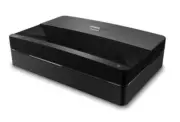
6 Screeneo U5 SCN550/INT 2 Overview Top view b a a Eye protection sensor b Power button and indicator • Press for 2 seconds: switch the projector on or off. • Press for 1 second: switch the projector to standby. Rear view K a b c a Connection ports b Connect to a suitable power supply. c Kensington ...
Page 8 - Installation; Place the projector
8 Screeneo U5 SCN550/INT 3 Installation Place the projector You can install the projector in four different configurations. Follow the guidelines below for different projector placement. Notice For overhead mounting on ceiling, purchase a projector mount recommended by an installation professional a...
Page 9 - Operation; Connect power supply
Operation 9 2 To adjust projection to the correct position, go to Settings - Projector Settings -Display Mode, then select Rear Hoisting. Screen size and installation distance The distance between projector and screen is proportionate to display size, the closer the projector and the screen, the sma...
Page 10 - Power on and set up; Switch to standby; Boot guidance; Connect to a wired network
10 Screeneo U5 SCN550/INT 3 Close the battery compartment. Notice When using the remote control, point the remote control at the IR sensor on the projector, and make sure there is no obstacle between the remote control and the IR sensor. Power on and set up Press and hold on the projector (or on the...
Page 11 - System home page; Access online services; Picture adjustment; Adjust image position
Operation 11 2 Select your Wi-Fi network from the list and press OK . 3 Input your Wi-Fi network password using the on-screen virtual keyboard. Then select the right arrow on the right side of the virtual keyboard and press OK . Sign into your Google account To access the abundant range of Android a...
Page 13 - Focus adjustment; -Point picture calibration; AI PONT; TV Manager
Operation 13 Focus adjustment 1 Press the key on the remote control, or press the key then select Projector Settings - Focus Adjustment . 2 Adjust the focus according to the screen prompts until the screen becomes clear from blurry. 8-Point picture calibration 1 Press the remote control key, then se...
Page 14 - Media Player; Connect to
14 Screeneo U5 SCN550/INT Media Player The projector has a built-in media player. Using this media player, you can play videos, music or view images stored on a USB storage device.1 Select the Media Player app icon from the app list on the home page. 2 The media center supports audio and video file ...
Page 15 - Other features
Other features 15 1 Connect the HDMI™ cable to the ARC-compatible HDMI™ port on your external speakers or AV receiver. 2 Connect the other end to the port on the rear of the projector. USB (5V/1A) USB (5V/1A) HDMI 1 LAN COAXIAL SPDIF RS-232 HDMI 2 (eARC) AUX Connect to devices through S/PDIF Connect...
Page 16 - Use EasyLink; Chromecast streaming
16 Screeneo U5 SCN550/INT Connect to Bluetooth speaker Through Bluetooth, you can stream music wirelessly from the projector to a Bluetooth speaker. Notice The projector cannot be connected to a smartphone or tablet for music streaming through Bluetooth. 1 On your Bluetooth speaker, turn on Bluetoot...
Page 17 - Change settings; Language settings
Change settings 17 7 Change settings This section helps you change the settings of the projector.1 To access the Settings menu, use the Navigation buttons to select the icon in the upper right corner of the screen, then press OK . 2 Use the Navigation buttons and OK to select and change settings. La...
Page 18 - Select input; Bluetooth settings
18 Screeneo U5 SCN550/INT • Enable/disable surround sound effect. • Speakers on or off. • Enable/disable eARC. • Enable/disable digital output. • Turn DTS DRC feature on or off. • Reset to Default: Reset the sound settings to factory default values. • and more. Select input To select the current inp...
Page 19 - Projector settings; Quick settings
Change settings 19 Projector settings 1 Select to access Settings menu. 2 Select Projector Settings , and then press OK . 3 Through the Projector Settings, you can make the following changes:• Dolby Vision: Change the screen size and gain. • Picture Calibration: 8-Point image calibration. • Focus Ad...
Page 20 - Service; Cleaning; Cleaning the lens; Update software; Update software through USB; Troubleshooting; Power cycling
20 Screeneo U5 SCN550/INT 8 Service Cleaning DANGER! Instructions for cleaning! Use a soft, lint-free cloth. Never use liquid or easily flammable cleansers (sprays, abrasives, polishes, alcohol, etc.). Do not allow any moisture to reach the interior of the projector. Do not spray the projector with ...
Page 22 - Appendix; Technical data
22 Screeneo U5 SCN550/INT 9 Appendix Technical data Technology/optical Display technology ................... DLP Cinema ChipLight source ......................................................... LaserLight sources life .............. last over 25,000 hoursResolution ....True 4K UHD (3840 x 2160 pix...
Page 23 - Other notice
Appendix 23 CE statement • The product shall only be connected to a USB interface of version USB 2.0 or higher. • Adapter shall be installed near the equipment and shall be easily accessible. • The operating temperature of the EUT can’t exceed 35°C and shouldn’t be lower than 5°C. • The plug is cons...