Page 2 - Memory jogger card
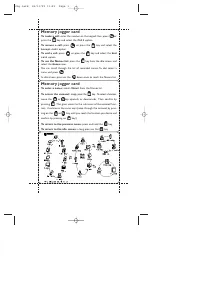
Memory jogger card To make a call: enter the number on the keypad, then press or press the key and select the Call option. To answer a call: press or press the key and select the Accept call option. To end a call: press or press the key and select the End call option. To use the Names list: press th...
Page 3 - Overview of menus
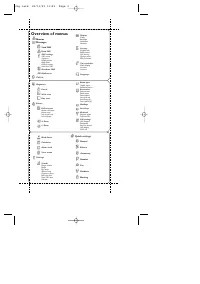
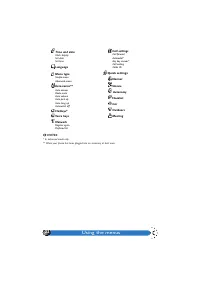
Overview of menus Names Messages Send SMS Read SMS SMS settings SMS centreSignatureValidity periodReply pathDelivery reportAuto save SMS Broadcast SMS Mailbox no. Call list Organiser Events Week view Day view Extras Call counters Accum. call timerAccum. costInfo at call endLast call info. -> Euro...
Page 4 - Table of contents; Before first use
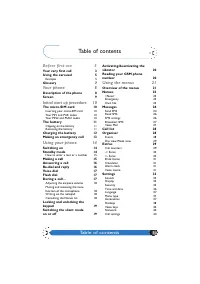
1 Table of contents Table of contents Before first use 3 Your very first call 3 Using the carousel 5 Example 5 Glossary 7 Your phone 8 Description of the phone 8 Screen 9 Initial start up procedure 10 The micro-SIM card 10 Inserting your micro-SIM card 10 Your PIN and PUK codes 10 Your PIN2 and PUK2...
Page 5 - Precautions; Maintenance
Table of contents 2 Quick settings 43 Use of network services 44 Additional GSM network services - GSM strings 44 Checking a voice server, voicemailbox, messaging service,etc. via DTMF tones 44 Making a second call 45 Answering a second call 45 Explicit Call Transfer 46 Answering a third call 46 Con...
Page 6 - Your very first call; Turn the phone face down; Insert the micro SIM card.
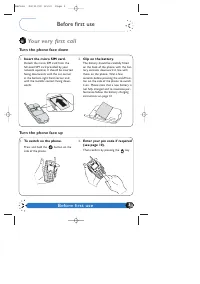
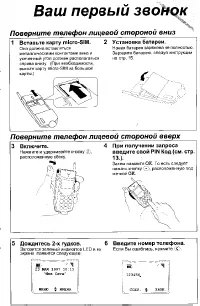
3 Before first use Before first use Your very first call Turn the phone face down Turn the phone face up 1. Insert the micro SIM card. Detach the micro SIM card from thefull sized SIM card provided by yournetwork operator. It should be insertedfacing downwards with the cut cornerat the bottom right ...
Page 7 - Wait for the 2 beeps.
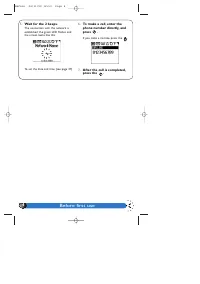
Before first use 4 5. Wait for the 2 beeps. The connection with the network isestablished, the green LED flashes andthe screen looks like this: To set the date and time (see page 37). 6. To make a call, enter thephone number directly, andpress . If you make a mistake, press the . 7. After the call i...
Page 8 - Using the carousel; To adjust the contrast
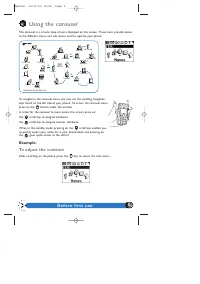
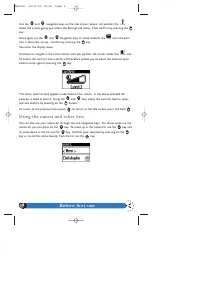
Before first use 5 Using the carousel The carousel is a circular loop of icons displayed on the screen. These icons provide accessto the different menus and sub menus used to operate your phone. To navigate in the carousel menu, you may use the scrolling navigation keys found on the left side of you...
Page 9 - Using the names and other lists
Before first use 6 Use the and navigation keys on the side of your phone and position the above the cursor, giving you access the Settings sub menu. Then confirm by pressing the key. Once again use the and navigation keys to move towards the icon and posi- tion it above the cursor. Confirm by pressi...
Page 10 - Glossary
Before first use 7 Glossary Conference call A multiparty call with up to five other parties in addition to yourself;a network dependent feature. DTMF Dual Tone Multi FrequencyTones that are transmitted by the phone to the network. They are used tolisten to messages on answering machines, transmit co...
Page 11 - Your phone
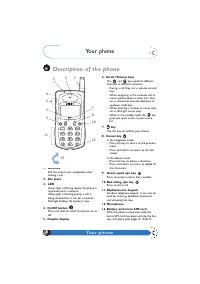
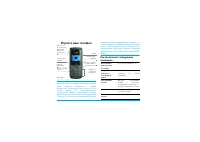
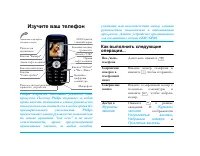
8 Your phone 1. Antenna Pull the antenna out completely whenmaking a call. 2. Ear piece 3. LED Green light is flashing slowly: the phone isregistered with a network.Green light is flashing quickly: a call isbeing received but is not yet answered.Red light flashing: the battery is low. 4. On/Off butt...
Page 12 - Screen; Carousel; Call forward; Permanent icons
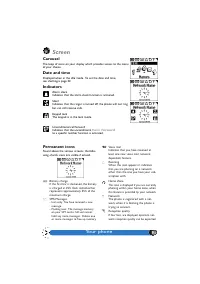
Your phone 9 Screen Carousel The loop of icons on your display which provides access to the menuof your choice. Date and time Displayed when in the idle mode. To set the date and time,see «Settings» page 32. Indicators Alarm clockIndicates that the alarm clock function is activated. SilentIndicates ...
Page 13 - Initial start up procedure; The micro SIM card; Inserting your micro SIM card
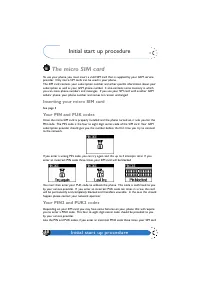
10 Initial start up procedure Initial start up procedure The micro SIM card To use your phone, you must insert a valid SIM card that is supplied by your GSM serviceprovider. Only micro SIM cards can be used in your phone.The SIM card contains your subscription number and other specific information a...
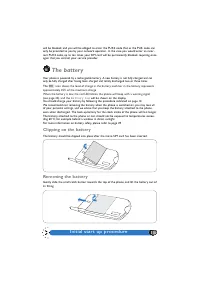
Page 14 - The battery; Clipping on the battery
Initial start up procedure 11 will be blocked, and you will be obliged to enter the PUK2 code that as the PUK code, canonly be provided to you by your network operator. In the case you would enter an incor-rect PUK2 code, up to ten times, your SIM card will be permanently blocked, requiring onceagai...
Page 15 - Charging the battery
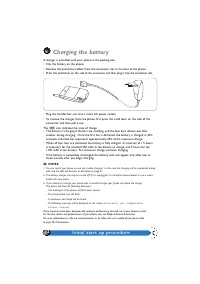
Initial start up procedure 12 Charging the battery A charger is provided with your phone in the packing box. • Clip the battery on the phone. • Remove the protective rubber from the connector slot at the base of the phone. • Press the small lever on the side of the connector, and then plug it into t...
Page 16 - Making an emergency call
Initial start up procedure 13 Making an emergency call L NOTE: Some networks may require a SIM card for emergency calls; please check with your service provider. • Switch on the phone. The display shows the welcome screen. Even if your PIN code is requested,your phone will function without it. • Ent...
Page 17 - Using your phone; Switching on
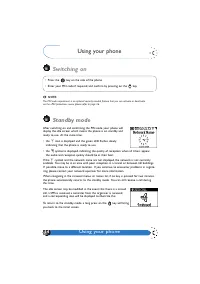
14 Using your phone Using your phone Switching on L NOTE: The PIN code requirement is an optional security minded feature that you can activate or deactivate via the «PIN protection» menu, please refer to page 36. Standby mode After switching on and confirming the PIN code, your phone will display t...
Page 18 - How to enter a text or a number; Making a call
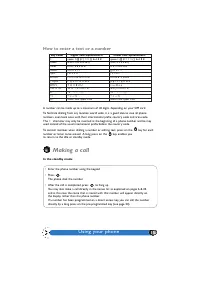
Using your phone 15 How to enter a text or a number A number can be made up to a maximum of 40 digits, depending on your SIM card. To facilitate dialling from any location world wide, it is a good idea to save all phone numbers, even local ones with their international prefix, country code and area ...
Page 19 - Answering a call; Incoming call
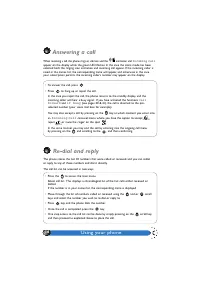
Using your phone 16 Answering a call When receiving a call, the phone rings or vibrates and the animation and Incoming call appear on the display while the green LED flashes. In the case the silent mode has beenselected both the ringing icon animation and incoming call appear. If the incoming caller...
Page 20 - Voice dial
Using your phone 17 Voice dial You can automatically dial a number by simply saying your correspondent’s name if you havepreviously saved the name with a voice tag as explained on page 23. To dial a previously stored number associated with a voice tag, a long press on the , and say the voice tag of ...
Page 21 - Adjusting the ear-piece volume; Notepad; Consulting the names list
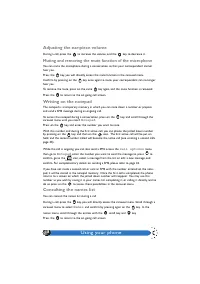
Using your phone 18 Adjusting the ear-piece volume During a call, press the to increase the volume, and the key to decrease it. Muting and removing the mute function of the microphone You can mute the microphone during a conversation so that your correspondent cannothear you. Press the key, you will...
Page 22 - Locking and unlocking the keypad
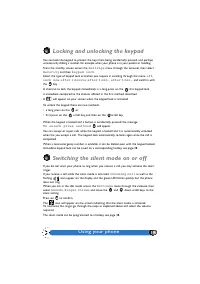
Using your phone 19 Locking and unlocking the keypad You can lock the keypad to protect the keys from being accidentally pressed, and perhapsunnecessarily dialling a number; for example when your phone is in your pocket or handbag. From the standby screen, access the Settings menu through the carous...
Page 23 - Activating/deactivating the vibrator; Reading your GSM phone number
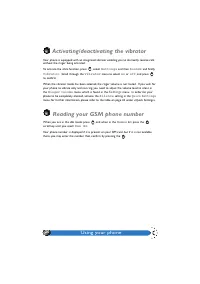
Using your phone 20 Activating/deactivating the vibrator Your phone is equipped with an integrated vibrator enabling you to discreetly receive callswithout the ringer being activated. To activate the vibra function, press , select Settings and then Sounds and finally Vibrator . Scroll through the Vi...
Page 24 - Using the menus; Using the menus; Overview of the menus
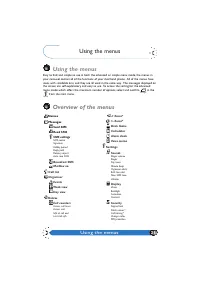
21 Using the menus Using the menus Using the menus Easy to find, and simple to use in both the advanced or simple menu mode, the menus inyour carousel contain all of the functions of your dual band phone. All of the menus haveicons with scrollable lists, and they are all used in the same way. The me...
Page 26 - phone; Select a name
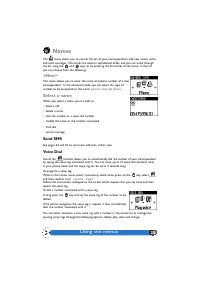
Using the menus 23 Names The menu allows you to consult the list of your correspondents, add new names, write and send messages. The names are listed in alphabetical order, and you can scroll throughthe list using the and keys or by entering the first letter of the name. In the list you can choose f...
Page 27 - Flash Dial; Emergency; Messages; Standard SMS
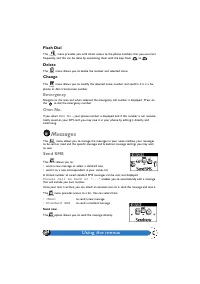
Using the menus 24 Flash Dial The menu provides you with direct access to the phone numbers that you use most frequently, and this can be done by associating them with the keys from to . Delete The menu allows you to delete the number and selected name. Change The menu allows you to modify the selec...
Page 29 - Saved messages; Received messages selection; SMS settings; SMS centre
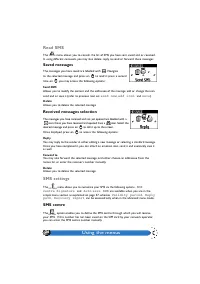
Using the menus 26 Read SMS The menu allows you to consult the list of SMS you have sent, saved and or received. In using different carousels, you may also delete, reply, re-send or forward these messages. Saved messages The messages you have saved are labelled with . Navigate to the selected messag...
Page 30 - Signature; Broadcast SMS
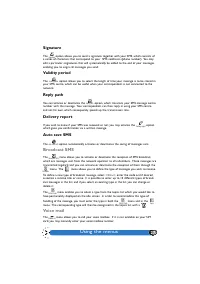
Using the menus 27 Signature The option allows you to send a signature together with your SMS, which consists of a series of characters that correspond to your SMS «address» (phone number). You mayedit a particular «signature» that will systematically be added to the end of your messages,enabling yo...
Page 31 - Organiser; Events; Add a new event
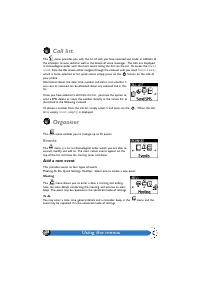
Using the menus 28 Call list The menu provides you with the list of calls you have received and made, in addition of the attempts to auto redial as well as the details of voice messages. The calls are displayedin chronological order with the most recent being the first on the list. To access the Cal...
Page 32 - Select an event; Day view and week view; Extras; Call counters
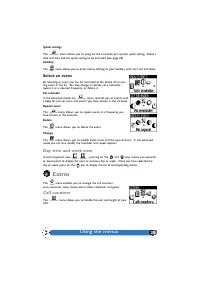
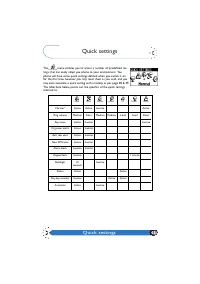
Using the menus 29 Quick settings The menu allows you to program the activation of a specific quick setting. Select a date and time and the quick setting to be activated (see page 43). Holiday The menu allows you to enter events relating to your holidays, with start and end dates. Select an event By...
Page 33 - Accumulated call timers
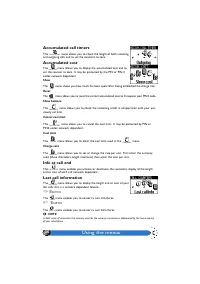
Using the menus 30 Accumulated call timers The menu allows you to check the length of both incoming and outgoing calls and to set the counters to zero. Accumulated cost The menu allows you to display the accumulated cost and to set the counter to zero. It may be protected by the PIN or PIN 2codes; n...
Page 34 - Brick game; Calculator
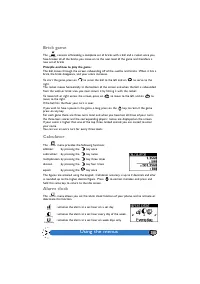
Using the menus 31 Brick game The consists of breaking a complete set of bricks with a ball and a racket; once you have broken all of the bricks, you move on to the next level of the game and therefore anew set of bricks. Principle and how to play the game: The ball moves through the screen, rebound...
Page 35 - Voice memo; Sounds; Ringer volume
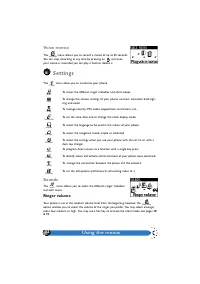
Using the menus 32 Voice memo The menu allows you to record a memo of up to 20 seconds. You can stop recording at any time by pressing on , and once your memo is recorded you can play it back or delete it. Settings The menu allow you to customise your phone. To select the different ringer melodies a...
Page 37 - Display; Zoom
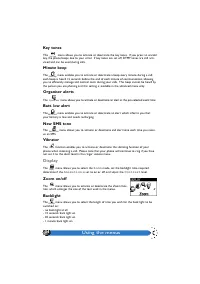
Using the menus 34 Key tones This menu allows you to activate or deactivate the key tones. If you press an unvalid key, the phone beeps due to your error. If key tones are set off, DTMF tones are still acti-vated and can be used during calls. Minute beep The menu enables you to activate or deactivat...
Page 38 - Animation; Security; Keypad lock; Delete; Call barring
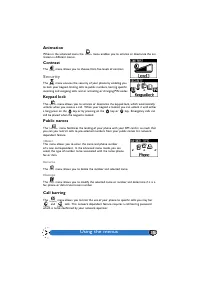
Using the menus 35 Animation When in the advanced menu the menu enables you to activate or deactivate the ani- mation in different menus. Contrast The menu allows you to choose from five levels of contrast. Security The menu ensures the security of your phone by enabling you to lock your keypad, lim...
Page 39 - Change codes; Time and date; Clock display
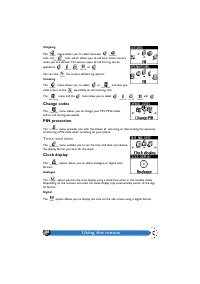
Using the menus 36 Outgoing The menu allows you to select between , calls, and icon, which allows you to call your home country when you are abroad. The various types of call barring can be applied to , , , or . You can also the various call barring options. Incoming The menu allows you to select or...
Page 40 - Language; Auto answer
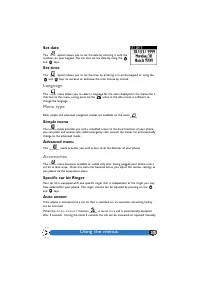
Using the menus 37 Set date The option allows you to set the date by entering it with the numbers on your keypad. You can also set the date by using the and keys. Set time The option allows you to set the time, by entering it in on the keypad or using the and keys to increase or decrease the time mi...
Page 41 - Radio mute; Hotkeys
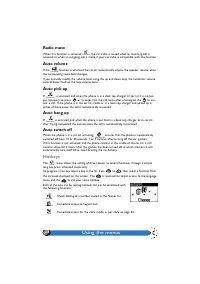
Using the menus 38 Radio mute When this function is activated , the car radio is muted when an incoming call is received or when an outgoing call is made, if your car radio is compatible with this function. Auto volume If the function is activated the car kit automatically adjusts the speaker volume...
Page 43 - Voice keys; Register again; Call settings; Forward
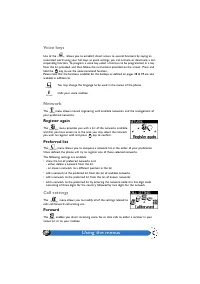
Using the menus 40 Voice keys Use of the allows you to establish direct access to several functions by saying an associated word: using your hot keys as quick settings, you can activate or deactivate a cor-responding function. To program a voice key, select a function to be programmed, in a keyfrom ...
Page 44 - conditional; Autoredial
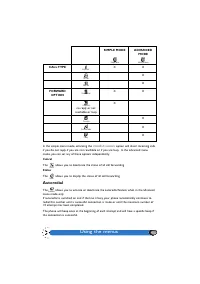
Using the menus 41 In the simple menu mode, activating the conditional option will divert incoming calls if you do not reply, if you are not reachable or if you are busy. In the advanced menumode, you can set any of these options independently. Cancel The allows you to deactivate the status of all c...
Page 45 - Any key answer; Caller ID
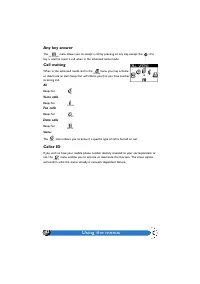
Using the menus 42 Any key answer The menu allows you to accept a call by pressing on any key, except the ; this key is used to reject a call when in the advanced menu mode. Call waiting When in the advanced mode, and in the menu you may activate or deactivate an alert beep that will inform you that...
Page 47 - Additional GSM network services -
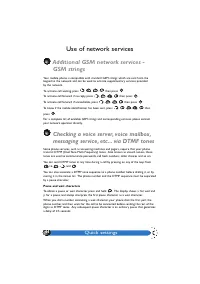
Quick settings 44 Use of network services Additional GSM network services - GSM strings Your mobile phone is compatible with standard GSM strings which are sent from the keypad to the network and can be used to activate supplementary services provided by the network. To activate call waiting, press ...
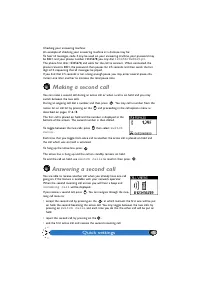
Page 48 - Making a second call; switch; Answering a second call; incoming call
Quick settings 45 Checking your answering machine: An example of checking your answering machine at a distance may be:To hear all messages, code 3 may be used on your answering machine, your password maybe 8421, and your phone number 12345678; you may dial 12345678w8421p3 . The phone first dials 123...
Page 49 - Explicit call transfer; call options; Answering a third call; call waiting
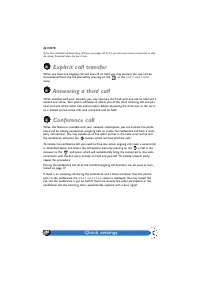
Quick settings 46 L NOTE: If you have activated call forwarding «If busy» (see pages 40 & 41), you will never receive second calls as theyare always forwarded when the line is busy. Explicit call transfer When you have one ongoing call and one call on hold, you may connect the two and bedisconne...
Page 50 - In call symbols
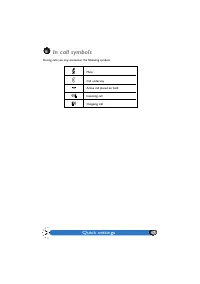
Quick settings 47 In call symbols During calls you may encounter the following symbols: Mute Call underway Active call placed on hold Incoming call Outgoing call
Page 51 - Radio wave safety
48 Precautions Precautions Radio wave safety Your cellular phone is a radio transmitter / receiver, and when it is switched on, it transmitsand receives radio waves in the frequency range of 880 MHz to 960 MHz and 1710 MHz to1885 MHz. The GSM network controls the power level at which the phone trans...
Page 52 - Battery and charger safety
Precautions 49 • Do not use your phone if the antenna is damaged. If you happen to touch a damaged antenna, you may suffer from a minor skin burn. Have it replaced as soon as possible bya qualified technician, and be sure that it is replaced with a genuine manufacturer’s repla-cement part. • Avoid l...
Page 53 - Safety and Security; Respect of local laws and regulations
Precautions 50 Safety and Security Responsibility You are responsible for your GSM mobile phone. To avoid careless handling of the phonethat may result in damage to it, and prevent unauthorised use that could cause harm, pleaseread, follow, and explain the following instructions presented here to an...
Page 54 - Looking after your phone:
51 Maintenance Maintenance Looking after your phone: Your phone is highly sophisticated electronic device, however the electronic componentsdo not require any specific care. To improve the ease and comfort of use of your product,there are a few simple things that you may do: • Handle the phone with ...
Page 55 - Efficient use of your phone
Maintenance 52 Efficient use of your phone Your phone has been developed to provide you with outstanding battery performance;with approximately 90-120 minutes of talk time and 110-130 hours of standby time withthe standard battery.*Placing and receiving calls consumes the same amount of battery ener...
Page 56 - BLOCKED; Accessory
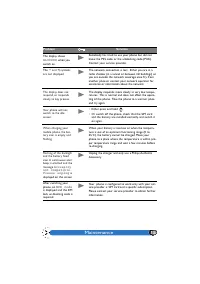
Maintenance 53 Problem Solution Somebody has tried to use your phone but did notknow the PIN code or the unblocking code (PUK).Contact your service provider. The network connection is lost. Either you are in aradio shadow (in a tunnel or between tall buildings) oryou are outside the network coverage...
Page 57 - not
Maintenance 54 Problem Solution Your phone does notwork well in your car. Difference between along press and a shortpress on numeric key-pad. The time and the datehave been reset. Your phone does notdisplay the phone num-ber of incoming calls. When attempting to usea feature in the menu,the mobile d...
Page 58 - insert SIM card
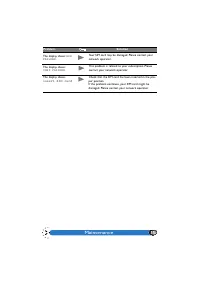
Maintenance 55 Problem Solution The display shows SIM FAILURE . The display shows IMSI FAILURE . The display shows insert SIM card . Your SIM card may be damaged. Please contact yournetwork operator. This problem is related to your subscription. Pleasecontact your network operator. Check that the SI...
Page 59 - Accessories; Desktop charger
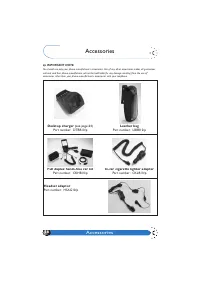
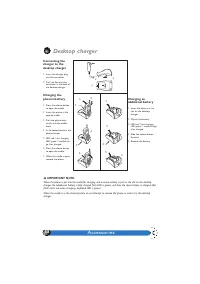
56 Accessories Accessories L IMPORTANT NOTE: You should use only your phone manufacturer’s accessories. Use of any other accessories makes all guaranteesnull and void.Your phone manufacturer will not be held liable for any damage resulting from the use ofaccessories, other than your phone manufactur...
Page 60 - Spare batteries; Type
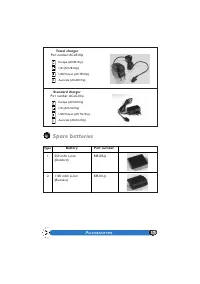
Accessories 57 Spare batteries Type Battery Part number 1 550 mAh Li-Ion BIB105/p (Standard) 2 1100 mAh Li-Ion BIB101/p (Business) Travel charger Part number: ACxB10/p Europe (ACSB10/p) UK (ACUB10/p) USA/Taiwan (ACTB10/p) Australia (ACAB10/p) Standard charger Part number: ACxG10/p Europe (ACSG10/p) ...