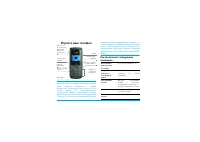
Page 2 - Discover your phone; Function keys; Call
Discover your phone Pressing (up) or (down) on the navigation key when browsing menus is equivalent to pressing e or , . Philips continuously strives to improve its products,and the information and specifications described inthis user guide are subject to change without notice.Philips tries to ensur...
Page 3 - Table of contents
Table of contents 1 Table of contents Operate your phone ............................ 4 The carousel ......................................................4Text or number entry .....................................4 T9 ® text Input .................................... 5Basic text input ................
Page 6 - Operate your phone; when in idle mode, and it features the; The carousel
4 Operate your phone Operate your phone A carousel is a circular loop of icons displayed on thescreen, in which each icon represents a feature or op-tion used to operate your phone. All icons don’t fit within the screen; the hidden ones ap-pear when pressing left or right. The first carousel availab...
Page 7 - Good
Operate your phone 5 T9 ® text Input What is it? T9 ® predictive Text Input is an intelli- gent editing mode for SMS and e-mail,including a comprehensive dictionary. Itallows you to quickly enter text. Pressonly once on the key corresponding toeach letter needed to spell a word: key- strokes input a...
Page 8 - MN; Key; Reminder; Enter PIN
6 Operate your phone Basic text input Although your phone provides you with the T9 ® pre- dictive Text Input by default, if you wish to access thebasic text input, select “Abc” basic text input using * key. This method requires multiple key presses to reachthe desired character: the letter “h” is th...
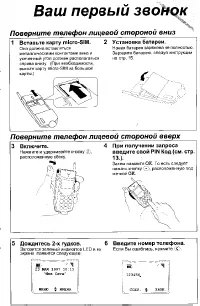
Page 10 - Getting started; • Getting started; Inser t the SIM card; First steps
8 Getting started 1 • Getting started Read the safety instructions in the “Precautions” section be-fore use. To use your phone, you must insert a valid SIM cardsupplied by your GSM operator or retailer. The SIMcard contains your subscription, your mobile number,and a memory in which you can store ph...
Page 11 - To switch on the phone, press and hold the; Set date and time; Proceed in the same way to set the time.
Getting started 9 4. Replace the battery in its slot as shown below:first place its right side against the right edge ofthe phone and press until it clips. 5. Slide the battery door into its slots, metallic con-nectors downwards, until it stops. Enter the PIN code 1. To switch on the phone, press an...
Page 12 - Copy of the SIM phonebook
10 Getting started If you do not copy the SIM phonebook at very firstswitch, you will be able to do it directly from the phone-book menu (see page 35). If you had a mobile phone before and are using thesame SIM card, the card might contain all or part ofyour current phonebook. The mobile phone detec...
Page 13 - cates the state of charge:
Getting started 11 1. Once the battery and battery cover are clipped onthe phone, plug the charger (supplied with thephone, in the box) into the right hand socket atthe base of the phone as shown below. 2. Plug the transformer unit into a main AC powersocket with easy access. The b symbol indi- cate...
Page 14 - Main features; • Main features; If the; Events; to access the corresponding menu; Idle screen and symbols; ted
12 Main features 2 • Main features After switching your phone on and entering the PINcode (see page 9), your phone displays the idle screenwhich means that it is ready to be used. In idle mode,several symbols can be displayed simultaneously. If the n symbol isn’t displayed, the network is not cur- r...
Page 15 - before dialling the country code.; Make a call
Main features 13 1. In idle mode, enter the phone number using thekeypad. To correct an error, press e . For an international call, you can enter the "+" key in-stead of the usual international prefix. To do this pressand hold * before dialling the country code. 2. Press ( to dial the number...
Page 16 - You can only program keys; Redial and reply
14 Main features 2. Back to the Phonebook carousel, select Group set- tings , press , and select the group of your choice. 3. Rename the group to be identified ("Friends","Kids", etc.) and select the Melody and the Picture to be associated to this group. 4. Long press e to go back to...
Page 17 - Silent mode can also be set by selecting; Clear the call list; Deactivate the ringer
Main features 15 3. Then select Flash Dial , press , and select a name in the Phonebook displayed. Press , to confirm your choice. 4. In idle mode, press and hold the programmed keyto dial the associated entry: the connection isestablished. Press ) to hang up. You can also set hotkeys for commands (...
Page 18 - mode as described above.; Adjust the earpiece volume; Read your mobile phone number
16 Main features 2. Move left or right to select On or Off and press , to confirm. Activating the vibra doesn’t mute the ringer. If youwant to mute it and keep the vibra function on, acti-vate the Silence mode as described above. To read your own mobile phone number, press p when in idle mode and se...
Page 20 - Menu tree; • Menu tree; to
18 Menu tree 3 • Menu tree The menus contain all your GSM phone functions.They all feature icons or scrollable lists: press , to enter a menu or sub-menu, move left or right in amenu and up or down to scroll in a list and press , to validate an entry or to confirm a choice. Other operator services p...
Page 21 - Auto switch off / Auto answer
Menu tree 19 Organiser p47 Events Day view Week view Month view Delete past Extras p49 Brick game p49 Call counters p50 Euro p51 Memory status p51 Calculator p51 Alarm clock p51 Settings p24 Sounds p24 Ringer / Ringer volume / Key tones / Minutebeep / Organiser alerts / Battery low alert /New SMS to...
Page 22 - * Subscription dependent
20 Menu tree * Subscription dependent Call settings p32 Call waiting / Caller ID / Active flip / Callforward / Autoredial / Any key answer / Mailboxes Quick settings p33 Philips330_EMEA_Ind3.book Page 20 Jeudi, 31. juillet 2003 3:48 15
Page 23 - Picture album
Display & images 21 4 • Display & images The Picture album and Display menus allow you to se- lect images in a list and display them, as well as set thebacklight duration, screen animations, screen saver,etc.In idle mode, press , and select Picture album for the first option described in thi...
Page 24 - Display
22 Display & images JPEG images must have the correct size and format foryour mobile phone to store and display them correctly.Please check “Get and store attachments” page 58 forcomplete information on this subject. This item of the Settings menu gives you access to all options concerning the d...
Page 25 - Brightness; Contrast
Display & images 23 Activating this function will automatically deactivatethe screen saver. Animation Allows you to activate/deactivate theanimation in different menus. Deactivating this function increases the autonomy ofyour phone. Backlight The backlight is activated when receiv-ing incoming c...
Page 26 - Settings & Quick Settings; • Settings & Quick; Sounds; Settings
24 Settings & Quick Settings 5 • Settings & Quick Settings The Settings menu allows you to customise your phone and change the settings related to each available option(sounds, time and date, accessories, etc.).The Quick Settings menu allows you to change several settings at once (see page 3...
Page 27 - Select
Settings & Quick Settings 25 2. Select Send and press , to send it. This service is subscription dependent; you can onlysend melodies that are out of copyright. When sendinga melody via SMS (see page 41), the receiver must havea Philips mobile phone to be able to hear it. 3. When receiving a mel...
Page 28 - Public names; Call restriction; Call barring; Outgoing calls
26 Settings & Quick Settings Public names Allows you to manage a specific nameslist, called Public Names list, and re- strict calls to this list via the Call restric- tion option. This feature is subscription dependent and requires aPIN2 code (see page 27). Call restriction Allows you to activat...
Page 29 - Status; Time and date; Allows you to select
Settings & Quick Settings 27 Status In each sub-menu (All calls, Whenroaming, etc.), the Status option allows you to know whether a type of call isbarred or not. Change codes Allows you to change your PIN 1,PIN 2 and call barring codes. PIN protection Allows you to activate/deactivate thePIN pro...
Page 30 - Time zone; Language; Auto switch off
28 Settings & Quick Settings Time zone The time zone and daylight savings are to be set first.You should then double-check date and time if previ-ously set. To know which time zone you are in, we rec-ommend you to check in an atlas or an encyclopedia. The Time zone option allows you to set the t...
Page 32 - Subscription dependent
30 Settings & Quick Settings Redials the last number called. Redials the number of the last call re-ceived.Forwards all calls to the voice mail-box. Opens the Phonebook select. menu. Opens the Messages menu. Displays the messages list. Opens the E-mail menu for access to the mailboxes.Launches a...
Page 34 - Active flip; Unconditional; (you are already on the phone and; Mail boxes
32 Settings & Quick Settings Call settings This menu allows you to set all the call options (callforward, waiting, etc.). Active flip When activated, this option allows you to pick up anincoming call by simply opening the phone. A beepalso indicates the end of the communication whenhanging up. R...
Page 35 - Quick settings
Settings & Quick Settings 33 In some cases, you might have to enter two numbers:one to listen to your mailbox, the other one to forwardcalls. Contact your operator for complete informationon this subject. Autoredial Allows you to activate/deactivate theautoredial feature. If autoredial isswitche...
Page 36 - sonal; Accessories settings; Quick
34 Settings & Quick Settings Quick settings Warning! * The settings listed in the first column are the default settings (preset in the factory). As you canchange each of them, they might be different from theones listed below. In both cases (whether you changedparameters or not), these settings ...
Page 37 - Phonebooks; • Phonebooks; Phonebook in SIM card; Phonebook
Phonebooks 35 6 • Phonebooks All operations described in this chapter require youhave selected the relevant Phonebook, whether in SIMor in phone.The present chapter describes how to manage phone-books. Please refer to “Calls and messages” page 40 forfurther information on how to call numbers and sen...
Page 38 - Reset phonebook; In the SIM card; New; In the phone; Add names in the phonebook
36 Phonebooks SIM phonebook and how to add names to it, see “Addnames in the phonebook” page 36. Your mobile phone only manages one phonebook at atime and will ignore the information relative to theother one: e.g., if "Smith" is present in both phonebooksand if you delete it in the phone, it...
Page 39 - Edit and manage names
Phonebooks 37 You can create up to 299 records holding up to 5 nu-meric fields of your choice (e.g. 2 mobile numbers or 3work numbers for the same name) out of a maximumof 7 fields. 1. Press , and select Phonebook > New , then press , . 2. Enter the last, then the first name of your choiceand pre...
Page 40 - Add a field
38 Phonebooks In the SIM card Select a name in the SIM card phonebook, then press , to access one of the following options: • Delete to delete the selected name and number, • Change to change the selected name and all related information, • Copy to phone to copy the selected name and all related inf...
Page 41 - Delete a field
Phonebooks 39 “Change a field content” paragraph. Then select Change type in the carousel menu, select the new type of number and press , to confirm your choice. If you copied your SIM phonebook into your phone,some numbers might appear as being of "No type" anddon’t have any icon. "No t...
Page 42 - Calls and messages; • Calls and messages; Emergency number; Other number; Enter a number; or; Call a number
40 Calls and messages 7 • Calls and messages The Phonebook menu features information related to each name stored in the selected phonebook. If the entries are different from one phonebook to theother, the Phonebook menu contents may vary. As for the Messages menu, it allows you to manage the message...
Page 43 - Use Flash dial; Send a SMS; To a name in the list; To the number of your choice (phone name list only); Messages
Calls and messages 41 the list (Mobile, Home, etc.). Press , to access the next carousel and select Call . 4. In all cases, press ) to hang up. Use Flash dial In idle mode, press and hold a keybetween 2 and 9 to dial the associated entry (see “Instead of accessing the Phonebook menu and scrolling th...
Page 44 - To any other name; Read SMS
42 Calls and messages To any other name To send a short message to someone whose numberisn’t stored in the phonebook, press , and select Messages , then Send SMS and New . Enter the phone number to which the message should be sent to andpress , . Then follow the instructions described above to send ...
Page 45 - Received Messages; Clear SMS
Calls and messages 43 that are first stored on your SIM card. Several optionsallow you to then manage them directly on your mo-bile phone. Received Messages The messages you received and already read are labelledwith . Messages received but not yet read are la- belled with an envelope. Select a mess...
Page 46 - then; SMS archive; Auto saved SMS; SMS settings; SMS centre; If not available on your SIM card,; Signature
44 Calls and messages then Reset . Press , again to reset the SMS list. Deleting your SMS list is useful to free memory space inorder to store new messages. SMS archive Allows you to consult all read messagesyou saved. You save a message by acti-vating the Auto saved SMS option (see page 45), or by ...
Page 47 - Auto save SMS; Broadcast SMS; Reception; Call list
Calls and messages 45 Auto save SMS Allows you to activate or deactivate theautomatic saving of messages sent inthe Archive menu. Broadcast SMS This menu allows you to activate ordeactivate the reception of SMSbroadcast by the network to all sub- scribers. When activated, this service causes the mob...
Page 48 - You can directly access the Call list by moving; Press
46 Calls and messages You can directly access the Call list by moving c while in idle mode. You can also select a record in the Call list and press ( to dial the corresponding number. Reset Press , , select Call list , then Reset . Press , to reset the Call list. Philips330_EMEA_Ind3.book Page 46 Je...
Page 49 - • Organiser & Extras; Creating a new event; This menu only applies to; Organiser
Organiser & Extras 47 8 • Organiser & Extras Your mobile phone features an Organiser which allows you to manage and co-ordinate various eventsincluding meetings.Events can be viewed in different ways (day, week ormonth views), can be changed or deleted at any mo-ment, as well as repeated acc...
Page 50 - and select; Modifying an event; Changing an event; Deleting a single event; By selecting a past occurrence
48 Organiser & Extras The organiser shares the mobile capacity and memorywith other features (phonebook, picture album, etc.).As a consequence, all features are inter-dependent: themore events you create, the less names, memos or imagesyou can store, and vice-versa. 299 is the maximum to-tal of ...
Page 51 - Deleting passed events; Views of events; Brick game; Extras
Organiser & Extras 49 Deleting passed events You can also delete past events by se-lecting Delete past at the first level of the Organiser menu. To do so, pro-ceed as follows: 1. Press , , select Organiser > Delete past , and press , . 2. Enter the starting date (past or future) fromwhich all...
Page 54 - Off
52 Organiser & Extras Then select one of the alarm alerts: the buzzer, a melo-dy or a memo recording if stored and press , to con- firm your choice. The alarm clock will ring even if you turned off yourphone, but NOT if the Ringer volume is set to Off (see page 24). Press any key to stop the ala...
Page 55 - you simply have to; two types of settings must be configured; Login
E-mail 53 9 • E-mail If not included in your phone subscription , you must subscribe to an e-mail account (over the phone or viaInternet from a computer) and have received the set-tings information from your provider. In this case, allparameters are communicated to you by your providerand/or operato...
Page 56 - Network access; OR
54 E-mail An e-mail account might be preconfigured with thename of your operator. In this case, its name cannot bechanged. 1. Press , , select E-mail > E-mail 1 > Settings > Account name , and press , . 2. Enter the new name in the alphanumeric text edi-tor, and press , . Network access Thi...
Page 57 - Advanced; receive; In most European countries, this menu should be set to; To one or several recipients; Write and send e-mails
E-mail 55 In some cases, Login , Password and E-mail address are up to you when you subscribe to your account. Enterthem also as defined. Advanced The menus described in this section feature advancedsettings that may have been pre-configured, so that youshouldn’t have to change any of them. If the f...
Page 58 - With an attachment
56 E-mail phonebook again and add new names to the mail-ing list. 5. Repeat steps 2 to 4 to add as many recipients aswanted. 6. Select Validate list and press , . Then enter the subject of your e-mail (you can leave this fieldempty) and press , . 7. In the next window, enter the text of your e-mail(...
Page 59 - Connect to the server; Connection process; Receive and read e-mails
E-mail 57 E-mails are received on a server, whichyou must connect to in order to re-trieve your e-mails on your mobile phone (some operators send you a SMS when you re-ceive a new e-mail). You must first download the head-ers from the server before retrieving the correspondinge-mails. Connect to the...
Page 60 - Get and store attachments
58 E-mail If the e-mail is too big (over 7 KB), it is rejected and thedownload is cancelled. Get and store attachments If the e-mail you have received contains attachments(JPEG image, text file or another e-mail), they arecharacterised by a specific icon: You must have stored an image before being a...
Page 61 - Add an e-mail address to the phonebook
E-mail 59 • Use a file name of maximum 10 characters. Youcan then add an extension such as ".jpg". Add an e-mail address to the phonebook You must have selected the phonebook in your phone tobe able to add an e-mail address; this menu item willNOT appear if you selected the SIM phonebook. Yo...
Page 63 - WAP services; 0 • WAP services
WAP services 61 10 • WAP services Most items of the Operator Services menu (e.g. Service numbers, Services +) are subscription-dependent andspecific to operators: your mobile phone readily sup-ports them if they are included in your subscription.Consequently, the menus shown opposite may or maynot b...
Page 64 - Last page
62 WAP services • Mark site to add the previous deck to the user’s bookmark list (network dependent). • About... displays browser version and copyright information. • Advanced displays a menu containing advanced commands: - Show URL : to display the URL of the previous card, - Goto URL : to fetch th...
Page 65 - Access settings
WAP services 63 Status icons To activate or deactivate the headerdisplay. Deactivating this function al-lows you to gain an extra line of text onyour screen. Download fun URL To enter or change the URL of theDownload fun server (depending onyour subscription, this field may be locked, preventing re-...
Page 67 - Other operator services; 1 • Other operator; book; GSM strings
Other operator services 65 11 • Other operator services Most items of the Operator Services menu (e.g. Servicenumbers, Services +) are subscription-dependent andspecific to operators: your mobile phone readily sup-ports them if they are included in your subscription.Consequently, the menus shown opp...
Page 68 - Switch calls; Make a second call
66 Other operator services Pause and wait characters To obtain a pause or wait character, press and hold # . The display shows w for a wait and p for a pause. The phone always interprets the first pause character asa wait character. When you dial a number containinga wait character, your phone dials...
Page 69 - Answer a second call
Other operator services 67 You are able to receive another call when already incommunication (if this feature is available with yoursubscription). When you receive a second call thephone emits an alert beep and the screen displays Call waiting . To receive a second call, you must have:- subscribed t...
Page 70 - Explicit Call Transfer
68 Other operator services end the conference with ) . At this point all calls are disconnected. In order to make consecutive outgoingcalls, first initiate a normal call with the first number ofthe conference. When the first member is on line, ini-tiate a second call as described in “Make a second c...
Page 71 - Precautions; Your cellular mobile phone is a; Radio waves
Precautions 69 Precautions Your cellular mobile phone is a low power radio transmitter and receiver . When it is operating, it sends and receives radio waves.The radio waves carry your voice or data signal to a base station that is connected to thetelephone network. The network controls the power at...
Page 72 - Always switch off your phone
70 Precautions phone complies with all applicable safety standards and the Radio Equipment and TelecommunicationsTerminal Equipment Directive 1999/5/EC. Inadequately protected or sensitive electronic equip- ment may be affected by radio energy. This interfe- rence can lead to accidents. Before board...
Page 73 - improve the performance of your phone; Performance improvement
Precautions 71 your particular device is susceptible to cellular phoneinterference. In order to improve the performance of your phone , reduce radio energy emission, reduce battery con- sumption and ensure safe operation adhere to the fol-lowing guidelines: For the optimal and satisfactory operation...
Page 74 - Do not use your phone while driving
72 Precautions It lowers concentration, which can be dange-rous. Adhere to the following guidelines:Give your full attention to driving. Pull offthe road and park before using the phone. Respect the local regulations in countries where youdrive and use your GSM phone.If you want to use your phone in...
Page 75 - Troubleshooting; PROBLEM; Press and hold
73 Troubleshooting PROBLEM SOLUTION The phone does notswitch on Remove and reinstall the bat-tery (see page 8). Then chargethe phone until the battery iconhas stopped flashing. Finally,unplug from the charger andtry to switch the mobile on. The display showsBLOCKED whenyou switch on Somebody tried t...
Page 78 - Philips authentic accessories; Philips authentic; Compact car kit; Cigarette Lighter adapter 12-24 V
76 Philips authentic accessories Philips authentic accessories Charges the battery while you useyour phone, Plugs into virtually anyvehicle power outlet. In certain countries, telephoning while driving is pro-hibited. For safe and trouble free installation, we rec-ommend that specialized technicians...
Page 79 - Route d’Angers
Declaration of conformity We, Philips FranceMobile Telephony Business Creation Team of Route d’Angers 72081 Le Mans cedex 9 FRANCE declare under our sole responsibility that the product Philips 330CT 3308 Cellular Mobile Radio GSM 900/GSM 1800TAC: 351645 to which this declaration relates, is in conf...