Page 2 - Table of contents
Table of contents 1 Table of contents 1. Discover your phone ....................... 3 Install the SIM card ...........................................3 Install / remove the battery ............................3 Remove the SIM card .......................................3 Charge the battery ...........
Page 4 - Discover your phone; • Discover your phone; The phone must be off when installing the SIM card.; Install the SIM card
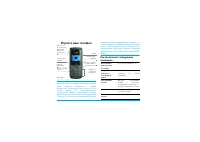
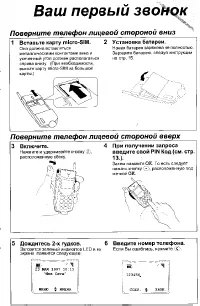
Discover your phone 3 1 • Discover your phone To use your phone, you must insert a valid SIM cardsupplied by your GSM operator. The card stores yourphone number and your subscription information. The phone must be off when installing the SIM card. 1. Remove the SIM card fromits plastic holder. 2. Pu...
Page 5 - Keypad; Short press
4 Discover your phone 2. Plug the transformer unit into a main AC powersocket with easy access, as the only way to turn offthe charger is to unplug it. 3. The bars of the battery icon start to scroll, indi-cating that the phone is charging (there may be adelay before the icon appears if the battery ...
Page 6 - The; and keys
Discover your phone 5 Control Keys On/off and hang up key Press or long press this red key on the right ofthe keypad area in the following cases: Call key Press this green key on the left of the keypad areato answer a call or dial a number. Left softkey: and right softkey: The functions of these two...
Page 7 - Side keys; When editing text
6 Discover your phone Clear / Cancel key Press or long press this red key in the bottom of the keypad area in the following cases: Side keys Up/Down Side keys When browsing lists and menus - Short press to return to the previous screen, - Long press to return to the idle screen. When editing text - ...
Page 8 - Multimedia Side key; External screen
Discover your phone 7 Multimedia Side key How to... All operations described below must be performedfrom the idle mode. Your mobile phone features a W80 x H48 pixels, blackand white external screen, which display is always on. When the flip is closed, long press any side key to acti-vate the externa...
Page 9 - Multiparty; Main screen; Icons; Battery
8 Discover your phone Seven colour backlight can only change colour accord-ing to the MIDI melodies embedded in the phone,NOT when playing MIDI files downloaded via the se-rial cable (sold separately as an accessory). The external screen is contextual, i.e., it displays iconsand information accordin...
Page 10 - Missed call; Make a call from the Dialled calls list; Vibra
Discover your phone 9 Idle screen events Missed call Indicates that you missed a call: press to return to idle mode, or twice to display the details of this call. New message You received a new message: press to return to idle mode, or to read it, and then to access the options. When pressing , a sm...
Page 11 - Functions; • Functions; Answer a call; must be set to; Reject a call; The option in; Make a call; Switch on / off the phone
10 Functions 2 • Functions 1. Press to switch on the phone (long press the key if the battery is charging). 2. To prevent unauthorised use of your SIM card,you can set a security code (PIN code), which willbe requested at switch on. 3. Enter your PIN code. If you make a mistake,press . Then confirm ...
Page 12 - predictive Text; Text or number entry
Functions 11 1. While a call is in progress, press [ Menu ], select Hold and press . 2. Enter the second phone number to dial, ORPress [ Menu ], select Phonebook , then a name in the list.In both cases, press to dial the number. 3. Once the two calls are ongoing, press [ Menu ] to access the options...
Page 13 - Switch between input modes; Input of symbols; All symbols are not displayed on the screen: press; SIM phonebook; Phonebook
12 Functions this mode requires you to press a key as many times asis equal to the order of the letter. Numbers (123) This input mode is performed directly within the textarea. To enter numbers, simply press the number keys, ~ . Switch modes Switch between input modes When entering text in an edit w...
Page 14 - Select the phonebook; Search a name
Functions 13 • A number type: Default number type , Mobile number , Office number , Home number , Fax number , Pager number . When the record is copied from the SIM card phone-book to the phone’s phonebook, the entry will automat-ically be given a default number type. A name card must include at lea...
Page 15 - Operating the names list; Capacity; Once deleted, records cannot be recovered.; Copy all; From SIM card to phone
14 Functions Names List options Operating the names list When a record is selected in the Names list , press [ Options ] to access the following options: Manipulate the phonebook records When you select a record in the phone’s phonebook (asopposed to the SIM phonebook) and press twice, the following...
Page 16 - From phone to SIM card; Move All; Selecting; Restricted mode
Functions 15 will stop once all records were saved, or if the memoryof the phone’s phonebook is full.Each phone number of the SIM card will be set as thedefault phone number (default field) of the copiedname card. From phone to SIM card Select this option to copy the content of your phone’sphonebook...
Page 17 - Menu operations; • Menu operations; The icons of the main menu are linked to keys; Inbox; Messages
16 Menu operations 3 • Menu operations The main menu consists of 9 icons, displayed in a 3x3grid. Press [ Menu ] or to access the main menu from the idle screen. Then press / / / keys to select an icon which name is displayed in theupper-left corner of the screen. Press or [ OK ] to access the next ...
Page 18 - New message; OR; Sending a message from the
Menu operations 17 Outbox The Outbox stores Sent messages and Unsent messages . When ready to send a SMS, select Save message or Send and save to save it in your phone, whether it was sent or not. Selecting Send now will send your SMS without saving it.Messages of the Outbox can be managed the same ...
Page 19 - Press; Settings; Service centre
18 Menu operations 6. Press when your list is completed. You will access the following options: Defined message 1. Select Messages > Write message > Defined mes- sage . 2. This will open a list of predefined messages youcan choose from, allowing you to quickly send aSMS instead of entering a c...
Page 20 - Status report; Delete messages; You divert calls to your voice mailbox by setting the
Menu operations 19 Status report This function sends a delivery report when the textmessage has been received. This function can be set On or Off . This feature is subscription-dependent. Reply path Allows you to set the Reply path option On or Off . When On , it allows you to transmit the number of...
Page 21 - Call voice mail; Broadcast SMS; Reception; Add new; Call list
20 Menu operations calls. Contact your operator for more information onthis subject. Call voice mail Your phone will inform you when you receive a voicemail. Select this option of the Voice mail menu and press to call your voice mailbox and listen to your messages, OR long press when in idle mode. B...
Page 23 - Quick Settings
22 Menu operations This menu allows you to access a group of predefinedsettings, which let you quickly adapt your phone toyour environment by overriding the original settingswhen activated. As shown in the following table, eachavailable mode features a set of default values. If the call costs exceed...
Page 24 - The setting will apply to all groups.
Menu operations 23 Personalise You can personalise the values of each Quick Settingaccording to your preferences: 1. Select an item in the list and press . 2. Select Personalise , then set any of the available options described below. 3. Press to automatically apply and store changes. If the selecte...
Page 26 - Keys; Call settings; Minute reminder
Menu operations 25 Keys (language selection), (call voice mail- box) and (Wap) are preset and cannot be changed. Key ~ can be set from the Set hotkey menu: 1. Select a hotkey in the list and press or [ Options ] to access the functions list. 2. Then select a function from the list and press to link ...
Page 27 - Auto answer; Date and time; Change
26 Menu operations Auto answer Allows you to set the auto answer On or Off . When On , the phone automatically answers a call after a short pe-riod of ringing. Call waiting Network and subscription-dependent. This function can be set On or Off for GSM calls and GPRS calls.If On , the phone will disp...
Page 28 - PIN Code; VIP list call screening; Black list and VIP list
Menu operations 27 Security settings PIN Code Allows you to set On or Off the PIN protection when switching on your phone. When On , you will be asked to enter your PIN code when switching your phone on. Call barring This menu allows you to limit the use of your phone tospecific calls by letting you...
Page 29 - Call screening settings; Network settings; Preferred networks
28 Menu operations Call screening settings This menu allows you to select which level of callscreening you want to activate and allows you to Enable black list , Enable VIP list or Disable all . When the Enable black list / VIP list call screening is acti- vated, the Reject call / Accept call icon a...
Page 30 - Attach GPRS; Factory settings; This feature is network and subscription-dependent.; Call forward
Menu operations 29 Attach GPRS Your mobile integrates features that support GPRS(Global Packet Radio Service), a service allowing youto exchange data with high speed rates and to stay al-ways on-line (i.e. have a permanent WAP connection). Contact your phone operator to have full informationabout GP...
Page 31 - Tools
30 Menu operations Organiser This menu allows to create up to 100 events and storethem in your organiser. Events can be a Meeting or a Memo . When the organiser alert is on, a beep alerts you when an event is due. and the phone automatically dis-plays the new event icon and its content. If the phone...
Page 32 - You can also press; Stopwatch; Flip opened
Menu operations 31 case of repeated events, the alert applies to the most re-cent one. Unrepeated events stay unchanged when you set a dif-ferent date and time, even if this date is prior to a pro-grammed event. Alarm Clock This menu allows you to set the alarm clock at 3different moments, correspon...
Page 33 - Switch on; Fun
32 Menu operations Count-down Timer The Count-down timer allows you to set an alarm by defining a delay (in hours and minutes) after which thealarm will ring. World Time This function allows you to view the time of major cit-ies located in different time zones of the world, and to Set as local the s...
Page 34 - Preset a station; Games; Reflexes
Menu operations 33 2. You activate the automatic search for a radio sta-tion by pressing / (press to cancel the search). 3. Once your mobile phone has found a station, thecorresponding frequency flashes on the screenand the current radio program is played. Preset a station 1. You can memorise up to ...
Page 35 - Smartmove; Biorhythm graphs; Birthday; Home; Go
34 Menu operations Smartmove Push the light blue balls to position them on top ofeach palm tree. You win once all balls are correctly po-sitionned. Luckystar This game is similar to a one-arm bandit in the casino.Press to run the slot machine (three columns, each of them consisting of 6 different pa...
Page 36 - Profiles
Menu operations 35 Last page Gives you direct access to the last WAP page you havebrowsed. Navigation Allows you to directly enter the address of a WAP siteyou want to go to and browse. Settings Profiles Three different profiles, featuring different settings, areavailable from this menu, which allow...
Page 37 - Image download; Information
36 Menu operations Image download This menu allows you to set On or Off the downloading of images attached to WAP pages ( Off will speed up browsing). Status bar show This On / Off option allows you to choose whether to display the status bar ( On ) or not ( Off ). The structure and names under this...
Page 38 - Accessories; • Accessories; Headset
Accessories 37 4 • Accessories If the headset is connected to thephone, its microphone and ear-phone replace those of the phone.During a call, press the Up/Downside keys to turn the volume up ordown.If the headset is removed from the phone, the phone will automatically return to its nor-mal mode. Th...
Page 39 - Troubleshooting; PROBLEM; The display shows; BLOCKED; when; Press and hold
38 Troubleshooting Troubleshooting PROBLEM SOLUTION The phone does not switch on Remove and reinstall the bat-tery. Then charge the phoneuntil the battery icon hasstopped flashing. Finally, un-plug from the charger and tryto switch the mobile on. The display shows BLOCKED when you switch on Somebody...
Page 40 - IMSI failed; SIM failure; Insert your SIM card
Troubleshooting 39 The display shows IMSI failed This problem is related toyour subscription. Contactyour operator. When charging the battery, the battery icon shows no bars and the outline is flashing Only charge the battery in anenvironment where the tem-perature does not go below0°C (32°F) or abo...
Page 41 - Precautions; Your cellular mobile phone is a; dio transmitter and receiver; Your cellular mobile phone is your; responsibility; Security; local recommendations and regula-; when using your cellular phone both at home; Regulations on the use of cellular; Radio waves
40 Precautions Precautions Your cellular mobile phone is a low power ra- dio transmitter and receiver . When it is op- erating, it sends and receives radio waves. Theradio waves carry your voice or data signal to a base station that is connected to the telephone net-work. The network controls the po...
Page 42 - Always switch off your phone
Precautions 41 phone complies with all applicable safety standards and the Radio Equipment and TelecommunicationsTerminal Equipment Directive 1999/5/EC. Inadequately protected or sensitive electronic equip- ment may be affected by radio energy. This interfer- ence can lead to accidents. Before board...
Page 43 - improve the performance of your phone; Performance improvement
42 Precautions In order to improve the performance of your phone , reduce radio energy emission, reduce battery con- sumption and ensure safe operation adhere to the fol-lowing guidelines: For the optimal and satisfactory operation ofthe phone you are recommended to use thephone in the normal operat...
Page 44 - Do not use your phone while driving
Precautions 43 It lowers concentration, which can be danger-ous. Adhere to the following guidelines:Give your full attention to driving. Pull offthe road and park before using the phone. Respect the local regulations in countries where youdrive and use your GSM phone.The use of an alarm system to op...
Page 45 - of; Route d’Angers; FRANCE
Declaration of conformity We, Philips FranceMobile Telephony Business Creation Team of Route d’Angers 72081 Le Mans cedex 9 FRANCE declare under our sole responsibility that the product Philips 630CT 3630 Cellular Mobile Radio GSM 900/GSM 1800TAC: 351643 to which this declaration relates, is in conf...