Page 3 - Contents
1 English EN Contents 1 Important 2 Safety 2 Notice 3 2 Your Mini Hi-Fi System 5 Introduction 5 What’s in the box 5 Over view of the main unit 6 Over view of the remote control 7 3 Get started 9 Connect speakers 9 Connect power 9 Prepare the remote control 9 Set clock 10 Turn on 10 4 Play 11 Play fr...
Page 4 - Important; Safety; Know these safety symbols; Important Safety Instructions
2 EN 1 Important Safety Know these safety symbols This ‘bolt of lightning’ indicates uninsulated material within your unit may cause an electrical shock. For the safety of ever yone in your household, please do not remove product covering. The ‘exclamation mark’ calls attention to features for which...
Page 5 - Mains fuse; Notice; Declaration of conformity
3 English EN • Remove batteries when the unit is not used for a long time. o Apparatus shall not be exposed to dripping or splashing. p Do not place any sources of danger on the apparatus (e.g. liquid filled objects, lighted candles). q Where the MAINS plug or an appliance coupler is used as the dis...
Page 7 - System; Introduction; What’s in the box
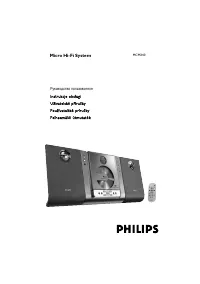
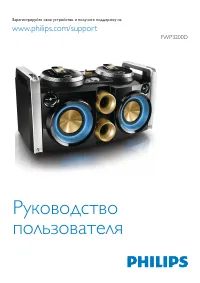
5 English EN 2 Your Mini Hi-Fi System Congratulations on your purchase, and welcome to Philips! To fully benefit from the suppor t that Philips offers, register your product at www.philips.com/welcome. Introduction With this Hi-Fi system, you can: • enjoy audio from discs, USB storage devices, Bluet...
Page 8 - Overview of the main unit
6 EN Overview of the main unit a • Turn on the unit.• Switch to normal standby or Eco Power standby mode. b AUDIO IN • Connect an external audio device through a 3.5mm audio cable (not supplied). c SOURCE/PAIRING • Select a sound source: DISC, BT, USB, FM, AUDIO IN, or AUX IN. • In Bluetooth mode, p...
Page 9 - Overview of the remote
7 English EN q AUX IN (L/R) • Connect an external audio device through RCA (red/white) audio cables. r ANTENNA (FM) • Connect the supplied FM antenna. Overview of the remote control a • Turn on the unit.• Switch to normal standby or Eco Power standby mode. b • Open or close the disc compar tment. a ...
Page 11 - Get started; Connect speakers; Connect power; Prepare the remote control
9 English EN 3 Get started Caution • Use of controls or adjustments or performance of procedures other than herein may result in hazardous laser exposure or other unsafe operation. Always follow the instructions in this chapter in sequence. If you contact Philips, you will be asked for the model and...
Page 12 - Set clock; Turn on; Switch to standby mode
10 EN 1 Open the batter y compar tment. 2 Inser t one AAA batter y with correct polarity (+/-) as indicated. 3 Close the batter y compar tment. Note • If you are not going to use the remote control for a long time, remove the batter y. • Batteries contain chemical substances, so they should be dispo...
Page 13 - Play from a Bluetooth-; Pair and connect; Stream music through Bluetooth
11 English EN 4 Play Play from a Bluetooth- enabled device Note • The effective operation range between the unit and your Bluetooth enabled device is approximately 10 meters (30 feet). • Any obstacle between the unit and the Bluetooth enabled device can reduce the operational range. • Compatibility ...
Page 14 - Play a disc; Play from USB
12 EN Tip • If the Bluetooth enabled device also suppor ts AVRCP (Audio Video Remote Control Profile), you can use some basic operation buttons of the unit (such as the play/pause, stop and previous/next buttons) to control music play. To disconnect the Bluetooth-enabled device: • Press and hold PAI...
Page 15 - Listen to an; Listen to an MP3 player; Listen to an external audio
13 English EN 5 Listen to an external device You can listen to an external audio device through the speakers of this unit. Listen to an MP3 player 1 Press SOURCE repeatedly to select the AUDIO IN source. 2 Connect a 3.5mm audio cable (not supplied) to:• the 3.5mm audio input socket on the front of t...
Page 16 - Play options; Display play information
14 EN 6 Play options Repeat and shuffle play • During disc play, press repeatedly to select:• REPEAT ONE: the current track is played repeatedly. • REPEAT ALL: all tracks are played repeatedly. • REPEAT OFF: normal play is resumed. • During disc play, press to select shuffle (random) play. Tip • Shu...
Page 17 - Adjust volume; Adjust volume level; Mute sound; Select a preset sound effect; Enhance bass
15 English EN 7 Adjust volume level and sound effect Note • MAX sound and bass boost cannot be activated at the same time. Adjust volume level Caution • For your hearing health and being consideration of other people, it is not recommended to listen at high volume levels for a long time. • During pl...
Page 18 - Listen to radio
16 EN 8 Listen to radio Tune to a radio station 1 Press SOURCE repeatedly to select FM. 2 Press and hold / for more than two seconds. » [SEARCH] (search) is displayed. » The radio tunes to a station with strong reception automatically. 3 Repeat step 2 to tune to more stations.• To tune to a weak sta...
Page 19 - Other features; Set the alarm timer; Set the sleep timer; Restore default settings
17 English EN 9 Other features Set the alarm timer This unit can be used as an alarm clock. You can select disc, radio or USB as alarm source. 1 Make sure that you have set the clock correctly. 2 Press and hold SLEEP/TIMER for more than two seconds. » ‘TIMER SET’ is displayed. Then, a prompt to sele...
Page 20 - information; Specifications; Amplifier; Disc; USB playability information
18 EN 10 Product information Note • Product information is subject to change without prior notice. Specifications Amplifier Total output power 230W RMS (30% THD) Frequency response 60Hz -20KHz, ±3dB Signal-to- noise ratio >70 dBA Disc Audio DAC 24Bits / 44.1kHz Tuner FM tuning range 87.5 - 108MHz...
Page 21 - Supported MP3 disc formats; Maintenance
19 English EN Unsupported formats: • Empty albums: an empty album is an album that does not contain MP3 files, and is not be shown in the display. • Unsuppor ted file formats are skipped. For example, Word documents (.doc) or MP3 files with extension .dlf are ignored and not played. • AAC, WAV, PCM ...
Page 22 - 1 Troubleshooting
20 EN 11 Troubleshooting Warning • Never remove the casing of this apparatus. To keep the warranty valid, never tr y to repair the system yourself. If you encounter problems when using this apparatus, check the following points before requesting ser vice. If the problem remains unsolved, go to the P...