Page 5 - Installation
1 Introduction Table of Contents Thank you for purchasing this television set.This handbook has been designed to help you install and operate your TV set.We would strongly recommend that you read it thoroughly.We hope our technology meets entirely with your satisfaction. Installation Presentation of...
Page 6 - Presentation of the LCD Television; POWER; For more details on connections see page 11.
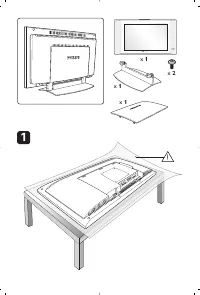
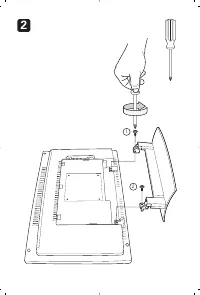
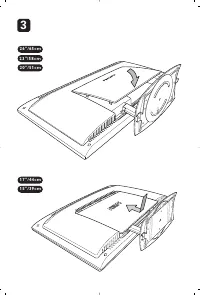
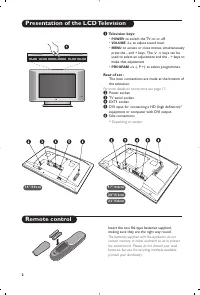
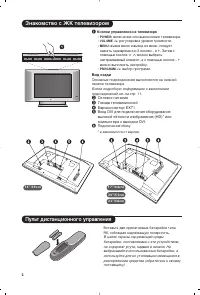
2 PROGRAM VOLUME 2 3 " / 5 8 c m 1 5 " / 3 9 c m 1 7 " / 4 4 c m 2 0 " / 5 1 c m Presentation of the LCD Television Remote control & Television keys: • POWER : to switch the TV on or off. • VOLUME -/+ : to adjust sound level. • MENU : to access or close menus, simultaneously pres...
Page 7 - Remote Control Keys for LCD TV Functions; Source List; îÏ
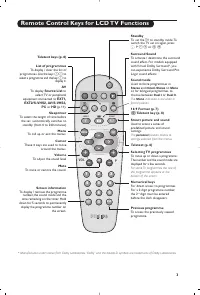
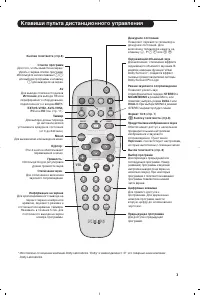
3 1 2 MENU VOL P 5 6 4 8 7 9 0 3 - - + + . [ Á - ª ` ù SMART SMART Ë ¤ ı AV Remote Control Keys for LCD TV Functions Sound mode Used to force programmes in Stereo and Nicam Stereo to Mono or, for bilingual programmes, tochoose between Dual I or Dual II . The Mono indication is red when in forced pos...
Page 8 - Quick installation; Sort; Positioning the television set; Installing your television set
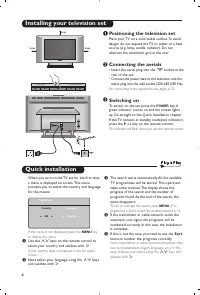
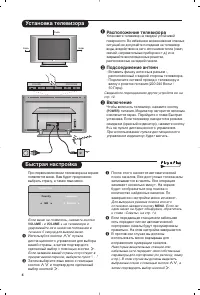
Quick installation When you turn on the TV set for the first time,a menu is displayed on screen. This menuprompts you to select the country and languagefor the menus: If the menu is not displayed, press the MENU key to display the menu. & Use the <> keys on the remote control to select you...
Page 9 - choice; Program sort
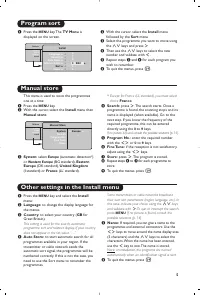
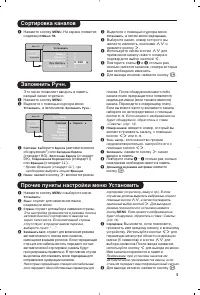
5 Manual store Other settings in the Install menu This menu is used to store the programmesone at a time. & Press the MENU key. é With the cursor, select the Install menu then Manual store : “ System: select Europe (automatic detection*) or Western Europe (BG standard), Eastern Europe (DK standa...
Page 10 - You can also access; Feature settings
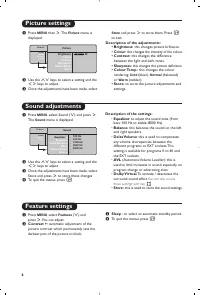
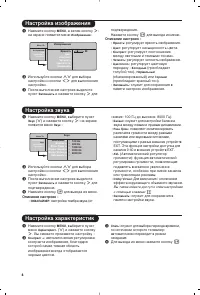
Picture settings Sound adjustments & Press MENU then ≥ . The Picture menu is displayed: é Use the <> keys to select a setting and the ≤≥ keys to adjust. “ Once the adjustments have been made, select Store and press ≥ to store them. Press Ë to exit. Description of the adjustments: • Brightn...
Page 11 - Screen Formats; If your television is equipped with a 4:3 screen.; Press the; Subtitle Zoom; This mode displays images in full screen.
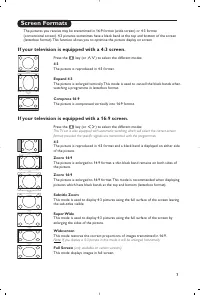
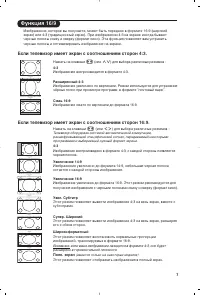
7 Screen Formats The pictures you receive may be transmitted in 16:9 format (wide screen) or 4:3 format(conventional screen). 4:3 pictures sometimes have a black band at the top and bottom of the screen(letterbox format). This function allows you to optimise the picture display on screen. If your te...
Page 12 - Teletext
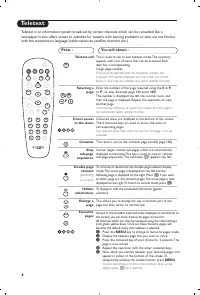
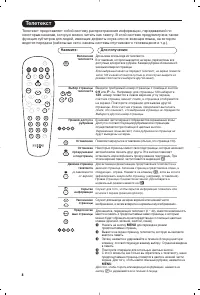
8 1 2 MENU VOL P 5 6 4 8 7 9 0 3 - - + + . [ Á - ª ` ù SMART SMART Ë ¤ ı AV AV P 9 0 M E N U Ë Ë ¤ ù Teletext Press : You will obtain : Teletext is an information system broadcast by certain channels which can be consulted like anewspaper. It also offers access to subtitles for viewers with hearing ...
Page 13 - Using in PC monitor mode
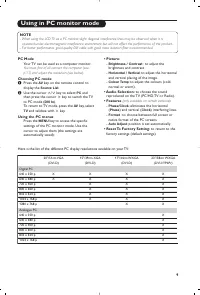
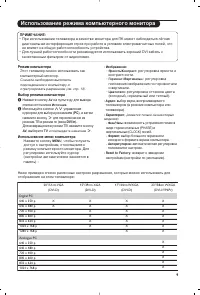
9 Using in PC monitor mode PC Mode Your TV can be used as a computer monitor. You must first of all connect the computer (seep.13) and adjust the resolution (see below). Choosing PC mode & Press the AV key on the remote control to display the Source List . é Use the cursor < / > key to sel...
Page 14 - (only available for certain signal
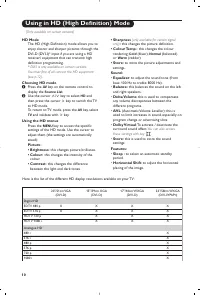
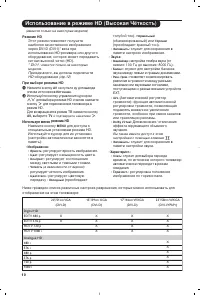
10 Using in HD (High Definition) Mode (Only available on certain versions) Digital HD EDTV 480 p EDTV 576 p HDTV 720 p HDTV 1080 i Analogue HD 480 i 576 i 480 p 576 p 720 p 1080 i 20"/51cm VGA (DVI-D) X X 15"/39cm XGA (DVI-D) X X X X 17"/44cm WXGA (DVI-D) X X X X 23"/58cm WXGA (DVI-I...
Page 15 - Connecting peripheral equipment; key on the remote control to display; and select; TV; or peripheral; HD
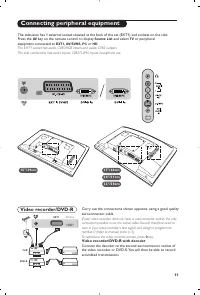
11 Connecting peripheral equipment Carry out the connections shown opposite, using a good qualityeuroconnector cable. If your video recorder does not have a euroconnector socket, the onlyconnection possible is via the aerial cable.You will therefore need totune in your video recorder's test signal a...
Page 16 - Headphones; keys are used to adjust the volume level.; For more information on using HD mode see page 10.; Side connections; Carry out the connections shown opposite.; Other equipment
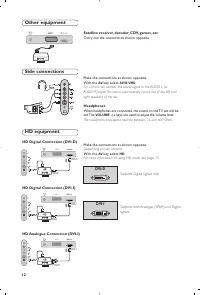
12 Make the connections as shown opposite.With the AV key, select AV/S-VHS . For a mono set, connect the sound signal to the AUDIO L (orAUDIO R) input. The sound automatically comes out of the left andright speakers of the set. Headphones When headphones are connected, the sound on the TV set will b...
Page 17 - Computer; PC with VGA; Audio out; For more information on using PC mode see page 9.
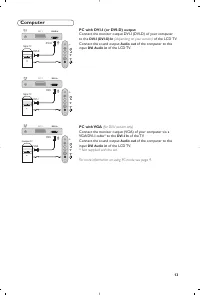
13 Computer PC with DVI-I (or DVI-D) output Connect the monitor output DVI-I (DVI-D) of your computerto the DVI-I (DVI-D) In (depending on your version) of the LCD TV. Connect the sound output Audio out of the computer to the input DVI Audio in of the LCD TV. PC with VGA (for DVI-I version only) Con...
Page 18 - Glossary; Tips; System
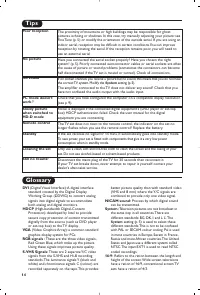
14 Glossary DVI (Digital Visual Interface): A digital interface standard created by the Digital DisplayWorking Group (DDWG) to convert analogsignals into digital signals to accommodateboth analog and digital monitors. HDCP (High-bandwidth Digital-Content Protection): developed by Intel to providesec...
Page 19 - ìÒÚ‡Ìӂ͇; PyccÍËÈ
1 ǂ‰ÂÌË é„·‚ÎÂÌË Ç˚ ÔËÓ·ÂÎË ˝ÚÓÚ ÚÂ΂ËÁÓ, ÒÔ‡ÒË·Ó Á‡ ‚‡¯Â ‰Ó‚ÂËÂ.ùÚÓ ÛÍÓ‚Ó‰ÒÚ‚Ó Ô‰̇Á̇˜ÂÌÓ ‰Îfl ÚÓ„Ó, ˜ÚÓ·˚ ÔÓÏÓ˜¸ ‚‡Ï ÛÒÚ‡ÌÓ‚ËÚ¸Ë ÔÓθÁÓ‚‡Ú¸Òfl ‚‡¯ËÏ ÚÂ΂ËÁÓÓÏ.å˚ ÒÓ‚ÂÚÛÂÏ ‚‡Ï ‚ÌËχÚÂθÌÓ ÔÓ˜ËÚ‡Ú¸ Ëı.å˚ ̇‰ÂÂÏÒfl, ˜ÚÓ Ì‡¯‡ ÚÂıÌÓÎÓ„Ëfl ÔÓÎÌÓÒÚ¸˛ Û‰Ó‚ÎÂÚ‚ÓËÚ ‚‡Ò. ìÒÚ‡Ìӂ͇ á̇ÍÓÏÒÚ‚Ó Ò ...
Page 20 - äÌÓÔÍË ÛÔ‡‚ÎÂÌËfl ̇ ÚÂ΂ËÁÓÂ; Çˉ ÒÁ‡‰Ë; ëÂÚ‚Ó ÔËÚ‡ÌËÂ
2 á̇ÍÓÏÒÚ‚Ó Ò Üä ÚÂ΂ËÁÓÓÏ èÛÎ¸Ú ‰ËÒڇ̈ËÓÌÌÓ„Ó ÛÔ‡‚ÎÂÌËfl & äÌÓÔÍË ÛÔ‡‚ÎÂÌËfl ̇ ÚÂ΂ËÁÓ • POWER: ‚Íβ˜ÂÌË ËÎË ‚˚Íβ˜ÂÌË ÚÂ΂ËÁÓ‡. • VOLUME -/+ : „ÛÎËӂ͇ ÛÓ‚Ìfl „ÓÏÍÓÒÚË. • MENU : ‚˚ÁÓ‚ ÏÂÌ˛ Ë ‚˚ıÓ‰ ËÁ ÏÂÌ˛; ÒΉÛÂÚ Ì‡Ê‡Ú¸ Ó‰ÌÓ‚ÂÏÂÌÌÓ 2 ÍÌÓÔÍË - Ë + . á‡ÚÂÏ Ò ÔÓÏÓ˘¸˛ ÍÌÓÔÓÍ >...
Page 21 - ä·‚Ë ̄Ë ÔÛÎ ̧Ú‡ ‰ËÒڇ̈ËÓÌÌÓ„Ó ÛÔ‡‚ÎÂÌËfl
3 1 2 MENU VOL P 5 6 4 8 7 9 0 3 - - + + . [ Á - ª ` ù SMART SMART Ë ¤ ı AV ä·‚Ë¯Ë ÔÛθڇ ‰ËÒڇ̈ËÓÌÌÓ„Ó ÛÔ‡‚ÎÂÌËfl êÂÊËÏ Á‚ÛÍÓ‚Ó„Ó ÒÓÔÓ‚ÓʉÂÌËfl èÓÁ‚ÓÎflÂÚ ÛÒËÎËÚ¸ Á‚ÛÍÒÚÂÂÓÙÓÌ˘ÂÒÍËı Ô‰‡˜ STEREO Ë NICAM MONO ‚ ÂÊËÏ Mono, ËÎË ÔÓÁ‚ÓÎflÂÚ ‚˚·‡Ú¸ ÂÊËÏ DUAL I ËÎË DUAL II . èË ‚˚·Ó MONO ‚ ÂÊË...
Page 22 - Å ̊ÒÚ‡fl ̇ÒÚÓÈ͇; ê‡ÒÔÓÎÓÊÂÌË ÚÂ΂ËÁÓ‡; ìÒÚ‡Ìӂ͇ ÚÂ΂ËÁÓ‡
4 L R : PROGRAM VOLUME 5 cm 5 cm 5 cm Å˚ÒÚ‡fl ̇ÒÚÓÈ͇ èË Ô‚ÓÏ ‚Íβ˜ÂÌËË ÚÂ΂ËÁÓ‡ ̇ ˝Í‡ÌÂÔÓfl‚ÎflÂÚÒfl ÏÂÌ˛. Ç‡Ï ·Û‰ÂÚ Ô‰ÎÓÊÂÌÓ‚˚·‡Ú¸ ÒÚ‡ÌÛ, ‡ Ú‡ÍÊ flÁ˚Í ÏÂÌ˛. ÖÒÎË ÏÂÌ˛ Ì ÔÓfl‚ËÎÓÒ¸, ̇ÊÏËÚ ÍÌÓÔÍË VOLUME - Ë VOLUME + ̇ ÚÂ΂ËÁÓÂ Ë Û‰ÂÊË‚‡ÈÚ Ëı ‚ ̇ʇÚÓÏ ÔÓÎÓÊÂÌËË ‚Ú˜ÂÌË 5 ÒÂÍÛ̉ ‰Îfl...
Page 24 - ç‡ÒÚÓÈ͇ ı‡‡ÍÚÂËÒÚËÍ
6 ç‡ÒÚÓÈ͇ ËÁÓ·‡ÊÂÌËfl ç‡ÒÚÓÈ͇ Á‚Û͇ & ç‡ÊÏËÚ ÍÌÓÔÍÛ MENU , ‡ Á‡ÚÂÏ ÍÌÓÔÍÛ ≥ : ̇ ˝Í‡Ì ÔÓfl‚ËÚÒfl ÏÂÌ˛ àÁÓ·‡ÊÂÌË : é àÒÔÓθÁÛÈÚ ÍÌÓÔÍË <> ‰Îfl ‚˚·Ó‡ ̇ÒÚÓÈÍË Ë ÍÌÓÔÍË ≤≥ ‰Îfl ‚˚ÔÓÎÌÂÌËfl ̇ÒÚÓÈÍË. “ èÓÒΠ‚˚ÔÓÎÌÂÌËfl ̇ÒÚÓÂÍ ‚˚‰ÂÎËÚÂÔÛÌÍÚ á‡ÔÓÏÌËÚ¸ Ë Ì‡ÊÏËÚ ÍÌÓÔÍÛ ≥ ‰Îfl ÔÓ‰Ú‚ÂʉÂÌ...
Page 25 - ç‡Ê‡Ú ̧ ̇ Í·‚Ë ̄Ë; òËÓÍÓÙÓχÚÌ ̊È; ùÚÓÚ ÂÊËÏ ÔÓÁ‚ÓÎflÂÚ ÓÚÓ·‡Ê‡Ú ̧ ËÁÓ·‡ÊÂÌËfl ‚ ÔÓÎÌ ̊È ͇̋Ì.
7 îÛÌ͈Ëfl 16/9 àÁÓ·‡ÊÂÌËÂ, ÍÓÚÓÓ ‚˚ ÔÓÎÛ˜‡ÂÚÂ, ÏÓÊÂÚ ·˚Ú¸ Ô‰‡ÌÓ ‚ ÙÓχÚ 16:9 (¯ËÓÍËÈ˝Í‡Ì) ËÎË 4:3 (Ú‡‰ËˆËÓÌÌ˚È ˝Í‡Ì). èË ËÁÓ·‡ÊÂÌËË 4:3 ̇ ˝Í‡Ì ËÌÓ„‰‡ ·˚‚‡˛Ú˜ÂÌ˚ ÔÓÎÓÒ˚ ÒÌËÁÛ Ë Ò‚ÂıÛ (ÙÓÏ‡Ú ÍËÌÓ). ùÚ‡ ÙÛÌ͈Ëfl ÔÓÁ‚ÓÎflÂÚ ‚‡Ï ÛÒÚ‡ÌËÚ¸˜ÂÌ˚ ÔÓÎÓÒ˚ Ë ÓÔÚËÏËÁËÓ‚‡Ú¸ ËÁÓ·‡ÊÂÌË ̇ ˝Í...
Page 26 - íÂÎÂÚÂÍÒÚ
8 íÂÎÂÚÂÍÒÚ ç‡ÊÏËÚÂ: ÑÎfl ÔÓÎÛ˜ÂÌËfl: íÂÎÂÚÂÍÒÚ Ô‰ÒÚ‡‚ÎflÂÚ ÒÓ·ÓÈ ÒËÒÚÂÏÛ ‡ÒÔÓÒÚ‡ÌÂÌËfl ËÌÙÓχˆËË, Ô‰‡‚‡ÂÏÓÈ ÔÓÌÂÍÓÚÓ˚Ï Í‡Ì‡Î‡Ï, ÍÓÚÓÛ˛ ÏÓÊÌÓ ˜ËÚ‡Ú¸ Í‡Í „‡ÁÂÚÛ. Ç ˝ÚÓÈ ÒËÒÚÂÏ Ô‰ÛÒÏÓÚÂ̇ Ú‡ÍÊÂÙÛÌ͈Ëfl ÒÛ·ÚËÚÓ‚ ‰Îfl β‰ÂÈ, Ëϲ˘Ëı ‰ÂÙÂÍÚ˚ ÒÎÛı‡ ËÎË Ì Á̇˛˘Ëı flÁ˚͇, ̇ ÍÓÚÓÓς‰ÂÚÒfl Ô‰‡˜...
Page 27 - àÒÔÓÎ ̧ÁÓ‚‡ÌË ÂÊËχ ÍÓÏÔ ̧ ̨ÚÂÌÓ„Ó ÏÓÌËÚÓ‡; êÂÊËÏ ÍÓÏÔ ̧ ̨Ú‡; ÔÍ; àÒÔÓÎ ̧ÁÓ‚‡ÌË ÏÂÌ ̨ ÍÓÏÔ ̧ ̨Ú‡
9 àÒÔÓθÁÓ‚‡ÌË ÂÊËχ ÍÓÏÔ¸˛ÚÂÌÓ„Ó ÏÓÌËÚÓ‡ êÂÊËÏ ÍÓÏÔ¸˛Ú‡ ùÚÓÚ ÚÂ΂ËÁÓ ÏÓÊÌÓ ËÒÔÓθÁÓ‚‡Ú¸ ͇ÍÍÓÏÔ¸˛ÚÂÌ˚È ÏÓÌËÚÓ. Ċ˜‡Î‡ ÌÂÓ·ıÓ‰ËÏÓ ‚˚ÔÓÎÌËÚ¸ÔÓ‰ÒÓ‰ËÌÂÌËÂ Í ÍÓÏÔ¸˛ÚÂÛ ËÓÚ„ÛÎËÓ‚‡Ú¸ ‡Á¯ÂÌË (ÒÏ. ÒÚ. 13). Ç˚·Ó ÂÊËχ ÍÓÏÔ¸˛Ú‡ & ç‡ÊÏËÚ ÍÌÓÔÍÛ AV ̇ ÔÛÎ˙Ú ‰Û ‰Îfl ‚˚‚Ó‰‡ ÒÔËÒ͇ ËÒ...
Page 28 - àÒÔÓÎ ̧ÁÓ‚‡ÌË ‚ ÂÊËÏ HD (Ç ̊ÒÓ͇fl ófiÚÍÓÒÚ ̇); PÂÊËÏ HD; èË ‚ ̊·Ó ÂÊËχ HD; àÒÔÓÎ ̧ÁÛfl ÏÂÌ ̨; ÂÊËχ HD
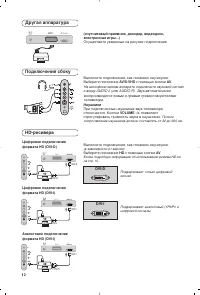
10 àÒÔÓθÁÓ‚‡ÌË ‚ ÂÊËÏ HD (Ç˚ÒÓ͇fl ófiÚÍÓÒÚ˙) PÂÊËÏ HD ùÚÓÚ ÂÊËÏ ÔÓÁ‚ÓÎflÂÚ ÔÓÎÛ˜Ëڂ̇˷ÓΠ͇˜ÂÒÚ‚ÂÌÌÓ ËÁÓ·‡ÊÂÌ˘ÂÂÁ DVI-D (DVI-I)* ‚ıÓa ÔËËÒÔÓÎ˙ÁÓ‚‡ÌËË çD-ÂÒ˂‡ ËÎË ‰Û„Ó„ÓÓ·ÓÛ‰Ó‚‡ÌËfl, ÍÓÚÓÓ ÏÓÊÂÚ Ô‰‡‚‡Ú˙Ò˄̇Π‚˚ÒÓÍÓÈ ˜ÂÚÍÓ (HD). * DVI-I : ËÏÂÂÚÒfl ÚÓθÍÓ Ì‡ ÌÂÍÓÚÓ˚ı ÏÓ‰ÂÎflı. è...
Page 29 - èÓ‰ÍÎ ̨ ̃ÂÌË ÔÂËÙÂËÈÌÓÈ ‡ÔÔ‡‡ÚÛ ̊; ÇˉÂÓχ„ÌËÚÓÙÓÌ/DVD-R Ë ‰ÂÍÓ‰ËÛ ̨ ̆ ÛÒÚÓÈÒÚ‚Ó; ̇ ÔÛÎ ̇Ú ‰Û ‰Îfl ‚ ̊‚Ó‰‡ ÒÔËÒ͇ ËÒÚÓ ̃ÌËÍÓ‚; àÒÚÓ ̃ÌËÍ; Ë ‚ ̊·Ó‡ TB ËÎË
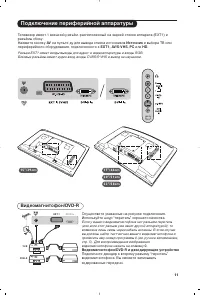
11 èÓ‰Íβ˜ÂÌË ÔÂËÙÂËÈÌÓÈ ‡ÔÔ‡‡ÚÛ˚ éÒÛ˘ÂÒÚ‚ËÚ Û͇Á‡ÌÌ˚ ̇ ËÒÛÌÍ ÔÓ‰Íβ˜ÂÌËfl.àÒÔÓθÁÛÈÚ ¯ÌÛ “ÔÂËÚÂθ” ıÓÓ¯Â„Ó Í‡˜ÂÒÚ‚‡. ÖÒÎË Û ‚‡¯Â„Ó ‚ˉÂÓχ„ÌËÚÓÙÓ̇ ÌÂÚ ‡Á˙Âχ ÔÂËÚÂθ(ËÎË ÂÒÎË ˝ÚÓÚ ‡Á˙ÂÏ ÛÊ Á‡ÌflÚ ‰Û„ÓÈ ‡ÔÔ‡‡ÚÛÓÈ), ÚÓ‚ÓÁÏÓÊ̇ Î˯¸ Ò‚flÁ¸ ˜ÂÂÁ ͇·Âθ ‡ÌÚÂÌÌ˚. Ç ˝ÚÓÏ ÒÎÛ˜‡Â‚˚ ‰ÓÎÊÌ...
Page 30 - èÓ‰ÍÎ ̨ ̃ÂÌËfl Ò·ÓÍÛ; ÑÛ„‡fl ‡ÔÔ‡‡ÚÛ‡
12 Ç˚ÔÓÎÌËÚ ÔÓ‰Íβ˜ÂÌËfl, Í‡Í ÔÓ͇Á‡ÌÓ Ì‡ ËÒÛÌÍÂ.Ç˚·ÂËÚ ÔÓÎÓÊÂÌË AV/S-VHS Ò ÔÓÏÓ˘¸˛ ÍÌÓÔÍË AV . ç‡ ÏÓÌÓÙÓÌ˘ÂÒÍÓÏ ‡ÔÔ‡‡Ú ÔÓ‰Íβ˜ËÚ Á‚ÛÍÓ‚ÓÈ Ò˄̇ÎÍ ‚ıÓ‰Û AUDIO L (ËÎË AUDIO R). á‚ÛÍ ‡‚ÚÓχÚ˘ÂÒÍË‚ÓÒÔÓËÁ‚Ó‰ËÚÒfl ΂˚Ï Ë Ô‡‚˚Ï „ÓÏÍÓ„Ó‚ÓËÚÂÎflÏËÚÂ΂ËÁÓ‡. ç‡Û¯ÌËÍË èË ÔÓ‰Íβ˜ÂÌÌ˚ı ̇ۯÌË͇ı Á...
Page 31 - äÓÏÔ ̧ ̨ÚÂ; ‚‡ ̄Â„Ó TB
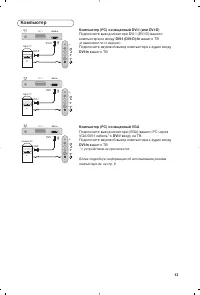
13 äÓÏÔ¸˛Ú äÓÏÔ¸˛Ú (PC) ÓÒ̇˘ÂÌÌ˚È DVI-I (ËÎË DVI-D) èÓ‰Íβ˜ËÚ ‚˚ıÓ‰ ÏÓÌËÚÓ‡ DVI-I (DVI-D) ‚‡¯Â„ÓÍÓÏÔ˙˛Ú‡ ÍÓ ‚ıÓ‰Û DVI-I (DVI-D)-In ‚‡¯Â„Ó TB (‚ Á‡‚ËÒËÏÓÒÚË oÚ ‚ÂÒËË) . èÓ‰Íβ˜ËÚ Á‚ÛÍÓ‚ÓÈ ‚˚ıÓ‰ ÍÓÏÔ˙˛Ú‡ Í ‡Û‰ËÓ ‚ıÓ‰Û DVI-In ‚‡¯Â„Ó TB. äÓÏÔ¸˛Ú (PC) ÓÒ̇˘ÂÌÌ˚È VGA èÓ‰Íβ˜ËÚ ‚˚ıÓ‰ ÏÓÌËÚÓ...
Page 32 - ëÎÓ‚‡ ̧; DVI; ëËÒÚÂχ; ëÓ‚ÂÚ ̊; àÁÓ·‡ÊÂÌË Ò; èÛÎ ̧Ú ‰ËÒڇ̈ËÓÌÌÓ„Ó
14 ëÎÓ‚‡¸ DVI (Digital Visual Interface): ëڇ̉‡Ú ˆËÙÓ‚ÓÈ ËÌÚÂÙÂÈÒ‡, ÒÓÁ‰‡ÌÌ˚È DigitalDisplay Working Group (DDWG) ‰ÎflÔÂÓ·‡ÁÓ‚‡ÌËfl ‡Ì‡ÎÓ„Ó‚˚ı Ò˄̇ÎÓ‚ ‚ˆËÙÓ‚˚ ‰Îfl ËÒÔÓÎ˙ÁÓ‚‡ÌËfl Ë ˆËÙÓ‚˚ıË ‡Ì‡ÎÓ„Ó‚˚ı ÙÓÏ ÓÚÓ·‡ÊÂÌËfl Ò˄̇·. HDCP (Ç˚ÒÓÍÓÔÓÔÛÒÍ̇fl ᇢËÚ‡ ñËÙÓ‚Ó„Ó ëÓ‰ÂʇÌËfl): ê‡Á‡·Óڇ̇ Í...
Page 33 - Information for users in the UK
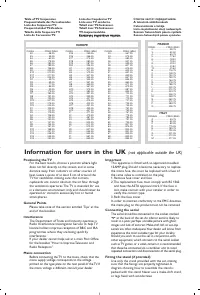
CANAL ................FREQ (MHz) E2 ........................48.25E3 ........................55.25E4 ........................62.25E5 ......................175.25E6 ......................182.25E7 ......................189.25E8 ......................196.25E9 ......................203.25E10 ...............