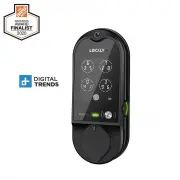
Page 2 - Table of Contents; TABLE OF CONTENTS; Section 2 - Product Overview; For additional support,
Table of Contents TABLE OF CONTENTS 2.1 Product Overview - Exterior2.2 Product Overview - Interior2.3 Understanding Your New Lock2.4 Keypad Display Switch2.5 Rebooting Your Lock2.6 Low Battery Section 1 - Product Highlights Section 2 - Product Overview Section 3 - Using Your Smart Lock Section 4 - L...
Page 6 - Understanding Your New Lock
2.3 Understanding Your New Lock After the installation of your new Lockly Vision TM , understanding some key functions of operating your smart lock is important. The next sections will walk you through configuring Access Codes, adding fingerprints, video doorbell recording, resetting, pairing, confi...
Page 7 - Keypad Display Switch; using the; OFF
SECTION 2.4 5 2.4 Keypad Display Switch For your peace of mind, the exterior keypad screen can be locked and turned off by using the ON/OFF switch at the back panel (PART G) of the smart lock. When it is switched off, people who are outside cannot enter any access codes to unlock the door. OFF ON
Page 8 - Rebooting Your Lock; NOTICE; Reboot Lockly in case of dead battery or malfunction. No; Reboot Button
2.5 Rebooting Your Lock NOTICE Reboot Lockly in case of dead battery or malfunction. No settings will be changed and all Access Codes will still be stored within Lockly. Press and release the reboot button when you want to reboot the lock. Your Lockly will beep once after reboot. Only reboot when ne...
Page 9 - V Battery
SECTION 2.6 7 2.6 Low Battery When the battery is in seriously low condition, Lockly will make continuous beeping sounds in addition to the flashing low battery icon on the touch screen. You should replace batteries immediately to avoid your smart lock from shutting down. When your smart lock low-ba...
Page 10 - Changing The Battery; low battery notification; Whenever batteries are replaced, reconnecting the smart lock to
SECTION 2.7 8 2.7 Changing The Battery Under normal use, the Lockly Vision TM battery will last up to 8 months. Please change your batteries when the low battery notification is issued. For best practice, always use new Alkaline batteries by a major brand. Do not pull the ribbon. Remove top layer of...
Page 11 - Configuring Access; The Default Access Code is; Access Code; the on screen instructions to complete the setup.
9 3.1 Configuring Access The Default Access Code is NOTICE 1 2 3 4 5 6 Your new Lockly Access Code can be any combination of 6 to 8 digits. Once a new Access Code is entered, the Default Access Code of 123456 would be deleted. A maximum of 16 sets of Access Codes can be stored for use at any given t...
Page 12 - Adding a Fingerprint; PASS; Please make sure your fingers are clean from dirt and oils before
3.2 Adding a Fingerprint Scan your finger by lightly placing your designated finger on the sensor until you hear a beep. Lift your finger and repeat the process slowly until the digit “6” shown on the screen becomes “1” . If you have successfully scanned and registered your fingerprint, you will hea...
Page 13 - Fingerprint Scanning Directions; The; fingerprint sensor; equipped in your smart lock is loaded with powerful fingerprint; Sensor; Position your finger on the; center; of the sensor; Top View; OK; Correct; Incorrect
3.3 Fingerprint Scanning Directions The fingerprint sensor equipped in your smart lock is loaded with powerful fingerprint algorithms to extract only metadata from fingers, even in poor conditions. Placing your finger on the sensor correctly helps consistency in fingerprint recognition. The followin...
Page 14 - Fingerprint Scanning Tips & Troubleshoot; Tips for Fingerprint Enrollment and Recognition
3.4 Fingerprint Scanning Tips & Troubleshoot Tips for Fingerprint Enrollment and Recognition • Place your finger to completely cover the sensor with maximum contact surface. • Position the center of your finger (core) to the center of the sensor. • Hold your finger still for more than a second u...
Page 16 - Unlocking
4.2 Locking/Unlocking with Fingerprints Place a registered finger to the fingerprint scanner located on the exterior side of the lock to the right. To register a fingerprint , please see Section 3.2. If your fingerprint is registered and acknowledged, you will hear a “beep” sound and a Green LED wil...
Page 17 - Exterior View; devices are used to unlock the door.
4.3 Locking/Unlocking with Physical Key Exterior View We presumed you will not be using the key on a regular basis. To better protect you from malicious lock bumping, video will start recording whenever a key or bumping devices are used to unlock the door. To unlock your lock using the physical key ...
Page 18 - You must have the Lockly iOS or Android; app installed in order to lock and unlock with; Scan or visit
4.4 Locking/Unlocking with App You must have the Lockly iOS or Android TM app installed in order to lock and unlock with smartphone, connect with voice assistants like Alexa or Hey Google and to access video doorbell feature. Please download the app by visiting the link below or search “Lockly” from...
Page 19 - Locking/Unlocking with Voice Assistants
Once your Lockly Vision ™ and Vision Connect has been installed and configured correctly, make sure you enable the Lockly Action on Google or the Amazon Alexa Skill before you can configure your voice to perform voice commands. You can ask your questions such as door status or request for your door ...
Page 21 - Disabling Safe Mode
Option 1 - Entering Correct Access Code Activate the keypad by pressing and holding for 3 seconds. Enter the correct Access Code twice (2) when the keypad is available, pressing after every time the Access Code is entered. Lockly will enter Safe Mode when three (3) consecutive wrong Access Codes are...
Page 22 - RAIN MODE ON; RAIN MODE OFF; IMPORTANT
Like other digital electronic products water can trigger to activate the touchscreen and fingerprint sensor which may cause the batteries to drain. To protect the lock and extend battery life, you can setup your Lockly to enter Rain Mode to shut off keypad and fingerprint reader whenever rain or wat...
Page 23 - long press the upper left button; The touchscreen keypad with; Settings > Enable Welcome Mode
SECTION 4.8 21 4.8 Shine Mode Lockly touchscreen keypad brightness was designed for optimum battery life. However, some users may need to adjust the brightness to their convenience to enter access codes. Swipe your fingers across the keypad to light up to its normal brightness. To adjust brightness,...
Page 24 - Pairing to a New Mobile Device; DO NOT INSERT ANY PINS TO RESET HOLES OF VISION SMART LOCK OR; and go to PIN Genie Vault.; Download, register and log in to the new Lockly app account.; See Step 9 & 10 of the Installation Guide; to pair Vision on the new Lockly
SECTION 4.10 22 To pair your Vision to a new mobile phone, download the Lockly app on your new mobile phone then use the same account to login to your Lockly App on the new mobile device. If you're pairing your Vision to a new Lockly app account, follow the steps below 1. 2. 3. 4.10 Pairing to a New...
Page 25 - according to on-screen; procedures for allowing push notifications; Doorbell; When someone press on the doorbell button,
5.1 Video Doorbell Lockly Vision ™ has a built-in HD video doorbell with real-time video streaming on your smartphone and real-time 2-way voice interaction. Recordings are stored locally on the TF card, with no monthly fees, and you can access video recordings from anywhere using the Lockly app. To ...
Page 26 - Enhanced Alert Notification; Lockly Vision; We suggest you keep this feature; ON; if you expect to be in areas with unreliable internet; switch off; this
5.1 Video Doorbell When the doorbell is pressed, you will receive a notification through the Lockly app. Once you tap on the notification, app will automatically open to allow you to see who's at your door. Enhanced Alert Notification Lockly Vision TM has an enhanced alert notification feature. When...
Page 27 - Live View; You can open the Lockly App and tap on the; End Call; Tap icon to hang up without opening the door.; Microphone; Tap mic to mute or unmute.; Unlock; Tap icon to unlock door.
5.1 Video Doorbell Vision enables you to attend to your door when you are not at home. While using the app, you can use the icons below to view, initiate conversations and unlock door. Live View You can open the Lockly App and tap on the camera to see what Vision sees at all times. End Call Tap icon...
Page 28 - Video Recording; Vision automatically initiate video recording when
5.1 Video Doorbell Video Recording Lockly Vision ™ stores video recording on the local TF card and recording can be accessed on the log history on your Lockly app. 1 Lockly Vision TM TF card with regular use can store up to 1-year worth of video recordings. Vision automatically initiate video record...
Page 29 - Offline Access Code
5.2 Offline Access Code TM (OAC) The Offline Access Code TM (OAC) is a unique feature of our smart lock. It allows you to grant access to guests remotely without guests needing to download the app. To use the OAC feature, make sure you download the Lockly app for iOS or Android TM first, and sync yo...
Page 31 - purchased DIY re-keying kit available in the market.
6.1 Re-keying Lockly smart lock comes with a 6-pin cylinder which can be replaced with regularly purchased DIY re-keying kit available in the market. If you are not familiar with this process, please contact a professional locksmith. For more information, visit : http://support.Lockly.com/faq/rekeyi...
Page 34 - Safety Precautions; Read the following instructions for your own safety
9.1 Safety Precautions Please read all instructions carefully. Remind all Lockly users of the safety precautions. Read the following instructions for your own safety Do not attempt to disassemble the smart lock by yourself. It can cause product damage, void warranty, and cause injuries. Do not use a...
Page 36 - IC Radiation Exposure Statement; the radiator and any part of your body.; This product can expose you to chemicals including Lead, which
L’émetteur/récepteur exempt de licence contenu dans le présent appareil est conforme aux CNR d’Innovation, Sciences et Développement économique Canada applicables aux appareils radio exempts de licence. L’exploitation est autorisée aux deux conditions suivantes: 1. L’appareil ne doit pas produire de...
Page 37 - VISION
We’re here to help! [email protected] https://Lockly.com/help VISION ™ UMPGD79820220618
Page 38 - © Copyright 2022 Lockly All rights reserved; The Bluetooth
For digital versions and instructional videos, please visit the following link: http://Lockly.com/help © Copyright 2022 Lockly All rights reserved USA Patent No. US 9,881,146 B2 | USA Patent No. US 9,853,815 B2 | USA Patent No. US 9,875,350 B2 | USA Patent No. US 9,665,706 B2 | USA Patent No. US 11,...