Page 2 - CAUTION
2 This lightning flash with arrowhead symbol withinan equilateral triangle is intended to alert the userto the presence of uninsulated dangerous voltagewithin the product’s enclosure that may be ofsufficient magnitude to constitute a risk of electricshock to persons. The exclamation point within an ...
Page 3 - IMPORTANT SAFETY INSTRUCTIONS
3 1. Read these instructions. - All these safety and operating instructions should be read before the productis operated. 2. Keep these instructions. - The safety, operating and use instructions should be retained for future reference. 3. Heed all warnings. - All warnings on the product and in the o...
Page 4 - Contents
4 Introduction . . . . . . . . . . . . . . . . . .5-8 About the Symbol Display . . . . . . . . . . . . .5 Symbol used in this Manual . . . . . . . . . . . . . .5Notes on Discs . . . . . . . . . . . . . . . . . . . . . . . .5 Handling Discs . . . . . . . . . . . . . . . . . . . . . . .5Storing Discs ...
Page 5 - Introduction
Operation Reference Installation and Setup 5 To ensure proper use of this product, please read thisowner’s manual carefully and retain it for futurereference. This manual provides information on the operationand maintenance of your DVD player. Should the unitrequire service, contact an authorized se...
Page 6 - Types of Playable Discs; Regional Code
6 Types of Playable Discs DVD(8 cm / 12 cm disc) Audio CD (8 cm / 12 cm disc) In addition, this unit plays DVD±R/RW and CD-R/RW,Dual disc, USB that contains audio titles, MP3, WMA,and/or JPEG files. This indicates a product feature that iscapable of playing DVD-RW discsrecorded with Video Recording ...
Page 7 - Front Panel
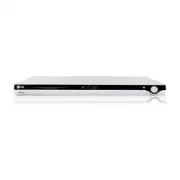
Operation Reference Installation and Setup 7 Introduction Front Panel a POWER Switches the unit ON or OFF. b • N (PLAY) Starts playback. • x (STOP) Stops playback. • . (SKIP) Returns to the beginning of current chapter ortrack or go to the previous chapter or track. • > (SKIP) Go to the next chap...
Page 8 - Remote Control
8 Remote Control Remote Control Operation Point the Remote Control at the remote sensor andpress the buttons. Caution: Do not mix old and new batteries and never mixdifferent types of batteries such as standard, alkaline,etc. Remote Control Battery installation Detach the battery cover on the rear o...
Page 9 - Setting up the Player; Resolution setting; Installation and Setup
Operation Reference Introduction 9 Installation and Setup Setting up the Player The picture and sound of a nearby TV, VCR, or radiomay be distorted during playback. If this occurs,position the player away from the TV, VCR, or radio,or turn off the unit after removing the disc. DVD Player Connections...
Page 10 - HDMI connection
10 HDMI connection If you have an HDMI TV or a monitor, you canconnect it to this player using an HDMI cable. 1. Set the TV’s source to HDMI (refer to TV Owner’s manual). 2. Connect the HDMI OUT jack on the unit to the HDMI jack on a HDMI compatible TV or monitor (H). 3. Press RESOLUTION repeatedly ...
Page 12 - Initial Settings; General Operation
12 Displaying Disc Information On-Screen You can display various information about the discloaded on-screen. 1. Press DISPLAY to show various playback information.The displayed items differ depending on the disctype or playing status. 2. You can select an item by pressing v / V and change or select ...
Page 13 - LANGUAGE
Operation Reference Introduction 13 Installation and Setup LANGUAGE Menu Language Select a language for the Setup menu and on-screendisplay. Disc Audio / Subtitle / Menu Select the language you prefer for the audio track(disc audio), subtitles, and the disc menu. Original – Refers to the original la...
Page 14 - AUDIO
14 AUDIO Each DVD disc has a variety of audio output options.Set the player’s AUDIO options according to the typeof audio system you use. Dolby Digital / DTS / MPEG Bitstream – Select “Bitstream” if you connect this unit’s DIGITAL OUT jack to an amplifier or otherequipment with a Dolby Digital, DTS ...
Page 15 - OTHERS
Operation Reference Introduction 15 Installation and Setup Area Code Enter the code of the area whose standards wereused to rate the DVD video disc, based on the list onpage 22. 1. Select “Area Code” on the LOCK menu then press B . 2. Follow the step 2 as shown previous page (Rating). 3. Select the ...
Page 16 - Operations; General Features; Buttons
16 Operations General Features Buttons Operations OPEN/CLOSE ( Z ) Opens or closes the disc tray. PAUSE/STEP ( X ) During playback, press PAUSE/STEP ( X ) to pause playback. Press PAUSE/STEP ( X ) repeatedly to play Frame-by- Frame. SKIP ( . / > ) During playback, press SKIP ( . or > ) to go t...
Page 17 - Operation; Additional Features
17 Operation Notes on general features: • If you press SKIP ( > ) once during Repeat Chapter (Track) playback, the repeat playback cancels. • Zoom may not work on some DVDs. • When you are playing a DVD disc that contains scenes recorded at different camera angles, theangle indicator will blink o...
Page 18 - Programmed Playback
18 Playing an Audio CD orMP3/WMA file This unit can play Audio CDs or MP3/WMA files. MP3/ WMA/ Audio CD Once you insert an MP3/WMA files recorded media orAudio CD, a menu appears on the TV screen. Press v / V to select a track/file and then press PLAY ( N ) or ENTER and playback starts. You can use ...
Page 19 - Viewing a JPEG file
19 Operation Viewing a JPEG file This unit can play JPEG files. 1. Insert a JPEG files recording media. The PHOTO menu appears on the TV screen. 2. Press v / V to select a folder, and press ENTER. A list of files in the folder appears. 3. If you want to view a particular file, press v / V to highlig...
Page 20 - Playing a DVD VR Format Disc; Playing from USB device
20 Playing a DVD VR Format Disc This unit will play DVD-R/RW disc that is recordedusing the DVD-Video format that have been finalizedusing a DVD-recorder. This unit will play DVD-RW disc that is recordedusing the Video Recording (VR) format. 1. Insert a disc and close the tray, It start playing auto...
Page 21 - Maintenance and Service; Handling the Unit; Reference
21 Reference Controlling other TV’s with theremote control You can control the sound level, input source, andpower switch of your LG TV with the supplied remotecontrol. You can control the sound level, input source, andpower switch of non-LG TVs as well. If your TV islisted in the table below, set t...
Page 22 - Area Codes; Language Codes
22 Area Code Afghanistan AF Argentina AR Australia AU Austria AT Belgium BE Bhutan BT Bolivia BO Brazil BR Cambodia KH Canada CA Chile CL China CN Colombia CO Congo CG Costa Rica CR Croatia HR Czech Republic CZ Denmark DK Ecuador EC Egypt EG El Salvador SV Area Code Ethiopia ET Fiji FJ Finland FI Fr...
Page 23 - Troubleshooting; General; Outputs
23 Reference Symptom No power. The power is on, butthe DVD player doesnot work. No picture. No sound. The DVD player doesnot start playback. The remote controldoes not work properly. Possible Cause • The power cord is disconnected. • No disc is inserted. • The TV is not set to receive DVD signal out...
Page 24 - Limited Warranty - USA
This LG Electronics product, will be repaired or replaced, at LG’s option, if it proves to be defective in material orworkmanship, under normal use, during the warranty period (“Warranty Period”) listed below, effective from the date(“Date of Purchase”) of original consumer purchase of the product. ...