Page 3 - Safety Information; CAUTION
1 Getting Started Getting Started 3 Getting S tar ted 1 Safety Information CAUTION RISK OF ELECTRIC SHOCK DO NOT OPEN CAUTION: TO REDUCE THE RISK OF ELECTRIC SHOCK DO NOT REMOVE COVER (OR BACK) NO USER-SERVICEABLE PARTS INSIDE REFER SERVICING TO QUALIFIED SERVICE PERSONNEL. This lightning flash with...
Page 4 - Notes on Copyrights
Getting Started 4 Getting S tar ted 1 This device is equipped with a portable battery or accumulator. Safety way to remove the battery or the battery from the equipment: Remove the old battery or battery pack, follow the steps in reverse order than the assembly. To prevent contamination of the envir...
Page 5 - Important Notice for TV colour; Caution
Getting Started 5 Getting S tar ted 1 Important Notice for TV colour system The colour system of this player differs according to currently playing discs.For example, when the player plays the disc recorded in the NTSC colour system, the image is output as an NTSC signal.Only the multi system colour...
Page 6 - Table of Contents; Getting Started
Table of Contents 6 Table of Contents 1 Getting Started 3 Safety Information 8 Introduction8 – Playable Discs and symbols used in this manual 9 – About the “ 7 ” Symbol Display 9 – Regional Code 9 – System Select 10 Remote Control11 – Magic remote control functions 12 Front Panel 12 Rear Panel 2 Con...
Page 7 - Troubleshooting
Table of Contents 7 1 2 3 4 5 6 50 – Enjoying BD-Live™51 – Enjoying web browsing 52 – LG AV Remote52 – Private Sound Mode52 – Using an USB keyboard or mouse53 – Audio CD recording54 Using the Premium54 Using the LG Smart World 55 – Signing in55 – Searching online content56 Using the My Apps Menu 5 T...
Page 8 - Introduction; Playable Discs and symbols used in this manual
Getting Started 8 Getting S tar ted 1 Introduction Playable Discs and symbols used in this manual Media/Term Logo Symbol Description Blu-ray e y Discs such as movies that can be purchased or rented. y “Blu-ray 3D” discs and “Blu-ray 3D ONLY” discs. y BD-R/RE discs that are recorded in BDAV format. y...
Page 9 - Note; About the “; Regional Code
Getting Started 9 Getting S tar ted 1 y Depending on the conditions of the recording equipment or the CD-R/RW (or DVD±R/RW ) disc itself, some CD-R/RW (or DVD±R/RW ) discs cannot be played on the unit. y Depending on the recording software & the finalization, some recorded discs (CD-R/RW, DVD±R/...
Page 10 - Remote Control
Getting Started 10 Getting S tar ted 1 h a Remote Control Indicator: (RF & Bluetooth transmitter) Blinks when operating. b 1 (POWER): Switches the unit ON or OFF. c BACK ( 1 ): Exits the menu or returns to the previous screen. d HOME ( b ): Displays the Home screen. e Direction buttons ( w/s/ a/...
Page 11 - Magic remote control; To register the Magic remote control; Battery Installation; How to use Magic remote control
Getting Started 11 Getting S tar ted 1 Magic remote control functions The Magic remote control operates by pairing with your unit. Once you purchased the unit, please register the Magic remote control as follows; To register the Magic remote control WHEEL To use the Magic remote control, register it...
Page 12 - Front Panel
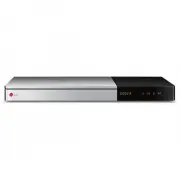
Getting Started 12 Getting S tar ted 1 Front Panel a Disc Tray b Display Window c Remote Sensor d R (OPEN / CLOSE) e T (PLAY / PAUSE) f I (STOP) g 1/! (POWER) h USB Port Rear Panel a AC power cord b DIGITAL AUDIO OUT (OPTICAL) c LAN port d HDMI OUT
Page 13 - Connecting to Your TV; Additional Information for HDMI
Connecting 13 C onnecting 2 Connecting to Your TV If you have a HDMI TV or monitor, you can connect it to this player using a HDMI cable ( Type A, High Speed HDMI™ Cable). Connect the HDMI jack on the player to the HDMI jack on a HDMI compatible TV or monitor. Rear of the unit TV HDMI cable Set the ...
Page 14 - Resolution Setting
Connecting 14 C onnecting 2 What is SIMPLINK? Some functions of this unit are controlled by the TV’s remote control when this unit and LG TV’s with SIMPLINK are connected through HDMI connection.Controllable functions by LG TV’s remote control; Play, Pause, Scan, Skip, Stop, Power Off, etc.Refer to ...
Page 15 - Connecting to an; About Digital Multi-channel sound; Connecting to an Amplifier via
Connecting 15 C onnecting 2 Connecting to an Amplifier Make one of the following connections, depending on the capabilities of your existing equipment. y HDMI Audio connection (page 15) y Digital Audio connection (page 16) Since many factors affect the type of audio output, see “Audio Output Specifi...
Page 17 - Connecting to your; Wired network connection
Connecting 17 C onnecting 2 Connecting to your Home Network This player can be connected to a local area network (LAN) via the LAN port on the rear panel or the internal wireless module. By connecting the unit to a broadband home network, you have access to services such as software updates, BD-Live...
Page 18 - Wired Network Setup; Advanced Setting
Connecting 18 C onnecting 2 Wired Network Setup If there is a DHCP server on the local area network (LAN) via wired connection, this player will automatically be allocated an IP address. After making the physical connection, a small number of home networks may require the player’s network setting to...
Page 19 - Wireless network connection; Wireless network setup
Connecting 19 C onnecting 2 Wireless network connection Another connection option is to use an Access Point or a wireless router. The network configuration and connection method may vary depending on the equipment in use and the network environment. Wireless Communication DLNA certified servers Acce...
Page 21 - Notes on Network Connection
Connecting 21 C onnecting 2 Notes on Network Connection y Many network connection problems during set up can often be fixed by re-setting the router or modem. After connecting the player to the home network, quickly power off and/or disconnect the power cable of the home network router or cable mode...
Page 22 - Initial Setup
System Setting 22 S ys tem Se tting 3 Initial Setup When you turn on the unit for the first time, the initial setup wizard appears on the screen. Set the display language and network settings on the initial setup wizard.1. Press 1 (POWER). The initial setup wizard appears on the screen. 2. Use w/s/a...
Page 23 - Settings; Adjust the Setup Settings; Connection Setting
System Setting 23 S ys tem Se tting 3 Settings Adjust the Setup Settings You can change the settings of the player in the [Settings] menu.1. Press HOME ( b ) . 2. Use a/d to select the [Settings] and press Wheel ( a ) . The [Settings] menu appears. 3. Use s/w to select the first setup option, and pr...
Page 24 - Smart Service Setting
System Setting 24 S ys tem Se tting 3 Smart Service Setting [Country Setting] Select your area for displaying proper online content service. [Initialize] Depending on the region, [Initialize] function may not be available. Device Name You can make a network name using virtual keyboard. This player w...
Page 25 - TV Aspect Ratio; Resolution; Ultra HD Upscaling
System Setting 25 S ys tem Se tting 3 [DISPLAY] Menu TV Aspect Ratio Select a TV aspect ratio option according to your TV type. [4:3 Letter Box] Select when a standard 4:3 TV is connected. Displays theatrical images with masking bars above and below the picture. [4:3 Pan Scan] Select when a standard...
Page 26 - HDMI Colour Setting
System Setting 26 S ys tem Se tting 3 1080p Display Mode When the resolution is set to 1080p, select [24 Hz] for smooth presentation of film material (1080p/24 Hz) with a HDMI-equipped display compatible with 1080p/24 Hz input. y When you select [24 Hz], you may experience some picture disturbance w...
Page 27 - Display Menu; Digital Output
System Setting 27 S ys tem Se tting 3 [LANGUAGE] Menu Display Menu Select a language for the [Settings] menu and on-screen display. Disc Menu/Disc Audio/ Disc Subtitle Select the language you prefer for the audio track (disc audio), subtitles, and the disc menu. [Original] Refers to the original lan...
Page 29 - Password; DVD Rating; Area Code
System Setting 29 S ys tem Se tting 3 [LOCK] Menu The [LOCK] settings affect only BD-ROM and DVD playback.To access the any features in [LOCK] settings, you must enter the 4-digit security code you have created. If you have not entered a password yet, you are prompted to do so. Enter a 4-digit passw...
Page 30 - Pointer; DivX® VOD; Quick Start; Auto Power Off
System Setting 30 S ys tem Se tting 3 [OTHERS] Menu Pointer Sets the speed and size of the Magic remote control’s magic pointer. [Speed] Sets the moving speed of the magic pointer. [Size] Chooses the size of the magic pointer. DivX® VOD ABOUT DIVX VIDEO: DivX® is a digital video format created by Di...
Page 31 - Initialize; Software
System Setting 31 S ys tem Se tting 3 Initialize [Factory Set] You can reset the player to its original factory settings. [Blu-ray Storage Clear] Initializes the BD-Live contents from the connected USB storage. If you reset the player to its original factory settings using [Factory Set] option, you ...
Page 32 - Home Menu Display; Using the SmartShare
4 Operating Operating 32 Oper ating 4 Home Menu Display Using [HOME] menu The home menu appears when you press HOME ( b ) . Use w/s/a/d to select a category and press Wheel ( a ) . Depending on the region, the [LG Smart World], [My Apps], [ d ] and [ c ] may not be available. , Note a [SmartShare] -...
Page 33 - Playing the Linked; Playing a Disc; erot; Playing Blu-ray 3D disc
Operating 33 Oper ating 4 Playing the Linked Devices Playing a Disc erot 1. Press R (OPEN/CLOSE), and place a disc on the disc tray. 2. Press R (OPEN/CLOSE) to close the disc tray. For the most Audio CD, BD-ROM and DVD-ROM discs, playback starts automatically. 3. Press HOME ( b ) and then select [Sm...
Page 34 - Playing a file on disc/USB; yui; Notes on USB device
Operating 34 Oper ating 4 Playing a file on disc/USB device yui This player can play video, audio and photo files contained in the disc or USB device.1. Insert a data disc on the tray or connect an USB device. When you connect the USB device on the HOME menu, the player plays an audio file contained...
Page 35 - Playing a file on Android; Notes on Connecting Android device
Operating 35 Oper ating 4 Playing a file on Android device yui This player can play video, audio and photo files contained in the Android device.1. Connect the Android device to the unit with USB cable. Make sure that MTP is activated on Android device. 2. Press HOME ( b ) . 3. Select [MTP] and pres...
Page 36 - Playing a file on a network
Operating 36 Oper ating 4 Playing a file on a network server yui This player can play video, audio and photo files located in a DLNA server through your home network.1. Check the network connection and settings (page 17). 2. Press HOME ( b ) . 3. Select [SmartShare] and press Wheel ( a ) . 4. Select...
Page 37 - Using Home Network; About SmartShare PC
Operating 37 Oper ating 4 Using Home Network Server for PC DLNA stands for Digital Living Network Alliance, which allows users to access video, photo and audio files stored in server and enjoy them on TV via home networking.Before connecting to PC to play a file, SmartShare PC Software (DLNA) should...
Page 38 - Sharing files and folders; System requirements; Minimum System
Operating 38 Oper ating 4 Sharing files and folders On your computer, you must share the folder containing video, audio and/or photo content to play them on this player. This part explains the procedure for selecting the shared folders on your computer.1. Double-click the “SmartShare” icon.2. Click ...
Page 39 - General Playback; Basic operations for video and
Operating 39 Oper ating 4 General Playback Basic operations for video and audio content To stop playback Press Z (STOP) during playback. To pause playback Press N (Play/Pause) during playback. Press N (Play/Pause) to resume playback. To scan forward or backward Press and hold C or V to play fast for...
Page 40 - Resume playback; eroyt; Last Scene Memory; er
Operating 40 Oper ating 4 Resume playback eroyt u The unit records the point where you pressed the Z (STOP) depending on the disc. If “ MZ (Resume Stop)” appears on the screen briefly, press N (Play/Pause) to resume playback (from the scene point). If you press Z (STOP) twice or unload the disc, “ Z...
Page 41 - To control video playback; Displaying content information on-; eroy
Operating 41 Oper ating 4 On-Screen Display You can display and adjust various information and settings about the content. To control video playback eroy You can control playback and set options while watching videos.During playback, press INFO/MENU ( m ) . a Progress bar - Displays the current posi...
Page 42 - To control photo view; Setting the slide show option
Operating 42 Oper ating 4 y If no button is pressed for a few seconds, the on-screen display disappears. y A title number cannot be selected on some discs. y Available items may differ depending on discs or titles. y If an interactive Blu-ray Disc is playing back, some setting information is display...
Page 43 - Advanced Playback; Repeat playback; erotu; Repeating a specific portion; eroty; Playing from selected time
Operating 43 Oper ating 4 Advanced Playback Repeat playback erotu y Blu-ray Disc / DVD / Video files 1. During playback, press INFO/MENU ( m ) . 2. Select an [Repeat] using a/d , and press Wheel ( a ) A-B – Selected portion will be repeated continually. Chapter – The current chapter will be played b...
Page 44 - Selecting a subtitle language; Hearing a different audio; Watching from a different; Changing the TV Aspect Ratio; eoy
Operating 44 Oper ating 4 Selecting a subtitle language eroy 1. During playback, press INFO/MENU ( m ) . 2. Select an [Option] using a/d , and press Wheel ( a ) . 3. Use w/s to select the [Subtitle] option. 4. Press a/d to select desired subtitle language. By pressing Wheel ( a ) , you can set vario...
Page 45 - Changing subtitle Code Page
Operating 45 Oper ating 4 Changing subtitle Code Page y If the subtitle is displayed in broken letter, you can change the subtitle code page to view the subtitle file properly.1. During playback, press INFO/MENU ( m ) . 2. Select an [Option] using a/d , and press Wheel ( a ) . 3. Use w/s to select t...
Page 46 - Viewing content information; Changing content list view
Operating 46 Oper ating 4 Viewing content information y The player can display the content information.1. Select a file using w/s/a/d . 2. Press INFO/MENU ( m ) to display the option menu.The file information appears on the screen. The information displayed on the screen may not correct comparing ac...
Page 47 - Selecting a subtitle file; Listening to music during slide
Operating 47 Oper ating 4 Selecting a subtitle file y If the subtitle file name is different from the video file name, you need to select the subtitle file on the [Movie] menu before playing the movie.1. Use w/s/a/d to select the subtitle file you wish to play in the [Movie] menu. 2. Press Wheel ( a...
Page 48 - Playing content to 3D; Converting 2D content to 3D; Playing file encoded in 3D; Reverting
Operating 48 Oper ating 4 Playing content to 3D eroy This function allows you to convert 2D content to 3D and to play 3D content in case of file encoded in 3D also. You can adjust 3D’s depth and distance on the [3D] option while playing back. Converting 2D content to 3D 1. During playback, press INF...
Page 49 - Advanced Features; Connecting to a Wi-Fi DirectTM
Operating 49 Oper ating 4 Advanced Features Wi-Fi Direct™ Connecting to a Wi-Fi Direct™ certified device yui This player can play movie, music and photo files located in a Wi-Fi Direct™ certified device. The Wi-Fi Direct™ technology make the player to be directely connected to a Wi-Fi Direct™ certif...
Page 50 - Enjoying MiracastTM
Operating 50 Oper ating 4 Enjoying Miracast™ You can mirror Miracast certified device’s screen and sound onto TV screen through your player wirelessly. On Miracast™ certified device 1. Turn on the Miracast certified device and run its [Miracast] function. On your player 2. Press HOME ( b ) . 3. Sele...
Page 51 - Enjoying web browsing
Operating 51 Oper ating 4 Enjoying web browsing Types URL manually on the screen or visits web sites added to Favorite.1. Press HOME ( b ) . 2. Select the [Internet] in the [My Apps] and press Wheel ( a ) . 3. Enter search terms in the blank. a Types in the web address or URL. b Selects when opening...
Page 52 - LG AV Remote
Operating 52 Oper ating 4 LG AV Remote You can control this player with your iPhone or Android phone via your home network. This player and your phone must be connected to your wireless network device such as access point. Visit “Apple iTunes” or “Google Android Market (Google Play Store)” for detai...
Page 53 - Audio CD recording
Operating 53 Oper ating 4 Audio CD recording You can record one desired track or all of the tracks in Audio CD to an USB storage device.1. Insert an USB storage device to the USB port on the front panel. 2. Insert an Audio CD into the player. The playback starts automatically. 3. Press red (R) colou...
Page 54 - Using the Premium; Using the LG Smart
Operating 54 Oper ating 4 Using the Premium You can use various content services via Internet with the Premium feature.1. Check the network connection and settings (page 17). 2. Press HOME ( b ) . 3. Select the [Premium] using a/d , and press Wheel ( a ) . 4. Select an online service using w/s/a/d ,...
Page 55 - Signing in; Searching online content
Operating 55 Oper ating 4 Signing in To use the [LG Smart World] feature, you need to sign in with your account.1. On the home menu, select [ c ] icon and press Wheel ( a ) . 2. Fill the [ID] and [Password] field using the virtual keyboard.If you do not have an account, press red (R) coloured button...
Page 56 - Using the My Apps; Move an application; Delete an application
Operating 56 Oper ating 4 Using the My Apps Menu You can move or delete an installed application in the [My Apps] menu.1. Press HOME ( b ) . 2. Select the [My Apps], and press Wheel ( a ) . 3. On the [My Apps] menu, press red (R) coloured button. Move an application 1. Select an application, and pre...
Page 57 - Troubleshooting; General; Symptom
Troubleshooting 57 Trouble shoo ting 5 Troubleshooting General Symptom Cause & Solution The Power does not turned on. y Plug the power cord into the wall outlet securely. The unit does not start playback. y Insert a playable disc. (Check the disc type, colour system, and regional code.) y Place ...
Page 58 - Network
Troubleshooting 58 Trouble shoo ting 5 Network Symptom Cause & Solution BD-Live feature does not work. y The connected USB storage may not have enough space. Connect the USB storage with at least 1 GB free space. y Ensure that the unit is correctly connected to the local area network and can acc...
Page 59 - Picture; Customer support
Troubleshooting 59 Trouble shoo ting 5 Picture Symptom Cause & Solution There is no picture. y Select the appropriate video input mode on the TV so the picture from the unit appears on the TV screen. y Connect the video connection securely. y Check the [HDMI Colour Setting] in the [Settings] men...
Page 60 - About Magic Remote; To re-register the Magic remote
Appendix 60 Appendix 6 About Magic Remote Control To re-register the Magic remote control Press the HOME ( b ) and BACK ( 1 ) buttons at the same time for about 5 seconds. The Magic remote control will be unpaired with your unit. y Press the BACK ( 1 ) button while pointing the remote control at the...
Page 61 - Network Software; Network update notification
Appendix 61 Appendix 6 Network Software Update Network update notification From time to time, performance improvements and/or additional features or services may be made available to units that are connected to a broadband home network. If there is new software available and the unit is connected to...
Page 63 - Additional Information; File requirement; Video files
Appendix 63 Appendix 6 Additional Information File requirement Video files File Location File Extension Codec Format Audio Format Subtitle Disc, USB “.avi”, “.divx”, “.mpg”, “.mpeg”, “.mkv”, “.mp4”, “.asf ”, “.wmv”, “.m4v” (DRM free), “.vob”, “.3gp”, “.mov”, “.trp”, “.m2t”, “.mpe”, “.m1v”, “.m2v”, “...
Page 64 - AVCHD (Advanced Video
Appendix 64 Appendix 6 y The file name is limited to 180 characters. y Maximum files/Folder: Less than 2000 (total number of files and folders) y Depending on the size and number of the files, it may take several minutes to read the content on the media. y File compatibility may differ depending on ...
Page 65 - About DLNA; Compatibility notes
Appendix 65 Appendix 6 About DLNA This Player is a DLNA Certified digital media player that can display and play video, photo and audio content from your DLNA-compatible digital media server (PC and Consumer Electronics).The Digital Living Network Alliance (DLNA) is a cross-industry organization of ...
Page 66 - Audio Output Specifications
Appendix 66 Appendix 6 Audio Output Specifications Jack/Setting Source OPTICAL (DIGITAL AUDIO OUT) PCM DTS Re-encode * 3 Auto Dolby Digital PCM 2ch DTS Dolby Digital Dolby Digital Plus PCM 2ch DTS Dolby Digital Dolby TrueHD PCM 2ch DTS 2ch Dolby Digital DTS PCM 2ch DTS DTS DTS-HD PCM 2ch DTS DTS Lin...
Page 68 - Area Code List
Appendix 68 Appendix 6 Area Code List Choose an area code from this list. Area Code Area Code Area Code Area Code Afghanistan AF Argentina AR Australia AU Austria AT Belgium BE Bhutan BT Bolivia BO Brazil BR Cambodia KH Canada CA Chile CL China CN Colombia CO Congo CG Costa Rica CR Croatia HR Czech ...
Page 69 - Language Code List
Appendix 69 Appendix 6 Language Code List Use this list to input your desired language for the following initial settings: [Disc Audio], [Disc Subtitle] and [Disc Menu]. Language Code Language Code Language Code Language Code Afar 6565 Afrikaans 6570 Albanian 8381 Amharic 6577 Arabic 6582 Armenian 7...
Page 70 - Trademarks and
Appendix 70 Appendix 6 Trademarks and Licenses Blu-ray Disc™, Blu-ray™, Blu-ray 3D™, BD-Live™, BONUSVIEW™ and the logos are trademarks of the Blu-ray Disc Association. “DVD Logo” is a trademark of DVD Format/Logo Licensing Corporation. Java is a trademark of Oracle and/or its affiliates. The terms H...
Page 71 - Cinavia Notice
Appendix 71 Appendix 6 Cinavia Notice This product uses Cinavia technology to limit the use of unauthorized copies of some commercially-produced film and videos and their soundtracks. When a prohibited use of an unauthorized copy is detected, a message will be displayed and playback or copying will ...
Page 72 - Specifications
Appendix 72 Appendix 6 Specifications General Power requirements Refer to main label on the rear panel. Power consumption 16 W Dimensions ( W x H x D) Approx. 430 mm x 43.5 mm x 205 mm Net Weight (Approx.) 1.58 kg Operating temperature 5 °C - 35 °C Operating humidity 5 % - 90 % Outputs HDMI OUT (vid...
Page 73 - Maintenance; Handling the unit
Appendix 73 Appendix 6 Maintenance Handling the unit When shipping the unit Please save the original shipping carton and packing materials. If you need to ship the unit, for maximum protection, re-pack the unit as it was originally packed at the factory. Cleaning the unit To clean the player, use a ...
Page 74 - Important Information
Appendix 74 Appendix 6 Important Information Relating to Network Services All information, data, documents, communications, downloads, files, text, images, photographs, graphics, videos, webcasts, publications, tools, resources, software, code, programs, applets, widgets, applications, products and ...