Page 3 - CAUTION; Cautions and Warnings; Safety Information
3 Safety Information Safet y Inf orma tion 1 CAUTION RISK OF ELECTRIC SHOCK DO NOT OPEN CAUTION: TO REDUCE THE RISK OF ELECTRIC SHOCK DO NOT REMOVE COVER NO USER-SERVICEABLE PARTS INSIDE REFER SERVICING TO QUALIFIED SERVICE PERSONNEL. This lightning flash with arrowhead symbol within an equilateral ...
Page 5 - IMPORTANT SAFETY
5 Safety Information Safet y Inf orma tion 1 Notes on Copyrights • Because AACS (Advanced Access Content System) is approved as content protection system for BD format, similar to use of CSS (Content Scramble System) for DVD format, certain restrictions are imposed on playback, analog signal output,...
Page 6 - Contents
6 Contents 1 Safety Information 3 Cautions and Warnings 2 Preparation 8 Introduction 8 About the “ ” Symbol Display 8 Symbols Used in this Manual 8 Supplied Accesorries 9 Playable Discs 10 File compatibility 11 Regional Code 11 AVCHD (Advanced Video Codec High Definition) 11 Certain System Requireme...
Page 8 - Preparation; Introduction; About the “ ” Symbol Display; NOTE; Supplied Accesorries
8 Preparation P reparation 2 2 Preparation Introduction About the “ ” Symbol Display “ ” may appear on your TV display during operation and indicates that the function explained in this owner’s manual is not available on that specific media. Symbols Used in this Manual NOTE Indicates special notes a...
Page 9 - Playable Discs
9 Preparation P reparation 2 Playable Discs Blu-ray Disc - Discs such as movies that can be purchased or rented. - BD-R/RE discs that contain Movie, Music or Photo files. DVD-VIDEO (8 cm / 12 cm disc)Discs such as movies that can be purchased or rented. DVD±R (8 cm / 12 cm disc) - Video mode and fin...
Page 10 - File compatibility; Overall; MOVIE
10 Preparation P reparation 2 File compatibility Overall Available File extensions: “.jpg”, “.jpeg”, “.png”, “.avi”, “.divx”, “.mpg”, “.mpeg”, “.mkv”, “.mp4”, “.mp3”, “.wma”, ".gif "• The file name is limited to 180 characters.• Depending on the size and number of the files, it may take seve...
Page 11 - Regional Code
11 Preparation P reparation 2 Regional Code This unit has a regional code printed on the rear of the unit. This unit can play only BD-ROM or DVD discs labeled same as the rear of the unit or “ALL”. AVCHD (Advanced Video Codec High Definition) • This player can playback AVCHD format discs. These disc...
Page 12 - Remote control
12 Preparation P reparation 2 Remote control • • • • • • a • • • • • • 1 (POWER): Switches the player ON or OFF. REPEAT: Repeats a desired section or sequence. * : The button is not available for any function. B (OPEN/CLOSE): Opens and closes the disc tray. 0-9 numerical buttons: Selects numbered op...
Page 13 - Front panel
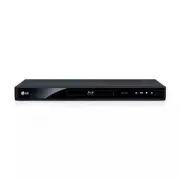
13 Preparation P reparation 2 a Disc Tray b Display Window c Remote Sensor d Z (OPEN/CLOSE) e N / X (PLAY / PAUSE) f x (STOP) g 1 (POWER) Button h USB Port Front panel Rear panel a AC power cord b VIDEO OUT c 2CH AUDIO OUT (Left/Right) d COMPONENT VIDEO OUT (Y P B P R ) e HDMI OUT (Type A, Version 1...
Page 14 - Connecting to Your TV; Installation
14 Installation Installa tion 3 Connecting to Your TV Make one of the following connections, depending on the capabilities of your existing equipment.• HDMI connection (page 14-15)• Component Video connection (page 16)• Video connection (page 16) NOTE • Depending on your TV and other equipment you w...
Page 16 - Component Video Connection; Connection
16 Installation Installa tion 3 Component Video Connection Connect the COMPONENT VIDEO OUT jacks on the player to the corresponding input jacks on the TV using component video cable. Connect the left and right AUDIO OUT jacks of the player to the audio left and right IN jacks on the TV using the aud...
Page 17 - Resolution Setting
17 Installation Installa tion 3 Resolution Setting The player provides several output resolutions for HDMI OUT and COMPONENT VIDEO OUT jacks. You can change the resolution using [Setup] menu. 1. Press HOME ( ). 2. Use Y to select the [Setup] and press ENTER ( ). The [Setup] menu appears. 3. Use vV t...
Page 18 - Connecting to an; About Digital Multi-channel sound; Connecting to an Amplifier via
18 Installation Installa tion 3 Connecting to an Amplifier Make one of the following connections, depending on the capabilities of your existing equipment.• HDMI Audio connection• Digital Audio connection (page 19)• 2CH Analog Audio connection (page 19) Since many factors affect the type of audio ou...
Page 20 - Connecting to your; Network connection
20 Installation Installa tion 3 Connecting to your Home Network This player can be connected to a local area network (LAN) via the LAN port on the rear panel. By connecting the unit to a broadband home network, you have access to services such as software updates and BD-Live interactivity. Network c...
Page 21 - Wired Network Setup
21 Installation Installa tion 3 Wired Network Setup If there is a DHCP server on the local area network (LAN) via wired connection, this player will automatically be allocated an IP address. After making the physical connection, a small number of home networks may require the player’s network settin...
Page 22 - Notes on Network Connection:
22 Installation Installa tion 3 Notes on Network Connection: • Many network connection problems during set up can often be fixed by re-setting the router or modem. After connecting the player to the home network, quickly power off and/or disconnect the power cable of the home network router or cable...
Page 23 - USB device; Playback content in the USB
23 Installation Installa tion 3 USB device connection This player can play movie, music and photo files contained in the USB device. Playback content in the USB device 1. Insert a USB device to the USB port until it fits into place. USB device connection When you connect a USB storage device on the ...
Page 24 - Settings; Adjust the Setup Settings
24 Installation Installa tion 3 NOTE • This player supports USB flash drive/external HDD formatted in FAT16, FAT32 and NTFS when accessing files (movie,music, photo). However, for BD-Live and Audio CD recording, only FAT16 and FAT32 formats are supported. Use the USB flash drive/external HDD formatt...
Page 25 - TV Aspect Ratio
25 Installation Installa tion 3 4. Use vV to select a second setup option, and press ENTER ( ) to move to the third level. 5. Use vV to select a desired setting, and press ENTER ( ) to confirm your selection. [DISPLAY] Menu TV Aspect Ratio Select a TV aspect ratio option according to your TV type. [...
Page 26 - HDMI Color Setting
26 Installation Installa tion 3 1080p Display Mode When the resolution is set to 1080p, select [24Hz] for smooth presentation of film material (1080p/24 Hz) with a HDMI-equipped display compatible with 1080p/24 Hz input. NOTE • When you select [24 Hz], you may experience some picture disturbance whe...
Page 30 - Connection Setting
30 Installation Installa tion 3 [NETWORK] Menu The [NETWORK] settings are needed to use the software update and BD Live. Connection Setting If your home network environment is ready to connect the player, the player needs to be set the wired network connection for network communication. (See “Connec...
Page 31 - Auto Power Off; Disclaimer Notice
31 Operation Oper ation 4 Auto Power Off The screen saver appears when you leave the player in Stop mode for about five minutes. If you set this option to [On], the unit automatically turns itself off after the Screen Saver is displayed for 20 minutes. Set this option to [Off ] to leave the screen s...
Page 32 - General Playback; Playing Discs; Operation
32 Operation Oper ation 4 General Playback Playing Discs 1. Press Z (OPEN/CLOSE), and place a disc on the disc tray. Insert a disc 2. Press Z (OPEN/CLOSE) to close the disc tray.For the most Audio CD, BD-ROM and DVD-ROM discs, playback starts automatically. 3. Press HOME ( ). 4. Select [Movie], [Pho...
Page 33 - Using the disc menu; Resume playback
33 Operation Oper ation 4 To stop playback Press x (STOP) while playback. To pause playback Press X (PAUSE) while playback. Press N (PLAY ) to resume playback. To play frame-by-frame Press X (PAUSE) while movie playback. Press X (PAUSE) repeatedly to play Frame-by- Frame playback. To scan forward or...
Page 34 - Advanced Playback; Repeat Playback; Repeating a specific portion; Enlarge the playback image
34 Operation Oper ation 4 Advanced Playback Repeat Playback BD DVD AVCHD ACD MUSIC MOVIE During playback, press REPEAT repeatedly to select a desired repeat mode. BDs/DVDs/Movie A- – Selected portion will be repeated continually. Chapter – The current chapter will be played back repeatedly. Title – ...
Page 35 - Marker Search; Using the search menu
35 Operation Oper ation 4 Marker Search BD DVD AVCHD MOVIE You can start playback from up to nine memorized points. To enter a marker 1. While playback, press MARKER at the desired point. The Marker icon appears on the TV screen briefly. 2. Repeat step 1 to add up to nine markers. To recall a marked...
Page 36 - Changing content list view; Method 1; Viewing content information; Last Scene Memory
36 Operation Oper ation 4 Changing content list view MUSIC PHOTO MOVIE On the [Movie] [Music] or [Photo] menu, you can change the content list view. Method 1 Press red (R) colored button repeatedly. Method 2 1. On the content list, press INFO/DISPLAY ( ) to display the option menu. 2. Use vV to sele...
Page 37 - Displaying content information; Playing from selected time
37 Operation Oper ation 4 On-Screen display You can display and adjust various information and settings about the content. Displaying content information on-screen BD DVD AVCHD MOVIE 1. While playback, press INFO/DISPLAY ( ) to show various playback information. a Title – current title number/total ...
Page 38 - Hearing a different audio; Selecting a subtitle language; Watching from a different; Changing the TV Aspect Ratio
38 Operation Oper ation 4 Hearing a different audio BD DVD AVCHD MOVIE 1. During playback, press INFO/DISPLAY ( ) to display the On-Screen display. 2. Use vV to select the [Audio] option. 3. Use Y to select desired audio language, audio track or audio channel. NOTE • Some discs allow you to change a...
Page 39 - Changing the Picture Mode
39 Operation Oper ation 4 Changing the Picture Mode BD DVD AVCHD MOVIE You can change the [Picture mode] option while playback. 1. During playback, press INFO/DISPLAY ( ) to display the On-Screen display. 2. Use vV to select the [Picture Mode] option. 3. Use Y to select desired option. 4. Press RETU...
Page 40 - Playing a movie file
40 Operation Oper ation 4 3. Press HOME ( ), and set the [BD-LIVE connection] option on the [Setup] menu (page 30).Depending on a disc, the BD-Live function may not be operated if [BD-LIVE connection] option is set to [Partially Permitted]. 4. Insert a BD-ROM with BD-Live.The operations are differ d...
Page 41 - Selecting a subtitle file; Changing subtitle code page
41 Operation Oper ation 4 NOTE • The file requirements are described on page 10.• You can use various playback functions. Refer to pages 32-36. • Unfinalized DVD VR format discs may not be played in this player. • Some DVD-VR discs are made with CPRM data by DVD RECORDER. This unit cannot support th...
Page 42 - Viewing a photo; To play a slide show; Options while viewing a photo
42 Operation Oper ation 4 Viewing a photo You can view photo files using this player. 1. Press HOME ( ). 2. Select [Photo] using Y , and press ENTER ( ). 3. Select [Disc] or [USB] option using Y , and press ENTER ( ). This step is needed only when a disc and a USB device is connected simultaneously ...
Page 43 - Listening to music while slide
43 Operation Oper ation 4 a Current photo/Total number of photos – Use Y to view previous/next photo. b Slide Show – Press ENTER ( ) to start or pause slide show. c Music Select – Select the background music for the slide show (page 43). d Music –Press ENTER ( ) to start or pause background music. e...
Page 44 - Listening to music; Audio CD Recording
44 Operation Oper ation 4 Listening to music The player can play Audio CDs and audio files. 1. Press HOME ( ). 2. Select [Music] using Y , and press ENTER ( ). 3. Select the [Disc] or [USB] option using Y , and press ENTER ( ). This step is needed only when a disc and a USB device is connected simul...
Page 46 - Notes on Discs; Maintenance
46 Maintenance Main tenanc e 5 Notes on Discs Handling Discs Do not touch the playback side of the disc. Hold the disc by the edges so that fingerprints do not get on the surface. Never stick paper or tape on the disc. Storing Discs After playing, store the disc in its case. Do not expose the disc t...
Page 47 - Troubleshooting; General; Symptom
47 Troubleshooting Trouble shoo ting 6 6 Troubleshooting General Symptom Cause & Solution The Power does not turned on. • Plug the power cord into the wall outlet securely. The unit does not start playback. • Insert a playable disc. (Check the disc type, color system, and regional code.) • Place...
Page 48 - Picture; Sound
48 Troubleshooting Trouble shoo ting 6 Picture Symptom Cause & Solution There is no picture. • Select the appropriate video input mode on the TV so the picture from the unit appears on the TV screen. • Connect the video connection securely.• Check the [HDMI Color Setting] in the [Setup] menu is ...
Page 49 - Network; Customer Support
49 Troubleshooting Trouble shoo ting 6 Network Symptom Cause & Solution BD-Live feature does not work. • The connected USB storage may not have enough space. Connect the USB storage with at least 1GB free space. • Ensure that the unit is correctly connected to the local area network and can acce...
Page 50 - Controlling a TV with; By pressing; Setting up the remote to; Manufacturer; Appendix
50 Appendix Appendix 7 Controlling a TV with the Supplied Remote Control You can control your TV using the buttons below. By pressing You can 1 ( TV POWER) Turn the TV on or off. AV/INPUT Switch the TV’s input source between the TV and other input sources. PR/CH +/– Scan up or down through memorized...
Page 51 - Network Software; Network update notification; Software Update
51 Appendix Appendix 7 Network Software Update Network update notification From time to time, performance improvements and/or additional features or services may be made available to units that are connected to a broadband home network. If there is new software available and the unit is connected to...
Page 53 - Area Code List; Area
53 Appendix Appendix 7 Area Code List Choose an area code from this list. Area Code Area Code Area Code Area Code Afghanistan AF Argentina AR Australia AU Austria AT Belgium BE Bhutan BT Bolivia BO Brazil BR Cambodia KH Canada CA Chile CL China CN Colombia CO Congo CG Costa Rica CR Croatia HR Czech ...
Page 54 - Language code List; Language
54 Appendix Appendix 7 Language code List Use this list to input your desired language for the following initial settings: [Disc Audio], [Disc Subtitle] and [Disc Menu]. Language Code Language Code Language Code Language Code Afar 6565 Afrikaans 6570 Albanian 8381 Ameharic 6577 Arabic 6582 Armenian ...
Page 55 - Trademarks and
55 Appendix Appendix 7 Trademarks and Licenses Blu-ray Disc™, Blu-ray™, BD-Live™, BONUSVIEW™ and the logos are trademarks of the Blu-ray Disc Association. Java and all Java-based trademarks and logos are trademarks or registered trademarks of Sun Microsystems, Inc. in the United States and other cou...
Page 56 - Audio Output
56 Appendix Appendix 7 Audio Output Specifications *1 The secondary and interactive audio may not be included in the output bitstream if [Digital Output (SPDIF)] or [HDMI] option is set to [Primary Pass-Thru]. (Except LPCM Codec : the output always include interactive and secondary audio.) *2 This p...
Page 58 - Video Output; HDMI OUT connection; COMPONENT VIDEO OUT
58 Appendix Appendix 7 Video Output Resolution HDMI OUT connection • If you select a resolution manually and then connect the HDMI jack to TV and your TV does not accept it, the resolution setting is set to [Auto]. • If you select a resolution that your TV does not accept, the warning message will a...
Page 59 - Specifications; Outputs; System
59 Appendix Appendix 7 Specifications General Power requirements: AC 120 V ~, 60 Hz Power consumption: 14 W Dimensions (W x H x D): Approx. 430 x 45 x 190 mm (16.9 x 1.7 x 7.4 inches) without foot Net Weight (Approx.): 1.6 kg (3.5 lbs) Operating temperature: 5 °C to 35 °C (41 °F to 95 °F) Operating ...
Page 60 - Important Information
60 Appendix Appendix 7 Important Information Relating to Network Services PLEASE READ CAREFULLY. USE OF THE NETWORK SERVICES IS SUBJECT TO THE FOLLOWING TERMS AND CONDITIONS.Use of the Network Services requires an Internet connection which is sold separately and for which you are solely responsible....
Page 61 - Open source software
61 Appendix Appendix 7 Open source software notice The following GPL executables and LGPL libraries used in this product are subject to the GPL2.0/LGPL2.1 License Agreements: GPL EXECUTABLES: Linux kernel, busybox, linux IR control package, squashfs, u-boot LGPL LIBRARIES: glibc, libmtp, libusb, lib...