Page 2 - Wash hands after handling.; Indoor Installation; Safety Instructions; AVERTISSEMENGT; WARNING
2 Caution: The exclamation point within an equilateral triangle is intended to alert the user to the presence of important operating and maintenance (servicing) instructions in the literature accompanying the appliance. WARNING/CAUTION - TO REDUCE THE RISK OF FIRE AND ELECTRIC SHOCK, DO NOT EXPOSE T...
Page 3 - POWER
3 POWER Safety Instructions • The earth wire should be connected. - Inappropriate earth grounding may cause damage to the projector or an electric shock when there is an electrical surge.If the projector must be installed at a place where earth grounding is not possible, purchase a circuit breaker a...
Page 4 - USING
4 Safety Instructions • Hold the plug firmly when unplugging. - A broken wire in the cord may cause a fire. • Ensure the power cord or plug is not damaged, modified, severely bent, twisted, pulled, sandwiched or heated. Do not use a loose wall outlet. - This may cause a fire or an electric shock. • ...
Page 5 - CAUTION
5 Safety Instructions Safety Instructions • When the lamp is on or has just been turned off, avoid touching the air vent or lamp because these will be very hot. • If there is a gas leak, do not touch the wall outlet. Open the window for ventilation. - A spark may cause a fire or burn. • Always open ...
Page 6 - Cleaning
6 Safety Instructions Cleaning Others WARNING WARNING CAUTION • Only a qualified technician can disassemble or modify the projector. For inspection, adjustment, or repair, contact your seller or the Service Center. - Otherwise, this may cause a fire or an electric shock. • Dispose of the used batter...
Page 7 - Warning
7 Safety Instructions • Warning - Class B (b) For a Class B Digital device or peripheral, the instructions furnished the user shall include the following or similar statement, placed in a prominent location in the text of the manual: NOTE : This equipment has been tested and found to comply with the...
Page 8 - office, waste disposal service or the; Disposal of waste; contact your city office, waste disposal; Disposal of your old appliance
8 Safety Instructions 1. When this crossed-out wheeled bin symbol is attached to batteries/ accumulators of Your product it means they are covered by European Directive 2006/66/EC. 2. This symbol may be combined with chemical symbols for mercury(Hg), cadmium(Cd) or lead(Pb) if the battery Contains m...
Page 9 - Licenses; HDMI, the HDMI logo and High-Definition Multimedia
9 Licenses Supported licenses may differ by model. For more information about licenses, visit www.lg.com. HDMI, the HDMI logo and High-Definition Multimedia Interface are trademarks or registered trademarks of HDMI Licensing LLC. • Image shown may differ from your projector. • Your projector’s OSD (...
Page 10 - Table of Contents
10 Table of Contents Safety Instructions 2 Licenses 9 Table of Contents 10 Statement 11 Part names and functions 12 Front 12 Back 12 Bottom 12 Rear terminal 13 Top control and indicators 14 Remote control 15 Remote control battery installation 17 Operation range 17 Adjustable foot 17 Installation 18...
Page 11 - Statement; • The manual is subject to change without prior notice.
11 Statement Note: • The on screen menu and pictures in the manual may slightly differ from the real product. • The manual is subject to change without prior notice.
Page 12 - Part names and functions; Front; Air filter cover
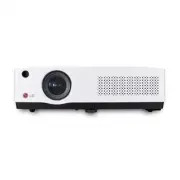
12 Part names and functions Front Back Bottom ⑭ ⑬ ① Air filter cover ② Remote receiver ③ Zoom ring ④ Projector lens ⑤ Lens cap (with string) ⑥ Speaker ⑦ Focus ring ⑧ Power cord connector ⑨ Safety lock ⑩ Terminals and connectors ⑪ Top control and indicators ⑫ Lamp cover ⑬ Adjustable foot ⑭ Foot adjus...
Page 13 - Rear terminal; AUDIO OUT; - Connect to external audio amplifier.; RGB IN 1
13 Part names and functions Rear terminal ① AUDIO OUT - Connect to external audio amplifier. - Connect the output audio signals from ② , ⑦ and ⑧ to this port. Note: The resistance of the external audio amplifier should be over 47kΩ, or an earphone with lower resistance may cause audio distortion. ② ...
Page 14 - Top control and indicators; Top control; To perform various settings configured
14 Part names and functions Top control and indicators Top control Indicator (Top panel) AUTO INPUT OK / MENU ① MENU button To open or close the on screen menu. ② AUTO button To perform various settings configured automatically, including the input source search function, auto keystone function and ...
Page 15 - Remote control; Please refer to next page for other buttons.
15 Part names and functions Remote control ① HDMI button Select HDMI input source. ② RGB2 IN button Select RGB2 as RGB input. ③ POWER button Turn the projector on or off . ④ RGB1 button Select RGB1 input source. ⑤ RGB2 OUT button Enable RGB2 as monitor out. ⑥ VIDEO button Select VIDEO input source. ...
Page 16 - Turn off the projector in a specified time.
16 2930058502 Part names and functions ⑱⑲ ⑯ ⑳ ⑰ 21 29 29 27 27 28 28 23242526 ⑯ MUTE button Mute the sound. ⑰ TIMER button Enable the timer function. ⑱ DZOOM + button Select the digital zoom + mode. ⑲ VOLUME + button Increase the volume. ⑳ DZOOM - button Select the digital zoom - mode. VOLUME - butt...
Page 17 - Remote control battery installation
17 Part names and functions Remote control battery installation Operation range Adjustable foot 1. Open the battery compartment lid. 2. Install new batteries into the compartment. 3. Re-cover the compartment lid. For correct polarity ( + and – ) , be sure battery terminals are in contact with pins i...
Page 18 - Installation; Positioning the projector; ambient lighting in order to get the best image.
18 Installation Positioning the projector √ Note: ● The brightness in the room has a great influence on picture quality. It is recommended to limit the ambient lighting in order to get the best image. ● All measurements are approximate and may vary from the actual sizes. Center Zoom (max) Zoom (min)...
Page 19 - Connect to computer (Digital and analog RGB)
19 Installation Connect to computer (Digital and analog RGB) Cables used for connection ( *Cables are not supplied with the projector.) RGB cable (1) Serial cable* HDMI cable* Unplug the power cords of both the projector and external equipment from the AC outlet before connecting the cables. HDMI RG...
Page 20 - HDMI cable * Component cable(RCA*3) *
20 Installation Connect to video equipment (Video, S-Video,Component,HDMI) Cables used for connection (*Cables are not supplied with the projector.) Video cable (RCA*1 )* S-Video cable * HDMI cable * Component cable(RCA*3) * Unplug the power cords of both the projector and external equipment from th...
Page 21 - Connecting to Audio equipment; Note: The left and right channels are combined
21 Connecting to Audio equipment Installation Unplug the power cords of both the projector and external equipment from the AC outlet before connecting the cables. Cables used for connection ( *Cables are not supplied with the projector.) Audio cable* HDMI RGB OUT VIDEO/Y Pr/Cr R L AUDIO IN AUDIO OUT...
Page 22 - Connecting to the AC power cord; supplied, consult your authorized dealer or service; Ground
22 Installation Connecting to the AC power cord This projector uses nominal input voltages of 100- 240 V AC and it automatically selects the correct input voltage. It is designed to work with a single- phase power system having a grounded neutral conductor. To reduce the risk of electrical shock, do...
Page 23 - Basic operation; Turning on the projector; Enter a PIN code
23 Basic operation Turning on the projector 1. Complete peripheral connections (with a computer, VCR,etc.) before turning on the projector. 2. Connect the projector’s AC power cord into an AC outlet. The POWER/TEMP indicator turns red. Open the lens cap. 3. Press the POWER button on the top control ...
Page 24 - Turning off the projector; starts to flash orange, and the cooling fans keep
24 Basic operation Turning off the projector 1 Press the POWER button on the top control or on the remote control, and “Power off? Please press Power key again” appears on the screen. 2 Press the POWER button again to turn off the projector. The POWER/TEMP indicator starts to flash orange, and the c...
Page 25 - How to operate the On Screen Menu; On screen menu
25 Basic operation How to operate the On Screen Menu The projector can be adjusted or set via the on- screen menu. Each main menu can be divided into several levels' submenus, which are further divided into other submenus. For each adjustment and setting procedure, refer to the respective sections i...
Page 26 - Menu bar; Used to configure the projector operation settings.
26 Basic operation Menu bar RGB2 Input Main menu Sub menu ①②③④ ⑤ ⑥⑦ ⑧ ① PC adjust menu Used to adjust parameters: Auto PC adj., Phase, Total dots, H Postion, V Postion, Reset, Mode free, Store to match with RGB input signal format. ② Screen menu If a computer is selected as a signal source, the foll...
Page 27 - Auto setup function; Keystone
27 ▲ ▼ Basic operation Auto setup function Keystone This function is available just by pressing the AUTO button on the top control or on the remote control. The system then automatically performs various settings in the setup menu, including input source search, auto pc adjustment and auto keystone ...
Page 28 - Audio adjustment; Press ▲▼ button to move the cursor to the
28 Basic operation Audio adjustment Direct operation Volume Press the VOLUME +/- button on the top control or on the remote control to adjust the volume. Mute Press the MUTE button on the remote control and select On to turn off the audio temporarily. To restore the audio to its previous level, pres...
Page 29 - Remote control operation; buttons to access the digital zoom mode.
29 Basic operation Remote control operation Using the remote control for some frequently used operations is advisable. Just pressing one of the buttons enables you to make the desired operation quickly without calling up the on screen menu. Direct INPUT buttons Press the RGB 1, RGB2 IN, VIDEO, HDMI,...
Page 30 - See the previous page for the description of
30 Basic operation TIMER button MENU button INFO button AUTO button KEYSTONE button PATTERN button Press the TIMER button. The timer display “00:00” appears on the screen and the timer starts to count time (00:00–59:59). To stop the Timer, press the TIMER button. Press the TIMER button again, and th...
Page 31 - Computer input; Direct operation; Menu operation; screen menu. Press▲▼ button to select the
31 Computer input Select input source (RBG 1/RGB 2) Direct operation - Press the INPUT button on the top control. - Press the RGB 1 or RGB 2 IN button on the remote control to select RGB 1 or RGB 2. Remote control Top control 2930058502 AUTO INPUT OK / MENU RGB 1 button RGB 2 IN button Input icon IN...
Page 32 - Computer system select; When the projector cannot recognize; Select computer system manually; screen menu. Use the ▲▼ buttons to select
32 Computer system select Computer input The projector automatically tunes to various types of computers with its function of Multi-scan system and Auto PC Adjustment. If a computer is selected as a signal source, the projector automatically detects the signal format and tunes to project proper imag...
Page 33 - Auto PC adjustment; screen menu. Use the ▲▼ buttons to select the; adjustments are required.
33 Computer input Auto PC adjustment Auto PC Adjustment function is provided to automatically adjust Phase, Total dots, H position and V position to conform to your computer. Menu operation Auto PC adjustment 1 Press the MENU button to display the on screen menu. Use the ▲▼ buttons to select the PC ...
Page 34 - Manual adjustment via PC; Phase; position and vertical position will be disabled.
34 Computer input Manual adjustment via PC As some computer adopt special signal formats, the multi-purpose scanner of the projector may not detect them. To match the special-format signals, the projector offers function of manual adjustment, with which users can adjust the parameters. 5 independent...
Page 35 - Image select; display the on screen menu. Press ▲▼ to; Dynamic; Press OK to select Colorboard , and then press ►; User
35 Computer input Image select Direct selection Use the PICTURE button on the remote control to select the image mode. Menu selection 1. Press MENU button on the remote control to display the on screen menu. Press ▲▼ to select the image mode icon. Then press ► or press OK. 2. Press ▲▼ to select the ...
Page 36 - Image adjust; Press Menu on the remote control to display; Contrast; will change to “User”.
36 Image adjust Computer input 1. Press Menu on the remote control to display the on-screen menu. Press ▲▼ to select the image adjust icon .Then press ► or press OK. 2. Press ▲▼ to select the item to be adjusted, and then press Select. At the time, the adjustment dialogue box will appear. Press ◄► t...
Page 37 - Screen size adjust; RATIO buttons; Normal; Full
37 Computer input Screen size adjust The size of the screen can be reset to the value the user desires. 1 Press MENU button on the remote control to display the on screen menu. Press ▲▼to select Screen icon and press ► or OK. 2 Press ▲▼ to select your required item and then press OK. Remote control ...
Page 38 - Video Input; Select input source; Direct selection; source will be changed like as the flow chart.; Press ▲▼ to select the icon for input source.; Video; Component
38 Video Input Select input source (HDMI/Component/S-video/Video) Direct selection - Press HDMI, COMPONENT, S-VIDEO or VIDEO button on the remote control. - Press the INPUT button on the top control. if the INPUT button is pressed again, then the next input source will be displayed. The input source...
Page 39 - Video system select; the on-screen menu. Press ▲▼ to select the; Component video signal format; video system and optimize its own state.; ● If HDMI is selected, Video system menu will be disabled.
39 Video system select 1. Press MENU on the remote control to display the on-screen menu. Press ▲▼ to select the icon for input source. Then press ► or press OK. 2. Press ▲▼ to select “Component ”, “Video” , or “S-video ” , and then press OK. 3 Press ▲▼ to select the system, and then press ► or pres...
Page 40 - Image select icon; can be seen.It is suitable for seeing a film in a
40 Video Input Image select Direct selection Press the PICTURE button on the remote control to select the image mode. Menu selection 1. Press MENU button on the remote control to display the on screen menu. Press ▲▼ to select the "image select" icon. Then press ► or press OK. 2. Press ▲▼ to ...
Page 41 - Image adjust icon; - Noise reduction and Progressive can not
41 Video Input Image adjust 1. Press MENU button on the remote control to display the on-screen menu. Press ▲▼ to select the image adjust icon. Then press ► or press OK. 2. Press ▲▼ to select the item to be adjusted, and then press Select. At the time, the adjustment dialogue box will appear. Press ...
Page 42 - : To a d j u s t t h e h o r i z o n t a l / v e r t i c a l; item, a dialog box will pop up for confirmation. To
42 Video Input Screen size adjust The size of the screen can be reset to the value the user desires. 1. Press MENU button on the remote control to display the on screen menu.Press ▲▼ to select the screen. Then press ► or press OK. 2. Press ▲▼ to select the desired item, and then press OK. Normal 4:3...
Page 43 - Option; Language
43 Option Option following functions. 1. Press MENU button on the remote control to display the on screen menu. Press ▲ ▼ to select Option.Then press ► or press OK to enter the submenu. 2. Press ▲ ▼ to select the desired item to be adjusted, and then press ► or press OK to reach the selected item. 3...
Page 44 - search will stop. Use the Point ▲▼ buttons to
44 Option Input search This function detects the input signal automatically. When a signal is found, the search will stop. Use the Point ▲▼ buttons to select one of the following options. Off ........... Input search will not work. On ............. Active Input Sourcing function. It detects the inpu...
Page 45 - Display; Logo (Logo and Logo PIN code lock settings); functions cannot be selected.; Logo select
45 Display Option You can use this item to set whether the startup animation is displayed. On .....................Show startup screen. Off .....................Show the input image instead of the on-start screen. Logo (Logo and Logo PIN code lock settings) This function allows you to customize the ...
Page 46 - Off
46 CAUTION: WHEN YOU HAVE CHANGED THE LOGO PIN CODE, WRITE DOWN THE NEW PIN CODE IN COLUMN OF THE LOGO PIN CODE NO. MEMO ON PAGE 64, AND KEEP IT SECURELY. SHOULD THE LOGO PIN CODE BE LOST OR FORGOTTEN, THE LOGO PIN CODE SETTING CAN NO LONGER BE CHANGED. Option Ceiling Rear This function is used to p...
Page 47 - Terminal; POWER/TEMP indicator; Auto Power; No signal; Standby mode
47 Option Terminal Power management Power management The RGB IN 2/RGB OUT terminal on the back of the projector is switchable for computer input or monitor output(See page 13). Select RGB2 or RGB Out with ▲▼ buttons. RGB2 ..........RGB2 Input. RGB Out ......RGB output. RGB Out is the same signal as ...
Page 48 - Lamp Mode; Key lock; The Closed Caption is available only under the situation below.
48 Option Lamp Mode Test Pattern Security (Key lock and PIN code lock) This function allows you to change brightness of the screen. Normal ....... Normal brightness Eco ............. Lower brightness reduces the lamp power consumption and extends the lamp life. This function enables you to test &...
Page 49 - following setting options for security.; Repeat this step to complete entering a three-digit number.
49 √ Note: The POWER button is enable even the "Projector" or "Remote control" of Key lock and PIN code lock are set. Option PIN code lock This function prevents the projector from being operated by unauthorized persons and provides the following setting options for security. Off ......
Page 50 - Change the High Altitude mode to On at above 2000 m.; Filter warning icon
50 Option Cooling fast There are the following options in the cooling fans operation when the projector is turned off. On ... Faster and louder-sound than the normal operation, but it takes less time to cool the projector down. Off ... Normal operation. High Altitude This projector provides Fan cont...
Page 51 - Information; The horizontal frequency of the input signal is
51 Information Displaying input source The information menu is used to detect signal of projected image and running state of the projector. Direct operation Press INFO button on the remote control and the information menu will appear on the screen. Shown as the right picture. Menu operation Press ME...
Page 52 - Maintenance; Projector is in standby state, and POWER/; Check the items below:; - Whether the filter is clean. You should clean it; When abnormity occurs, the user should
52 Maintenance POWER/TEMP indicator The POWER/TEMP indicator tells in what protection state engaged. The user should check the POWER/TEMP indicator and power indicator to make sure they work. Projector is in standby state, and POWER/ TEMP indicator lights red. When its internal temperature exceeds t...
Page 53 - Cleaning the filter; Resetting the filter counter
53 Maintenance Cleaning the filter The filter prevents dust from accumulating on the surface of lens assembly. Should the filter become clogged with dust particles, it will reduce the cooling fan’s effectiveness and may result in internal heat buildup and adversely affect the life of the projector. ...
Page 54 - Cleaning the projector’s cabinet
54 Attaching the Lens Cap When moving the projector or not using it for a long period, cover the lens cap properly. Attach the lens cap according to the following procedures. 1. Thread the string through the hole on the lens cap and then tie a knot in the string to secure it in place. 2. Loosen the ...
Page 55 - Replacing the lamp; To replace the lamp, follow the steps below:
55 Maintenance Replacing the lamp When the service life of the projection lamp is over, the icon suggests that the lamp needed to be replaced will appear on the screen, and the LAMP indicator on the top control will lights red. In this case, you should immediately replace it with a new one of the sa...
Page 56 - ORDER REPLACEMENT LAMP; following information to the dealer.; LAMP HANDLING PRECAUTIONS; in a shorter period of time than other similar lamps.; IF A LAMP EXPLODES, THE FOLLOWING SAFETY PRECAUTIONS SHOULD
56 Maintenance ORDER REPLACEMENT LAMP Replacement lamp can be ordered through your dealer. When ordering a projection lamp, give the following information to the dealer. Replacement Lamp Type No.:1300022500 LAMP HANDLING PRECAUTIONS This projector uses a high-pressure lamp which must be handled care...
Page 57 - Appendix; Troubleshooting; Failure; the filter warning icon appears.
57 Appendix Troubleshooting Before calling your dealer or service center for assistance, check the items below once again. - Make sure you have properly connected the projector to peripheral equipment as described on pages (see page19-21). - Make sure all equipment is connected to AC outlet and the ...
Page 58 - The indicator is illuminated or flashes
58 Appendix Warning: Is operated with high voltage. Do not open its casing! If the problem still exists after you take the aforesaid measures, you should contact the local distributor or the repair center and tell the machine model. The projector will tell you how to handle the issue. Failure Soluti...
Page 59 - Indicator and projector state; Check the indicator to know about the state of projector.; Indicator; In normal working state.
59 Appendix Indicator and projector state Check the indicator to know about the state of projector. Indicator State of projector POWER/TEMP (Green/Red/Orange) LAMP (Red) In power-off state (AC power cord not inserted). In normal working state. [In standby state] Standby state. Press POWER button to ...
Page 60 - Compatible Signal; The specification is subject to change without any prior notice.
60 Appendix Compatible Signal Basically this projector can accept the signal with the V-,H-Frequency mentioned below: √ Note: The specification is subject to change without any prior notice. No. Specification Proposed Resolution H-freq(KHz) V-freq(Hz) Pixel clock(MHz) HDMI-DTV 1 720*576 31.250 50 27...
Page 61 - Configuration of terminals
61 Appendix Configuration of terminals RGB 1/RGB 2/RGB OUT (analog) Terminal: Analog RGB (D-sub 15-pin) 5 1 2 3 4 10 9 6 7 8 15 14 13 11 12 1 Red (Input/output) 9 ----- 2 Green (Input/output) 10 Grounding (field synchronizing) 3 Blue (Input/output) 11 Grounding 4 ----- 12 DDC data 5 Grounding (line ...
Page 62 - Technical Specifications
62 Appendix Technical Specifications Mechanical properties Dimensions (W×H×D ) 327.4 mm x 241mm x 90.9mm (not including the adjustable feet) Net Weight 2.9kg Adjustable foot 10° Monitor’s resolution LCD system 0.63" TFT , active matrix, 3-panel (for BD430, BD450 and BD470)0.59" TFT , active ...
Page 63 - Content of hazardous substances and elements; Hazardous substances and elements; Accessories
63 Appendix Content of hazardous substances and elements Name of parts Hazardous substances and elements Pb Hg Cd Cr6+ PBB PBDE Body Plastic parts ○ ○ ○ ○ ○ ○ Metal parts ○ ○ ○ ○ ○ ○ Optical parts × × ○ ○ ○ ○ PCB assembly ○ ○ ○ ○ ○ ○ Other parts × ○ ○ ○ ○ ○ Accessorie Remote control × ○ ○ ○ ○ ○ Cabl...
Page 64 - Dimensions; PIN code memorandum
64 Dimensions Unit: mm 90.9 101.2 327.4 75.5 167.5 15 92 241 4-M4x10 41.5 68.5 107 Screw hole used when installed on the ceiling Screw:M6 Depth:10.0 Appendix PIN code memorandum Write down the PIN code in the blank below and keep it, please contact the repair center. PIN code lock Logo PIN code lock...
Page 66 - Keystone ↑
66 Appendix 2. Commands Case sensitive, each command end by[CR](Carriage). The time out for each command is one second. If you want to cancel the time out setting temporarily. Please send "#!"[CR].( It should be sent within one second). 2.1 POWER ON 2.2 POWER OFF(Power OFF immediately) Comma...
Page 73 - The model and serial number of the projector is; Declaration of Conformity; Englewood Cliffs NJ 07632
MODEL SERIAL www.lg.com The model and serial number of the projector is l o c a t e d o n t h e b a c k o r b o t t o m s i d e o f t h e projector. Record it below should you ever need service. Declaration of Conformity Trade Name:LG Mode:BD430,BD450,BD460,BD470 Responsible Party:LG Electronics Inc...