Page 2 - CONTENTS
2 ENGLISH CONTENTS LICENSES 3 Open Source Software Notice Information 4 SAFETY PRECAUTIONS 5 PREPARATION 17 INSTALLATION 25 MAGIC LIGHTING REMOTE 35 CONNECTING DEVICES 42 SPECIFICATIONS 45 SYMBOLS 51 TROUBLESHOOTING 52
Page 3 - LICENSES
3 ENGLISH LICENSES Supported licenses may differ by model. For more information about licenses, visit www.lg.com. The terms HDMI, HDMI High-Definition Multimedia Interface, HDMI Trade Dress and the HDMI Logos are trademarks or registered trademarks of HDMI Licensing Administrator, Inc. Manufactured ...
Page 4 - Open Source Software Notice
4 ENGLISH Open Source Software Notice Information To obtain the source code under GPL, LGPL, MPL, and other open source licenses, that is contained in this product, please visit http://opensource.lge.com.In addition to the source code, all referred license terms, warranty disclaimers and copyright n...
Page 5 - SAFETY PRECAUTIONS
5 ENGLISH SAFETY PRECAUTIONS Please take note of the safety instructions to prevent any potential accident or misuse of the projector.Child injuries can be prevented by following these simple safety precautions.The precautions should be followed in the same manner when you store or move your existin...
Page 6 - Indoor Installation
6 ENGLISH Read these instructions. Keep these instructions.Heed all warnings. Follow all instructions. Indoor Installation WARNING Do not install products including projectors and remote controls in the following places: — Any place exposed to direct sunlight; — Any humid place such as bathroom; — A...
Page 9 - When in Use
9 ENGLISH When in Use WARNING When thunder or lightning strikes, unplug the power cord and do not touch the antenna wire. • It may cause an electric shock. If there is a gas leak from the gas lines, do not touch the outlet and be sure to vent by opening the window. • Sparks may be caused and lead to...
Page 13 - Power
13 ENGLISH Power WARNING Make sure the power plug is securely plugged in to prevent it from shaking. • If the connection is unstable, it may cause a fire. Do not plug too many devices into one multi-power outlet. • This may result in fire due to the power outlet overheating. Do not insert a metal ob...
Page 15 - Cleaning
15 ENGLISH Cleaning WARNING Do not spray water directly onto the projector when cleaning it. • It may cause a fire or electric shock. CAUTION How to clean the projector — Disconnect the plug from the outlet before cleaning. — Do not wipe the optical system (the lens and mirror) immediately after the...
Page 16 - Laser
16 ENGLISH Laser WARNING • You risk being exposed to laser radiation if you manipulate or alter the product in a way not specified in the user manual. • Be sure not to let infants or people with diseases directly watch the light source. CAUTION • This product is a class 1 laser device that meets IEC...
Page 17 - PREPARATION; Accessories
17 ENGLISH PREPARATION The pictures may differ slightly from the actual product. Accessories Accessories included with the projector are show below. Accessories are subject to change without prior notice. New accessories may be added or old ones removed. Magic Lighting Remote Two AA Batteries Owner'...
Page 18 - Optional Extras
18 ENGLISH Optional Extras To purchase optional accessories, visit an electronics store or online shopping site or contact the retail store where you purchased the product. Optional accessories are subject to change without prior notice. Projection Screen HDMI Cable Optical Cable RS-232C Cable 1) LG...
Page 19 - Parts and Components
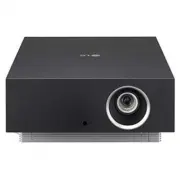
19 ENGLISH Parts and Components Speaker Focus Knob (Back) Zoom Knob (Front) IR Receiver Projection Screen Position (Lens Shift) Adjustment Dial Lens 1) Outlet Vent 2) 1) Do not touch the lens when using the projector. The lens may be damaged. (Keep lens away from sharp objects.) 2) Due to the high t...
Page 22 - Using the Joystick Button; Basic functions
22 ENGLISH Using the Joystick Button You can operate the projector by pressing the button or moving the joystick left, right, up, or down. Basic functions Power On When the projector is turned off, place your finger on the joystick button, press it once, and release it. Power Off (Press and Hold) Pr...
Page 23 - Adjusting the menu
23 ENGLISH Adjusting the menu When the projector is turned on, press the joystick button one time.You can adjust the menu items moving the joystick button left, right, up, or down. Move to the desired menu item, and then press the joystick button once to select it. Turns the power off. Changes the i...
Page 24 - Projector Status Indicators
24 ENGLISH Projector Status Indicators LED Power Indicator LED Power Indicator LED Power Indicator Red Power standby state Red(Blink) Powering On Off The projector is operating with the power on.
Page 25 - INSTALLATION; How to use the edge guards
25 ENGLISH INSTALLATION How to use the edge guards It prevents any damage to the product and injury when being attached to sharp edges of the product. 1 2 3
Page 26 - Ceiling-Type Installation
26 ENGLISH Ceiling-Type Installation WARNING When installing the product on the ceiling, observe the following precautions to prevent the projector from falling: — Contact the Customer Support Center for installation. — Do not use adhesive, lubricant, oil, etc. when using the mounting equipment. — D...
Page 27 - Projection Distance per Screen Size
27 ENGLISH Projection Distance per Screen Size 1 Place the projector on a sturdy, level surface, together with the PC or audio/ video source. 2 Place the projector an appropriate distance away from the screen. The distance between the projector and the screen determines the actual size of the image....
Page 30 - Adjusting the Focus of the Projection Screen
30 ENGLISH Adjusting the Focus of the Projection Screen When an image appears on the screen, check if it is in focus and fits the screen properly.To adjust the focus of the image, slowly adjust the focus knob to the left or right while looking at the top center of the screen. You can adjust the focu...
Page 31 - Adjusting the Position of the Projection Screen
31 ENGLISH Adjusting the Position of the Projection Screen You can use the Projection Screen Position (Lens Shift) Adjustment Dial to adjust the position of the projection screen without moving the projector up, down, left or right.If the projection screen does not align properly on the screen even ...
Page 32 - How to Use the Projection Screen Position (Lens Shift)
32 ENGLISH How to Use the Projection Screen Position (Lens Shift) Adjustment Dial You can use the dial to move the position of the projection screen (lens) without moving the projector. Up/Down Adjustment Dial Left/Right Adjustment Dial R L R L R L R L CAUTION • Clicking sounds while rotating the di...
Page 34 - Kensington Security System
34 ENGLISH Kensington Security System • This projector has a Kensington Security Standard connector as an anti-theft mechanism. Connect a Kensington Security System cable as shown below. • For more information on installation and use of the Kensington Security System, refer to the user’s guide provi...
Page 35 - MAGIC LIGHTING REMOTE
35 ENGLISH MAGIC LIGHTING REMOTE • Depending on country If the battery low message appears while using the Projector, replace the batteries. As shown in the figure, press the top of the battery cover and slide it down the cover. Insert two new and identical batteries (1.5 V, AA type) with + and - po...
Page 39 - To Register the Magic Lighting Remote; To Re-register the Magic Lighting Remote
39 ENGLISH To Register the Magic Lighting Remote You must pair the Magic Lighting Remote with the projector to use it.Pair the Magic Lighting Remote prior to use as follows. 1 Put batteries into the Magic Lighting Remote and turn the Projector on. 2 Point the Magic Lighting Remote at your projector ...
Page 40 - Using the Magic Lighting Remote
40 ENGLISH Using the Magic Lighting Remote • If you shake the Magic Lighting Remote left and right or turn its wheel while pointing it at the projector, a pointer will appear on the projector screen. If you move the remote control in the direction you want, the pointer follows the movement. Move the...
Page 42 - CONNECTING DEVICES; Connecting with a HDMI Cable
42 ENGLISH CONNECTING DEVICES You can connect various external devices to the projector. Connecting with a HDMI Cable Connect an HD receiver, DVD, PC, Notebook, or external devices to the projector and select an appropriate input mode.With an HDMI cable, you can enjoy high quality picture and sound....
Page 43 - Connecting a Digital Amp
43 ENGLISH Connecting a Digital Amp Using an optical cable, connect the digital audio input port of a digital amp to the port of the projector. The output of an amp with a digital converter must be set to the desired audio format. When using a HDMI cable to connect a home theater or when connecting ...
Page 44 - Slimport supported devices
44 ENGLISH Connecting a smart device (smartphone, tablet, etc.) • (INPUT) [Home Dashboard] [Inputs] [HDMI 1]/[HDMI 2]/[HDMI 3] • The picture may look different from the actual product. Connect a smart device to the projector using a cable 1) and set the external input of the projector to HDMI. The s...
Page 45 - SPECIFICATIONS
45 ENGLISH SPECIFICATIONS MODEL AU810PB (AU810PB-NA) HU810PW (HU810PW-NA) Resolution (Pixel) 3840 (Horizontal) × 2160 (Vertical) 1) Aspect ratio 16:9 (Horizontal:Vertical) Projection distance — Screen size 1130 mm to 8700 mm (44.4 inches to 342.5 inches) — 1016.0 mm to 7620.0 mm (40 inches to 300 in...
Page 50 - Other specifications
50 ENGLISH Other specifications As with any bright light source, do not stare into the beam, RG2 IEC 62471- 5:2015. Risk Group 2 CAUTION Possibly hazardous optical radiation emitted from this product. Do not stare at operating lamp. May be harmful to the eye. This label is attached to the bottom of ...
Page 51 - SYMBOLS
51 ENGLISH SYMBOLS Refers to alternating current (AC). Refers to direct current (DC). Refers to class II equipment. Refers to stand-by. Refers to “ON” (power). Refers to dangerous voltage.
Page 52 - TROUBLESHOOTING
52 ENGLISH TROUBLESHOOTING Please check the list below when you experience the following symptoms during use of the product. It may not be a failure. Checklist for Safety (please check a long-used projector for safety issues.) Does your device have any of the following issues? • The projector does n...