Page 2 - Warning; more of the following measures:
LCOS PROJECTOR LCOS PROJECTOR Warning - Class B (b) For a Class B Digital device or peripheral, the instructions furnished the user shall include the fol- lowing or similar statement, placed in a prominent location in the text of the manual: NOTE: This equipment has been tested and found to comply w...
Page 3 - Contents; Names of parts; PICTURE Menu Options; Information
Contents 3 Contents Disposal of your old appliance 1. When this crossed-out wheeled bin symbol is attached to a product it means the product is covered by the European Directive 2002/96/EC. 2. All electrical and electronic products should be disposed of separately from the municipal waste stream thr...
Page 4 - Safety Instructions; Indoor Installation; Power; WARNING; Indoor Installation; NOTES
4 Safety Instructions Safety Instructions Please take note of the safety instructions to prevent any potential accident or misuse of the projector. ꔈ Safety Instructions are given in two forms as detailed below. WARNING : The violation of this instruction may cause serious injuries and even death. N...
Page 5 - Using; CAUTION concerning the Power Cord
5 Safety Instructions Using WARNING If water is spilt into the projector unplug it from the power supply immediately and consult your Service Agent. This may cause an electric shock hazard or damage to the unit! Dispose of used batteries carefully and safely. In the case of a battery being swallowed...
Page 7 - Main Body
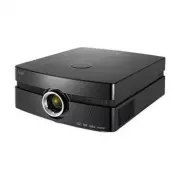
Names of parts Names of parts 7 Main Body Front remote control sensor Lens Shift Dial * The projector is manufactured using high-precision technology. You may, however, see on the Projector screen tiny black points and/or bright points (red, blue, or green). This can be a normal result of the manufa...
Page 8 - Connecting Part
Rear remote control sensor S-Video USB(SVC Only) COMPONENT IN RGB IN Video AC IN Kensington Security System Connector (Refer to page 15) Control Panel HDMI IN 1/2 Names of parts 8 Connecting Part
Page 9 - Control Panel; POWER
Names of parts 9 Control Panel POWER Button Turn On/Off the projector. ∧/∨/</> Button Adjusts functions of menus MENU Button Selects or closes menus. AUTO Button It automatically corrects the position and shaking of the image in RGB mode. INPUT Button Switches to RGB, HDMI, Video, S-Video or Compone...
Page 10 - Remote Control
POWER Button INPUT Button MENU Button KEYSTONE Button PATTERN Button GAMMA Button PICTURE Button ꔉ OK, ∧/∨/</> Button • Open the battery compartment cover on the back of the remote control.• Insert the specified type of batteries with correct polarity, match “+” with “+”, and match “-” with “-”. • I...
Page 11 - Projector Status Indicators
* Lamp indicator, operation indicator and temperature indicator at the top of the projector show the user the operating status of the projector. Operation Indicator Temperature Indicator Deco LED (Lens Shift Dial) Lamp Indicator Names of parts 11 Projector Status Indicators Operation Indicator / Tem...
Page 12 - Accessories
Names of parts * Contact your dealer to purchase these items. * The lamp is consumable and needs to be replaced with a new one when it is burned out. Contact your dealer or service center for a replacement lamp. * Optional parts can be changed without notice to improve the quality of the product, an...
Page 13 - Installing and Composition; Installation Precautions; Provide proper ventilation for this projector.
Installing and Composition Installing and Composition 13 Installation Precautions Provide proper ventilation for this projector. Place this projector in adequate temperature and humidity conditions. • Install this projector only in a location where adequate temperature and humidity is available. (Re...
Page 14 - Positioning the Projector; projection distance based on the picture format
1. Place the projector on a sturdy and horizontal surface. 2. Place the projector the desired distance from the screen. The distance between the projector and the screen determines the actual size of the image. 3. Position the projector so that the lens is set at a right angle to the screen. If the ...
Page 15 - Kensington Security System
• This projector has a Kensington Security System Connector on the side panel. Connect the Kensington Security System cable as below. • For the detailed installation and use of the Kensington Security System, refer to the user’s guide included with the Kensington Security System set. • And for furth...
Page 16 - Turning on the Projector; Make sure the power cord is connected correctly.; button on the remote control or back cover.; button on the remote control or the; INPUT; button on the control panel to select the input signal; button on the back cover or remote control.
Installing and Composition 16 Turning on the Projector Turning off the Projector 1. Make sure the power cord is connected correctly. 2. Remove the lens cap. If it is left on, it could become deformed due to the heat produced by the projection lamp. 3. Press the POWER button on the remote control or ...
Page 17 - Focus and Position of the Screen Image; Focus ring; Selecting an input signal with the; button will only change the projector only to connected; to adjust the height as shown below.; Input List; RGB
Installing and Composition 17 Focus and Position of the Screen Image Selecting source mode Turning the Lens shift dial with excessive power may cause damage to the projector. • Turn the Lens shift dial left or right to adjust the projector image up or down. When an image appears on the screen, check...
Page 18 - Connection; Connecting to a Desktop PC; * Refer to page 30 for resolutions the projector supports.; Connect the; RGB IN; of the projector and the computer; a. Connect the Video input jacks of the projector to the out-
Connection S VIDEO (R) AUDIO (L) VIDEO OUT IN <VCR> Connection 18 Connecting to a Desktop PC Connecting to a Video Source * You can connect the projector to a computer with VGA, SVGA, XGA, SXGA and 1080p/60Hz output. * Refer to page 30 for resolutions the projector supports. < How to connec...
Page 19 - Connecting to a DVD Player; HDMI IN; of the projector and the HDMI; COMPONENT IN
P R P B Y (R) AUDIO (L) <DVD Player> Component cable HDMI Cable (R) AUDIO (L) DTV OUTPUT DVI OUTPUT P R P B Y HDMI OUTPUT Component cable (R) AUDIO (L) DTV OUTPUT DVI OUTPUT P R P B Y <D-TV Set-Top Box> <D-TV Set-Top Box> Connection 19 Connecting to a DVD Player Connecting to a D-T...
Page 20 - Function; Picture mode
Function * The On-Screen Display (OSD) in this manual may be slightly different from your projector. * This operating guide explains operation of RGB(PC) mode mainly. 1. Press the MENU button. Then, move to PICTURE with the ∧ , ∨ , < , > buttons and press the ꔉ OK button. 2. Move to a sub-item with ...
Page 21 - Auto Iris Function; ADV. PICTURE Menu Options
ADV. PICTURE < When Picture Mode is Vivid/Standard/Cinema/Sport/ Game > < When Picture Mode is Expert 1/2 > 1. Press the MENU button. Then, move to ADV. PICTURE with the ∧ , ∨ , < , > buttons and press the ꔉ OK button. 2. Move to a sub-item with the > button. Then, use the ∧ , ∨ but- ton...
Page 23 - Advanced Picture Reset Function
Function 23 ► Gamma Mode : You can select this mode only when Picture Mode is Expert 1/2 . • Adjustment : You can select Low , Medium or High . • Level : You can adjust from 0 to 8 . • IRE : Automatically set from 0 to 100 according to Level change. • Red/Green/Blue : You can adjust from -127 to 127...
Page 24 - SCREEN Menu Options; To Change PJT Mode
24 Function SCREEN Menu Options 1. Press the MENU button. Then, move to SCREEN with the ∧ , ∨ , < , > buttons and press the ꔉ OK button. 2. Move to a sub-item with the > button. Then, use the ∧ , ∨ buttons to move to PJT Mode and press the ꔉ OK button. 3. Move to a desired item with the ∧ , ∨ button...
Page 25 - Using Keystone Function
25 Function 1. Press the KEYSTONE button of remote control. 2. Move to a desired item with the ∧ , ∨ buttons and then press the > but- ton. 3. Press the ∧ , ∨ , < , > button to adjust the screen condition as you want and then press the ꔉ OK button. • Keystone can be adjusted from -100 to 100 . • Exe...
Page 26 - Screen Reset Function
26 Function 1. Press the MENU button. Then, move to SCREEN with the ∧ , ∨ , < , > buttons and press the ꔉ OK button. 2. Move to a sub-item with the > button. Then, use the ∧ , ∨ buttons to move to RGB Config. and press the ꔉ OK button. 3. Move to a desired item with the ∧ , ∨ buttons and then press ...
Page 27 - OPTION Menu Options; MENU; Using the Still Function
27 Function OPTION Menu Options 1. Press the STILL button on the remote control. * You can freeze the moving image. 2. To exit STILL, press any button. * The STILL function will release automatically after approximately 10 minutes. <Moving Image> <Still Image> 1. Press the MENU button. T...
Page 28 - Selecting Blank image color
28 Function 1. Press the MENU button. Then, move to OPTION with the ∧ , ∨ , < , > buttons and press the ꔉ OK button. 2. Move to a sub-item with the > button. Then, use the ∧ , ∨ buttons to move to Blank Image and press the ꔉ OK button. 3. Move to a desired item with the ∧ , ∨ buttons and then press ...
Page 29 - INFORMATION Menu Options; Option Reset Function
29 Function 1. Press the MENU button. Then, move to OPTION with the ∧ , ∨ , < , > buttons and press the ꔉ OK button. 2. Move to a sub-item with the > button. Then, use the ∧ , ∨ buttons to move to Auto Sleep and press the ꔉ OK button. 3. Move to On with the < , > buttons and then press the ꔉ OK butt...
Page 30 - Out of Range; ” message appears on the screen.; Supported Monitor Display
30 Information < DVD/DTV Input > * Cable type 1- Component Cable 2- HDMI Cable * The following table lists the display formats supported by the projector. * If the projector does not support the input signal, “ Out of Range ” message appears on the screen. * The projector supports DDC1/2B type...
Page 31 - Maintenance; Cleaning the lens
31 Information Maintenance Cleaning the lens If there is any dust or stain on the surface of the lens, you must always clean the lens. Use an air spray or cleaning cloth for prod- uct exterior, provided with the product, to lightly clean the product. Please use a recommended air spray or lens cleani...
Page 32 - Replacing the Lamp; Lamp Replacement; CHECKING LAMP TIME; To obtain a replacement Lamp unit
32 Information Replacing the Lamp Lamp Replacement Be careful when replacing lamp The change interval of the lamp depends on the use environment of Projector. You can see the used lamp time in the CHECKING LAMP TIME section of the Menu (page.29). You must replace the lamp when: • The projected image...
Page 34 - Regarding the projector lamp control
34 Function Regarding the projector lamp control • Don’t turn off the projector at least 5 minutes after activating it. - The frequent On/Off changes may cause the lamp to deteriorate. • Don’t pull out the power cord while operating the projector or the cooling fan. - It will shorten the life of the...
Page 36 - MODEL; LG Customer Information Center; CANADA
The model and serial number of the projector is located on the back or one side of the projector. Record it below should you ever need service. MODEL SERIAL LG Customer Information Center 1-800-243-00001-888-865-30261-888-542-2623 USA, Consumer User USA, Commercial User CANADA