Page 2 - CONTENTS
2 ENGLISH CONTENTS LICENSES 3 Open Source Software Notice Information 4 SAFETY PRECAUTIONS 5 PREPARATION 17 INSTALLATION 25 REMOTE CONTROL 34 CONNECTING DEVICES 37 SPECIFICATIONS 40 SYMBOLS 46 TROUBLESHOOTING 47
Page 3 - LICENSES
3 ENGLISH LICENSES Supported licenses may differ by model. For more information about licenses, visit www.lg.com. The terms HDMI, HDMI High-Definition Multimedia Interface, HDMI trade dress and the HDMI Logos are trademarks or registered trademarks of HDMI Licensing Administrator, Inc. Manufactured ...
Page 4 - Open Source Software Notice
4 ENGLISH Open Source Software Notice Information To obtain the source code under GPL, LGPL, MPL, and other open source licenses, that is contained in this product, please visit https://opensource.lge.com.In addition to the source code, all referred license terms, warranty disclaimers and copyright ...
Page 5 - SAFETY PRECAUTIONS
5 ENGLISH SAFETY PRECAUTIONS Please take note of the safety instructions to prevent any potential accident or misuse of the projector.Child injuries can be prevented by following these simple safety precautions.The precautions should be followed in the same manner when you store or move your existin...
Page 6 - Indoor Installation
6 ENGLISH Read these instructions. Keep these instructions.Heed all warnings. Follow all instructions. Indoor Installation WARNING Do not install products including projectors and remote controls in the following places: — Any place exposed to direct sunlight; — Any humid place such as bathroom; — A...
Page 9 - When in Use
9 ENGLISH When in Use WARNING When thunder or lightning strikes, unplug the power cord and do not touch the antenna wire. • It may cause an electric shock. If there is a gas leak from the gas lines, do not touch the outlet and be sure to vent by opening the window. • Sparks may be caused and lead to...
Page 13 - Power
13 ENGLISH Power WARNING Make sure the power plug is securely plugged in to prevent it from shaking. • If the connection is unstable, it may cause a fire. Do not plug too many devices into one multi-power outlet. • This may result in fire due to the power outlet overheating. Do not insert a metal ob...
Page 15 - Cleaning
15 ENGLISH Cleaning WARNING Do not spray water directly onto the projector when cleaning it. • It may cause a fire or electric shock. CAUTION How to clean the projector — Disconnect the plug from the outlet before cleaning. — Do not wipe the optical system (the lens and mirror) immediately after the...
Page 16 - Laser
16 ENGLISH Laser WARNING • You risk being exposed to laser radiation if you manipulate or alter the product in a way not specified in the user manual. • Be sure not to let infants or people with diseases directly watch the light source. CAUTION • This product is a class 1 laser device that meets IEC...
Page 17 - PREPARATION; Accessories
17 ENGLISH PREPARATION The pictures may differ slightly from the actual product. Accessories Accessories included with the projector are show below. Accessories are subject to change without prior notice. New accessories may be added or old ones removed. Remote Control Two AAA Batteries Owner's Manu...
Page 18 - Optional Extras
18 ENGLISH Optional Extras To purchase optional accessories, visit an electronics store or online shopping site or contact the retail store where you purchased the product. Optional accessories are subject to change without prior notice. Projection Screen HDMI Cable RS-232C Cable LG Audio Device
Page 19 - Parts and Components
19 ENGLISH Parts and Components Inlet Vent Inlet Vent Focus Ring Zoom Ring IR Receiver Projection Screen (Lens) Position Adjustment Dial Lens 1) 1) Do not touch the lens when using the projector. The lens may be damaged. (Keep lens away from sharp objects.)
Page 22 - Using the Joystick Button; Basic functions
22 ENGLISH Using the Joystick Button You can operate the projector by pressing the button or moving the joystick left, right, up, or down. Basic functions Power On When the projector is turned off, place your finger on the joystick button, press it once, and release it. Power Off (Press and Hold) Pr...
Page 23 - Adjusting the menu
23 ENGLISH Adjusting the menu When the projector is turned on, press the joystick button one time.You can adjust the menu items moving the joystick button left, right, up, or down. Move to the desired menu item, and then press the joystick button once to select it. Turns the power off. Changes the i...
Page 24 - Projector Status Indicators
24 ENGLISH Projector Status Indicators LED Power Indicator LED Power Indicator Red Power standby state Off The projector is operating with the power on.
Page 25 - INSTALLATION; Ceiling-Type Installation
25 ENGLISH INSTALLATION Ceiling-Type Installation WARNING When installing the product on the ceiling, observe the following precautions to prevent the projector from falling: — Contact the Customer Support Center for installation. — Do not use adhesive, lubricant, oil, etc. when using the mounting e...
Page 26 - Projection Distance per Screen Size
26 ENGLISH Projection Distance per Screen Size 1 Place the projector on a sturdy, level surface, together with the PC or audio/ video source. 2 Place the projector an appropriate distance away from the screen. The distance between the projector and the screen determines the actual size of the image....
Page 29 - Adjusting the Focus of the Projection Screen
29 ENGLISH Adjusting the Focus of the Projection Screen When an image appears on the screen, check if it is in focus and fits the screen properly.To adjust the focus of the image, slowly adjust the focus ring to the left or right while looking at the top center of the screen. You can adjust the focu...
Page 30 - Adjusting the Position of the Projection Screen
30 ENGLISH Adjusting the Position of the Projection Screen You can use the Projection Screen (Lens) Position Adjustment Dial to adjust the position of the projection screen without moving the projector up, down, left or right.If the projection screen does not align properly on the screen even after ...
Page 31 - How to Use the Projection Screen (Lens) Position Adjustment
31 ENGLISH How to Use the Projection Screen (Lens) Position Adjustment Dial You can use the dial to move the position of the projection screen (lens) without moving the projector. Up/Down Dial Left/Right Dial CAUTION • Clicking sounds while rotating the dial indicates that no further adjustment can ...
Page 33 - Kensington Security System
33 ENGLISH Kensington Security System • This projector has a Kensington Security Standard connector as an anti-theft mechanism. Connect a Kensington Security System cable as shown below. • For more information on installation and use of the Kensington Security System, refer to the user’s guide provi...
Page 34 - REMOTE CONTROL
34 ENGLISH REMOTE CONTROL • Depending on country Open the battery cover on the back of the remote control and insert the batteries which are specified in the battery room with poles pointing in the correct direction. The new and same type of batteries (1.5 V AAA) must be used. CAUTION • Do not mix n...
Page 37 - CONNECTING DEVICES; Connecting with a HDMI Cable
37 ENGLISH CONNECTING DEVICES You can connect various external devices to the projector. Connecting with a HDMI Cable Connect an HD receiver, DVD, PC, Notebook, or external devices to the projector and select an appropriate input mode.With an HDMI cable, you can enjoy high quality picture and sound....
Page 38 - Connecting Headphones
38 ENGLISH Connecting Headphones You can listen to the audio through a headphone. Not provided
Page 39 - Slimport supported devices
39 ENGLISH Connecting a smart device (smartphone, tablet, etc.) • (INPUT) [Home Dashboard] [INPUTS] [HDMI1]/[HDMI2] • The picture may look different from the actual product. Connect a smart device to the projector using a cable 1) and set the external input of the projector to HDMI. The smart device...
Page 40 - SPECIFICATIONS
40 ENGLISH SPECIFICATIONS MODEL BF40QS (BF40QS-GL) Resolution (Pixel) 1920 (Horizontal) × 1200 (Vertical) Aspect ratio 16:10 (Horizontal:Vertical) Working range of the remote control 6 m (19.6 feet) (Max.) Projection distance — Screen size 1090 mm to 8480 mm (42.9 inches to 333.8 inches) — 1016.2 mm...
Page 45 - Other specifications
45 ENGLISH Other specifications As with any bright light source, do not stare into the beam, RG2 IEC 62471- 5:2015. Risk Group 2 CAUTION Possibly hazardous optical radiation emitted from this product. Do not stare at operating lamp. May be harmful to the eye. This label is attached to the bottom of ...
Page 46 - SYMBOLS
46 ENGLISH SYMBOLS Refers to alternating current (AC). Refers to direct current (DC). Refers to class II equipment. Refers to stand-by. Refers to “ON” (power). Refers to dangerous voltage.
Page 47 - TROUBLESHOOTING
47 ENGLISH TROUBLESHOOTING Please check the list below when you experience the following symptoms during use of the product. It may not be a failure. Checklist for Safety (please check a long-used projector for safety issues.) Does your device have any of the following issues? • The projector does n...
Page 49 - ABOUT LG PROJECTOR
ABOUT LG PROJECTOR Image shown may differ from your projector.Your projector’s OSD (On Screen Display) may differ slightly from that shown in this manual. [ ] : the buttons and the text to be displayed on the projector screen. Copyright © 2020 LG Electronics Inc. All Rights Reserved.
Page 51 - Home Tutorial; Using the Home feature of the LG Projector
3 ENGLISH ABOUT LG PROJECTOR Home Tutorial Using the Home feature of the LG Projector You can open the Home screen by pressing the button on your remote control. You can combine frequently used apps on a single screen and use whichever you want at any time. 2 3 4 1 5 1 Launch [Search]. 2 Move to the...
Page 53 - Manage LG Projector Home
5 ENGLISH Manage LG Projector Home You can view a list of all apps installed on your projector, or change their positions. 1 Select the app you want to edit, and press and hold the OK button on the Remote Control. This will activate the app edit mode. Or you can select the edit mode button at the fa...
Page 54 - Network Setting
6 ENGLISH Network Setting Network Setting If you configure settings for the network, you can use various services such as online contents and applications. Setting a Wired Network 1 Connect the LAN port of the projector and the router using a LAN cable. The router should be connected to the Internet...
Page 56 - HOW TO OPERATE THE PROJECTOR; Using apps quickly and easily with [QUICK ACCESS]
8 ENGLISH HOW TO OPERATE THE PROJECTOR Launching Apps through [QUICK ACCESS] Using apps quickly and easily with [QUICK ACCESS] Press and hold a number button on the remote control to open an app or to activate an external input registered to the button. Setting the [QUICK ACCESS] 1 Launch the app or...
Page 58 - Using SIMPLINK
10 ENGLISH Using SIMPLINK You can conveniently control and use various multimedia devices connected through HDMI with the projector’s remote control. 1 Connect the SIMPLINK HDMI Output port to the projector’s HDMI IN port with an HDMI® cable. 2 Press the (Q. Settings) button on the remote control an...
Page 60 - HOW TO USE VARIETY OF CONTENTS; Search Content; Searching for Content
12 ENGLISH HOW TO USE VARIETY OF CONTENTS Search Content [Search] You can search for files, including image, video, and audio files. Searching for Content 1 Press the button on the remote control. 2 Launch . 3 Search for a variety of content and information by typing in your desired search terms. 1 ...
Page 61 - CONNECT OTHER DEVICES
13 ENGLISH CONNECT OTHER DEVICES Using [Home Dashboard] You can select or control a device (mobile, external device, etc.) connected to the projector. 1 Press the button on the remote control and select [Home Dashboard]. 1 2 3 4 5 6 1 You can check and select the connected smart device with the LG T...
Page 62 - Mobile Connection; Connecting Your Smart Device to a Projector Using the LG TV
14 ENGLISH Mobile Connection You can use a variety of features by connecting the projector to a smart device. Connecting Your Smart Device to a Projector Using the LG TV Plus App 1 Download the LG TV Plus app from the app store of your smart device. 2 Connect your projector and smart device to the s...
Page 63 - Controlling Your Projector with the LG TV Plus App
15 ENGLISH Controlling Your Projector with the LG TV Plus App You can tap the buttons on your smart device’s screen to control the projector. 1 2 3 1 You can use the same functions as the Magic Remote’s pointer and arrow keys. 2 You can adjust the volume, or make other adjustments without using the ...
Page 64 - Share Content with the LG TV Plus App
16 ENGLISH Share Content with the LG TV Plus App You can share and enjoy the content stored on your smart device through your projector. 1 Run the LG TV Plus app installed on your smart device. 2 Set up your desired content on your projector. Matters That Require Special Attention during Content Sha...
Page 65 - Share Smartphone Screen; To see the Mobile Device's screen on the projector
17 ENGLISH Share Smartphone Screen To see the Mobile Device's screen on the projector 1 Enable Screen Share mode on the projector. – (Q. Settings) [Connection] [Screen Share Settings] [Screen Share] 2 Enable Screen Share mode on the mobile device. 3 Your projector will be displayed in the list of av...
Page 66 - Playing Sound from a Smart Device through the
18 ENGLISH Playing Sound from a Smart Device through the projector’s Speakers Connect a smart device to the projector via Bluetooth to play sound from the smart device through the projector’s speakers. 1 Press the button on the remote control and select [Home Dashboard]. 2 In the [MOBILE] area, run ...
Page 67 - Connecting USB
19 ENGLISH Connecting USB Connect a USB storage device (USB HDD, USB Flash Drive) to the USB port on the projector to enjoy the content files stored on the USB storage device on your projector. USB Flash Drive
Page 68 - Tips for Using a USB storage device
20 ENGLISH Tips for Using a USB storage device • A USB storage device that has a built-in automatic recognition program or uses its own driver might not be recognizable. • Some USB storage devices may not be supported or may not work properly. • If you use a USB extension cable, the USB storage devi...
Page 69 - Viewing Photos and Videos
21 ENGLISH [Photo & Video] Viewing Photos and Videos You can view photos and videos using the [Photo & Video] app. 1 Press the button on your remote control. 2 Launch the [Photo & Video] application. 3 Select your desired storage device. 4 Select and view your desired photo or video. 1 2...
Page 70 - Photo Player
22 ENGLISH Photo Player Selecting a photo in the [Photo & Video] app runs the photo player. You can view your saved photos. 1 2 3 4 5 6 7 1 Returns to the entire content list. 2 You can play background music by running the music player. 3 You can zoom the photos in/out. 4 Starts the slide show. ...
Page 72 - Video Player
24 ENGLISH Video Player Selecting a video in the [Photo & Video] app runs the video player. You can view your saved videos. 1 2 3 4 5 6 7 1 Returns to the entire content list. 2 You can select other content by displaying the playlist while watching a video. 3 You can control basic video playback...
Page 74 - Supported Video Files
26 ENGLISH Supported Video Files Maximum data transfer rate: • Full HD video H.264 1920 x 1080@60P BP/MP/[email protected] Maximum 40 Mbps HEVC 1920 x 1080@60P Main/[email protected] Maximum 40 Mbps • ULTRA HD video (ULTRA HD model only) H.264 3840 × 2160@30P BP/MP/[email protected] Maximum 50 Mbps ...
Page 76 - Cautions for Video Playback
28 ENGLISH Cautions for Video Playback • Some user-created subtitles may not work properly. • A video file and its subtitle file must be located in the same folder. For subtitles to be displayed properly, make sure that the video file and the subtitle file have the same name. • Subtitles on a Networ...
Page 77 - Playing Music
29 ENGLISH [Music] Playing Music You can listen to music by using the [Music] app. 1 Press the button on your remote control. 2 Launch the [Music] application. 3 Select your desired storage device. You can select your desired songs from all of your storage devices and add them to [My Playlist]. 4 Se...
Page 78 - Using the Music Player
30 ENGLISH Using the Music Player The music player lets you choose music from other apps and use it as background music. 1 2 3 4 5 6 7 1 You can play music from the selected storage device. 2 You can set repeat playback and random playback. 3 The configurable items differ depending upon model. : You...
Page 81 - Viewing Files
33 ENGLISH [File Viewer] Viewing Files You can see document files stored on a connected device. 1 Press the button on your remote control. 2 Launch the [File Viewer] application. 3 Select your desired storage device. 4 Select and view your desired document file. 1 2 1 Select your desired type of con...
Page 82 - Browsing File Viewer
34 ENGLISH Browsing File Viewer 1 2 3 4 5 6 7 1 Returns to the entire content list. 2 Moves to the page you specify. 3 Sets the slide show. 4 Enlarges or reduces the document. 5 Starts the slide show. 6 Rotates the document. 7 Sets up the options of File Viewer.
Page 84 - Share Computer Content; What Is Content Share?
36 ENGLISH Share Computer Content What Is Content Share? Content Share allows you to enjoy videos, music and photos saved on your PC. Play the content with sharing software on the PC If you have Windows 7 or later installed on your PC, you can play music, video, photos, etc. on your projector withou...
Page 87 - Share Computer Screen; To see the PC screen on the projector
39 ENGLISH Share Computer Screen To see the PC screen on the projector Connect wireless 1 Enable Screen Share mode on the projector. – (Q. Settings) [Connection] [Screen Share Settings] [Screen Share] 2 Enable Screen Share mode on the PC. Your projector will be displayed in the list of available dev...
Page 88 - ENJOYING INTERNET
40 ENGLISH ENJOYING INTERNET Using the [Web Browser] You can enter the website when you input the web address on the URL bar. If you input the search word, it will find the information about search word base on the search engine. 1 Press the button on the remote control. 2 Launch the [Web Browser] a...
Page 91 - TOUR LIST OF SETTINGS; Quick Settings; To use Setting function quickly
43 ENGLISH TOUR LIST OF SETTINGS The options may differ depending on the model. Quick Settings To use Setting function quickly Press the (Q. Settings) button on the remote control. Displays a set of light-weight controls quickly and simply such as [Picture Mode], [Aspect Ratio], [Sound Out] and so o...
Page 120 - Abnormal Operation; Power/Remote Control Errors
72 ENGLISH Abnormal Operation Power/Remote Control Errors I cannot turn on the Projector. • Please make sure your projector power plug is correctly connected to the outlet. • If you are using a multi-outlet, check if it is working properly. To check whether a power strip is working properly, plug th...
Page 121 - Screen Problems
73 ENGLISH Screen Problems First of all, perform a (Q. Settings) [Picture] [Picture Test] to check for any abnormalities in the projector.If you are using a set-top box, turn it off, and then turn it back on.Make sure that the set-top box is correctly connected to your projector. It says there is no...
Page 123 - Sound Problems
75 ENGLISH Sound Problems First of all, perform a (Q. Settings) [Sound] [Sound Test] to check for any abnormalities in the projector.If you are using a set-top box, turn it off, and then turn it back on.Make sure that the set-top box is correctly connected to your projector. The screen is fine, but ...
Page 124 - PC Connection Problems
76 ENGLISH PC Connection Problems Press the button on the remote control to select the on the top right of [Home Dashboard]. In the edit mode, set the icon of the HDMI terminal connected to the PC to [PC] to apply the video and aspect ratio settings that are aligned with the PC.To connect a differen...
Page 127 - Network Connection Problems
79 ENGLISH Network Connection Problems You can check the network connection status as shown below. • (Q. Settings) [Connection] [Wired Connection (Ethernet)] • (Q. Settings) [Connection] [Wi-Fi Connection] [Advanced Wi-Fi Settings] When X appears next to projector • Check the projector or the AP (Ro...
Page 129 - Internet Browser Problems
81 ENGLISH Internet Browser Problems Some parts of a particular website are not visible when I am using the Internet. • The [Web Browser] supports only HTML5 media and not Flash Plug-in. • The [Web Browser] does not support plug-in installation. • On the [Web Browser], it may not be possible to play...
Page 132 - KEY CODES
2 ENGLISH KEY CODES • The configurable items differ depending upon model. Code (Hexa) Function Note 02 R/C Button 03 R/C Button 06 (Right) R/C Button 07 (Left) R/C Button 08 (Power) R/C Button 09 (Mute) R/C Button 0B (Input) R/C Button 10 - 19 * Number Key (0 - 9) R/C Button 28 (Back) R/C Button 40 ...
Page 134 - EXTERNAL CONTROL DEVICE SETUP; USB Type
4 ENGLISH EXTERNAL CONTROL DEVICE SETUP Image shown may differ from your projector. Operate the projector’s functions with a PC by connecting the USB-serial conversion cable / RS-232C input (control & service) / HDBaseT input (control & service) terminal.You have several ways to connect the ...
Page 135 - RS-232C configurations
5 ENGLISH RS-232C(Serial) With RS-232C(Serial) Cable DE9(D-Sub 9pin) Type (PC) (Projector) • You need to purchase the RS-232C (DE9, D-Sub 9pin female-to-female type) to RS-232C(Serial) cable required for the connection between the PC and the projector, which is specified in the manual. • The connect...
Page 136 - Set ID Function
6 ENGLISH Set ID Function This function allows you to assign a unique ID to the projector to control it remotely from your PC.See each corresponding page for the actual data structure. • The configurable items differ depending upon model. 1 Press the (Q. Settings) button on your remote control. 2 Se...
Page 137 - Communication Parameters
7 ENGLISH Communication Parameters • Baud rate: 9600 bps (UART) • Data length: 8 bits • Parity bit: None • Stop bit: 1 bit • Communication code: ASCII code • Use a crossed(reverse) cable.
Page 138 - Command reference list
8 ENGLISH Command reference list The configurable items differ depending upon model. Command1 Command2 Data (Hexadecimal) 01. Power* k a 00 - 01 02. [Aspect Ratio] k c (See page 12.) 03. Screen Mute k d (See page 13.) 04. Volume Mute k e 00 - 01 05. Volume Control k f 00 - 64 06. [Contrast] k g 00 -...
Page 139 - Transmission / Receiving Protocol
9 ENGLISH Transmission / Receiving Protocol Transmission (Command1)(Command2)( )(Set ID)( )(Data)(Cr) • (Command 1): k, j, m, x • (Command 2): This command is used to control the projector. • (Set ID): Use this to select the projector to control, and the ID can be assigned to each projector in [Gene...


 LG HU715QW
User Manual
LG HU715QW
User Manual
 LG PW800G
User Manual
LG PW800G
User Manual
 LG AF115
User Manual
LG AF115
User Manual
 LG AN215
User Manual
LG AN215
User Manual
 LG AU810PB
User Manual
LG AU810PB
User Manual
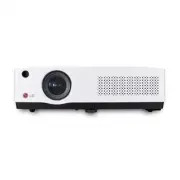 LG BD430
User Manual
LG BD430
User Manual
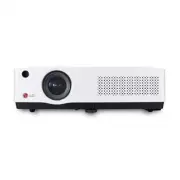 LG BD450
User Manual
LG BD450
User Manual
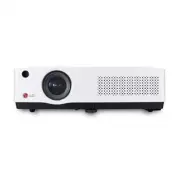 LG BD460
User Manual
LG BD460
User Manual
 LG BF50NST
User Manual
LG BF50NST
User Manual
 LG BF50RG
User Manual
LG BF50RG
User Manual
 LG BF60PST
User Manual
LG BF60PST
User Manual
 LG BG630
User Manual
LG BG630
User Manual
 LG BG650
User Manual
LG BG650
User Manual
 LG BU50NST
User Manual
LG BU50NST
User Manual
 LG BU50RG
User Manual
LG BU50RG
User Manual
 LG BU53PST
User Manual
LG BU53PST
User Manual
 LG BU53RG
User Manual
LG BU53RG
User Manual
 LG BU60PSM
User Manual
LG BU60PSM
User Manual