Page 2 - FCC NOTICE; • A Class B digital device
DLP PROJECTOR DLP PROJECTOR FCC NOTICE • A Class B digital device This equipment has been tested and found to comply with the limits for a Class B digital device, pursuantto Part 15 of the FCC Rules. These limits are designed to provide reasonable protection against harmful interference in a residen...
Page 3 - ENGLISH; Contents; Video Menu Options; Special Menu Options
Contents 3 ENGLISH Contents Introduction Safety Instructions .......................................... 4 Part Descriptions Main Body ....................................................... 7Control Panel .................................................. 8Remote Control ...............................
Page 4 - Safety Instructions; Safety Instructions are given in two forms as detailed below.; WARNING; WARNING; Outdoor Installation; WARNING; Power; WARNING; Indoor Installation; NOTES; Earth wire should be connected.
Safety Instructions 4 Safety Instructions Please take note of the safety instructions to prevent any potential accident or misuse of the projector. ➟ Safety Instructions are given in two forms as detailed below. WARNING : The violation of this instruction may cause serious injuries and even death. N...
Page 5 - CAUTION concerning the Power Cord; Do not plug too many devices into one outlet.
Safety Instructions 5 ENGLISH Using WARNING Do not place anything containingliquid on top of the projector suchas flowerpot, cup, cosmetics orcandle. This may cause a fire hazard ! In case of impact shock ordamage to the projector, switch itoff and unplug it from the outlet.Contact a service center....
Page 6 - Do not drop the projector or allow impact shock.
Safety Instructions 6 Using NOTES Do not place heavy objects ontop of projector. This may cause mechanical failure orpersonal injury! Take care not to cause impact tothe lens particularly when movingthe projector. Do not touch the lens of the pro-jector. It is delicate and easilydamaged. Others NOTE...
Page 7 - Part Descriptions; Main Body
Part Descriptions 7 ENGLISH Part Descriptions Main Body Indicators Remote control sensor * The projector is manufactured using high-precision technology. You may, however, see on the Projector screen tiny black points and/or bright points (red, blue, or green). This can be a normal result of the man...
Page 8 - Control Panel; MENU Button
Part Descriptions 8 Control Panel MENU Button SOURCE Button A OK Button D / KEY STONE Button E / SMART IRIS Button G / ZOOM + Button F / ZOOM - Button POWER Button
Page 9 - Remote Control; CAUTION
Part Descriptions 9 ENGLISH Remote Control Installing Batteries POWER MENU SOURCE AUTO BLANK KEYSTONE SMART IRIS ZOOM ARC STILL OK POWER Button SOURCE Button D / E Button A OK Button ARC Button (Refer to p.30) STILL Button (Refer to p.33) ZOOM +/- Button (Refer to p.23) AUTO Button (Refer to p.34) B...
Page 10 - Projector Status Indicators
Part Descriptions 10 * Lamp Indicator, operation indicator and temperature indicator on the projector show the user the operating status of the pro- jector. Lamp Indicator Temperature Indicator Operation Indicator Projector Status Indicators Operation Indicator Lamp Indicator Temperature Indicator O...
Page 11 - Accessories
Part Descriptions 11 ENGLISH Accessories Optional Extras POWER MENU SOURCE AUTO BLANK KEYSTONE SMART IRIS ZOOM ARC STILL OK * Contact your dealer to purchase these items.* Contact your service personnel for replacing a new lamp.* Projector lamp is reaching the end of its life and needs to be replace...
Page 12 - Installing and Composition; Installation and Composition; Provide proper ventilation for this projector.; This may cause overheating of the projector.; If there is no input signal, the Menu will not be displayed on screen.; Installation Instructions
Installing and Composition 12 Installation and Composition Provide proper ventilation for this projector. ● The projector is equipped with ventilation holes(intake) onthe bottom and ventilation holes(exhaust) on the front. donot block or place anything near these holes, or internalheat build-up may ...
Page 13 - screen determines the actual size of the image.; Basic Operation of the Projector; projection distance based on the picture format
ENGLISH 16:9 picture format mm / inches screen Projection distance Installing and Composition 13 1. Place the projector on a wall. 2. Place the projector the correct distance from the screen. The distance between the projector and the screen determines the actual size of the image. 3. Position the p...
Page 14 - Do not hang on or impact this product.; Installing the projector to the wall; Safety instructions on installing the wall
Installing and Composition 14 Please take note of the safety instructions to prevent any potential accident or misuse of the projector. ➟ Safety Instructions are given in two forms as detailed below. WARNING : The violation of this instruction may cause serious injuries and even death. NOTES : The v...
Page 15 - Accessories for wall mounting bracket; Installing Wall mounting bracket; Detach the products
Installing and Composition 15 ENGLISH Accessories for wall mounting bracket Wall mounting bracket - Detach bolt from wall mounting bracket.- Detach product fixing bracket from Wall mounting bracket. Bolts for wall mounting bracket Wall anchor bolt sleeves Bolts for fixing the bracket Fixing fixers B...
Page 16 - : Anchors insertion position
Installing and Composition 16 a. After matching the positions of the wall bracket, mark the positions of the anchor. b. At the position of anchor marked in the wall, using on 6mm drill appropriate for the material on the wall, drill each hole to a depth of above 40~50mm. c. Clean each drilled hole a...
Page 17 - a. Mount the wall mounting bracket on the wall as setting the hole.; Using the bolts for using the wood; Install the wall mounting bracket on the wall
Installing and Composition 17 ENGLISH a. Mount the wall mounting bracket on the wall as setting the hole. b. Insert the bolts for wall mounting bracket as setting the each hole. a b Bolt for wall mounting bracket Using the wall anchor bolt sleeves and bolts for wall mounting bracket - After matching...
Page 18 - Assemble the projector with the wall mounting bracket
Installing and Composition 18 Ó Assemble a projector with the wall mounting bracket installed on the wall as below Fig. Do not install this product by yourself. Get some help from others. It may cause the product to fall and could cause injuries. a. Hang fixing 2 fixers on a upper groove. b. Insert ...
Page 19 - Cable Management; Connect the cables as necessary.; HDMI cable should be placed on the bottom.
Installing and Composition 19 ENGLISH Cable Management Place the set with the screen facing down on a cushion orsoft cloth. Pull the back cover upward. 1 Back panel of the set Connect the cables as necessary. At first, Bundle the HDMI, VIDEO, S-VIDEO Cables usingthe supplied Cable holder as shown. 2...
Page 21 - Adjusting Tilt Angle
Installing and Composition 21 ENGLISH - Adjustable angle range is 5°(upside/downside/left/right) and turn range is ±10.- Do not adjust tilt angle with too much force. It may cause damage of product or could cause injuries. <Adjusting Tilt Angle> - Leave 16.8 mm between the projector and the wa...
Page 22 - Turning on the Projector; button on the remote control or control panel.; Select the source mode with the SOURCE button.; POWER; button on the control panel or remote control.; POWER; Selecting source mode; SOURCE; Each press of the
Installing and Composition 22 * Don’t unplug the power cord while the ventilation fan (inlet/outlet) is working. If so, you take longer time by lamp on. Turning on the Projector Turning off the Projector 1. Connect power cord correctly. 2. Press the POWER button on the remote control or control pane...
Page 23 - Lens shift; Focus, Zoom, Position of the Screen Image; Adjust the focus by using; FOCUS; Adjust the screen size by using; ZOOM; FOCUS Ring
Installing and Composition 23 ENGLISH If you want to adjust the screen image to upside/downside, adjust the lens shift as shown below. ● Adjust the Lens shift to upside/downside the set the wanted position of screen. Lens shift Focus, Zoom, Position of the Screen Image When an image appears on the s...
Page 24 - Connection; Connecting to a Desktop PC; Connect computer cable to; Connecting to a Notebook PC; Connect computer cable to
Connection 24 Connection RGB IN (PC/DTV) VIDEO Y P B P R S-VIDEO HDMI IN COMPONENT IN RGB IN (PC/DTV) VIDEO Y P B P R S-VIDEO HDMI IN COMPONENT IN Connecting to a Desktop PC * You can connect the projector to a computer of VGA, SVGA, XGA and SXGA output. * Refer to page 36 for the supported monitor ...
Page 25 - Connecting to a Video Source; Connecting to a DVD; Component P
Connection 25 ENGLISH RGB IN (PC/DTV) VIDEO Y P B P R S-VIDEO HDMI IN COMPONENT IN S VIDEO (R) AUDIO (L) VIDEO OUT IN <VCR> RGB IN (PC/DTV) VIDEO Y P B P R S-VIDEO HDMI IN COMPONENT IN P R P B Y (R) AUDIO (L) HDMI OUTPUT DVI OUTPUT <DVD> Component cable HDMI to DVI cable HDMI cable Conne...
Page 26 - a. Connect RGB cable to; HDMI; of the; connect it to the projector.
Connection 26 Component cable RGB IN (PC/DTV) VIDEO Y P B P R S-VIDEO HDMI IN COMPONENT IN (R) AUDIO (L) DTV OUTPUT HDMI OUTPUT P R P B Y DVI OUTPUT RGB IN (PC/DTV) VIDEO Y P B P R S-VIDEO HDMI IN COMPONENT IN (R) AUDIO (L) DTV OUTPUT HDMI OUTPUT P R P B Y <D-TV Set-Top Box> HDMI to DVI cable ...
Page 27 - Function; Adjusting Video; MENU; APC; button to adjust the screen condition as you want.; Contrast; Prev. Move Select
Function 27 Function Video Menu Options * In this manual, the OSD(On Screen Display) may be different from your Projector’s because it is just an example to help with the Projector operation. * If there is no input signal present, the Menu will not be displayed.* This operating guide explains operat...
Page 28 - ACC; Auto Color Temperature Control; Gamma; Gamma Function; Brilliant Color; * What does Brilliant Color; Brilliant Color
Function 28 1. Press the MENU button and then use F , G button to select the menu. 2. Press the D , E button to select ACC item. 3. Press the F , G button to make desired adjustments. Auto Color Temperature Control ● Each press of the D , E button changes the screen as shown below. ● To exit the men...
Page 29 - Black Level Function; White peaking Function; Smart Iris Function
Function 29 1. Press the MENU button and then use F , G button to select the menu. 2. Press the D , E button to select Black Level item. 3. Press the F , G button to select Low or High . ● Low : The reflection of the screen gets darker. ● High : The reflection of the screen gets brighter. Black Leve...
Page 30 - button and then use; Language; button to select the language you want to use.; To exit the menu display, repeatedly, press the; Selecting Language; ARC; Each press of the button changes the display as below.; Using ARC Function; You can also use this function by using the
Function 30 Special Menu Options 1. Press the MENU button and then use F , G button to select the menu. 2. Press the D , E button to select Language item. 3. Press the F , G button to select the language you want to use. ● On-Screen-Display (OSD) is displayed in the selected language. ● To exit the ...
Page 31 - Flip horizontal Function; Auto sleep Function; Auto sleep
Function 31 ENGLISH Flip horizontal Function * This function reverses the projected image horizontally. Use this function when rear projecting an image. 1. Press the MENU button and then use F , G button to select the menu. 2. Press the D , E button to select Flip horizontal item. 3. Press the A O K...
Page 32 - KEYSTONE; V Keystone; Using Keystone Function; Keystone; BLANK; ‘Selecting blank image color’; Using Blank Function; Blank image; Selecting Blank image color; V Keystone 0
Function 32 Special Menu Options 1. Press the KEYSTONE button. 2. Press the D , E button to select V Keystone or H Keystone. 3. Press the F , G button to make desired adjustments. ● Keystone can be adjusted from -20 to +20. ● You can also access this function via the MENU button. Using Keystone Func...
Page 33 - Lamp mode; Lamp mode Function; STILL; Using Still Function; Lamp time 11 Hr
Function 33 ENGLISH 1. Press the MENU button and then use F , G button to select the menu. 2. Press the D , E button to select Lamp mode item. 3. Press the F , G button to select High Bright or Economic . ● To exit the menu display, repeatedly, press the MENU button. 1. Press the MENU button and the...
Page 34 - AUTO; Auto Configure Function; Screen Menu Options; Using Clock Function; Store Move Adjust
Function 34 1. Press the AUTO button. ● Image positioning and synchronization are automatically adjusted. 2. You want adjust more by various PC input modes, adjust Phase , Clock , Horizontal and Vertical in menu. In certain circumstances, you can’t get the best picture quality by only using auto-cor...
Page 35 - Horizontal; Vertical; Using Vertical Function
Function 35 ENGLISH 1. Press the MENU button and then use F , G button to select the menu. 2. Press the D , E button to select Horizontal item. 3. Press the F , G button to make desired adjustments. ● Horizontal adjustment range is -25 ~+25. ● To exit the menu display, repeatedly, press the MENU but...
Page 36 - Information; Supported Monitor Display; Sources
Information 36 Supported Monitor Display Component-*1 RGB(DTV)-*2 HDMI(DTV)-*3 Signal < DVD/DTV Input > * Cable type1- Component Cable2- Computer Cable3- HDMI Cable* We recommend using 720p resolution. NTSC(60Hz) 480i 480p 720p 1080i PAL(50Hz) 576i 576p 720p 1080i O O O O O O O O X O O O X O O...
Page 37 - Maintenance; Cleaning the lens
Information 37 Maintenance Cleaning the lens Clean the lens whenever you notice dirt or dust on the surface of it. Wipe the lens surface gently with an air sprayor a soft, dry lint-free cloth. To remove dirt or stains on the lens, moisten a soft cloth with water and a neutral detergent and wipe the ...
Page 38 - Replacing the Lamp; Last of Lamp unit replacement; The projected image gets darker or starts to be deteriorated.; To obtain a replacement Lamp unit
Information 38 Replacing the Lamp Last of Lamp unit replacement Be careful when replacing lamp The projector lamp usually lasts for about 2000 hours. You can see the used lamptime in the Selecting Function section. You must replace the lamp when: ● The projected image gets darker or starts to be det...
Page 40 - Regarding the projector lamp control; - It may cause the lamp life-span to shorten and get damaged.
Information 40 Regarding the projector lamp control ● Don’t turn off the projector at least in 5 minutes after activating it. - The frequent On/Off changes may cause the lamp function to deteriorate. ● Don’t pull out the power cord while activating the projector and the cooling fan. - It may cause t...
Page 41 - Memo
Page 43 - Specifications; Operating Condition
Information 43 ENGLISH Specifications Operating Condition Projector Lamp resolution horizontal / vertical ratio DLP panel size screen size remote control distance zoom ratio Video compatibility Power height(mm/inches) breadth(mm/inches) length(mm/inches) 1280(Horizontal) x 720(Vertical)pixel 16:9(ho...
Page 44 - Modelnummer; BRUGERVEJLEDNING
LG DLP PROJEKTOR LG DLP PROJEKTOR Du bedes læse denne brugervejledning grundigt igennem,førend du betjener enheden.Gem brugervejledningen til fremtidig brug. Skriv model- og fabrikationsnummeret på enheden nedherunder.Opgiv oplysningerne på mærkatet i bunden af enheden til dinforhandler, hvis du får...


 LG HU715QW
User Manual
LG HU715QW
User Manual
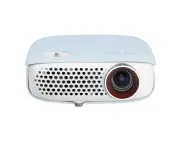 LG PW800G
User Manual
LG PW800G
User Manual
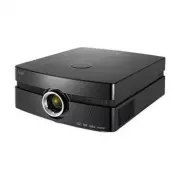 LG AF115
User Manual
LG AF115
User Manual
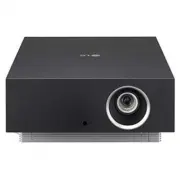 LG AU810PB
User Manual
LG AU810PB
User Manual
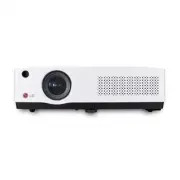 LG BD430
User Manual
LG BD430
User Manual
 LG BD450
User Manual
LG BD450
User Manual
 LG BD460
User Manual
LG BD460
User Manual
 LG BF40QS
User Manual
LG BF40QS
User Manual
 LG BF50NST
User Manual
LG BF50NST
User Manual
 LG BF50RG
User Manual
LG BF50RG
User Manual
 LG BF60PST
User Manual
LG BF60PST
User Manual
 LG BG630
User Manual
LG BG630
User Manual
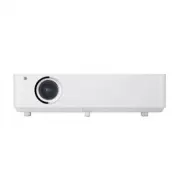 LG BG650
User Manual
LG BG650
User Manual
 LG BU50NST
User Manual
LG BU50NST
User Manual
 LG BU50RG
User Manual
LG BU50RG
User Manual
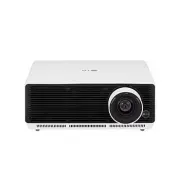 LG BU53PST
User Manual
LG BU53PST
User Manual
 LG BU53RG
User Manual
LG BU53RG
User Manual
 LG BU60PSM
User Manual
LG BU60PSM
User Manual