Page 2 - REGULATORY INFORMATION: FCC Part 15; CAUTION
2 CAUTION: TO REDUCE THE RISK OF ELECTRIC SHOCK DO NOT REMOVE COVER (OR BACK)NO USER-SERVICEABLE PARTS INSIDE REFERSERVICING TO QUALIFIED SERVICE PERSON-NEL. This lightning flash with arrowhead symbolwithin an equilateral triangle is intended toalert the user to the presence of uninsulateddangerous ...
Page 4 - Important Safety Instructions
4 1. Read these instructions. 2. Keep these instructions. 3. Heed all warnings. 4. Follow all instructions. 5. Do not use this apparatus near water. 6. Clean only with dry cloth. 7. Do not block any ventilation openings. Install in accordance with the manufacturer’s instructions. 8. Do not install n...
Page 5 - Contents
Contents Introduction . . . . . . . . . . . . . . . . . . . . . . . . . . . . . . . . . . . . . .6-9 Remote control . . . . . . . . . . . . . . . . . . . . . . . . . . . . . . . . . . .10 Front panel . . . . . . . . . . . . . . . . . . . . . . . . . . . . . . . . . . . . . .11 Rear panel . . . . . ....
Page 6 - Introduction; About the; MUSIC
6 Introduction To ensure proper use of this product, please read this owner’s manualcarefully and retain for future reference.This manual provides information on the operation and maintenance ofyour player. Should the unit require service, contact an authorized servicelocation. About the Symbol Disp...
Page 7 - Playable Discs
7 Playable Discs Blu-ray Disc - Discs such as movies that can be purchased or rented- BD-R/RE discs that contain audio titles, Music or Photo files. DVD-VIDEO (8 cm / 12 cm disc) Discs such as movies that can be purchased or rented DVD-R (8 cm / 12 cm disc) - Video mode and finalized only- Supports ...
Page 10 - Remote control; Remote Control Operation; Remote Control Battery Installation
10 Remote control a POWER ( 1 ): Switches the player ON or OFF. 0-9 numerical buttons: Select numbered options in a menu. RESOLUTION: Sets the output resolution for HDMI jacks. OPEN/CLOSE ( Z ): Opens and closes the disc tray. TV Control Buttons: See page 31. CLEAR: Removes a mark on the search menu...
Page 11 - Disc Tray; Display Window; Remote Sensor; USB Port; Front panel
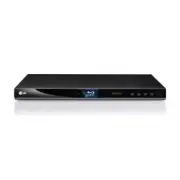
11 a Disc Tray Insert a disc here. b Z (OPEN/CLOSE) Opens or closes the disc tray. c 1 1 (POWER) Switches the unit ON or OFF. d Display Window Shows the current status of the player. e Remote Sensor Point the remote control here. f N / X (PLAY / PAUSE) Starts playback.Pause playback temporarily, pre...
Page 12 - AC Power Cord; VIDEO OUT; Rear panel
12 a AC Power Cord Connect to a power source. b HDMI OUT (1080p) Connect to TV with HDMI inputs. (Interface for digital audio and video) c VIDEO OUT Connect to a TV with video inputs. d 2CH AUDIO OUT (Left/Right) Connect to a TV with 2 channel audio inputs. e DIGITAL AUDIO OUT (COAXIAL) Connect to d...
Page 13 - Connections to Your TV; HDMI Connection; BD player
13 Connections to Your TV Make one of the following connections, depending on the capabilities ofyour existing equipment. Tips: • Depending on your TV and other equipment you wish to connect, there are various ways you could connect the player. Use only one of the con-nections described below. • Ple...
Page 14 - Connecting to an Amplifier; Connecting to an Amplifier via 2 Channel Audio Output
14 Video/Audio (Left/Right) Connection Connect the VIDEO OUT jack on the player to the video in jack on the TVusing a video cable (V) . Connect the left and right AUDIO OUT jacks of the player to the audio leftand right IN jacks on the TV using the audio cables (A) . Connecting to an Amplifier Make ...
Page 15 - Connecting to an Amplifier via HDMI Output; Digital Multi-channel sound
15 Connecting to an Amplifier via HDMI Output Connect the player’s HDMI OUT jack to the corresponding in jack on youramplifier. Use a HDMI cable (H1) . You will need to activate the player’s digital output. (See “[AUDIO] Menu” on pages 21-22.) Digital Multi-channel sound A digital multi-channel conn...
Page 17 - How to change the resolution using the [Setup] menu; Available resolution according to the resolution setting; HDMI OUT connection; • When the non-copy protected media is playing back
17 Note: Since several factors affect the resolution of video output, see “Availableresolution according to the resolution setting” on next page. How to change the resolution using RESOLUTION button Press RESOLUTION repeatedly in stop mode to change the resolution.The display window will show you th...
Page 18 - Insert/Remove a USB Flash Drive; Using a USB Flash Drive; ON REMOTE
18 Tip: If you select the [Photo] or [Music] option when a USB Flash Drive is con-nected and a disc is inserted simultaneously, the menu for selecting amedia will appear. Select a media then press ENTER. Insert/Remove a USB Flash Drive Inserting a USB Flash Drive – Insert straight-in until it fits i...
Page 19 - Using the Home Menu; Adjust the Setup settings
19 [Movie] – Start video media’s playback or displays the [MOVIE] menu. [Photo] – Displays [PHOTO] menu. (page 29-30) [Music] – Displays [MUSIC]menu. (page 28) [Setup] – Displays the [Setup] menu. (page 19-23) Tip: If you select the [Photo] or [Music] option when a USB Flash Drive is con-nected and ...
Page 21 - Display Menu
21 [LANGUAGE] Menu Display Menu Select a language for the [Setup] menu and on-screen display. Disc Menu / Disc Audio / Disc Subtitle Select the language you prefer for the audio track (disc audio), subtitles,and the disc menu. [Original] – Refers to the original language in which the disc was record...
Page 22 - Password
22 Notes: • When [HDMI] option is set to [PCM Multi-Ch], the audio may output as PCM Stereo if the PCM Multi-Ch information is not detected from HDMIdevice with EDID. • If the [HDMI] or [SPDIF] option is set to [DTS re-encode], the DTS Re- encode audio is outputted for BD-ROM discs with secondary au...
Page 24 - If a disc menu screen is displayed; Resume playback; Pause a playback; AVCHD; Play a disc; Open the disc tray:
24 Notes: • When you turn on the player or replace a disc, the player returns to theinitial default setting. Depending on the disc, a specific type of audiothat the disc has is output. • Depending on the pre-recorded contents of the BD-ROM, some func-tions may not be available or may be operated dif...
Page 25 - Viewing the Title menu or Popup menu; To enter a Marker
25 Playing repeatedly During playback, press REPEAT repeatedly to select a desired repeatmode. The current title, chapter or track will be played back repeatedly. Toreturn to normal playback, press REPEAT repeatedly to select [Off]. When you are using the repeat, A-B repeat or random functions in th...
Page 26 - Hearing a different audio; Selecting a subtitle language; OR; Using the search menu
26 Hearing a different audio During playback, press AUDIO repeatedly to hear a different audio language, audio track or audio channel. OR During playback, press DISPLAY to display the playback menu. Use v V to select the [Audio] option then use b B to select desired audio language, audio track or au...
Page 27 - Playing from selected time; Displaying disc information
27 a Title/Track – Current title/track number/total number of titles/tracks. b Chapter – Current chapter number/total number of chapters. c Time – Elapsed playing time. d Audio – Selected audio language or channel. e Subtitle – Selected subtitle. f Angle – Selected angle/total number of angles. Note...
Page 28 - MP3/WMA audio file requirement; Listening to music; Inserts an Audio CD or a disc/USB Flash; Plays the selected music:
28 Example) MP3 files Notes: • When the USB Flash Drive is connected and a disc is inserted simultaneously, the menu for selecting a media will appear. Select amedia then press ENTER. • You can use various playback functions. Refer to pages 24-26. Tips: • To go directly to any track or file and play...
Page 29 - Options during viewing a photo file in full screen; Viewing a photo; Inserts a disc/USB Flash Drive containing
29 Notes: • When the USB Flash Drive is connected and a disc is inserted simultaneously, the menu for selecting a media will appear. Select amedia then press ENTER. • You can start the slide show by pressing PLAY ( N ) while photo file is selected in the [PHOTO] menu. • On the [PHOTO] menu, use red ...
Page 30 - Playing a DVD VR Format Disc; Plays the selected movie:
30 Door : Photo will be appear like door opening.Lattice : Photo will be appear from tiled pieces to full screenimage [Delay] – You can set the photo delaying time while Slide Show h Press ENTER to exit the option menu. To access the menu again, press ENTER. Tips: • For the files that are contained ...
Page 31 - Reference; Controlling a TV with the Supplied Remote Control; Resetting the unit
31 Reference Controlling a TV with the Supplied Remote Control You can control the volume, input source, and power state of your TV withthe supplied Remote Control. You can control your TV using the buttons below. By pressing You can TV POWER Turn the TV on or off. AV/INPUT Switch the TV’s input sou...
Page 33 - Troubleshooting; Possible Cause
33 Troubleshooting Possible Cause • The power cord is disconnected. • No disc is inserted. • The TV is not set to receive video signal output. • The video cable is not connected securely. • The selected resolution is not capable with your TV. • The equipment connected with the audio cable is not set...
Page 34 - Specifications; Operating temperature:
34 Specifications General Power requirements: AC 120 ~, 60 Hz Power consumption: 23 W Dimensions (W x H x D): Approx. 16.9 x 1.4 x 7.9 inches (430 x 35 x 200 mm) without foot Net Weight (Approx.): 6 lbs (2.7 kg) Operating temperature: 41 °F to 95 °F (5 °C to 35 °C) Operating humidity: 5 % to 90 % Ou...
Page 35 - Open source software notice
Open source software notice The following GPL executables and LGPL libraries used in this product aresubject to the GPL2.0/LGPL2.1 License Agreements: GPL EXECUTABLES: Linux kernel 2.6, bash, busybox, dhcpcd, mtd-utils, net-tools, procps, sysutils, tinylogin LGPL LIBRARIES: uClibc, DirectFB, iconv, ...