Page 2 - USER MANUAL; TABLE OF CONTENTS
USER MANUAL NAVCAM-818SHD 2 TABLE OF CONTENTS Important safety instructions and precautions 3 What’s in the box 3 Micro SD card requirements 3 Camera button and hardware overview 4 What do the buttons do? 5 On screen display 6 What do the led indictors mean? 7 Quick reference guide 8 Operating the N...
Page 3 - IMPORTANT SAFETY INSTRUCTIONS AND PRECAUTIONS
USER MANUAL NAVCAM-818SHD 3 IMPORTANT SAFETY INSTRUCTIONS AND PRECAUTIONS - Read all instructions carefully before use. - Retain manuals for future reference. - Use this product only in the manner described. - Only use a water-dampened soft-cloth to clean the surface of this product. - The following...
Page 4 - CAMERA BUTTON AND HARDWARE OVERVIEW
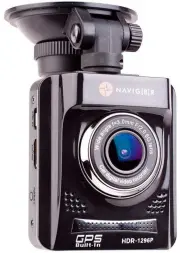
USER MANUAL NAVCAM-818SHD 4 CAMERA BUTTON AND HARDWARE OVERVIEW 1 Menu / Return 7 Mini HDMI Out 2 Playback / UP / Map shortcut button 8 Reset button 3 Snap / Down / Preserve fil button 9 Power ON / OFF button 4 Record / OK 10 Micro SD slot 5 Mount Socket 11 Lens 6 Micro USB Charging Port
Page 5 - WHAT DO THE BUTTONS DO?
USER MANUAL NAVCAM-818SHD 5 WHAT DO THE BUTTONS DO? Function Button What does it do? Menu and Settings options When recording, press to enter settings When video preview, press to enter/exit settings When video playback, press to return to preview interface. Press for Map (GPS connection required) W...
Page 6 - ON SCREEN DISPLAY
USER MANUAL NAVCAM-818SHD 6 1 2 3 4 5 ON SCREEN DISPLAY 6 7 8 9 1 2 3 4 1 2 MENU SCREEN (PRESS MENU FROM PLAYBACK SCREEN) 1 User Settings 2 File Edit options (Delete) 3 Menu Settings (Press to Toggle thru) 4 Scroll up through options 5 Scroll down through options 6 Confirm selection 3 4 5 6 PLAYBACK...
Page 7 - WHAT DO THE LED INDICTORS MEAN?
USER MANUAL NAVCAM-818SHD 7 1 2 3 4 1 2 3 4 WHAT DO THE LED INDICTORS MEAN? ICON Definition Flashing Blue dot Video is Recording Satellite icon GPS location fixed and tracking Satellite icon (with strike Through) GPS location not found (eg. If indoors) Red LED (Light) Device is charging Blue LED (Li...
Page 8 - QUICK REFERENCE GUIDE
USER MANUAL NAVCAM-818SHD 8 QUICK REFERENCE GUIDE Feature Function Description How to use Super High Definition (1296p) View your recorded video and digital photos in super high definition resolution Go to the settings menu and select SHD from the resolutions option. Speed Camera and School Zone ale...
Page 9 - OPERATING THE NAVCAM-818SHD FOR THE FIRST TIME; AUTO RECORD WHEN TURNED ON
USER MANUAL NAVCAM-818SHD 9 OPERATING THE NAVCAM-818SHD FOR THE FIRST TIME Connect a USB car charger to the car’s 12v (or trucks 24v) Cigarette lighter socket and the other end to the Micro USB port on the NAVCAM-818SHD. Insert a Micro SD card into the Micro SD slot and turn the device on. When the ...
Page 10 - PLAYING BACK A RECORDED FILE; AUTO BUMP FILE RECORD (G SENSOR) - SAVING RECORDING VIDEO FILES
USER MANUAL NAVCAM-818SHD 10 as a FLASHING BLUE LED indicator at the top right hand side of the unit. The screen will also display a count up timer for the recording at the top. The recorded files are saved to the memory or micro SD Card. Recording can be stopped, by either pressing the OK button or...
Page 11 - USB CONNECTION
USER MANUAL NAVCAM-818SHD 11 PLAYBACK ON TV (WITH HDMI) Connect the NAVCAM-818SHD to a HDMI equipped TV or AV monitor with a mini-HMDI to HDMI cable. Turn on the NAVCAM-818SHD and select PLAY. USB CONNECTION Connect the NAVCAM-818SHD to a Windows PC with a Micro USB to USB cable. The screen will the...
Page 13 - TRACKING SOFTWARE – QUICK GUIDE; Click next and follow the prompts
USER MANUAL NAVCAM-818SHD 13 TRACKING SOFTWARE – QUICK GUIDE INSTALLING THE SOFTWARE Install the software disc and select an installation (or view the user manual) Install GPS Player Software For 32 or 64bit Windows O/S Install Video Player Software View User Manual Click next and follow the prompts
Page 14 - THE GPS SOFTWARE - OVERVIEW
USER MANUAL NAVCAM-818SHD 14 THE GPS SOFTWARE - OVERVIEW
Page 15 - FAQ
USER MANUAL NAVCAM-818SHD 15 FAQ Fault Suggestion The device has frozen / stopped working. Check the speed of your memory card. We recommend class 10 for faster transfer rates, especially If the record fi le size is bigger (say 15 min recording increments at 1080Full HD). Alternately, check the car’s...
Page 16 - PRODUCT SPECIFICATIONS
USER MANUAL NAVCAM-818SHD 16 PRODUCT SPECIFICATIONS LCD Screen 2.0” TFT Colour LCD Display showing forward video image and Menu settings as well as playback for recorded video Video Resolution 2560*1080 @ 30fps 21:9 / 2340*1296 @ 30fps 16:9 / 1920*1080P 45fps 16:9 / HDR 1920*1080P 30fps 16:9 / 1280*...
Page 17 - FEATURE EXPLANATIONS
USER MANUAL NAVCAM-818SHD 17 FEATURE EXPLANATIONS Feature Description Example GPS Tracking Location and speed information is recorded along with video for later review on PC software When playing back your video on the PC software you can see where you were on Google Maps as well as other data Auto ...