Epson ET 7750 - Manual

A user manual for the Epson ET-7750 printer covers essential setup procedures, including unpacking, ink cartridge installation, and paper loading alongside its core functionality–wireless/wired network integration, mobile printing, and troubleshooting common operational challenges like connectivity or print quality issues. The guide emphasizes practical steps for maintenance, ensuring compatibility with standard paper sizes, and addressing system errors through diagnostic support.


Table of Contents:
- Page 1 – Printer Unpacking and Ink Cartridge Installation
- Page 2 – Paper Loading and Ink Charging Procedures
- Page 3 – Software Setup and Network Connectivity
- Page 4 – Troubleshooting, Support, and Recycling Information
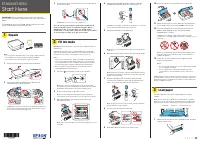
Start Here
Read these instructions before using your product.
Note for Spanish speakers/Nota para hispanohablantes:
Para
obtener instrucciones de confi guración en español, consulte la Guía
de instalación en
www.epson.com/support/et7750sp (requiere una
conexión a Internet).
1
Unpack
Note:
• Do not open the ink bottles until you are ready to fill the ink tanks.
The ink bottles are vacuum packed to maintain reliability.
• The CD/DVD tray is taped to the bottom of cassette 2.
• For instructions on how to replace the included replacement
maintenance box, see the online User’s Guide.
1
Remove all protective materials from the product.
2
Lift up the scanner unit. Remove all protective materials
from inside the product.
Caution:
Do not touch the fl at white cable or the ink tubes and
their translucent cover.
2
Fill ink tanks
Note:
This product requires careful handling of ink. If ink spills, wipe it
off immediately with a damp towel to avoid permanent stains. If ink gets
on your clothes or belongings, it may not come off.
Warning:
Keep the ink bottles out of the reach of children and do not
drink the ink.
1
Open the ink tank cover, then open the cap for the ink tank
you are going to fi ll.
2
Unpack one of the ink bottles. Hold the ink bottle upright
and slowly turn the bottle cap to remove it.
Caution:
Do not shake or squeeze the ink bottle. Do not touch
the top of the ink bottle after its cap is removed.
3
Position the top of the ink bottle along the slot in front of
the fi lling port, then slowly stand the bottle up to insert it.
Note:
Refer to the color-coded sticker to identify the color of each
tank. Do not force the bottles into position; they are keyed for
each color.
4
Wait for the ink to fi ll the tank.
Do not squeeze the bottle.
Ink fl ows into the tank and stops automatically when the
ink is fi lled to the upper line.
Note:
If ink does not fl ow from the bottle, lift and reinsert the
bottle.
5
When the ink tank is full, remove the ink bottle and securely
close the ink tank cap. Place the ink bottle aside; you will
need it later.
Note:
Replace the bottle cap and tighten it.
ET-7750
"Loading the manual" means you need to wait until the file loads and becomes available for online reading. Some manuals are very large, and the time they take to appear depends on your internet speed.
Was this manual helpful?
About this manual
- Brand
- Epson
- Model
- ET 7750
- Document type
- Manual
- Language(s)
- English
- Pages
- 4
- File size
- 1.4 MB
- Format
Other Manuals for Epson ET 7750
Summary
Instructions for unpacking the printer, removing protective materials, and safely installing ink cartridges.
Steps for inserting paper cassettes, setting paper size guides, and charging ink using the control panel and LCD screen.
Instructions for installing software, configuring wireless or wired connections, mobile printing options, and troubleshooting network setup failures.
Ask a question
Related manuals
Popular Epson Other
 Epson PictureMate Flash - PM 280 - PictureMate Flash Compact Photo Printer User Manual
 Epson TM-T70II Troubleshooting Guide
 Epson U925 - TM B/W Dot-matrix Printer User Manual
 Epson RR 70W Manual
 Epson 9890 Manual
 Epson 206636 - PocketJet 3 Plus User Manual
 Epson Printer TM-H5000II User Manual
 Epson TM-T88V User Manual