Epson ES 500W II - Installation Manual
A user manual for Epson’s ES-400 II and ES-500W II scanners covers essential setup, operation, and connectivity. The document outlines initial steps like powering on the device and handling software installation–including downloading drivers from Epson’s support site–while also addressing scanning workflows via USB or wireless networks (Wi-Fi). Key topics include mobile and computer scanning procedures, troubleshooting Wi-Fi issues such as network credential mismatches, and basic connectivity requirements.
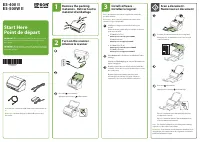
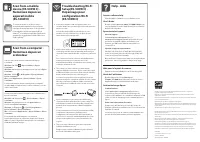
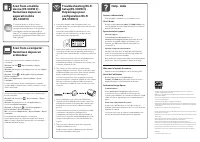
Table of Contents:
- Page 1 – Initial Setup Procedures for Scanners
- Page 2 – Software Installation and Document Scanning Guide
- Page 3 – Mobile/Computer Scanning and Wi-Fi Troubleshooting
- Page 4 – Software Support and Contact Information
Note:
An internet connection is required to obtain the
product software.
Remarque :
Une connexion Internet est requise pour
obtenir le logiciel du produit.
Visit Epson’s support site listed below for your
model.
Visitez le site de soutien d’Epson indiqué ci-dessous
pour votre modèle.
•
ES-400 II (U.S./É.-U.)
www.epson.com/support/es400II
ES-400 II (Canada)
www.epson.ca/support/es400II
•
ES-500W II (U.S./É.-U.)
www.epson.com/support/es500wII
ES-500W II (Canada)
www.epson.ca/support/es500wII
Click
Download
for the Drivers and Utilities Combo
Package.
Cliquez sur
Télécharger
pour obtenir l’Ensemble des
pilotes et logiciels.
Double-click the file you downloaded to install the
software. Follow the on-screen instructions to set up
the connection.
Double-cliquez sur le fichier que vous avez
téléchargé pour installer le logiciel. Suivez les
instructions à l’écran pour établir la connexion.
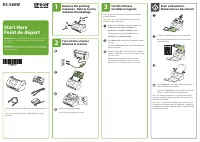
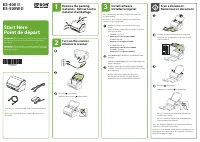
Press the power button.
Appuyez sur le bouton d’alimentation.
1
1
1
1
3
2
ES-400 II
ES-500W II
IMPORTANT: Before using this product, make sure you read
these instructions and the safety instructions in the online
User’s Guide
.
IMPORTANT : Avant d’utiliser ce produit, assurez-vous de lire
ces instructions et les instructions de sécurité dans le
Guide de
l’utilisateur
en ligne.
Start Here
Point de départ
Remove the packing
materials
•
Retirez tout le
matériel d’emballage
Install software
•
Installez le logiciel
Turn on the scanner
•
Allumez le scanner
Load the document facedown, short edge first.
Chargez votre document face vers le bas et bord
court en premier.
Press the
start button.
Appuyez sur le bouton de démarrage.
Epson® ScanSmart starts automatically and your
document is scanned.
Epson® ScanSmart démarre automatiquement et
votre document est numérisé.
Note:
For detailed information on loading and scanning
originals, see the online
User’s Guide
.
Remarque :
Pour obtenir des informations détaillées sur le
chargement et la numérisation des originaux, consultez le
Guide de l’utilisateur
en ligne.
1
Scan a document
•
Numérisez un document
Note:
Do not connect the USB cable unless instructed to do
so.
Remarque :
Ne branchez pas le câble USB sauf si vous y
êtes invité.
"Loading the manual" means you need to wait until the file loads and becomes available for online reading. Some manuals are very large, and the time they take to appear depends on your internet speed.
Was this manual helpful?
About this manual
- Brand
- Epson
- Model
- ES 500W II
- Document type
- Installation Manual
- Language(s)
- English, French
- Pages
- 4
- File size
- 837.7 KB
- Format
Other Manuals for Epson ES 500W II
Summary
Steps for initial setup, including removing packing materials, powering on the scanner, and safety precautions regarding USB cable connection.
Instructions for installing printer software from the support site and a step-by-step guide for loading documents and initiating scanning using Epson ScanSmart.
Methods for scanning using mobile devices and computers, including downloading the Smart Panel app and resolving Wi-Fi connection issues such as network credentials and band requirements.
Ask a question
Related manuals
Popular Epson Other
 Epson PictureMate Flash - PM 280 - PictureMate Flash Compact Photo Printer User Manual
 Epson TM-T70II Troubleshooting Guide
 Epson U925 - TM B/W Dot-matrix Printer User Manual
 Epson RR 70W User Manual
 Epson 9890 Manual
 Epson 206636 - PocketJet 3 Plus User Manual
 Epson Printer TM-H5000II User Manual
 Epson TM-T88V User Manual