Page 7 - Safety information
Safety information Connect the power cord to a properly grounded electrical outlet that is near the product and easily accessible. Do not place or use this product near water or wet locations. CAUTION—POTENTIAL INJURY: This product uses a laser. Use of controls or adjustments or performance of proce...
Page 9 - Learning about the printer; Finding information about the printer
Learning about the printer Finding information about the printer What are you looking for? Find it here Initial setup instructions: • Connecting the printer • Installing the printer software Setup documentation—The setup documentation camewith the printer. Additional setup and instructions for using...
Page 10 - Selecting a location for the printer
What are you looking for? Find it here • Software and Drivers—Certified drivers for your printer andinstallers for Dell printer software • Readme files—Last ‑ minute technical changes, or advanced technical reference materials for experienced users ortechnicians Software and Documentation CD • Suppl...
Page 11 - Printer configurations
4 3 2 1 5 1 1 Right side 304.8 mm (12 in.) 2 Front 508 mm (20 in.) 3 Left side 203.2 mm (8 in.) 4 Rear 203.2 mm (8 in.) 5 Top 800 mm (31.49 in.) Printer configurations CAUTION—POTENTIAL INJURY: To reduce the risk of equipment instability, load each tray separately. Keep all other trays closed until ...
Page 12 - Basic model
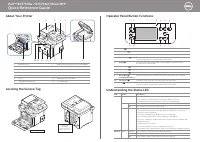
Basic model 1 2 3 4 5 6 7 1 Display 2 Automatic document feeder (ADF) 3 ADF tray 4 ADF bin 5 Standard bin 6 Multipurpose feeder 7 Standard 550 ‑ sheet tray Note: A lockable 550 ‑ sheet tray is also available. For more information, contact the place where you purchased the printer. Learning about the...
Page 13 - Configured model; Using the Embedded Web Server
Configured model 2 1 1 1 Optional 550 ‑ sheet tray 2 Optional stapler Using the Embedded Web Server Note: This feature is available only in network printers or printers connected to print servers. If the printer is installed on a network, then you can use the Embedded Web Server to do the following:...
Page 14 - Using the ADF
Understanding the basic functions of the scanner • Make quick copies or set the printer to perform specific copy jobs. • Send a fax using the printer control panel. • Send a fax to multiple fax destinations at the same time. • Scan documents and send them to your computer, an e-mail address, or an F...
Page 15 - Understanding the printer control panel; Using the printer control panel
Understanding the printer control panel Using the printer control panel 1 2 3 4 5 6 7 8 Use the To 1 Display • View the printer status and messages. • Set up and operate the printer. 2 Home button Go to the home screen. 3 Sleep button Enable Sleep mode or Hibernate mode.Do the following to wake the ...
Page 16 - Understanding the home screen
Indicator light Printer status Solid green The printer is on, but idle. Blinking red The printer requires user intervention. Sleep button light Printer status Off The printer is off, idle or in Ready state. Solid amber The printer is in Sleep mode. Blinking amber The printer is entering or waking fr...
Page 17 - Features
Touch To 9 Bookmarks Create, organize, and save a set of bookmarks (URL) into a tree view of folders and file links. Note: The tree view supports only bookmarks created from this function, and not from any other application. 10 USB Drive View, select, print, scan, or e ‑ mail photos and documents fr...
Page 18 - Using the touch-screen buttons; Other touch-screen buttons
Feature Description Printer IP address Example: 123.123.123.123 The IP address of your network printer is located at the upper left corner of thehome screen and appears as four sets of numbers separated by periods. You canuse the IP address when accessing the Embedded Web Server so you can view andr...
Page 20 - Setting up and using the home screen applications; Finding the IP address of the computer; For Windows users; For Macintosh users; Finding the IP address of the printer
Setting up and using the home screen applications Note: Your home screen may vary depending on your home screen customization settings, administrative setup, and active applications. Some applications are supported only in select printer models. Finding the IP address of the computer For Windows use...
Page 21 - Customizing the home screen; Understanding the different applications
Customizing the home screen 1 Open a Web browser, and then type the printer IP address in the address field. Note: View the printer IP address on the printer home screen. The IP address appears as four sets of numbers separated by periods, such as 123.123.123.123. 2 Do one or more of the following: ...
Page 22 - Activating the home screen applications; Finding information about the home screen applications; Setting up Forms and Favorites; Setting up Card Copy
Activating the home screen applications Finding information about the home screen applications Your printer comes with preinstalled home screen applications. Before you can use these applications, you must firstactivate and set up these applications using the Embedded Web Server. For more informatio...
Page 23 - Using MyShortcut
Use To Quickly and easily copy insurance, identification, and other wallet ‑ size cards. You can scan and print both sides of a card on a single page, saving paper and showing the informationon the card in a more convenient manner. 1 Open a Web browser, and then type the printer IP address in the ad...
Page 24 - Setting up Multi Send; Setting up Scan to Network
Setting up Multi Send Note: A later version of this User's Guide may contain a direct link to the Administrator’s Guide of this application. To check for updates of this User’s Guide , go to www.dell.com/support/manuals . Use To Scan a document, and then send the scanned document to multiple destina...
Page 25 - Setting up Remote Operator Panel
1 Open a Web browser, and then type the printer IP address in the address field. Note: View the printer IP address on the printer home screen. The IP address appears as four sets of numbers separated by periods, such as 123.123.123.123. 2 Do either of the following: • Click Set up Scan to Network &g...
Page 27 - Additional printer setup; Installing internal options; Available internal options
Additional printer setup Installing internal options CAUTION—SHOCK HAZARD: If you are accessing the controller board or installing optional hardware or memory devices sometime after setting up the printer, then turn the printer off, and unplug the power cordfrom the electrical outlet before continui...
Page 29 - Installing a memory card
4 Close the shield, and then the access door. 1 2 Installing a memory card CAUTION—SHOCK HAZARD: If you are accessing the controller board or installing optional hardware or memory devices sometime after setting up the printer, then turn the printer off, and unplug the power cordfrom the electrical ...
Page 30 - Installing an optional card
4 Push the memory card straight into the connector, and then push the card toward the controller board wall untilit clicks into place. 5 Close the controller board shield, and then the controller board access door. Note: When the printer software and any hardware options are installed, you may need ...
Page 32 - Installing an Internal Solutions Port
Warning—Potential Damage: Improper installation of the card may cause damage to the card and the controller board. Note: The entire length of the connector on the card must touch and be flushed against the controller board. 5 Close the controller board shield, and then the controller board access do...
Page 39 - Installing a printer hard disk
Installing a printer hard disk CAUTION—SHOCK HAZARD: If you are accessing the controller board or installing optional hardware or memory devices sometime after setting up the printer, then turn the printer off, and unplug the power cordfrom the electrical outlet before continuing. If you have any ot...
Page 41 - Removing a printer hard disk
Removing a printer hard disk Warning—Potential Damage: Controller board electronic components are easily damaged by static electricity. Touch a metal surface on the printer before touching any controller board electronic components or connectors. 1 Access the controller board. For more information, ...
Page 42 - Installing hardware options; Order of installation
Installing hardware options Order of installation CAUTION—POTENTIAL INJURY: The printer weight is greater than 18 kg (40 lb) and requires two or more trained personnel to lift it safely. CAUTION—SHOCK HAZARD: If you are accessing the controller board or installing optional hardware or memory devices...
Page 44 - Setting up the printer software; Installing the printer; Adding available options in the print driver
2 1 Notes: • When the printer software and any hardware options are installed, you may need to manually add theoptions in the printer driver to make them available for print jobs. For more information, see “Adding available options in the print driver” on page 44 . • To uninstall the optional trays,...
Page 45 - Attaching cables
Attaching cables CAUTION—POTENTIAL INJURY: Do not use the fax feature during a lightning storm. Do not set up this product or make any electrical or cabling connections, such as the fax feature, power cord, or telephone, during alightning storm. Connect the printer to the computer using a USB cable ...
Page 46 - Networking; Preparing to set up the printer on an Ethernet network
Use the To 7 USB printer port Connect the printer to a computer. 8 Security slot Attach a lock that will secure the printer in place. Networking Notes: • Purchase a wireless network adapter first before setting up the printer on a wireless network. For moreinformation, contact the place where you pu...
Page 47 - Connecting the printer using the Wireless Setup Wizard
• Security Method —There are four basic options for Security Method: – WEP keyIf your network uses more than one WEP key, then enter up to four in the provided spaces. Select the keycurrently in use on the network by selecting the default WEP transmit key. – WPA or WPA2 preshared key or passphraseWP...
Page 48 - Connecting the printer to a wireless network using Wi; Using the Push Button Configuration method
Use To Search for networks Show available wireless connections. Note: This menu item shows all broadcast secured or unsecured SSIDs. Enter a network name Manually type the SSID. Note: Make sure to type the correct SSID. Wi ‑ Fi Protected Setup Connect the printer to a wireless network using Wi ‑ Fi ...
Page 49 - Changing port settings after installing a new network ISP
Connecting the printer to a wireless network using the Embedded Web Server Before you begin, make sure that: • Your printer is connected temporarily to an Ethernet network. • A wireless network adapter is installed in your printer and working properly. For more information, see theinstruction sheet ...
Page 50 - Setting up serial printing; Verifying printer setup; Printing a menu settings page
3 Apply the changes. Setting up serial printing Use serial printing when the computer is far from the printer. After installing the serial or communication (COM) port,configure the printer and the computer. Note: Serial printing reduces print speed. 1 Set the parameters in the printer. a From the co...
Page 51 - Loading paper and specialty media; Setting the paper size and type
Loading paper and specialty media The selection and handling of paper and specialty media can affect how reliably documents print. For more information,see “Avoiding jams” on page 224 and “Storing paper” on page 69 . Setting the paper size and type From the home screen, navigate to: > Paper Menu ...
Page 56 - Loading the multipurpose feeder
6 Insert the tray. 1 7 From the printer control panel, set the paper size and paper type in the Paper menu to match the paper loaded inthe tray. Note: Set the correct paper size and paper type to avoid paper jams and print quality problems. Loading the multipurpose feeder Use the multipurpose feeder...
Page 61 - Using the standard bin and paper stop
• Load envelopes with the flap on the left side facedown. Warning—Potential Damage: Never use envelopes with stamps, clasps, snaps, windows, coated linings, or self ‑ stick adhesives. These envelopes may severely damage the printer. 5 From the printer control panel, set the paper size and paper type...
Page 62 - Linking and unlinking trays; Creating a custom name for a paper type
Linking and unlinking trays When the paper size and paper type for any trays are the same, the printer links those trays. When one linked traybecomes empty, paper feeds from the next linked tray. We recommend giving all unique paper, such as letterhead anddifferent colored plain papers, a different ...
Page 63 - Assigning a custom paper type; Configuring a custom name
Using the printer control panel 1 From the home screen, navigate to: > Paper Menu > Custom Names 2 Select a custom name, and then type a custom paper type name. 3 Touch . 4 Touch Custom Types , and then verify that the new custom paper type name has replaced the custom name. Assigning a custom...
Page 65 - Paper and specialty media guide; Using specialty media; Tips on using letterhead; Tips on using transparencies
Paper and specialty media guide Using specialty media Tips on using letterhead • Use letterhead designed specifically for laser printers. • Print samples on the letterhead being considered for use before buying large quantities. • Before loading letterhead, flex, fan, and straighten the stack to pre...
Page 67 - Paper guidelines; Paper characteristics; Weight
• Do not use preprinted card stock manufactured with chemicals that may contaminate the printer. Preprintingintroduces semi ‑ liquid and volatile components into the printer. • Use grain short card stock when possible. Paper guidelines Selecting the correct paper or specialty media reduces printing ...
Page 68 - Fiber content; Unacceptable paper; Selecting preprinted forms and letterhead
For 60–90 ‑ g/m 2 (16–24 ‑ lb) bond paper, grain long paper is recommended. Fiber content Most high ‑ quality xerographic paper is made from 100% chemically treated pulped wood. This content provides the paper with a high degree of stability resulting in fewer paper feeding problems and better print...
Page 70 - Supported paper sizes, types, and weights; Supported paper sizes
Supported paper sizes, types, and weights Supported paper sizes Paper size and dimension Standard 550 ‑ sheet tray Optional550 ‑ sheet tray Multipurposefeeder ADF Scannerglass Duplexprinting Business card X X X X X 3 x 5 X X 1 X X 4 x 6 X X 1 X X A4 210 x 297 mm(8.27 x 11.7 in.) A5 148 x 210 mm(5.83...
Page 71 - Supported paper types and weights
Paper size and dimension Standard 550 ‑ sheet tray Optional550 ‑ sheet tray Multipurposefeeder ADF Scannerglass Duplexprinting Statement 139.7 x 215.9 mm(5.5 x 8.5 in.) X Universal 2 76.2 x 127 mm (3 x 5 in.) to215.9 x 359.92 mm(8.5 x 14.17 in.) 2 7 3/4 Envelope (Monarch) 98.4 x 190.5 mm(3.875 x 7.5...
Page 72 - Paper sizes, types, and weights supported by the optional finisher
Paper type Standard550 ‑ sheet tray 550 ‑ sheet tray Multipurpose feeder Duplex mode ADF Scanner glass Card stock X X X Transparencies X X X Recycled Paper labels X Bond X X X Envelope * Rough envelope X X X Letterhead Preprinted Colored paper Light paper Heavy paper Rough/Cotton X Custom Type [x] *...
Page 74 - Printing; Printing forms and a document; Printing forms; Printing a document; Adjusting toner darkness
Printing Printing forms and a document Printing forms Use the Forms and Favorites application to quickly and easily access frequently used forms or other information thatis regularly printed. Before you can use this application, first set it up on the printer. For more information, see “Setting up F...
Page 75 - Printing from a flash drive or mobile device; Printing from a flash drive
Notes: • View the printer IP address on the printer home screen. The IP address appears as four sets of numbersseparated by periods, such as 123.123.123.123. • If you are using a proxy server, then temporarily disable it to load the Web page correctly. 2 Click Settings > Print Settings > Quali...
Page 76 - Printing from a mobile device using AirPrint
Warning—Potential Damage: Do not touch the USB cable, any wireless network adapter, any connector, the memory device, or the printer in the areas shown while actively printing, reading, or writing from the memorydevice. Loss of data can occur. 2 From the printer control panel, touch the document you...
Page 77 - Printing from a mobile device using Dell Mobile Print; Supported flash drives and file types
Printing from a mobile device using Dell Mobile Print You can print directly from an Android mobile device (OS 2.1 or later) to your printer using Dell Mobile Print. Notes: • Make sure the printer and the mobile device share the same wireless network. • For information on configuring the wireless se...
Page 78 - Storing print jobs in the printer; Printing confidential and other held jobs
Printing confidential and other held jobs Storing print jobs in the printer 1 From the printer control panel, navigate to: > Security > Confidential Print > select the print job type Use To Max Invalid PIN Limit the number of times an invalid PIN can be entered. Note: When the limit is reac...
Page 79 - Modifying confidential print settings
6 From the printer home screen, release the print job. • For confidential print jobs, navigate to: Held jobs > select your user name > Confidential Jobs > enter the PIN > Print • For other print jobs, navigate to: Held jobs > select your user name > select the print job > specif...
Page 80 - Printing information pages; Printing a font sample list; Canceling a print job; Canceling a print job from the printer control panel
Printing information pages Printing a font sample list 1 From the home screen, navigate to: > Reports > Print Fonts 2 Touch PCL Fonts or PostScript Fonts . Printing a directory list A directory list shows the resources stored in a flash memory or in the printer hard disk. From the home screen,...
Page 81 - Copying; Making copies; Making a quick copy; Copying using the ADF
Copying Automatic document feeder (ADF) Scanner glass ABC Use the ADF for multiple ‑ page documents. Use the scanner glass for single pages, small items (such as postcards or photos), transparencies, photo paper, or thin media (such as magazineclippings). Making copies Making a quick copy 1 Load an ...
Page 82 - Copying using the scanner glass; Copying photos; Copying on transparencies
3 From the home screen, navigate to: Copy > specify the copy settings > Copy It Copying using the scanner glass 1 Place an original document facedown on the scanner glass in the upper left corner. 2 From the home screen, navigate to: Copy > specify the copy settings > Copy It If you have...
Page 83 - Copying on letterhead; Customizing copy settings; Copying to a different size
3 Navigate to: Copy to > select the tray that contains transparencies > Copy It If there are no trays that contain transparencies, then navigate to: Manual Feeder > > select the size of the transparencies > > Transparency > 4 Load transparencies into the multipurpose feeder, and...
Page 84 - Example 1: Copying on mixed paper sizes
Making copies using paper from a selected tray 1 Load an original document faceup, short edge first into the ADF tray or facedown on the scanner glass. Notes: • Do not load postcards, photos, small items, transparencies, photo paper, or thin media (such as magazineclippings) into the ADF tray. Place...
Page 87 - Placing separator sheets between copies; Copying multiple pages onto a single sheet
Collated Not collated 1 Load an original document faceup, short edge first into the ADF tray or facedown on the scanner glass. Notes: • Do not load postcards, photos, small items, transparencies, photo paper, or thin media (such as magazineclippings) into the ADF tray. Place these items on the scann...
Page 88 - Creating a custom copy job
Notes: • Make sure to set the paper size to letter, legal, A4, or JIS B5. • Make sure to set the copy size to 100%. 1 Load an original document faceup, short edge first into the ADF tray or facedown on the scanner glass. Notes: • Do not load postcards, photos, small items, transparencies, photo pape...
Page 89 - Placing information on copies; Placing a header or footer on pages; Canceling a copy job; Canceling a copy job while the original document is in the ADF
Placing information on copies Placing a header or footer on pages 1 Load an original document faceup, short edge first into the ADF tray or facedown on the scanner glass. Notes: • Do not load postcards, photos, small items, transparencies, photo paper, or thin media (such as magazineclippings) into ...
Page 90 - Canceling a copy job while pages are being printed; Understanding the copy options; Copy from; Scale
Canceling a copy job while pages are being printed 1 From the printer control panel, touch Cancel Job or press on the keypad. 2 Touch the job you want to cancel, and then touch Delete Selected Jobs . Note: If you press on the keypad, then touch Resume to return to the home screen. Understanding the ...
Page 92 - Setting up the printer to e-mail; Setting up the e-mail function; Configuring e
E-mailing Automatic document feeder (ADF) Scanner glass ABC Use the ADF for multiple ‑ page documents. Use the scanner glass for single pages, small items (such as postcards or photos), transparencies, photo paper, or thin media (such as magazineclippings). You can use the printer to e ‑ mail scanne...
Page 93 - Creating an e-mail shortcut; Creating an e-mail shortcut using the Embedded Web Server
3 Enter the appropriate information, and then click Submit . Creating an e-mail shortcut Creating an e-mail shortcut using the Embedded Web Server 1 Open a Web browser, and then type the printer IP address in the address field. Notes: • View the printer IP address on the printer home screen. The IP ...
Page 94 - Sending an e-mail using the printer control panel; Sending an e
E-mailing a document You can use the printer to e ‑ mail scanned documents to one or more recipients in a number of ways. You can type the e ‑ mail address, use a shortcut number, or use the address book. You can also use the Multi Send or MyShortcut application from the printer home screen. For mor...
Page 95 - Customizing e-mail settings; Adding e-mail subject and message information
Sending an e ‑ mail using the address book 1 Load an original document faceup, short edge first into the ADF tray or facedown on the scanner glass. Notes: • Do not load postcards, photos, small items, transparencies, photo paper, or thin media (such as magazineclippings) into the ADF tray. Place the...
Page 96 - Understanding the e-mail options; Subject
3 From the home screen, navigate to: E-mail > Recipient(s) > type the e ‑ mail address > Done > Send as 4 Touch the button that represents the file type you want to send. • PDF —Create a single file with multiple pages. • Secure PDF —Create an encrypted PDF file that protects the file co...
Page 99 - Setting up the printer to fax
Faxing Note: Fax capabilities may not be available on all printer models. Automatic document feeder (ADF) Scanner glass ABC Use the ADF for multiple ‑ page documents. Use the scanner glass for single pages, small items (such as postcards or photos), transparencies, photo paper, or thin media (such a...
Page 100 - Initial fax setup; Using the printer control panel for fax setup
Initial fax setup Many countries and regions require outgoing faxes to contain the following information in a margin at the top or bottomof each transmitted page, or on the first page of the transmission: fax name (identification of the business, other entity,or individual sending the message) and f...
Page 101 - Choosing a fax connection; Scenario 1: Standard telephone line; Setup 1: Printer is connected to a dedicated fax line
Choosing a fax connection Scenario 1: Standard telephone line Setup 1: Printer is connected to a dedicated fax line To connect: 1 Connect one end of the telephone cable that came with the printer to the port of the printer. 2 Connect the other end of the telephone cable to an active analog wall jack...
Page 102 - Setup 2: Printer is sharing the line with an answering machine
Setup 2: Printer is sharing the line with an answering machine Connected to the same telephone wall jack PHONE LINE To connect: 1 Connect one end of the telephone cable that came with the printer to the port of the printer. 2 Connect the other end of the telephone cable to an active analog wall jack...
Page 106 - Scenario 3: VoIP telephone service
Scenario 3: VoIP telephone service To connect: 1 Connect one end of a telephone cable to the port of the printer. 2 Connect the other end of the cable to the port labeled Phone Line 1 or Phone Port on the VoIP adapter. The port labeled Phone Line 2 or Fax Port is not always active. You may need to p...
Page 107 - Scenario 4: Digital telephone service through a cable provider; Setup 1: Printer is connected directly to a cable modem
Scenario 4: Digital telephone service through a cable provider Setup 1: Printer is connected directly to a cable modem 1 Connect one end of the telephone cable that came with your printer to the port of the printer. 2 Connect the other end of the cable to the port labeled Phone Line 1 or Phone Port ...
Page 111 - Connecting the printer to a wall jack in Germany
Connecting the printer to a wall jack in Germany The German wall jack has two kinds of ports. The N ports are for fax machines, modems, and answering machines. TheF port is for telephones. N F N Connect the printer to any of the N ports. PHONE LINE N F N 1 Connect one end of the telephone cable that...
Page 112 - Connecting to a distinctive ring service
Note: Do not remove the adapter plug from the port of the printer if you are connecting to a serial or cascaded telephone system. Connecting to a distinctive ring service A distinctive ring service may be available from your telephone company. This service lets you have multiple telephonenumbers on ...
Page 113 - Sending a fax; Sending a fax using the printer control panel
Setting the date and time You can set the date and time so that they are printed on every fax you send. 1 Open a Web browser, and then type the printer IP address in the address field. Notes: • View the printer IP address on the printer home screen. The IP address appears as four sets of numberssepa...
Page 114 - Sending a fax using the computer; Sending a fax using a shortcut number
3 From the home screen, touch Fax . 4 Enter the fax number or a shortcut. Note: To add recipients, touch Next number , and then enter the recipient's telephone number or shortcut number, or search the address book. 5 Touch Fax It . Sending a fax using the computer The printer driver fax option lets ...
Page 116 - Changing the fax resolution
Creating shortcuts Creating a fax destination shortcut using the Embedded Web Server Assign a shortcut number to a single fax number or a group of fax numbers. 1 Open a Web browser, and then type the printer IP address in the address field. Notes: • View the printer IP address on the printer home sc...
Page 118 - Canceling an outgoing fax; Canceling a fax while the original documents are still scanning; Holding and forwarding faxes; Holding faxes
• If you are using a proxy server, then temporarily disable it to load the Web page correctly. 2 Click Settings > Fax Settings > Analog Fax Setup > Block No Name Fax . Notes: • This option blocks all incoming faxes that have a private caller ID or have no fax name. • In the Banned Fax List ...
Page 119 - Forwarding a fax; Understanding the fax options; Content
3 From the Held Fax Mode menu, select one of the following: • Off • Always On • Manual • Scheduled 4 If you selected Scheduled, then continue with the following steps: a Click Fax Holding Schedule . b From the Action menu, select Hold faxes . c From the Time menu, select the time you want the held f...
Page 121 - Using the advanced options
Using the advanced options Select from the following settings: • Advanced Imaging —This adjusts the Background Removal, Color Balance, Color Dropout, Contrast, Mirror Image, Negative Image, Scan Edge to Edge, Shadow Detail, and Sharpness settings before you fax the document. • Custom Job —This combi...
Page 122 - Using Scan to Network; Scanning to an FTP address; Creating shortcuts; Creating an FTP shortcut using the Embedded Web Server
Scanning You can use the printer to send a file to an FTP address. You can type the e ‑ mail address, use a shortcut number, or use the address book. You can also use the Multi-send or MyShortcut application from the printer home screen. Formore information, see “Activating the home screen applicati...
Page 123 - Creating an FTP shortcut using the printer control panel; Scanning to an FTP address using the printer control panel
Creating an FTP shortcut using the printer control panel 1 From the home screen, navigate to: FTP > FTP > type the FTP address > > type a name for the shortcut > Done 2 Verify that the shortcut name and number are correct, and then touch OK . Notes: • If the name or number is incorrec...
Page 124 - Scanning to a computer or flash drive; Scanning to a computer using the Embedded Web Server
• The ADF indicator light comes on when the paper is loaded properly. 2 If you are loading a document into the ADF tray, then adjust the paper guides. 3 From the home screen, navigate to: FTP > FTP > > type the name of the recipient > Search 4 Touch the name of the recipient. Note: To se...
Page 126 - Understanding the scan options
• The ADF indicator light comes on when the paper is loaded properly. 2 If you are loading a document into the ADF tray, then adjust the paper guides. 3 Insert the flash drive into the USB port on the front of the printer. Note: The USB Drive home screen appears. 4 Select the destination folder, and...
Page 129 - Menus list
Understanding the printer menus Menus list Paper Menu Reports Network/Ports Security Default SourcePaper Size/Type Configure MP Substitute Size Paper Texture Paper Weight Paper Loading Custom Types Custom Names 1 Custom Scan Sizes Universal Setup Menu Settings PageDevice Statistics Stapler Test Netw...
Page 130 - Paper menu; Default Source menu
Paper menu Default Source menu Use To Default Source Tray [x]Multipurpose FeederManual PaperManual Envelope Set a default paper source for all print jobs. Notes: • Tray 1 (standard tray) is the factory default setting. • From the Paper menu, set Configure MP to "Cassette" for MultipurposeFee...
Page 133 - Configure MP menu
Use To Manual Paper Type Plain PaperCard StockTransparencyRecycledLabelsVinyl LabelsBondLetterheadPreprintedColored PaperLight PaperHeavy PaperRough/CottonCustom Type [x] Specify the paper type being manually loaded. Notes: • Plain Paper is the factory default setting. • From the Paper menu, set Con...
Page 134 - Substitute Size menu; Paper Texture menu
Substitute Size menu Use To Substitute Size OffStatement/A5Letter/A4All Listed Substitute a specified paper size if the requested paper size is not available. Notes: • All Listed is the factory default setting. All available substitutions areallowed. • Off indicates no size substitutions are allowed...
Page 135 - Paper Weight menu
Use To Rough Envelope Texture Rough Specify the relative texture of the rough envelopes loaded. Letterhead Texture SmoothNormalRough Specify the relative texture of the letterhead loaded. Note: Normal is the factory default setting. Preprinted Texture SmoothNormalRough Specify the relative texture o...
Page 137 - Paper Loading menu
Use To Rough/Cotton Weight LightNormalHeavy Specify the relative weight of the cotton or rough paper loaded. Note: Normal is the factory default setting. Custom [x] Weight LightNormalHeavy Specify the relative weight of the custom paper loaded. Notes: • Normal is the factory default setting. • The o...
Page 138 - Custom Types menu; Custom Names menu
Use To Heavy Loading DuplexOff Determine and set two-sided printing for all print jobs that specifyHeavy as the paper type. Rough/Cotton Loading DuplexOff Determine and set two-sided printing for all print jobs that specifyRough or Cotton as the paper type. Custom [x] Loading DuplexOff Determine and...
Page 139 - Custom Scan Sizes menu; Universal Setup menu
Custom Scan Sizes menu Use To Custom Scan Size [x] Scan Size NameWidthHeightOrientation PortraitLandscape 2 scans per side OffOn Specify a custom scan size name and page orientation. Notes: • The custom scan size name replaces Custom Scan Size [x] in the printermenus. • ADF Media Type is the factory...
Page 140 - Reports Menu; Reports menu
Use To Feed Direction Short EdgeLong Edge Specify the feed direction if the paper can be loaded in either direction. Notes: • Short Edge is the factory default setting. • Long Edge appears only when the longest edge is shorter than themaximum width supported in the tray. Reports Menu Reports menu Us...
Page 141 - Active NIC menu
Use To Print Directory Print a list of all the resources stored in an optional flash memory card or printerhard disk. Notes: • Job Buffer Size must be set to 100%. • Make sure the optional flash memory or printer hard disk is working andinstalled correctly. Asset Report Print a report containing ass...
Page 143 - Network Card menu
Network Card menu To access the menu, navigate to either of the following: • Network/Ports > Standard Network > Standard Network Setup > Network Card • Network/Ports > Network [x] > Network [x] Setup > Network Card Use To View Card Status ConnectedDisconnected View the connection s...
Page 144 - IPv6 menu
Use To Enable BOOTP OnOff Specify the BOOTP address assignment setting. Note: On is the factory default setting. Enable AutoIP YesNo Specify the Zero Configuration Networking setting. Note: Yes is the factory default setting. Enable FTP/TFTP YesNo Enable the built-in FTP server, which lets you send ...
Page 145 - Wireless menu
Use To Auto Configuration OnOff Specify whether or not the wireless network adapter accepts theautomatic IPv6 address configuration entries provided by a router. Note: On is the factory default setting. View Hostname Set the host name. Note: These settings can be changed only from the Embedded Web S...
Page 146 - AppleTalk menu; Standard USB menu
Use To View Security Mode View the encryption method for the wireless network. AppleTalk menu Note: This menu appears only in printer models that are connected to an Ethernet network or when an optional wireless network adapter is installed. To access the menu, navigate to either of the following: •...
Page 148 - SMTP Setup menu
Use To ENA Gateway yyy.yyy.yyy.yyy Set the gateway information for an external print server. Note: This menu is available only when the printer is attached to an external print server through the USB port. SMTP Setup menu Use To Primary SMTP Gateway Specify SMTP server gateway and port information. ...
Page 149 - Security menu; Edit Security Setups menu
Use To Device ‑ Initiated E ‑ mail NoneUse Device SMTP Credentials Specify what credentials will be used when communicating to the SMTPserver. Notes: • None is the factory default setting for Device ‑ Initiated E ‑ mail and User ‑ Initiated E ‑ mail. • “Device Userid” and “Device password” are used ...
Page 150 - Miscellaneous Security Settings menu
Use To Edit Access Controls Administrative MenusFunction AccessManagementSolutionsCancel jobs at the Device Control access to printer menus, firmware updates, held jobs, and other accesspoints. Miscellaneous Security Settings menu Use To Login Restrictions Login failuresFailure time frameLockout tim...
Page 151 - Confidential Print menu
Use To LDAP Certificate Verification DemandTryAllowNever Allow the user to request a server certificate. Notes: • “Demand” means a server certificate is requested. If a bad certificate isprovided or if no certificate is provided, then the session is terminatedimmediately. “Demand” is the factory def...
Page 152 - Erase Temporary Data Files menu; Security Audit Log menu
Use To Verify Job Expiration Off1 hour4 hours24 hours1 week Set a limit on how long the printer stores print jobs needing verification. Reserve Job Expiration Off1 hour4 hours24 hours1 week Set a limit on how long the printer stores print jobs for printing at a later time. Note: Off is the factory d...
Page 154 - Settings menu; General Settings menu
Use To Enable Authentication OnOff Change the authentication setting to On or Off. Note: Off is the factory default setting. Settings menu General Settings menu Use To Display Language EnglishFrancaisDeutschItalianoEspanolDanskNorskNederlandsSvenskaPortugueseSuomiRussianPolskiGreekMagyarTurkceCeskyS...
Page 163 - Copy Settings menu
Copy Settings menu Use To Content Type TextGraphicsText/PhotoPhoto Specify the content of the original document. Note: Text/Photo is the factory default setting. Content Source Black/White LaserColor LaserInkjetPhoto/FilmMagazineNewspaperPressOther Specify how the original document was produced. Not...
Page 166 - Fax Settings menu
Use To Color Dropout Color Dropout NoneRedGreenBlue Default Red Threshold 0–255 Default Green Threshold 0–255 Default Blue Threshold 0–255 Specify which color to drop during scanning and to adjust the dropout setting for eachcolor threshold. Notes: • None is the factory default setting for Color Dro...
Page 174 - mail Settings menu
Use To Ringer Volume OffOn Control the fax speaker ringer volume. Note: On is the factory default setting. Use To All RingsSingle Ring OnlyDouble Ring OnlyTriple Ring OnlySingle or Double Rings OnlySingle or Triple Rings OnlyDouble or Triple Rings Only Specify ring patterns when the printer is answe...
Page 179 - FTP Settings menu
Use To Use cc:/bcc: OffOn Enable the use of the cc and bcc fields. Note: Off is the factory default setting. FTP Settings menu Use To Format PDF (.pdf)Secure PDF (.pdf)TIFF (.tif)JPEG (.jpg)XPS (.xps) Specify the format of the file for FTP sending. Note: PDF (.pdf) is the factory default setting. PD...
Page 183 - Flash Drive menu; Scan Settings
Flash Drive menu Scan Settings Use To Format PDF (.pdf)Secure PDFTIFF (.tif)JPEG (.jpg)XPS (.xps) Specify the format of the file to be sent through FTP. Note: “PDF (.pdf)” is the factory default setting. PDF Version 1.2–1.7A ‑ 1a Set the version of the PDF file to be sent through FTP. Note: 1.5 is t...
Page 186 - Print Settings
Print Settings Copies 1–999 Specify a default number of copies for each print job. Note: 1 is the factory default setting. Paper Source Tray [x]Multipurpose FeederManual PaperManual Envelope Set a default paper source for all print jobs. Note: Tray 1 is the factory default setting. Collate (1,1,1) (...
Page 187 - Setup menu
Paper Saver Orientation AutoLandscapePortrait Specify the orientation of a multiple ‑ page document. Note: Auto is the factory default setting. The printer chooses between portrait and landscape. Paper Saver Border NoneSolid Print a border on each page image. Note: None is the factory default settin...
Page 189 - Finishing menu
Use To Print All Order AlphabeticalOldest FirstNewest First Specify the order in which held and confidential jobs are printedwhen Print All is selected. Note: Alphabetical is the factory default setting. Print jobs always appear in alphabetical order on the printer control panel. Finishing menu Use ...
Page 191 - Quality menu
Use To Run Stapler Test Print a report that confirms that the staple finisher is functioning properly. Note: This menu item appears only when a supported staple finisher is installed. Quality menu Use To Print Resolution 300 dpi600 dpi1200 dpi1200 Image Q2400 Image Q Specify the printed output resol...
Page 192 - Job Accounting menu
Job Accounting menu Note: This menu item appears only when a formatted, working printer hard disk is installed. Make sure the printer hard disk is not read/write ‑ or write ‑ protected. Use To Job Accounting Log OffOn Determine and set if the printer creates a log of the print jobs it receives. Note...
Page 193 - Utilities menu
Use To E ‑ mail Address to Send Logs Specify the e ‑ mail address to which the printer sends job accounting logs. Log File Prefix Specify the prefix you want for the log file name. Note: The current host name defined in the TCP/IP menu is used as the default log file prefix. Utilities menu Use To Re...
Page 195 - PCL Emul menu
PCL Emul menu Use To Font Source ResidentDiskDownloadFlashAll Specify the set of fonts used by the Font Name menu. Notes: • “Resident” is the factory default setting. Resident shows the factorydefault set of fonts downloaded in the RAM. • “Flash” and “Disk” settings show all fonts resident in that o...
Page 197 - HTML menu
Use To Tray Renumber View Factory Defaults MPF Default = 8T1 Default = 1T1 Default = 4T1 Default = 5T1 Default = 20T1 Default = 21Env Default = 6MPaper Default = 2MEnv Default = 3 Display the factory default setting assigned to each tray or feeder. Tray Renumber Restore Defaults YesNo Restore all tr...
Page 198 - Image menu
Use To Font Size 1–255 pt Set the default font size for HTML documents. Notes: • 12 pt is the factory default setting. • Font size can be increased in 1 ‑ point increments. Scale 1–400% Scale the default font for HTML documents. Notes: • 100% is the factory default setting. • Scaling can be increase...
Page 199 - Help menu
Use To Orientation PortraitLandscapeReverse PortraitReverse Landscape Set the image orientation. Note: Portrait is the factory default setting. Help menu The Help menu consists of a series of Help pages that are stored in the multifunction printer (MFP) as PDF files. Theycontain information about us...
Page 200 - Saving money and the environment; Saving paper and toner; Conserving supplies; Use both sides of the paper; Saving energy; Using Eco
Saving money and the environment Saving paper and toner Studies show that as much as 80% of the carbon footprint of a printer is related to paper usage. You can significantlyreduce your carbon footprint by using recycled paper and the following printing suggestions, such as printing on bothsides of ...
Page 201 - Reducing printer noise
Notes: • View the printer IP address on the printer home screen. The IP address appears as four sets of numbersseparated by periods, such as 123.123.123.123. • If you are using a proxy server, then temporarily disable it to load the Web page correctly. 2 Click Settings > General Settings > Eco...
Page 202 - Adjusting Sleep mode; Using Hibernate mode
Adjusting Sleep mode To save energy, decrease the number of minutes the printer waits before it enters Sleep mode. Available settings range from 1–180 minutes. The factory default setting is 30 minutes. Using the Embedded Web Server 1 Open a Web browser, and then type the printer IP address in the a...
Page 203 - Setting Hibernate Timeout; Using Schedule Power Modes
Setting Hibernate Timeout Hibernate Timeout lets you set the amount of time the printer waits after a print job is processed before it goes into areduced power state. Using the Embedded Web Server 1 Open a Web browser, and then type the printer IP address in the address field. Notes: • View the prin...
Page 204 - Adjusting the brightness of the display; Recycling; Recycling Dell products
Adjusting the brightness of the display To save energy, or if you are have trouble reading your display, adjust the brightness of the display. Available settings range from 20–100. The factory default setting is 100. Using the Embedded Web Server 1 Open a Web browser, and then type the printer IP ad...
Page 205 - Securing the printer; Statement of Volatility; Disposing of a printer hard disk; Erasing volatile memory
Securing the printer Statement of Volatility Your printer contains various types of memory that can store device and network settings, and user data. Types of memory Description Volatile memory Your printer uses standard Random Access Memory (RAM) to temporarily buffer user data during simple print ...
Page 207 - Configuring printer hard disk encryption
• Disk wiping can take from several minutes to more than an hour, during which the printer will be unavailablefor other user tasks. 5 Touch Back > Exit Config Menu . The printer will perform a power ‑ on reset, and then return to normal operating mode. Configuring printer hard disk encryption Ena...
Page 208 - Finding printer security information
• A status bar will indicate the progress of the disk wiping task. After the disk has been encrypted, the printerwill return to the Enable/Disable screen. 5 Touch Back > Exit Config Menu . The printer will perform a power ‑ on reset, and then return to normal operating mode. Finding printer secur...
Page 209 - Cleaning printer parts; Cleaning the printer
Maintaining the printer Warning—Potential Damage: Failure to maintain optimum printer performance, or to replace parts and supplies, may cause damage to your printer. Cleaning printer parts Cleaning the printer Note: You may need to perform this task after every few months. Warning—Potential Damage:...
Page 210 - Cleaning the scanner glass
Cleaning the scanner glass Clean the scanner glass if you encounter print quality problems, such as streaks on copied or scanned images. 1 Slightly dampen a soft, lint-free cloth or paper towel with water. 2 Open the scanner cover. 3 Clean all the areas shown, and then let them dry. 1 2 3 4 1 White ...
Page 211 - Checking the status of parts and supplies; Estimated number of remaining pages; Ordering supplies using the Supplies Ordering Utility; Ordering supplies using Printer Home
Checking the status of parts and supplies Checking the status of parts and supplies on the printer control panel From the home screen, touch Status/Supplies > View Supplies . Checking the status of parts and supplies from the Embedded Web Server Note: Make sure the computer and the printer are co...
Page 212 - Storing supplies
Ordering toner cartridges To order toner cartridges, contact the place where you purchased the printer. Ordering an imaging unit To order an imaging unit, contact the place where you purchased the printer. Ordering a maintenance kit To order a maintenance kit, contact the place where you purchased t...
Page 213 - Replacing supplies; Replacing the toner cartridge
Replacing supplies Replacing the toner cartridge 1 Press the button on the right side of the printer, and then open the front door. 2 1 2 Pull the toner cartridge out using the handle. 3 Unpack the toner cartridge, and then remove all packing materials. 4 Shake the new cartridge to redistribute the ...
Page 214 - Replacing the imaging unit
Warning—Potential Damage: Do not expose the imaging unit to direct light for more than 10 minutes. Extended exposure to light may cause print quality problems. 6 Close the front door. Replacing the imaging unit 1 Press the button on the right side of the printer, and then open the front door. 2 1 2 ...
Page 217 - Replacing the staple cartridge
Replacing the staple cartridge 1 Open the stapler door. 2 Pull out the staple cartridge from the finisher. 1 2 3 Hold both sides of the empty staple case with your fingers, pull, and then lift the empty staple case from the cartridge. 1 2 3 Maintaining the printer 217
Page 219 - Moving the printer; Before moving the printer; Moving the printer to another location
Moving the printer Before moving the printer CAUTION—POTENTIAL INJURY: The printer weight is greater than 18 kg (40 lb) and requires two or more trained personnel to lift it safely. CAUTION—POTENTIAL INJURY: Before moving the printer, follow these guidelines to avoid personal injury or printer damag...
Page 220 - Shipping the printer
Shipping the printer When shipping the printer, use the original packaging or call the place of purchase for a relocation kit. Maintaining the printer 220
Page 221 - Managing the printer; Managing printer messages; Disabling Status Messenger; Enabling Status Messenger; Accessing Status Monitor Center
Managing the printer Managing printer messages Use the Status Messenger application to view error messages requiring your intervention on your printer. When thereis an error, a bubble appears telling you what the error is, and points you to the appropriate recovery information. If you installed Stat...
Page 222 - Viewing reports
Setting up e ‑ mail alerts Configure the printer to send you e ‑ mail alerts when the supplies are getting low or when the paper needs to be changed or added, or when there is a paper jam. 1 Open a Web browser, and then type the printer IP address in the address field. Notes: • View the printer IP a...
Page 223 - Restoring factory default settings
Notes: • View the printer IP address on the printer home screen. The IP address appears as four sets of numbersseparated by periods, such as 123.123.123.123. • If you are using a proxy server, then temporarily disable it to load the Web page correctly. 2 Click Settings > Print Settings > Suppl...
Page 224 - Clearing jams; Avoiding jams; Load paper properly
Clearing jams Jam error messages appear on the printer display and include the area of the printer where the jam occurred. Whenthere is more than one jam, the number of jammed pages is displayed. Avoiding jams Load paper properly • Make sure paper lies flat in the tray. Correct loading of paper Inco...
Page 225 - Use recommended paper; Understanding jam messages and locations
Use recommended paper • Use only recommended paper or specialty media. • Do not load wrinkled, creased, damp, bent, or curled paper. • Flex, fan, and straighten paper before loading it. • Do not use paper that has been cut or trimmed by hand. • Do not mix paper sizes, weights, or types in the same t...
Page 235 - Paper jam in the finisher bin
3 Insert the tray. 4 From the printer control panel, touch Done to clear the message and continue printing. [x]-page jam, remove all pages from the output bin. Leavepaper in bin. [45y.xx] Paper jam in the finisher bin 1 Empty the standard bin. 2 Move the paper guides to the sides. 3 Remove all jamme...
Page 236 - Paper jam in the finisher rear door
4 If necessary, touch Done from the printer control panel to clear the message and continue printing. Paper jam in the finisher rear door 1 Open the finisher rear door. 2 Firmly grasp the jammed paper on each side, and then gently pull it out. Note: Make sure all paper fragments are removed. Clearin...
Page 238 - Staple jam in the finisher
Staple jam in the finisher 1 Open the staple access door. 2 Pull out the staple cartridge from the finisher. 1 2 3 Lift the staple guard, and then remove any jammed or loose staples. Clearing jams 238
Page 240 - Troubleshooting; Understanding the printer messages
Troubleshooting Understanding the printer messages Cartridge low [88.xy] You may need to order a replacement toner cartridge. If necessary, touch Continue on the printer control panel to clear the message and continue printing. Cartridge nearly low [88.xy] If necessary, touch Continue on the printer...
Page 241 - Close front door
Change [paper source] to [paper type] [paper size] load [orientation] Try one or more of the following: • Load the correct size and type of paper in the tray or feeder, specify the paper size and type in the Paper menu onthe printer control panel, and then touch Finished changing paper . • Touch Res...
Page 242 - Close flatbed cover and load originals if restarting job [2yy.xx]
Close flatbed cover and load originals if restarting job [2yy.xx] Try one or more of the following: • Touch Scan from automatic feeder to continue scanning from the ADF immediately after the last successful scan job. • Touch Scan from flatbed to continue scanning from the scanner glass immediately a...
Page 244 - Fax Station Number not set up. Contact system administrator.
Fax Station Number not set up. Contact system administrator. Try one or more of the following: • From the printer control panel, touch Continue to clear the message. • Complete the Analog Fax setup. If the message appears again after completing the setup, then contact your systemsupport person. Imag...
Page 248 - Memory full, cannot print faxes; Memory full, cannot send faxes; No analog phone line connected to modem, fax is disabled.
Memory full [38] Try one or more of the following: • From the printer control panel, touch Cancel job to clear the message. • Install additional printer memory. Memory full, cannot print faxes From the printer control panel, touch Continue to clear the message without printing. Held faxes attempt to...
Page 250 - Replace all originals if restarting job.
Replace defective imaging unit [31.xy] Replace the defective imaging unit to clear the message. For more information, see the instruction sheet that camewith the supply. Note: If you do not have a replacement imaging unit, then see the “Ordering supplies” section of the User’s Guide or visit our Web...
Page 251 - Scanner automatic feeder cover open
• Touch Scan from flatbed to continue scanning from the scanner immediately after the last successful scan job. • Touch Finish job without further scanning to end the last successful scan job. • Touch Restart job to restart the scan job with the same settings from the previous scan job. Reinstall mi...
Page 253 - Supply needed to complete job; Unsupported disk
Standard USB port disabled [56] Try one or more of the following: • From the printer control panel, touch Continue to clear the message. • Enable the USB port. From the printer control panel, navigate to: Network/Ports > USB Buffer > Auto Note: The printer discards any data received through th...
Page 254 - Weblink server not set up. Contact system administrator.; Solving printer problems; Basic printer problems; The printer is not responding
Unsupported option in slot [x] [55] 1 Turn off the printer. 2 Unplug the power cord from the electrical outlet. 3 Remove the unsupported option card from the printer controller board, and then replace it with a supported card. 4 Connect the power cord to a properly grounded electrical outlet. 5 Turn...
Page 256 - Printer display is blank
Action Yes No Step 10 Check if you have selected the correct port settings in the printer driver. Are the port settings correct? Go to step 11. Use correct printerdriver settings. Step 11 Check the installed printer driver. Is the correct printer driver installed? Go to step 12. Install the correctp...
Page 257 - Option problems; Cannot detect internal option
Option problems Cannot detect internal option Action Yes No Step 1 Turn off the printer, then wait for about 10 seconds, and then turn on theprinter. Does the internal option operate correctly? The problem is solved. Go to step 2. Step 2 Check if the internal option is properly installed in the cont...
Page 258 - Tray problems
Tray problems Action Yes No Step 1 a Pull out the tray, and then do one or more of the following: • Check for paper jams or misfeeds. • Check if the paper size indicators on the paper guides are alignedwith the paper size indicators on the tray. • If you are printing on custom ‑ size paper, then mak...
Page 259 - Cannot detect memory card; Internal Solutions Port does not operate correctly; USB/parallel interface card does not operate correctly
Cannot detect memory card Action Yes No Make sure the memory card is installed. a Install the memory card. For more information, see “Installing a memory card” on page 29 . Note: Check if the memory card is securely connected to the printer controller board. b Print a menu settings page, and then ch...
Page 260 - Paper feed problems; Paper frequently jams
Action Yes No Step 2 Check the cable and the USB or parallel interface card connection. Use the correct cable, and then make sure it is securely connected tothe USB or parallel interface card. Does the USB or parallel interface card operate correctly? The problem is solved. Contact technical support...
Page 261 - Solving print problems; Printing problems; Multiple
Paper jam message remains after jam is cleared Action Yes No Check the entire paper path for jammed paper. a Remove any jammed paper. b From the printer control panel, touch Continue to clear the message. Does the paper jam message remain? Contact technical support . The problem is solved. Jammed pa...
Page 262 - Error message about reading the flash drive appears; Print jobs do not print
Error message about reading the flash drive appears Action Yes No Step 1 Check if the flash drive is inserted into the front USB port. Note: The flash drive will not work if it is inserted into the rear USB port. Is the flash drive inserted into the front USB port? Go to step 2. Insert the flash dri...
Page 264 - Confidential and other held jobs do not print
Confidential and other held jobs do not print Note: Confidential, Verify, Reserve, and Repeat print jobs may be deleted if the printer requires extra memory to process additional held jobs. Action Yes No Step 1 Open the held jobs folder on the printer display, and then verify that yourprint job is l...
Page 265 - Print job takes longer than expected
Print job takes longer than expected Action Yes No Step 1 Change the environmental settings of the printer. a From the printer control panel, navigate to: > Settings > General Settings b Select Eco ‑ Mode or Quiet Mode , and then select Off . Note: Disabling Eco-Mode or Quiet Mode may increase...
Page 266 - Job prints from the wrong tray or on the wrong paper; Incorrect characters print
Job prints from the wrong tray or on the wrong paper Action Yes No Step 1 a Check if you are printing on paper that is supported by the tray. b Resend the print job. Did the job print from the correct tray or on the correct paper? The problem is solved. Go to step 2. Step 2 a From the Paper menu on ...
Page 267 - Tray linking does not work; Large jobs do not collate
Tray linking does not work Notes: • The trays can detect paper length. • The multipurpose feeder does not automatically detect the paper size. You must set the size from the PaperSize/Type menu. Action Yes No Step 1 a Open the trays, and then check if they contain paper of the same sizeand type. • C...
Page 268 - Unexpected page breaks occur; Print quality problems; Characters have jagged or uneven edges
Action Yes No Step 3 Reduce the complexity of the print job by eliminating the number and sizeof fonts, the number and complexity of images, and the number of pagesin the job. Did the job print and collate correctly? The problem is solved. Contact technical support . Unexpected page breaks occur Act...
Page 269 - Printer is printing blank pages
Action Yes No Step 2 a Use a font that is supported by the printer or install the font that youwant to use on your computer. For more information, contact yoursystem support person. b Resend the print job. Do prints still contain characters that have jagged or uneven edges? Contact technical support...
Page 270 - Clipped pages or images
Action Yes No Step 3 Replace the imaging unit, and then resend the print job. Is the printer still printing blank pages? Contact technical support . The problem is solved. Clipped pages or images Leading edge Trailing edge ABCDEABCDEABCDE Action Yes No Step 1 a Move the width and length guides in th...
Page 271 - Prints on color transparencies appear dark when projected; Shadow images appear on prints
Action Yes No Step 4 a Reinstall the imaging unit. 1 Remove the toner cartridge. 2 Remove the imaging unit. Warning—Potential Damage: Do not expose the imaging unit to direct light for more than 10 minutes. Extended exposure tolight may cause print quality problems. 3 Install the imaging unit, and t...
Page 272 - Gray background on prints; ABCDE
Action Yes No Step 1 Load paper with the correct paper type and weight in the tray. Is paper with the correct paper type and weight loaded in the tray? Go to step 2. Load paper with thecorrect paper type andweight in the tray. Step 2 From the printer control panel, set the paper type and weight in t...
Page 273 - Incorrect margins on prints; A B C D
Action Yes No Step 2 Adjust the toner darkness to a lighter setting. a From the Quality Menu, select a lower value to reduce toner density. • 4 is the factory default setting. • If Print Mode is set to Black Only, then a setting of 5 increases tonerdensity and darkness for all print jobs. b Resend t...
Page 274 - Paper curl
Action Yes No Step 2 From the printer control panel, set the paper size in the Paper menu tomatch the paper loaded in the tray. Does the paper size match the paper loaded in the tray? Go to step 3. Do one or more of thefollowing: • Specify the papersize from the traysettings to matchthe paper loaded...
Page 275 - Print irregularities
Action Yes No Step 5 a Load paper from a fresh package. Note: Paper absorbs moisture due to high humidity. Store paper in its original wrapper until you use it. b Resend the print job. Is the paper still curled? Contact technical support . The problem is solved. Print irregularities ) ) ABCDE ABCDE ...
Page 276 - Repeating defects appear on prints
Action Yes No Step 5 a Load paper from a fresh package. Note: Paper absorbs moisture due to high humidity. Store paper in its original wrapper until you use it. b Resend the print job. Do print irregularities still appear? Go to step 6. The problem is solved. Step 6 Replace the imaging unit, and the...
Page 277 - Print is too dark
Print is too dark Action Yes No Step 1 a From the Quality menu on the printer control panel, reduce the tonerdarkness. Note: 8 is the factory default setting. b Resend the print job. Is the print still too dark? Go to step 2. The problem is solved. Step 2 a From the printer control panel, set the pa...
Page 278 - Print is too light; A BC
Action Yes No Step 5 a Load paper from a fresh package. Note: Paper absorbs moisture due to high humidity. Store paper in its original wrapper until you use it. b Resend the print job. Is the print still too dark? Go to step 6. The problem is solved. Step 6 Replace the imaging unit, and then resend ...
Page 279 - Skewed print
Action Yes No Step 4 Make sure that the paper has no texture or rough finishes. Are you printing on textured or rough paper? From the printercontrol panel, changethe texture settings inthe Paper Texturemenu to match thepaper you are printingon. Go to step 5. Step 5 a Load paper from a fresh package....
Page 280 - Printer is printing solid black pages
Action Yes No Step 1 a Move the width and length guides in the tray to the correct positionsfor the size of the paper loaded. b Resend the print job. Is the print still skewed? Go to step 2. The problem is solved. Step 2 a Check if you are printing on a paper that is supported by the tray. b Resend ...
Page 281 - Transparency print quality is poor; Streaked horizontal lines appear on prints
Transparency print quality is poor Action Yes No Step 1 From the printer control panel, set the paper type in the Paper menu tomatch the paper loaded in the tray. Is the paper type for the tray set to Transparency? Go to step 2. Set the paper type toTransparency. Step 2 a Check if you are using a re...
Page 282 - Streaked vertical lines appear on prints
Action Yes No Step 4 a Reinstall the imaging unit. 1 Remove the toner cartridge, and then the imaging unit. Warning—Potential Damage: Do not expose the imaging unit to direct light for more than 10 minutes. Extended exposure tolight may cause print quality problems. 2 Install the imaging unit, and t...
Page 283 - Horizontal voids appear on prints
Action Yes No Step 3 a Load paper from a fresh package. Note: Paper absorbs moisture due to high humidity. Store paper in its original wrapper until you use it. b Resend the print job. Do streaked vertical lines appear on prints? Go to step 4. The problem is solved. Step 4 a Reinstall the imaging un...
Page 284 - Vertical voids appear on prints
Action Yes No Step 3 a Redistribute the toner in the imaging unit. 1 Remove the toner cartridge, and then the imaging unit. 2 Firmly shake the imaging unit. Warning—Potential Damage: Do not expose the imaging unit to direct light for more than 10 minutes. Extended exposure tolight may cause print qu...
Page 285 - Toner specks appear on prints; Toner fog or background shading appears on prints
Action Yes No Step 4 a Redistribute the toner in the imaging unit. 1 Remove the toner cartridge, and then the imaging unit. 2 Firmly shake the imaging unit. Warning—Potential Damage: Do not expose the imaging unit to direct light for more than 10 minutes. Extended exposure tolight may cause print qu...
Page 286 - Toner rubs off; Uneven print density; Solving copy problems
Action Yes No Step 2 Replace the imaging unit, and then resend the print job. Does fog or shading appear on prints? Contact technical support or your Dell printer dealer. The problem is solved. Toner rubs off Leading edge Trailing edge A BC D EF Action Yes No Step 1 From the Paper menu on the printe...
Page 287 - Copier does not respond; Scanner unit does not close
• “Scanner unit does not close” on page 287 • “Poor copy quality” on page 288 • “Partial document or photo copies” on page 289 Copier does not respond Action Yes No Step 1 Check if an error or status message appears on the display. Does an error or status message appear? Clear the error or statusmes...
Page 288 - Poor copy quality
Poor copy quality Action Yes No Step 1 Check if an error or status message appears on the display. Does an error or status message appear? Clear the error or statusmessage. Go to step 2. Step 2 Check the quality of the original document. Is the quality of the original document satisfactory? Go to st...
Page 289 - Partial document or photo copies
Action Yes No Step 8 Check for patterns on print. a From the Copy screen, navigate to: Advanced Options > Advanced Imaging > Sharpness > select a lower setting b On the Copy screen, make sure no scaling is being selected. Do patterns appear on prints? Go to step 9. The problem is solved. St...
Page 290 - Solving fax problems; Fax and e-mail functions are not set up
Action Yes No Step 2 Check if the paper size setting matches the size of the paper loaded in thetray. From the Paper menu on the printer control panel, check the PaperSize setting. Does the paper size setting match the size of the paper loaded in the tray. Go to step 3. Change the paper sizesetting ...
Page 291 - Caller ID is not shown; Cannot send or receive a fax
Caller ID is not shown Action Yes No Contact your telephone company to check if your telephone line issubscribed to the caller ID service. Notes: • If your region supports multiple caller ID patterns, then you mayhave to change the default setting. There are two settingsavailable: FSK (pattern 1) an...
Page 293 - Can send but not receive faxes
Action Yes No Step 8 Temporarily disconnect other equipment (such as answering machines,computers with modems, or telephone line splitters) between the printerand the telephone line, and then try sending or receiving a fax. Can you send or receive a fax? The problem is solved. Go to step 9. Step 9 a...
Page 294 - Can receive but not send faxes
Action Yes No Step 2 Check the ring count delay settings. a Open a Web browser, and then type the printer IP address in theaddress field. Notes: • View the printer IP address on the printer home screen. The IPaddress appears as four sets of numbers separated by periods,such as 123.123.123.123. • If ...
Page 295 - Received fax has poor print quality
Action Yes No Step 3 Set up the shortcut number properly. • Check if the shortcut number has been set for the telephone numberthat you want to dial. • Dial the telephone number manually. Can you send faxes? The problem is solved. Contact technical support . Received fax has poor print quality Action...
Page 296 - Solving scanner problems; The scanner does not respond
Action Yes No Step 3 Replace the toner cartridge. When Cartridge low [88.xy] appears, replace the cartridge, and then resend the fax. Is the fax print quality satisfactory? The problem is solved. Contact technical support . Solving scanner problems • “The scanner does not respond” on page 296 • “Sca...
Page 297 - Scan job was not successful
Action Yes No Step 5 Check if the printer is plugged into any surge protectors, uninterruptiblepower supplies, or extension cords. Is the printer plugged into any surge protectors, uninterruptible powersupplies, or extension cords? Connect the printerpower cord directly toa properly groundedelectric...
Page 298 - Scanning takes too long or freezes the computer
Action Yes No Step 5 From the Flash Drive menu, reduce the scan resolution settings, and thenresend the scan job. Does the job scan? The problem is solved. Go to step 6. Step 6 Check the scan settings. From the Scan screen, make sure the Content Type and Content Sourcesettings are correct for the do...
Page 299 - Poor scanned image quality
Poor scanned image quality Action Yes No Step 1 Check if an error message appears on the display. Is there an error message on the printer display? Clear the errormessage. Go to step 2. Step 2 Check the quality of the original document. Is the quality of the original document satisfactory? Go to ste...
Page 300 - Partial document or photo scans; Cannot scan from a computer
Partial document or photo scans Action Yes No Check the placement of the document or photo. Make sure the document or photo is loaded facedown on the scannerglass in the upper left corner. Is the document or photo loaded correctly? Contact technical support . Load the document orphoto loadedfacedown...
Page 301 - Solving home screen application problems; An application error has occurred; Embedded Web Server does not open
Solving home screen application problems An application error has occurred Action Yes No Step 1 Check the system log for relevant details. a Open a Web browser, and then type the printer IP address in theaddress field. If you do not know the IP address of the printer, then you can: • View the IP add...
Page 302 - Contacting technical support
Action Yes No Step 3 Check if the network connection is working. Is the network connection working? Go to step 4. Contact your systemsupport person. Step 4 Make sure the cable connections to the printer and print server are secure. For more information, see the setup documentation that came withthe ...
Page 303 - Appendix; Dell Technical Support Policy
Appendix Dell Technical Support Policy Technician ‑ assisted technical support requires the cooperation and participation of the customer in the troubleshooting process and provides for restoration of the Operating System, application software and hardware drivers to the originaldefault configuratio...
Page 304 - Warranty and Return Policy
Warranty and Return Policy Dell Inc. (“Dell”) manufactures its hardware products from parts and components that are new or equivalent to newin accordance with industry ‑ standard practices. For information about the Dell warranty for your printer, refer to the Product Information Guide . Appendix 30...
Page 305 - Index; Numerics
Index Numerics 250 ‑ sheet tray installing 42 550 ‑ sheet tray installing 42 Symbols [x]-page jam, remove all pages fromthe output bin. Leave paper in bin.[45y.xx] 235[x] ‑ page jam, clear manual feeder. [25y.xx] 233[x] ‑ page jam, clear standard bin. [20y.xx] 227[x] ‑ page jam, open automatic feede...