Page 5 - Safety information
Safety information Connect the power cord to a properly grounded electrical outlet that is near the product and easily accessible. Do not place or use this product near water or wet locations. CAUTION—POTENTIAL INJURY: This product uses a laser. Use of controls or adjustments or performance of proce...
Page 7 - Learning about the printer; Finding information about the printer
Learning about the printer Finding information about the printer What are you looking for? Find it here Initial setup instructions: • Connecting the printer • Installing the printer software Setup documentation—The setup documentation camewith the printer. Additional setup and instructions for using...
Page 8 - Selecting a location for the printer
What are you looking for? Find it here • Software and Drivers—Certified drivers for your printer andinstallers for Dell printer software • Readme files—Last ‑ minute technical changes, or advanced technical reference materials for experienced users ortechnicians Software and Documentation CD • Suppl...
Page 9 - Printer configurations
1 2 3 4 5 1 1 Right side 300 mm (12 in.) 2 Front 510 mm (20 in.) 3 Left side 200 mm (8 in.) 4 Rear 200 mm (8 in.) 5 Top 300 mm (12 in.) Printer configurations CAUTION—POTENTIAL INJURY: To reduce the risk of equipment instability, load each tray separately. Keep all other trays closed until needed. Y...
Page 11 - Using the printer control panel
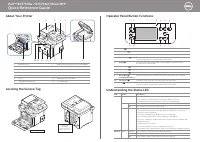
Using the printer control panel Use the To 1 Menus button Open the menus. Notes: • The menus are available only when the printer is in the Ready state. • Pressing the button while navigating within the menus returns the printer control panelto the top ‑ level menu screen. 2 Display View printing opt...
Page 12 - Using the Embedded Web Server
Understanding the colors of the Sleep button and indicatorlights The colors of the Sleep button and indicator lights on the printer control panel signify a certain printer status or condition. Indicator light Printer status Off The printer is off or in Hibernate mode. Blinking green The printer is w...
Page 13 - Using the Local Printer Settings Utility
Using the Local Printer Settings Utility 1 Access the Local Printer Settings Utility from the list of applications or the Start menu to adjust the printer settings. 2 Save the changes using the Actions menu. Note: To distribute the settings to other printers, save the settings in a command file. Lea...
Page 14 - Installing internal options; Available internal options; Memory cards; Accessing the controller board
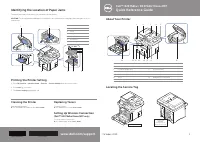
Additional printer setup Installing internal options CAUTION—SHOCK HAZARD: If you are accessing the controller board or installing optional hardware or memory devices sometime after setting up the printer, then turn the printer off, and unplug the power cordfrom the electrical outlet before continui...
Page 15 - Installing an optional card
Installing an optional card CAUTION—SHOCK HAZARD: If you are accessing the controller board or installing optional hardware or memory devices sometime after setting up the printer, then turn the printer off, and unplug the power cordfrom the electrical outlet before continuing. If you have other dev...
Page 17 - Installing hardware options; Installing optional trays
Warning—Potential Damage: Improper installation of the card may cause damage to the card and the controller board. Note: The entire length of the connector on the card must touch and be flushed against the controller board. 5 Close the controller board access door. Note: When the printer software an...
Page 18 - Attaching cables
6 Place the tray near the printer. 7 Align the printer with the tray, and then slowly lower the printer into place. 1 8 Connect the power cord to the printer, then to a properly grounded electrical outlet, and then turn on the printer. 2 1 Note: When the printer software and any hardware options are...
Page 19 - Setting up the printer software; Installing the printer; Installing the Local Printer Settings Utility
1 2 3 4 5 6 7 Use the To 1 USB port * Attach an optional wireless network adapter. 2 USB printer port Connect the printer to a computer. 3 Ethernet port * Connect the printer to a network. 4 Parallel port * Connect the printer to a computer. 5 Power switch Turn on or turn off the printer. 6 Printer ...
Page 20 - Adding available options in the print driver; For Windows users; Networking; Preparing to set up the printer on an Ethernet network
3 Select an installation type, and then click Install . 4 Click Install to start the installation. 5 Click Agree to accept the license agreement. 6 Click Continue , and then follow the instructions on the computer screen. Notes: • Use the Local Printer Settings Utility to change the toner darkness, ...
Page 21 - Preparing to set up the printer on a wireless network
• The network mask • A nickname for the printer (optional) Note: A printer nickname can make it easier for you to identify your printer on the network. You can choose to use the default printer nickname, or assign a name that is easier for you to remember. You will need an Ethernet cable to connect ...
Page 22 - Using the Push Button Configuration method
security information for your network, then see the documentation that came with the access point, or contactyour system support person. – To find the WPA/WPA2 preshared key/passphrase for the wireless network, see the documentation that camewith the access point, see the Web page associated with th...
Page 24 - Verifying printer setup; Printing a menu settings page
Connecting the printer to a wireless network using the Embedded Web Server Before you begin, make sure that: • Your printer is connected temporarily to an Ethernet network. • A wireless network adapter is installed in your printer and working properly. For more information, see theinstruction sheet ...
Page 25 - Printing a network setup page
Printing a network setup page If the printer is connected to a network, then print a network setup page to verify the network connection. This pagealso provides important information that aids network printing configuration. 1 From the printer control panel, navigate to: > Reports > > Netwo...
Page 26 - Loading paper and specialty media; Setting the paper size and type; Specify the paper height and width
Loading paper and specialty media The selection and handling of paper and specialty media can affect how reliably documents print. For more information,see “Avoiding jams” on page 97 and “Storing paper” on page 43 . Setting the paper size and type 1 From the printer control panel, navigate to: > ...
Page 32 - Loading the multipurpose feeder
Loading the multipurpose feeder Use the multipurpose feeder when printing on different paper sizes and types or specialty media, such as card stock,transparencies, and envelopes. You can also use it for single ‑ page print jobs on letterhead. 1 Open the multipurpose feeder. 1 2 a Pull the multipurpo...
Page 35 - Linking and unlinking trays
• Load letterhead faceup with the top edge entering the printer first. For two ‑ sided (duplex) printing, load letterhead facedown with the bottom edge entering the printer first. • Load envelopes with the flap on the left side facedown. Warning—Potential Damage: Never use envelopes with stamps, cla...
Page 36 - Using the printer settings on the computer; Configuring a custom paper type; Assigning a custom paper type
• If you are using a proxy server, then temporarily disable it to load the Web page correctly. 2 Click Settings > Paper Menu . 3 Change the tray settings to specify the paper size and type for the tray. • To link trays, make sure the paper size and type for the tray match with that of the other t...
Page 38 - Paper and specialty media guide; Paper guidelines; Paper characteristics; Weight
Paper and specialty media guide Paper guidelines Selecting the correct paper or specialty media reduces printing problems. For the best print quality, try a sample of thepaper or specialty media before buying large quantities. Paper characteristics The following paper characteristics affect print qu...
Page 39 - Fiber content; Unacceptable paper; Selecting preprinted forms and letterhead
For 60–90 ‑ g/m 2 (16–24 ‑ lb) bond paper, grain long paper is recommended. Fiber content Most high ‑ quality xerographic paper is made from 100% chemically treated pulped wood. This content provides the paper with a high degree of stability resulting in fewer paper feeding problems and better print...
Page 40 - Using recycled paper and other office papers; Unacceptable paper examples
Use papers printed with heat ‑ resistant inks designed for use in xerographic copiers. The ink must be able to withstand temperatures up to 230°C (446°F) without melting or releasing hazardous emissions. Use inks that are not affected bythe resin in toner. Inks that are oxidation ‑ set or oil ‑ base...
Page 41 - Using specialty media; Tips on using card stock
Using specialty media Tips on using card stock Card stock is heavy, single ‑ ply specialty media. Many of its variable characteristics, such as moisture content, thickness, and texture, can significantly impact print quality. Print samples on the card stock being considered for use beforebuying larg...
Page 42 - Tips on using transparencies
Tips on using labels Print samples on the labels being considered for use before buying large quantities. Note: Use only paper label sheets. Vinyl, pharmacy, and two ‑ sided labels are not supported. When printing on labels: • Use labels designed specifically for laser printers. Check with the manuf...
Page 43 - Storing paper; Supported paper sizes, types, and weights; Supported paper sizes
Storing paper Use these paper storage guidelines to help avoid jams and uneven print quality: • For best results, store paper where the temperature is 21°C (70°F) and the relative humidity is 40 percent. Mostlabel manufacturers recommend printing in a temperature range of 18–24°C (65–75°F) with rela...
Page 44 - Supported paper types and weights
Paper size Standard tray Optional 250 ‑ or 550 ‑ sheet tray Multipurpose feeder Duplex mode Folio 216 x 330 mm (8.5 x 13 in.) Statement 140 x 216 mm (5.5 x 8.5 in.) X Universal 1, 2 76.2 x 127 mm (3 x 5 in.) up to216 x 356 mm (8.5 x 14 in.) 7 3/4 Envelope (Monarch) 98 x 191 mm (3.9 x 7.5 in.) X X X ...
Page 46 - Printing; Printing a document; Adjusting toner darkness
Printing Printing a document Printing a document 1 From the Paper menu on the printer control panel, set the paper type and size to match the paper loaded. 2 Send the print job: For Windows users a With a document open, click File > Print . b Click Properties , Preferences , Options , or Setup . ...
Page 47 - Printing from a mobile device; Printing from a mobile device using AirPrint; Printing from a mobile device using Dell Mobile Print
Using the printer settings on the computer Depending on your operating system, adjust the toner darkness settings using the Local Printer Settings Utility orPrinter Settings. Using the printer control panel 1 From the printer control panel, navigate to: > Settings > > Print Settings > &g...
Page 48 - Printing information pages; Printing a font sample list; Canceling a print job; Canceling a print job from the printer control panel
3 Select the item to print. You can choose from the list of supported applications (such as Calendar, Contacts, Gallery, Google Docs, GMail,Internet, Messaging, Word Documents, Excel Documents, PowerPoint Documents, and PDF Documents). 4 From the print preview dialog, set the print and printer optio...
Page 49 - Understanding the printer menus; Menus list; Paper menu; Default Source menu
Understanding the printer menus Menus list Paper Menu Reports Network/Ports 3 Default Source Paper Size/TypeConfigure MP Substitute Size Paper Texture Paper Weight Paper Loading Custom Types Universal Setup Menu Settings Page Device Statistics Network Setup Page 1 Profiles ListPrint Fonts Print Dire...
Page 53 - Paper Texture menu
Configure MP menu Use To Configure MP CassetteManualFirst Determine when the printer selects paper from the multipurpose feeder. Notes: • Cassette is the factory default setting. Cassette configures themultipurpose feeder as the default paper source. • Manual sets the multipurpose feeder only for ma...
Page 55 - Paper Weight menu
Paper Weight menu Use To Plain Weight LightNormalHeavy Specify the relative weight of the plain paper loaded. Note: Normal is the factory default setting. Card Stock Weight LightNormalHeavy Specify the relative weight of the card stock loaded. Note: Normal is the factory default setting. Transparenc...
Page 56 - Paper Loading menu
Use To Colored Weight LightNormalHeavy Specify the relative weight of the colored paper loaded. Note: Normal is the factory default setting. Light Weight Light Specify that the weight of the paper loaded is light. Heavy Weight Heavy Specify that the weight of the paper loaded is heavy. Cotton/Rough ...
Page 57 - Custom Types menu; Universal Setup menu
Use To Light Loading DuplexOff Determine and set two ‑ sided printing for all print jobs that specify Light as the paper type. Heavy Loading DuplexOff Determine and set two ‑ sided printing for all print jobs that specify Heavy as the paper type. Custom [x] Loading DuplexOff Determine and set two ‑ ...
Page 58 - Reports menu
Use To Portrait Width 3–8.5 inches76–216 mm Set the portrait width. Notes: • If the width exceeds the maximum, then the printer uses themaximum width allowed. • 8.5 inches is the US factory default setting. You can increase thewidth in 0.01 ‑ inch increments. • 216 mm is the international factory de...
Page 59 - Active NIC menu
Use To Print Fonts PCL FontsPostScript Fonts Print a report of all the fonts available for the printer language currently set inthe printer. Note: A separate list is available for PCL and PostScript emulations. Print Directory Print a list of all the resources stored in an optional flash memory card...
Page 60 - Network Card menu
Use To NPA Mode OffAuto Set the printer to perform the special processing required for bidirectionalcommunication following the conventions defined by the NPA protocol. Notes: • Auto is the factory default setting. • Changing this setting from the printer control panel and then exiting themenus caus...
Page 62 - IPv6 menu
Use To Enable HTTP Server YesNo Enable the built-in Web server (Embedded Web Server). When enabled, the printercan be monitored and managed remotely using a Web browser. Note: Yes is the factory default setting. WINS Server Address View or change the current WINS server address. Enable DDNS YesNo Vi...
Page 63 - Wireless menu; AppleTalk menu
Use To Enable DHCPv6 OnOff Enable DHCPv6 in the printer. Note: On is the factory default setting. * These settings can be changed only from the Embedded Web Server. Wireless menu Note: This menu is available only in printers connected to a wireless network or printer models that have a wireless netw...
Page 64 - Standard USB menu
Use To View Address Show the assigned AppleTalk address. Note: The address can be changed only from the Embedded Web Server. Set Zone [list of zones available on the network] Provide a list of AppleTalk zones available on the network. Note: The factory default setting is the default zone for the net...
Page 65 - SMTP Setup menu
Use To USB Buffer DisabledAuto3K to [maximum size allowed] Set the size of the USB input buffer. Notes: • Auto is the factory default setting. • Disabled turns off job buffering. • The USB buffer size value can be changed in 1-KB increments. • The maximum size allowed depends on the amount of memory...
Page 66 - Security menu; Security Audit Log menu
Use To Use SSL DisabledNegotiateRequired Set the printer to use SSL for increased security when connecting to theSMTP server. Notes: • Disabled is the factory default setting. • When the Negotiate setting is used, the SMTP server determines ifSSL will be used. SMTP Server Authentication No authentic...
Page 67 - Set Date and Time menu
Use To Configure Log Enable Audit YesNo Enable Remote Syslog NoYes Remote Syslog Facility 0–23 Severity of events to log 0–7 Specify how and whether or not audit logs are created. Notes: • Enable Audit determines if events are recorded in the secure audit log andremote syslog. No is the factory defa...
Page 68 - Settings menu; General Settings menu
Settings menu General Settings menu Use To Display Language EnglishFrancaisDeutschItalianoEspanolDanskNorskNederlandsSvenskaPortugueseSuomiRussianPolskiGreekMagyarTurkceCeskySimplified ChineseTraditional ChineseKoreanJapanese Set the language of the text appearing on the display. Note: Not all langu...
Page 72 - Print Settings; Setup menu
Use To Custom Home Message OffIP AddressHostnameContact NameLocationZero Configuration NameCustom Text 1 Select a custom home message that appears as an alternatingdisplay of the printer status. Note: Off is the factory default setting. Print Settings Setup menu Use To Printer Language PCL Emulation...
Page 73 - Finishing menu
Use To Resource Save OnOff Specify how the printer handles temporary downloads, such asfonts and macros stored in the RAM, when the printer receives aprint job that requires more than the available memory. Notes: • Off is the factory default setting. Off sets the printer to retaindownloads only unti...
Page 75 - Quality menu
Quality menu Use To Print Resolution 300 dpi600 dpi1200 dpi1200 Image Q2400 Image Q Specify the printed output resolution in dots per inch. Note: 600 dpi is the factory default setting. Pixel Boost OffFontsHorizontallyVerticallyBoth directionsIsolated Enable more pixels to print in clusters for clar...
Page 77 - PCL Emul menu
Use To Font Priority ResidentFlash Establish the font search order. Notes: • Resident is the factory default setting. • This menu item is available only when a formatted flash memory card isinstalled and operating properly. • Make sure the flash memory card is not read/write ‑ , write ‑ , or passwor...
Page 80 - Saving money and the environment; Saving paper and toner; Conserving supplies; Use both sides of the paper; Saving energy; Using Eco
Saving money and the environment Saving paper and toner Studies show that as much as 80% of the carbon footprint of a printer is related to paper usage. You can significantlyreduce your carbon footprint by using recycled paper and the following printing suggestions, such as printing on bothsides of ...
Page 81 - Adjusting Sleep mode
Use To Off Use the factory default settings for all settings associated with Eco ‑ Mode. This setting supports the performance specifications for your printer. Energy Reduce energy use, especially when the printer is idle. • Printer engine motors do not start until a document is ready to print. You ...
Page 82 - Using Schedule Power Modes
Using Hibernate mode Hibernate is an ultra ‑ low ‑ power saving mode. Notes: • Three days is the default amount of time before the printer enters Hibernate mode. • Make sure to wake the printer from Hibernate mode before sending a print job. A hard reset or a long press ofthe Sleep button wakes the ...
Page 83 - Using the printer settings on the computer (Windows only); Recycling; Recycling Dell products
Notes: • Print a network setup page or menu settings page, and then locate the IP address in the TCP/IP section. TheIP address appears as four sets of numbers separated by periods, such as 123.123.123.123. • If you are using a proxy server, then temporarily disable it to load the Web page correctly....
Page 84 - Securing the printer; Using the security lock feature
Securing the printer Using the security lock feature The printer is equipped with a security lock feature. Attach a security lock compatible with most laptop computers inthe location shown to secure the printer in place. Statement of Volatility Your printer contains various types of memory that can ...
Page 85 - Finding printer security information
Erasing volatile memory The volatile memory (RAM) installed in your printer requires a power source to retain information. To erase the buffereddata, simply turn off the printer. Erasing non ‑ volatile memory 1 Turn off the printer. 2 From the printer control panel, hold down and the right arrow but...
Page 86 - Maintaining the printer; Cleaning the printer
Maintaining the printer Periodically, certain tasks are required to maintain the optimum performance of your printer. Warning—Potential Damage: Failure to replace parts and supplies when directed may cause damage to your printer or prevent the printer from performing optimally. Cleaning the printer ...
Page 87 - Ordering supplies using the Supplies Ordering Utility; Ordering supplies using Printer Home; Storing supplies
Estimated number of remaining pages The estimated number of remaining pages is based on the recent printing history of the printer. Its accuracy mayvary significantly and is dependent on many factors, such as actual document content, print quality settings, andother printer settings. The accuracy of...
Page 88 - Replacing supplies; Replacing the toner cartridge
Replacing supplies Replacing the toner cartridge 1 Press the button on the right side of the printer, and then open the front door. 2 Pull the toner cartridge out using the handle. 3 Unpack the toner cartridge, and then remove all packing materials. 4 Shake the new cartridge to redistribute the tone...
Page 89 - Replacing the imaging unit
5 Insert the toner cartridge into the printer by aligning the side rails of the cartridge with the arrows on the side railsinside the printer. Warning—Potential Damage: Do not expose the imaging unit to direct light for more than 10 minutes. Extended exposure to light may cause print quality problem...
Page 92 - Moving the printer; Before moving the printer; Moving the printer to another location
Moving the printer Before moving the printer CAUTION—POTENTIAL INJURY: Before moving the printer, follow these guidelines to avoid personal injury or printer damage: • Turn the printer off using the power switch, and then unplug the power cord from the electrical outlet. • Disconnect all cords and c...
Page 93 - Managing the printer; Managing printer messages; Disabling Status Messenger; Enabling Status Messenger; Accessing Status Monitor Center
Managing the printer Managing printer messages Use the Status Messenger application to view error messages requiring your intervention on your printer. When thereis an error, a bubble appears telling you what the error is, and points you to the appropriate recovery information. If you installed Stat...
Page 94 - Viewing reports
• If you are using a proxy server, then temporarily disable it to load the Web page correctly. 2 Press Enter to open the Web page of your printer. 3 Click Applications . Note: The remote control panel requires a Java plug ‑ in to launch. Viewing reports You can view some reports from the Embedded We...
Page 95 - Copying printer settings to other printers
Notification Description Off The normal printer behavior for all supplies occurs. E ‑ mail Only The printer generates an e-mail when the supply condition is reached. The status of thesupply will appear on the menus page and status page. Warning The printer displays the warning message and generates ...
Page 96 - Creating a printer control panel PIN
> Settings > > General Settings > > Factory Defaults > > Restore Now > Creating a printer control panel PIN The Panel PIN Protect menu lets you restrict access to the menus from the printer control panel. To restrict access tothe menus, create a Personal Identification Number...
Page 97 - Clearing jams; Avoiding jams; Load paper properly
Clearing jams Carefully select paper and specialty media and load them properly to avoid most jams. If jams do occur, then followthe steps outlined in this chapter. Note: Jam Recovery is set to Auto by default. The printer reprints jammed pages unless the memory required to hold the pages is needed ...
Page 98 - Use recommended paper; Understanding jam messages and locations
Use recommended paper • Use only recommended paper or specialty media. • Do not load wrinkled, creased, damp, bent, or curled paper. • Flex, fan, and straighten paper before loading it. • Do not use paper that has been cut or trimmed by hand. • Do not mix paper sizes, weights, or types in the same t...
Page 108 - Troubleshooting; Understanding the printer messages
Troubleshooting Understanding the printer messages Bin full. Remove paper. Remove the paper stack from the standard bin. Cannot collate large document [37] Try one or more of the following: • From the printer control panel, press to print the portion of the job already stored and begin collating the...
Page 109 - Close front door
Change [paper source] to [custom type name]. Load [orientation]. Try one or more of the following: • Load the correct size and type of paper in the tray, and then press on the printer control panel. Note: Make sure the paper size and type settings are specified in the Paper menu on the printer contr...
Page 113 - Non
Memory full [38] Try one or more of the following: • From the printer control panel, press to clear the message. • Decrease the resolution setting. • Install additional printer memory. Memory low, no Resource Save [35] Try one or more of the following: • From the printer control panel, press to disa...
Page 116 - Solving printer problems; Basic printer problems; The printer is not responding
Replace unsupported imaging unit [32.xy] Remove the imaging unit, and then install a supported one to clear the message and continue printing. For moreinformation, see the instruction sheet that came with the supply or see the “Replacing supplies” section of the User’s Guide . Note: If you do not ha...
Page 118 - Printer display is blank; Option problems; Cannot detect internal option
Action Yes No Step 11 Check the installed printer driver. Is the correct printer driver installed? Go to step 12. Install the correctprinter driver. Step 12 Turn off the printer, then wait for about 10 seconds, and then turn theprinter back on. Is the printer working? The problem is solved. Contact ...
Page 119 - Tray problems
Action Yes No Step 3 Print a menu settings page, and then check to see if the internal option islisted in the Installed Features list. Is the internal option listed in the menu settings page? Go to step 4. Reinstall the internaloption. Step 4 a Check if the internal option is selected. It may be nec...
Page 120 - Paper feed problems; Paper frequently jams
Action Yes No Step 4 Check if the tray is available in the printer driver. Note: If necessary, manually add the tray in the printer driver to make it available for print jobs. For more information, see “Adding available options in the print driver” on page 20 . Is the tray available in the printer d...
Page 121 - Paper jam message remains after jam is cleared; Jammed pages are not reprinted
Action Yes No Step 3 a Review the tips on avoiding jams. For more information, see “Avoiding jams” on page 97 . b Follow the recommendations, and then resend the print job. Do paper jams still occur frequently? Contact technical support . The problem is solved. Paper jam message remains after jam is...
Page 122 - Solving print problems; Printing problems; Print jobs do not print
Solving print problems Printing problems Print jobs do not print Action Yes No Step 1 a From the document you are trying to print, open the Print dialog andcheck if you have selected the correct printer. Note: If the printer is not the default printer, then you must select the printer for each docum...
Page 123 - Printing slows down; Print job takes longer than expected
Action Yes No Step 6 a Remove, and then reinstall the printer software. For moreinformation, see “Installing the printer” on page 19 . Note: For more information, visit www.dell.com/support/printers . b Resend the print job. Do the jobs print? The problem is solved. Contact technical support . Print...
Page 124 - Job prints from the wrong tray or on the wrong paper
Action Yes No Step 3 Change the environmental settings. From the printer control panel, navigate to: > Settings > > General Settings > > Eco ‑ Mode > select a setting > Note: When using the Eco-Mode setting, you may notice a reduction in performance. Does the print job still tak...
Page 125 - Incorrect characters print; Tray linking does not work; Large jobs do not collate
Incorrect characters print Action Yes No Step 1 Make sure the printer is not in Hex Trace mode. Note: If Ready Hex appears on the printer display, then turn off the printer, and then turn it back on to deactivate Hex Trace mode. Is the printer in Hex Trace mode? Deactivate Hex Tracemode. Go to step ...
Page 126 - Unexpected page breaks occur; Print quality problems; Characters have jagged or uneven edges
Action Yes No Step 3 Reduce the complexity of the print job by eliminating the number and sizeof fonts, the number and complexity of images, and the number of pagesin the job. Did the job print and collate correctly? The problem is solved. Contact technical support . Unexpected page breaks occur Act...
Page 127 - Printer is printing blank pages
Action Yes No Step 1 a Print a font sample list to check if the fonts you are using are supportedby the printer. 1 From the printer control panel, navigate to: > Reports > > Print Fonts > 2 Press the arrow buttons until PCL Fonts or PostScript Fonts appears, and then press . b Use a font...
Page 128 - Clipped pages or images
Action Yes No Step 1 a Check if there is packing material left on the imaging unit. 1 Remove the toner cartridge, and then the imaging unit. 2 Check if the packing material is properly removed from the imagingunit. Warning—Potential Damage: Do not expose the imaging unit to direct light for more tha...
Page 129 - Shadow images appear on prints
Action Yes No Step 1 a Move the width and length guides in the tray to the correct positionsfor the paper loaded. b Resend the print job. Is the page or image clipped? Go to step 2. The problem is solved. Step 2 From the printer control panel, set the paper size and type in the Papermenu to match th...
Page 130 - Gray background on prints; ABCDE
Action Yes No Step 1 Load paper with the correct paper type and weight in the tray. Is paper with the correct paper type and weight loaded in the tray? Go to step 2. Load paper with thecorrect paper type andweight in the tray. Step 2 From the printer control panel, set the paper type and weight in t...
Page 131 - Incorrect margins on prints; A B C D
Action Yes No Step 2 Reinstall the imaging unit and the toner cartridge. a Remove the toner cartridge. b Remove the imaging unit. Warning—Potential Damage: Do not expose the imaging unit to direct light for more than 10 minutes. Extended exposure to lightcan cause print quality problems. c Install t...
Page 132 - Paper curl
Action Yes No Step 3 a Depending on your operating system, specify the paper size fromPrinting Preferences or from the Print dialog. b Resend the print job. Are the margins correct? The problem is solved. Contact technical support . Paper curl Action Yes No Step 1 Move the width and length guides in...
Page 133 - Print irregularities
Print irregularities ) ) ABCDE ABCDE ABCDE Leading edge Trailing edge Action Yes No Step 1 a Move the width and length guides in the tray to the correct positionsfor the size of the paper loaded in the tray. b Resend the print job. Do print irregularities still appear? Go to step 2. The problem is s...
Page 134 - Repeating defects appear on prints; Print is too dark
Repeating defects appear on prints Action Yes No Step 1 Measure the distance between the defects. Check for a distance between the defects that equals: • 97 mm (3.82 in.) • 47 mm (1.85 in.) • 38 mm (1.5 in.) Is the distance between defects equal to one of the listed measurements? Go to step 2. 1 Che...
Page 136 - Print is too light
Print is too light Action Yes No Step 1 a From the Quality menu on the printer control panel, increase the tonerdarkness. Note: 8 is the factory default setting. b Resend the print job. Is the print still too light? Go to step 2. The problem is solved. Step 2 From the printer control panel, set the ...
Page 137 - Skewed print
Action Yes No Step 6 a Redistribute the toner in the imaging unit. 1 Remove the toner cartridge, and then the imaging unit. 2 Firmly shake the imaging unit. Warning—Potential Damage: Do not expose the imaging unit to direct light for more than 10 minutes. Extended exposure tolight may cause print qu...
Page 138 - Printer is printing solid black pages; Transparency print quality is poor
Printer is printing solid black pages Action Yes No Step 1 a Reinstall the imaging unit. 1 Remove the toner cartridge, and then the imaging unit. Warning—Potential Damage: Do not expose the imaging unit to direct light for more than 10 minutes. Extended exposure tolight may cause print quality probl...
Page 139 - Streaked horizontal lines appear on prints
Streaked horizontal lines appear on prints ABCDEABCDEABCDE Action Yes No Step 1 a Depending on your operating system, specify the tray or feeder fromPrinting Preferences or the Print dialog. b Resend the print job. Do streaked horizontal lines appear on prints? Go to step 2. The problem is solved. S...
Page 140 - Streaked vertical lines appear on prints
Streaked vertical lines appear on prints ABCDEABCDEABCDE Leading edge Trailing edge Action Yes No Step 1 a Depending on your operating system, specify the paper type, texture,and weight from Printing Preferences or from the Print dialog. b Resend the print job. Do streaked vertical lines appear on p...
Page 141 - Horizontal voids appear on prints
Action Yes No Step 5 Replace the imaging unit, and then resend the print job. Do streaked vertical lines appear on prints? Contact technical support or your Dell printer dealer. The problem is solved. Horizontal voids appear on prints Leading edge Trailing edge Action Yes No Step 1 a Make sure your ...
Page 142 - Vertical voids appear on prints
Vertical voids appear on prints Leading edge Trailing edge Action Yes No Step 1 a Make sure your software program is using a correct fill pattern. b Resend the print job. Do vertical voids appear on prints? Go to step 2. The problem is solved. Step 2 a From the printer control panel, set the paper t...
Page 143 - ABC; Uneven print density
Toner specks appear on prints Action Yes No Replace the imaging unit, and then resend the print job. Do toner specks appear on prints? Contact technical support . The problem is solved. Toner rubs off Leading edge Trailing edge ABC DEF Action Yes No Step 1 From the Paper menu on the printer control ...
Page 144 - Embedded Web Server does not open
Embedded Web Server does not open Action Yes No Step 1 a Turn on the printer. b Open a Web browser, and then type the printer IP address. c Press Enter . Does the Embedded Web Server open? The problem is solved. Go to step 2. Step 2 Make sure the printer IP address is correct. a View the printer IP ...
Page 145 - Contacting technical support
Action Yes No Step 5 Temporarily disable the Web proxy servers. Proxy servers may block or restrict you from accessing certain Websites including the Embedded Web Server. Does the Embedded Web Server open? The problem is solved. Contact your system support person. Contacting technical support When y...
Page 146 - Appendix; Dell Technical Support Policy
Appendix Dell Technical Support Policy Technician ‑ assisted technical support requires the cooperation and participation of the customer in the troubleshooting process and provides for restoration of the Operating System, application software and hardware drivers to the originaldefault configuratio...
Page 147 - Warranty and Return Policy
Warranty and Return Policy Dell Inc. (“Dell”) manufactures its hardware products from parts and components that are new or equivalent to newin accordance with industry ‑ standard practices. For information about the Dell warranty for your printer, refer to the Product Information Guide . Appendix 14...
Page 148 - Index
Index A accessing Status Monitor Center 93accessing the controller board 14accessing the remote control panel Embedded Web Server 93 Active NIC menu 59adding hardware options print driver 20 adjusting Sleep mode 81adjusting toner darkness 46AirPrint using 47 AppleTalk menu 63assigning custom paper t...


 Dell B1260dn Manual
 Dell B1265dfw User Manual
 Dell B2375dfw Manual
 Dell B2375dnf Manual
 Dell B3460dn Manual
 Dell B3465DNF Manual
 Dell B5460DN Manual
 Dell B5465dnf Troubleshooting Guide